




















































When visiting a site or browsing the internet, there is a strong likelihood that you may experience different issues. These various issues include the DNS_PROBE_STARTED error.
When your computer cannot connect to the DNS (Domain Name System), you will see the DNS_PROBE_STARTED error message on your screen. However, you should not worry as this DNS-related issue is easily fixable, provided you can apply several troubleshooting methods in the desired manner.
This blog post will let you fix DNS_PROBE_STARTED error by explaining this DNS-specific issue. It will also explain its various causes and describe different potential solutions.
What Do You Mean By DNS_PROBE_STARTED Error?
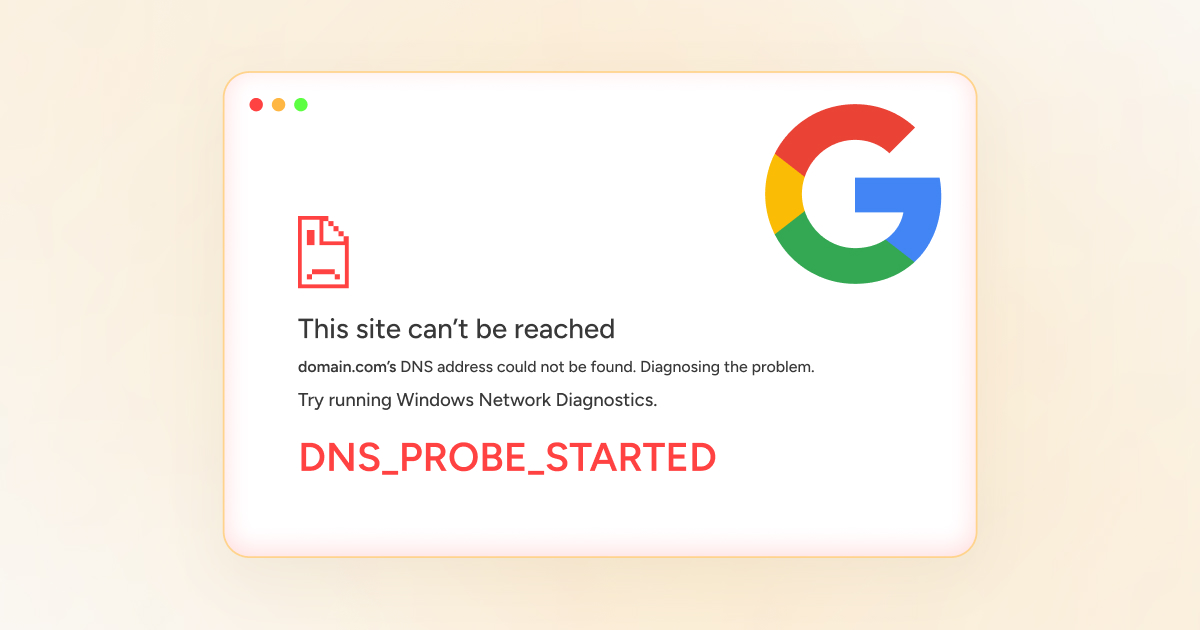
If you do not know about the DNS_PROBE_STARTED error, let us explain it. This error usually occurs when the computer cannot connect to the DNS (Domain Name System). In other words, the DNS or network has some issues that cause the DNS_PROBE_STARTED error.
In this situation, you should check your computer or DNS (Domain Name System) to resolve this issue.
What Do You Mean By DNS?
DNS (Domain Name System) is known as the internet’s phonebook. It allows users to connect to sites through simple domain names. They don’t need to remember complicated IP addresses. A DNS probe helps examine the accessibility of an IP address or a hostname.
Several types of DNS-related errors can happen, such as DNS_PROBE_FINISHED_NXDOMAIN, etc.
Different Causes of the DNS_PROBE_STARTED Error Message

As you know, various causes can result in the DNS_PROBE_STARTED error, including:
- Internet Connection Issues.
- Improper DNS Settings.
- Browser Issues.
- Firewall or Antivirus Software.
Internet Connection Issues
Sometimes, issues with an internet connection can cause DNS-related errors like the DNS_PROBE_STARTED. Your computer cannot communicate with the DNS server due to a faulty internet connection. Therefore, you must sort out the problems associated with your internet connection and resolve them immediately.
Improper DNS Settings
Incorrect DNS settings can be one of the primary reasons behind this DNS-related error. Hence, check your DNS settings to verify they are correctly configured. This will allow you to remove the DNS_PROBE_STARTED error.
Browser Issues
Cache and cookies problems can trigger the DNS_PROBE_STARTED error, so you must clear the browser cache and cookies to see if the issue persists. Hopefully, fixing browser issues will help bypass the DNS_PROBE_STARTED error.
Firewall or Antivirus Software
Your firewall or antivirus software can negatively affect your computer’s ability to access the internet. Thus, you will likely experience the DNS_PROBE_STARTED error.
What Should We Do to Fix DNS_PROBE_STARTED Error?
Resolving the DNS_PROBE_STARTED error becomes easy once you have understood this DNS-related issue appropriately. Fortunately, you can use multiple troubleshooting methods when bypassing this error, including:
- Change Your IPv4/IPv6 DNS Address.
- Refresh Your DNS.
- Clear Your Browser Cache and Cookies.
- Deactivate Antivirus and Firewall.
- Restart Your Router/Modem.
Change Your IPv4/IPv6 DNS Address
You can change your IPv4/IPv6 address before trying any other method to see if it resolves the issue. To change the IPv4/IPv6 address, follow the below steps:
- Through the Control Panel, click Network & Internet > Network and Sharing Center. Choose Change adapter settings to access Network Connections. At this point, you should right-click the network and then choose Properties.
- A new window will open, click Internet Protocol Version 4 (TCP/IPv4) and select Properties.
- Click Use the following DNS server addresses. Additionally, enter “8.8.8.8” for the Preferred DNS server. Enter “8.8.4.4” for the Alternate DNS server.
Press the OK button to save all the changes. You must close all windows and access the site to confirm whether the error has disappeared.
Refresh Your DNS
DNS caching is when your browser/OS stores the recent IP addresses in a database. But, if the database is outdated for any reason, it can result in network connectivity problems and may trigger the DNS_PROBE_STARTED error.
Hence, the next step you must take is to refresh your DNS. To do this, follow the below steps:
- Click the Windows key + R, write “cmd” using the Run box, and hit Enter.
- Write the following command in the command prompt window:
ipconfig/flushdns
Click the Enter key to remove incorrect DNS entries from the computer’s cache. Now, write the below command:
ipconfig/renew
The above command helps renew the computer’s IP address. At this point, write the below command:
ipconifg/registerdns
You should press Enter to execute the command. This way, your computer’s DNS settings will be registered with your ISP (Internet Service Provider). Write “exit” and hit enter to close the command prompt.
We hope that you will fix DNS_PROBE_STARTED error by flushing the DNS.
Clear Your Browser Cache and Cookies
Clearing the browser cache and cookies helps bypass the DNS_PROBE_STARTED error. To clear the browser cache and cookies, here is what you should do:
- Press the three dots at the browser’s top-right corner to access the settings panel. Click the “Delete browsing data” option.
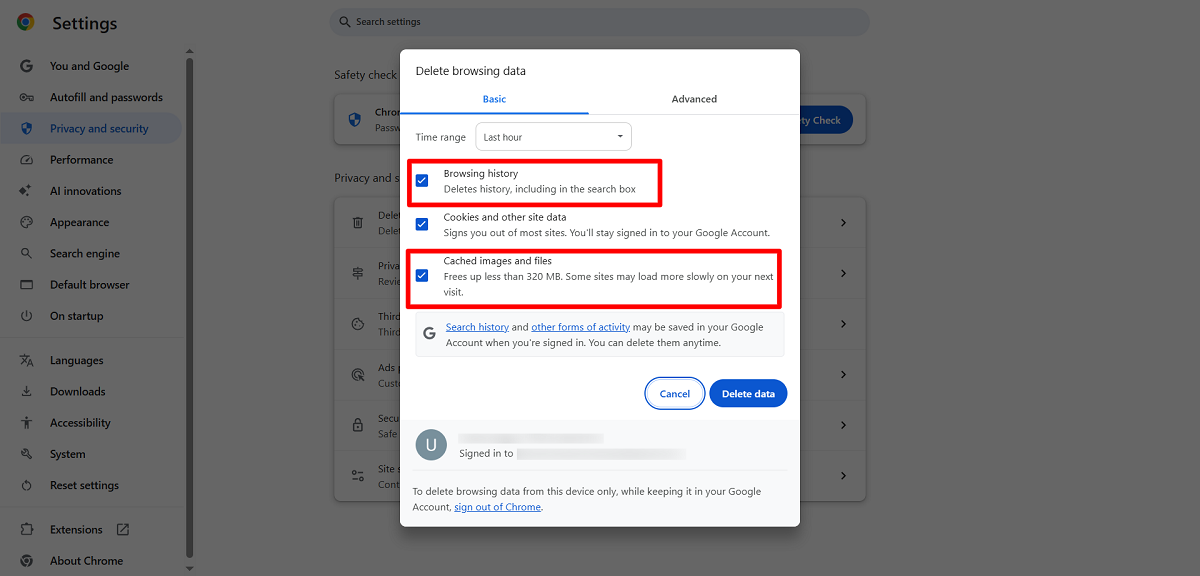
- Select other options such as Cookies and other site data, Browsing history, Cookies and Cached Images. Press the “Delete data” option to overcome the ERR_BLOCKED_BY_RESPONSE error.
- You can clear advanced data by pressing the “Advanced” data tab.
- You can choose options such as Download history, Cookies and other site data, browsing history and cached images and files.
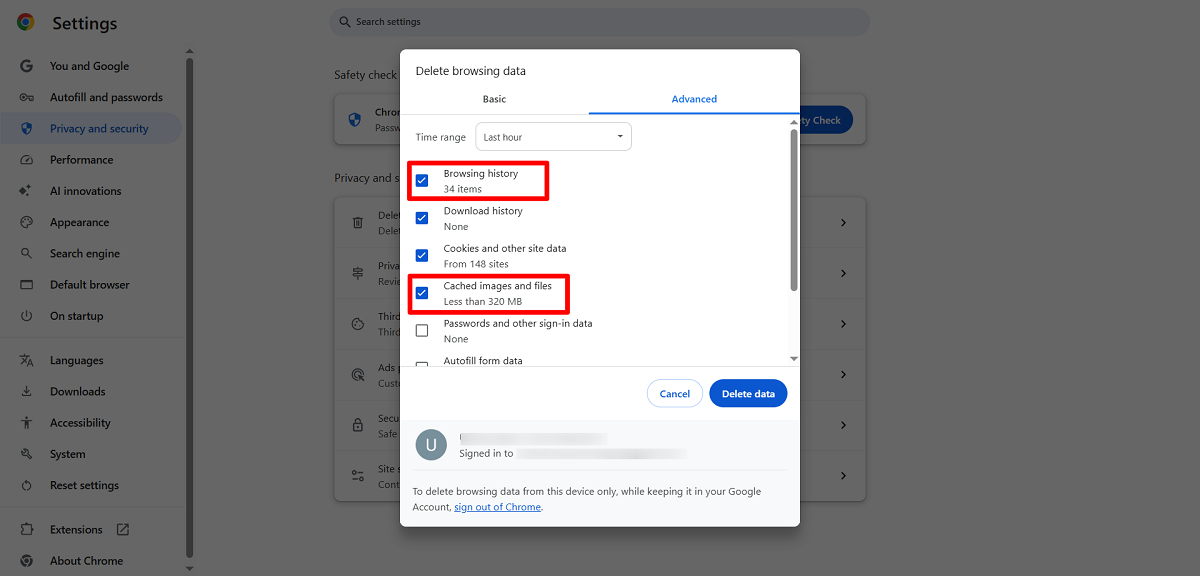
Once you hit the Delete data option, you will likely eliminate the DNS_PROBE_STARTED error. Likewise, this potential solution allows users to eliminate the 429 too many requests error.
Deactivate Antivirus and Firewall
Luckily, deactivating the antivirus and firewall software can help you avoid the DNS_PROBE_STARTED error. Follow the below steps to do this on the Windows device:
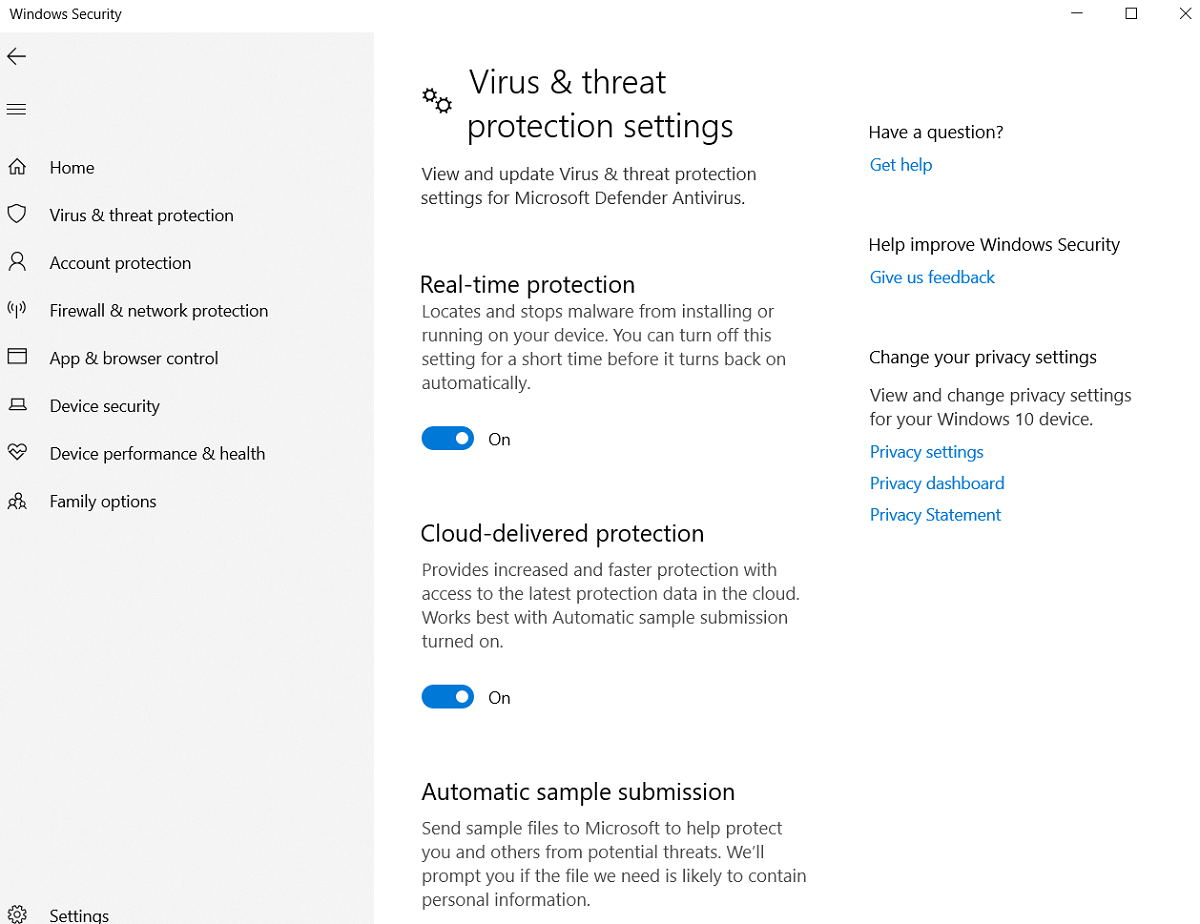
- Go to Settings > Update & Security.
- Press Windows Security > Virus & Threat Protection.
- Choose Manage Settings > Turn Off Real Protection.
- Click the Firewall & network protection option > domain, private, and public networks.
- Deactivate Microsoft Defender Firewall.
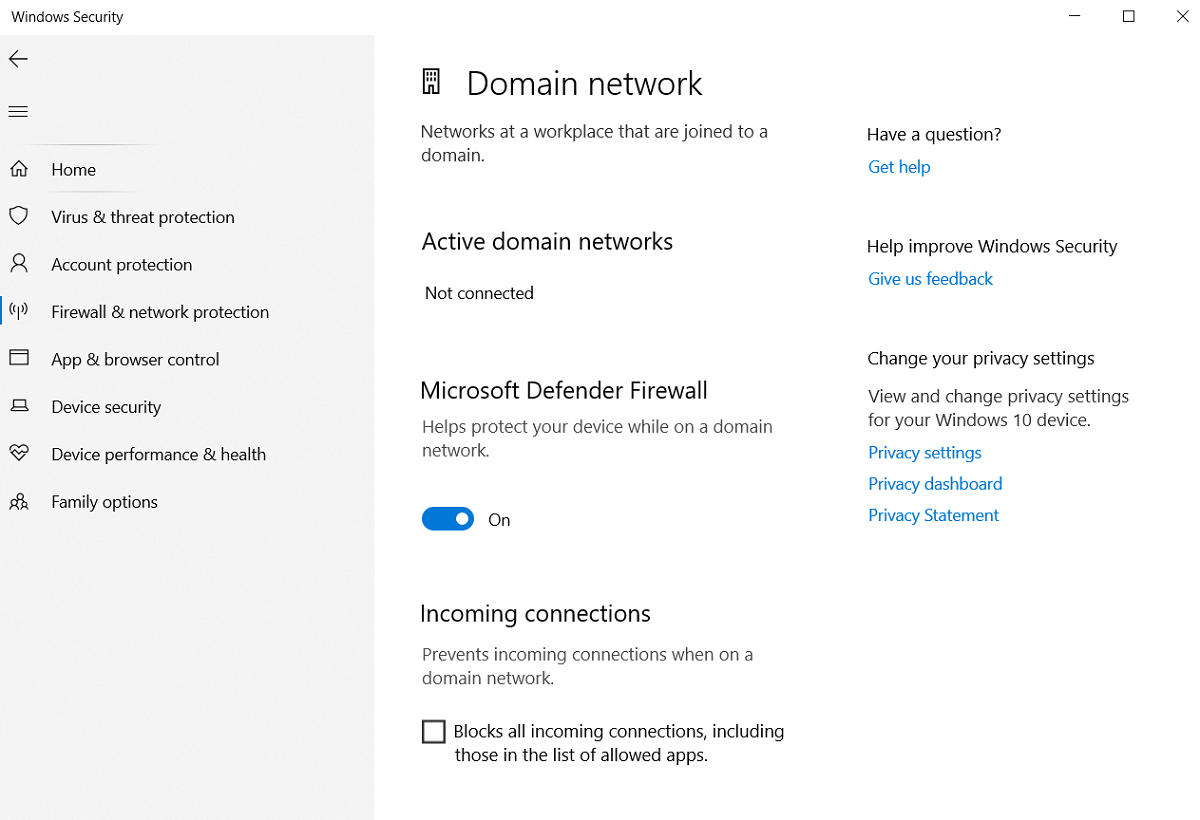
Remember to turn on firewalls and antiviruses again once you have resolved the DNS_PROBE_STARTED error. This will help you safeguard your devices from several security risks.
Restart Your Router/Modem
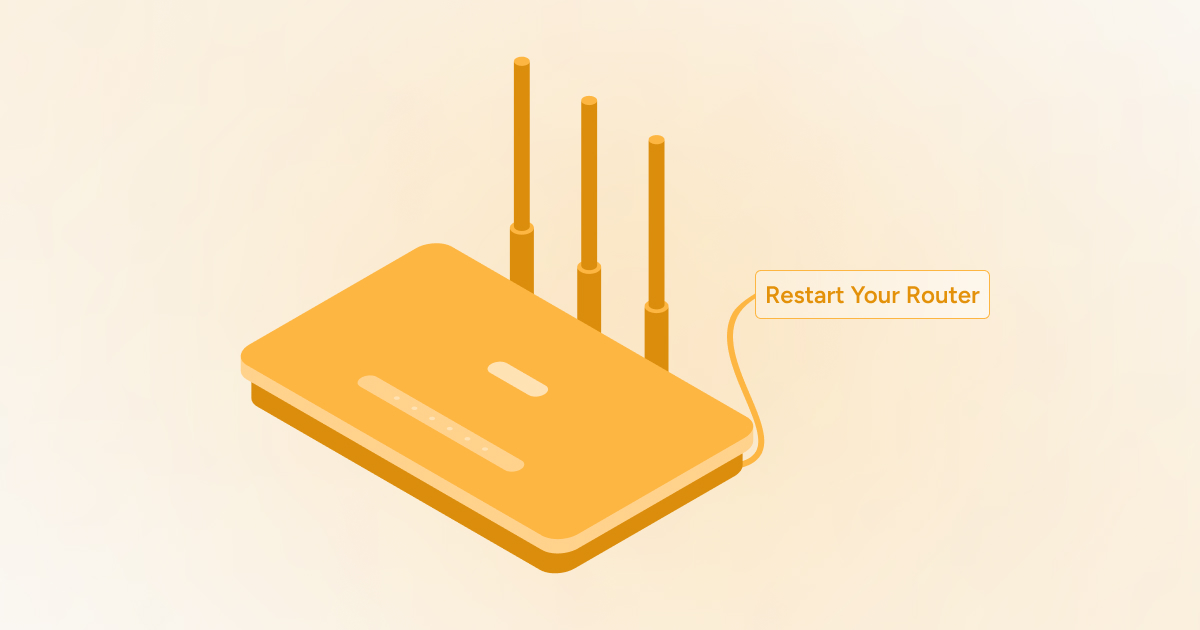
Restarting the router or modem can help you eliminate the DNS_PROBE_STARTED error. You can reset the connection between computers and DNS servers once you restart routers or modems.
Once you have turned off your computer and router/modem, unplug them from the sockets. Now, you must wait a few minutes and restart your router or modem. Likewise, you must turn on your computer.
Wrapping Up
There is no denying that experiencing DNS issues is painful if you do not know their primary causes. Fortunately, you can use multiple troubleshooting methods that help you bypass the DNS_PROBE_STRATED error.
You can try the other method if any method does not provide you with the desired outcome. In short, you will likely fix DNS_PROBE_STARTED error by following the above possible workarounds. The good thing about these methods is that they all are easily followable and effective, allowing you to bypass this DNS-related error.





