









































 Usman Hayat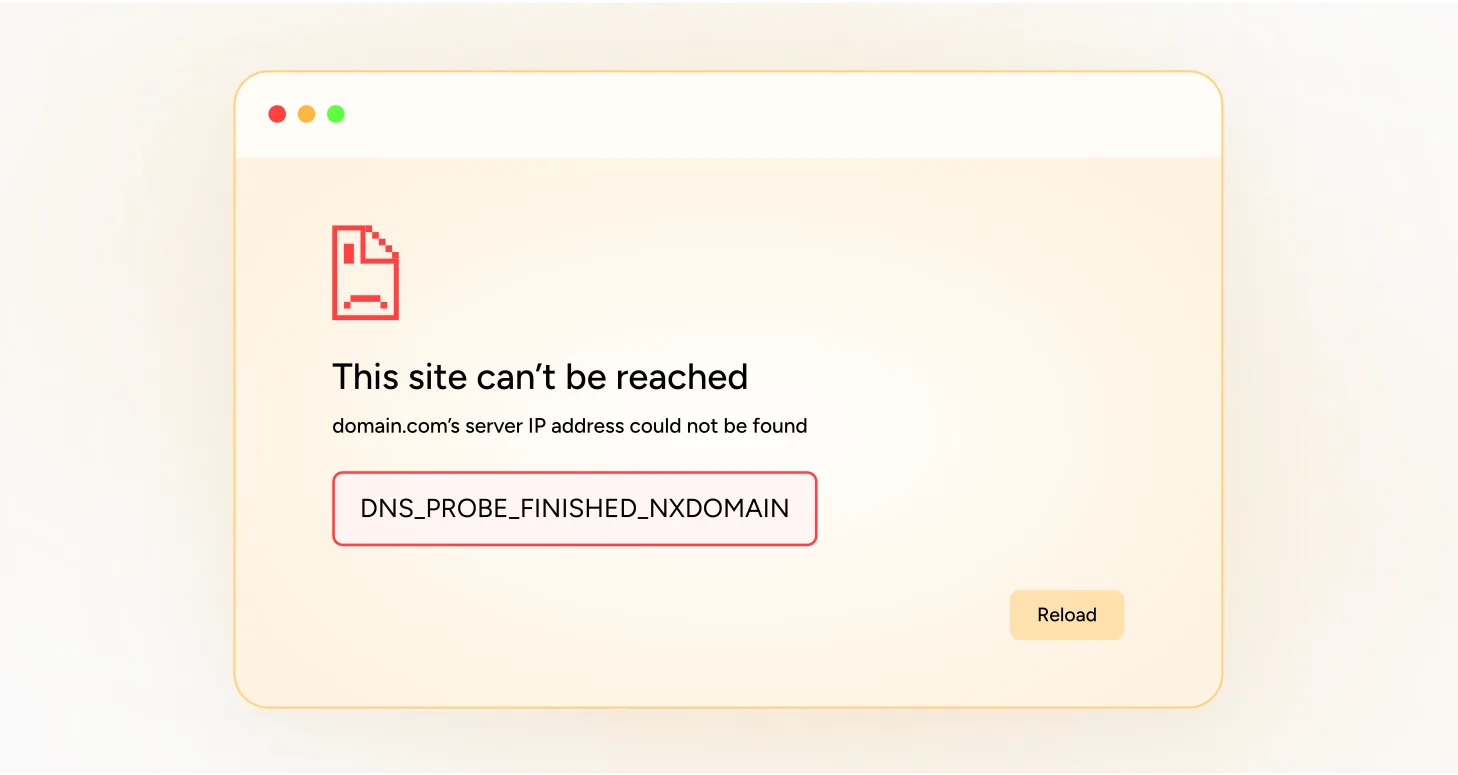
Users often encounter a common DNS error when browsing a web page: ‘The site can’t be reached—Server IP address could not be found alongside DNS_PROBE_FINISHED_NXDOMAIN error. Different reasons can cause this issue, including incorrect website names typed into the search bar by the user, an internet connection error, a firewall blocking access to a site, antivirus conflicts with the network settings, the domain not registered or expired, and more.
If you encounter this issue when accessing your website, this blog post will help you eliminate the DNS Probe Finished NXDomain error.
What Do You Mean By the DNS_PROBE_FINISHED_NXDOMAIN Error?
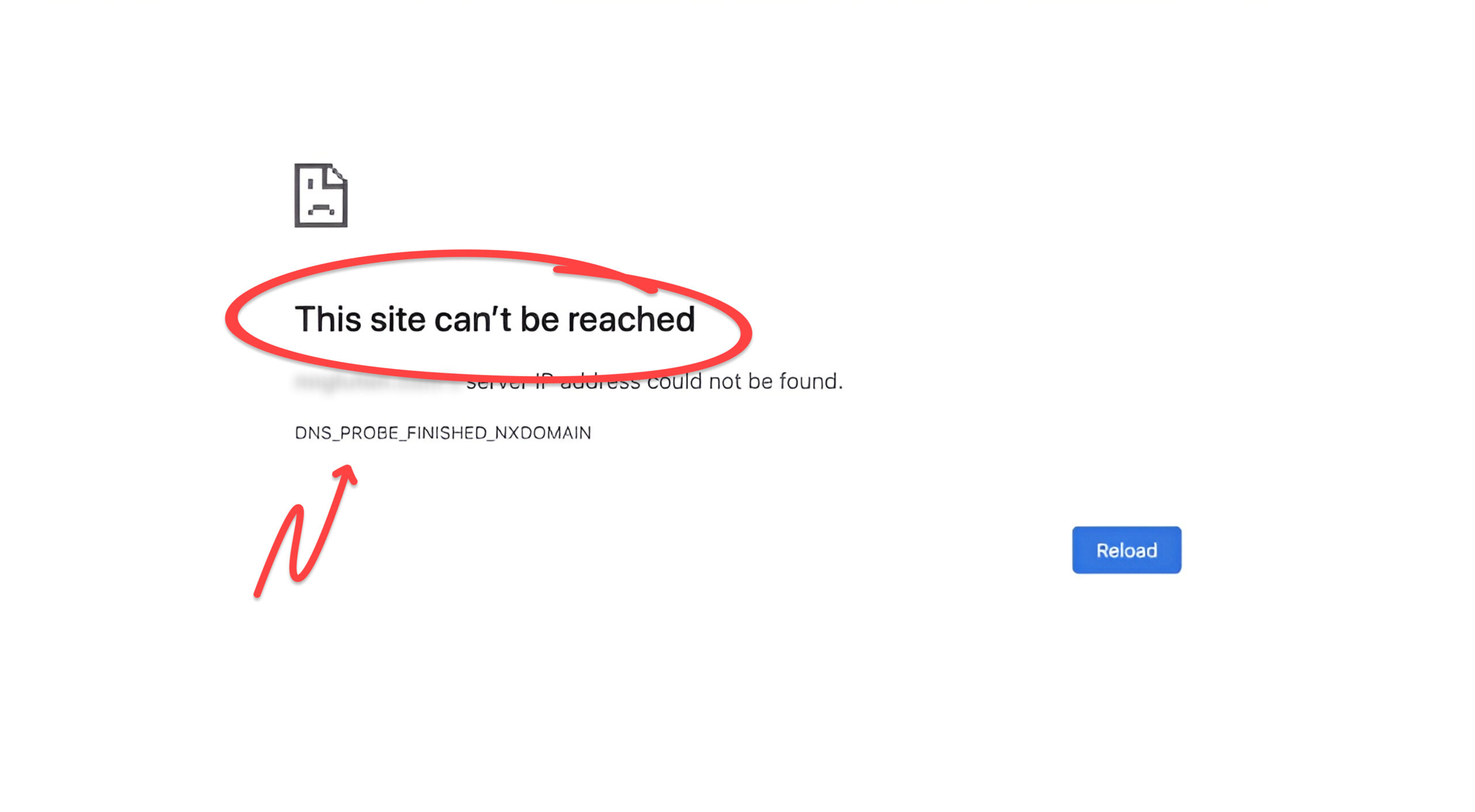
The DNS_PROBE_FINISHED_NXDOMAIN error is a client-side DNS error that occurs when the Domain Name System (DNS) fails to resolve a domain name or address. It also happens when the DNS fails to connect domain names to web servers. The NXDOMAIN error occurs when a domain does not exist.
Understanding the DNS_probe_finished_nxdomain error will help you comprehend the client-side DNS issue.
Possible Causes Behind This DNS_probe_finished_nxdomain Error
This client-side DNS error can happen due to various reasons:
- Firewalls block access.
- Issue with the internet connection.
- The server is unresponsive.
- DNS has not yet been propagated.
Possible DNS_PROBE_FINISHED_NXDOMAIN Error Variations
Users can see different variations of this client-side DNS issue, such as:
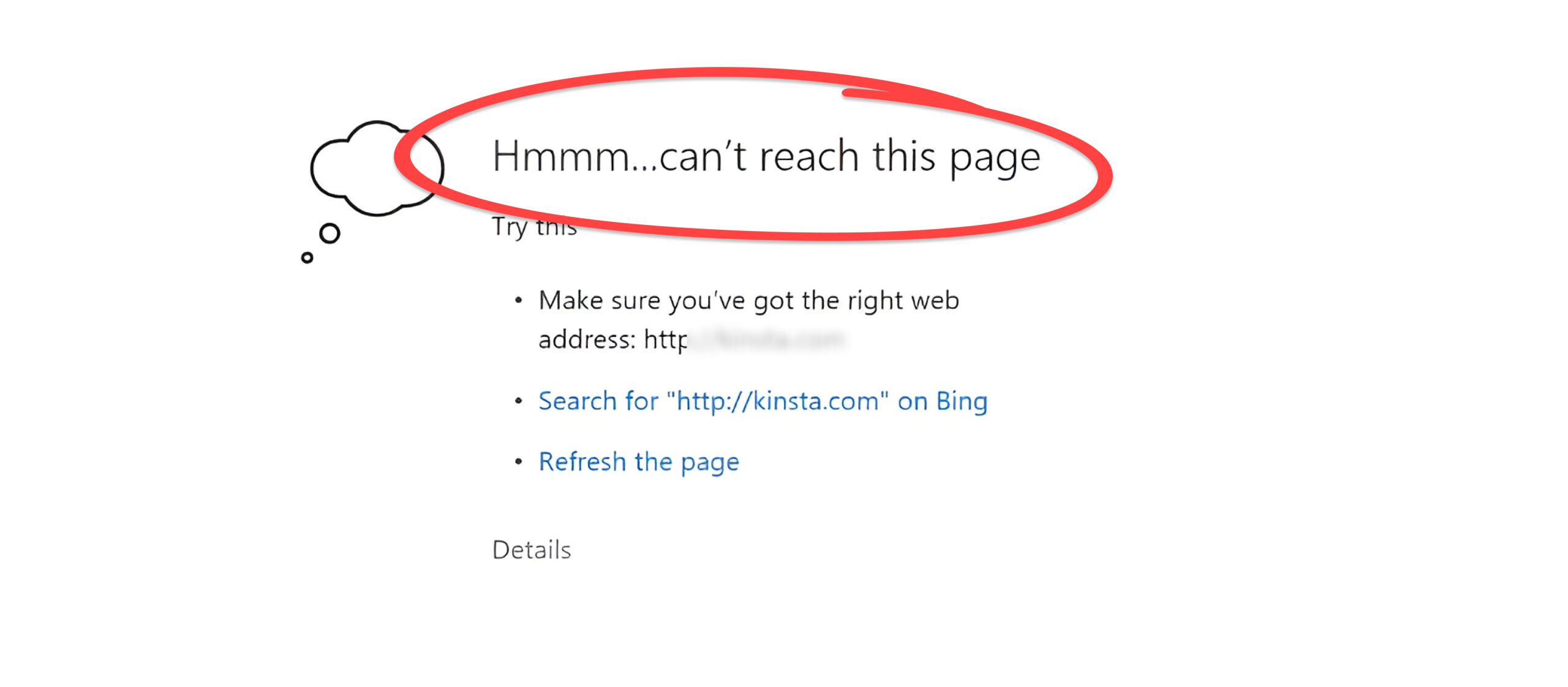
- Hmmm… can’t reach this page.
- Safari Can’t Find the Server.
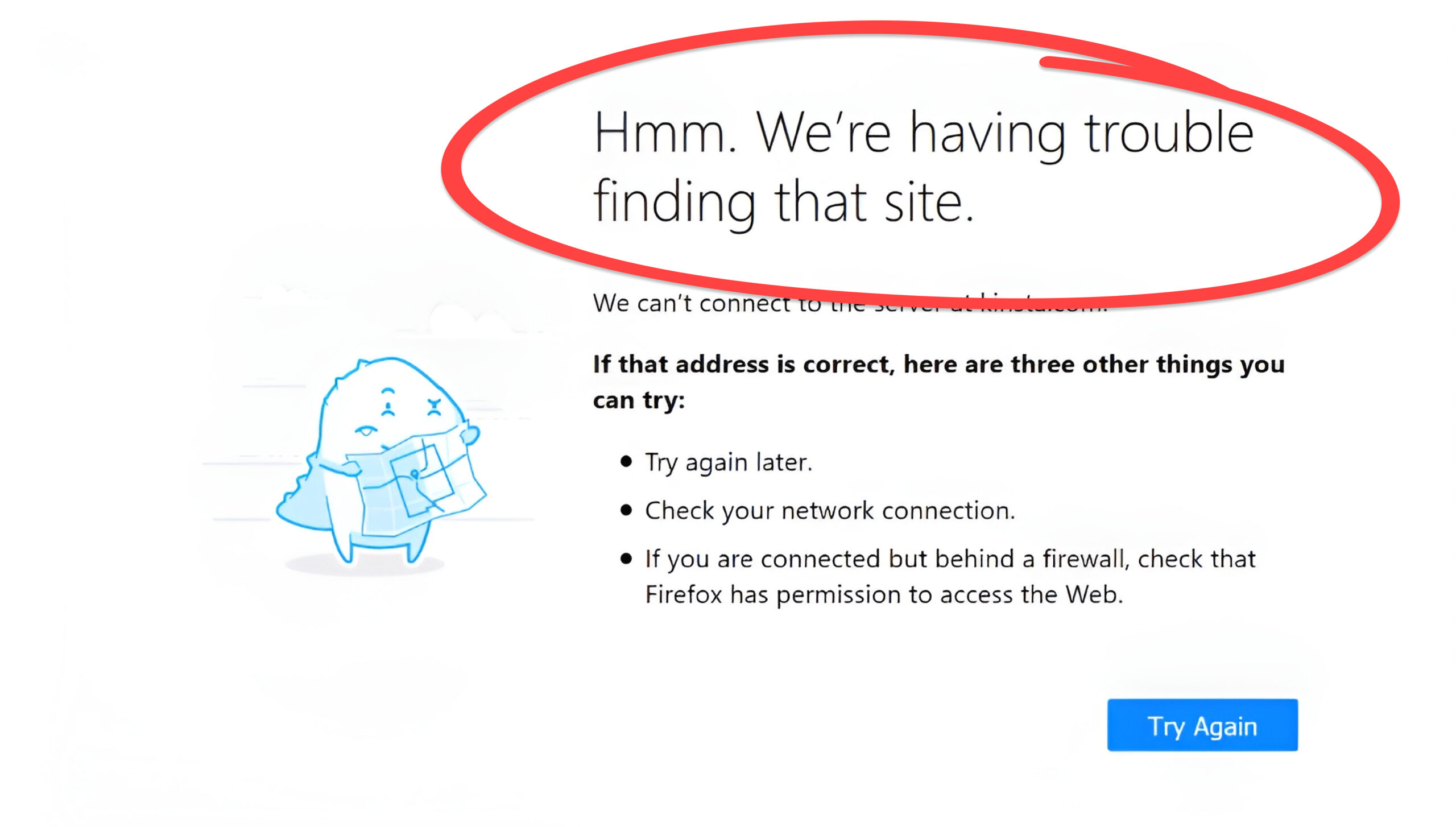
- We’re having trouble finding that site.
- This site can’t be reached.
How to Fix DNS PROBE FINISHED NXDOMAIN Error?
When resolving the DNS_PROBE_FINISHED_NXDOMAIN error, you can try various possible solutions. These potential solutions or troubleshooting methods are:
- Restart Your Computer
- Check Your Local Hosts File
- Check Your DNS Servers
- Reset Chrome Flags
- Deactivate Antivirus Temporarily
- Flush the DNS Cache
- Restart the DNS Client Service
- Recheck the URL
- Restart Chrome
- Search the Website on the Search Engine
- Reboot the Router
- Release and Renew Your IP Address
- Deactivate VPN and Antivirus
- Examine DNS Issues on Your Site
1. Restart Your Computer
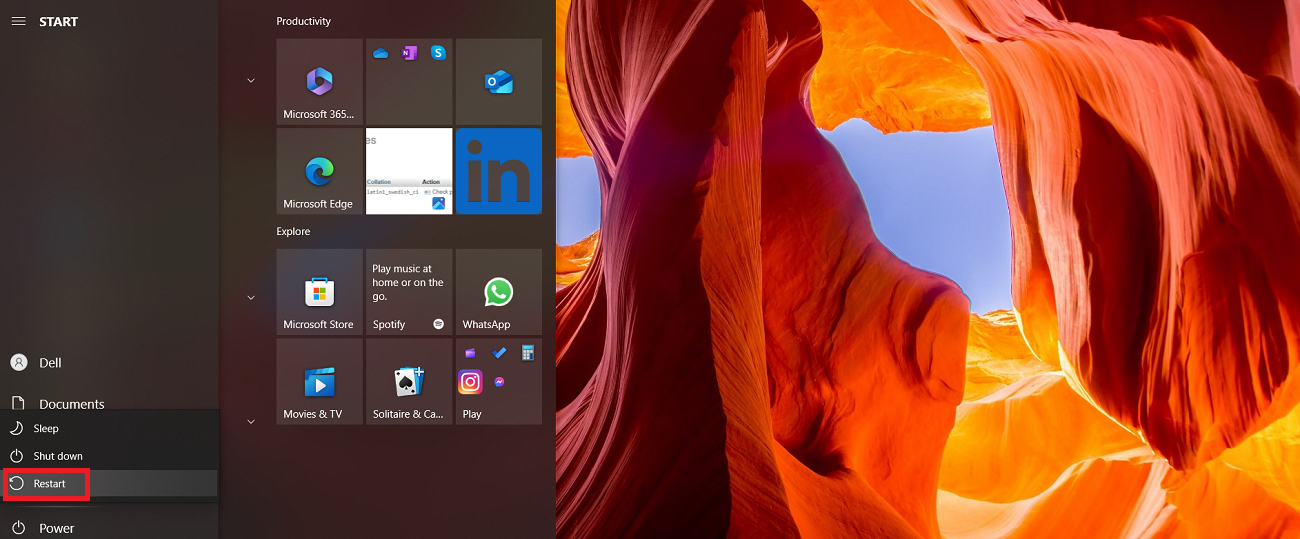
Restarting your computer is one of the easiest yet impactful methods to resolve the DNS_PROBE_FINISHED_NXDOMAIN error in the Chrome browser. You have likely opened various tabs and applications simultaneously, and this is where the problem could lie. Therefore, you must restart your computer to see if this error has disappeared. This will help you resolve the DNS_PROBE_FINISHED_NXDOMAIN Chrome error.
2. Check Your Local Hosts File
Every computer has a local host file that consists of manual DNS entries. These entries are linked to specific IP addresses. Users edit this file to preview their DNS before moving their websites to new web hosting services. If you face the DNS_PROBE_FINISHED_NXDOMAIN error, you must check your local host file to confirm the site you want to access does not exist there.
To check the local host file in Windows, go to the Startup menu and open Notepad or another text editor. In this case, we have used Notepad. When the new window opens, write the following line into the file name box and click Open:
C:WindowsSystem32driversetchosts
At this point, Notepad will open the host text file. Scroll down to the ‘localhost’ section to check if the website you wish to access is available there. If it exists, your local host file has blocked you from accessing the site. Therefore, you must remove the website URL to eliminate the DNS_PROBE_FINISHED_NXDOMAIN error.

3. Change Your DNS Servers
Changing the DNS servers can potentially help you avoid the DNS_PROBE_FINISHED_NXDOMAIN error. To change the DNS servers in Windows, follow the steps below:
- Go to the Control Panel, then choose the Network and Internet option. Now, select the Network and Sharing Center option.
- At this point, click the Change adapter settings option.
- Now, you should right-click the current connection and select Properties.
- Select the Internet Protocol Version 4 (TCP/IPv4) or Internet Protocol Version 6 (TCP/IPv6) and hit the Properties button.
- You should choose the Use the following DNS server addresses option and write the numbers as mentioned below:
Preferred DNS Server
8.8.8.8 (IPv4)

2001:4860:4860::8888 (IPv6)
Alternate DNS Server
8.8.4.4 (IPv4)

2001:4860:4860::8844 (IPv6)
- When you are done, click OK to save the changes.
- Start the browser again to see if this troubleshooting method allows you to eliminate the DNS_PROBE_FINISHED_NXDOMAIN error.
4. Reset Chrome Flags
Resetting Chrome flags lets users bypass this DNS error. That’s because Chrome settings or experimental features can be changed. Therefore, you must reset these settings or features to the default by writing chrome://flags into your web browser. Once done, click the ‘Reset all’ option. Furthermore, do remember to restart your web browser.
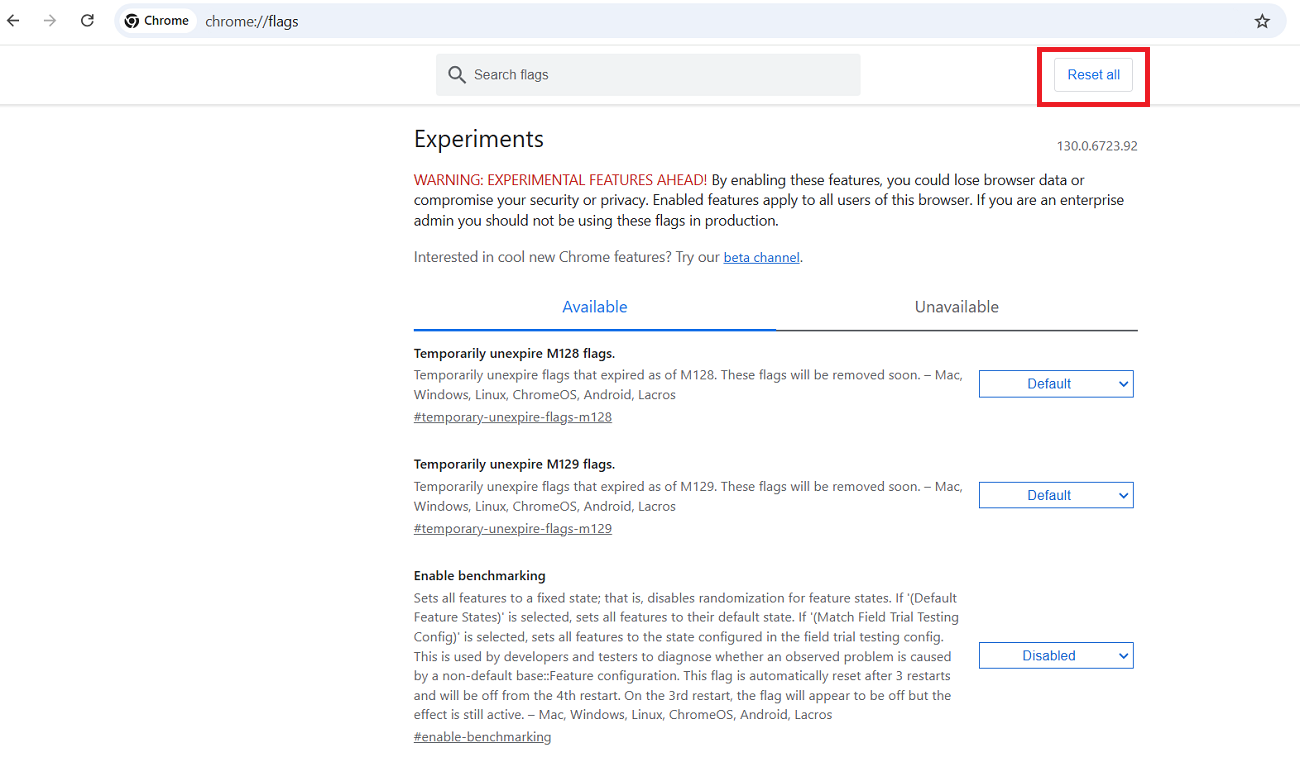
Undoubtedly, this is one of the simplest ways to help users remove the DNS_PROBE_FINISHED_NXDOMAIN error.
5. Deactivate Antivirus Temporarily
Antiviruses help protect devices from numerous security threats, but can conflict with your network settings, including the DNS servers. Thus, you should consider deactivating the antivirus software to bypass the DNS_PROBE_FINISHED_NXDOMAIN error.
Fortunately, the same method is handy when resolving the ERR_SSL_PROTOCOL_ERROR. Moreover, disabling antivirus software allows users to eliminate the ERR_CONNECTION_RESET error. Similarly, you can follow the exact process to overcome the ERR_CONNECTION_TIMED_OUT error.
6. Flush the DNS Cache
Flushing the DNS cache is another effective way of resolving the DNS_PROBE_FINISHED error. To flush the DNS cache on Windows, follow the steps below:
- Using the start menu, write command prompt and hit enter, right-click to choose the Run as administrator option.
- When you see a new window, write this command: ipconfig/flushdns, then press enter.
Open your browser to check if this client-side DNS error persists. This specific DNS_PROBE_FINISHED_NXDOMAIN fix will help you bypass this annoying issue.
7. Restart the DNS Client Service
As a Windows user, you can restart the DNS client service to reconfigure the DNS settings. Doing so lets you resolve and save IP addresses in the DNS cache. The DNS client service automatically runs when users start their devices by default. If this is not the case, the browser won’t be able to access any site.
In reality, three effective methods allow you to restart the DNS client service on Windows: the Windows System Configuration, the Windows Services Manager, and the Command Prompt.
If you are a Windows 10 user, the above methods will help you resolve the client-side DNS error.
– Windows System Configuration
To restart the DNS client service, here is what you should do:
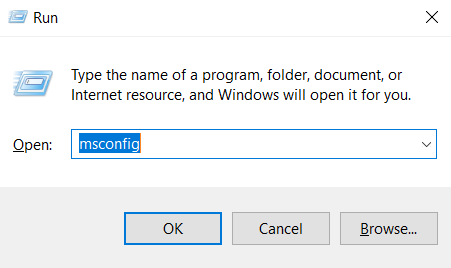
- Hit the Windows + R Keys on the keyboard and type msconfig in the search bar.
- Choose the Services tab and scroll down until you find the DNS client option. Once you have found it, uncheck the box to deactivate it and click OK.
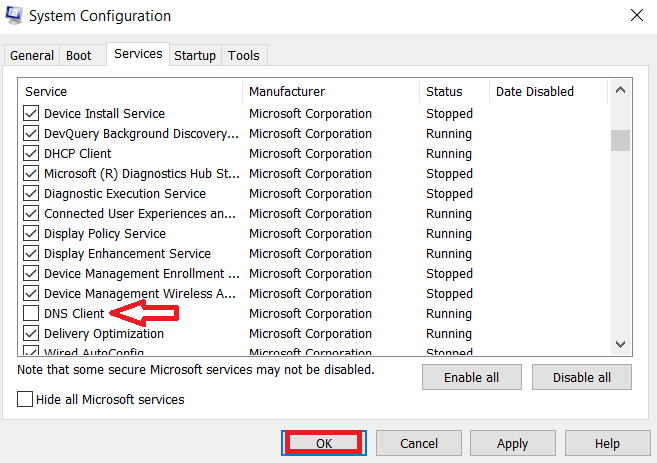
- Restart the device and follow steps one and two, but remember to recheck the box to activate the DNS client. Restart the device to see if the DNS_PROBE_FINISHED_NXDOMAIN error has resolved.
– Windows Services Manager
As mentioned, you can resolve this error using the Windows Services Manager option. For this purpose, follow the steps below:
- Open the services application and scroll down until you find the DNS client option.
- Hit the Restart Service option under the menu bar. Restart your Windows device.
– Windows Command Prompt
The Windows Command Prompt option lets you resolve the DNS_PROBE_FINISHED_NXDOMAIN error. Follow the below steps to achieve your objective:
1. Open the command prompt and write the below command to disable the DNS service:
-
- net stop dnscache
2. When you are done, wait for a few seconds to witness the following message on your screen:
-
- The DNS Client service is stopping.
- The DNS Client service was stopped successfully.
3. Restart the DNS service by writing:
-
- net start dnscache
4. When you are done, wait for a few seconds to see the following message on your screen:
-
- The DNS Client service is starting
- The DNS Client service was started successfully.
5. Start the computer again.
You can use the above methods to bypass the DNS_PROBE_FINISHED_NSDOMAIN error. That said, these methods will likely fail when followed on other Windows versions. Users can receive the following message if they don’t work:
-
- The requested pause, continue, or stop is not valid for this service.
- Follow other possible solutions if you see the above message when starting the DNS client service again.
8. Recheck the URL
Sometimes, rechecking the URL can help you bypass the DNS_PROBE_FINISHED_NXDOMAIN error. Unsurprisingly, typo issues in the URL typically result in several DNS errors. Therefore, you must double-check the URL address to ensure it is right and does not have any typos.
9. Restart Chrome
Apart from rechecking the URL, you can restart your Chrome browser to resolve the DNS_PROBE_FINISHED_NXDOMAIN error. Restarting the Chrome browser helps reload its configuration from stored copies, bypassing any DNS-related problems.
10. Search the Website on the Search Engine
You should search the website using the search engine on your Chrome browser to confirm if the DNS_PROBE_FINISHED_NXDOMAIN error exists. You will likely visit your desired website by following this approach if the website works correctly.
11. Reboot the Router
If a reboot of your device or system does not resolve the DNS errors, try rebooting your router instead. Similar to systems or devices, routers largely depend on software to function correctly. There is a strong likelihood that routers may get corrupted over time.
In this situation, rebooting the router will help you avoid the DNS PROBE FINISHED error. This is because the router will need to reload its configuration from scratch, resolving this DNS-related issue.
12. Release and Renew Your IP Address
Do you know that releasing and renewing your IP address may flush any DNS settings stored on your system? Yes, it is correct.
You can release and renew your IP address on Windows and Mac devices without fuss.
In Windows
- Write ‘cmd’ using the Windows search box.
- Right-click Command Prompt in the menu and choose Open as Administrator.
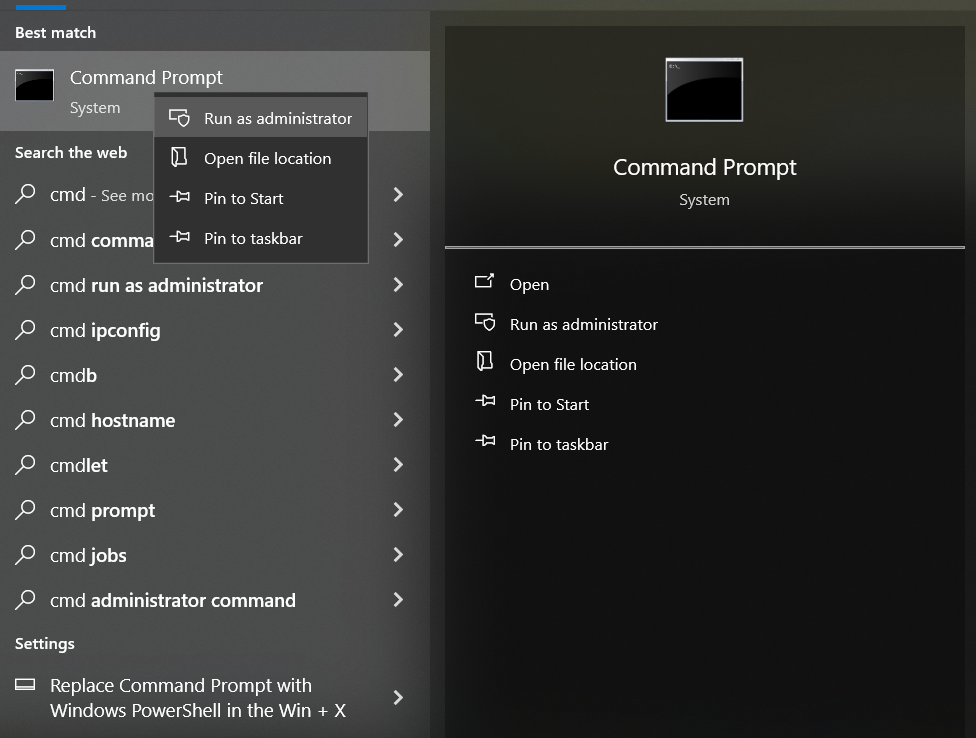
- Write ‘ipconfig /flushdns’ and press Enter.
- Write ‘ipconfig /renew’ and hit Enter.
On Mac
- You must open a terminal.
- You should write ‘dscacheutil -flushcache’ and hit Enter
You should recheck the site that caused this DNS error previously. You will likely bypass the DNS PROBE FINISHED NXDOMAIN error.
13. Deactivate VPN and Antivirus
Sometimes, your VPN or Antivirus software can conflict with your DNS and network settings. We suggest temporarily disabling your VPN and antivirus software to see if this resolves the DNS probe error in your browser.
14. Examine DNS Issues on Your Site
As a site owner, it can be frustrating to understand if your website traffic is declining daily because of DNS problems. Perhaps the DNS servers you’re using are less reliable than expected, or they’re misconfigured, causing problems for your end users.
Therefore, you should consider using an impressive tool, such as Cronitor RUM. This tool helps users identify DNS problems on your site. Moreover, Cronitor RUM provides users with real-time insights related to CWV (Core Web Vitals) and the site’s page load time.
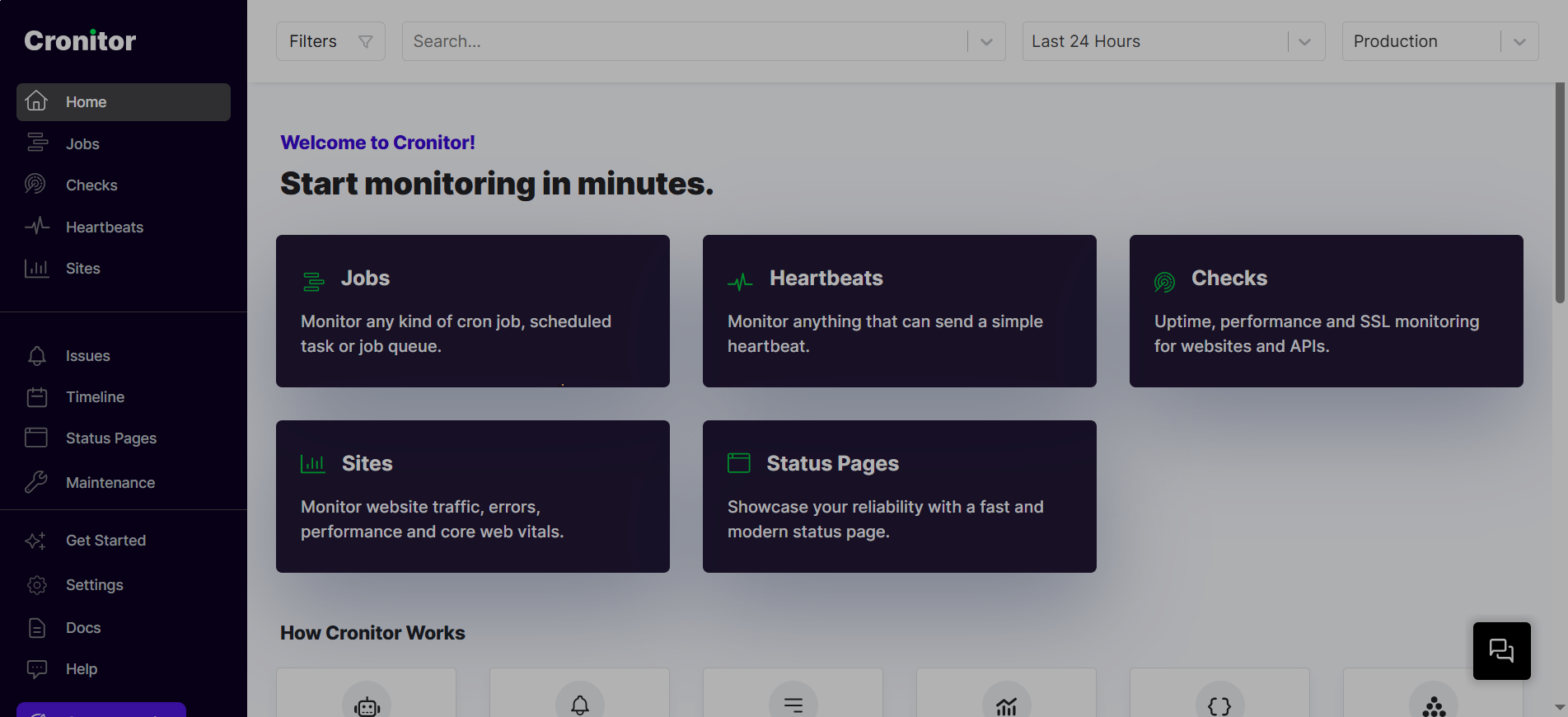
Through this helpful tool, you can check how your site interacts with visitors in real time. Besides, it alerts you as soon as any issues arise on your website. This way, you can proactively resolve such problems, keeping your website up and running at all times.
You can check it without any cost, ensuring your site visitors enjoy an excellent browsing experience on your site regularly.
Why DNS_PROBE_FINISHED_NXDOMAIN Error Appears on Certain Sites (But Not on Everything)
What trips people up is when they see DNS_PROBE_FINISHED_NXDOMAIN on one site, with all the others loading fine. It tends to make folks think their browser, device, or connection is broken, but more often it’s just a domain-specific hiccup.
When you see this, your browser is likely fine. What’s failing is the DNS system’s ability to resolve that particular domain name.
1. The Domain Doesn’t Exist or Has Expired
A top reason for dns_probe_finished_nxdomain is the fact that the domain you are trying to reach is no longer available. This might happen in view of:
- The domain registration has expired
- The domain has been deleted or suspended
- Registering the domain had never been done in the first instance
In those cases, DNS returns a DNS probe finished nxdomain response-a sort of ‘domain not found’.
2. DNS Records Are Broken or Misconfigured
You could also see it in cases where the DNS records for a site are missing or not correctly set up. For example, if the A record is deleted or the nameservers are down, then browsers won’t know where to connect. Even if the site itself is still there.
This happens most of the time after changes in DNS, hosting transfers, or incomplete adjustments in setup.
3. ISP or Regional DNS Blocking
In some cases, the DNS_probe_finished_nxdomain error occurs in Chrome when a website loads over a VPN or proxy connection, but not with a standard connection. This is a common indicator of whether the DNS blocking is being performed on the ISP level. The website’s DNS servers might deliberately return a failure, triggering the “dns probe finished nxdomain” issue.
Changing the DNS servers to Google Public DNS will sometimes solve this DNS_probe_finished_nxdomain localhost error.
4. DNS Propagation Is Still in Progress
When a domain has been recently updated or switched to a new hosting service, DNS propagation may still be in progress. That’s why the access to the domain may not be complete. In such cases, it is likely that in one location users will be able to access the domain, while in another, users will see dns_probe_finished_nxdomain. This might happen because of the average DNS propagation.
5. Browser Cache or Local DNS Conflict
Sometimes, the problem is specific to certain devices or browsers. This occurs when the browser is using outdated DNS cache entries. Clearing the DNS cache or restarting the browser solves this problem.
6. Outages to CDN or DNS Providers
Webservice providers that leverage CDNs or third-party DNS providers will result in DNS_probe_finished_nxdomain errors during any DNS service outage. These are rare and affect only the particular domains, but when restored at the provider level, they fix themselves.
Is DNS_PROBE_FINISHED_NXDOMAIN Error a Security Issue?
The DNS_PROBE_FINISHED_NXDOMAIN error is typically associated with a failure in DNS resolution. This means that the browser is unable to detect the IP address linked to a domain name. This error is related to non-security issues, such as incorrect DNS settings or network issues.
According to the above explanation, the DNS PROBE error is not fundamentally a security risk. However, understanding this issue, its underlying reasons, and the associated exploitation risk is necessary for improving online security.
What is the NXDOMAIN Code in DNS?
In DNS (Domain Name System), the NXDOMAIN (Non-Existent Domain) code is a response that highlights an issue, which indicates that the requested domain name is unavailable or does not exist in the DNS system.
When a DNS resolver gets an NXDOMAIN response, it shows that the domain name could not be found in the authoritative DNS servers. Remember, this response code is a typical aspect of the DNS protocol.
It notifies the application or the user that the domain they are willing to access is not registered or does not have the required or desired IP address in the DNS records.
Real-Life Examples of Those Facing This Issue
– I keep getting dns_probe_finished_nxdomain
A user posted a question related to the DNS Probe Finished Nxdomain error. According to them
“I get it for some specific website on both my phone and my laptop, but it works if I use a different browser. Additionally, when I attempted to log into my bank account, it kicked me out and redirected me to the timeout page, suggesting I had been inactive for too long. It doesn’t work on the edge. I am getting very frustrated with this.”
In response to the above question, a user provided the following possible solution:
“You can try going to settings —> Privacy & Security —> and select ‘Use secure DNS’,” which should be set to automatic. If it is, you can try changing it to Google Public DNS and see if that changes anything.”
– I can’t access a site using regular browsers, it says “dns_probe_finished_nxdomain”
A user on Quora shared their problem with other users. They said,
“I can’t access a site using regular browsers, it says: “DNS_PROBE_FINISHED_NXDOMAIN”. But, I can access it through proxy and VPN. Does it mean that my internet provider is blocking access to the site, or the site itself doesn’t let me in?”.
In response to the above query, a Quora user answered as mentioned below:
DNS_PROBE_FINISHED_NXDOMAIN means that the domain lookup of the exact address failed through one of four (that I know of) errors.
- Chrome changes the context of the Lookup, and the modified lookup does not exactly match the “dictionary”.
- The ISP (especially Sprint) fails in the lookup due to its contradictory requirements for www or https, and it yields the error. However, it more frequently redirects to search-error.com, even when the URL clicked on is a verified link or Bookmark. I was told by Sprint that the SEARCH-ERROR website, which is owned by Sprint and is a money maker, so they have no intention of fixing it.
- Failure to use Static Mode for IP selection in your WiFi settings can be corrected.
If you encounter this error, try resubmitting the URL by adding https://www. Try going to the front, then visit http://www. If that doesn’t solve the issue, go into your WiFi settings, locate the IP address, and select static.
- And of course, your ISP could be blocking you, which is probably the case if STATIC does not resolve the issue.
How Does the DNS_PROBE_FINISHED_NXDOMAIN Error Look Like on Various Web Browsers?
- There is a strong likelihood that you may see a few variations of this client-side DNS error, depending on the web browser you use. For instance, you will see the following error message on your Google Chrome browser:
‘This site can’t be reached, or This webpage is not available.’
In Google Chrome, this error is depicted as DNS_PROBE_FINISHED_NXDOMAIN, indicating that the site can’t be reached because the server IP address cannot be found.

- Regarding Mozilla Firefox, you will likely see the following error message:
‘Hmm. We’re having trouble finding that site.’
- In Microsoft Edge, you can see the following error message:
‘Hmm… can’t reach this page.’
Does DNS_PROBE_FINISHED_NXDOMAIN Affect Other Browsers?
Unfortunately, the DNS_PROBE_FINISHED_NXDOMAIN error can cause issues for different browsers, including Chrome. According to this issue, the browser is unable to change a domain name into an IP address, resulting in the browser’s inability to detect the site’s location.
This error is displayed differently depending on the web browser; however, the main issue remains the same, i.e., an issue with DNS resolution.
In simple terms, the browser is unable to connect to the site’s server because it cannot resolve or convert the domain name into an IP address.
Do You Need Professional Help?
WPExperts is a leading WordPress development and digital marketing company that offers WordPress theme development and customization services to businesses globally. This enables them to bypass the DNS_PROBE_FINISHED_NXDOMAIN and other website connection errors without issues.
Wrapping Up
We hope you liked our blog post about fixing the DNS_PROBE_FINISHED_NXDOMAIN error. Unfortunately, this client-side DNS issue is frustrating and can significantly impede your browsing experience.
However, the above DNS error is easily fixable, provided you follow the troubleshooting methods outlined above. As a result, you will soon start browsing the web, depending on your needs.
FAQs About the DNS PROBE FINISHED NXDOMAIN
Q1. What is the exact definition of DNS PROBE FINISHED NXDOMAIN?
The DNS_PROBE_FINISHED_NXDOMAIN error occurs when the browser is unable to resolve a domain name to an IP address. This issue arises when one is using a domain name that is either nonexistent, misspelled, has expired, or when the DNS configurations are incorrect.
Q2. How do I fix DNS_PROBE_FINISHED_NXDOMAIN in Chrome?
To resolve the DNS_PROBE_FINISHED_NXDOMAIN problem on Chrome, the URL should be checked for typos, the DNS cache should be cleared, Chrome flags should be reset, Chrome should be restarted, or the DNS server should be changed to the Google DNS server. VPNs or antivirus software may need to be disabled.
Q3. Why is there a DNS_PROBE_FINISHED_NXDOMAIN on Android Devices and on iPhones?
The “DNS PROBE FINISHED NXDOMAIN” problem on the mobile or iPhone typically happens as a result of the corruption of the user’s network’s DNS, some restrictions by the ISP provider, or a corrupted cache of the user’s DNS.
Q4. Is DNS_PROBE_FINISHED_NXDOMAIN a security issue?
No, it’s not a security problem. It’s a DNS resolution problem, meaning the browser isn’t able to find the IP address of the domain. But sometimes, using questionable DNS servers or unsecured networks may put you at risk of redirects.
Q5. Does DNS_PROBE_FINISHED_NXDOMAIN happen from hosting providers or DNS?
Yes, hosting or DNS providers can cause DNS_PROBE_FINISHED_NXDOMAIN if DNS records are missing, misconfigured, or still propagating. The most common causes of this error for visitors in view are domain expiration, incorrect nameserver configuration, or very recent DNS changes.
Q6. What is the difference between DNS_PROBE_FINISHED_NXDOMAIN and ERR_NAME_NOT_RESOLVED?
Both DNS_PROBE_FINISHED_NXDOMAIN and ERR_NAME_NOT_RESOLVED mean failure in DNS lookups. The difference is in wording according to browsers. In both cases, the browser cannot convert the domain name into an IP address.


