






































 Muhammad Jaffer
You’ve got Wholesale for WooCommerce installed. Good start. Now here’s the thing: most store owners mess up; they don’t set proper minimums. Small wholesale orders kill your margins. Shipping costs eat you alive. Processing takes forever. You’re working harder and making less money. The fix is simple: minimum order quantities, minimum subtotals, and smart cart discounts.
Let’s walk through exactly how to set these up so you stop losing money on tiny orders and start rewarding customers who actually buy in bulk.
Why Controlling Minimum Order Quantities & Subtotal Actually Matter
These aren’t just random settings to toss with. Each one solves a real problem in your wholesale business, and you’ll notice the difference pretty much immediately.
Stop Losing Money on Small Orders
Every order costs you money to process, pack, and ship. When someone orders three units of something, you might actually lose money after covering those costs. Minimum quantities make sure every order is worth your time.
Get Customers Buying More Per Order
People buy what you tell them to buy. Set a minimum of 10 units, and they’ll order 10 units. They’re not going to argue about it because they know how wholesale works. Clear minimums train customers to think bigger.
Spend Less Time on Order Processing
Would you rather pack 20 orders of 5 items each or 5 orders of 20 items each? Same total units, way less work. Minimums consolidate your orders so you can get back to actually growing your business.
Make Inventory Planning Way Easier
When you know orders will hit certain sizes, you can actually plan inventory. You’re not constantly surprised by random tiny orders that throw off your counts. Everything becomes more predictable and manageable.
Filter Out Time-Wasters Fast
Serious wholesale buyers expect minimums. They don’t complain about them. If someone’s fighting you on ordering 10 units instead of 2, they’re probably not a real wholesale customer anyway. Let them go buy retail somewhere else.
How to Set Minimum Order Quantities Using Wholesale for WooCommerce
Setting Store-Wide Minimums
This is your baseline. Every product gets this minimum unless you override it later. Here’s how to set it up.
- Navigate to Wholesale > Settings > Wholesale Price Global
- Click on the wholesale user role you want to configure
- Check the Enable Role checkbox to activate settings for this role
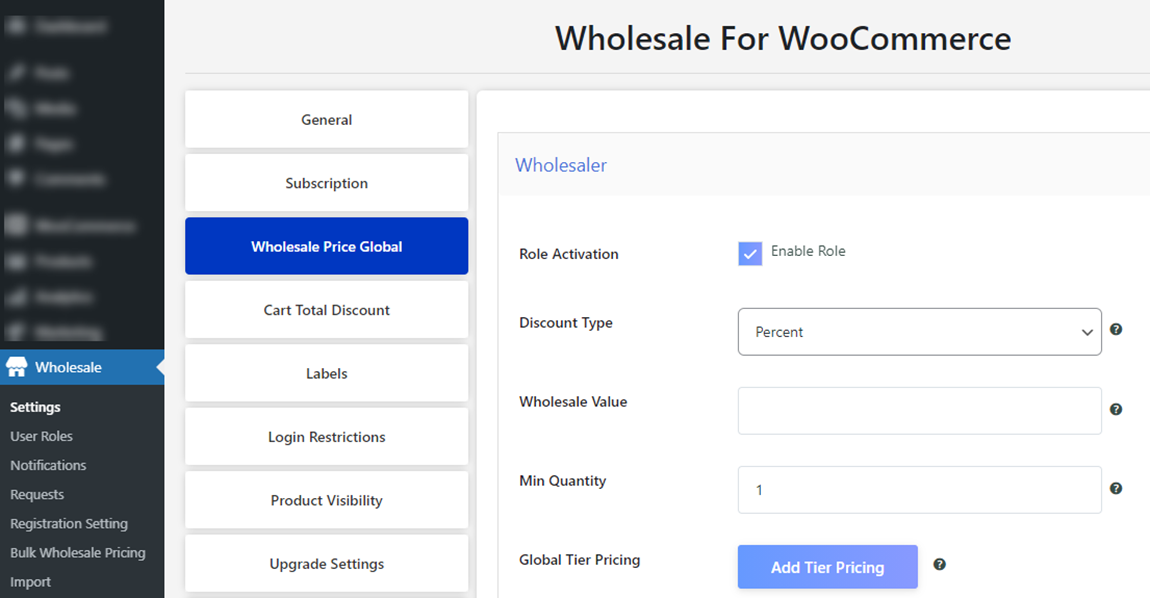
- Select your Discount Type (Fixed or Percentage)
- Enter your Wholesale Value (the actual wholesale price)
- Set the Min Quantity field (this becomes your store-wide baseline)
- Click Save Changes
That’s it. Every product now has that minimum unless you change it somewhere else.
Category-Level Minimums
Some categories need different minimums. Maybe t-shirts can be 6 units, but heavy equipment needs to be just 1 unit because of weight and cost.
- Go to WooCommerce Products > Categories
- Select the category you want to configure and click Edit
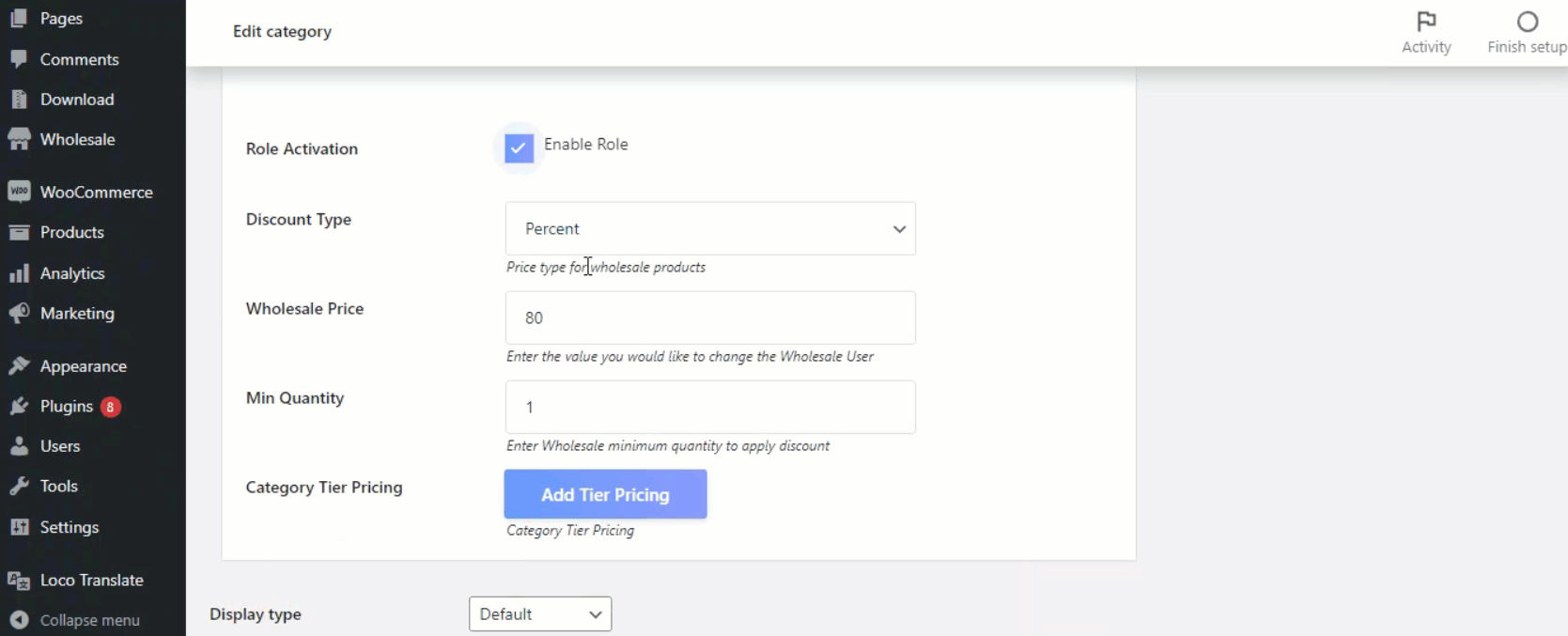
- Choose your Discount Type (Fixed or Percentage)
- Enter the Wholesale Price for this category
- Set the Minimum Quantity for products in this category
- Click Update Category
Now every product in that category uses this minimum instead of the global one.
Individual Product Minimums
Sometimes a specific product needs its own minimum. Maybe it’s expensive, maybe it’s bulky, maybe it’s just different.
For regular simple products:
- Edit the product and click over to the Wholesale tab.
- Check the box that says Enable Wholesale item.
- Pick your discount type and enter the wholesale price.
- Set the Min Quantity right there.
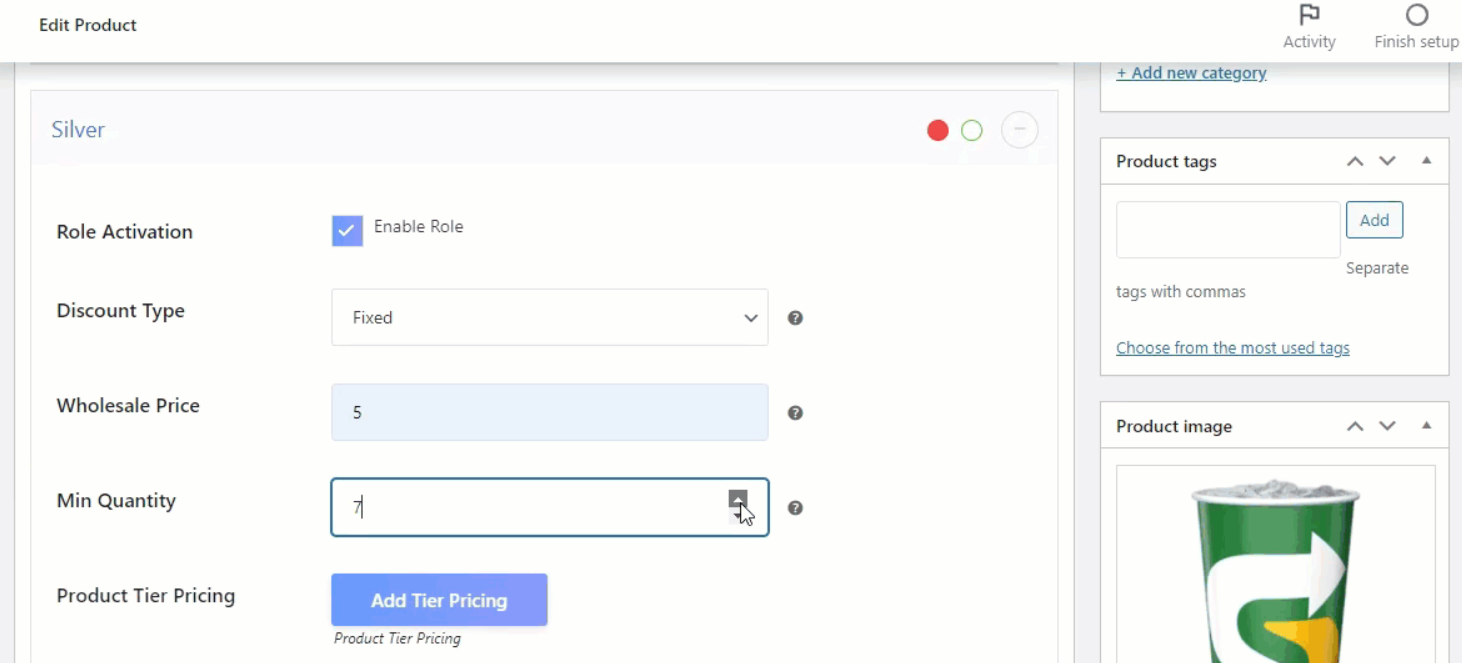
- Update the product.
Setting Minimum Subtotal Requirements
Sometimes quantity minimums aren’t enough. You need orders to hit a certain dollar amount to make them worthwhile.
What Minimum Subtotal Does
This makes wholesale pricing only kick in when the cart total reaches your threshold. Say you set a $100 minimum subtotal. Customer adds $80 worth of stuff? They’re paying retail prices. Once they hit $100, boom, wholesale pricing applies to everything.
It’s a simple way to make sure orders are actually worth processing.
How to Configure It
- Go back to Wholesale > Settings > Wholesale Price Global, where you set your other minimums.
- Pick your wholesale role and enable it.
- Choose your discount type.
- Enter your wholesale value like before.
- Now look for the Min Subtotal field.
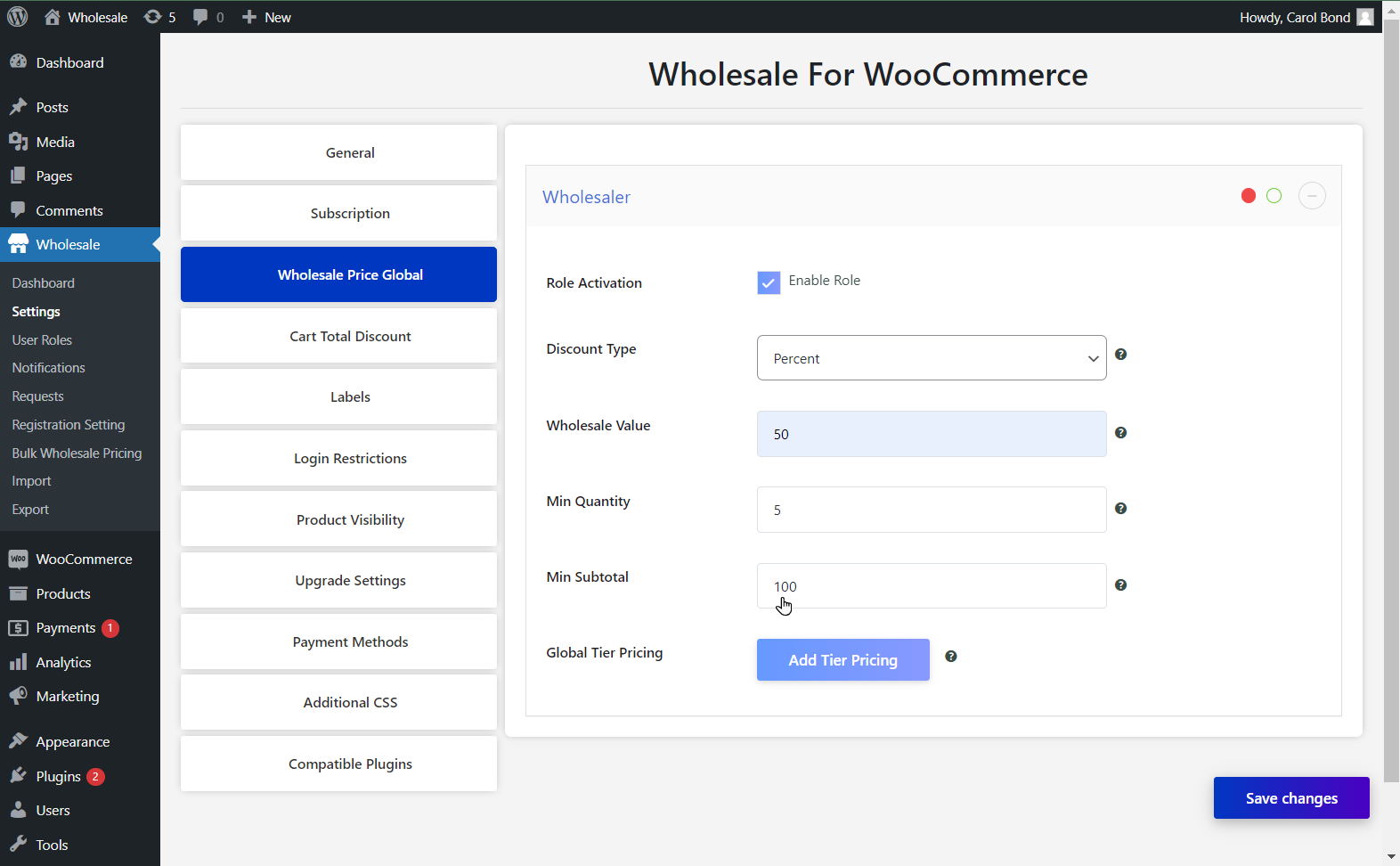
- Type in the dollar amount that orders need to hit. That’s your threshold.
Here’s a real example to make this clear. Your retail price is $10 per widget. Your wholesale price is $5 per widget. You set a $100 minimum subtotal. A customer must add 20 widgets to their cart (20 × $5 = $100) before wholesale pricing applies. If they add only 10 widgets, they’ll pay the retail price of $10 each.
What Customers See
When someone’s shopping and they haven’t hit the minimum yet, they see a message on the cart page. It tells them exactly how much more they need to add to get wholesale pricing. Clear, straightforward, no confusion.
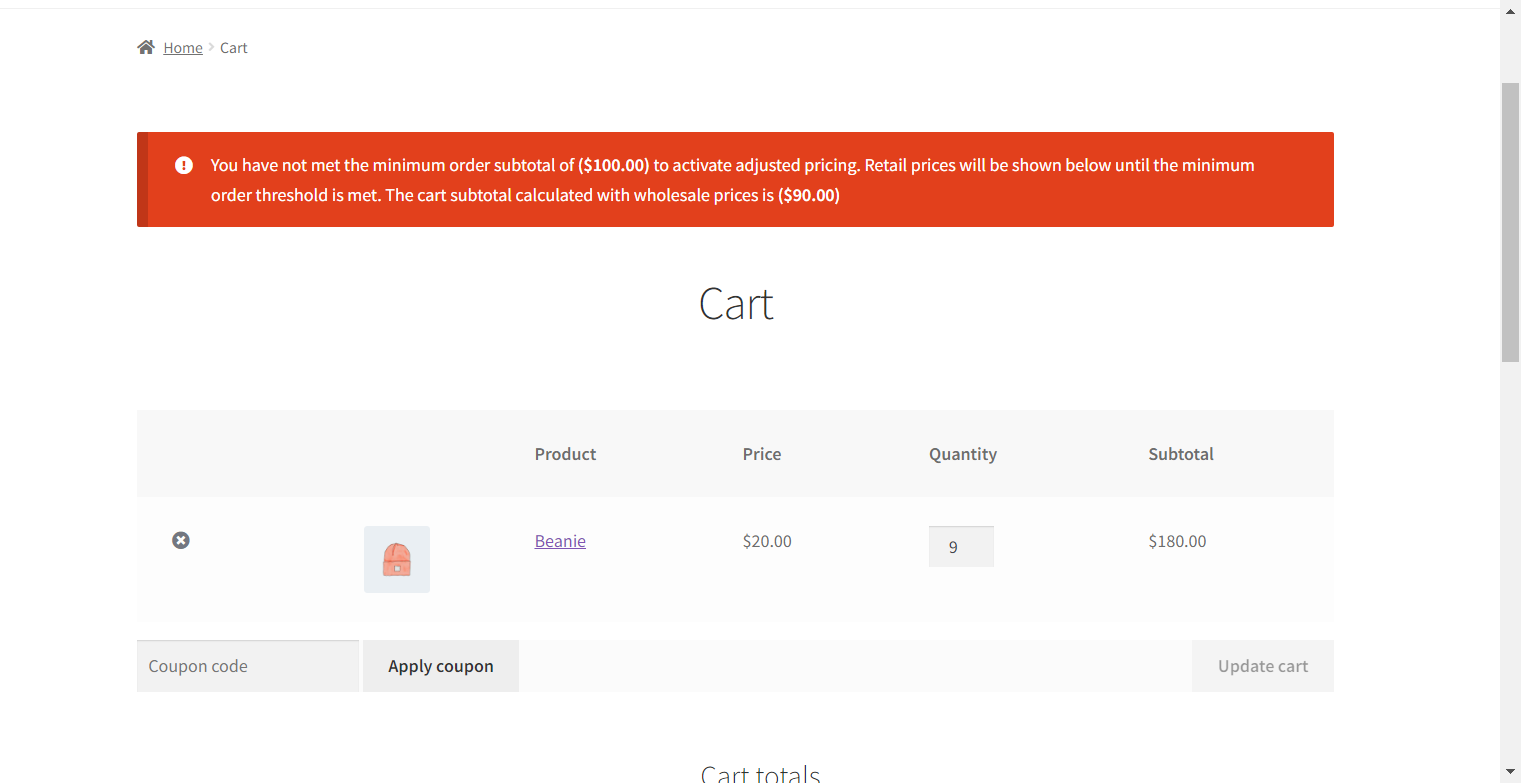
Once they hit the threshold, the message disappears, and wholesale prices show up automatically.
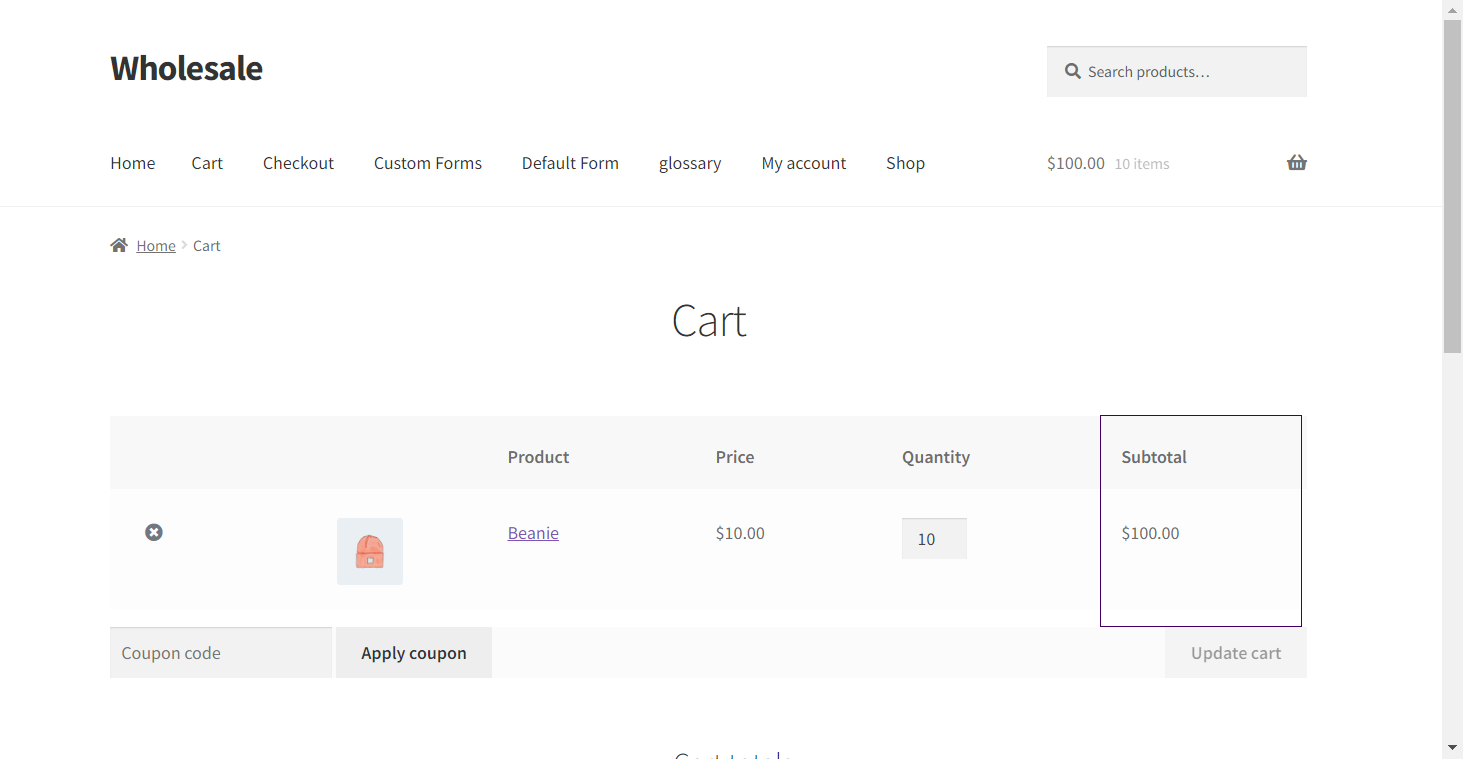
The customer knows exactly where they stand the whole time.
Creating Tiered Cart Discounts
Basic minimums are good. Tiered discounts are better. They automatically reward bigger orders and push customers to buy just a bit more to hit the next tier.
Understanding How Tiers Work
You can set up multiple discount levels based on either the number of items in the cart or the cart value. More items or higher value equals a better discount. It’s automatic, and it works.
Setting Up Your Tiers
Go to Wholesale > Settings > Cart Total Discount to build this out.
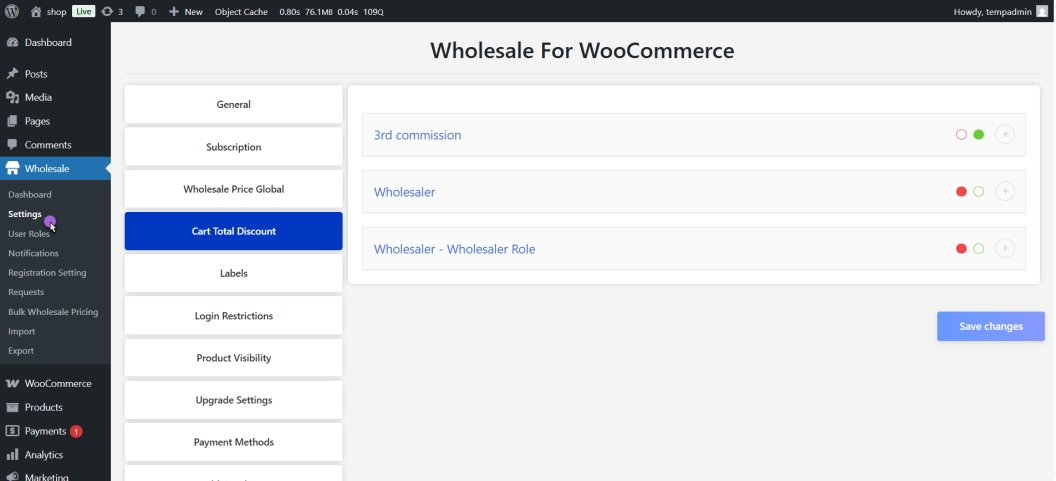
First, pick your discount type. You can do a fixed dollar amount off or a percentage discount. Both work fine, just depends on your pricing strategy.
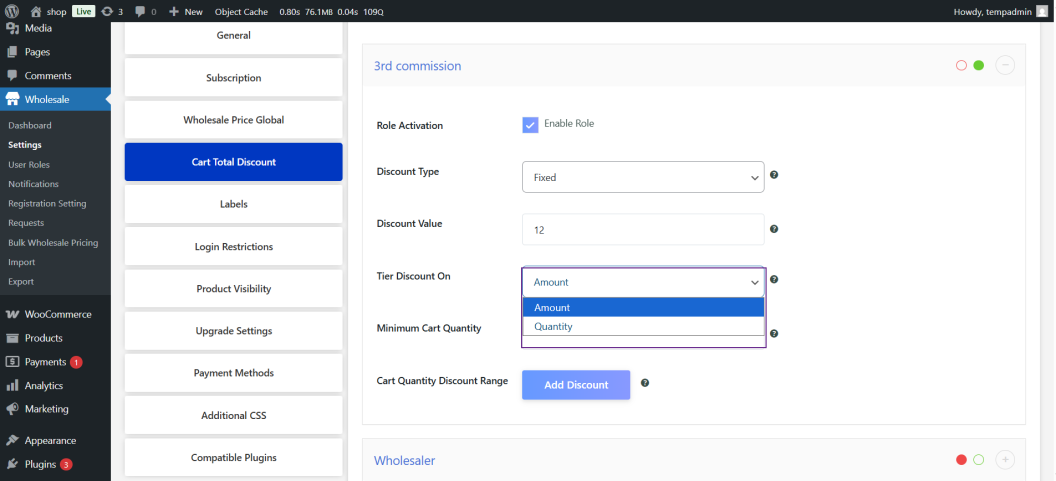
Next, choose what triggers the tiers. You can base it on quantity (total number of items) or amount (total cart value). Pick whichever makes more sense for your products.
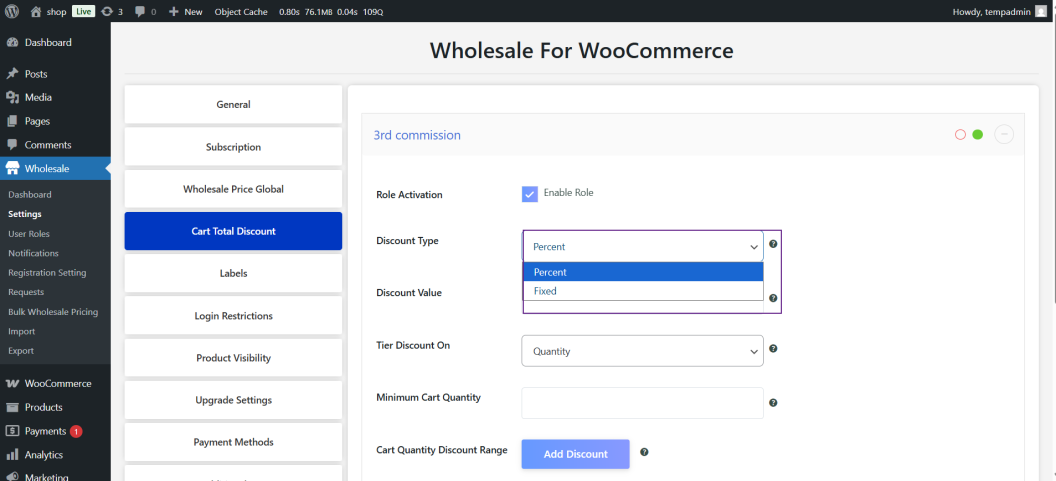
Now create the actual tiers. Click Add Discount, and a pop-up opens up.
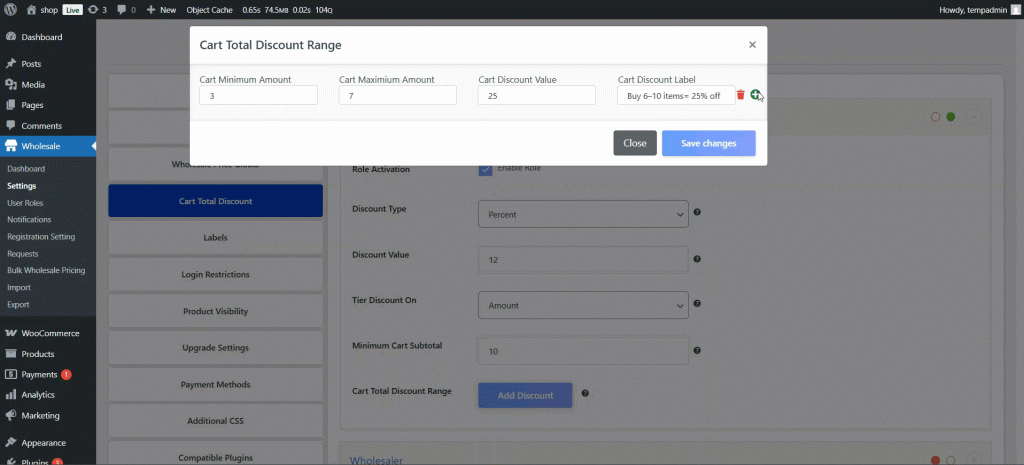
For each tier you want, you’ll set a few things:
- The minimum amount of product or dollars that will activate this tier.
- The maximum is where this tier stops being effective; the next tier takes over.
- The actual amount of discount given (in dollars or percentage).
- And a label so you and your customers know what each tier does.
This is what a real-world tier system might look like.
- Tier One: Buy 6 to 10 items, get 12% off.
- Tier Two: Buy 11 to 20 items, get 15% off.
- Tier Three: Buy 21 or more items, get 20% off.
You can also choose a default discount that will go to someone who doesn’t qualify for any tier. This way, everyone gets something, and no one feels left out.
Final Thoughts
Creating minimums and discounts with Wholesale for WooCommerce might not take more than 10 minutes. Begin with a sensible global minimum that safeguards your bottom line. Include category minimums when products require different handling. Establish a minimum subtotal if the dollar value is more important than the number of items. Create a few discount levels to encourage larger sales.
Disable coupons if you like. The plugin does the heavy lifting; you simply determine what works best for your business. Test a few orders to get a feel for it, and then tweak. You’ll quickly determine if your minimums are too steep or too low based on customer reaction.


