




















































Being unable to access the site when browsing the web can be frustrating. In some instances, you can experience an error message like ERR_EMPTY_RESPONSE. Luckily, this browser error is easily identifiable and fixable.
This blog post will describe the concept of ERR_EMPTY_RESPONSE and help you fix ERR_EMPTY_RESPONSE WordPress error.
What Do You Mean By ERR_EMPTY_RESPONSE WordPress Error?
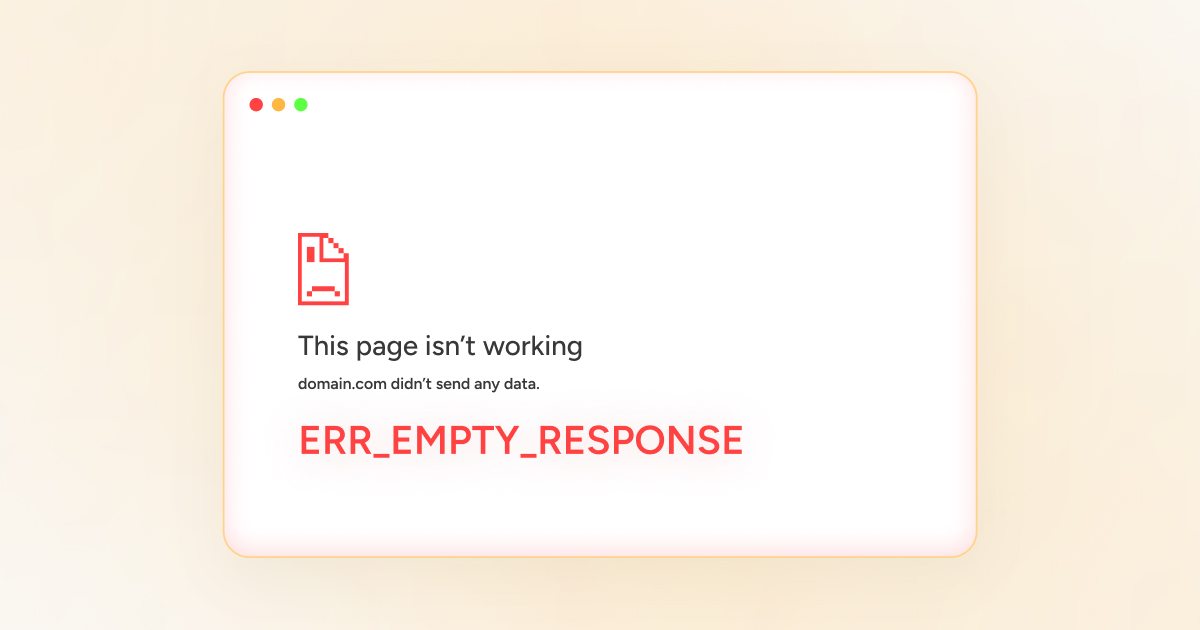
The ERR_EMPTY_RESPONSE error is a browser-centric error that suggests that the server has not responded to the request to visit a site. In addition, a ”No data received” or “This page isn’t working” notification often accompanies this.
The web browser cannot transmit data to and from your device. This error usually happens in Chrome but can likely occur in other web browsers.
Simply put, the server has not returned any information to the web browser. As a result, the user will see a blank page having an error message:
This page isn’t working.

mysample.com didn’t send any data.

ERR_EMPTY_RESPONSE
Possible Causes Behind the ERR_EMPTY_RESPONSE WordPress Error
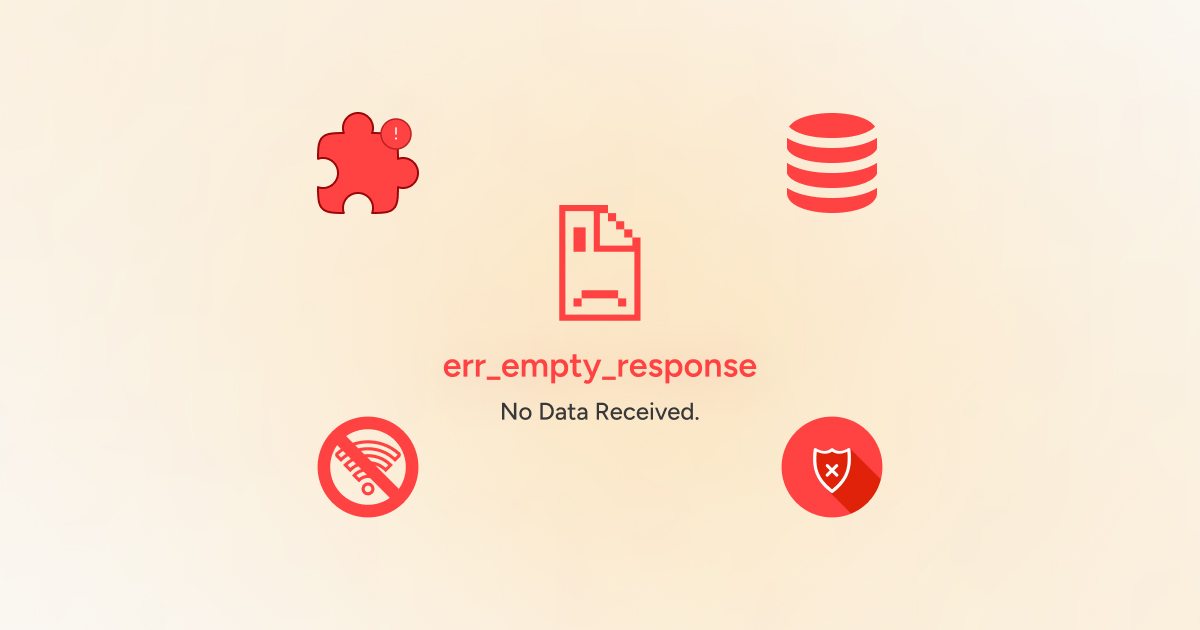
Different reasons can result in the ERR_EMPTY_RESPONSE WordPress error. For instance, browser problems can trigger this annoying server-side issue. Moreover, connectivity issues can also cause the ERR_EMPTY_RESPONSE error in WordPress. These various reasons include:
- Network Connectivity Issues.
- Outdated Browser Extensions.
- Incorrect DNS Server Settings.
- Firewall or Antivirus Software.
Network Connectivity Issues
An unstable internet connection can hamper the browser’s performance and prevent it from communicating with the server. In addition, an issue with the server can result in network connectivity issues. They can trigger the ERR_EMPTY_RESPONSE WordPress error.
Outdated Browser Extensions
Sometimes, old browser extensions can negatively affect the website loading process. Therefore, you must check your browser extensions to see if they cause the ERR_EMPTY_RESPONSE error.
Incorrect DNS Server Settings
Outdated DNS server settings can lead to the ERR_EMPTY_RESPONSE error because the browser does not obtain the data from the server when facing issues in resolving the site’s domain name.
Firewall or Antivirus Software
Firewall or antivirus software can also trigger the ERR_EMPTY_RESPONSE issue if they block specific connections to sites. In this situation, you must deactivate the firewall or antivirus software to resolve the ERR_EMPTY_RESPONSE WordPress error.
What Should We Do to Fix the ERR_EMPTY_RESPONSE Error in WordPress?
Like other WordPress errors, ERR_EMPTY_RESPONSE is another common issue you can quickly fix thanks to numerous troubleshooting methods. These various possible solutions are:
- Try Using Incognito Mode.
- Clear the Browser Cache and Cookies.
- Deactivate Browser Extensions.
- Update Your Browser.
- Flush Your DNS Cache.
- Contact Your Web Hosting Service Provider.
Try Using Incognito Mode
The web browser typically saves site history and data files in text files called “cookies.” The browser cannot access the site if the information is corrupted or outdated. When you use Incognito Mode, the Chrome browser does not store the browsing history or site data.
Thus, you must visit the site in Incognito mode to test if it bypasses the issue.
To activate the Incognito Mode, press the three dots at the top-right corner of the browser and choose New Incognito window:
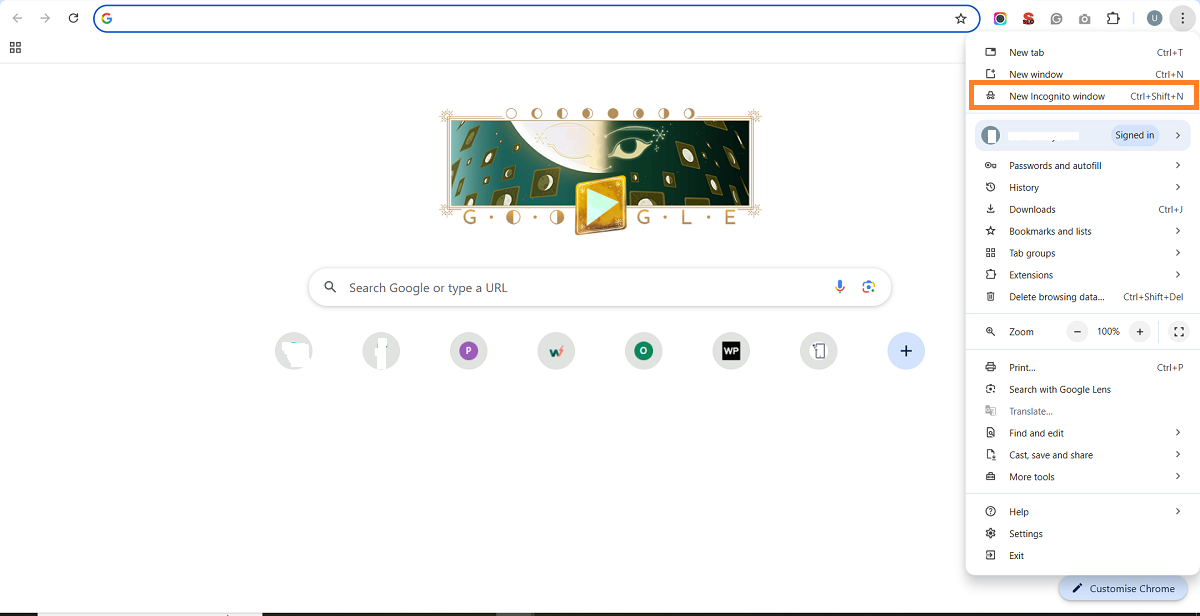
Fortunately, you can click SHIFT+N+CTRL. You must visit the site you tried accessing earlier to confirm if the ERR_EMPTY_RESPONSE WordPress error persists.
Clear the Browser Cache and Cookies
If you want to eliminate the ERR_EMPTY_RESPONSE error, clearing the browser cache and cookies can do the job. To do this, here is what you must do:
- Press the three dots at the browser’s top-right corner to access the settings panel. You should press the “Delete browsing data” option.
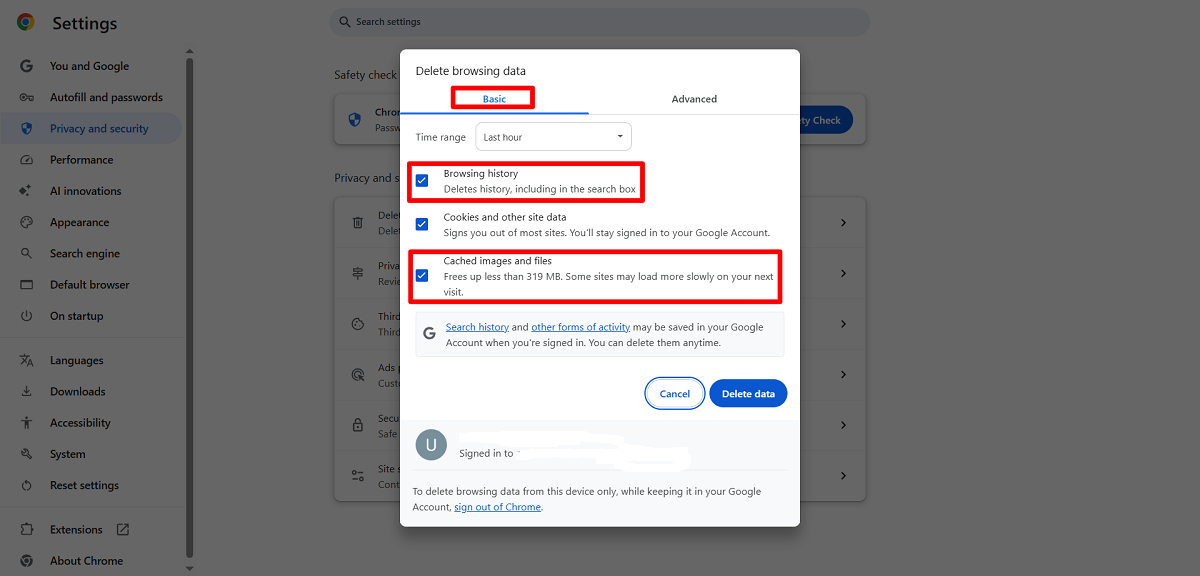
- Choose other options such as Cookies and other site data, Browsing history, Cookies and Cached Images. Press the “Delete data” option to remove the ERR_EMPTY_RESPONSE error.
- You can clear advanced data by pressing the “Advanced” data tab.
- You can choose options such as download history, cookies, and other site data, as well as browsing history and cached images and files.
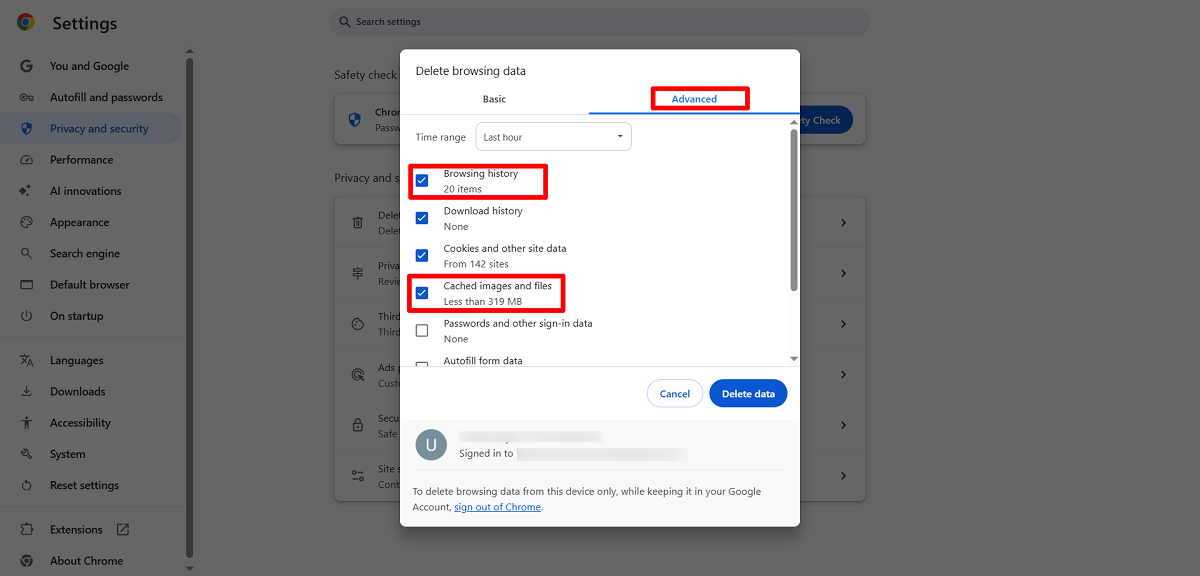
Once you hit the Delete Data button, you will likely eliminate the ERR_EMPTY_RESPONSE WordPress error. If this is not the case, try other troubleshooting methods. However, the same workaround lets users bypass the 401 unauthorized error.
Deactivate Browser Extensions
When you deactivate the browser extension, it can help you overcome the ERR_EMPTY_RESPONSE error. To disable Chrome extensions, follow the below steps:
- Click the three dots at the top right corner of the browser.
- Click Extensions and select Manage Extensions.
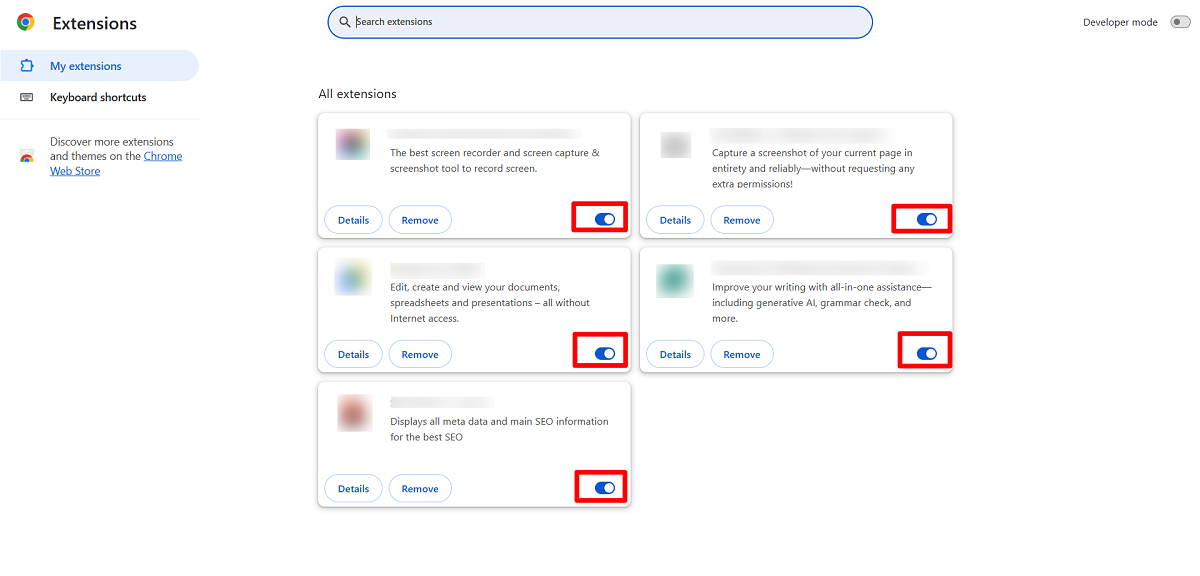
As a result, you can disable browser extensions by toggling them off. In addition, you can bypass the ERR_CONNECTION_RESET error by following this method. Moreover, the same solution is handy when resolving the ERR_SSL_PROTOCOL_ERROR. It also allows you to eliminate the ERR_ADDRESS_UNREACHABLE error.
Update Your Browser
When you do not update your browser, you may experience the ERR_EMPTY_RESPONSE error. In reality, an outdated or old web browser is compatible with the site’s latest technologies and does not allow web pages to load correctly. Therefore, you must ensure that you always use the recent version of the web browser.
When updating the Chrome browser, click the three dots at the top-right corner of the browser, choose “Help” and then “About Google Chrome.” Interestingly, Chrome updates itself automatically. If you keep your browser updated, you will not face the ERR_EMPTY_RESPONSE error.
Flush Your DNS Cache
When you flush the DNS cache, you can overcome the ERR_EMPTY_RESPONSE error. To flush the DNS cache, follow the below steps:
- Click the ‘Start’ key and type CMD using the search bar.
- You will see the ‘Command Prompt’ option on your screen. Now, click the Command Prompt and write the below command:
ipconfig/flushdns
Thus, you can easily flush the DNS cache. Once the process is completed, you will see the below message on your screen:
“Successfully flushed the DNS resolver cache.”
You should recheck the website to see if the ERR_EMPTY_RESPONSE error persists. The great thing about this potential solution is that it helps users eliminate the HTTP status 400 Bad Request error.
Contact Your Web Hosting Service Provider
If the above possible solutions don’t allow you to achieve your mission, i.e., to remove the ERR_EMPTY_RESPONSE error, contacting the web hosting service provider may help you overcome this frustrating issue.
They have the desired expertise that can come in handy when resolving server problems and bypassing the ERR_EMPTY_RESPONSE error.
Wrapping Up
We expect you to like our blog post, which lets you fix ERR_EMPTY_RESPONSE WordPress errors in detail. Before you try resolving this error, you must understand its various causes. This way, you will benefit from multiple troubleshooting methods to eliminate this error in the right direction.
Regarding different solutions, you can try opening the site in Incognito Mode. Besides, you can clear your browser cache and cookies to resolve this annoying error. In short, you can utilize many results-driven methods to attain your objective. Lastly, analyzing and bypassing the ERR_EMPTY_RESPONSE issue is not as difficult as you think.





