




















































Meeting the “The link you followed has expired” error in WordPress after uploading a new theme, plugin, or media file can be frustrating. This occurs because of low file size, memory, or script execution time allowed by your server. The ambiguous message annoys everyone, creates chaos, stops users from moving forward, and causes more time to be lost.
Errors like “The link you followed has expired” can obstruct your progress and disturb plans. Therefore, it is necessary to resolve such errors quickly and efficiently. And the roots of understanding the cause provide a key to resolving that error.
This guide provides clear, step-by-step methods to help repair the “The link you followed has expired” error quickly. The solutions in this guide are tailored for every user. Whether you are a beginner in WordPress or an expert user, you will regain control over your site.
What is the ‘The Link You Followed Has Expired’ Error?
The “The link you followed has expired” message is a common error in the WordPress uploading system. It’s usually related to themes, plugins, or media uploaded to a WordPress site. Basically, this error may happen when the size or execution limits in WordPress hosting do not allow uploading files.

When the limits are set too low, any further upload is interrupted, giving this message. This is quite annoying for beginners and veterans who have been using the WordPress CMS platform.
Why Does This ‘The Link You Followed Has Expired’ Error Occur?
Several factors can lead to the ‘The Link You Followed Has Expired’ error, including:
- The Link has Really Expired: Sometimes, while updating a product page or a blog, users forget to update. When they come back after 10-12 hours and try to update it, this error may arise.
- Default Upload Size Limitations: Web hosts usually restrict the file size you upload to maintain the performance of your server. Any file uploaded over this limit is denied, and this error occurs.
- Low PHP Memory and Execution Time: When your hosting server has a low PHP memory or execution time, the upload may timeout.
- Conflict between Plugins or Themes: Poorly coded plugins and themes can interfere with the WordPress processes and may cause errors while uploading.
- Old PHP Version: One of the reasons is compatibility issues due to an outdated version of PHP with WordPress.
- Misconfigured Server Settings: Sometimes, the problem also arises due to incorrect server settings, whether they are done mistakenly or set by default.
These reasons often occur together and, therefore, need to be tackled step-by-step.
Detailed Solutions for ‘The Link You Followed Has Expired’ Error
Experiencing the “The link you followed has expired” error on your WordPress site is quite frustrating. Sometimes, this error comes in during file uploads or updates. Often, the cause of this is usually limitations in file upload size, memory, or script execution time. Now, let’s have more detailed solutions for various user profiles, whether a layperson or with extensive knowledge.
Pro Tip: Always back up your website before making changes to core files or configurations.
1. Add Custom Snippet with WPCode to Raise the Upload Limit
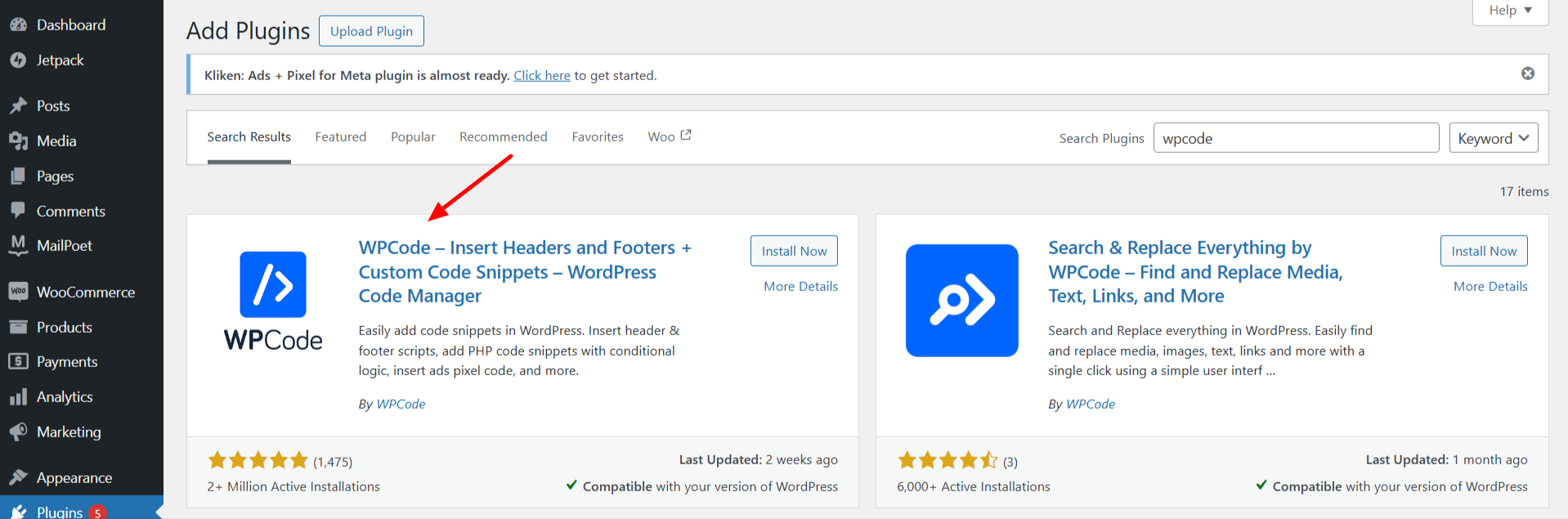
WPCode is a simple plugin that allows you to add custom code snippets in an easy-to-handle way without modifying your website’s core files.
– Download and Install WPCode:
- Open your WordPress admin, and on Plugins > Add New, download the WPCode.
– Add Your Custom Code:
- Navigate to Code Snippets > Add Snippet

- Then Add Your Custom Code

- Type in PHP Snippet and paste the following
php

Copy code

@ini_set( 'upload_max_size', '128M' );

@ini_set( 'post_max_size', '128M' );

@ini_set( 'max_execution_time', '300' );
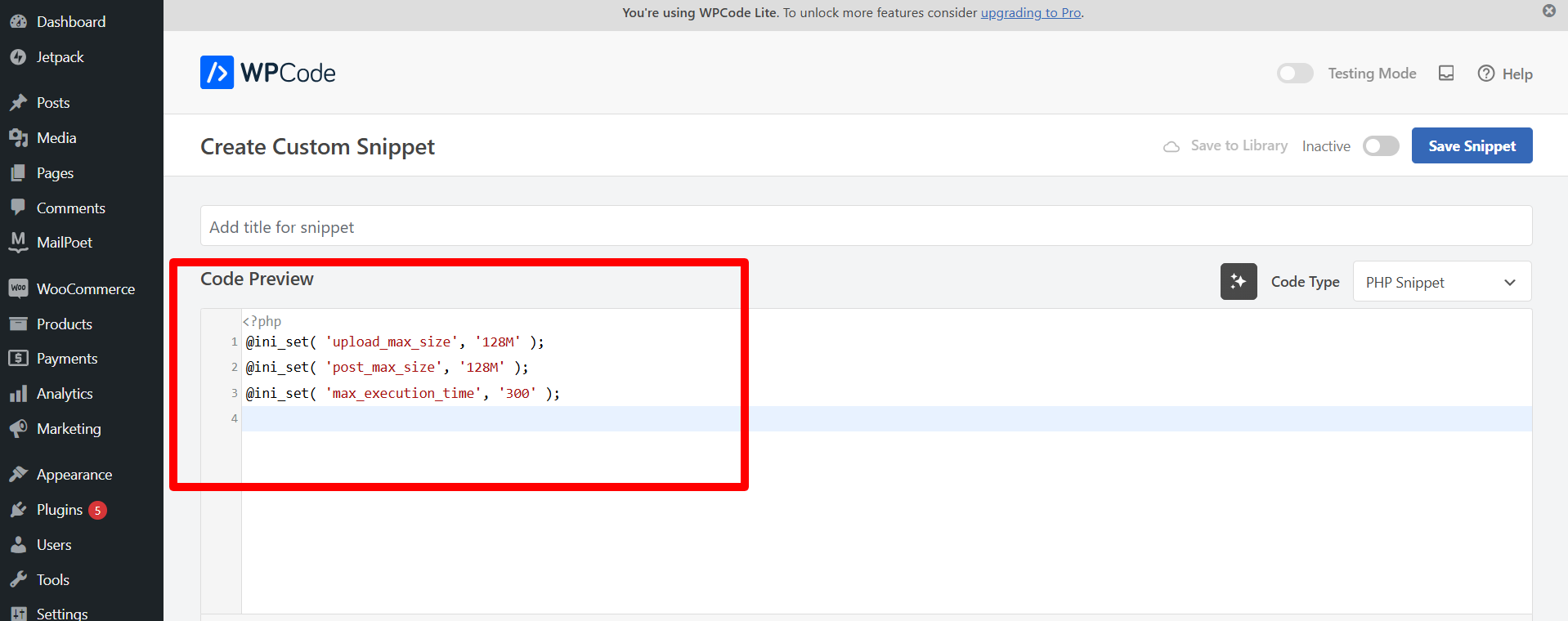
This code will increase your upload limit and post sizes to 120 MB and execution time to 300 seconds.
– Activate the Snippet:
- Save and activate the snippet to apply the changes.

This method is ideal for beginners since it doesn’t involve manual editing and ensures your changes persist through theme updates.
2. Modify the wp-config.php File
If you’re comfortable accessing your site files, editing the wp-config.php file can increase your site’s memory allocation.
– Access Your Site Files:
Access the WordPress root directory via FTP or your hosting control panel.
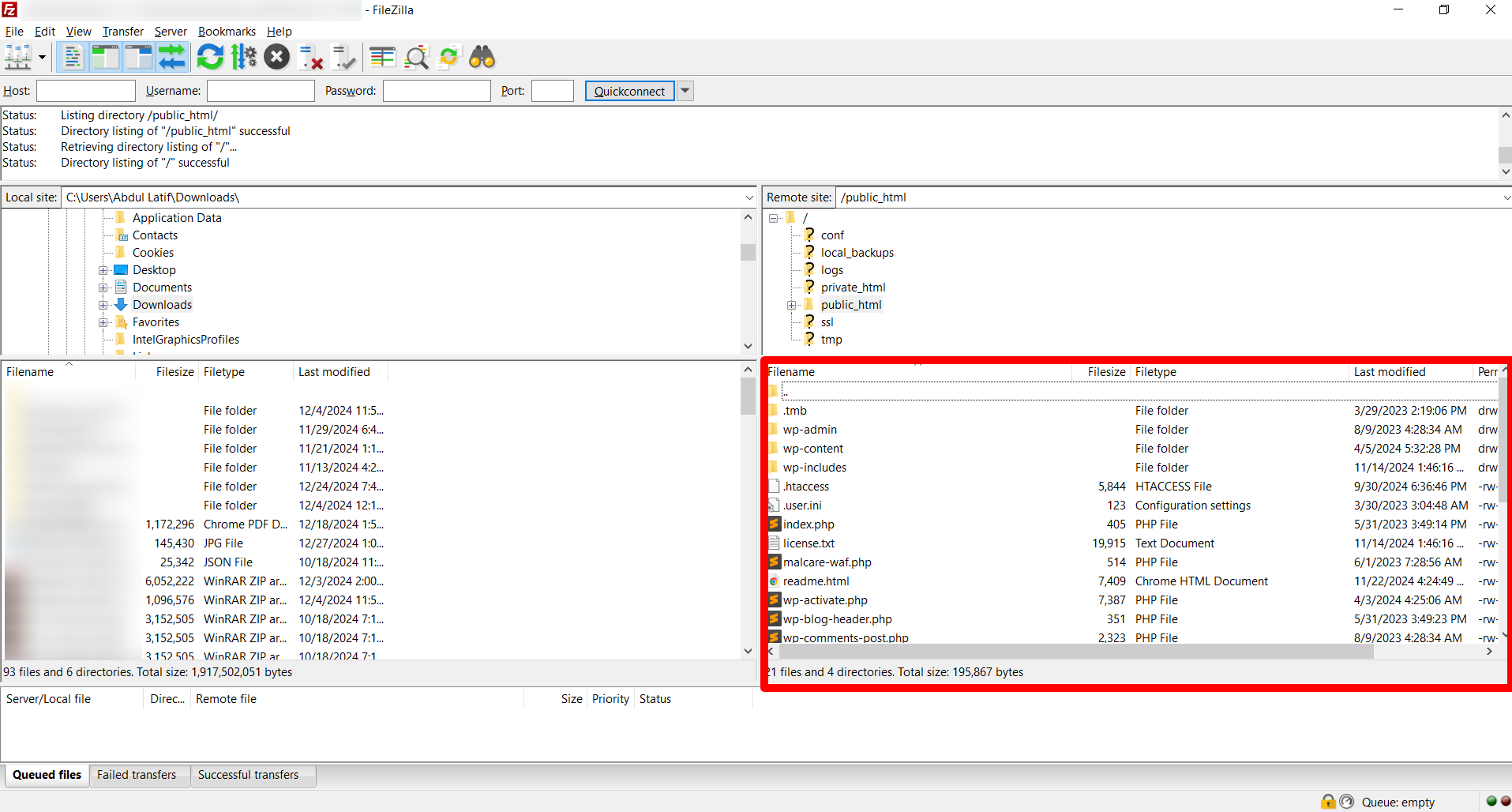
– Edit the File:
Access wp-config.php and put the below code line before it says: /* That’s all, stop editing! Happy blogging. */

php

Copy code

define( 'WP_MEMORY_LIMIT', '256M' );

– Save and Test:
Save the file and try uploading your files again.
This method directly increases the memory limit, thus reducing the possibility of errors due to resource allocation.
3. Modify the .htaccess File
The “The link you followed has expired” error is often solved by tweaking the server configurations managed by the .htaccess file.
– Locate the .htaccess File:
Find .htaccess in your site’s root directory using FTP or File Manager.
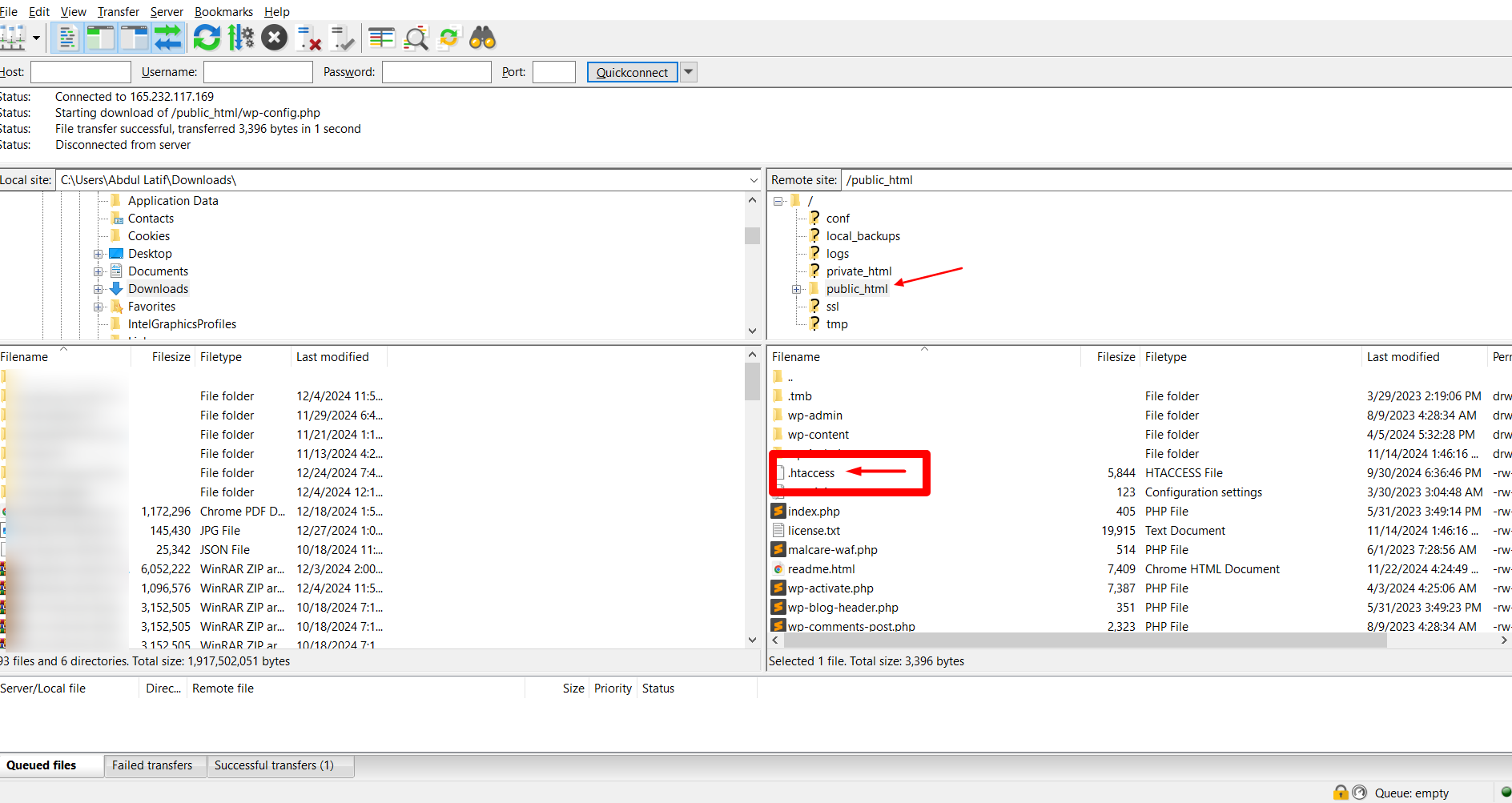
– Add Configuration Lines:
Add these lines at the end of the file:
Copy code

php_value upload_max_filesize 128M

php_value post_max_size 128M

php_value max_execution_time 300

php_value max_input_time 300

– Save and Upload:
Save these changes to upload the file to your server.
Be careful when editing .htaccess because incorrect configurations may lead to server errors.
4. Update or Create a php.ini File
The php.ini file contains PHP settings. If the file is not there, you can create one to solve the problem.
– Search for an Existing File:
Using FTP or File Manager, search for a php.ini file in your root directory.
– Add or Update the File:
Insert the following code if the file exists; otherwise, create a new file and insert the lines:
makefile

Copy code

upload_max_filesize = 128M

post_max_size = 128M

max_execution_time = 300
– Save Changes:
Save and upload the file, then test your WordPress site.
This approach directly impacts the PHP configuration limits. Therefore, it is quite effective for any upload-related error.
5. Update Your PHP Version
Using an outdated PHP version might cause compatibility problems and errors, such as “The link you followed has expired.”
– Log In to Your Hosting Panel:
Go to the PHP Configuration section in your control panel, such as cPanel.
– Select New PHP Version:
Select a newer version, such as PHP 8.2 or PHP 8.4.2, and save.

This site’s PHP version has been selected as the latest one available on its server.
– Test Compatibility:
WordPress themes & plugins should be compatible with the updated PHP version. So, ensure it.
Updating PHP improves performance and removes errors associated with outdated environments.
6. Troubleshoot Plugin Conflicts
The “The link you followed has expired” error may be caused by a conflict between a plugin and WordPress. The solution to this problem is.
– Temporarily Deactivate All Plugins:
Go to Plugins in your dashboard and deactivate them.

– Reactivate One by One:
Activate each plugin individually and test the upload process to identify the problematic plugin.
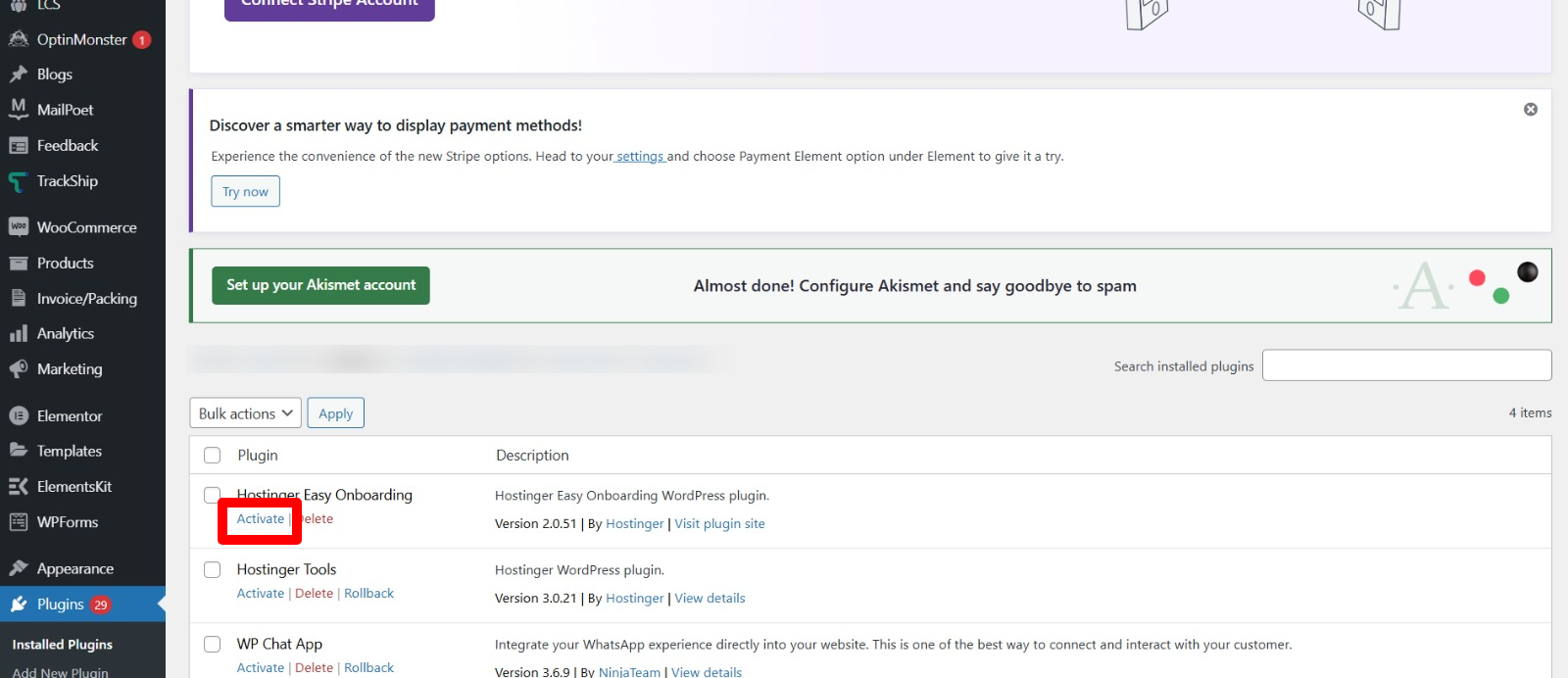
– Replace or Update the Plugin:
If a specific plugin causes the error, update it or find an alternative.
Using a plugin like Health Check & Troubleshooting makes this process easy without affecting site visitors.
7. Contact Your Hosting Provider
If all of these methods have failed, and there seems to be no way out (although it won’t happen 😉). Now, only God and your WordPress hosting provider can help you resolve this “The link you followed has expired” error:
– Request Configuration Changes:
Ask your hosting provider service person to increase the file upload size, memory limit, and execution time.
– Check for Server-Side Issues:
Sometimes, hosting providers can spot server-level issues that are causing the error.
Expert Tips to Prevent “The link you followed has expired” Errors in Future
By being proactive, you may be able to avoid having the “The link you followed has expired” error ever again. Here are some expert tips:
1. Select the Perfect Hosting Provider
- Select a provider that has expertise in hosting WordPress, such as WPExperts hosting solutions, will help you prevent “The link you followed has expired” Errors in the future.
- Features must include high upload limits, PHP version support, and responsive customer care.
2. Update WordPress Frequently
- Update your WordPress core, themes, and plugins to their latest versions.
- Updates not only enhance functionality but also solve compatibility issues that may lead to errors.
3. Optimize Your Site
- WP Rocket or Smush helps optimize the images and reduce server load.
- Clean the database and unnecessary files at regular intervals for site performance.
4. WPExperts Services
- WPExperts services include WordPress theme development and customization, WooCommerce services, and performing site performance/speed optimization services for you.
- With these professional WordPress support services, you minimize errors and thus focus on growing your business and website.
Final Words
The process of solving the “The link you followed has expired” error might seem to be quite arduous at first. But using the right method makes it quite easy. Sort it gradually by increasing upload limits, updating your PHP version, and troubleshooting plugin conflicts in your WordPress site.
You will get hassle-free services if you hire premium WordPress services from WPExperts. Our experts deal with solving errors, performance optimization, and website management.
Let WPExperts power your WordPress journey; don’t get held up by technicalities!





