


















































Suppose you manage your WooCommerce store by managing wholesale and retail customers, you need to simplify large orders. Undoubtedly, bulk customers need to select various products without going through multiple steps.
This blog post will discuss how to create multiple wholesale order forms using the plugin, Bulk Order Form for WooCommerce.

Why Should We Create Multiple WooCommerce Ordering Forms?

WooCommerce ordering forms are practical tools for ensuring a seamless yet engaging customer experience. Through these forms, you can showcase your products on a single, intuitive platform that facilitates effortless online shopping.
That said, before you create multiple order forms, examine whether your business model needs them.
We will discuss the different advantages that multiple WooCommerce order forms offer to businesses, whether small or large. These advantages include:
Effective Product Category Management
There is no denying that various wholesalers offer a wide range of products to their customers. At times, it becomes challenging to display numerous products in a single ordering form. Undoubtedly, experienced customers can explore their preferred products using search and filtering methods.
However, this is not the case with the new B2B customers, as they find it cumbersome to explore their desired products. In this situation, a dedicated WooCommerce bulk order form comes in handy.
Once you develop dedicated order forms for your diverse offerings, you make the shopping experience more seamless and value-driven for your esteemed customers.
Cater to Diverse Customer Bases
This approach works amazingly well if e-commerce businesses fulfill the needs of different customer bases. If your business serves both wholesale and retail customers, you will not want to showcase exclusive wholesale prices to retail customers and vice versa.
Developing several WooCommerce ordering forms dedicated to particular customer bases helps businesses create a highly customized shopping experience. Similarly, you can overcome errors and misunderstandings in product visibility or pricing.
Launch Seasonal or Targeted Marketing Campaigns
If you manage an e-commerce store that delights customers by selling seasonal products, a one-size-fits-all WooCommerce ordering approach won’t work.
In this situation, you can benefit from multiple orders to support seasonal products and relevant offerings, leveraging sales during peak seasons. This will enable your customers to make purchases based on particular promotions or occasions.
For instance, businesses, whether small or large, can develop WooCommerce ordering forms for the industries they serve. Likewise, they can create and highlight exclusive deals or best sellers, customizing the ordering experiences of their customers.
How to Create Multiple Wholesale Order Forms?
Through the Bulk Order Form for WooCommerce, store owners can develop order forms for a wide range of product categories, tailor their visibility for various wholesale customers, and develop a more efficient and customized purchase experience for their customers overall.
Before creating multiple wholesale order forms, ensure you have installed and activated the newest version of Bulk Order Form for WooCommerce.
Through a quick order form, you can smartly develop a wholesale order form. To do this, follow the steps below:
- Go to WooCommerce > Quick Order Form > Add New.
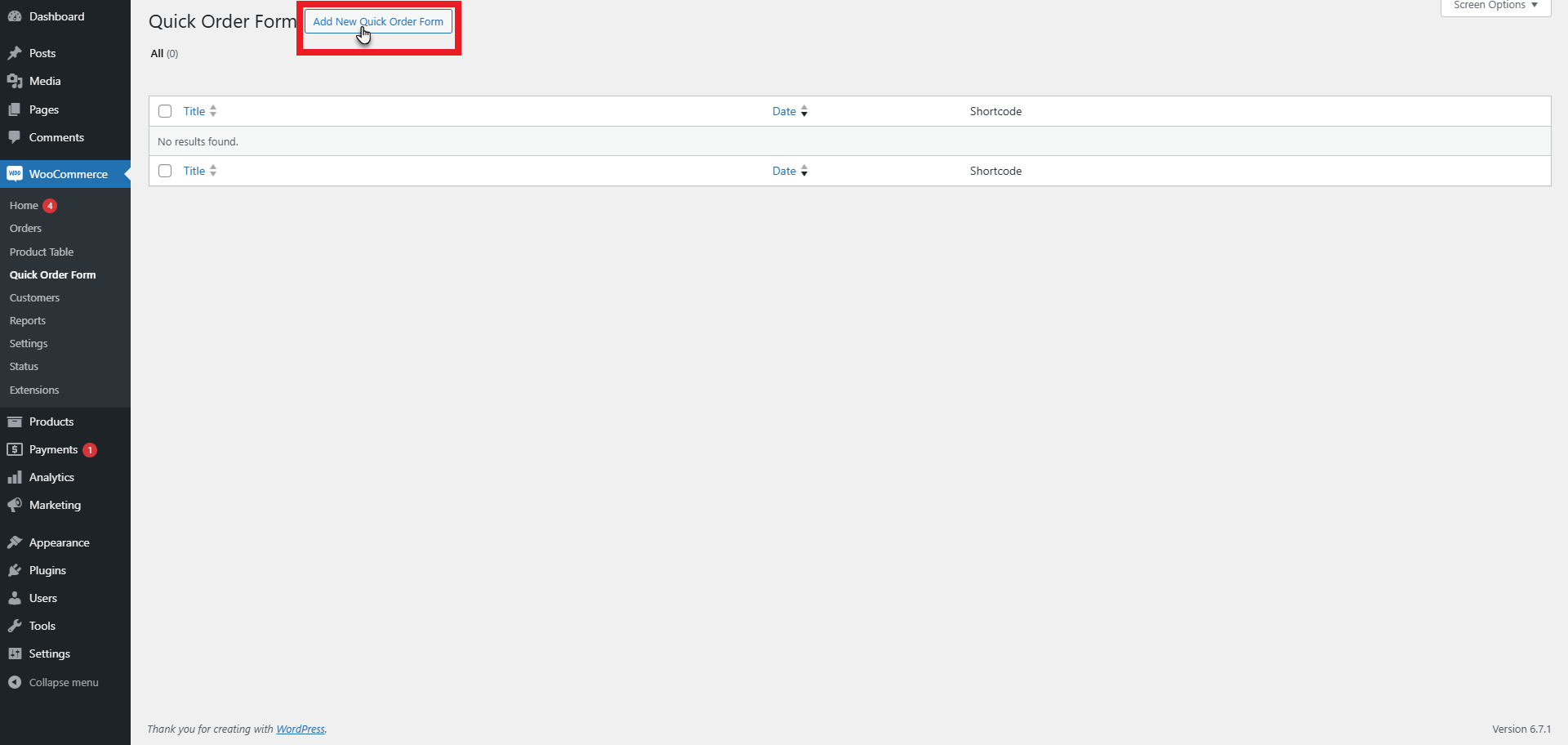
- A new page will appear where the admin can include the form details.
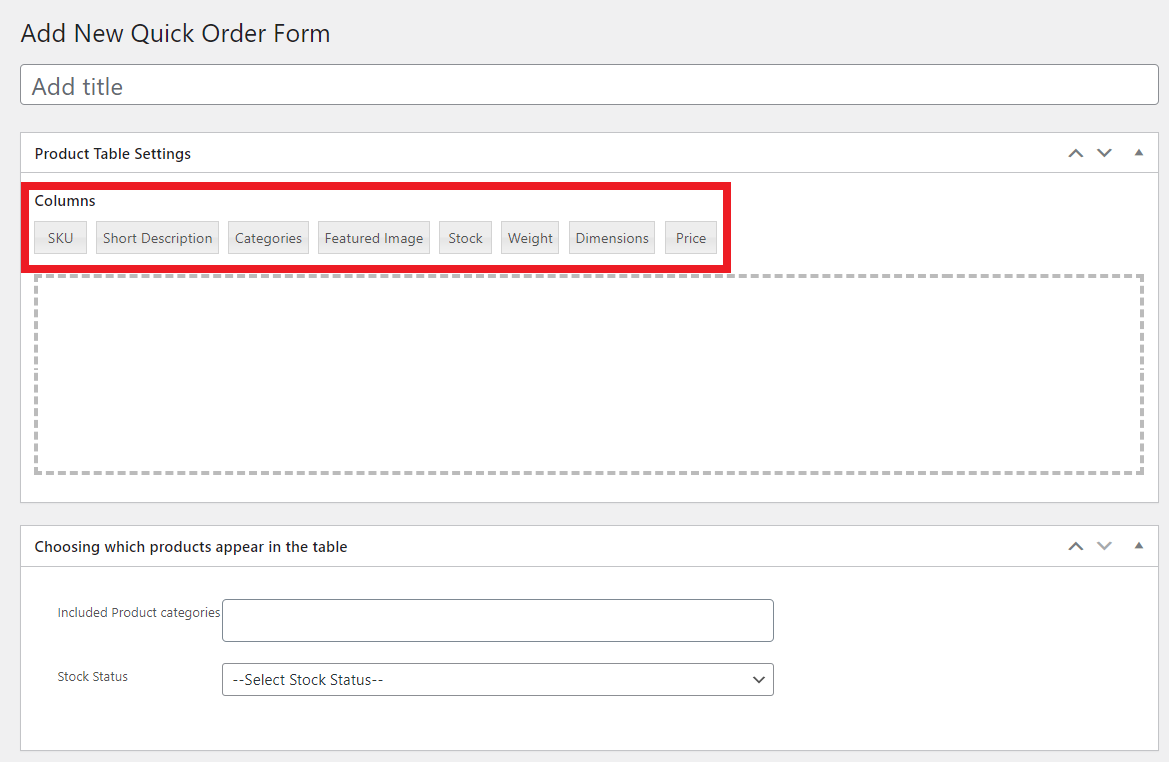
- Admin can include the title of the Quick Order Form using the Add title field.
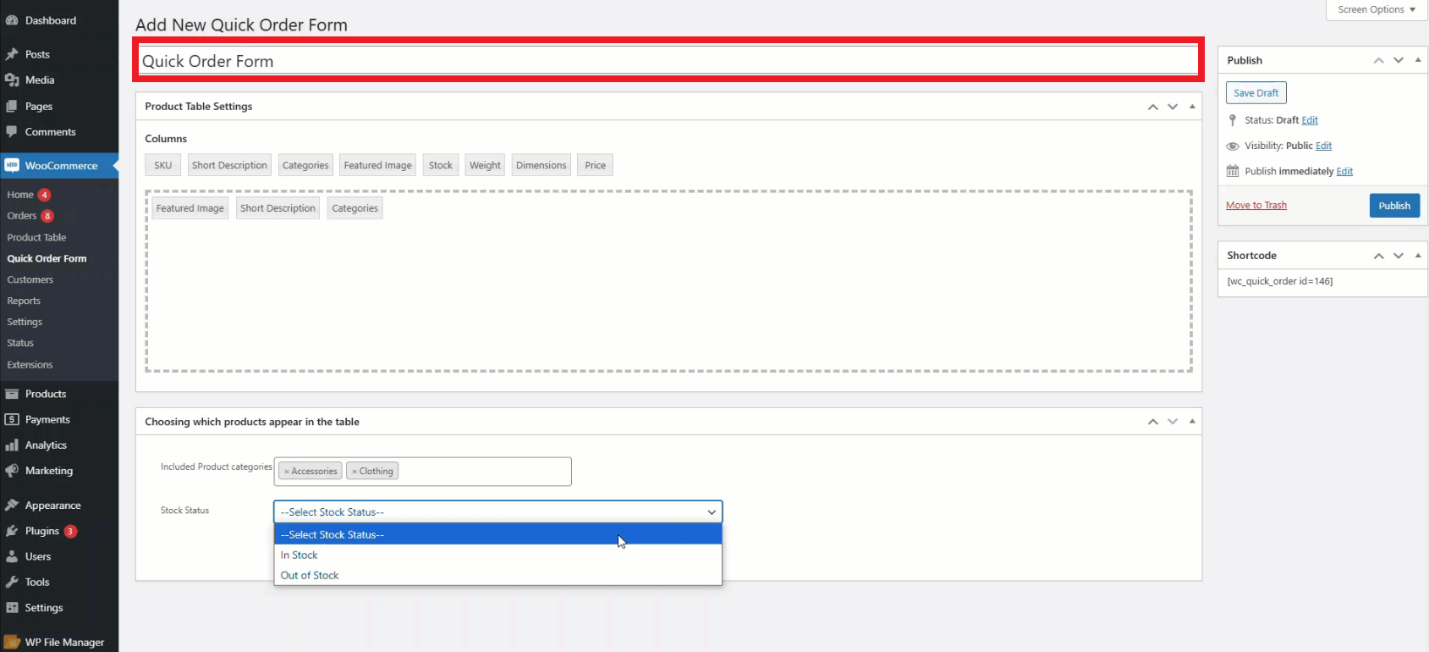
- To include the Product Table column, drag and drop the Columns in the field under the Product Table Settings.
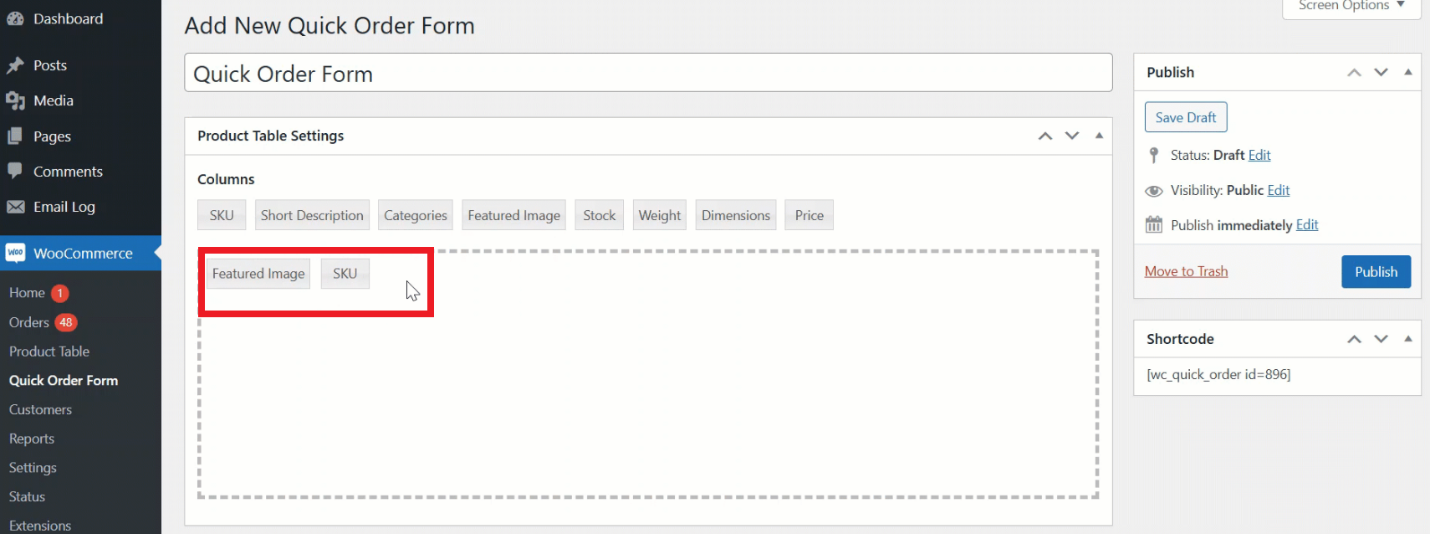
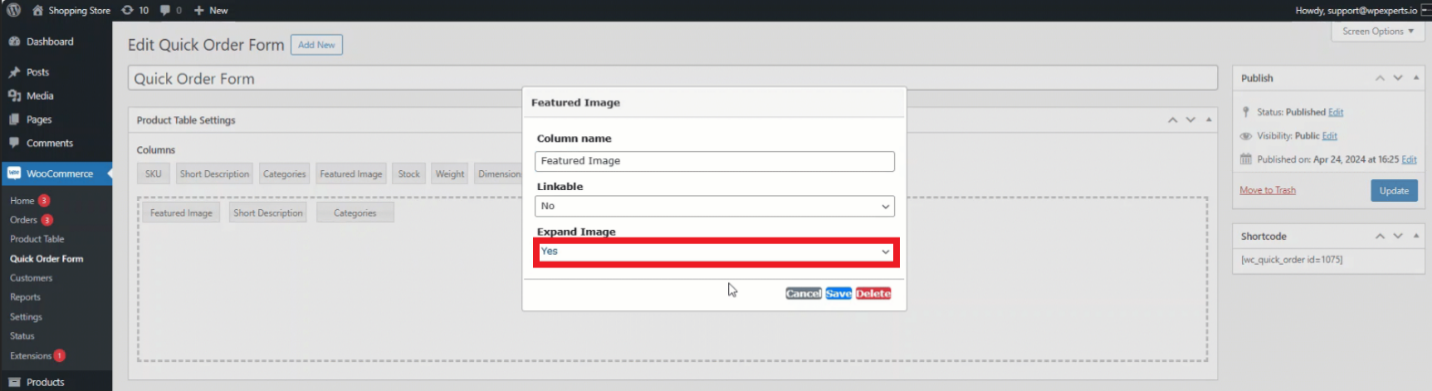
- Fields can be deleted and renamed depending on the need. To rename, click any field, and the pop-up will appear. Through the Column name, include the desired column name.
- When you are done, press the Featured Image, and from the Expand Image dropdown option, choose Yes.
- Once done, choose the Product categories under the header Choosing which product appears in the table.
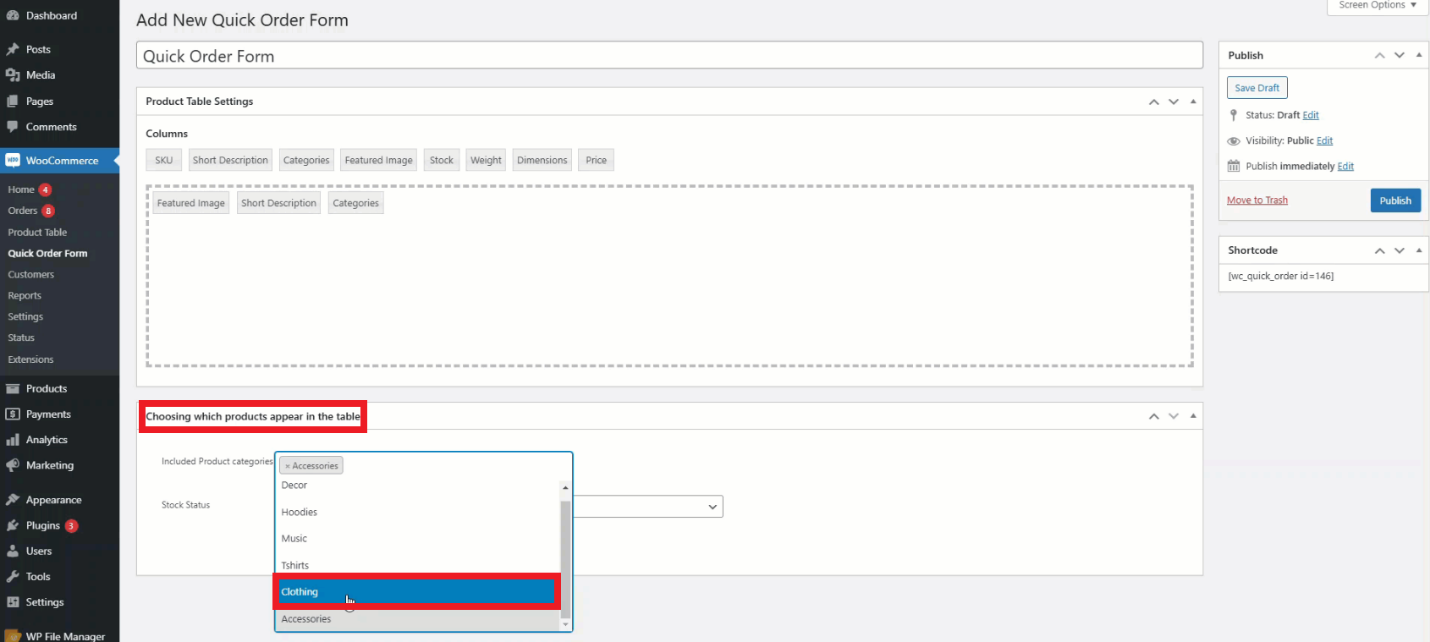
NOTE: You cannot search for any product other than the selected category from the frontend.
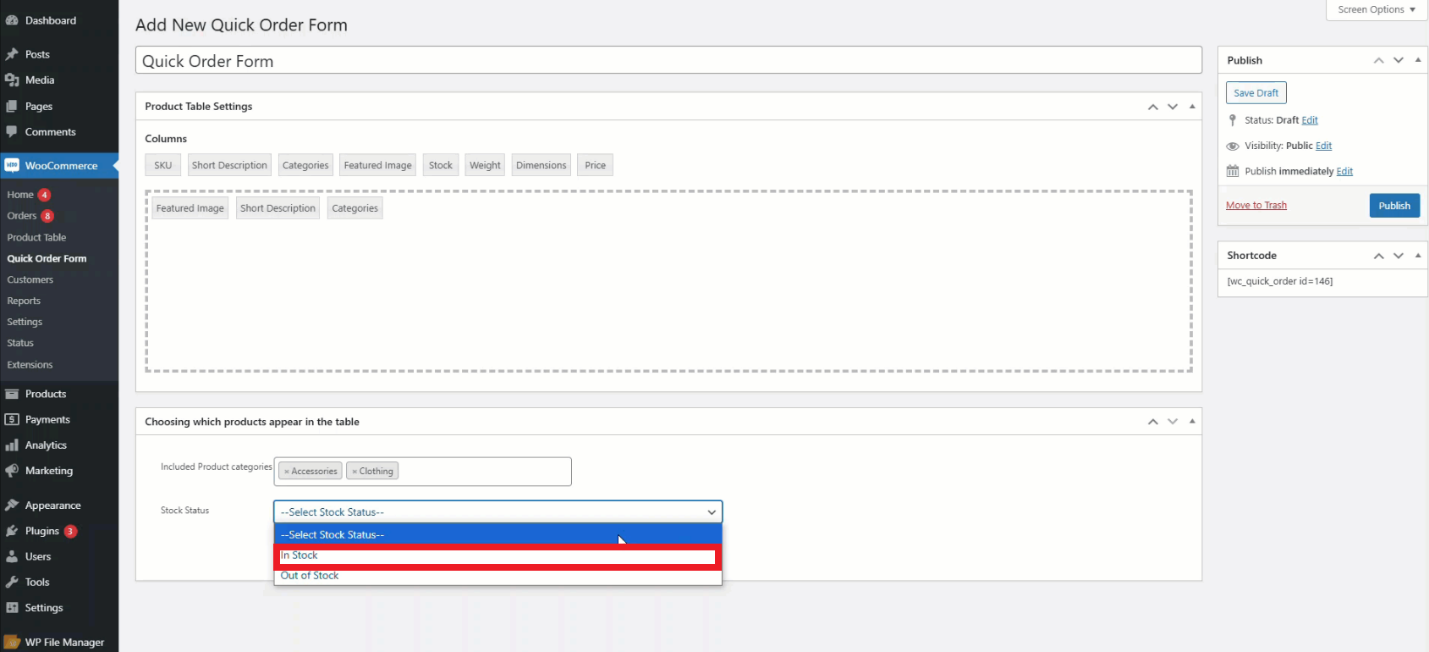
- Admin can set stock status by pressing the dropdown beside the Stock Status label, which will show either in-stock or out-of-stock products.
NOTE: If the Stock Status is unselected, it will display all in-stock and out-of-stock products.
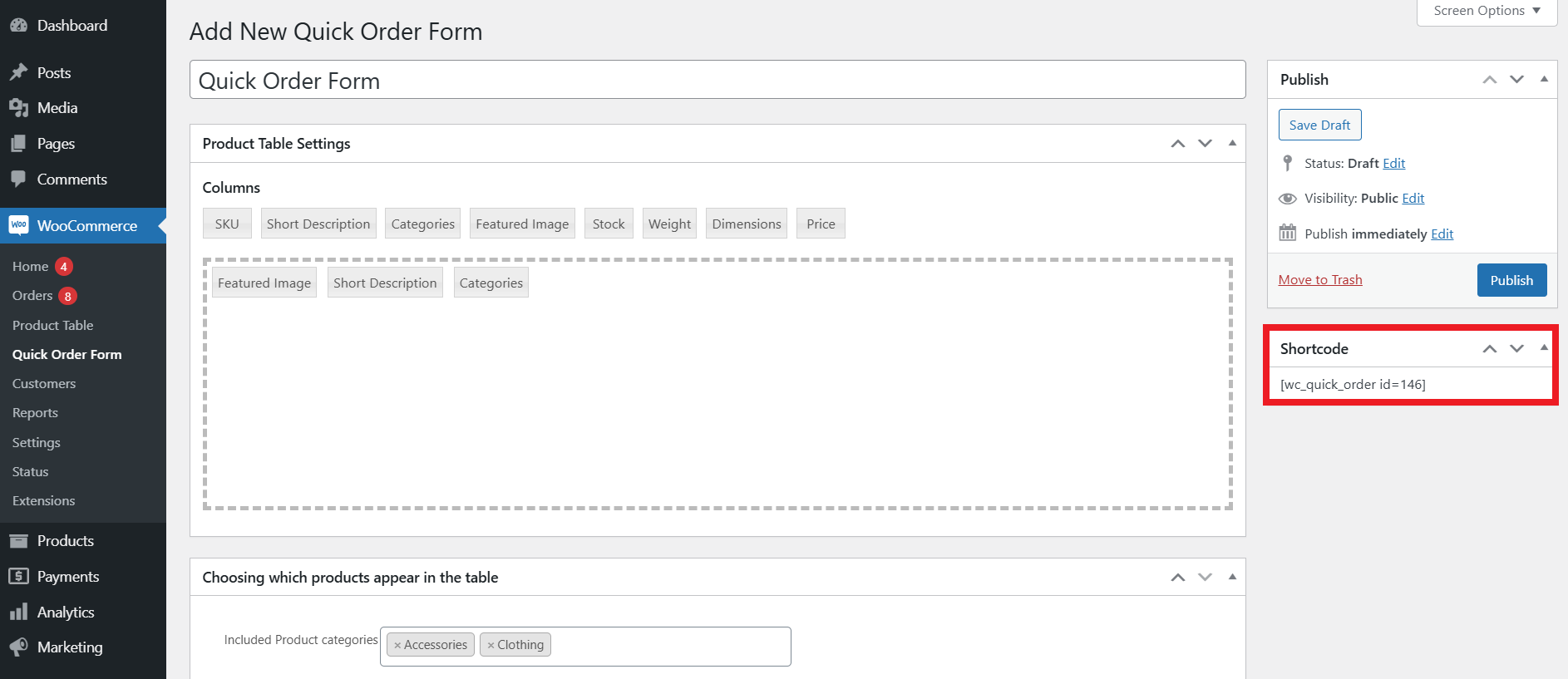
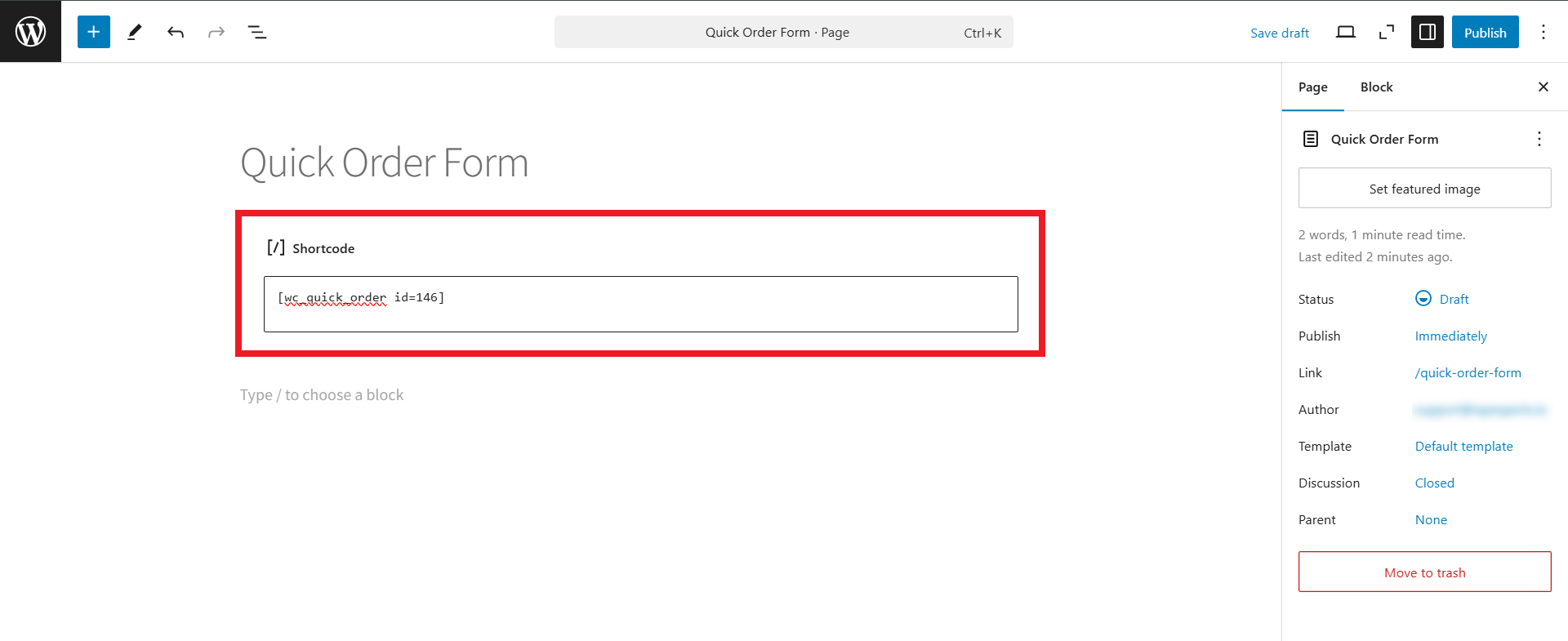
- Once you have set all the fields, copy the shortcode, which will be pasted on the page later to display the Quick Order Form.
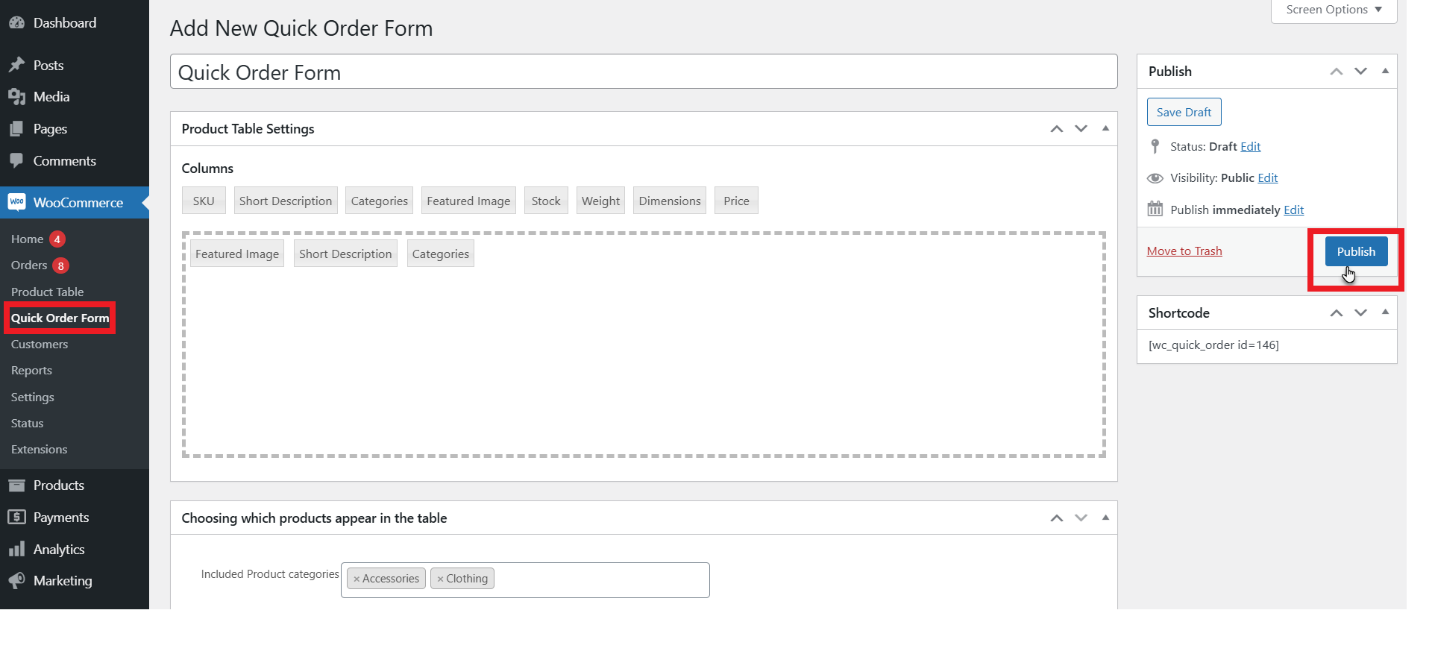
- Now, choose the Publish or Update button.
- To display the table on the frontend, create a page and navigate to the WordPress admin Dashboard > Pages.
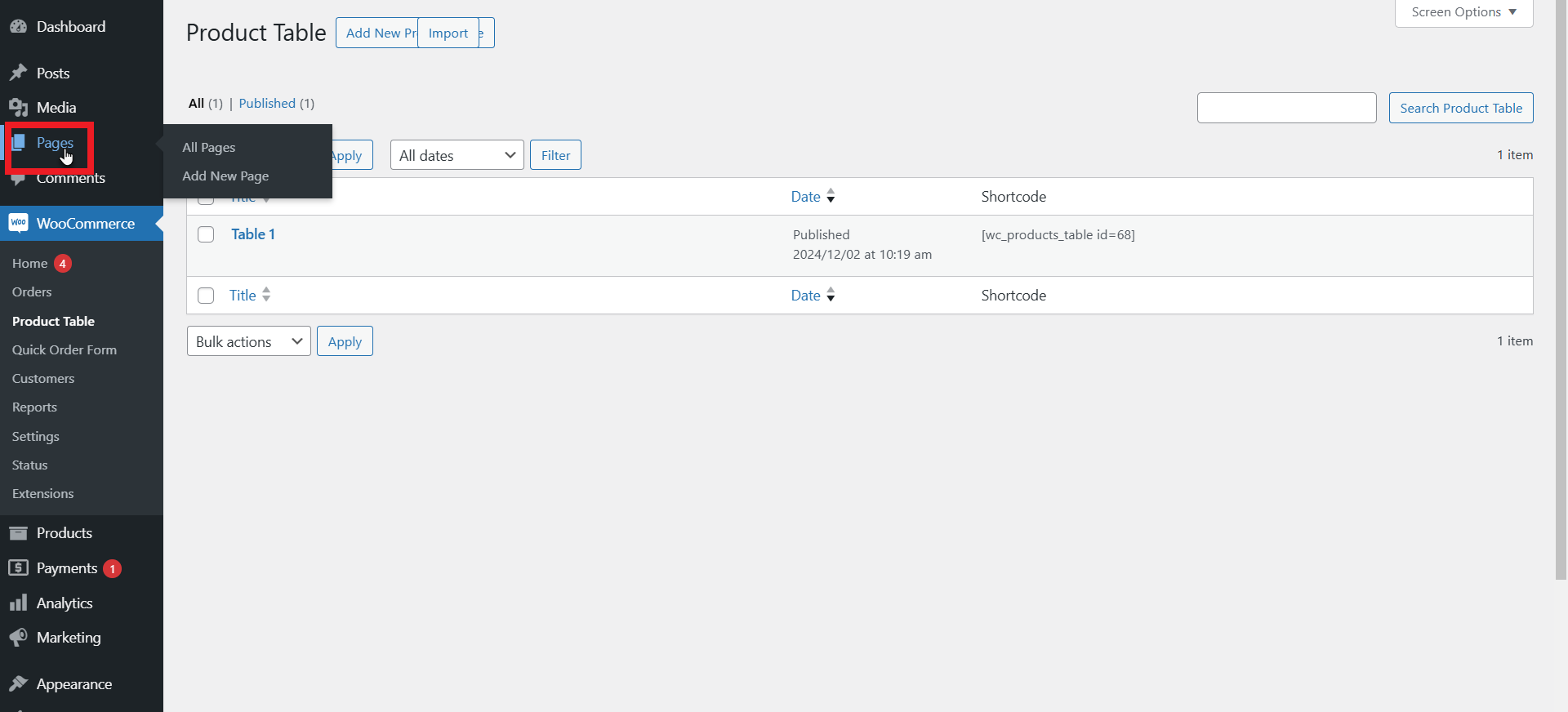
- Click Add New and create a new page.
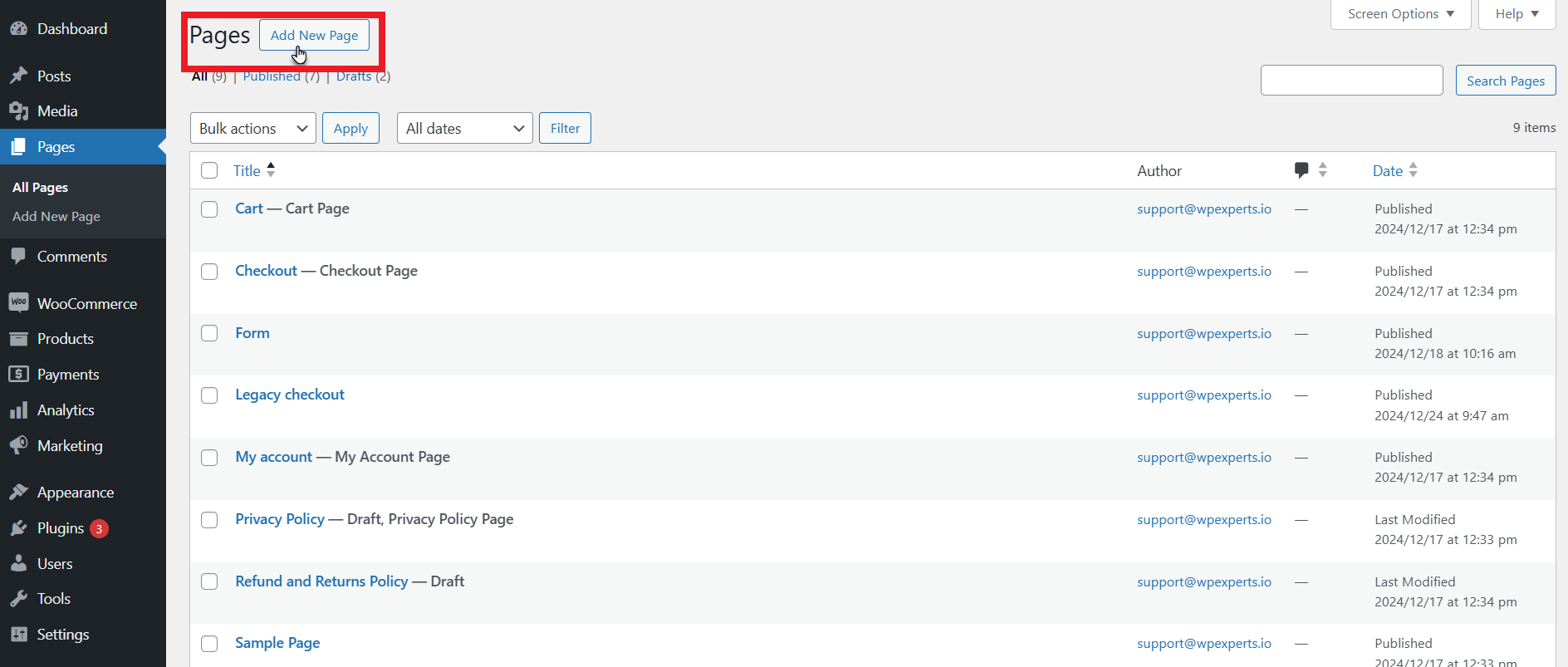
- On the page, choose + and add the shortcode
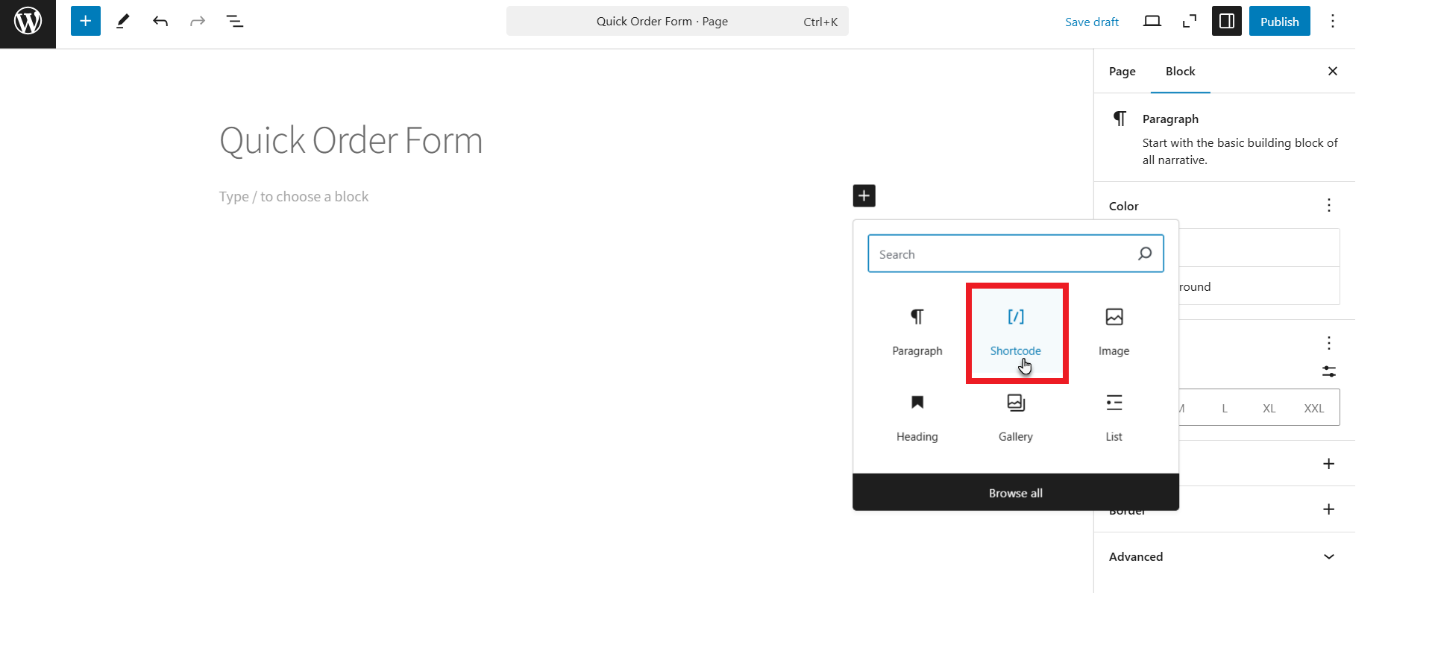
- Paste the copied shortcode in the field under the Shortcode label and hit the Publish button.
Front-End Impact
- You can see the quick order form on the frontend according to the fields set from the back end.
- You can search for the Products using the search field. Product details will appear depending on the fields set in the form. You can also set product quantity, which will be added to the cart.
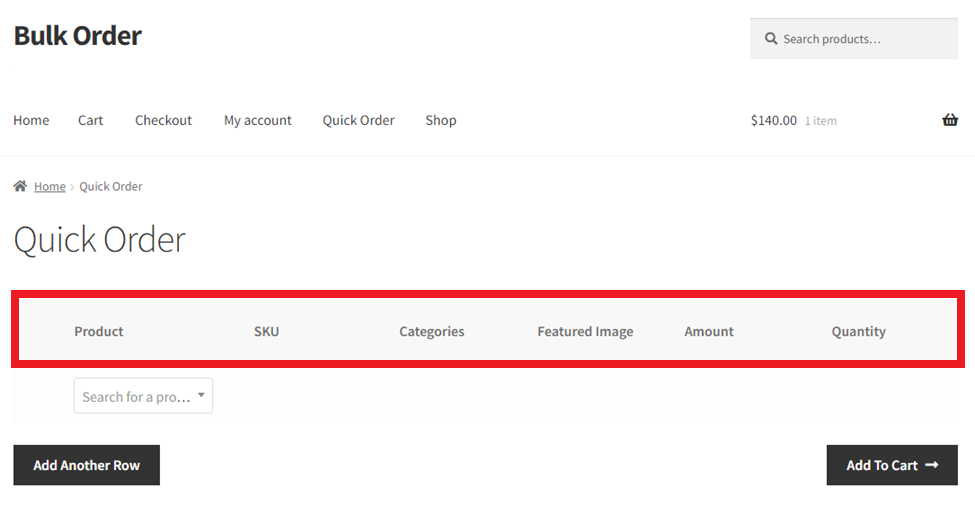
The above steps let you create an order form effectively. Moreover, you can repeat the above process to produce various WooCommerce order forms when needed, fulfilling the needs of a diverse customer base.
Wrapping Up
Developing numerous WooCommerce ordering forms is one of the most potent ways to optimize the customer experience and offer a competitive edge in the e-commerce market. The above blog post allows you to discover different advantages of ordering forms in one place.
Remember, you have to install and configure the impactful plugin, Bulk Order Form for WooCommerce, when creating optimized wholesale order forms.





