




















































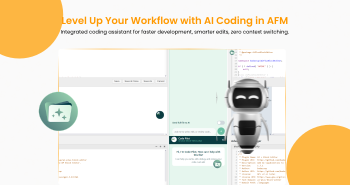
Artificial intelligence (AI) has made coding a million times easier. Now, using AI, you can code without writing a line of code. You can just prompt the AI code assistant in plain English, and it can help you write code and automate tedious and repetitive tasks, freeing you up to work on other vital tasks that can eventually lead to increased productivity.
In fact, IT Revolution found that developers using AI coding assistants can complete tasks 26% faster on average. This is a considerable jump in productivity! These tools are becoming essential for anyone who edits PHP, CSS, or JavaScript files in WordPress.
This article will explore how you can add an AI coding assistant to WordPress. But before that, let’s understand what this feature actually is, how it works, and what tools you would need for it.
What is an AI Coding Assistant in WordPress?
An AI Coding Assistant is a tool that uses a large language model (LLM) to help you write code. In a nutshell, it is an intelligent code chatbot.
These assistants do more than just suggest the next few lines of code. You can generate code that can help you add new functions or features, all with a simple text request, like: “Write a PHP function to show a custom post type.” This eliminates a lot of time you would spend on repetitive code.
The most valuable part of a good AI assistant is its deep integration. Instead of switching back and forth from the website of an AI coding assistant and your WordPress, you can simply work directly from WordPress.
The best part about this in-WordPress integration is that it allows the AI coding assistant to understand the code you are currently working on. It examines your entire file to provide you with suggestions tailored to your specific project and needs.
How Does an AI Coding Assistant in WordPress Work?
The AI Coding Assistant adds a large language model (LLM), such as OpenAI’s GPT, into WordPress. This connection lets the AI access the context of your code or the entire code, depending on your choice, more on this later.
You can:
- Generate new code without even writing a single line of code. All based on your text prompts.
- Edit and improve your existing code for better performance.
- Get tailored suggestions according to your code to fix bugs.
- Ask questions about your code or general WordPress development and get instant answers.
This allows even those with less experience to customize their WordPress site with greater confidence.
Why Add an AI Coding Assistant in WordPress?
Integrating an AI coding assistant into your WordPress can be super helpful. A few of the benefits are:
- It Increases Speed: No need for doing all the repetitive tasks by yourself; you can delegate them to AI.
- You Make Fewer Errors: After you finish writing code, you can instantly check it with the assistant to find any security holes and potential bugs. In fact, agencies have seen a 70% drop in syntax errors and a 35% decrease in debugging time when using these tools.
- Simplifies Complex Coding Tasks: Of the hundreds of coding languages, you can’t be a master of all. Hence, using an AI assistant can help tackle this issue. You can generate complex JavaScript or advanced code for you that you might be unaware of, with just a simple prompt in plain English.
- Write Higher Quality Code: An LLM or an AI model is trained on billions of lines of code and texts, hence it’s smart enough to produce code that follows modern standards and best practices for WordPress development.
How to Add an AI Coding Assistant in WordPress?
WordPress does not have an AI coding assistant feature by default. The platform is designed to serve as a content management system, and not a development-focused area. This means you must use a third-party plugin to add features, such as AI-assisted coding.
The best choice for that is the Advanced File Manager plugin. It features a new AI Coding Assistant integrated right into its WordPress code editor. This integration enables you to write, debug, and refine code with AI assistance while editing your files.
Additionally, the file manager plugin offers more than just an AI tool or file management capabilities. The major benefit for a file manager would be a dashboard-based alternative to traditional FTP clients or cPanel. This allows you to perform necessary file operations, such as uploading, deleting, editing, and moving files, directly from your WordPress admin panel without needing external software.
Also, even though this AI code feature is revolutionary, Advanced File Manager also offers a full suite of features for making file handling straightforward and better. Later in this article, we will explore all the other powerful tools you get with this amazing plugin.
3 Easy Steps to Add an AI Coding Assistant in WordPress
Step 1. Install and Activate Advanced File Manager Pro
- Go to your admin dashboard.
- Plugin ⇒ Add Plugin
- Use the search plugin bar to look for Advanced File Manager.
- Install and activate the plugin.
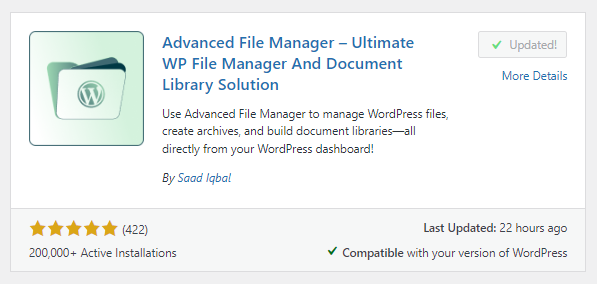
NOTE: AI Coding Assistant is only available in the premium version. Before moving forward, upload and activate Advanced File Manager Pro to unlock this feature. Below is how you can do so:
- Navigate to the Advanced File Manager’s pricing page and purchase a plan of your choice.
- After completing your purchase, you’ll receive a welcome email containing a ZIP file of the plugin and a unique license key.
- Download the ZIP file to your computer without extracting it, then copy the license key to your clipboard.
- Go back to your admin dashboard and select Plugin ⇒ Add Plugin.
- Click the “Upload Plugin” button located at the top of the WordPress interface.
- Click “Choose File” and pick the ZIP file you downloaded to your device.
- Click ‘Install Now’ to proceed.
- Activate it using your unique license key, and you’ll be able to enjoy the premium benefits we’ll cover later.
Step 2. Enable AI Coding Assistant With Secret Key
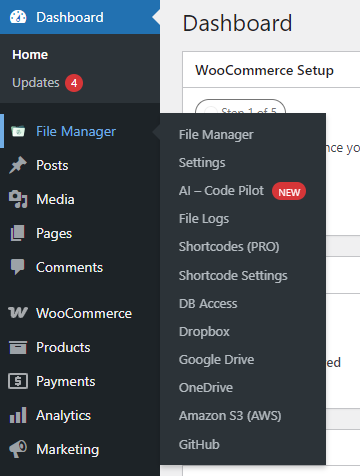
- Navigate to File Manager ⇒ AI — Code Pilot.
- Check the Enable AI Integration checkbox.
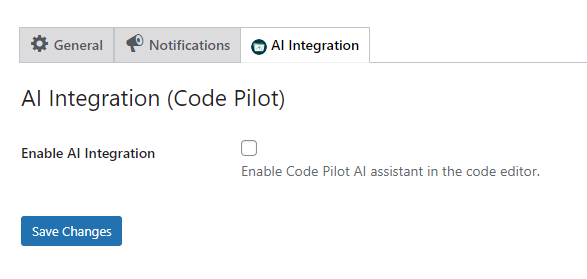
- Doing so will reveal this new GPT API Key box. Get your unique API key from OpenAI’s Platform.
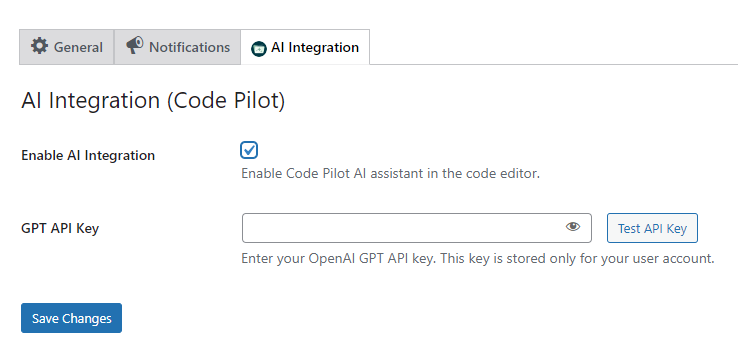
- Paste the API Key in the box
- Test it by clicking the “Test API Key” button.
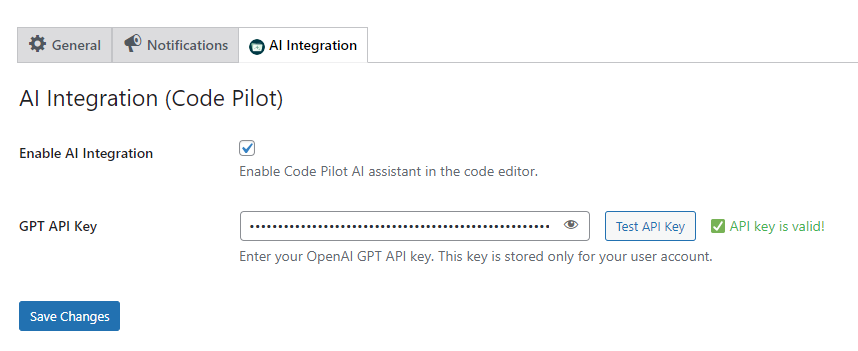
- If you see the “API key is valid!” message, the integration was successful.
- Click the “Save Changes” button.
There you go! You have successfully integrated an AI coding assistant in WordPress. Let’s test the integration before moving into the other benefits you get with Advanced File Manager Premium.
Step 3. Launch the AI Coding Assistant
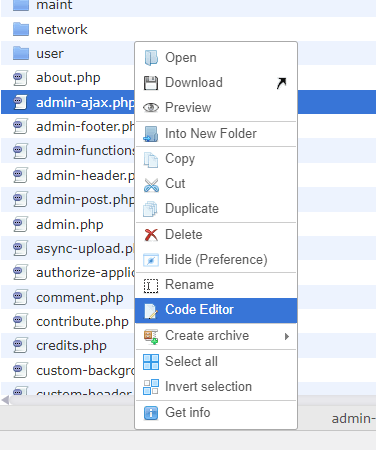
- Navigate to the File Manager, and you must see all the WordPress core files.
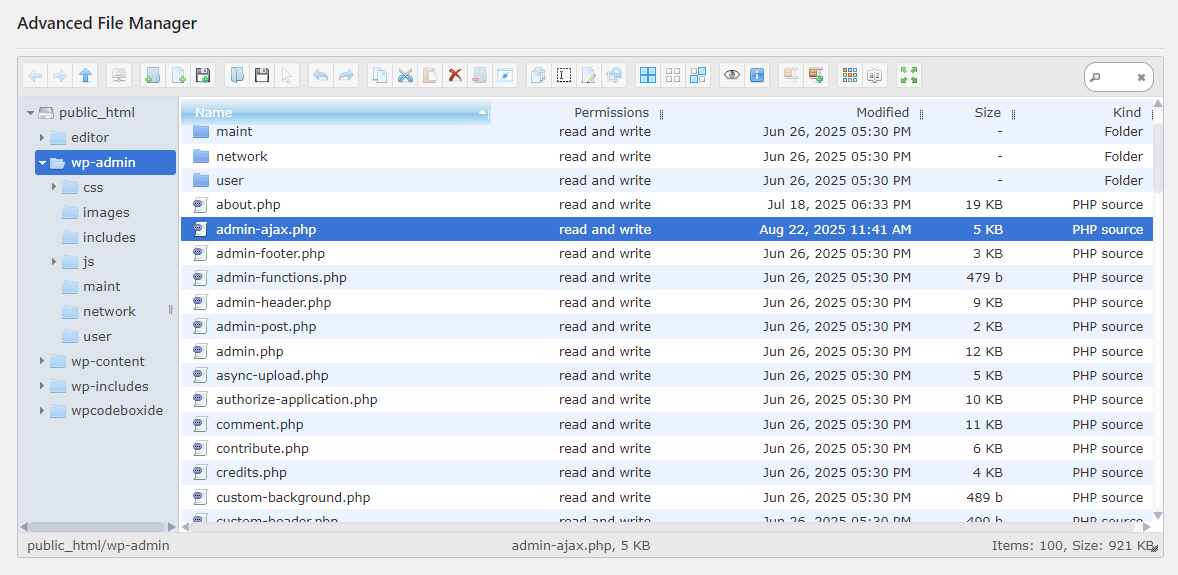
- Right-click on the file that you want to edit and select Code Editor.
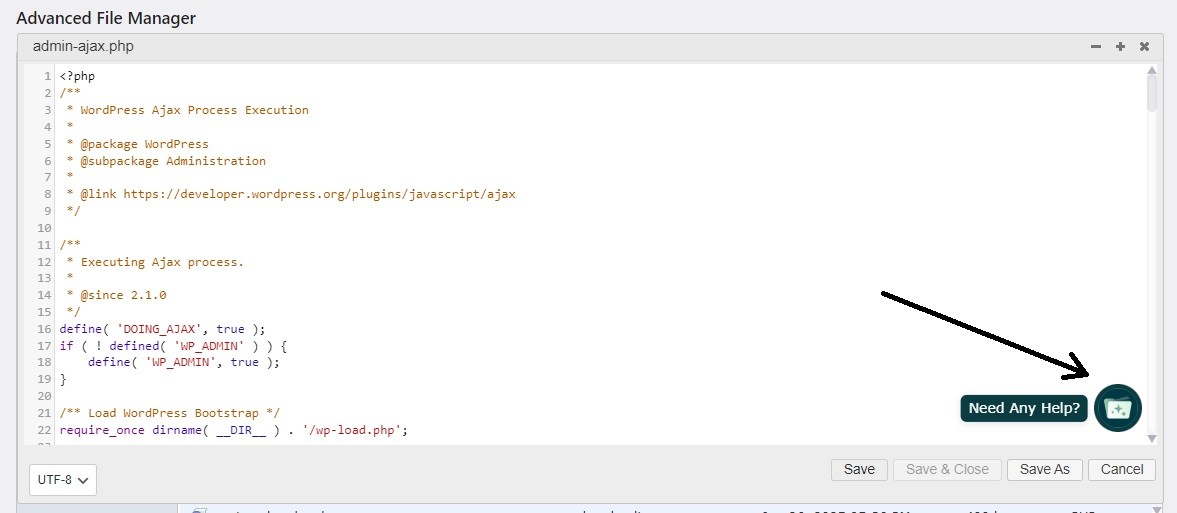
- In the bottom right corner, you will see the “Need Any Help?” text along with the plugin’s logo.
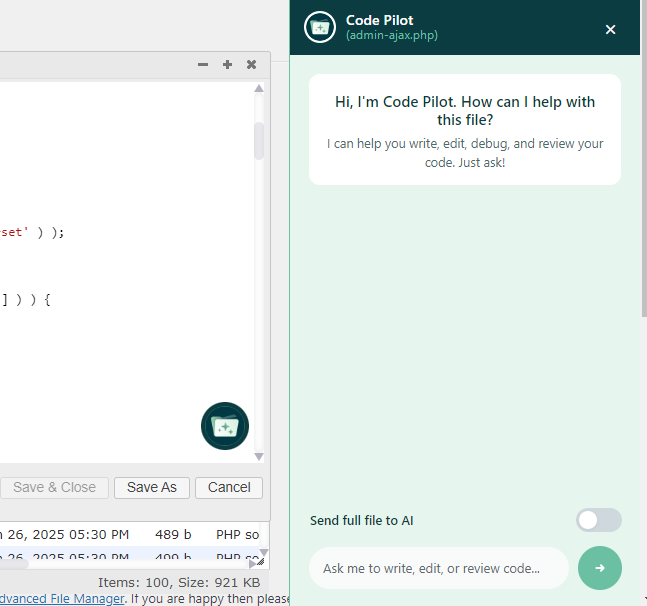
- Click on it and there you go! You have the Code Pilot on the right side of the screen. You can ask questions, write code, and much more.
Testing the Integration
Let’s put it to the test. We deliberately removed a comma from the code. Let’s prompt it to find the error in the code.
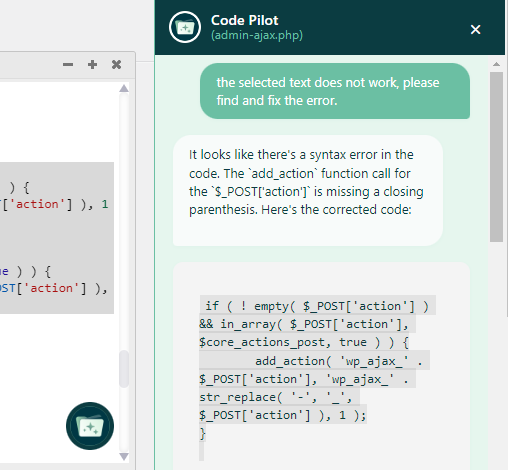
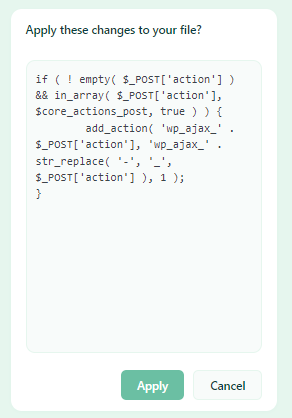
The best part? You can simply click “Apply,” and the changes will be applied to your file no need to do it manually.
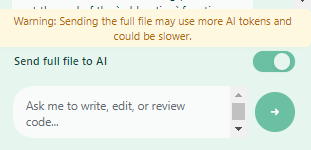
Moreover, you can choose how much of the code you want to share with the AI. You can either select the part or the line of the code that you want to share, or you can choose to share the entire code by toggling this “Send full file to AI” button. Of course, this will use more AI tokens.
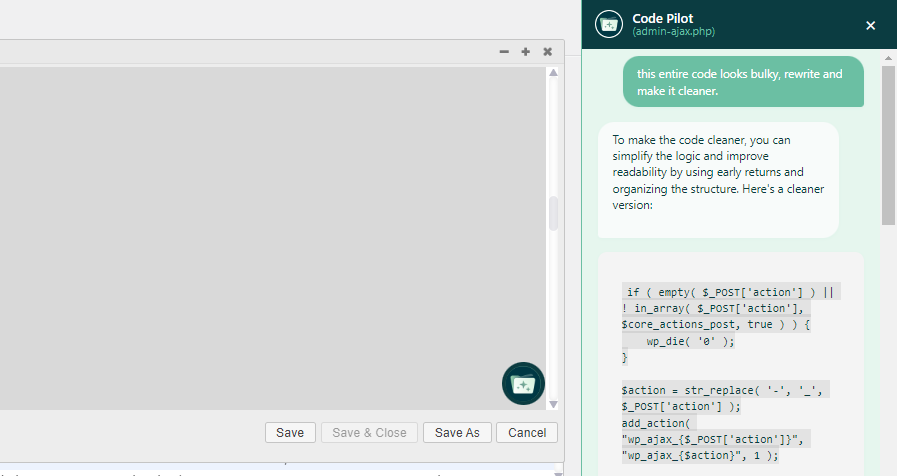
You can even ask it to rewrite the entire code.
Please be aware that your prompts will determine the result. The AI would be confused and might produce unwanted or inaccurate results if you typed something ambiguous or vague. Therefore, before pressing the Send button, make sure your prompts are sufficiently clear.
If you want accurate results, follow the best practices mentioned below before creating your prompts:
- First, ask yourself what you are trying to achieve, and then communicate that to the AI. For example, “Refactor this loop to use a modern PHP structure.”
- Specify which language or format you were planning on using. For example, “Write a PHP function to check if a user is logged in,” or “Generate CSS to center this block.”
- If you’ve selected only a part of the code, reference the full file or the surrounding structure. Say, “Using the WordPress function get_post_meta, create a new function to display the custom field.”
- Define what it should and what it should not do. For instance, you can write a prompt like, “Write the code, but do not use the echo command.”
There you go! That’s about it for the AI Coding Assistant. It’s live now and completely ready for use!
Advanced File Manager: More Than a File Management Plugin
When it comes to file editing, the AI Coding Assistant is genuinely revolutionary. But it’s crucial to keep in mind that Advanced File Manager, the plugin we used to implement this feature, offers more than just this feature.
It was created to address the annoyance of frequently alternating between your cPanel, FTP client, and dashboard.
The plugin provides a comprehensive, secure, and user-friendly solution directly within your WordPress admin area. Key features include:
- Restrictions Based on Access Control: Restrict who can see, edit, or delete specific files and folders using role-based permissions to protect sensitive core files from unauthorized users.
- File Sharing on the Frontend: Utilize shortcodes to display private folders and document libraries on the front end of your website, allowing for secure sharing of client files or course materials.
- Media and Document Previews: Instantly preview various file types without needing to download them first, which saves time.
- Cloud Integrations: You can connect to popular services like Google Drive, Dropbox, OneDrive, Slack, Amazon SES, and GitHub.
- Image Editor: Without using third-party software or a plugin, you can make quick, essential edits to images, such as cropping, rotating, and resizing, directly within the file manager interface.
- Multi-File Selection: No need to perform actions by selecting files individually. Select multiple files or folders at once to perform bulk operations, such as zipping, deleting, or moving them quickly and efficiently.
- Size Calculation of a Directory: Quickly calculate the size of folders and directories by selecting the files and folders.
- Path Privacy Protection: Hide the actual, sensitive file paths from users to enhance overall security and protect the structure of your site’s file system.
Take a look at all the features!
Final Words
This integration of the AI Coding Assistant into Advanced File Manager is a game-changer for anyone managing a WordPress website. It helps simplify tasks that previously would require switching between multiple tools.
Moreover, this feature, or any AI-powered feature in Advanced File Manager, is not intended to replace a developer. In fact, it is built to help developers by eliminating routine work and minimizing errors.
To experience the benefits of smart, centralized file and code management for yourself, consider exploring the Advanced File Manager plugin.
Ready to manage all your files with complete control and security? Try Advanced File Manager today and simplify both file management and code editing in WordPress.
Frequently Asked Questions
Can I use AI coding tools without coding experience?
Yes, absolutely. AI coding assistants are among the most valuable tools for non-developers. They translate your requests, given in simple, natural language (like “Write a PHP function to show the latest five posts”), directly into functional code. While a basic understanding of what you are trying to achieve is always helpful, these tools allow anyone to generate, fix, and understand code quickly.
What AI is best for HTML coding?
While many AI models can handle HTML, the best choice often depends on where you need the assistance. For dedicated code editors and real-time development environments, GPT-4 is considered a top-tier option. It excels at quickly generating valid HTML structures, suggesting tag completions, and even converting plain text requests into complete code snippets. You can integrate it into your WordPress using Advanced File Manager’s AI Coding Assistant features.
Which AI is best for coding in WordPress?
The best AI for WordPress coding is one that is integrated directly into the WordPress environment itself, like the AI Coding Assistant. This Advanced File Manager’s chatbot utilizes the GPT-4 API and effectively assists with coding. It understands the context of your code, which allows it to provide more accurate and relevant suggestions for writing WordPress-specific PHP, CSS, or JavaScript.





