
















































Do you want to know how to block a website on Chrome so that users, including you and others, cannot open it? Numerous reasons suggest why it is better to block websites on Chrome. For instance, you can improve your productivity at work by blocking specific sites that can disrupt your focus and performance.
This blog post will show you how to block a website on Chrome. Through different yet reliable solutions, you can smartly block websites on Chrome using multiple devices, such as Windows, Android, and iPhone.
Are you ready?
Start blocking some distractions!
How Can We Block a Website on Google Chrome (Desktop)
Fortunately, you can easily restrict a site on Chrome’s desktop version using an extension. You have options for blocking sites on Chrome. However, our recommended choice is BlockSite, the near-perfect solution to restrict websites on Chrome.
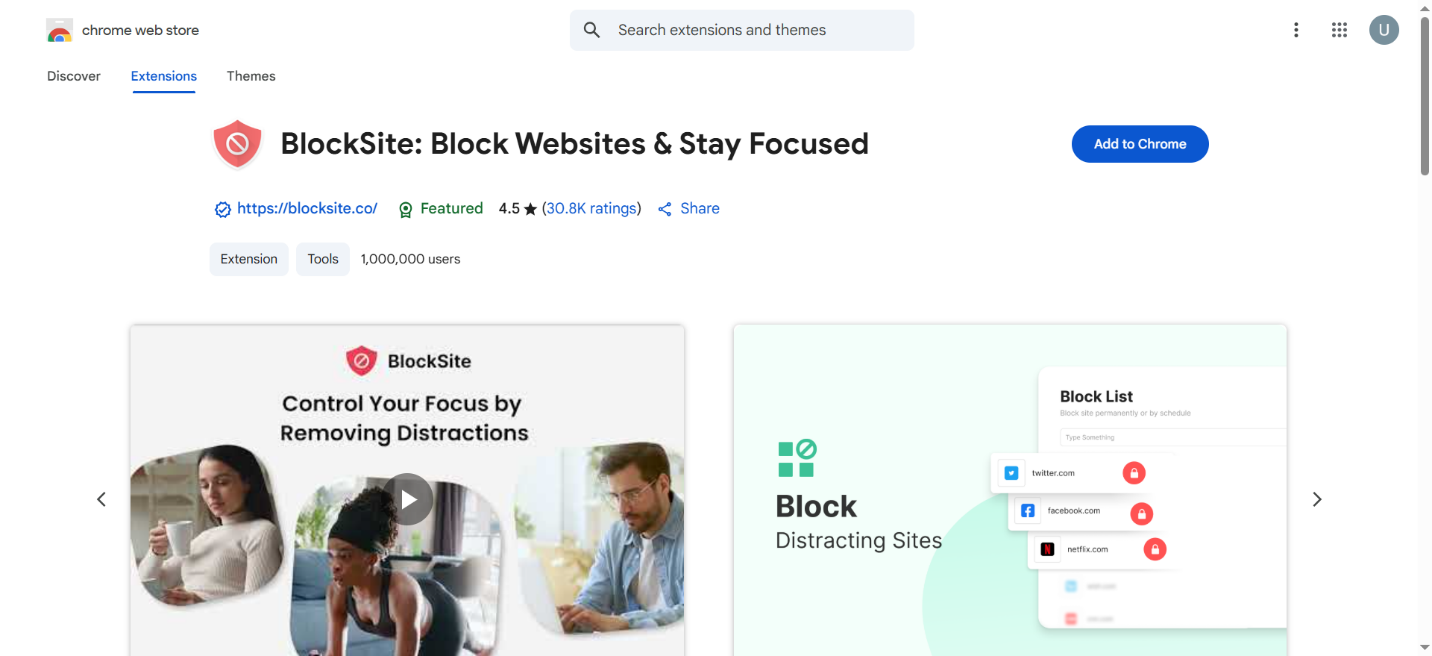
The installation process is easy and quick. Visit the Chrome Web Store’s extension page and search for “BlockSite.”
Hit the “Add to Chrome” button and confirm the request. To do this, click the “Add extension” option in the install prompt.
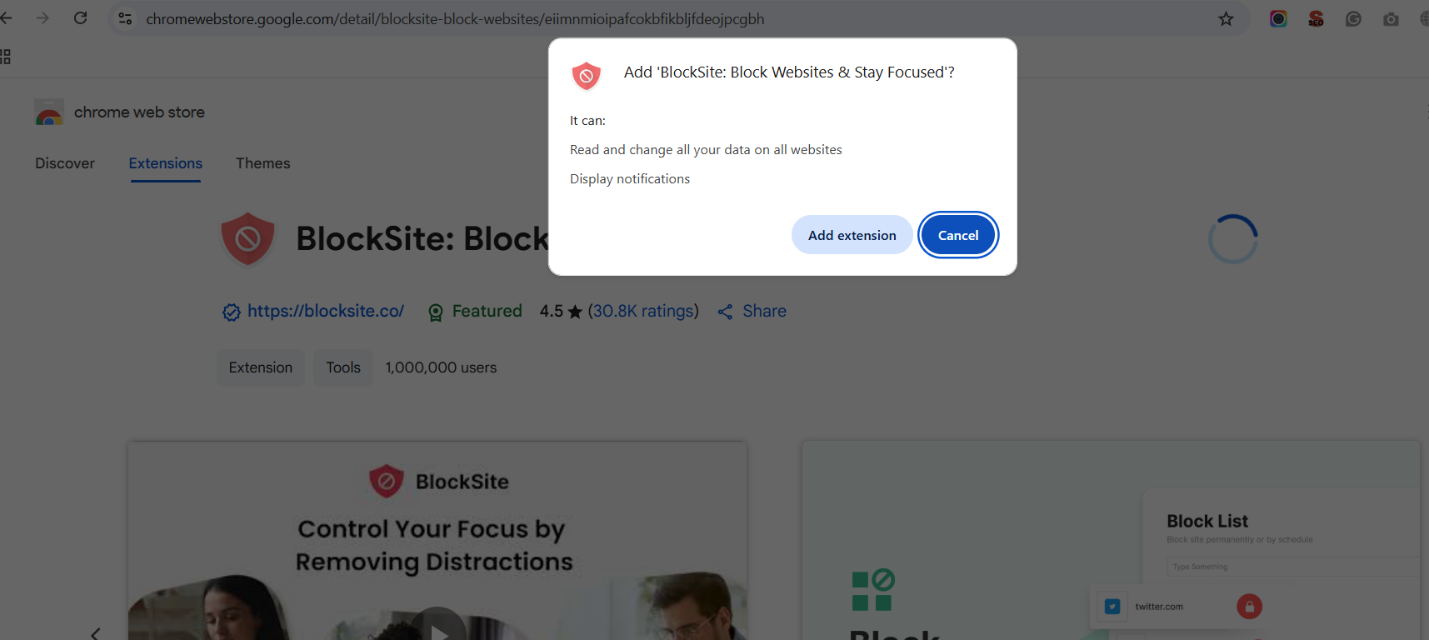
After adding the extension, you will be asked if you want to record browsing data. You can reject this permission immediately. At this point, you will view the app’s user interface on your screen, enabling you to add the website you want to block. To do this, write the URL and click Enter to block any website you choose.
How Can I Block Websites on Chrome on Android?
Luckily, blocking sites on the Chrome browser on an Android mobile phone is not as cumbersome as you think. For this purpose, you can benefit from the BlockSite app. To block sites on Chrome on your Android smartphone with the help of the BlockSite app, follow the steps below:
- Go to the Google Play Store. Download the BlockSite app.
- Once downloaded, open the app. Follow the on-screen prompts to allow BlockSite to access your privacy settings.
- To block a website, click the plus (+) sign and search for the website. Tap to select the website. Now, you must tap Done.
The above steps let you block websites on Chrome without fuss.
How Can I Block Websites on Chrome on iPhone?
If you want to block websites on Chrome on your iPhone, use Apple’s built-in Screen Time feature. This feature lets you block sites on your iPhone hassle-free. For this purpose, you should follow the steps below:
- Open the Settings app.
- Tap or click Screen Time, then Content & Privacy Restrictions.
- Tap or click Content Restrictions, then Web Content.
- At this point, you can choose one of the options, including Unrestricted Access, Limit Adult Websites, and Allowed websites Only.
- Tap or press Limit Adult Websites.
- In the Never Allow section, press Add Website.
- To block a website, type in the URL, then tap or click Done.
That’s how you can restrict specific sites on Chrome on your iPhone. This is one of the better ways to block a website on Chrome if you are using an iPhone.
How Can I Block a Website on Chrome Without an Extension?
If you do not wish to utilize a Chrome extension when blocking websites? No worries. You can block or restrict sites completely by using two other ways:
- As long as you are an administrator, you could use editing the hosts file to restrict access to sites.
- You can block websites at the router level, stopping your workforce (or children) from accessing disruptive sites on any Wi-Fi-connected device.
Blocking Sites by Editing the Hosts File
If you use Windows, you can easily block sites on Chrome by editing the hosts file in the folder C: Windows\system32\drivers\etc.
You must open the hosts file in Notepad or another text editor. Moreover, at the bottom of the file, add new lines under the last # and write your localhost IP address, 127.0.0.1, with the site’s domain you want to block.
Now, navigate to File > Save or hit CTRL+S to save. Remember, you should not save it as a .txt file because it will not work. Now, open the Chrome browser and write the domain name you blocked earlier. This will let you check the process to see if it blocks the site.
Fortunately, you can follow the above process by adding new lines when restricting other websites without hassle.
If your Windows device does not allow you to change the host file, it is high time you edit the file permissions to block or restrict your desired websites.
Use a Router to Block Websites On Mac and Windows
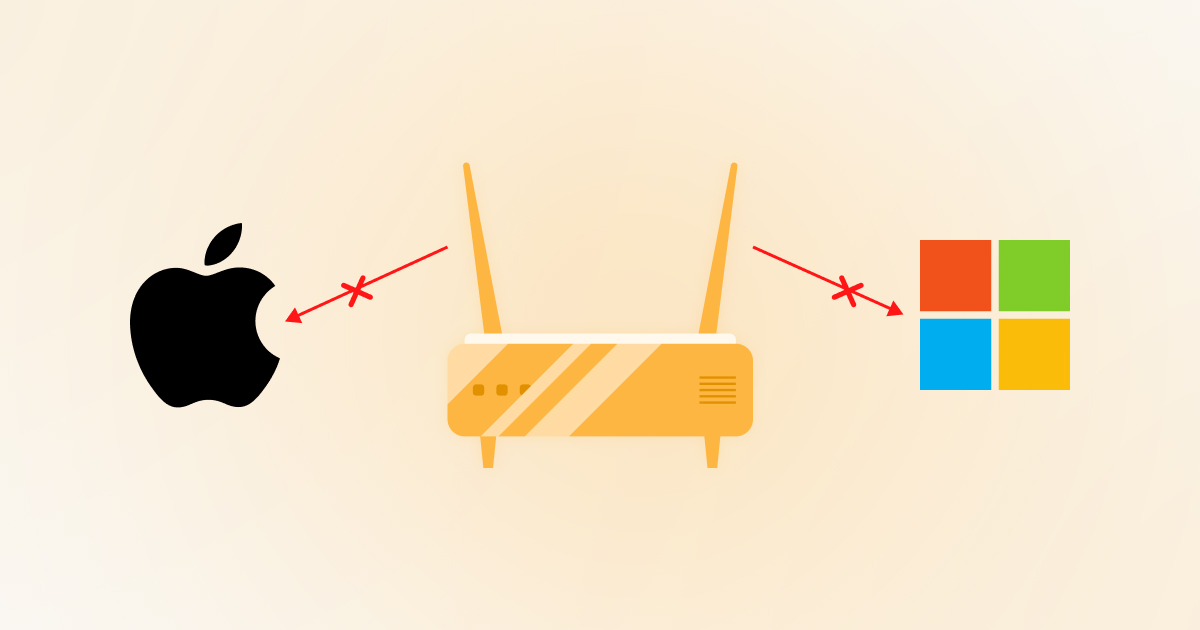
In case your router has a built-in feature for restricting sites on your network, you can take advantage of this feature when blocking sites in Chrome and other web browsers. This will enable you to block websites on Wi-Fi-connected devices like tablets, smartphones, and more.
As you know, routers usually use 19.168.1 as their default IP address, which is not always correct. In this situation, you had better check their IP addresses to see if they are correct.
The first step in this process is to detect your router’s IP address. This allows you to access the settings without fuss. You should open System Preferences on your Mac device by pressing the Mac icon. Besides, you must open the Network window to identify or detect your router’s IP address.
Now, you must access your router by copying and pasting the address into your web browser. If you use a Windows device, you can easily identify your router’s IP address by opening the Command Prompt. To do this, search for “cmd” and click Enter.
Once you have opened it, you should write “ipconfig” and click Enter. Hence, you can view your router’s IP address under “default gateway”. You can access your router by copying and pasting the IP address into your web browser.
Don’t forget to update your router settings, and for this purpose, obtain the administrator login information of your router first. By the way, it is mentioned on the documents, or you can check the box in which the router was delivered to you.
You must copy and paste the address into your Chrome browser, prompting an admin login prompt. The final steps in this process primarily rely on your router. For instance, you can find the blocked site settings using the Security tab if you have a Netgear router.
You can access the “Block Sites” section through the Security tab and block websites with domain names or keywords. To do so, write the domain name into the field and press the Add Keyword button. As a result, you can block or restrict the website via your router.
How Can We Block Sites in Incognito Mode?
Before blocking websites, remember you cannot implement extension settings in incognito mode. The same goes for BlockSite, too. Therefore, you must navigate to the extension settings to block sites in Chrome’s incognito mode.
If you have closed the tab, you can access your toolbar and easily detect the BlockSite extension. In addition, you must press the “Enable in Incognito Mode” option on the settings page. To check if you can open the blocked sites in incognito mode, you will not likely achieve your objective.
Does Google Chrome Have a Built-in Website Blocking Option?
No, the Chrome browser does not have a website-blocking option by default. It relies on a third-party plugin to block specific accesses at a connection level (in the modem/router settings).
In addition, blocking JavaScript will only deactivate some of the website’s functionalities; it will not block it properly as wished. Therefore, you will either rely on Chrome extensions when restricting sites. Moreover, you can block sites without using an extension.
What Happens When We Block Websites on Chrome?
When you block websites on Chrome, you and other users cannot access them on your device. When any user writes a URL address in the URL or tries to click a link to browse a blocked site, the browser showcases an error message.
Several reasons indicate why Chrome users need to block websites. For instance, parents can easily stop their children from visiting or browsing unsafe websites. Likewise, small or large businesses may block social media sites, such as Facebook or YouTube, ensuring employees can easily tackle work distractions, including reduced focus, low productivity, and more.
Apart from this, fraudulent websites containing malware or infected links can harm the performance of business and personal sites. Therefore, they should consider using internet security software, which may include firewalls, to help block such dangerous websites as effectively as possible.
The Chrome browser is a product of Google and is considered one of the prominent search engines in the world. However, you can try other search engines if you don’t want to use Google for any reason.
Popular Website Blockers to Restrict Sites on Chrome
Luckily, you can utilize numerous Chrome extensions to block websites and increase your focus, improving productivity and performance at work overall. These prominent website blockers or website blocking extensions are:
- BlockSite
- Freedom
- LeechBlock
- Focus
What Should We Do to Access Blocked Sites on Chrome?
Various options, including a proxy, Google Cache, web archive, and URL shortener, can help you access blocked sites on Chrome. These options are described below:
Proxy
A web proxy allows users to access blocked sites on Chrome. A proxy is a handy solution to access restricted sites without issues. Proxies let users conceal their IP addresses and help them pass their internet traffic via various public servers. To ensure better privacy and reliability, users can leverage the best residential proxy services for a more seamless and secure browsing experience. To access blocked sites on Chrome with a web proxy, follow the steps below:
- Visit the proxy website.
- Write the URL of the site you wish to visit.
- Press Go or Connect.
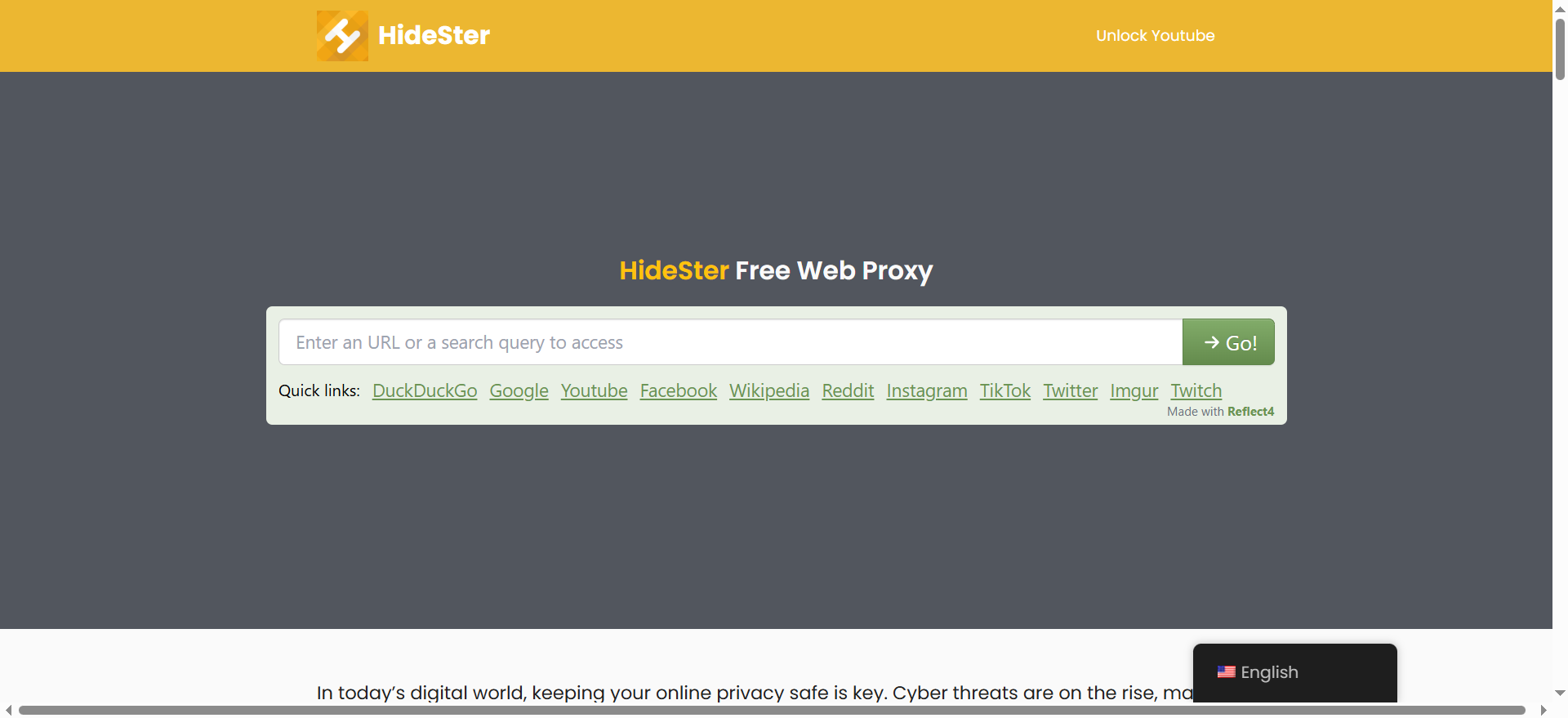
That’s it. You can easily visit any blocked site on the Google Chrome browser. If you don’t know about the free proxy service, no worries. For this purpose, you can depend on Hidester, a powerful free web proxy.
Google Cache
Google stores local copies of websites to facilitate users and save precious time by loading sites’ local copies quickly. This approach is formally known as caching. It typically functions as a web browser cache. If you cannot open a site’s original version or are blocked from doing so, you can access the site’s cached version.
Follow the steps below to explore the cached version of a site or a page in Google Chrome browser:
- Google the website or webpage you wish to open or unblock.
- Press the down arrow (or the three dots) next to the URL.
- Click Cached (it will be opened if you are lucky).
Web Archive
If you cannot access the live version of a website, use Wayback Machine, an internet archive, to access saved copies of hundreds of millions of web pages. In reality, the Wayback Machine allows users to view the blocked content by opening the archived version of a web page or a website.
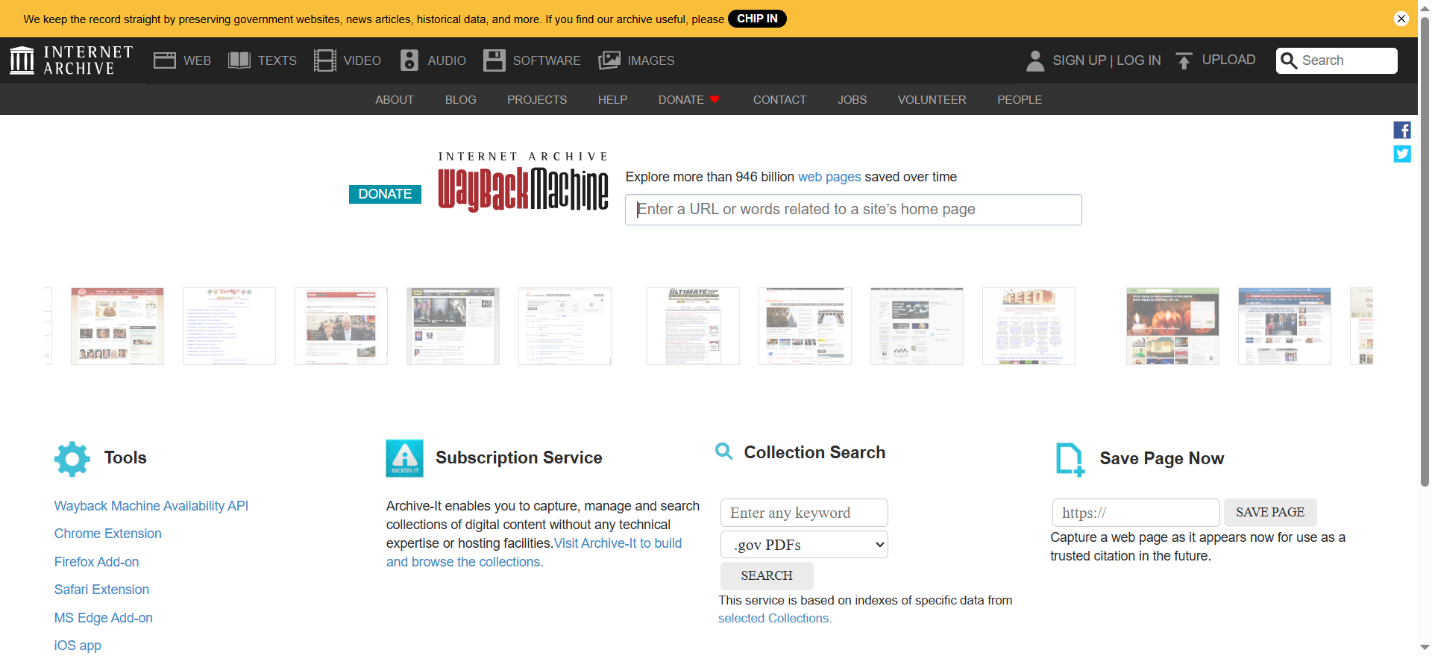
Write the blocked URL in the archive search bar and press the “Browse History” option to do this. You will likely visit the archived version of your desired website.
URL Shortener
A URL shortener service comes in handy when bypassing website blockers to access blocked sites on Chrome. If you want to use an impactful URL shortener service, you can try Is.gd, TinyURL, or Bitly.
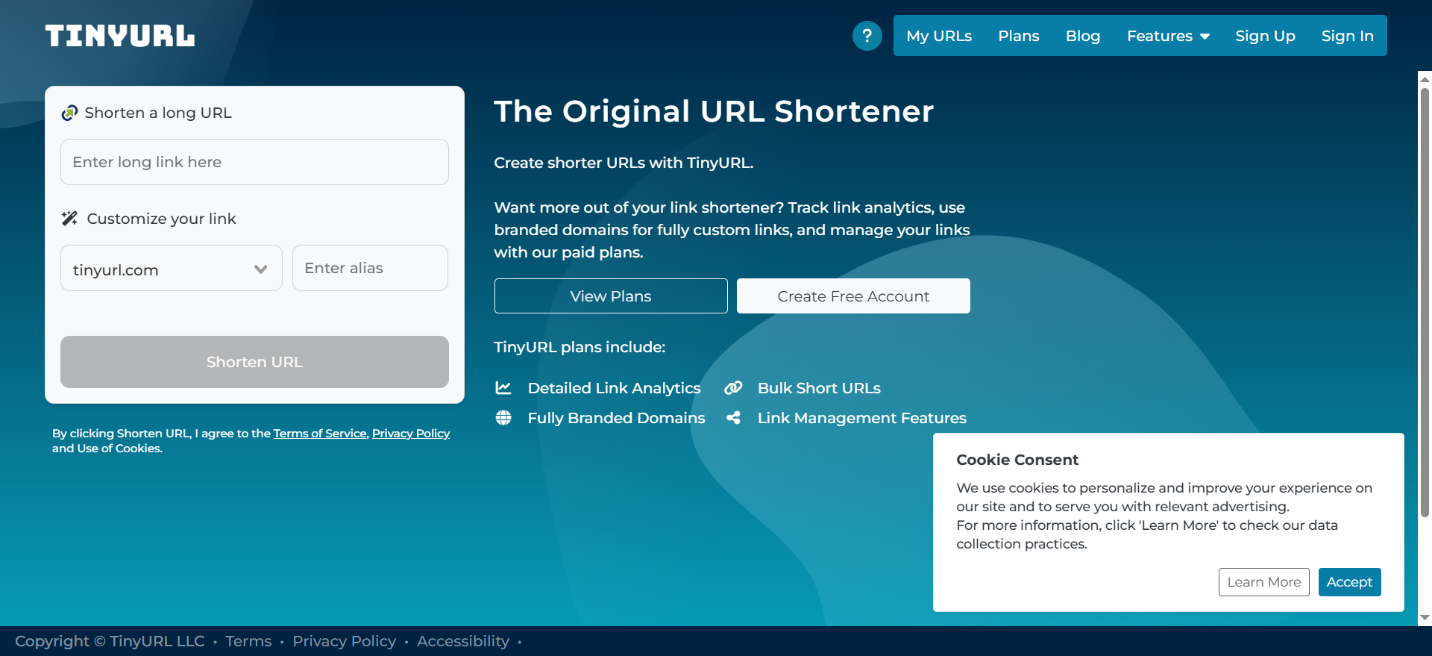
The above services use a shorter domain name instead of a site’s URL address. This way, you can still access YouTube videos if you are blocked from accessing YouTube at your workplace. Interestingly, workplaces may not identify alternative URLs, allowing you to access the blocked content.
How Can We Block Notifications in Chrome Browser?
Like sites, users can also restrict or block notifications in Chrome. Notifications can disturb your momentum and harm your routine work activities. Therefore, you must block them so you can work at a reasonable pace and complete your tasks on time.
To block notifications in Chrome, here is what you should do:
- You should write this URL: chrome://settings/content/notifications to go directly to Chrome’s general privacy settings. Moreover, you can visit the settings page and press the Privacy and Security option.
- Go to Site settings and press the notifications option.
As a result, you can either prevent sites from asking for permission to deliver notifications or block sites individually via URL.
What is the Market Share of Google Chrome Browser Worldwide?
Google Chrome is one of the most popular web browsers worldwide. It has a massive 66.85% share in the global browser market, highlighting its contribution to the progress of internet usage globally.
Wrapping Up
We hope you now have the answer to your query on how to block a website on Chrome. In reality, your work depends on what you can deliver, rather than the hours you spend in front of your device.
This is the main reason you should have mercy on yourself and keep distractions to a minimum. Once you have followed the above steps in this blog post, you can smartly block websites on Chrome on any device you want. You can bypass the distraction issues regardless of your devices, including Windows, Android, iPhone, etc.





