




















































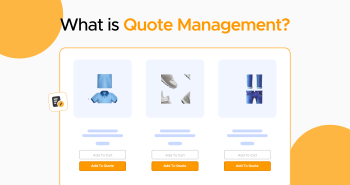
The B2B (Business-to-Business) sphere does not have transactions that always end with an ‘Add to Cart’ scenario. Various customers request custom quotes or ask about prices and discounts. In this situation, quote management becomes crucial, enabling B2B businesses to handle customers’ quote queries and requests effectively.
If your customer base comprises B2B clients, you must serve them appropriately as a WooCommerce store owner. For this purpose, consider configuring a quote management system for your online store to improve communication and conversions.

This blog post will describe what quote management is and how you can optimize quote management tasks through the B2B Request a Quote plugin.
What Do You Mean by Quote Management?

Regarding quote management, this process helps admins manage and track customer quotes within the business. According to the quote management basics, it is about developing, delivering, analyzing, and monitoring sales quotes.
A results-driven quote management is necessary for a streamlined workflow, as it allows store owners to perform different steps, including initial customer queries to final deal approval, smartly.
What Do You Mean by Quote Management System?
A Quote Management System (QMS) helps simplify and enhance the whole quote creation, management, tracking, and approval process. It primarily operates as a centralized system that comprises all quote-specific tasks and optimizes collaboration, accuracy, and efficiency.
Different factors ensure that the quote management system remains effective and results-driven, including:
Quote Templates
Develop and maintain ready-made quote templates encompassing the required product/service information, terms and conditions, pricing structures, and other details.
Product and Pricing Configuration Rules
Depending on customer requirements and pre-determined parameters, create automated rules for pricing and product configuration.
Workflow Management
Simplify the approval process and proactively bypass delays by following already-approved workflows and assigning quotes to the relevant personnel.
Integration with CRM and ERP Systems
Effortlessly integrate your business’s CRM (Customer Relationship Management) and ERP (Enterprise Resource Planning) systems and automatically incorporate product information, customer data, and inventory levels into quotes.
Quote Tracking and Analytics
Analyze and track multiple quotes simultaneously. Benefit from built-in analytics to get information on factors such as quote turnaround times, customer quote behavior, and more. Detect trends and supercharge pricing tactics to optimize sales performance.
All the above functionalities transform the effectiveness or productivity of the quote management system to the next level. Consequently, sales teams can efficiently handle multiple tasks simultaneously, improving the sales cycle by reducing human error and increasing efficiency.
How to Set Up Quotation Management with the B2B Request a Quote Plugin?
If you want to streamline and automate the entire quote creation and management process, look no further than the B2B Request a Quote plugin. To set up quote management using the B2B Request a Quote plugin, follow the steps below:
- Download the zip file using the WooCommerce account.
- Navigate to the WordPress Dashboard to install the plugin.
- Press the ‘Upload Plugin’ option, which is given at the top.
- Press the “Choose File” button and choose Quote-For-WooCommerce-Plugin.zip.
- Hit the ‘Install Now’ button and then activate the B2B Request a Quote plugin.
At this point, you must create a new rule. For this reason, follow the steps below:
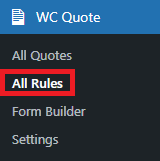
- Go to WordPress Admin Dashboard > WC Quote > All Rules.
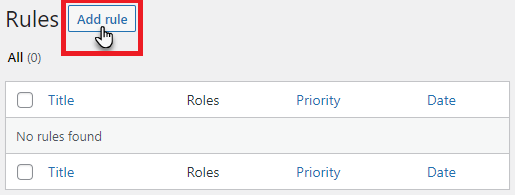
- Press the ‘Add Rule’ button.
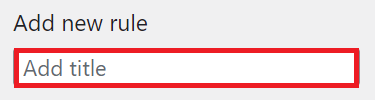
Now, you must create the title for a new rule.
- You can write the text in the input field to add the Title of the rule.
Now, you must apply rules to all user roles.
- Choose the User Role on which you will apply the rule.
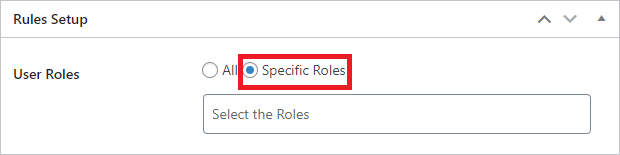
- If you select the “All” radio button option, the rule will be implemented for all the user roles present on the website.

You can also apply rules to specific roles.
- If you select the “Specific” radio button option, you will see a search field beneath the radio buttons.
- Through this search field, you can select the user roles to implement the rule only for those user roles.
- As a result, we can search for the user roles or choose them from the dropdown menu.
Now, you must apply rules to a specific user.
- The admin can choose a specific user to whom this quote rule applies.
- Go to WordPress Admin Dashboard > Quote for WooCommerce > Rules > Edit Rule.
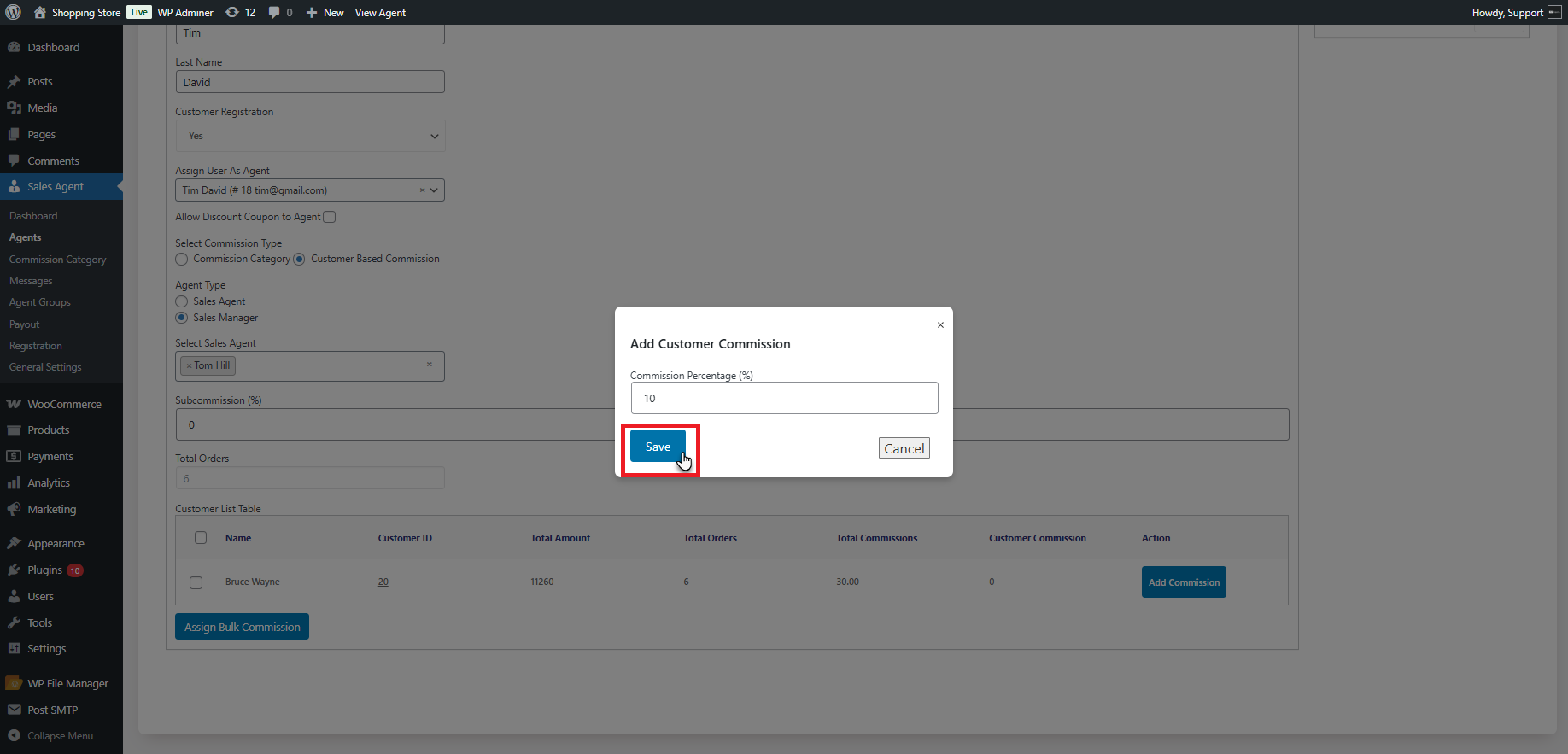
- Through the ‘User Roles’ option, choose ‘Specific Users’.
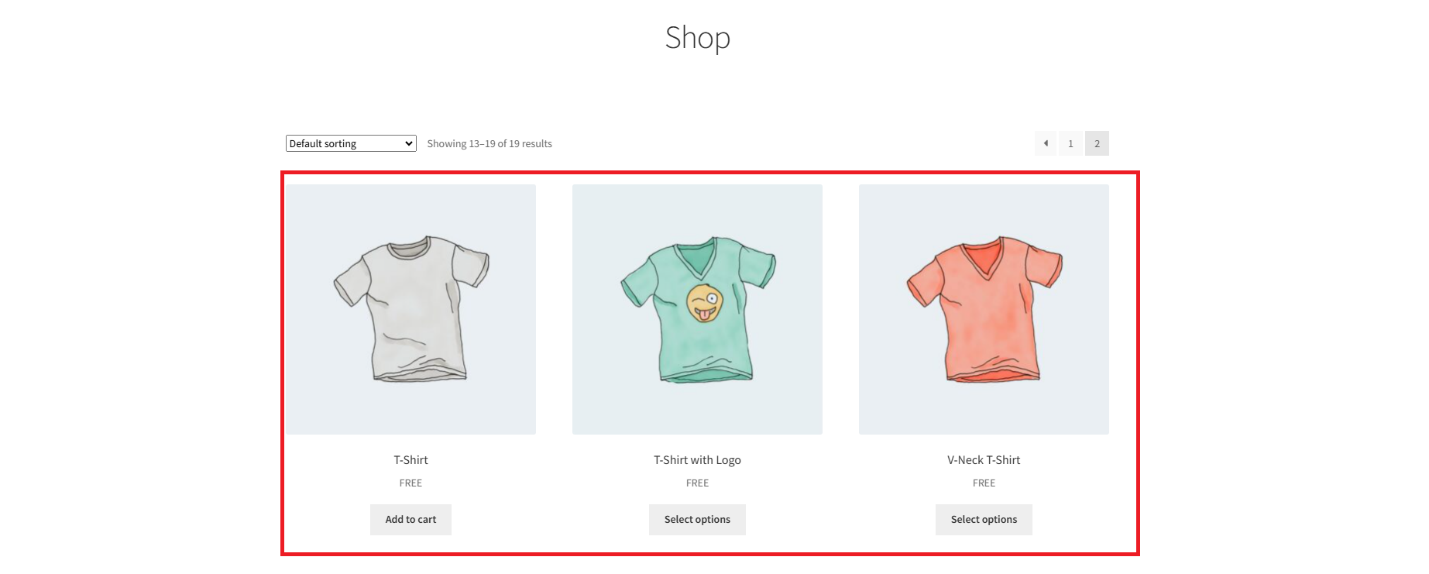
- Select the users to whom the rule applies. This rule applies only to the selected users.
- Press the ‘Update’ button to enable the changes.
User-Based Quote Status
- Using a quoted rule, an admin can assign a specific quote status to selected users. When these users request a quote, their quote status will be determined depending on the admin-defined rule.
- Go to WordPress Admin Dashboard > Quote for Woo > Rules > Edit Rule.
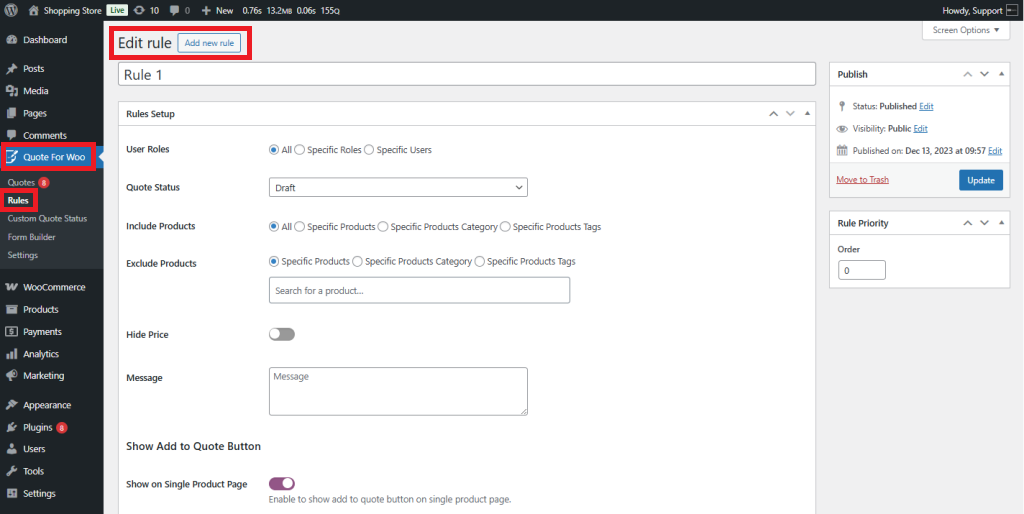
- Choose the status from the Quote Status drop-down for the specific user role.
- Press the Update button to enable the changes.
- When a specific user sends a quote, its status is set to the status chosen in the Rule’s Quote Status.
Include Products
Four radio buttons are present in the Include Products option:
- All
- Specific Products
- Specific Product Categories
- Specific Products Tags
– All
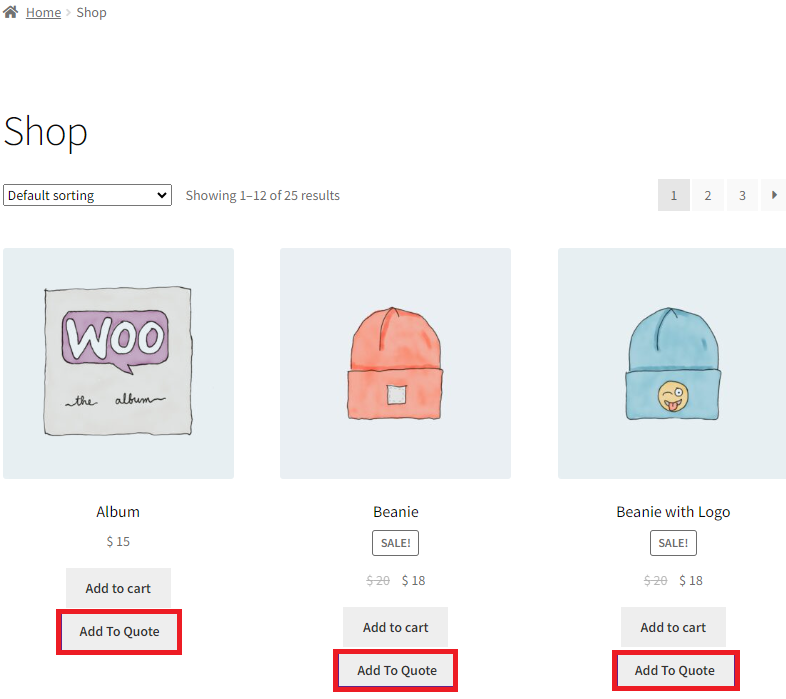
- Select the ‘All radio’ button to include all products.

The front-end impact will look like this, showing all products:
– Specific Products
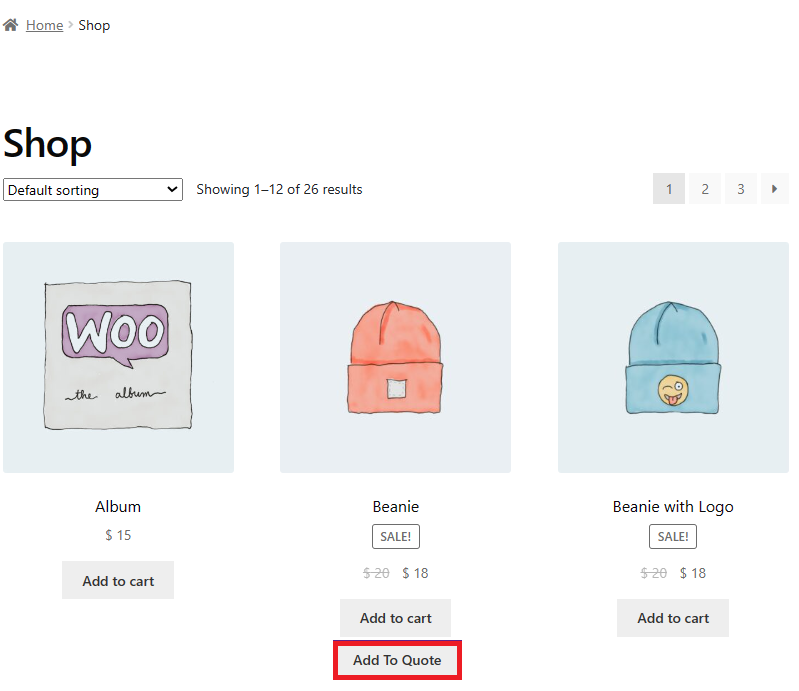
- You can choose the ‘Specific Products’ radio button to show only specific products.

The front-end impact will look like this, showcasing products in the Specific Products with the ‘Add to Quote’ button on the site.
– Specific Product Categories
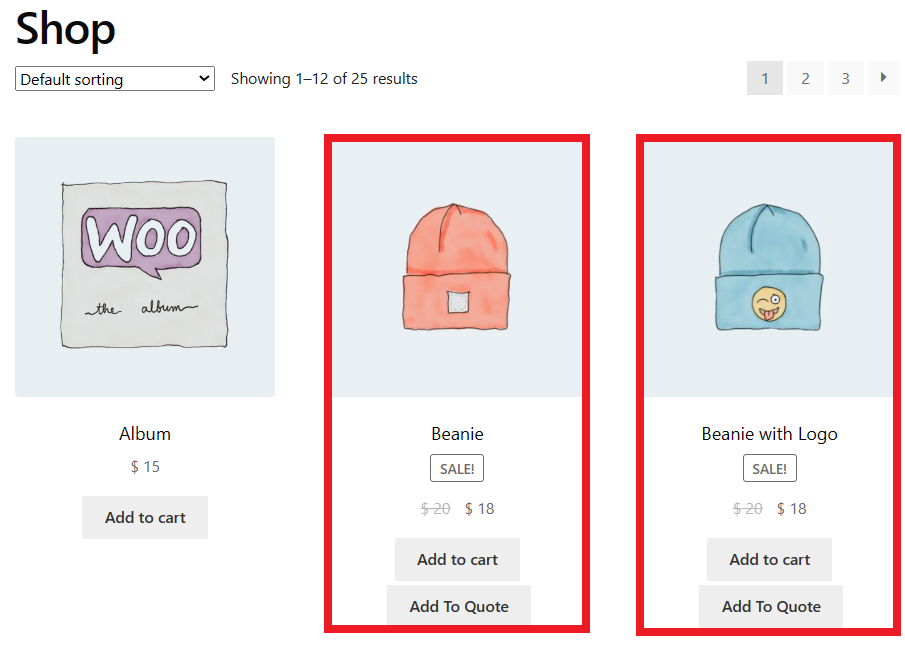
- You can choose the Specific Product Categories radio button, to include products from specific categories.

The front-end impact will look like this, showing products listed in the Specific Product Categories option with the ‘Add to Quote’ button on the site.
– Specific Product Tags
- You can choose the Specific Product Tags to include products with specific tags.

The front-end impact will look like this, showing products described in the Specific Products Tags options with the ‘Add to Quote’ button on the site.
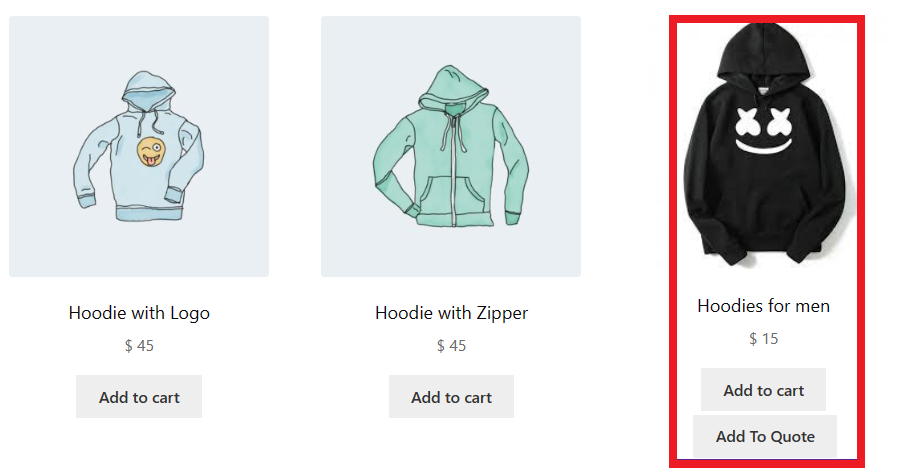
Exclude Products
The Exclude Products option has three radio buttons:
- Specific Products
- Specific Product Categories
- Specific Product Tags
– Specific Products
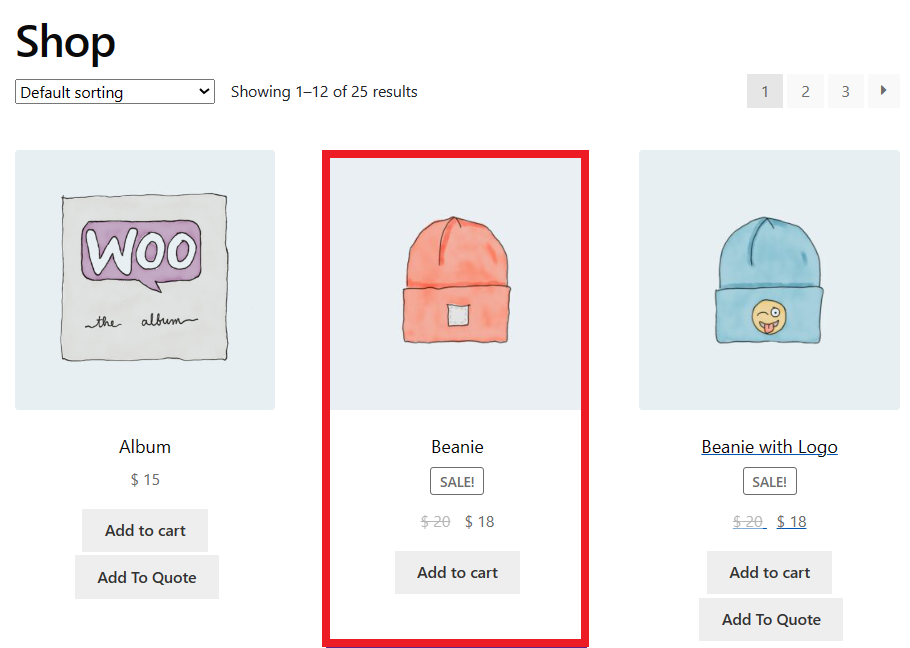
- Choose the Specific Products radio button to exclude specific products.

The front-end impact will look like this, showing products listed under the Specific Products options without the ‘Add to Quote’ button on the site.
– Specific Product Categories
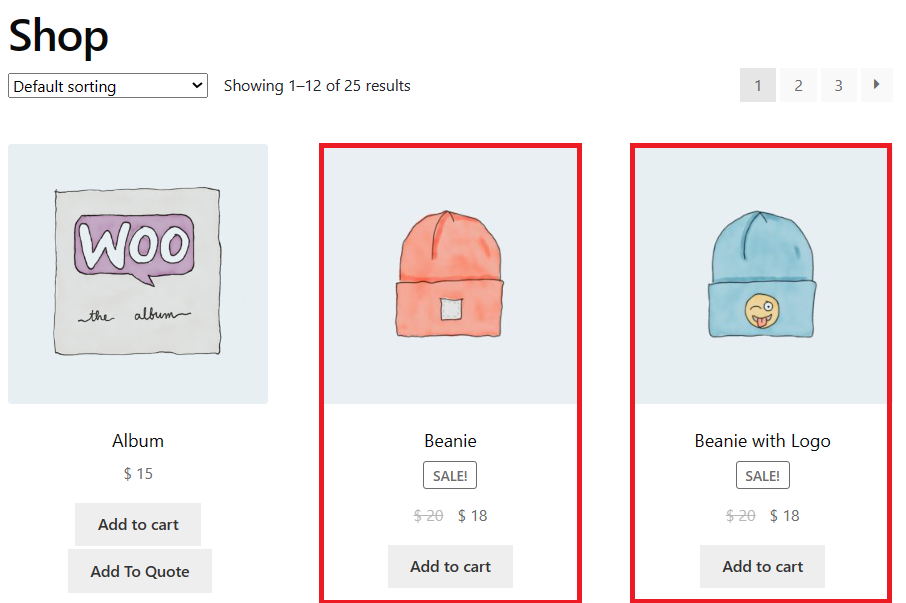
- Choose the Specific Product Categories to exclude or not include products from specific categories.

The front-end impact will look like this, showing only the products listed under the Specific Product Categories option, without having the Add to Quote button on the site.
– Specific Product Tags
- You can choose the Specific Product Tags to include products with specific tags.
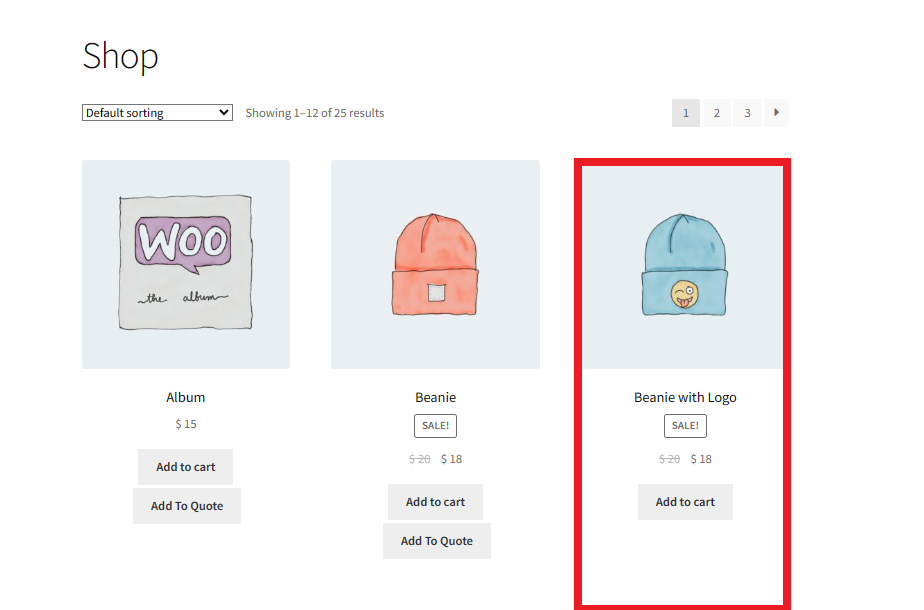
The front-end impact will look like this, showing products listed under the Specific Product Tags option that don’t have the ‘Add to Quote’ button.
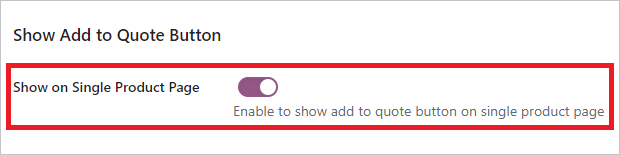
Show Add to Quote Button
If you want to showcase the ‘Add to Quote’ button on the single product page, enable the ‘Add to Quote’ option.
By following the above steps, you can set up quotation management using the B2B Request a Quote plugin without fuss.
How is Quote Management Interlinked with Sales?
The sales cycle has a crucial aspect: quote management. It ensures accurate, timely quotes are delivered to customers, increasing conversion rates and shortening sales cycles.
Wrapping Up
The B2B Request a Quote plugin helps B2B businesses manage quotations by providing a powerful quote management system. This will help them transform the current quoting processes considerably.
The plugin offers a robust set of features that enable B2B businesses to build a system that reduces errors and enhances productivity, helping the sales team achieve desired deliverables.





