















































Running a B2B store where everyone sees your pricing creates problems. Competitors browse your catalog and undercut you. Random visitors compare prices without buying anything. Your wholesale rates get exposed to people who shouldn’t see them. The B2B Request a Quote plugin for WooCommerce fixes this by hiding prices from guests while showing a simple quote button instead. Only logged-in customers see actual pricing.
This setup takes about 10 minutes and completely changes how you control who sees what in your store.
Why Hiding Prices from Guests Works Better
Controlling who sees your pricing isn’t about being secretive. It’s about running a smarter business that qualifies buyers before showing rates and protects your pricing from competitors.
Get Real Leads Instead of Browsers
When guests can’t see prices without registering, you filter out tire-kickers automatically. A manufacturing supply company saw quote requests jump 47% after hiding prices because serious buyers had to register first. You’re not losing sales, you’re gaining qualified leads with real names and email addresses.
Stop Competitors from Stealing Your Pricing
Your competitors visit your store like everyone else. When they browse prices without logging in, they’re gathering intel to undercut you. One distributor caught a competitor screenshotting their catalog every month. After hiding prices, that stopped because the competitor wouldn’t register with real business info.
Run Different Pricing for Different Customers
B2B pricing isn’t one-size-fits-all. Your platinum distributor shouldn’t see the same rates as a new customer. By requiring a login before showing prices, you can assign different tiers to different roles. One hardware supplier runs 5 price levels based on customer type, and hiding prices from guests makes this actually work.
Build Your Customer Database Automatically
Every guest who wants pricing becomes a registered user. You capture their email, company name, and contact details. An industrial equipment seller grew their list from 340 to 2,100 contacts in 8 months just by requiring registration to view prices. Those contacts become opportunities for campaigns and sales.
Cut Down Useless Support Questions
When random visitors see prices, they reach out with questions even though they’re not qualified buyers. A packaging supplier got 15-20 price calls weekly from people outside their market. After hiding prices, calls dropped to 4-5 per week, all from registered prospects ready to buy.
How to Configure Quote Buttons for Guests and Prices for Logged-In Users
Hiding prices for guest users and displaying them with the Quote Now button is easy and doesn’t require coding. Just installing the B2B Request a Quote for WooCommerce extension by WPExperts, and everything is managed from your WordPress dashboard. Just simple rules that you can modify at any time.
Step 1: Installing and Accessing the Plugin
- Download the B2B Request a Quote plugin from your WooCommerce account.
- From your WordPress dashboard, click Plugins and then Add New.
- Click Upload Plugin and select your zip file.
- Click Install Now.
- After installing, click Activate.
- A new menu named Request a Quote will appear on your admin dashboard.
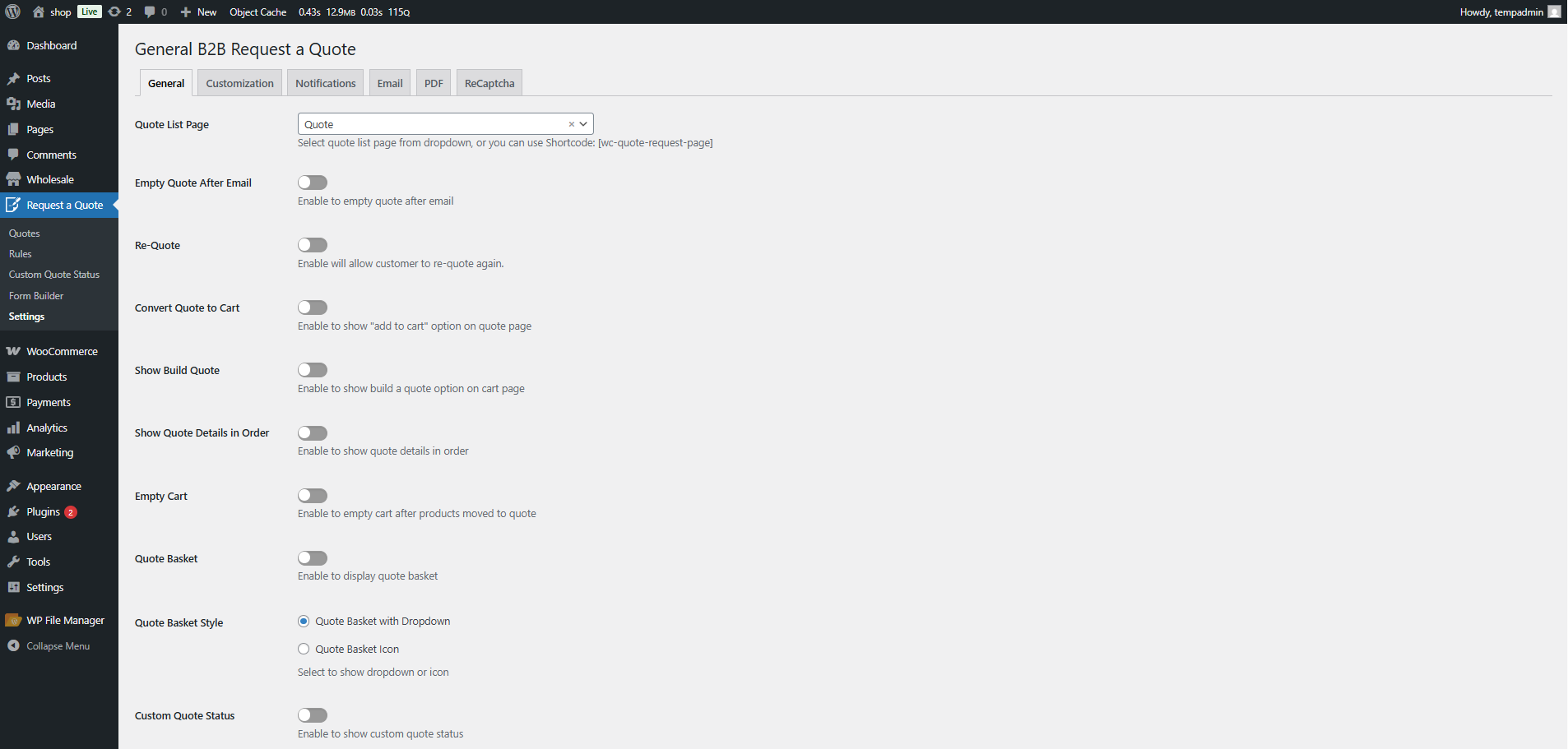
Step 2: Creating a New Rule
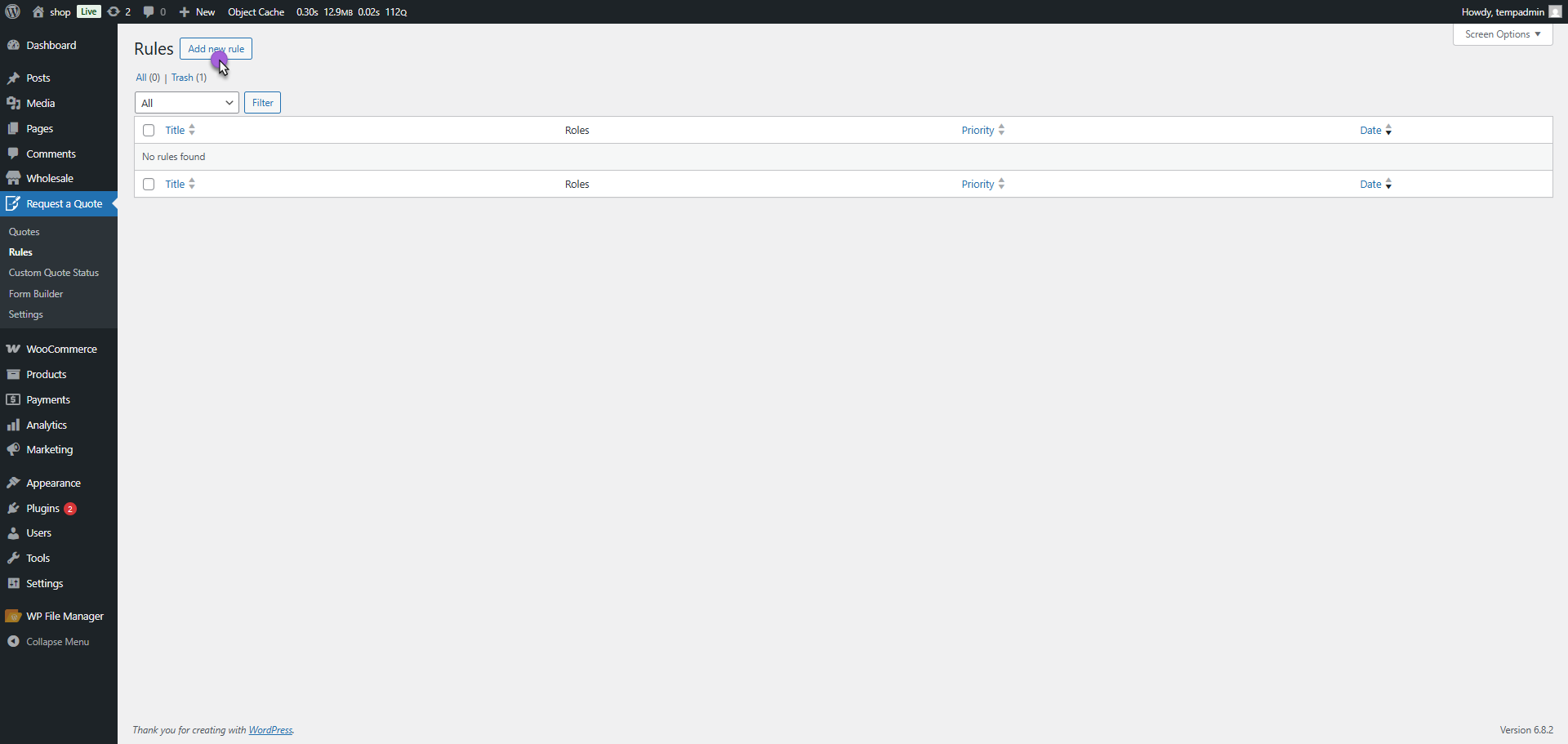
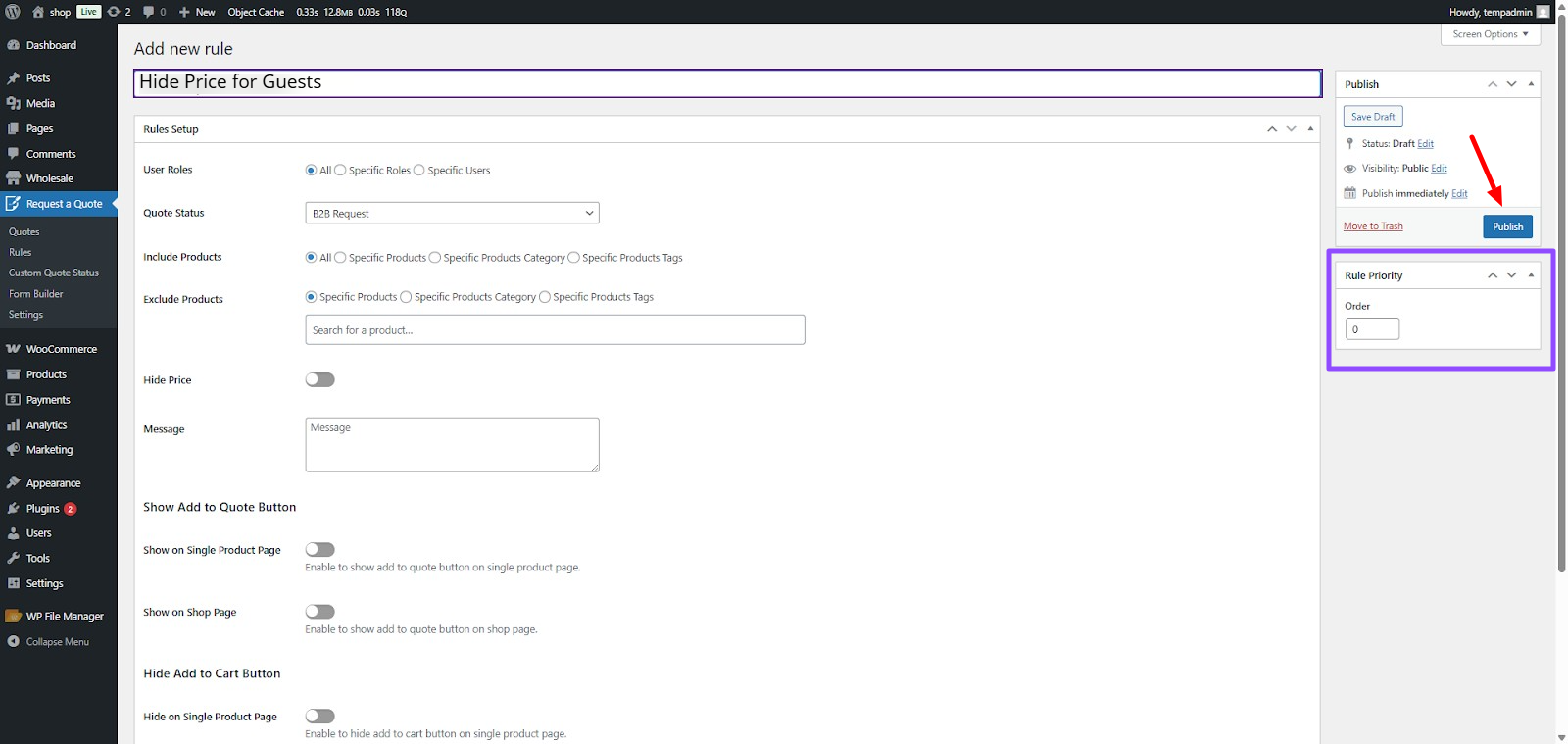
- Go to Request a Quote > Rules and click Add Rule.
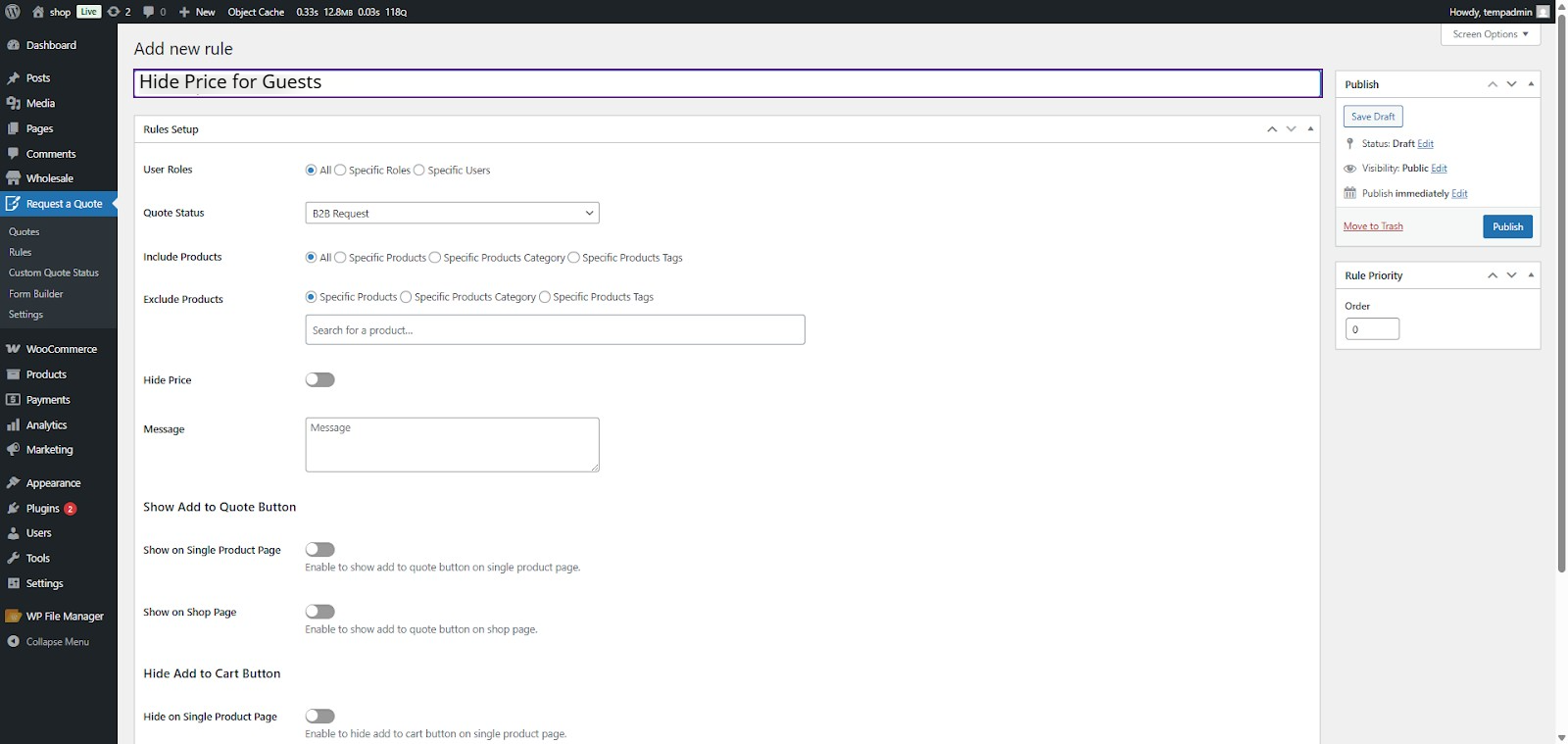
- Name it something like “Hide Prices for Guests” so you know what it does.
- In the User Role section, select Specific and then select Guest from the dropdown menu.
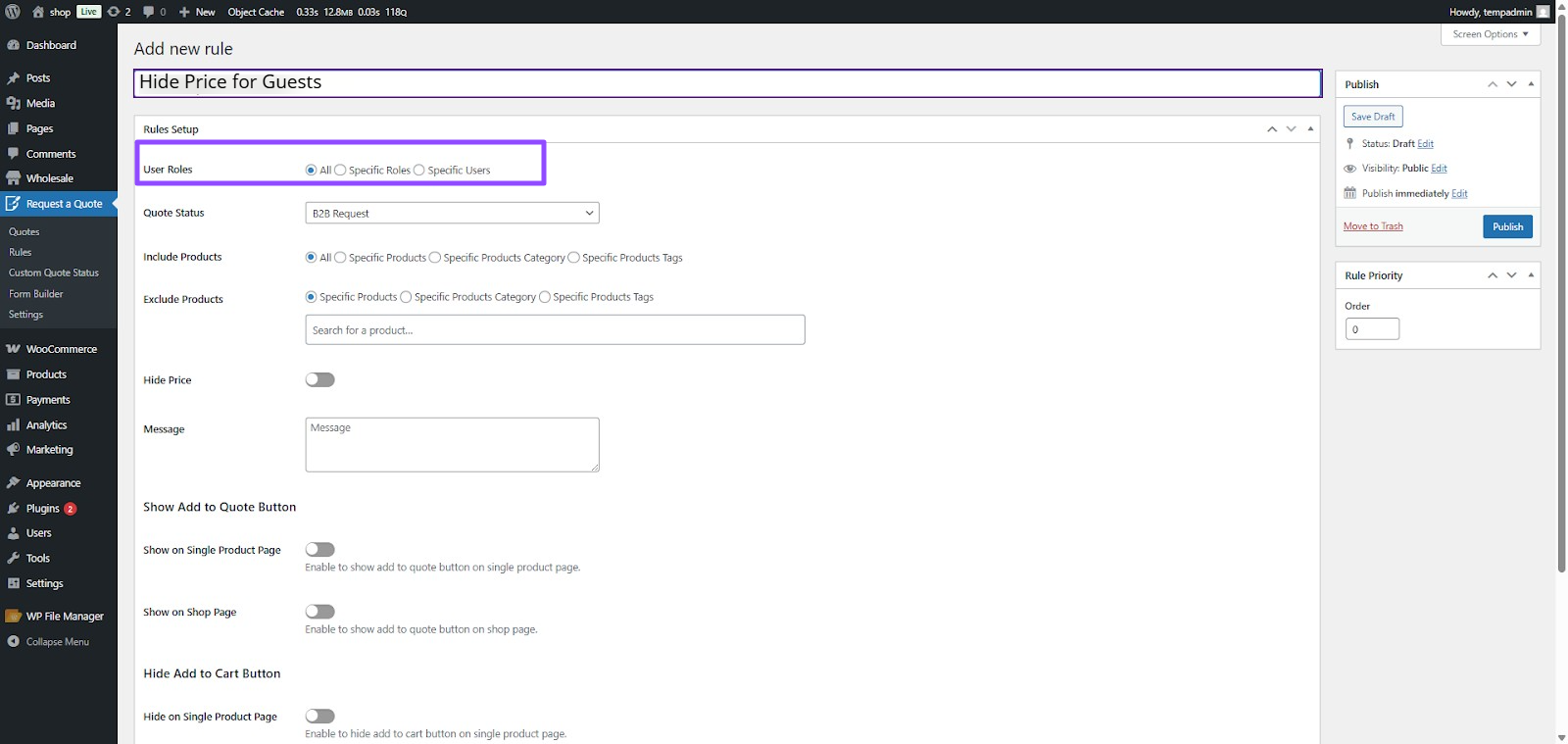
This will apply to only those users who are not logged in to your site, leaving your registered customers alone.
Step 3: Selecting Which Products Have Quote Buttons
In the Include Products section, you have several options:
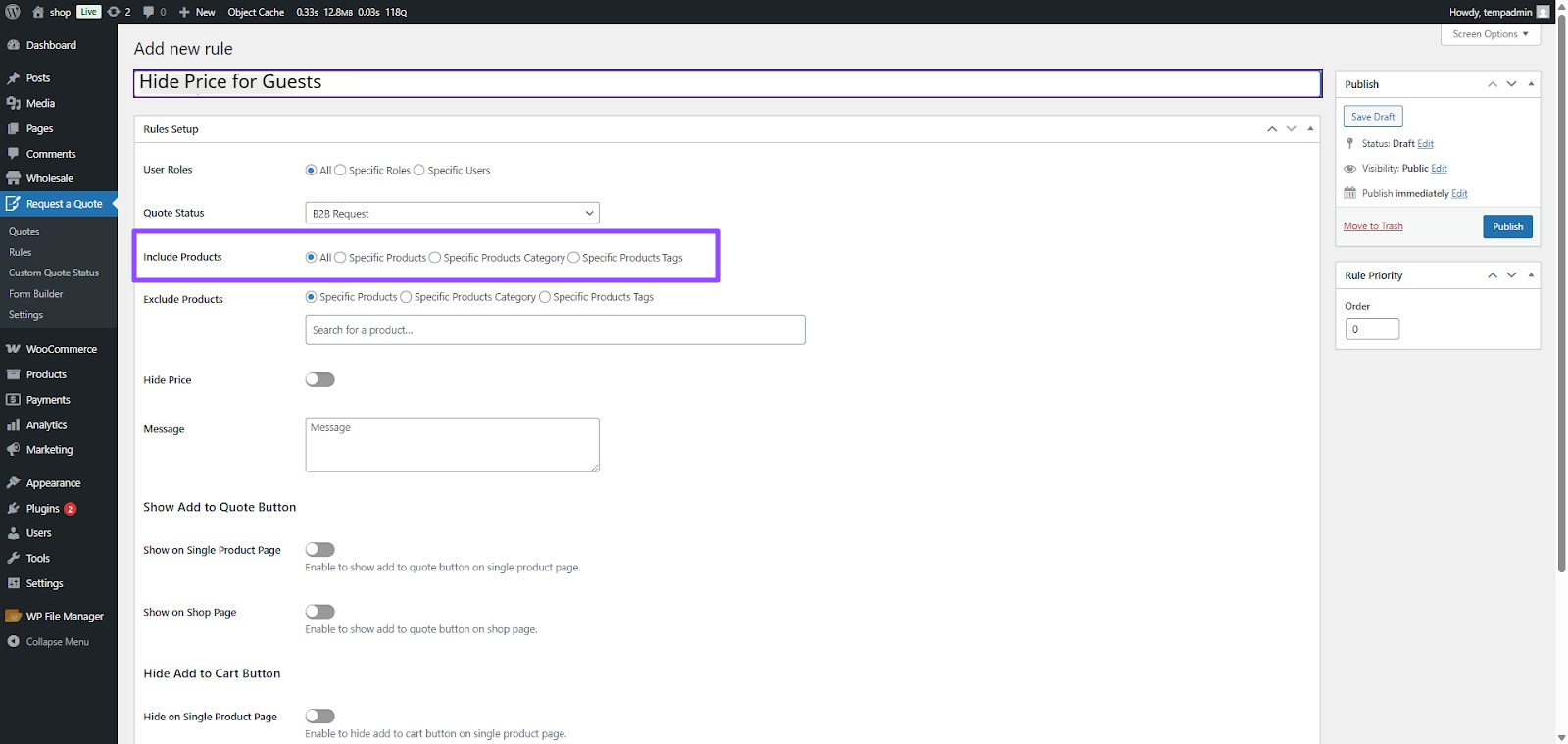
- All: Quote buttons on every product
- Specific Products: Pick individual items
- Specific Categories: Select entire product groups
- Specific Tags: Target by tags
Most B2B stores pick all because you want to hide pricing across the board. But if you sell some items publicly (like accessories), use Specific Products to control exactly which ones need quote buttons.
Step 4: Hide Cart and Show Quote Buttons
Scroll to the Hide Price and Hide Add-to-Cart buttons, and enable them for both single-product pages and shop pages. This removes the buy option completely for guests.
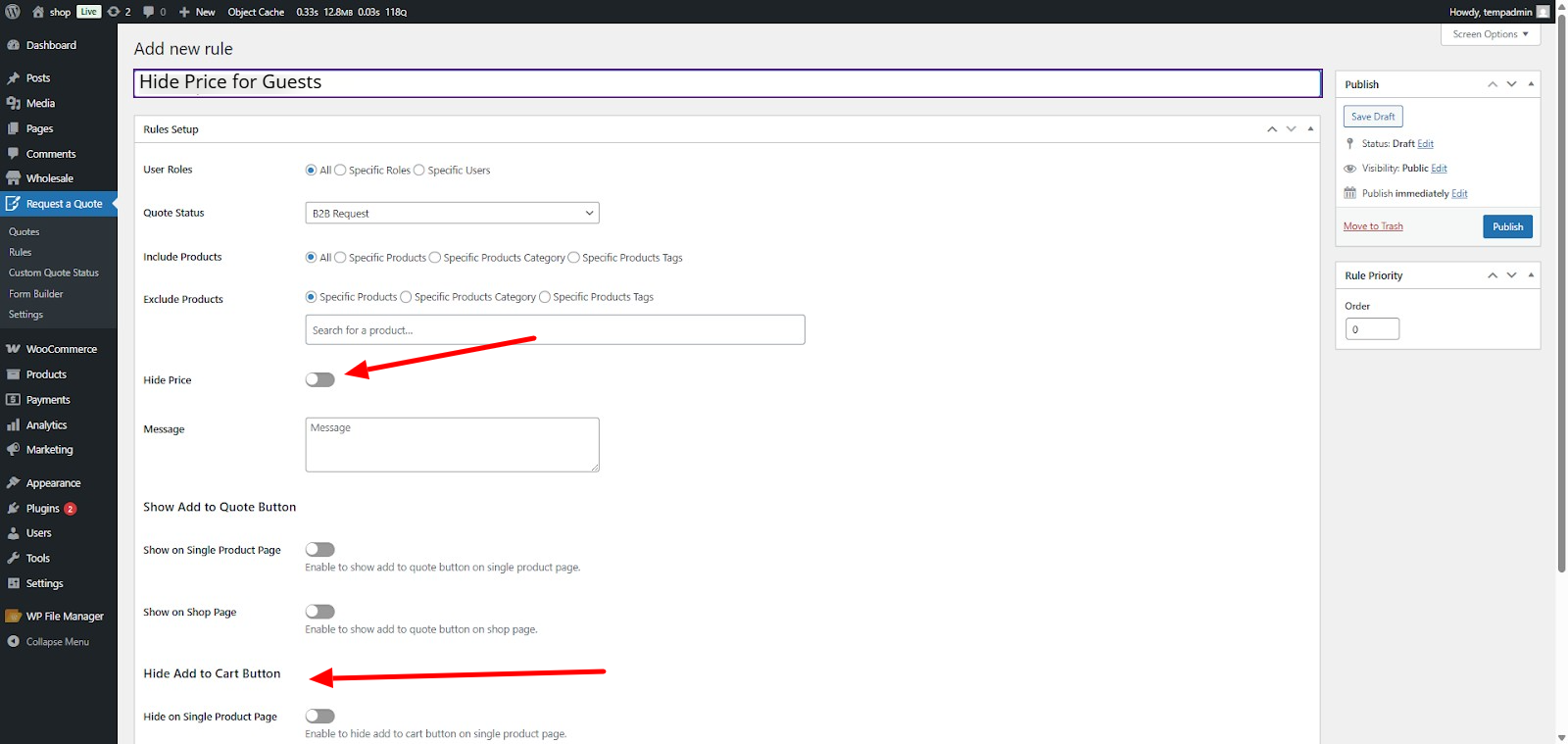
Now go to Show Add-to-Quote Button and enable it for both locations. Now guests see a clear quote button where the cart button used to be.
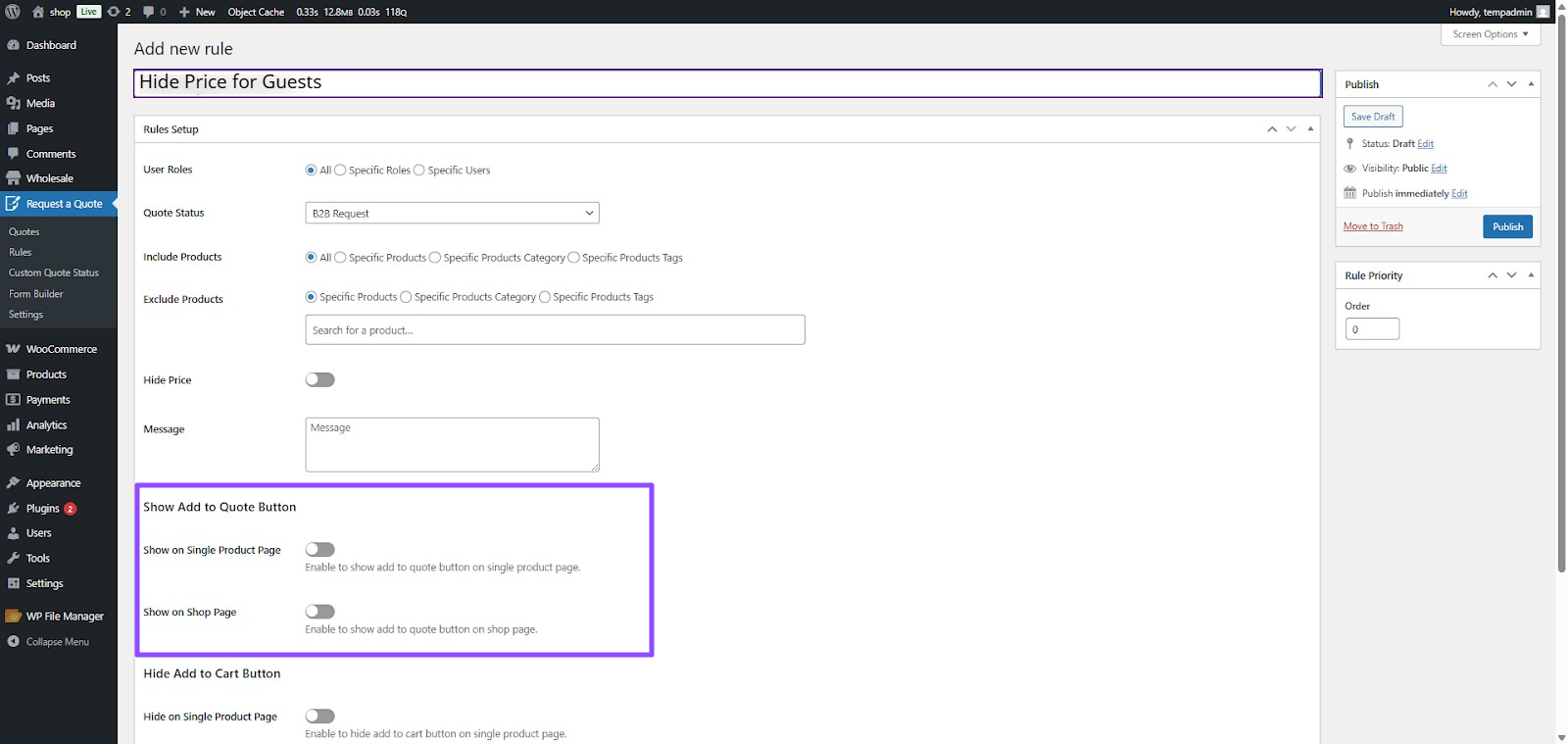
Step 5: Set Priority and Save
If you’ll create multiple rules later, set Rule Priority on the right side.
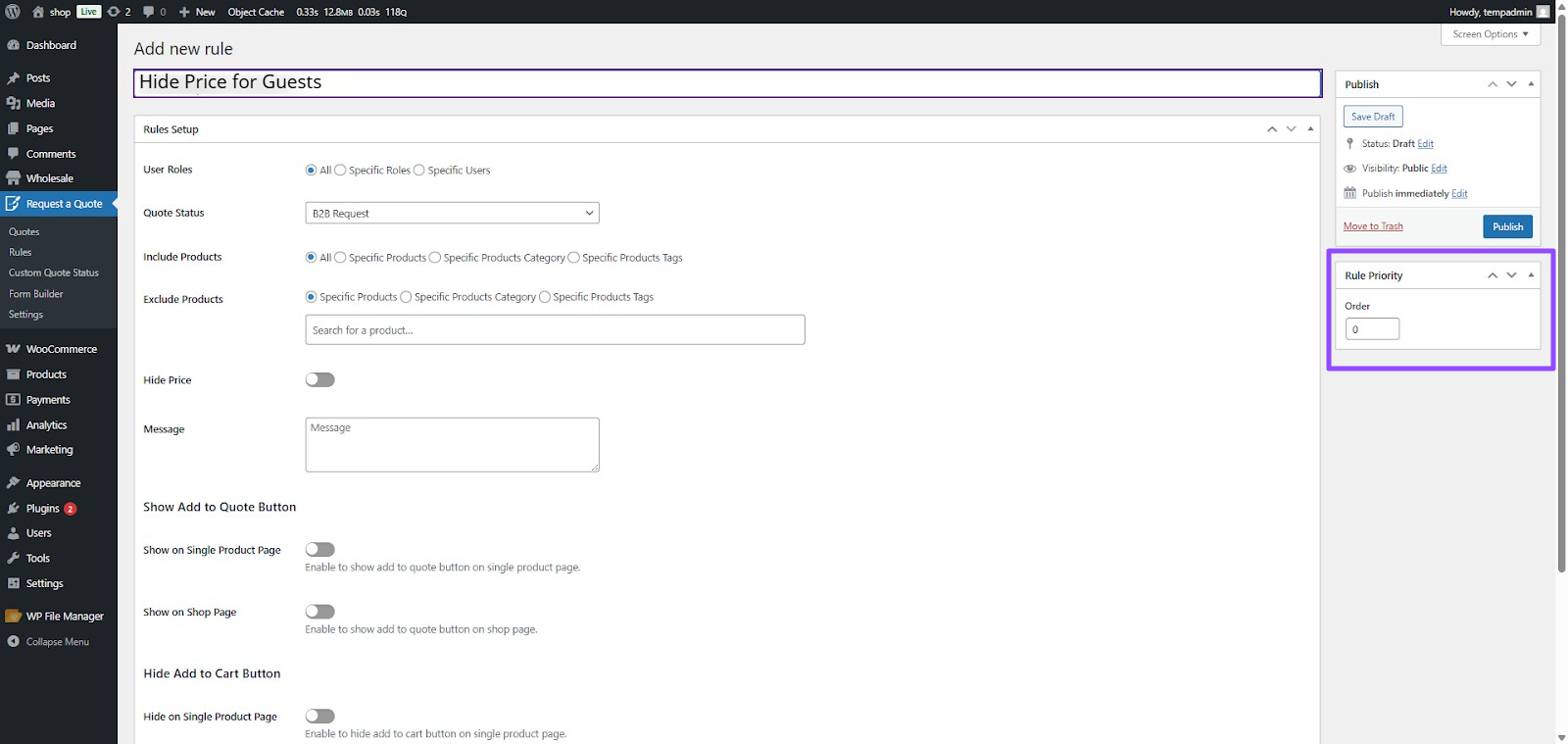
Lower numbers take priority (start at 0). Click Publish to save everything.
Step 6: Test Both Experiences
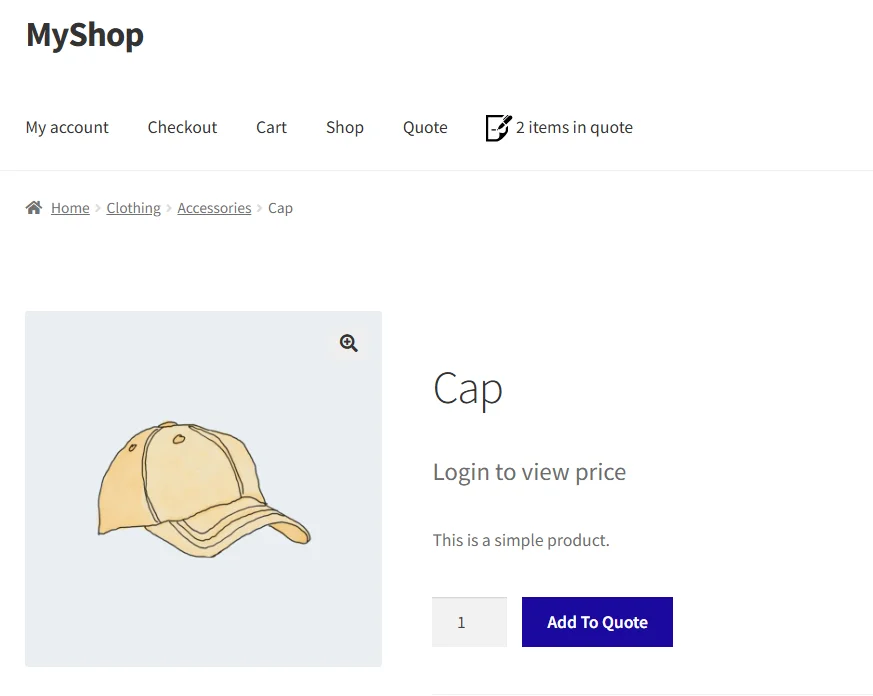
Log out and visit your shop as a guest. You should see quote buttons instead of prices.
Log back in as a registered user and confirm that prices, cart buttons, and previous applied quote buttons appear normally.
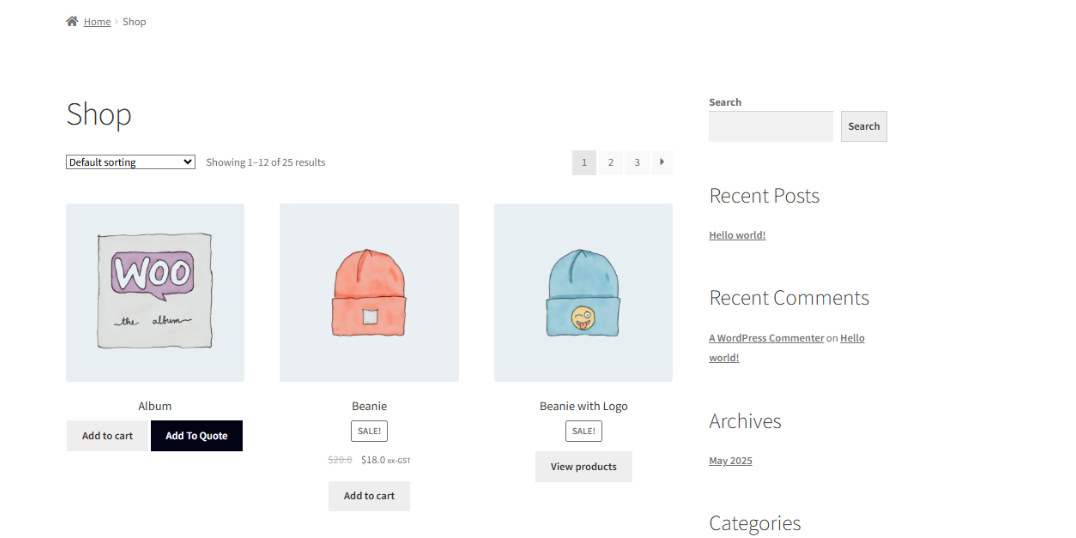
This dual setup means legit customers shop normally while unauthorized visitors go through your qualification process.
What Different Users Actually See
Understanding how this looks to guests versus logged-in users helps you explain the system to customers and troubleshoot confusion.
Guest Experience
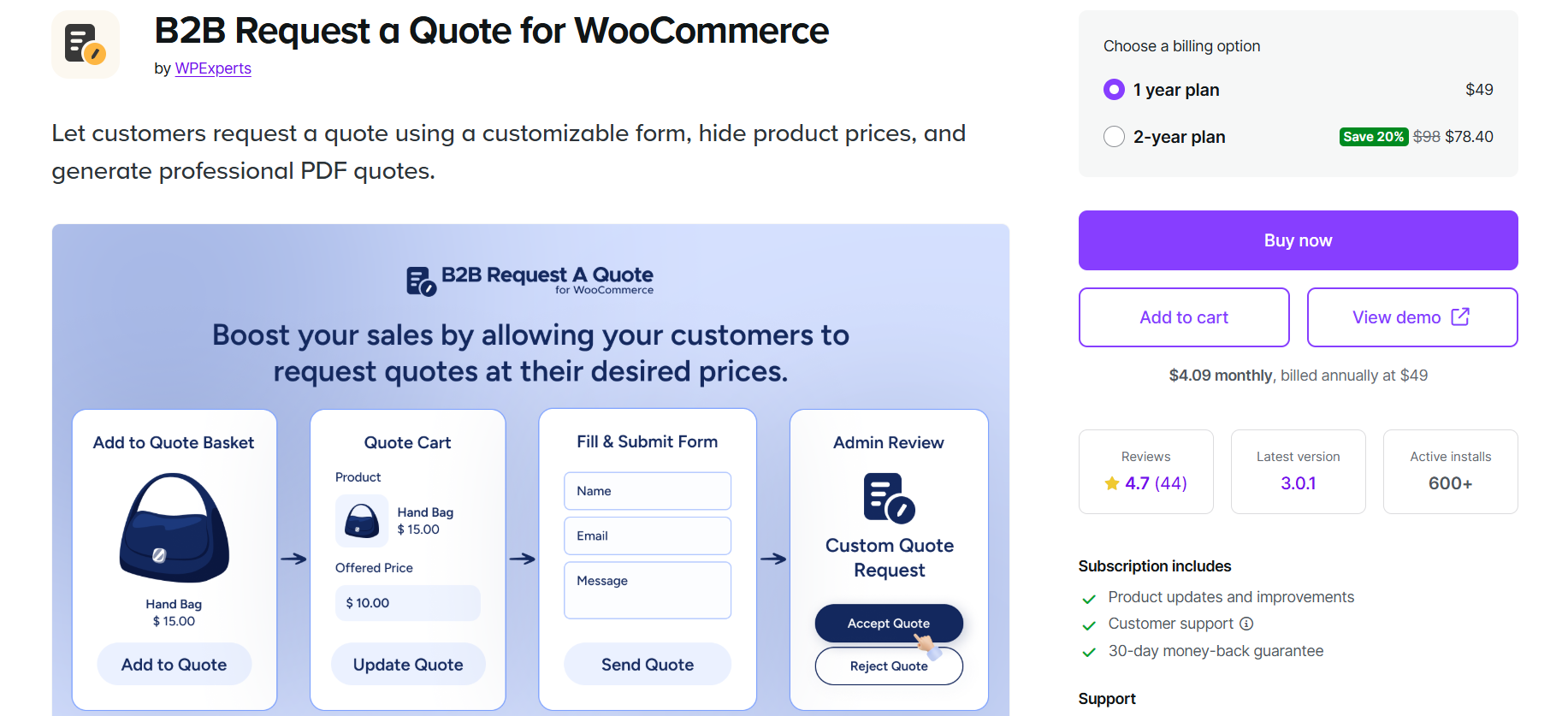
Visitors see product images and descriptions, but no prices anywhere. The Add to Cart button is gone, replaced by Add to Quote. They click it to add items to their quote basket, browse more products, and build a complete request. When ready, they click the quote basket icon and land on a page showing all selected items.
On that page, they fill out a form with name, email, company info, and any details you want through the form builder. They submit the request, you receive it in your admin panel, and they get a confirmation email. This whole process happens without them seeing a single price.
Logged-In User Experience
Registered customers see everything normally. Prices are displayed based on their user role and any special tiers you’ve set. The Add to Cart button works like a standard WooCommerce button. They add items and check out immediately without requesting quotes. Your pricing stays protected while real customers shop without friction.
Managing Quote Requests
In your admin, go to Request a Quote > All Quotes to see every request. Each shows the customer name, email, products, quantities, and date. You review details, calculate pricing, and respond with an actual quote. Once sent, the customer gets an email with your offer and can accept or reject it if you’ve enabled that feature.
Final Words
Hiding prices from guests while showing quote buttons changes how you run B2B sales. You’re not making things harder; you’re creating a professional qualification process that protects pricing and builds your database. The best B2B Request a Quote plugin for WooCommerce handles the technical work. It displays different content based on the user’s login status.
Start with hiding prices from guests, test both experiences, and watch how it filters casual browsers while keeping real customers happy.




