

















































Protecting your WordPress website from numerous security threats is crucial in this digital age. However, this task has become challenging since hackers and cybercriminals use innovative methods to target WordPress sites.
Specifically, WordPress login and registration pages are among the easiest targets for cyber goons, including spammers and hackers. Therefore, reCAPTCHA can help site owners keep such notorious actors at bay.
This blog post will describe adding reCAPTCHA/CAPTCHA to WordPress login and registration pages.
What Do You Mean by CAPTCHA?
CAPTCHA helps differentiate between a bot and a human. In simple words, CAPTCHA is a security initiative that allows websites to confirm whether the user who accesses an online platform or a website is a bot or a human. It prevents automated users from conducting various tasks, such as scraping data, spamming, or malicious attacks.
Why Should We Use CAPTCHA for WordPress Login and Registration?
Unfortunately, hackers and other cybercriminals prefer to target WordPress login and registration pages. Furthermore, WordPress is one of the leading content management systems worldwide, so it has become a common target for cyber terrorists.
Attackers usually try to access the WordPress admin area to spread malware and other viruses. In this situation, the role of WordPress security plugins like Wordfence, Sucuri, and more is handy.
These plugins restrict malicious traffic from reaching websites and limit unauthorized access. In addition, you can incorporate an additional layer of password protection on WordPress login and registration pages.
However, you must share the second password with each user, so this solution does not seem long-term. Hence, CAPTCHA offers a realistic yet effective method to resolve this issue. It benefits from Google’s AI technologies to identify actual users and prevent dubious users from entering websites by presenting CAPTCHA challenges to them.
What Do You Mean by Google’s reCAPTCHA?
CAPTCHAs help secure WordPress sites from numerous security risks and threats. However, they have a few downsides. For instance, they can negatively affect user experience and pose challenges to users with visual impairments, as they face difficulties when completing CAPTCHAs.
Google launched its No CAPTCHA reCAPTCHA to replace the distorted word and image tests. In reCAPTCHA, users have to choose the checkbox beside the text “ I’m not a robot” to prove their authenticity:
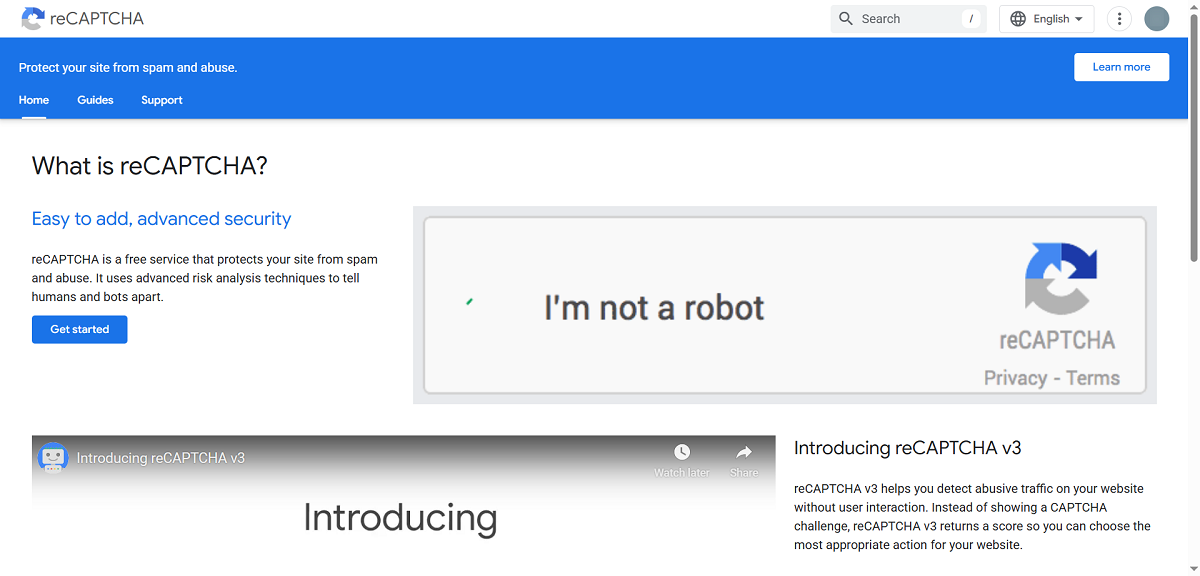
Users can safeguard their sites against spam and abuse through this free service.
How Can We Add reCAPTCHA/CAPTCHA to WordPress Login?
Regarding WordPress security, including a reCAPTCHA or CAPTCHA is a great option to protect your WordPress website. To add reCAPTCHA or CAPTCHA to WordPress login and registration pages, follow the steps below:
Step 1: Install and Activate a WordPress CAPTCHA Plugin
Install and enable a WordPress CAPTCHA plugin. For this purpose, you can rely on notable plugins like CAPTCHA 4WP or reCAPTCHA by BestWebSoft.
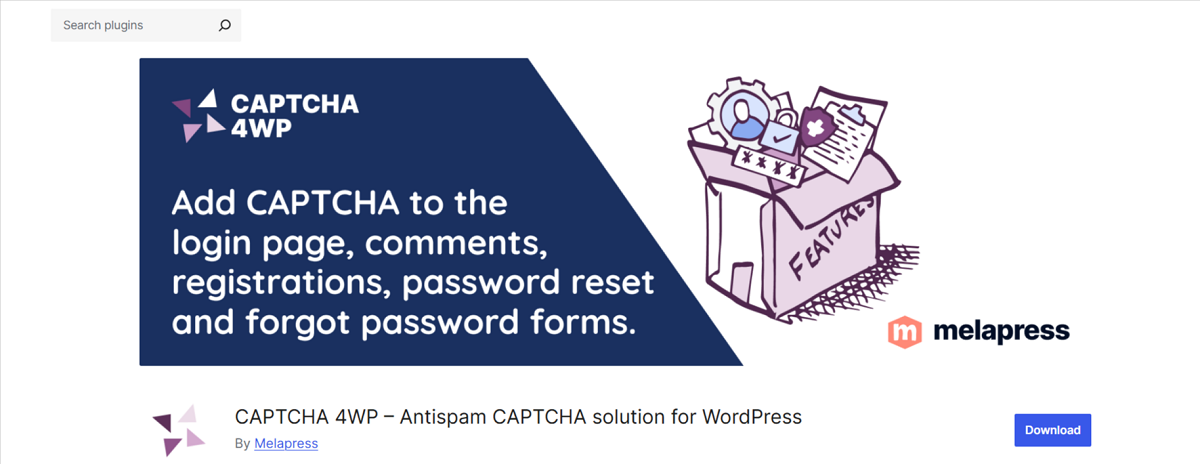
In this scenario, our chosen plugin is CAPTCHA 4WP. After enabling the plugin, navigate to the CAPTCHA 4WP > CAPTCHA Configuration page using the admin panel. You will likely see the setup wizard. Now, press the “Next” button to proceed.
Step 2: Choose the reCAPTCHA Type

In this step, you must choose the type of reCAPTCHA you want to use. You can select the option that best suits your needs. For instance, you can choose the Google reCAPTCHA Version 2 (Users have to check the ‘I’m not a robot’ checkbox).
Similarly, the other option is Google reCAPTCHA 2 (no user interaction needed; however, if traffic is suspicious, users are asked to solve a CAPTCHA). The last option is Google reCAPTCHA 3 (verify request with a score without user interaction).
In this case, we will proceed with the first option, Google reCAPTCHA Version 2 (Users have to check the “I’m not a robot checkbox”). After completing this step, you must press the ‘Next’ button.
Now you should enter the Google reCAPTCHA website key. You should go to the official Google reCAPTCHA site to obtain Google reCAPTCHA API keys. Once you have received the keys, click the ‘v3 Admin Console’ option.
Step 3: Register a New Website in Google reCAPTCHA
In this step, you must register a new website with Google reCAPTCHA. To do this, log in to your account. Once you have signed in, the Register a new site page will appear on your screen.
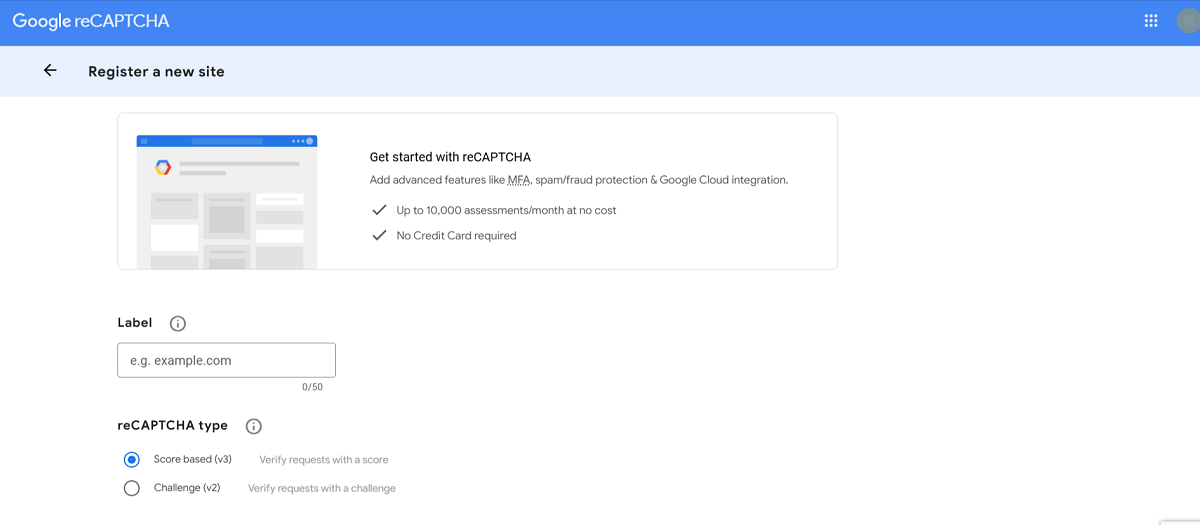
You should mention the site name in the ‘Label’ field. Then you should choose a reCAPTCHA type. We will select the reCAPTCHA v2 ‘I’m not a robot’ checkbox in this situation.
You should write the domain name in the ‘Domains’ section. Remember, mention the domain name without using the ‘https://www’ part. Once you have completed this action, click the ‘Submit’ button.
You will see the success message on your screen, as well as the secret and site keys. You will need to use these keys on your website. Moreover, you can copy the secret key and site key.
Step 4: Write the Site Key in CAPTCHA 4WP
You must visit the browser window or tab where the CAPTCHA 4WP setup wizard is accessible. You should write the Google reCAPTCHA site key. You must check the ‘I’m not a robot’ checkbox and do not forget to press the ‘Proceed to secret key’ button.
Write the secret key and click the ‘Validate & proceed’ button. A success message will appear on your screen. In addition, click the ‘Finish’ button.
Step 5: Configure Other CAPTCHA 4WP Settings
In this step, you should configure additional or other CAPTCHA 4WP settings. For example, you can edit the error message, change the language, choose a theme, and other options. Once you have made the required changes, click the ‘Save Changes’ button.
Congrats! You have incorporated reCAPTCHA in the default WordPress login and registration form. To check if it works, open the WordPress login URL using a browser like www.sample.com/wp-login.php.
Likewise, you can check how the reCAPTCHA works on the registration form by pressing the ‘Register’ link under the login form. The WordPress registration form will appear on your screen. This way, you can evaluate how reCAPTCHA appears or works on the registration form. Registration form aside, you can protect multiple areas on your sites through reCAPTCHA, including:
- WordPress admin login page
- Password recovery form
- Contact form
- WooCommerce login page
- User registration form
Lastly, adding CAPTCHA to the WooCommerce checkout is another easy task.
What Do You Mean by Adding a CAPTCHA to WordPress Login?
The term “ add a CAPTCHA to WordPress login” suggests that WordPress sites should consider implementing the CAPTCHA (Completely Automated Public Turing test to tell Computers and Humans Apart). Website owners can easily integrate CAPTCHAs into their login pages, improving their security.
What Do You Mean by Adding a reCAPTCHA to WordPress Login?
The phrase “ Add a reCAPTCHA to WordPress login” indicates that sites must use Google’s dedicated security feature, reCAPTCHA. Google’s reCAPTCHA prevents bots and malicious actors from accessing WordPress sites.
It helps improve the security of the WordPress login page by compelling users to complete various reCAPTCHA challenges.
Types of CAPTCHA and reCAPTCHA
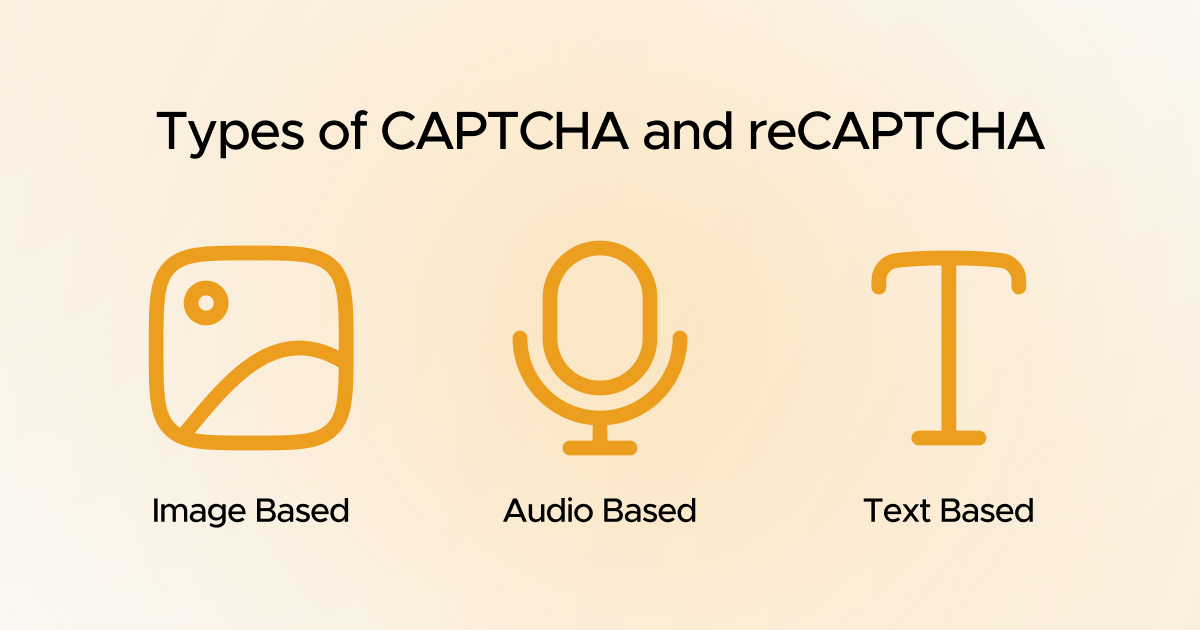
There are different types of CAPTCHAs, including:
- Image-based
- Audio-based
- Text-based
Like CAPTCHAs, reCAPTCHAs have several types, such as:
- reCAPTCHA v1 (Obsolete)
- reCAPTCHA v2 (Android)
- reCAPTCHA v2 (Invisible reCAPTCHA badge)
- reCAPTCHA v2 (“I’m not a robot” Checkbox)
- reCAPTCHA v3
Wrapping Up
We hope you liked our blog post, which helps add reCAPTCHA/CAPTCHA to WordPress login and registration pages. Integrating reCAPTCHA/CAPTCHA to WordPress login and demonstration pages is an excellent option for safeguarding your WordPress site against malicious threats such as bots, brute-force attacks, spam registration, and more.
The story does not end here. These security measures help you improve your website security by protecting new and current site visitors, content, and brand reputation.




