

















































If you are running an online shop, you most likely understand the dynamic nature of currency exchange. A mere change in the rate can lead to confusion or loss of online customers. That’s where our powerful currency switcher extension for WooCommerce shines. Rather than relying on the daily newspaper, Google tabs, or speculating on euro or dollar rates, your online shop handles it all.
This isn’t about being tech talky, okay? It’s about building confidence in your shoppers, in yourself, saving your time, and increasing your profits.
Why Automatic Currency Updates Matter for Your Store
With currency rates updated in real time, you can secure the customer’s trust. Getting international customers will also be easier, as prices will not be an issue. When your store’s prices respond to currency rate changes, the audience will see it as credible.
1. Save Time You Can Use to Grow
Manually managing your currency rate updates is a time thief no one talks about. You sign in, check your rate and prices, then repeat the process. With a good system, your hours will be invested towards your best products, best descriptions, and best ways to interact with your customers.
2. Build Instant Trust with Global Shoppers
When consumers see the prices accurately in their currency, they are more comfortable with the idea of buying. It removes that small mental math moment that makes people hesitate and confused. This small thing turns casual visitors into loyal buyers who feel your store “gets” them.
3. Avoid Costly Pricing Mistakes
A wrong exchange rate could mean selling too cheaply or pricing too high. Both hurt your business. Automatic updates keep your numbers aligned with real-world values, helping protect your margins while still offering fair prices for your audience.
4. Look Professional Without Extra Effort
A self-updating store has that polished finish. It shows you care about accuracy and customer experience. Even if you’re a small business, this feature gives your shop the same smooth feel as big international brands.
5. Scale Without Stress
As your store grows into new countries, handling all those different currencies by hand starts to get messy. An automatic currency switcher in your WooCommerce store will allow you to grow without increasing your workload. You turn a switch, and your system will keep pace with the world around you, effortlessly!
How to Set Up Automatic Currency Rate Updates in WooCommerce
Getting this system up and running is simple, and once it’s up, you can pretty much forget about it. Here’s just how you can do it, considering you’ve installed Currency Switcher for WooCommerce by WPExperts and configured it basically.
Step 1: Add Your Currencies to the Currency Table
First, add all the currencies you want to support in your Currency Table: WooCommerce > WCCS Settings > General. This is where you’ll list all your money, whether U.S. dollars, euros, pounds, yen, or other currencies.
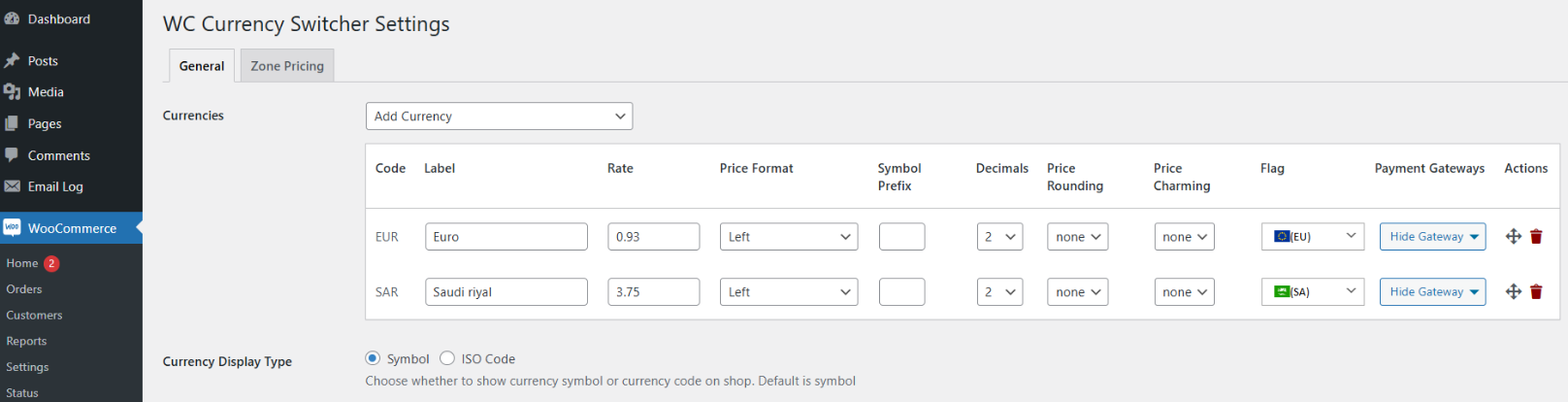
Don’t go overboard adding every currency on Earth unless you’re genuinely selling to those markets.
Step 2: Select API as Your Exchange Rates Type
After setting up your currency table, you’ll select API as your Exchange Rates Type.
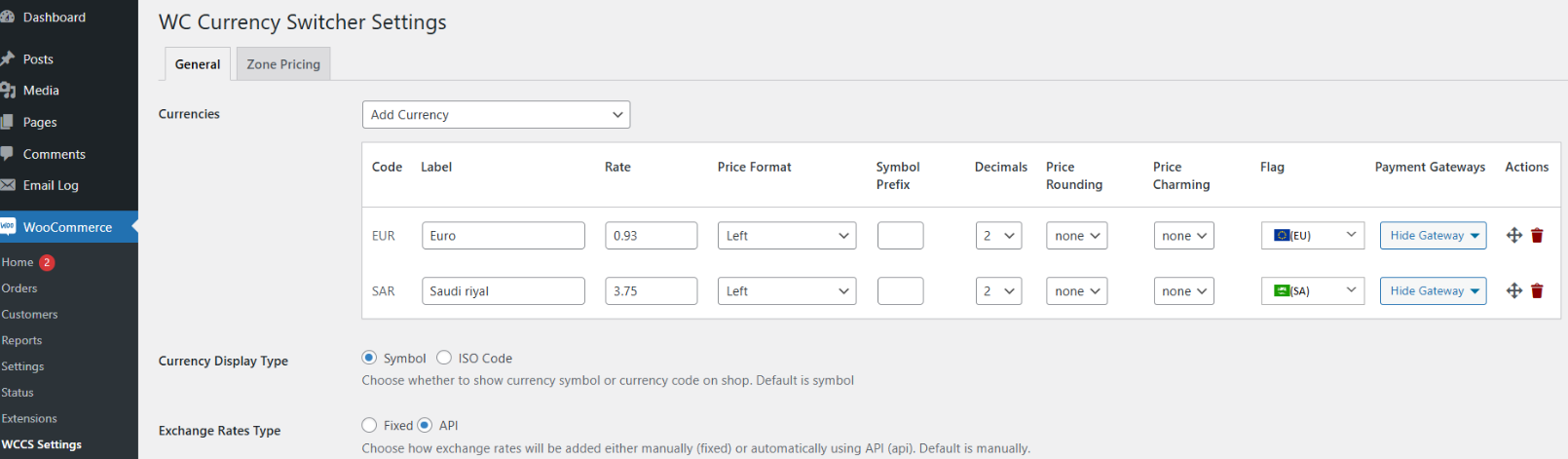
This is the magic switch that tells your system to pull live data instead of relying on whatever numbers you typed in six months ago. The moment you enable this, you’re connecting your store to real-time financial data.
Step 3: Choose Your Exchange Rate Provider
Next up, choose your Exchange Rate Provider from the dropdown menu. You’ve got several solid options here:
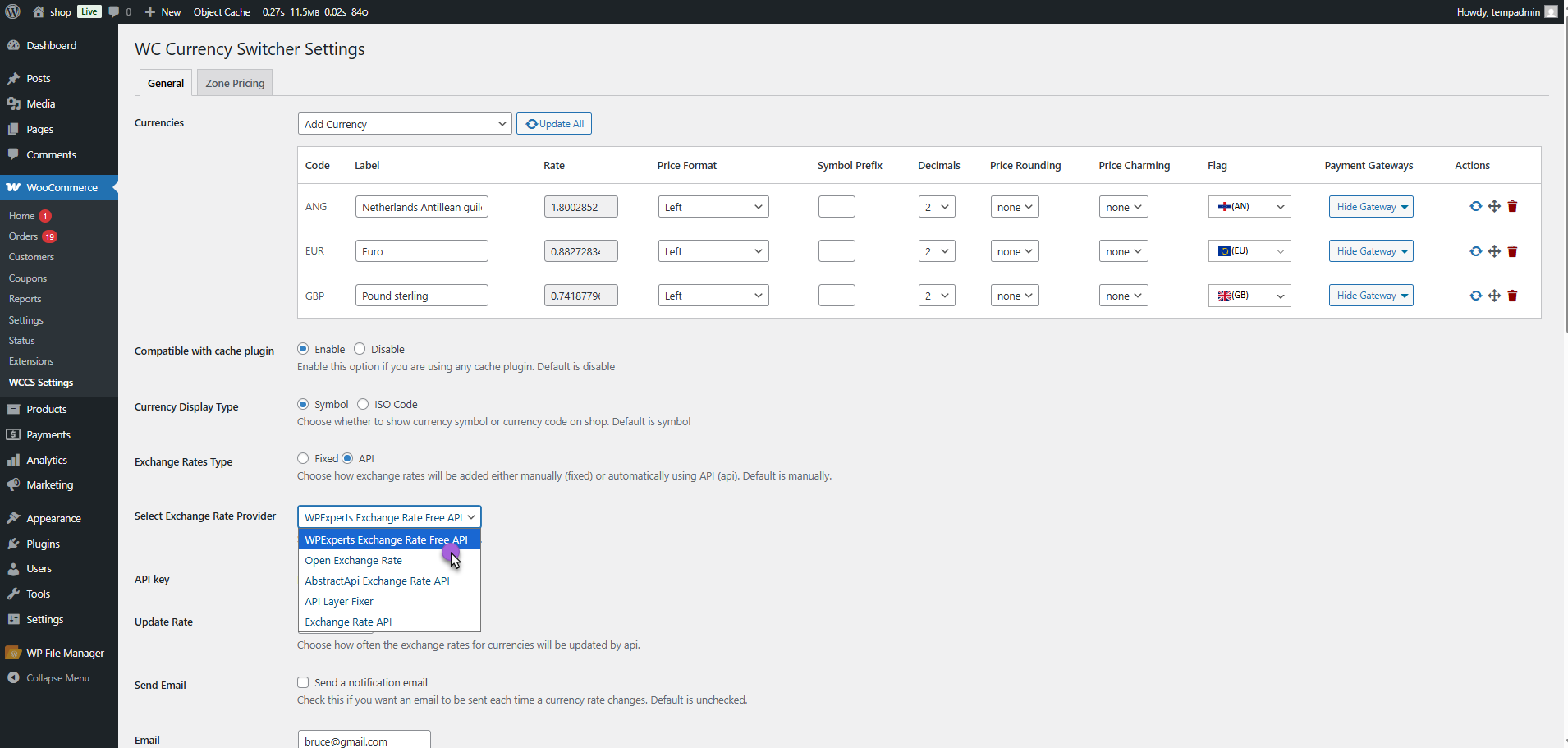
- WPExperts Exchange Rate Free API
- Open Exchange Rate
- AbstractAPI Exchange Rate API
- API Layer Fixer
- Exchange Rate API
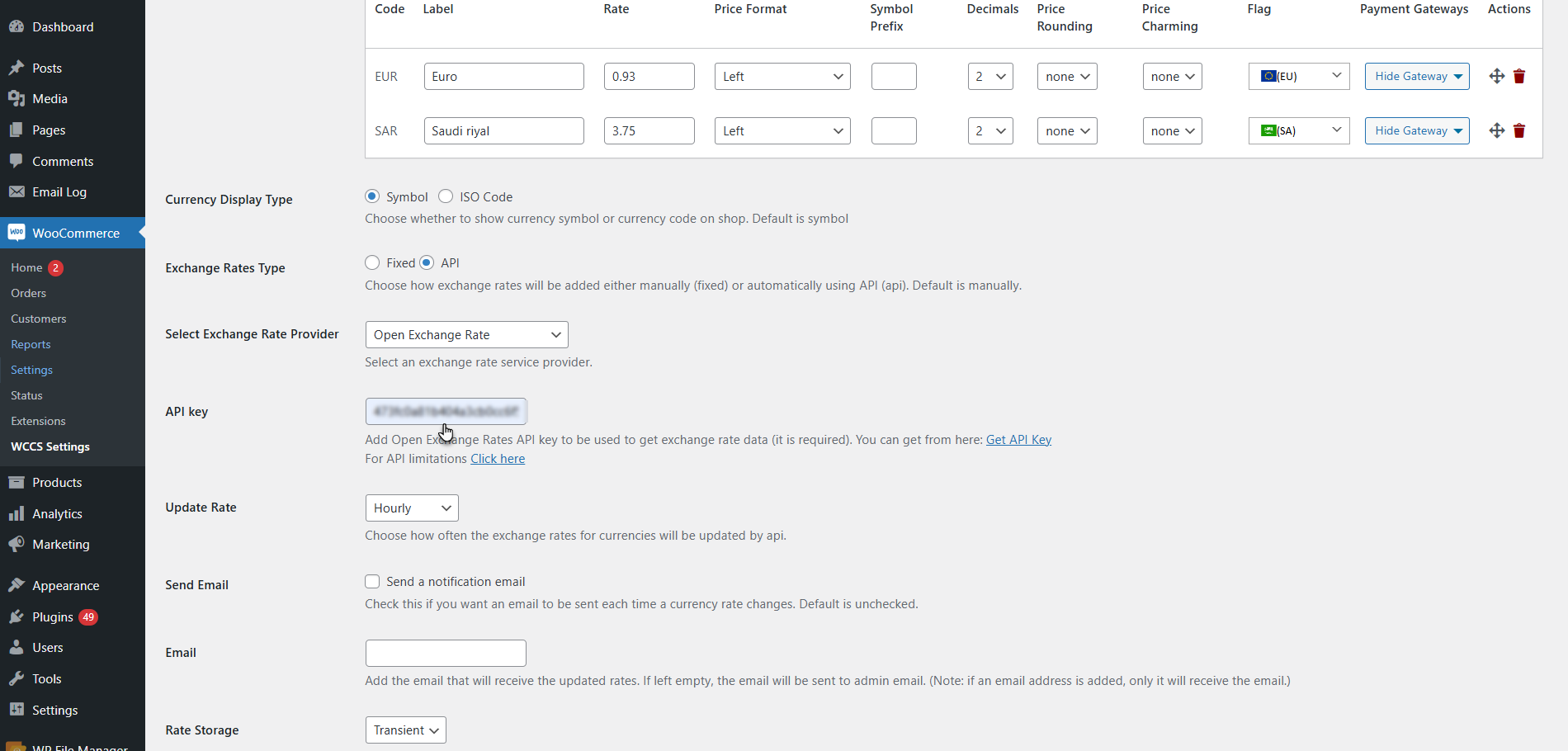
Step 4: Enter Your API Key
Each of these services has its own API key system. To make use of these services, you will have to visit their site, register an account, and request your own API key. Be sure to read up on their API limitations as well, as these free services often place limits on the number of requests they accept, which may affect the frequency of your currency update checks.
Paste that API key into the designated field in your settings.
Step 5: Set Your Update Frequency
Now comes the scheduling part. You get to decide how frequently your store checks for updated rates.
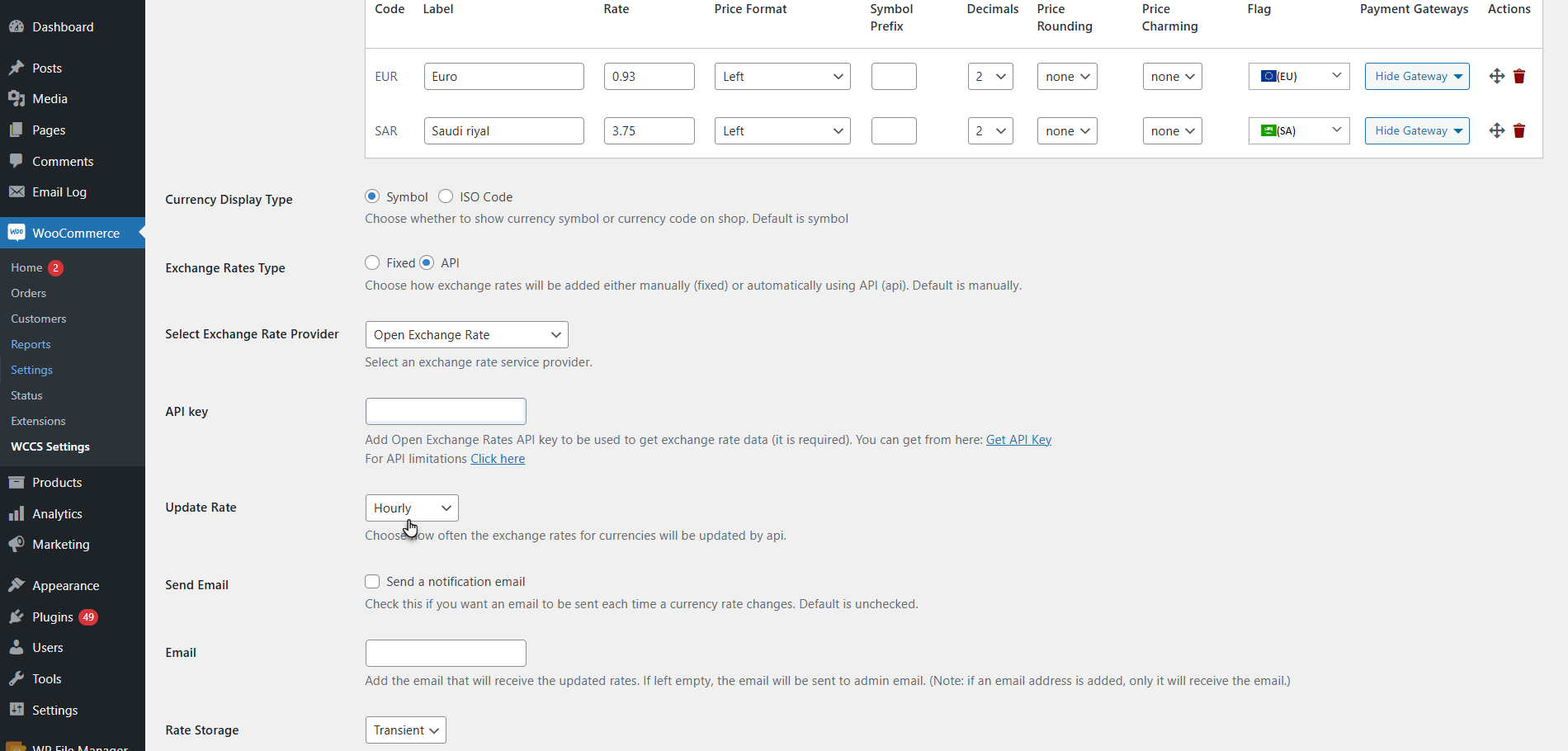
This can be set to anything from an hour to daily, depending on your own business needs. For those selling expensive items where even minor percentage differences make a large difference, you may want to update more frequently. For the average store, updating daily is perfect.
Step 6: Enable Email Notifications (Optional)
Interested in staying “in the loop” without having to log on so frequently? Enable the email notification checkbox.
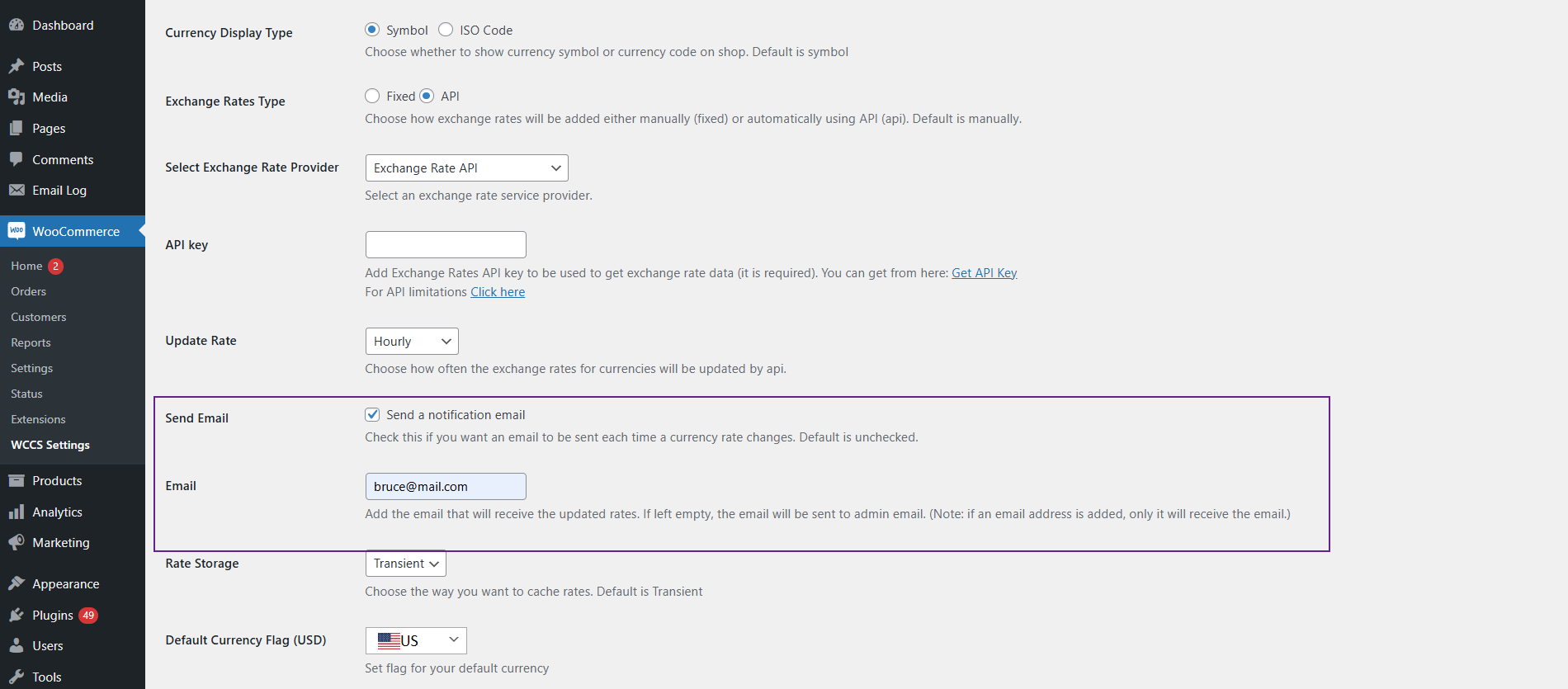
This tells the system to ping you whenever rates are updated. You can specify which email address receives these notifications, or leave it blank; the site admin email gets them by default.
The WPExperts Exchange Rate API Advantage
Are you looking for a solution designed specifically for WooCommerce, without the hassle oftechnical issues? The WPExperts Exchange Rate API could be a solution worth your serious consideration. It is specifically for WooCommerce store owners rather than general API consumers.
Efficient & Intuitive Setup Process
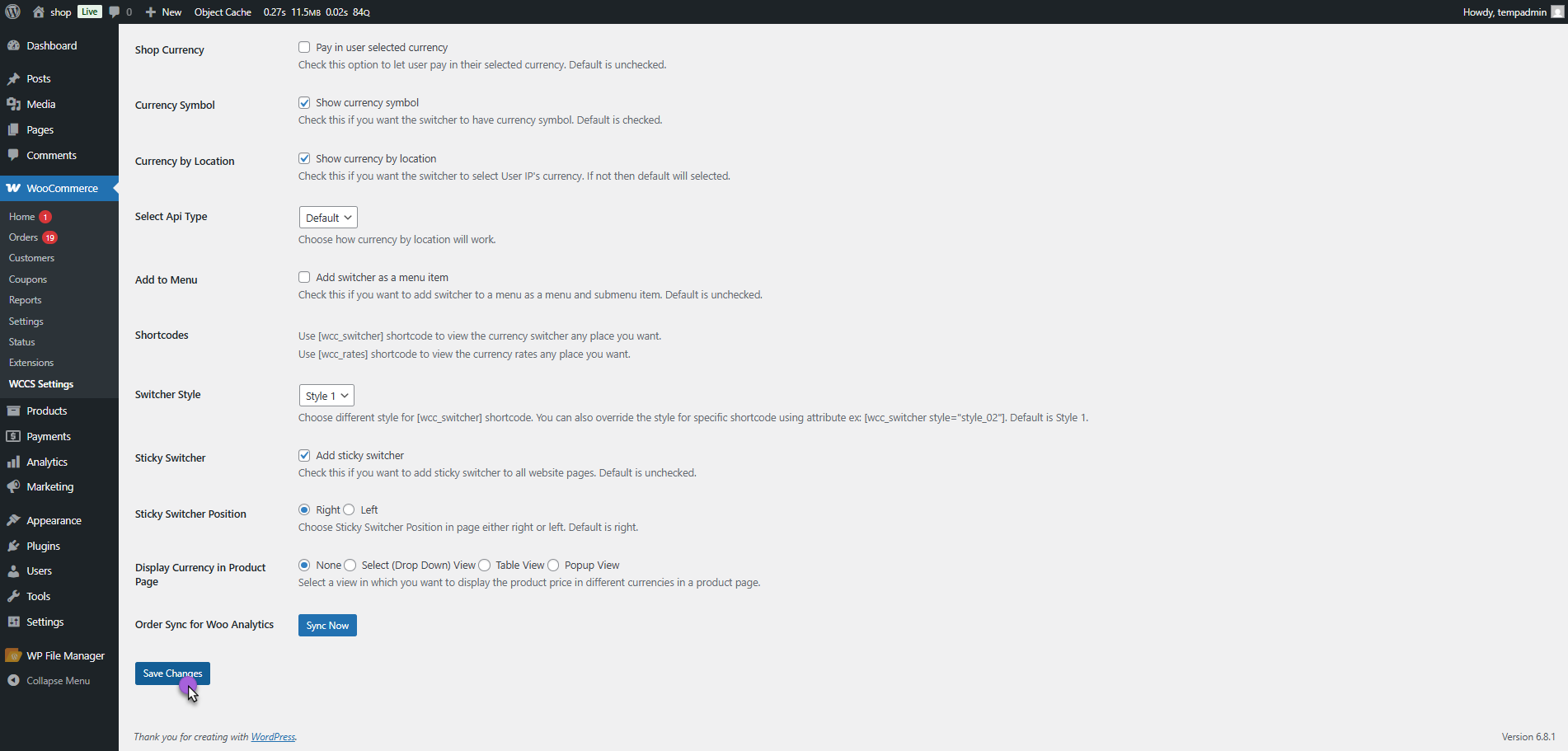
It takes just three minutes to set it up. To set this up in the first place, you would have to go to the WordPress Admin Dashboard → WooCommerce → WCCS Settings → General → look for the “Exchange Rate Provider” dropdown and select “WPExperts Exchange Rate API” from the listed options.
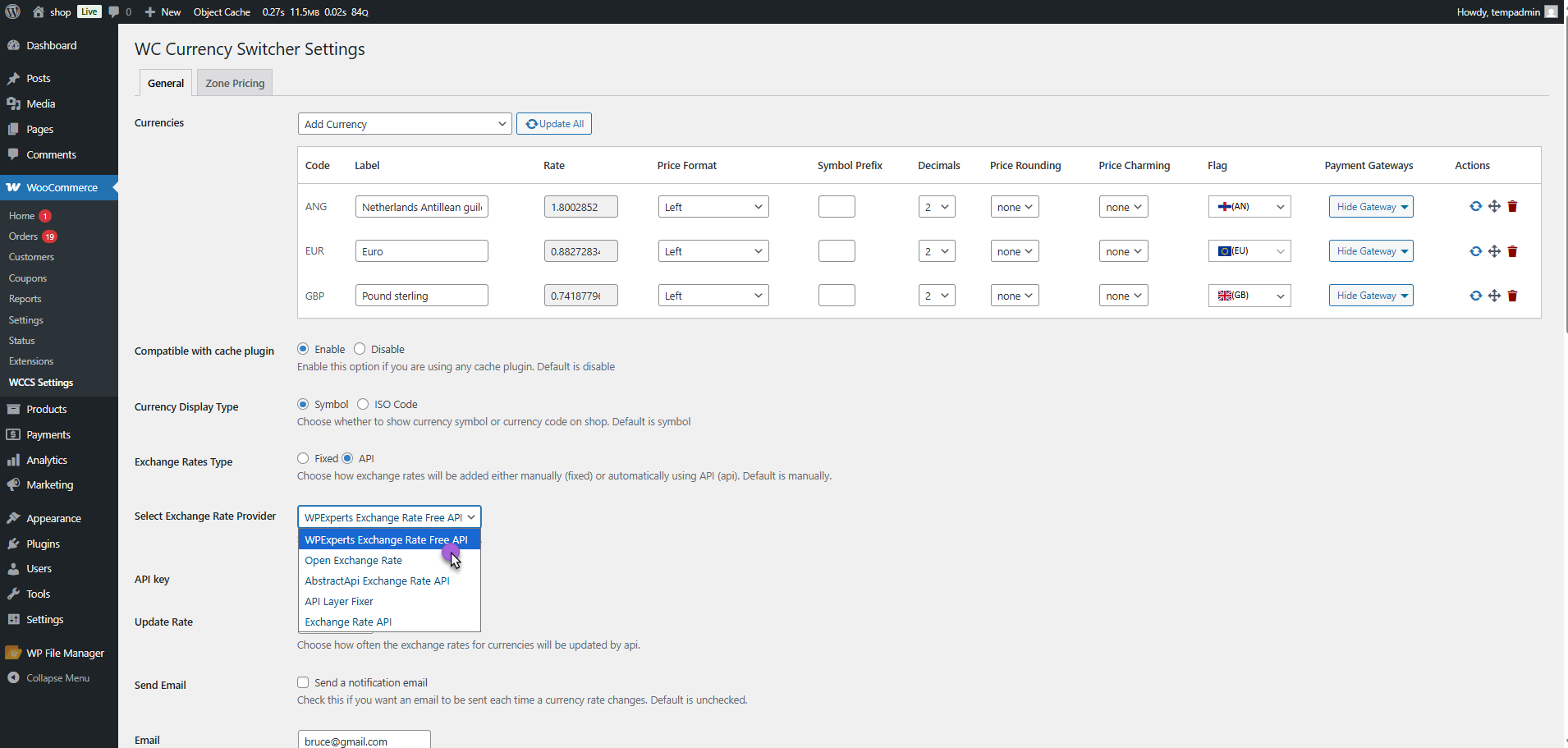
Clicking on the Save Changes button will get you past the halfway mark.
Instant Rate Updates Across Your Store
The real prettiest thing starts when you click the Update All button.
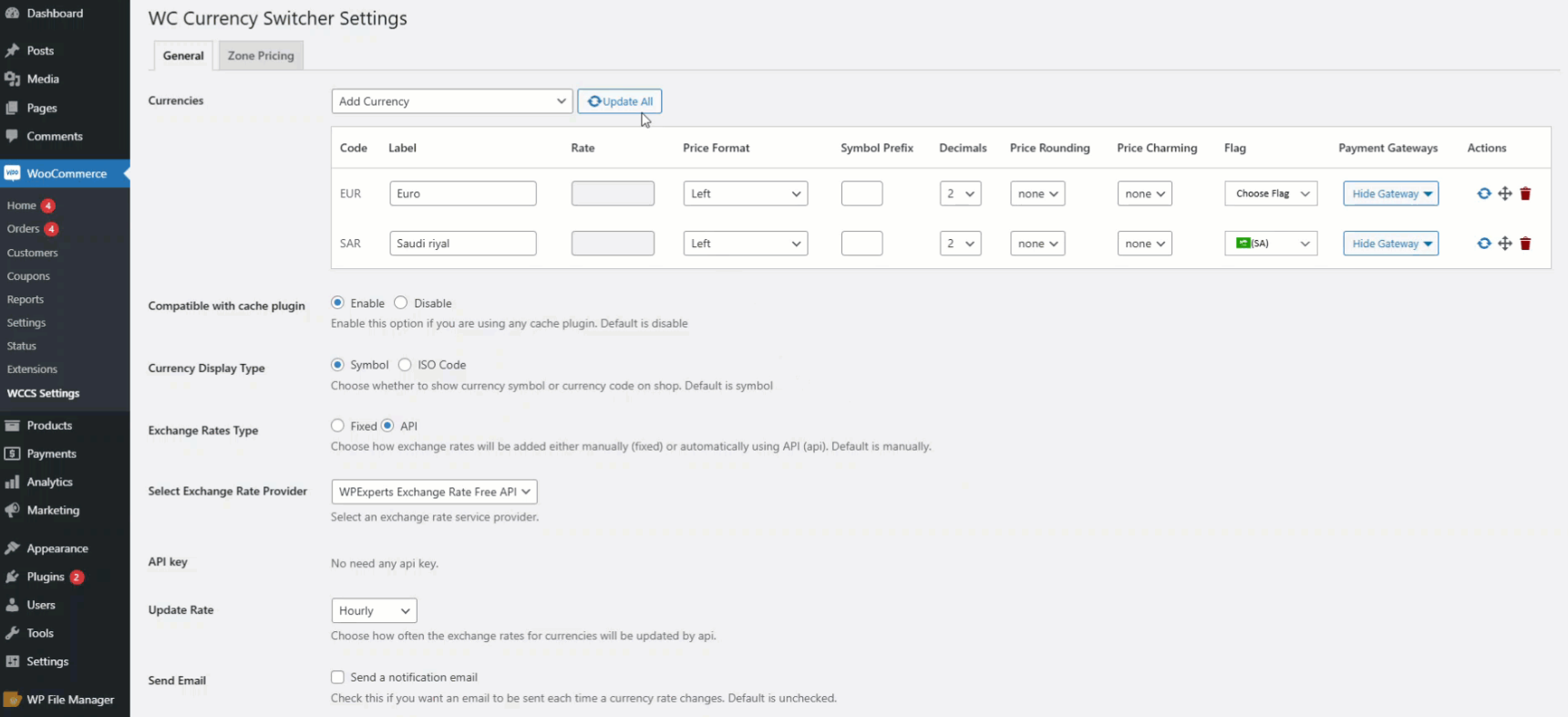
Now, as soon as the latest currency rates are fetched, they get applied across the whole store. Zero wait or processing time.
Seamless Front-End Customer Experience
On the front end side of things, it’s as smooth as butter! Your customer just visits your shop page, checks out the products they’d like to buy from you, and then proceeds to change the currency in the currency switcher dropdown box you’ve implemented from our WPExperts API.
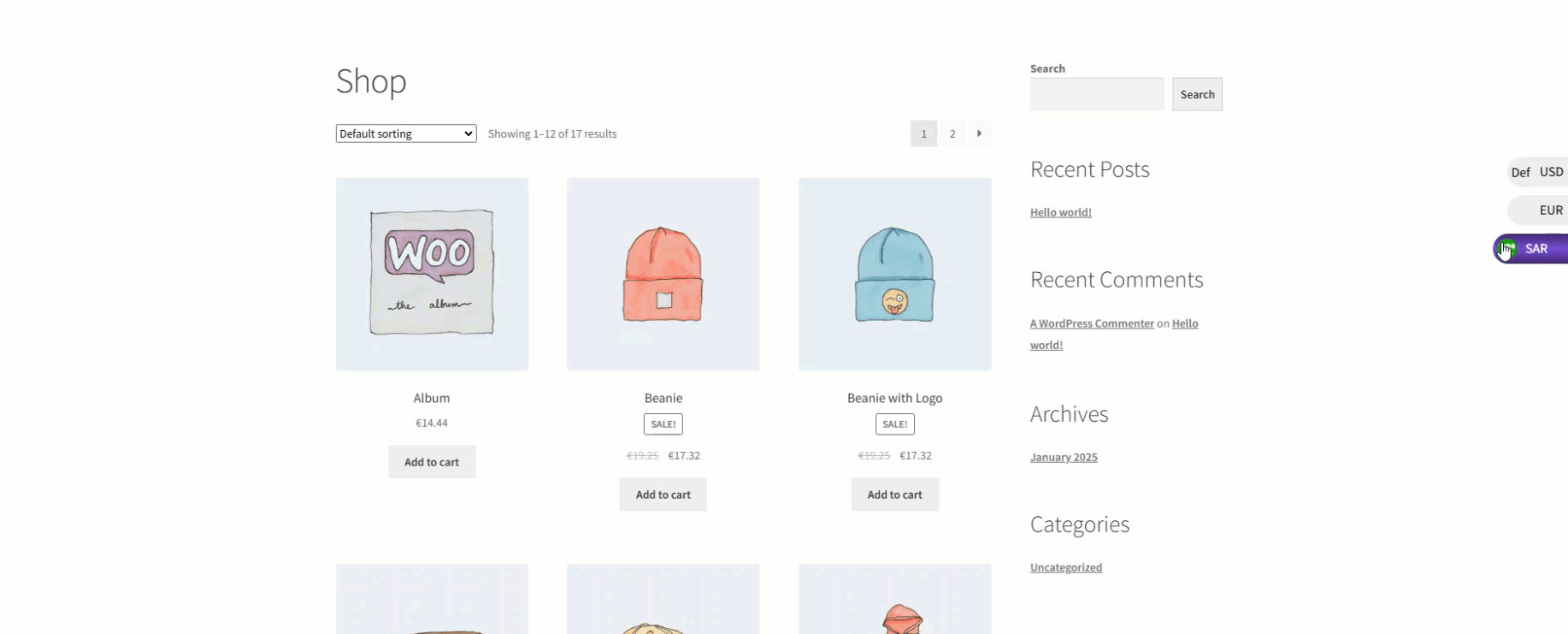
The customer never sees loading spinners or outdated figures, just clean, accurate pricing in their preferred currency.
One Integrated Solution
Technically, this process eliminates the complexity of dealing with multiple API services. You are not switching between the best one (which one gives accurate results) or whose API isn’t working at 12 a.m. You are dealing with a single system that works with your WooCommerce from day one. Eliminating the need to go for WordPress maintenance services for this simple task.
Final Words
And so, for a store running on WooCommerce to look modern, global, and trustworthy, automatic updates for currencies aren’t a want; they’re a must. And a good currency switcher plugin will handle the hard work for you. It makes sure your store always displays accurate pricing and that your customers feel at ease.
Connecting a plugin or an add-on to the store is a one-time chore. After that, let your store do the magic, and you will wonder how you ever managed a store without it! Configuring Automatic Currency Updates with the best Currency Switcher plugin is the best solution to avoid manual work.




