














































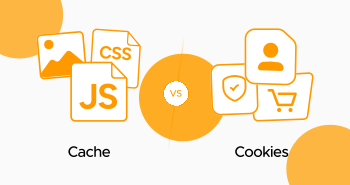
Ever wonder why a website took a split second to open, but ages to open the previous day? Also, how is it possible that you remained logged in to your favorite website even after you closed your browser? Caches and Cookies are behind all these. And they make all these possible.
But did you know that these two technologies are different and not the same? Because even in 2026, most people still treat these two concepts as identical. That’s why you should get the necessary learning about cache vs. cookies.
Let us explain everything in simple words. We will not talk technical, but how it actually influences things on the internet.
Let’s Understand Cookies and Cache
Your browser is like an assistant that keeps things in mind for easy access. Cookies and Cache are two different methods your browser uses for this purpose.
What are Cookies?
Cookies are very small text files. Websites save these files on your computer (with your permission, mostly). Most often, cookies are less than 4KB. They also store data about you. When you sign in to a website, this entire session on the website is maintained inside a cookie. Your full shopping cart? Cookies. Is your language preference set to French? Cookies. They are essentially digital sticky notes where websites store information about you.
There are two kinds of cookies
- Session cookies: Last till the duration of the browser session
- Persistent cookies: Expires when deleted or when their time expires
What are Caches?
Cache, on the other hand, is your browser’s storage closet. It stores web file copies, like:
- Images
- Videos
- HTML pages
- CSS styles and more
That means when you land on a website, all these files land in your browser’s storage. So, the next time you visit that exact web page, it does not reload all the files from the internet again from scratch. Instead, cache helps the browser load some files instantly. That is much faster.
Cache vs Cookie in One Line?
- Cache stores web pages.
- Cookies store information about you.
Cookies vs Cache: 5 Real Differences
Now it’s time for the “nitty-gritty” discussion on cache versus cookies.
1. Cookies vs Cache: Purpose
Cache is designed to speed up website loading. That is it. Cookies are designed to identify you and offer you a personalized experience. They remember your preferences, keep you logged in, and track everything you do.
2. Cache vs Cookies: Communication
This is huge. Cache has one function, and that is for the browser to download and save files in the cache. Cookies are two-way communicative devices. Every time you visit a webpage, the cookies return to the server. The webpage reads them and goes, “Oh, that is Sarah, and she prefers the dark mode option.”
3. Cookies vs Cache: Size
Cache can truly take up disk space. That is, cache images, videos, and web pages. And then came the cookies. Those small text files take up no disk space at all.
4. Cache vs Cookies: Who’s it for?
Cache is the same for all of us. “If your favorite website’s logo is cached on your computer, it is precisely the same logo others are viewing.” Cookies are for you alone. They are about you, about logging in, about your shopping cart, about how you surf around.
5. Cache vs Cookies: Lifespan
A cache’s lifespan on a computer’s hard drive is until you clear it, or the individual website’s policies dictate otherwise. In contrast, a cookie expires at the end of a browser session. Or after a specific date (persistent cookie).
This knowledge of cookies and caches will enable you to make more informed choices. And will also tell you about how you want to maintain the privacy of your web browsing.
When Do You Actually Need Each One (Caches & Cookies)?
Cache saves the day when:
- You visit the same websites on a regular basis and expect them to load quickly
- You are on a slow internet connection and can’t re-download everything
- You want to save bandwidth (particularly useful if bandwidth is limited)
- Access to previously viewed content when offline
Cookies are necessary for:
- Being logged on to websites without entering the password each time you visit.
- Items left in the shopping cart during browsing
- Receiving relevant content suggestions
- Caching your language, time zone, and display settings
- Getting “Remember Me” boxes to work
Here’s a practical example:
You’re going online and checking out some products. The cache is loading the product pictures, and the whole page is super quick because you were there yesterday. Cookies also note that you’re signed in and that those three things are still in your cart.
- Cache handles the speed.
- Cookies handle personalization.
The Privacy Side of Things
The now-painful reality is that both cache and cookies can pose privacy and security risks.
Cookies Risks
Cookie issues are more serious, too. A hacker may steal your session cookies and take over your accounts. This is termed session hijacking. More frightening is “cross-site scripting,” in which a hacker injects harmful code into the websites you visit to steal your cookies and private information.
Third-party cookies are used by advertisers, not by the website you are visiting at a time, and track you around the Internet. They construct a profile of your online behavior.
Do you ever wonder why certain advertisements follow you around? That is third-party cookies at work.
Cache Risks
Not exactly the same, but risks still exist. If you are accessing a shared computer, someone could be accessing the cache and viewing pages that display personal data about you. Cache may also contain malware or become damaged, causing sites to break.
How to Play Safe
What do you do? Limit third-party cookies on your web browsers. Clear your data regularly. Use HTTPS sites only. And when you are carrying out a sensitive action, like online banking, do it in incognito mode.
How to Clear the Cache & Cookies?
Are you ready to wipe the slate clean? Here is how.
Quick Method for Any Browser:
- Windows/Linux: Ctrl + Shift + Delete
- Mac: Command + Shift + Delete
It opens the clearing dialog in major browsers except Safari.
Google Chrome:
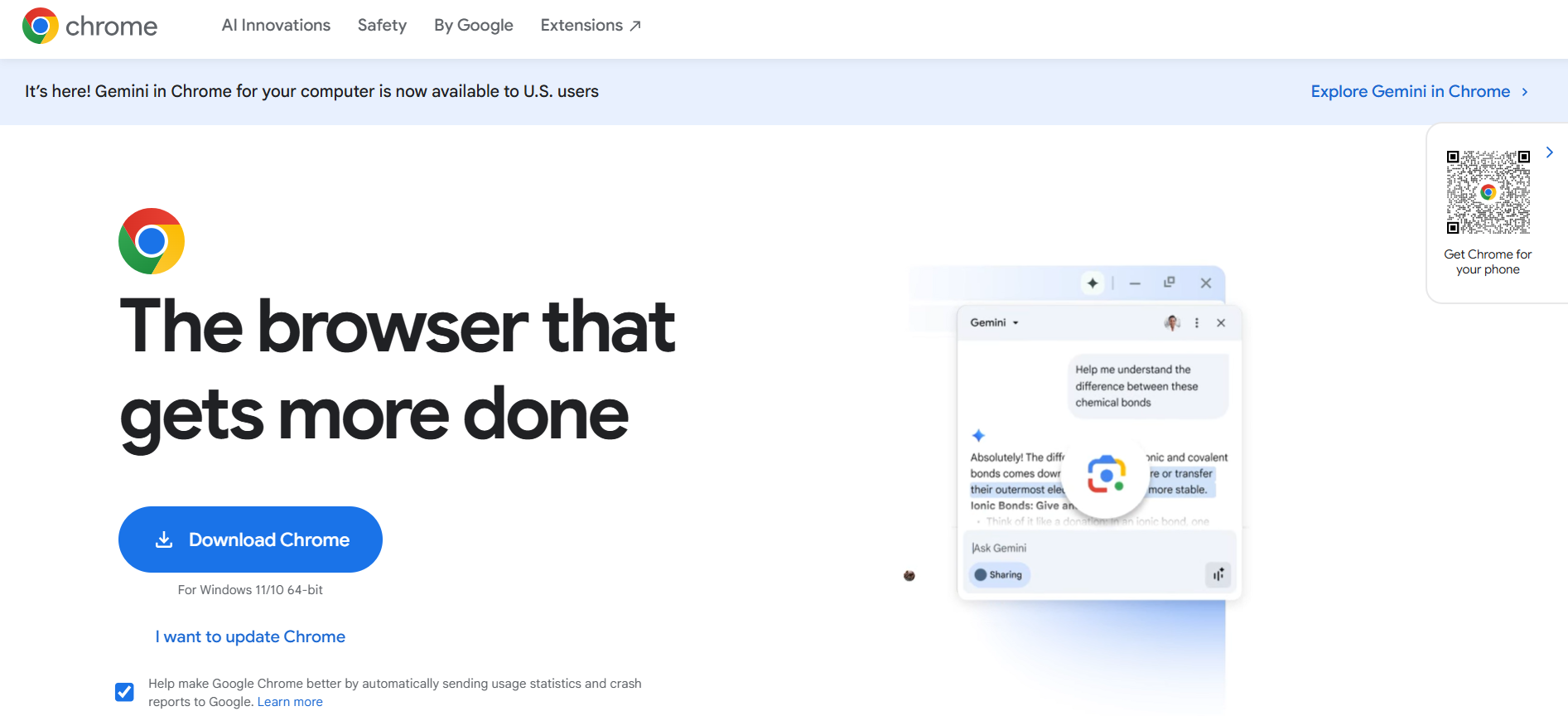
- Click the three dots in the top right corner:
- Click on Settings, and subsequently, Privacy and security
- Click “Clear browsing data.”
- Choose “All time” from the menu
- Select “Cookies and other site data” and “Cached images and files.”
- Click on “Clear data.”
Mozilla Firefox:
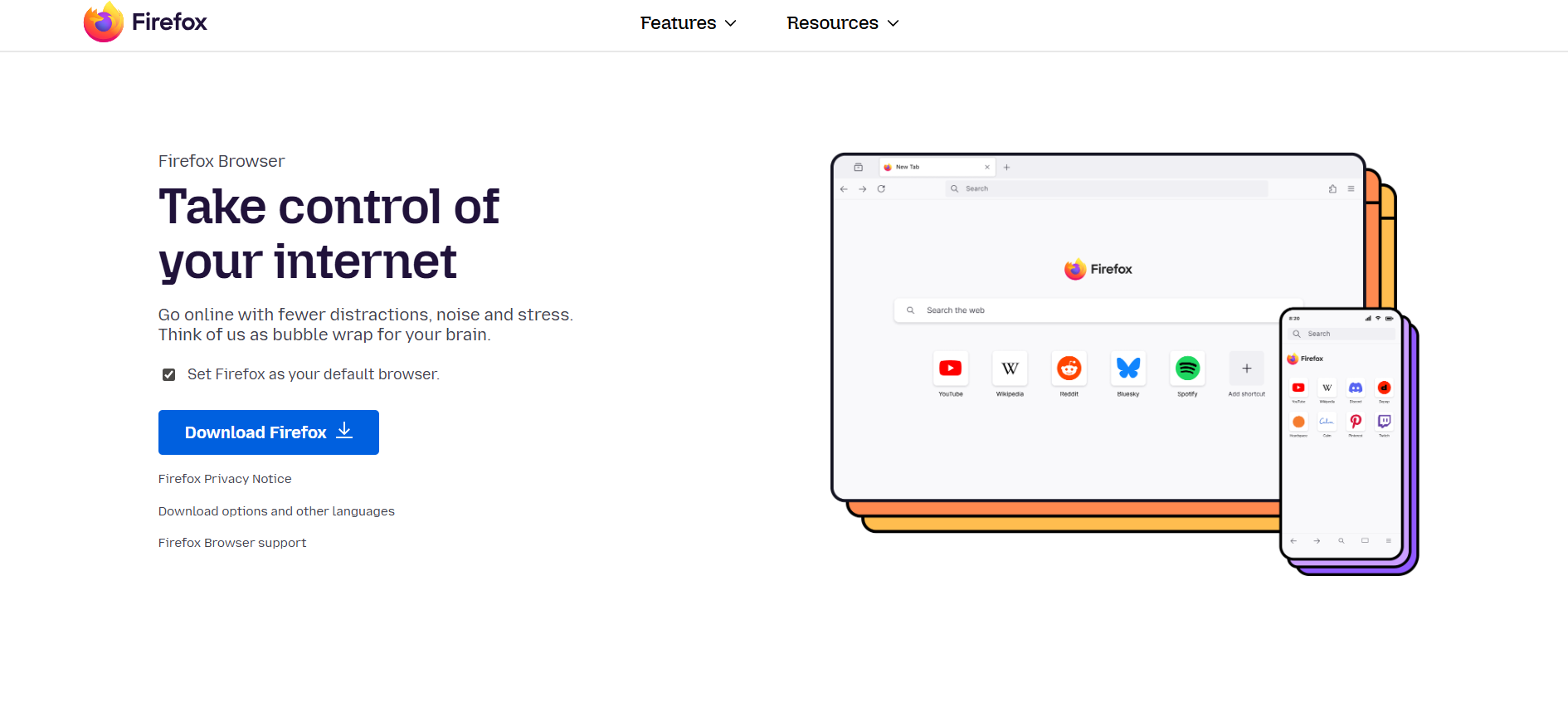
- Menu->Settings
- Privacy & Security – Privacy & Security
- Click “Cookies and Site Data” and then “Clear Data.”
- Check both boxes and click ‘Clear.’
Safari (For Mac):

- Open Safari
- Click Safari → Settings (or Preferences on older macOS)
- Go to the Privacy tab
- Click Manage Website Data
- Click Remove All
- Confirm
- Restart Safari (recommended)
Microsoft Edge:

- Three dots menu > Settings
- Privacy, search, and services
- In the “Clear browsing data” section, click “Choose what to clear.”
- Cookies and cache, click “Clear now.”
On mobile, it’s pretty much the same—you just have to go into your browser and look at its settings for something like “Clear browsing data”.
Is It Necessary to Clear Cookies and Caches?
No, not necessarily. There is a tradeoff.
Clear Cache and Cookies When:
- Websites are not loading or are loading outdated information
- You’re having odd format problems
- This is your first Windows experience
- You’re using a public or shared computer
- Passing on your stuff to someone else
- Your browser is sluggish
But remember:
- You’ll get logged out of everything
- Websites will load slowly when you visit them after clearing
- You’ll lose the saved preferences and settings
- It’s inconvenient if you do it too often
The smart way? Clear your cookies regularly for privacy, and cache sometimes for convenience. Or Incognito mode when you want more privacy.
The Bottom Line
Cache vs. cookies is not a debate; they work together as different members of the same team. Cache goes faster. Cookies make it personal. They both collect different kinds of data. Knowledge about the difference between cookies and the cache now puts you in charge. This helps improve the speed of your browsing experience.
In fact, it allows you to maintain your online privacy and solves problems that may arise during this process. This is not an ‘either-or’ situation, where one has to be selected over the other. That’s how it is. So, the next time a website asks you about it in your browser, you know exactly what to do.
Clear the cache when issues occur. Clear cookies when there is a privacy issue. Or do both and begin fresh. Your browser is a powerful resource. You now know how to apply it more effectively.
FAQs
Q1. Cache vs Cookies: Are they different?
The key difference between Cache & Cookies is that Cache is used to cache website files to load faster, while Cookies are used to store session data, preferences, settings, etc.
Q2. Does clearing the cache and cookies harm a computer?
Indeed, clearing cookies and caches is not harmful. But your pages load slowly after clearing the cache, whereas clearing cookies merely logs you out of the website, and that preference is reversed without harming the browser.
Q3. Will clearing the cache and cookies remove saved passwords?
Clearing the cache does not remove passwords. Clearing cookies typically logs users out, but saved passwords aren’t deleted, since the actual passwords are stored outside of Cache & Cookies information in most browsers.
Q4. How Often Should You Clean Caches and Cookies?
You would only delete Cookies & Cache if needed. Delete cache in case of display/loading problems, and delete cookies in case of login problems/privacy cleaning is required, not on a timed basis.
Q5. In which ways will clearing the browser cache and cookies improve browser performance?
Clearing caches can resolve page glitches and slowdowns. It also doesn’t speed up browsers, but clearing cookies is useful when issues occur during page login. In Cache vs Cookies, caching holds more importance than cookies.