



















































Clearing the WordPress cache allows website owners or developers to delight site visitors with a fast yet reliable browsing experience. If you manage an online store, a high-traffic website, or a blog, understanding what caching is and how it works in reality is crucial when improving your site’s speed and performance.
This blog post explains how to clear WordPress cache, ensuring site visitors see the most updated version of your website without needing to bother you again.
What Do You Mean by WordPress Cache?
The WordPress cache primarily acts as a short-term storage mechanism that helps save copies of a website’s content. As a result, the website’s load time improves considerably.
WordPress typically fetches data from the database and executes it before displaying the page as soon as the user visits a website. It becomes a time-consuming task if the website experiences high organic traffic or is otherwise occupied.
In short, caching simplifies the above process by storing pre-processed versions of a website’s posts and pages. This means that users access a pre-saved version of a website when visiting it rather than waiting for WordPress to build the page.
Why Should We Clear WordPress Cache?
We must clear WordPress cache for various reasons. These potential reasons are:
- A user has updated a theme or plugin.
- A user has made changes to content, but the new version still doesn’t appear.
- The cached scripts or CSS have broken the site once the user edits.
Other reasons also suggest why clearing WordPress cache looks like a reasonably sound option. However, the main objective is to create a delicate balance between the new content and the WordPress cache.
What Should We Do to Clear WordPress Cache?

Luckily, you can take advantage of various methods to clear the cache in WordPress. For instance, removing the web cache can help you bypass the WordPress cache issue. Besides, you can remove cache in WordPress caching plugins.
1. Clear the Web Browser Cache
To remove the web browser cache in Google Chrome, here is what you should do:
- Press the three dots at the top right corner of the browser. Now, click the ‘Delete browsing data’ option.
- You should choose the ‘Last time’, ‘Last 24-hour’, ‘All time, and other options, depending on your preferences.
- Remember, you should select all the browsing data, including cookies, other site data, Cached images and files, and browsing history.
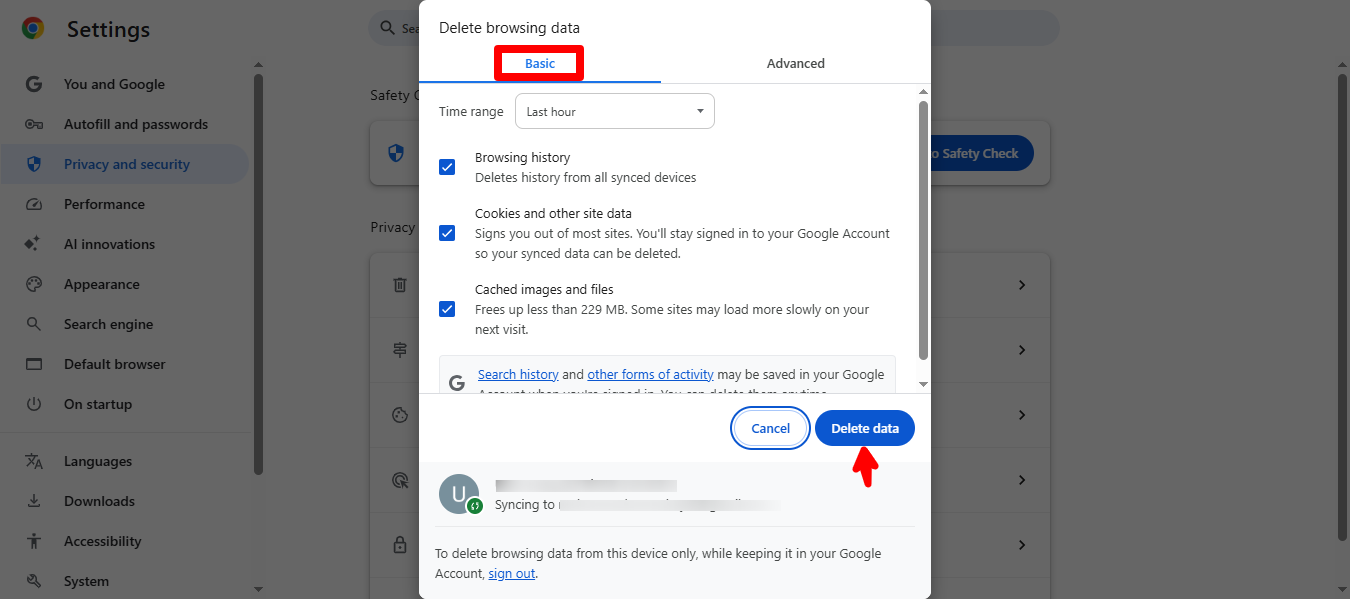
- You should press the ‘Delete data’ button.
You will likely remove the web browser cache by following the above steps described in the WordPress cache clearing process. For this purpose, check your blog section to confirm if it loads the updated version of your website.
In case you cannot view the recent changes you have implemented on your website, consider using other methods.
2. Clear Cache in WordPress Caching Plugin
Removing cache from the WordPress caching plugin might help. Hence, you must remove your plugin cache. For instance, if you use a leading plugin, such as WP Rocket, on your website, follow the steps below to clear the cache:
– Clear Cache in WP Rocket
- Go to Settings > WP Rocket and press the ‘Clear and Preload’ button available in the dashboard.
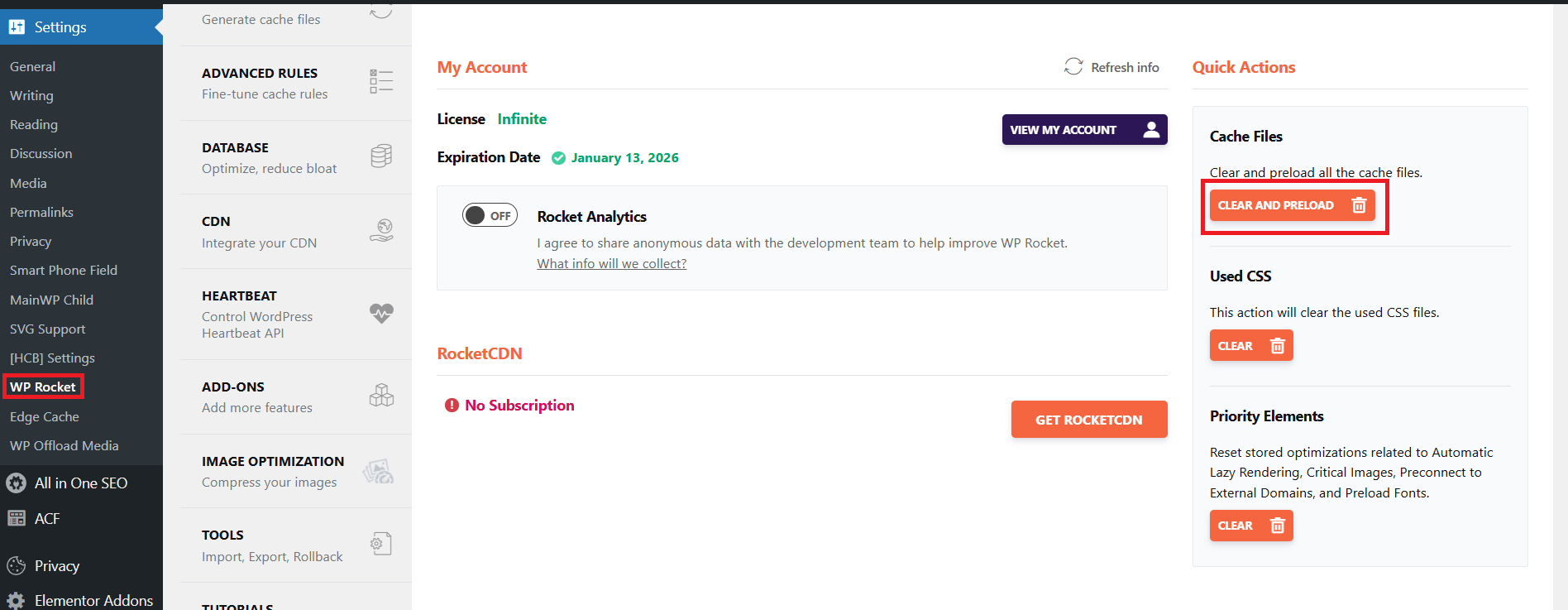
As a result, WP Rocket will clear and preload all the cached files.
– Clear Cache in WP Super Cache
To remove the cache in WP Super Cache, follow the steps below:
- Go to Settings > WP Super Cache. Now, press the ‘Delete Cache’ button accessible in the ‘Delete Cache Pages’ tab.
This way, WP Super Cache will clear all the cached files on your behalf. It shows that the WordPress cache clearing process is not as cumbersome as you think. It is a simple phenomenon.
– Clear Cache in W3 Total Cache
If you use W3 Total Cache, a popular WordPress caching plugin on your website, you can easily clear the cache. For this reason, follow the steps below:
- Go to Performance » Dashboard. Now, you should click the ’empty all caches’ button.
This will enable W3 Total Cache to clear all the cached files from your website.
3. Clear Cache in Your WordPress Hosting
As you may be aware, various WordPress hosting service providers come with the caching feature by default. The primary purpose of this feature is to improve WordPress website’s speed.
If you want to clear the cache in your WordPress hosting provider, such as Bluehost, follow the steps below:
– Clear Cache in Bluehost
Bluehost is an impressive WordPress hosting service that allows WordPress website owners to enhance their sites’ speed significantly. When clearing cache, you must sign into your admin dashboard, where you can view a ‘Caching’ button provided in the top admin toolbar.
When you hover over this button, the ‘Purge All’ option will appear on your screen. Now, press this option. By doing so, Bluehost will remove all the WordPress cache.
– Clear Cache in SiteGround
SiteGround is another top-notch WordPress hosting company that offers timely customer support to its users. In addition, the service provides them with an excellent caching feature, enhancing their websites’ performance.
To clear the cache in SiteGround, you will need to utilize the hosting account control panel. To do this, navigate to Speed > Cache through the site tool section.
Now, you must choose the ‘Dynamic Cache’ menu tab. Press the menu icon available next to the domain name and select the ‘Flush Cache’ option from the dropdown.
You can try another practical approach to remove the SiteGround cache. For this purpose, you should use the Speed Optimizer plugin, powered by SiteGround. Once you have installed and activated the plugin, clicking the ‘Purge SG Cache’ button becomes mandatory.
The button is available in the top WordPress admin toolbar. Once you press the button, the plugin will start clearing SiteGround WordPress cache.
NOTE: The cache clearing process may differ based on the website hosting service provider you select. So, read the hosting service’s documentation or thoroughly check the hosting dashboard.
4. Clear the WordPress Firewall Plugin Cache
Does clearing the WordPress firewall plugin cache help remove the WordPress cache? Yes, it is true. Various WordPress firewall plugins, such as Sucuri and Wordfence, are available.
If you use Sucuri for your WordPress website, clearing the Sucuri cache is a suitable way of removing the additional layer of caching. To do this, go to Sucuri > Firewall (WAF) using your WordPress admin dashboard.
Now, you must choose the “Clear Cache menu option and press the ‘Clear Cache’ button.
NOTE: Consider removing the DNS cache to access the latest DNS information, and update your website if you’ve recently shifted your WordPress site.
Is the Phrase Cache Clear on WordPress Correct?
As far as the context of WordPress goes, the above phrase “Cache Clear on WordPress” is correct. Unsurprisingly, netizens frequently use this phrase when searching for ways to remove cache on WordPress websites.
According to this phenomenon, clearing cache allows users to remove temporary files, ensuring a website loads quickly and enabling site visitors to view the most updated versions of the site’s pages.
Clearing the cache on a WordPress website becomes mandatory when you update your site in terms of content and design.
Likewise, it plays a crucial role in resolving display issues, as outdated cache files prevent users from viewing updated content. It can also result in problems like missing styles or images.
What Does the Phrase “ WordPress Cache Clear” Suggest?
According to the phrase, “WordPress Cache Clear” is a process where a website forcefully removes the temporarily stored data to enhance its load time.
When a site owner or developer conducts the cache-clearing task, they compel websites to load their updated versions for existing and potential site visitors.
Wrapping Up
We hope you liked our blog post that helps you clear WordPress cache in the best possible way. There is no denying that clearing the WordPress cache becomes a necessity when you want your site visitors to witness all the latest changes and updates to your website on their screens.
Whether you utilize a WordPress caching plugin, a hosting dashboard, or a WordPress firewall plugin, understanding when and how to remove cached files enables you to make your site more reliable and faster.
Moreover, you must regularly clear your site’s cache to provide a fast and engaging user experience for your site visitors. Boost your website’s performance by purging cached files at the right time.




