



















































Running a B2B or a wholesale store on WooCommerce? As WooCommerce experts, we know handling various product types, customer types, and pricing scenarios isn’t easy. Some of your articles may require custom quote functionality, while others may be ready for direct purchase. That’s where conditional rules for quotes come in handy.
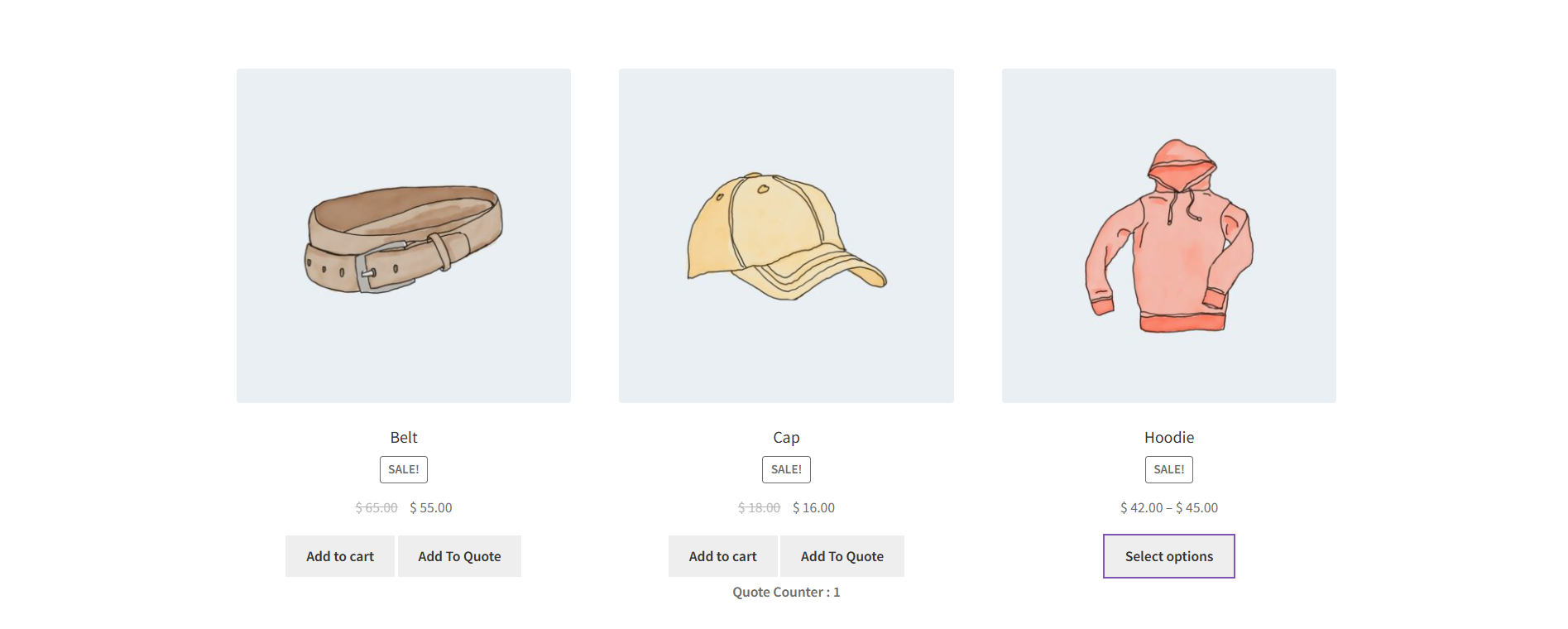
In this guide, we will instruct you on how to configure the B2B Request a Quote Plugin to set smart conditions for quotes. You’ll control when and how customers can request a quote, based on product type, category, or even customer role. This will make your quoting process flexible, efficient, and perfectly in tune with your business strategy.

Why Conditional Quote Rules Matter
The buying process is not the same for every customer and every product.
For instance,
- A low-cost supplement can be available for instant checkout.
- A custom device might require some negotiating or bulk pricing.
- Wholesale customers request custom quotes, whereas regular retail shoppers use a normal checkout.
With the conditional rules for quotes, you can effortlessly set up these sorts of personalized requirements. You can decide which products, categories/collections, or even user roles will use the quote feature and which will not.
It delivers a smooth & personalized platform for your B2B clients and retail shoppers simultaneously. Saving you from investing money to increase the team that manages your wholesale/B2B clients.
How to Create a New Quote Rule in WooCommerce
To get a new quote rule in your WooCommerce site, you must first install a quote add-on, like B2B Request a Quote. After installing and activating the quote extension, you are just a few clicks away from setting up your first rule.
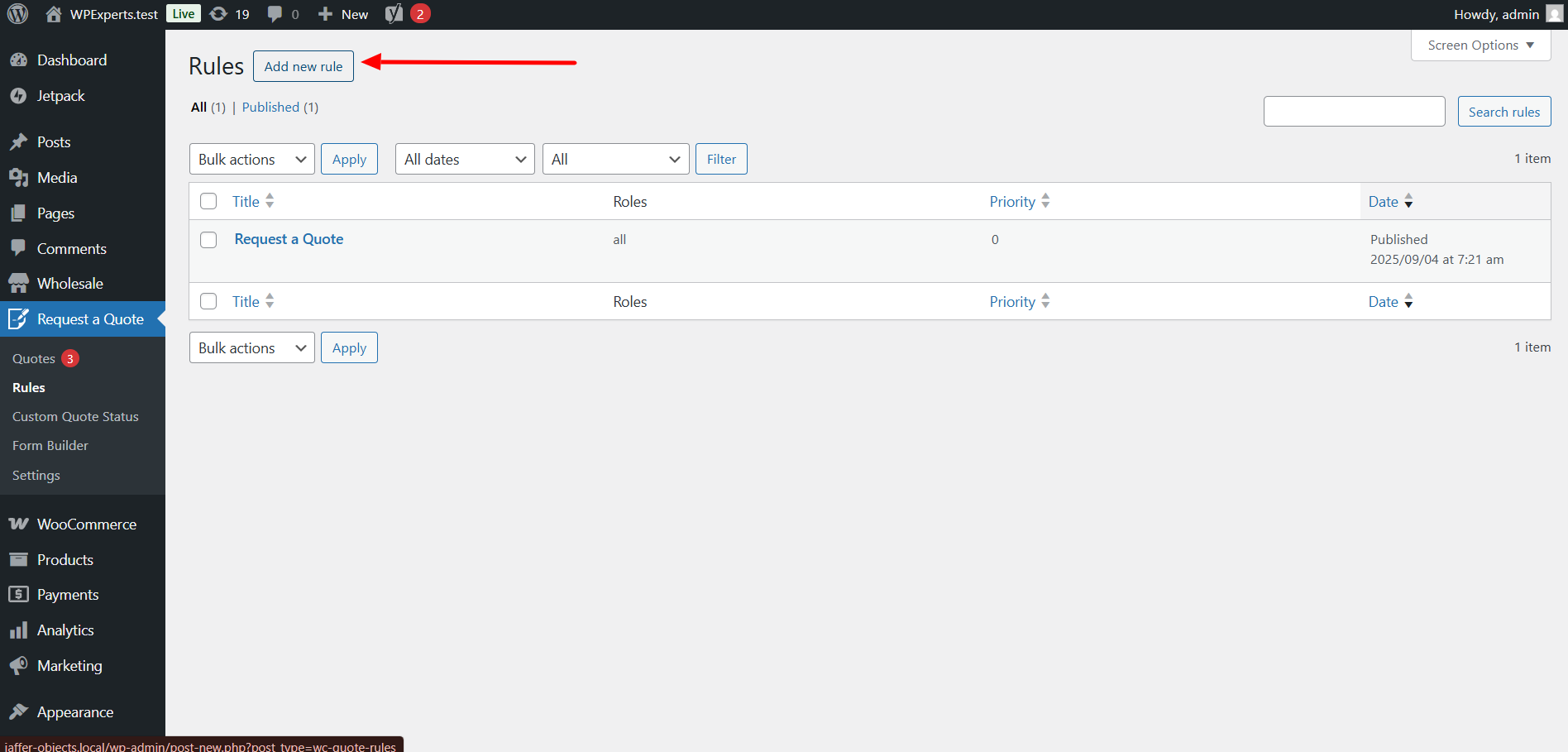
- At your WordPress website dashboard? Go to: Request a Quote → Rules.
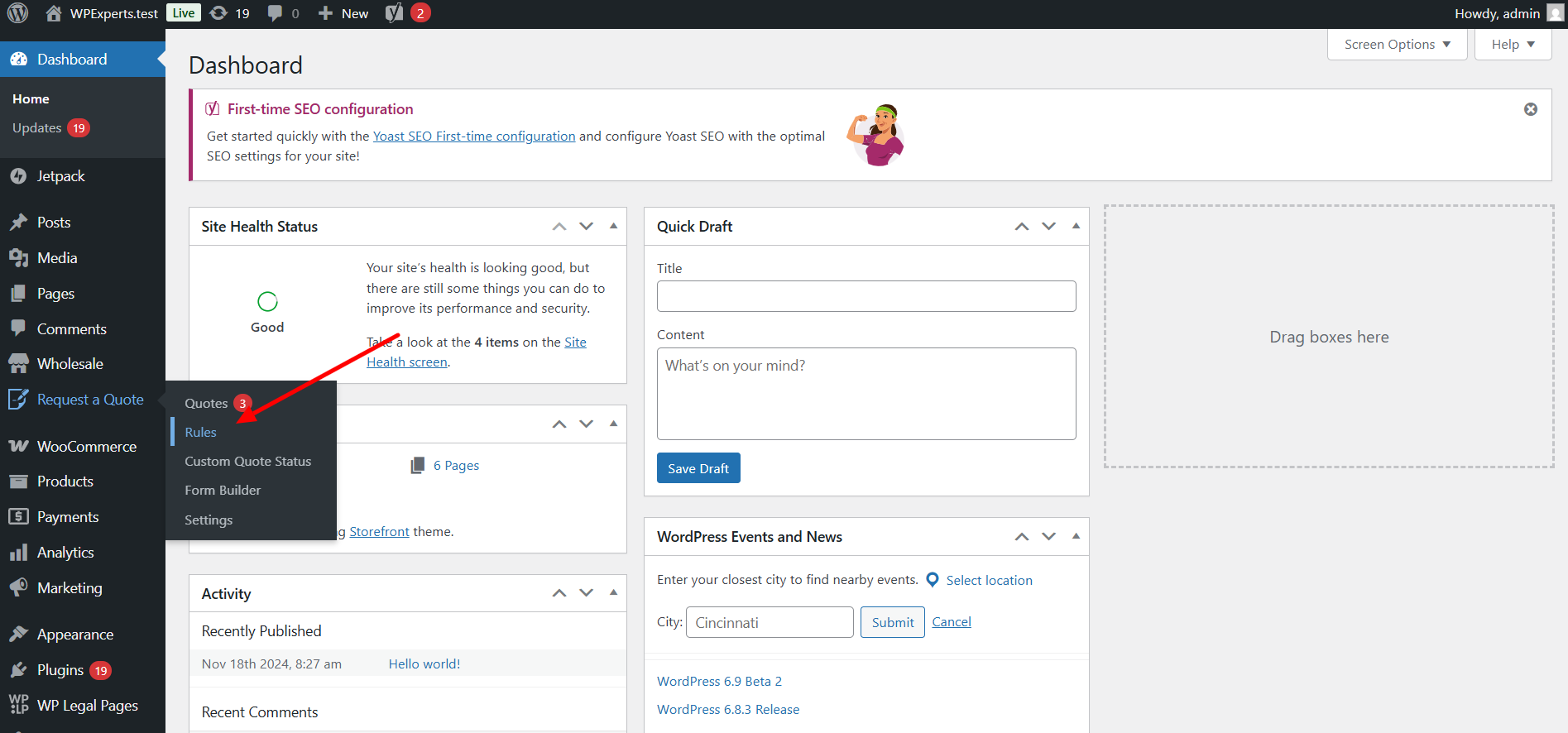
- Click the Add new rule to create a new one.
- Give your rule a name, for example: “Quotation Rule for Industrial Equipment” or “Wholesale Category Rule”
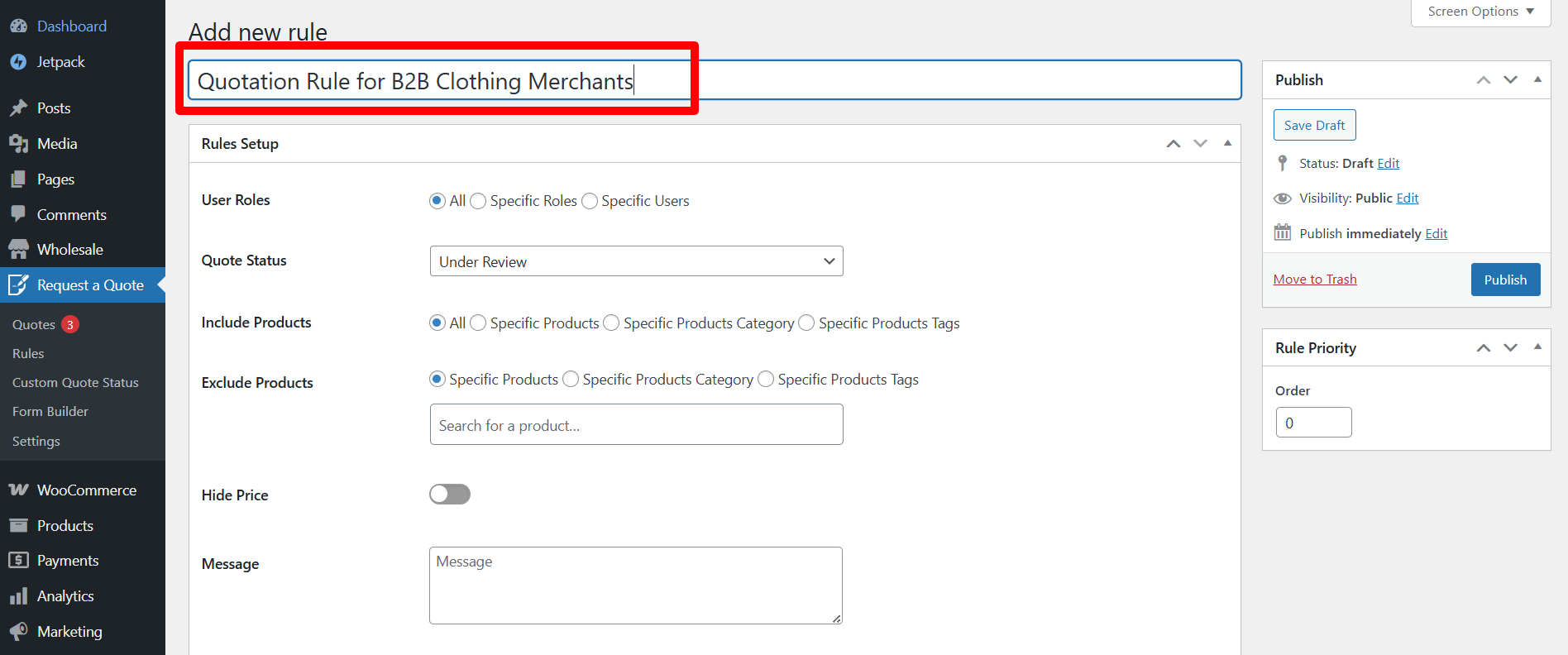
Pro Tip: Name them clearly—it will help you a lot when you need to identify each rule later, especially if you plan to create several of them.
From there, you can define:
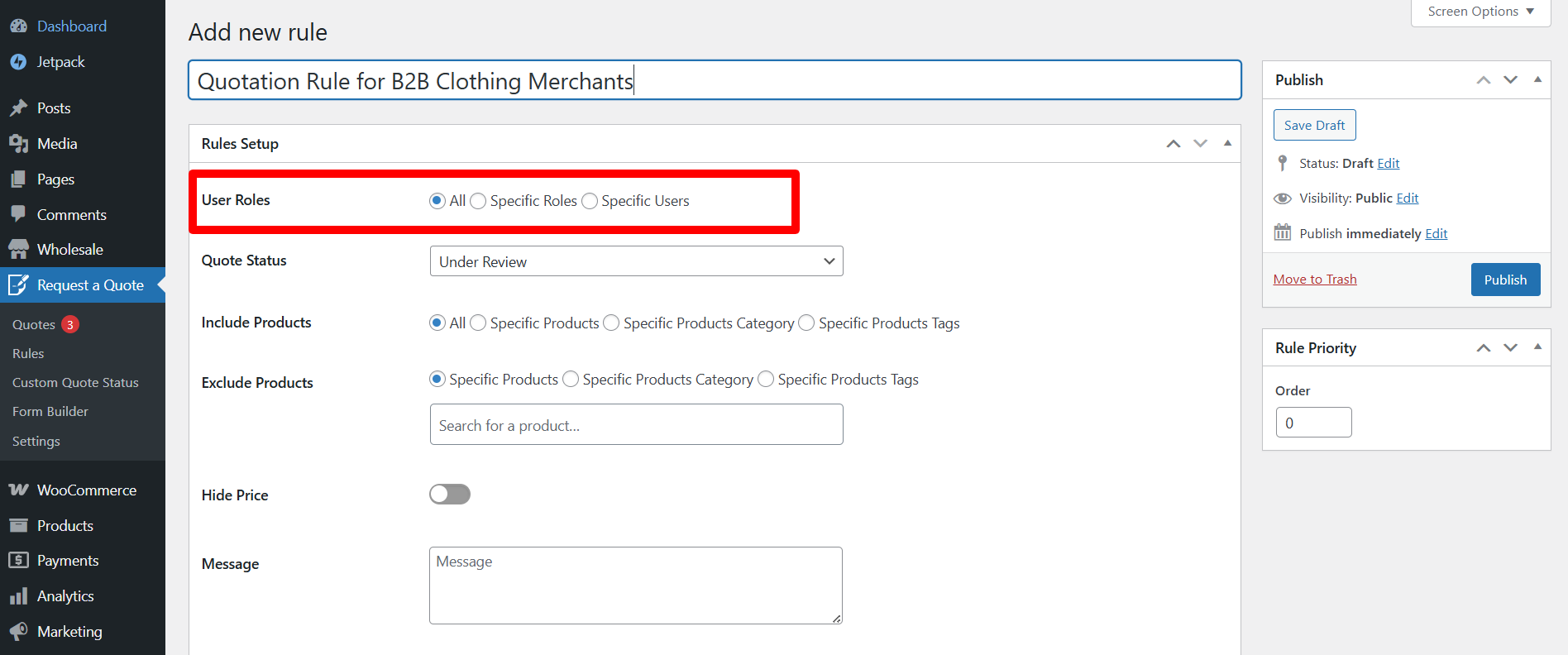
- It lists who the rules apply to: specific users or roles
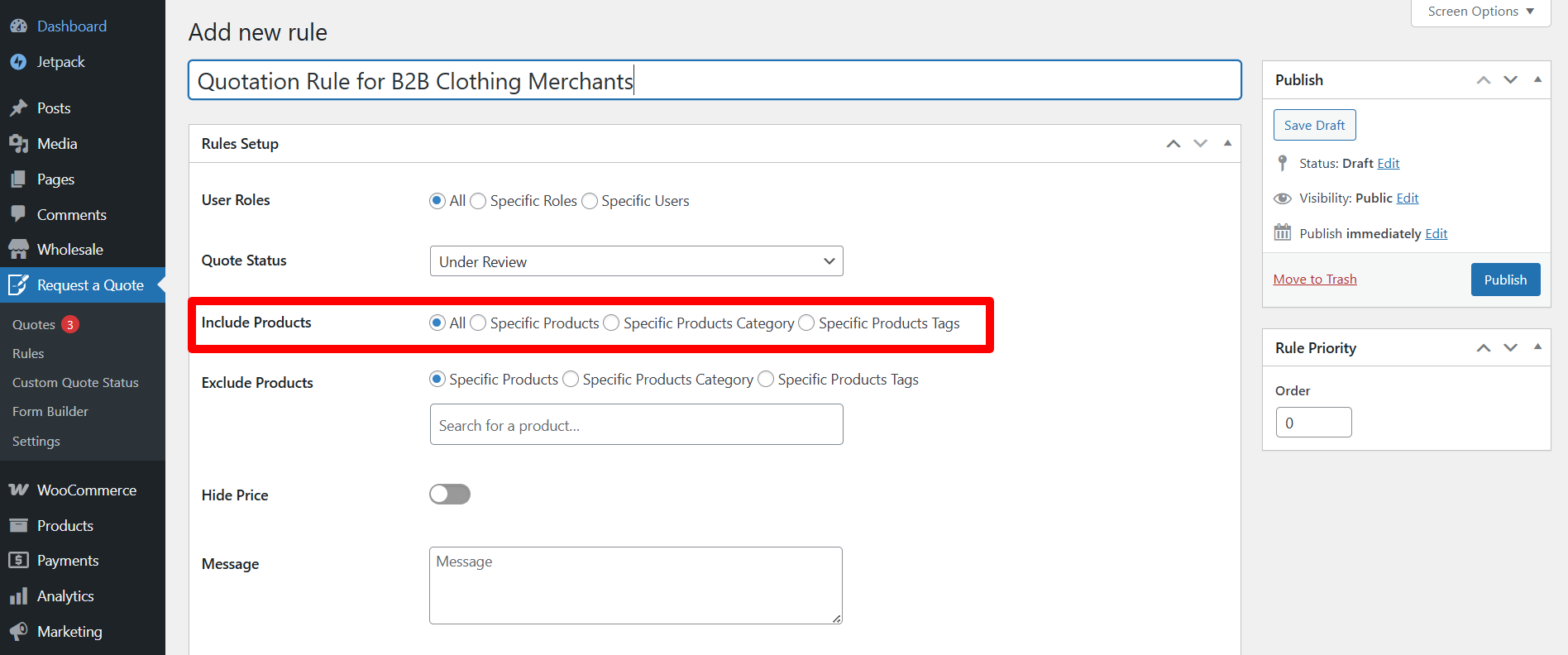
- Which products or categories does it include or exclude
Applying Rules to Specific Users or Roles
The plugin allows you to have complete control over which customers are able to request quotes. You can set this up for:
- All Users: The rule is for everyone.
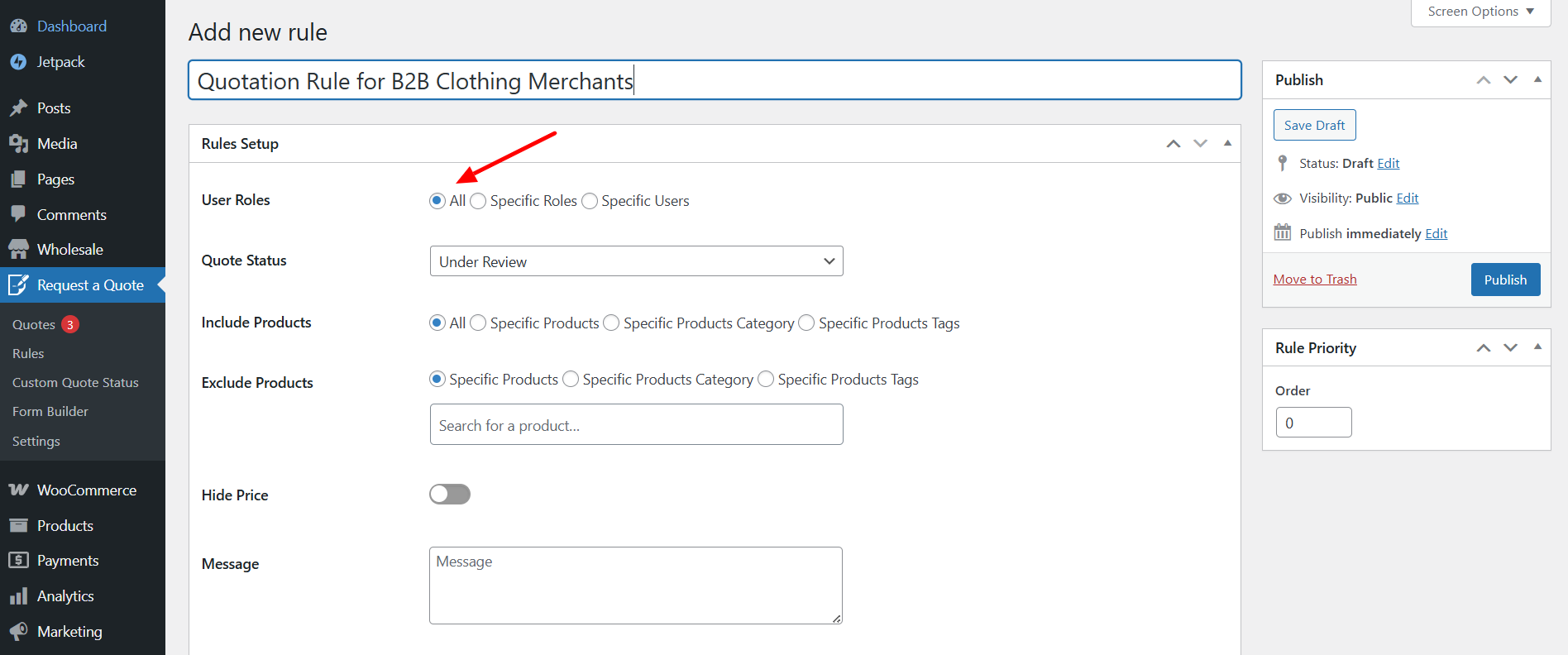
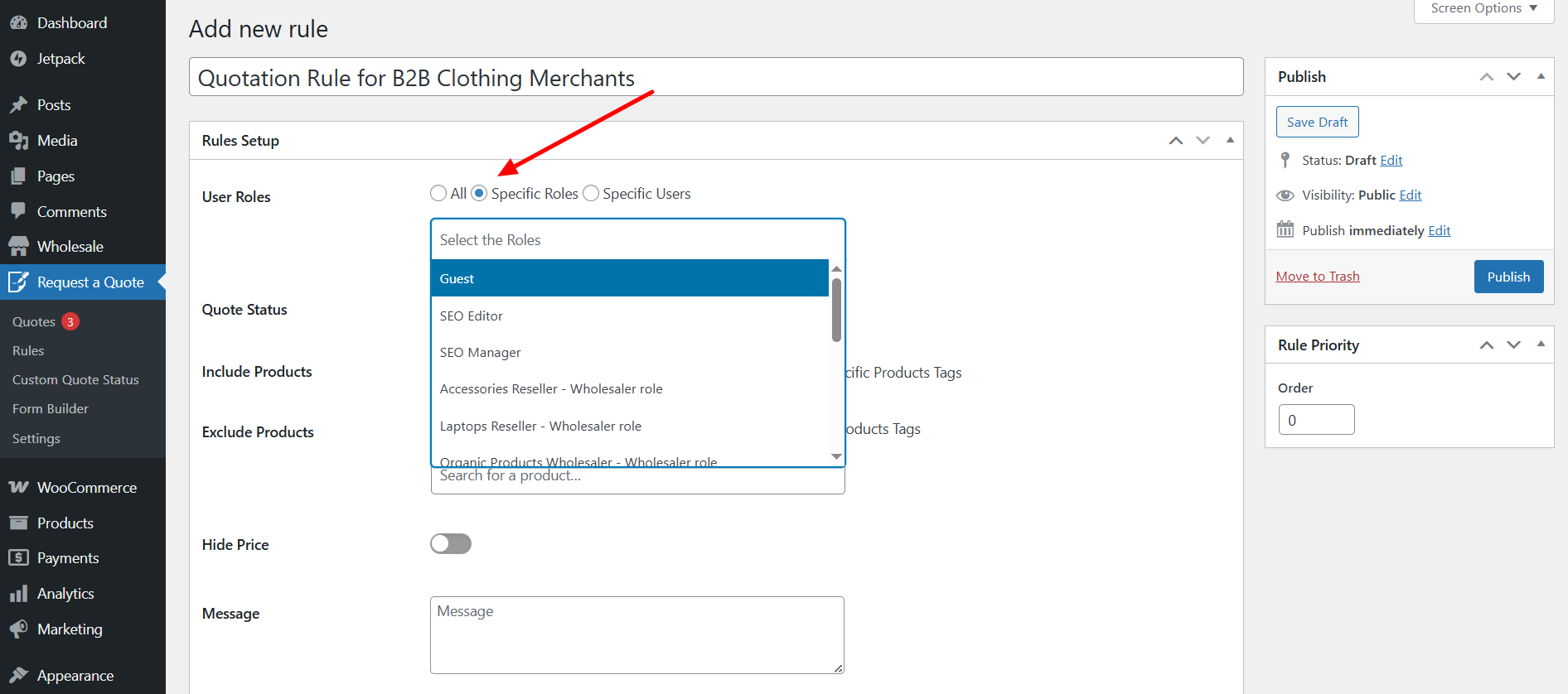
- Specific Roles: Choose from the user roles you’ve created on your site. (I.e., Wholesaler, Distributor, or B2B Customer)
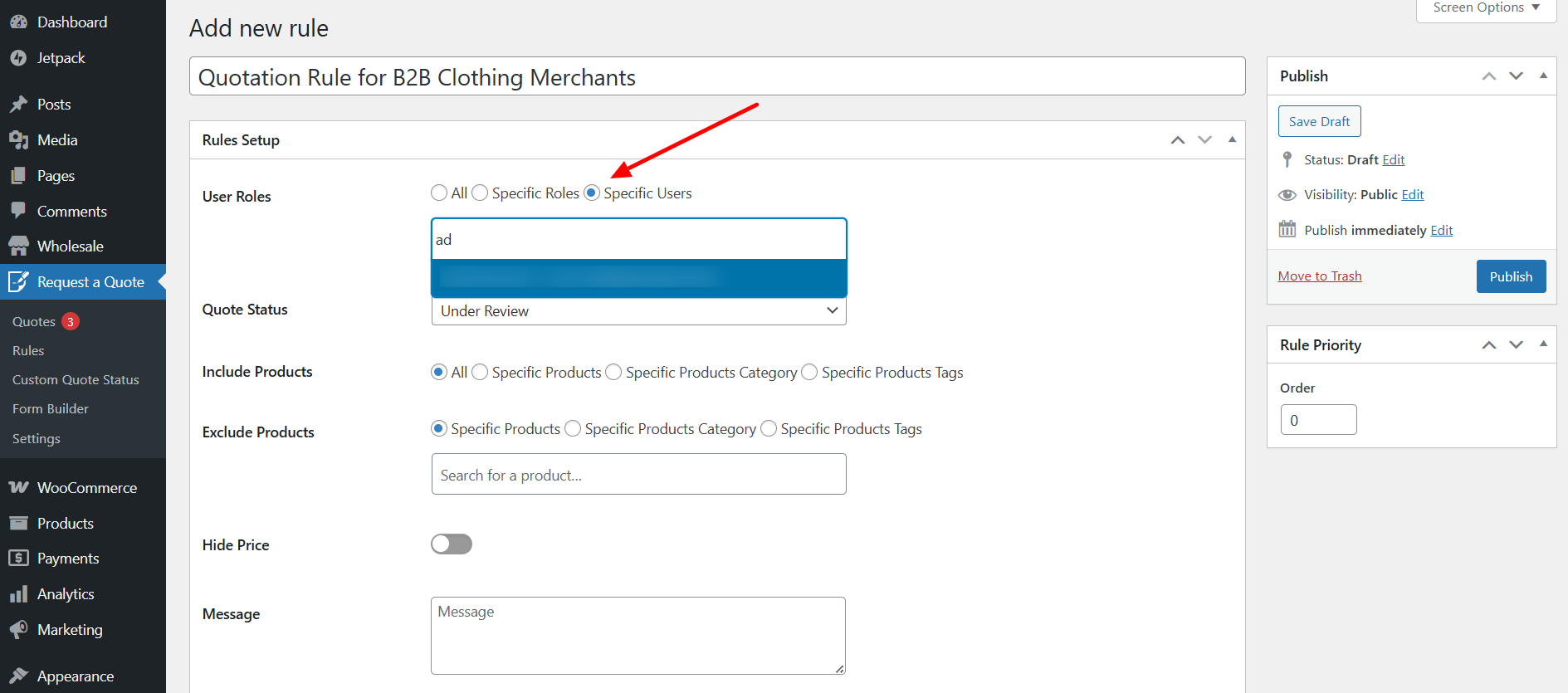
- Specific Users: Ideal for VIP clients or long-term business partners.
This is especially helpful when you want to:
- Allow access to bulk quotes for wholesale users only.
- Keep retail customers on the standard “Add to Cart” process
- Offer customized quoting for your best customers
Learn How to Include/Exclude Products, Categories, or Tags
One of the most powerful parts of the B2B Request a Quote plugin is how precisely you can control where the “Add to Quote” button appears.
You can include or exclude products, categories, or tags, providing you with complete freedom to decide what can be quoted.
Choices Included
You can display the quote option for:
- All Products: The quote button appears on each product.
- Specific Products: Select specific products for which you require quotes.
- Specific Categories: They involve quoting product categories such as “Industrial Equipment” or “Custom Furniture.”
- Specific Tags: For example, use tags such as bulk-only or customizable to define rules.
Exclude Options
You can hide the quote option for:
- Certain products – If some products do not require quotes.
- Specific categories or tags – Exclude “Sale” or “Instant to Ship” products from the quote system, for example.
Here’s a quick example:
A furniture company might offer you quote buttons for “Custom Tables” but not for “In-Stock Ready-Made Chairs.”
This keeps the quoting feature focused on products that really need to be discussed or customized.
Showing or Hiding Quote and Cart Buttons
Once your conditions are set, you can determine what buttons will appear on both your product and shop pages.
You can:
- Show the Add-to-Quote button that allows users to request quotes.
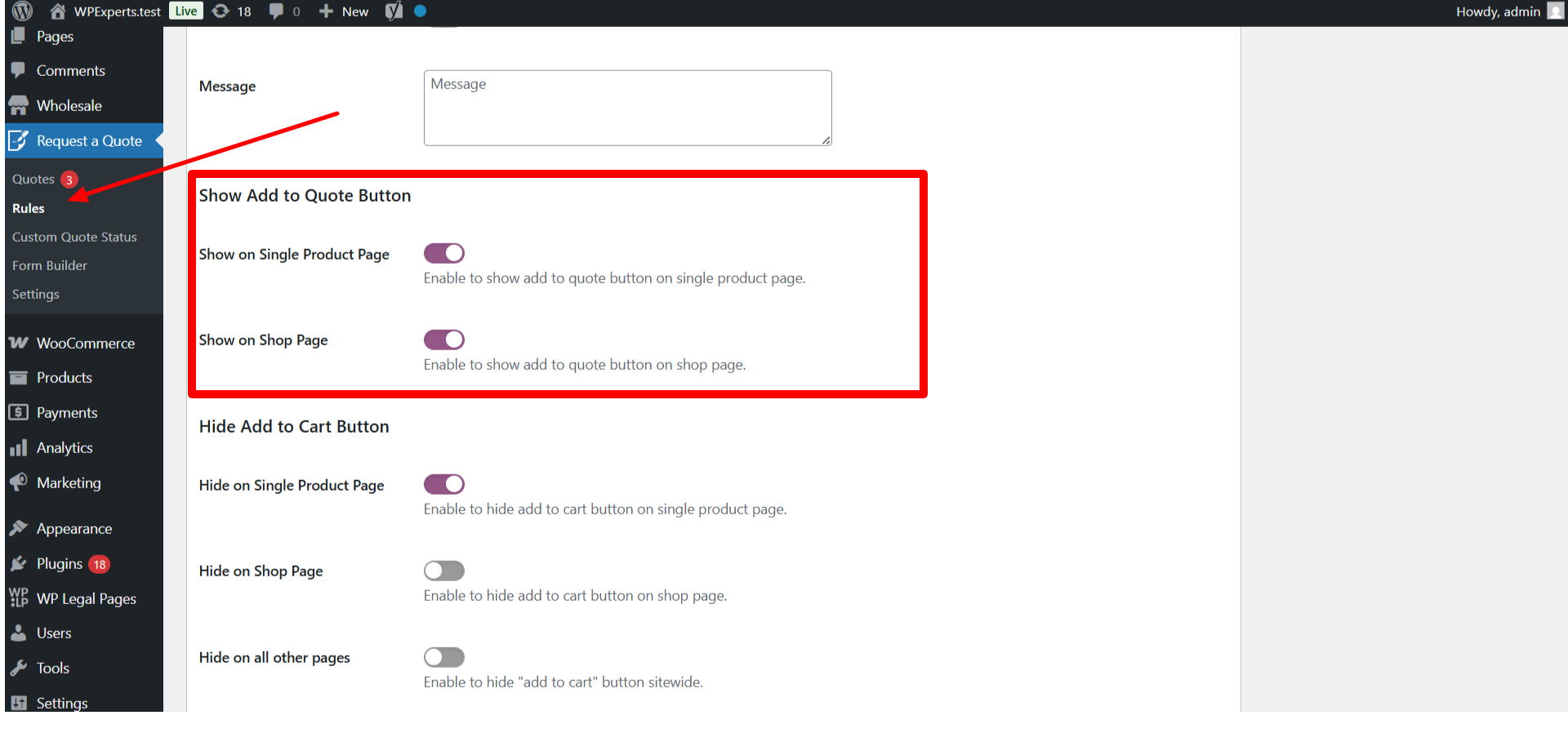
- Hide the Add-to-Cart button if you want to prevent instant purchases of those products.
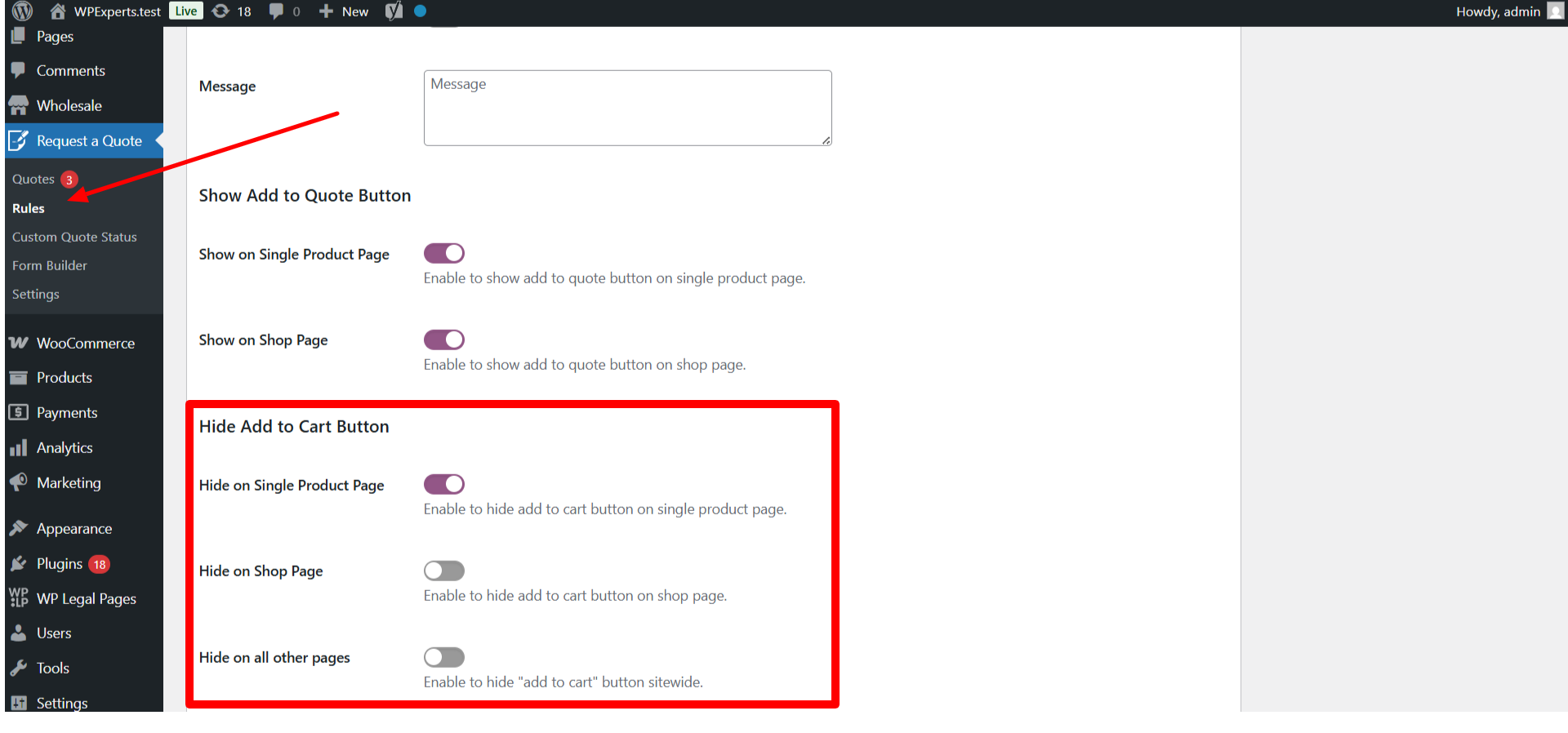
This is great for maintaining a clean and intentional user experience.
For example:
- Show both buttons for some users in order for them to choose.
- Hide the “Add to Cart” option completely for any custom-made or wholesale products.
It’s all about guiding your customers to the right buying path.
Setting Rule Priority for Multiple Conditions
Sometimes, several quote rules may conflict with each other—for instance, you may have one rule for a product’s category and another for a user’s role. Otherwise, you can set Rule Priority to control the order in which rules come into effect.
Go to:
- Dashboard → Request a Quote → Rules → Edit → Rule Priority
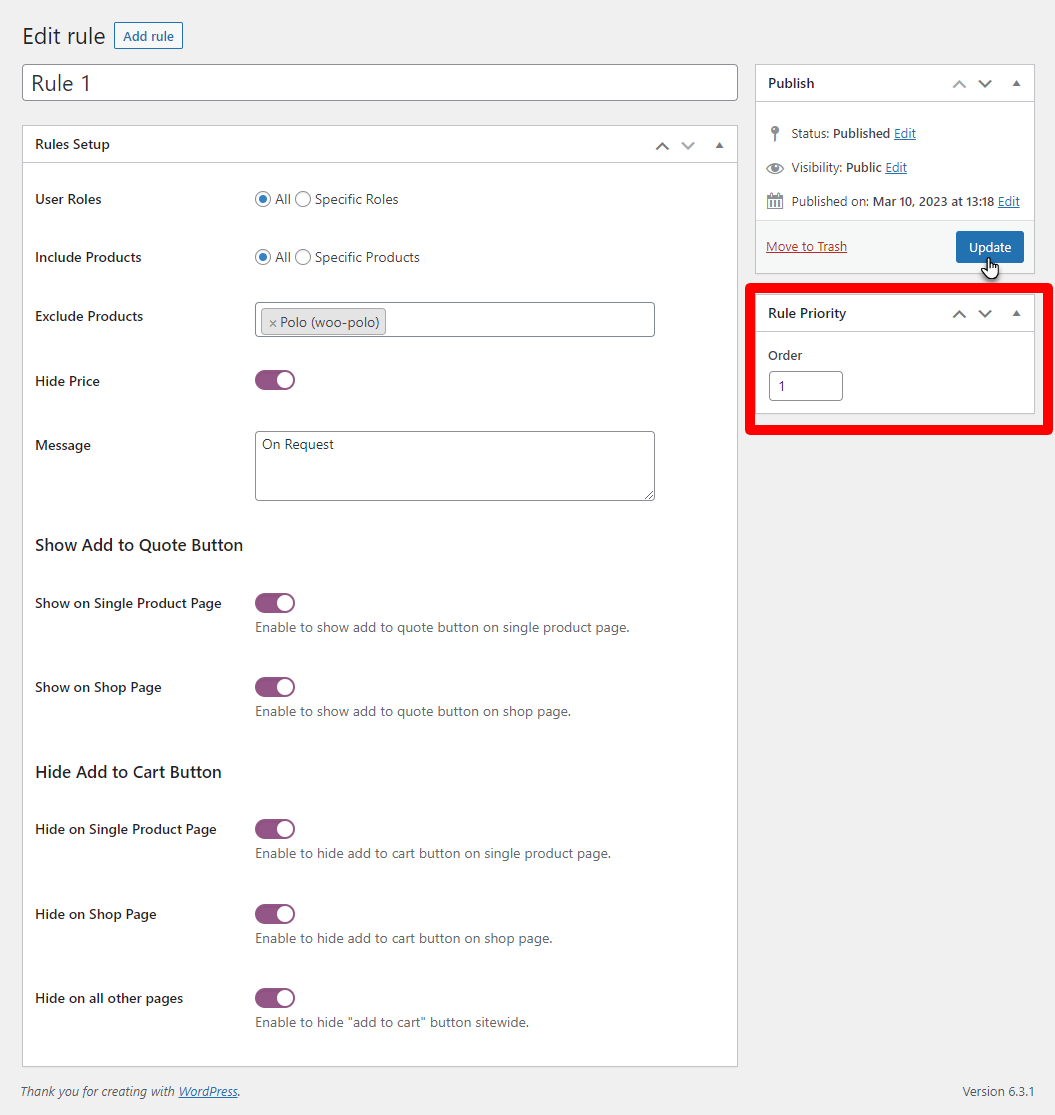
Here’s how it works:
- Lower numbers = higher priority
For example (Rule 1 with order 1 gets priority over Rule 2 with order 2 or lower):
This will implement your most crucial quote rule. It will always be the first to apply and will keep the system organized and predictable, even with many active quote rules and conditions.
Testing Your Conditional Rules
After setting up your quote rules, always test them to ensure that they work as expected.
Check that:
- The correct products would display the Add to Quote button.
- Items excluded do not reveal the quote option.
- Category-based conditions work as expected.
- Buttons appear correctly according to the user’s role.
Tip: After updating any rule, empty your cache to see the latest changes on the frontend.
Testing will ensure your customers have a smooth, easy quoting experience every time.
Key Benefits of Using Conditional Quote Rules
Setting up conditional rules isn’t just about flexibility; it’s about running your business smarter.
Here’s what you gain:
- Personalization: Let you offer the quote button/options only when you want.
- Increased CR: Allow them to negotiate and sell your high-value items, boosting conversion rates.
- Less Admin Work: Avoid unnecessary quote requests on low-cost products.
- Customer Segmentation: Give special quote access to wholesale or loyal clients.
- Better Control: Decide exactly where “Add to Quote” and “Add to Cart” appear for a clean, professional look.
With the right setup, your quoting system becomes faster, clearer, and more aligned with how you want to sell.
Conclusion
Conditional quote rules are one of the smartest ways to manage B2B and wholesale sales in WooCommerce. With the B2B Request a Quote plugin, you can handle when and where your customers can request quotes. Decide to show these Quote buttons on product, category, or user roles.
Turn your WooCommerce store into a dynamic B2B hub that negotiates more effectively, saves time, and drives more sales.





