



















































Anyone running e-commerce with WooCommerce completely understands the value of professionalism at every step of the customer journey. From product browsing till the order confirmation, every little detail shapes the buyers’ impressions of a business.
Invoices constitute a large part of their experience. An invoice is rendered more than just a receipt; it’s the basis for accounting, tax processes, and giving their customers the comfort that their purchase was indeed duly processed. The problem arises because WooCommerce does not provide for the issuance of PDF invoices on its own. This could create a loophole for any store looking for greater efficiency and an ordered brand image.
This is precisely the area where the right PDF invoice plugin becomes a godsend, helping you save time, keep your records straight, and present documents your customers can trust.
Why Do You Need PDF Invoices in WooCommerce?
An invoice is one document that holds together compliance, professionalism, and customer trust. Order confirmation emails from WooCommerce can serve to confirm a purchase, but may not always serve as proper invoices. Here’s why this makes a difference: having PDF invoices in your store.
1. Meeting Legal and Tax Requirements
In several countries, businesses must produce proper invoices listing tax rates, invoice numbers, and customer details, among other things. Complying with the law without the cumbersome and boring process of manual formatting is what a PDF invoice provides for you.
2. Organized Record Keeping
During any transaction, records are needed by both store owners as well as customers. These invoices contain every detail, structured in such a way that it is easy to retrieve later for auditing, bookkeeping, or helping the customers.
3. A Professional Touch to Your Store
A properly branded invoice PDF with your logo, colors, and business details simply gives a better view and professional outlook to your store. It assures customers of a dependable business.
4. Convenience for Customers
Buyers usually request invoices for reasons such as reimbursement, taxation, or their personal records. Giving a downloadable PDF invoice automatically spares the buyers from coming after you again, which creates a pleasurable shopping experience for them.
5. Time Savings Through Automation
Creating invoices manually for every order isn’t sustainable as your store grows. Automating PDF invoices not only saves time but also reduces errors and ensures consistency across every transaction.
How to Generate WooCommerce PDF Invoices? Step-by-Step Guide
To create professional-looking PDF invoices in WooCommerce, follow these steps:
Step 1: Install WebToffee WooCommerce PDF Invoices Plugin
WebToffee’s PDF Invoices & Packing Slips for WooCommerce is considered one of the best invoice plugins for WooCommerce stores. They offer free and paid versions. For the majority, the free version is sufficient as it includes all the essential features like PDF invoice generation, auto-attachment of invoices with order emails, bulk print and download options, and more.
Advanced users and well-established WooCommerce store owners would do well to upgrade to the paid version for extra features only available with the premium, such as multiple invoice templates, a visual and code editor, invoice payment options, and many more.
For this guide, we will be using the free version. We will also discuss the key features of the premium plugin at the end of this article.
- From your WordPress dashboard, go to Plugins > Add New.
- Search for ‘WebToffee PDF Invoices for WooCommerce’ in the search bar.
- Install and activate the plugin on your website.
- After installation, you will be asked to configure the details of your online store.
- Fill in those details and proceed to the next step.
Step 2: Enable WooCommerce Invoices
- From the WordPress sidebar menu, navigate to Invoice/Packing, and then select Invoice.
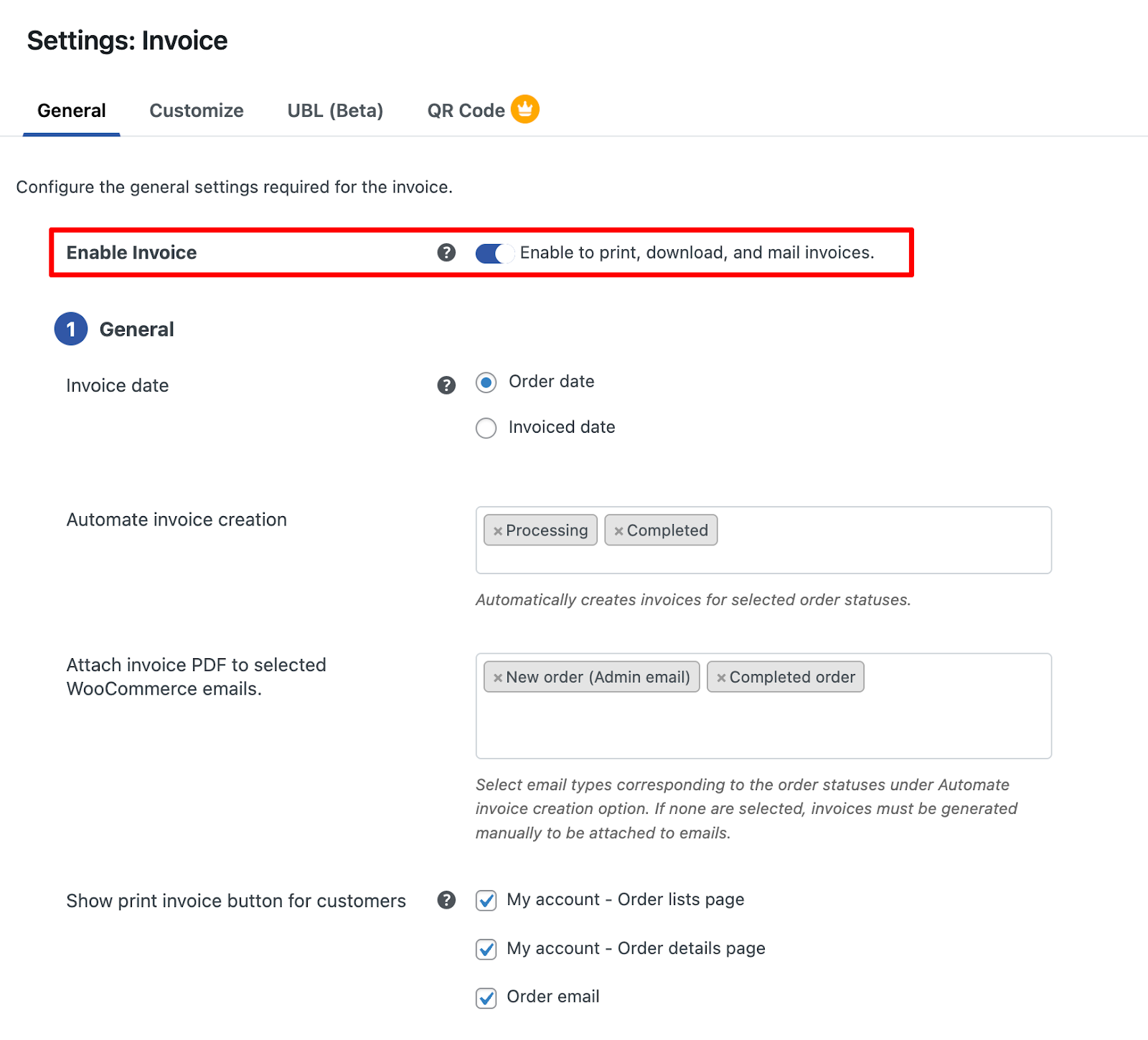
- Enable the Invoice option to allow printing, downloading, and emailing invoices.
- Choose the Invoice date type — either order date or invoiced date.
- Set up Automate invoice creation by selecting the order statuses (e.g., Processing, Completed) where invoices should be generated automatically.
- Decide to attach the invoice PDF to WooCommerce emails (e.g., New order email for admin, Completed order).
- Enable the print invoice button on selected pages to let customers print their invoices.
Step 3: Set Up the Invoice Number Format
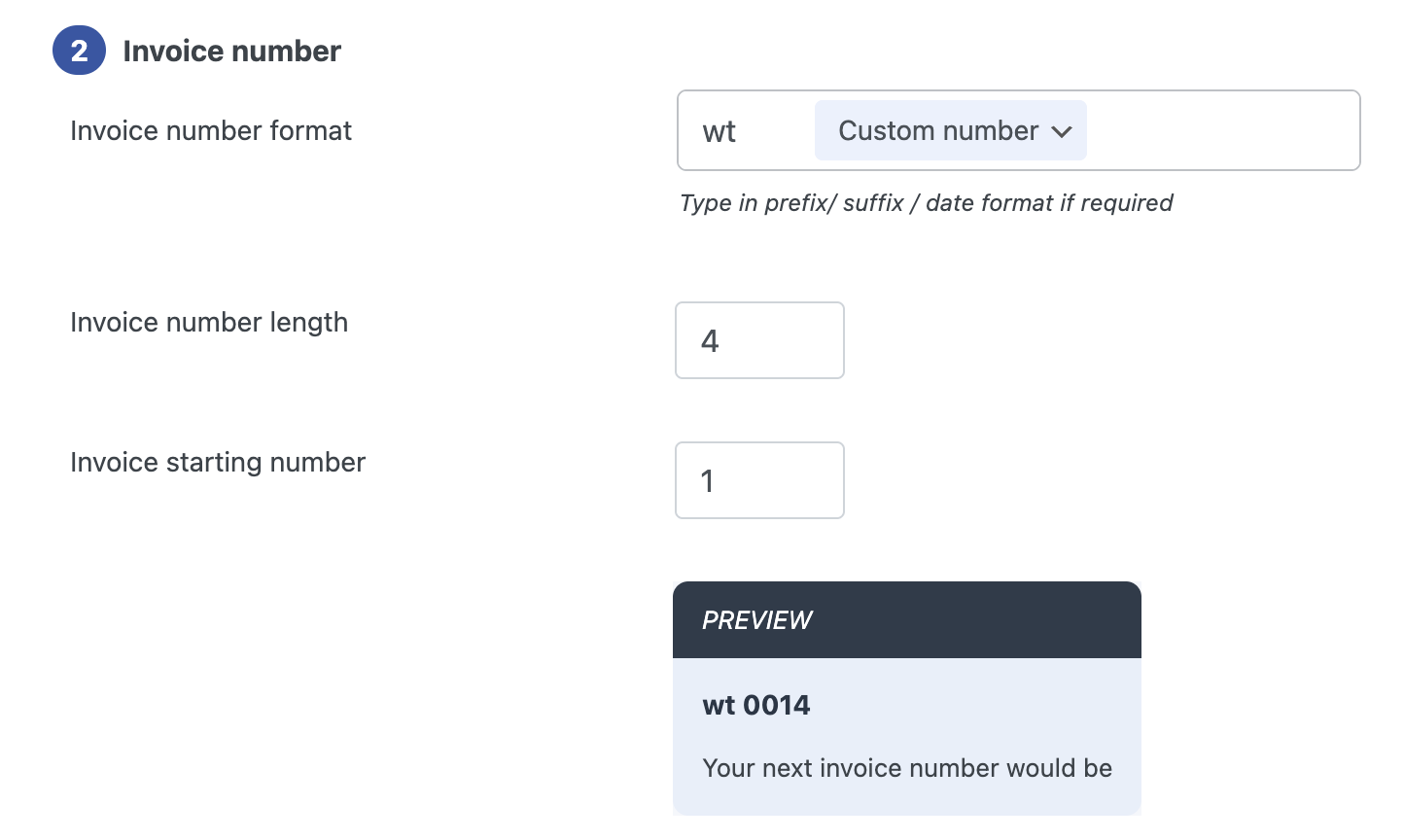
- Choose an invoice number format. You can set a prefix, suffix, or include a date format. (In the example, the prefix “wt” is used.)
- Define the invoice number length to decide how many digits the invoice will display. (Example: 4 digits, so numbers will show as 0001, 0002, etc.)
- Set the invoice starting number, which determines where the sequence begins. (Example: starting at 1 means the first invoice will be “0001.”)
- A preview section shows how your invoice numbers will look. (In the example, it displays “wt 0014.”)
- Configure any other details for the invoice, and click on Update Settings to save the settings.
Step 4: Customize WooCommerce Invoices
- Go to the Customize tab.
- Here, you will get hundreds of options to customize your invoices for your branding.
- Each element that you want to be displayed on your invoice-can be enabled or disabled-from company logo, invoice number, order details, invoices, addresses, product table, and even customer notes.
- Set document title, font size, alignment, and colors according to your store’s branding. After all customizations, preview the invoice layout and save the template for further usage.
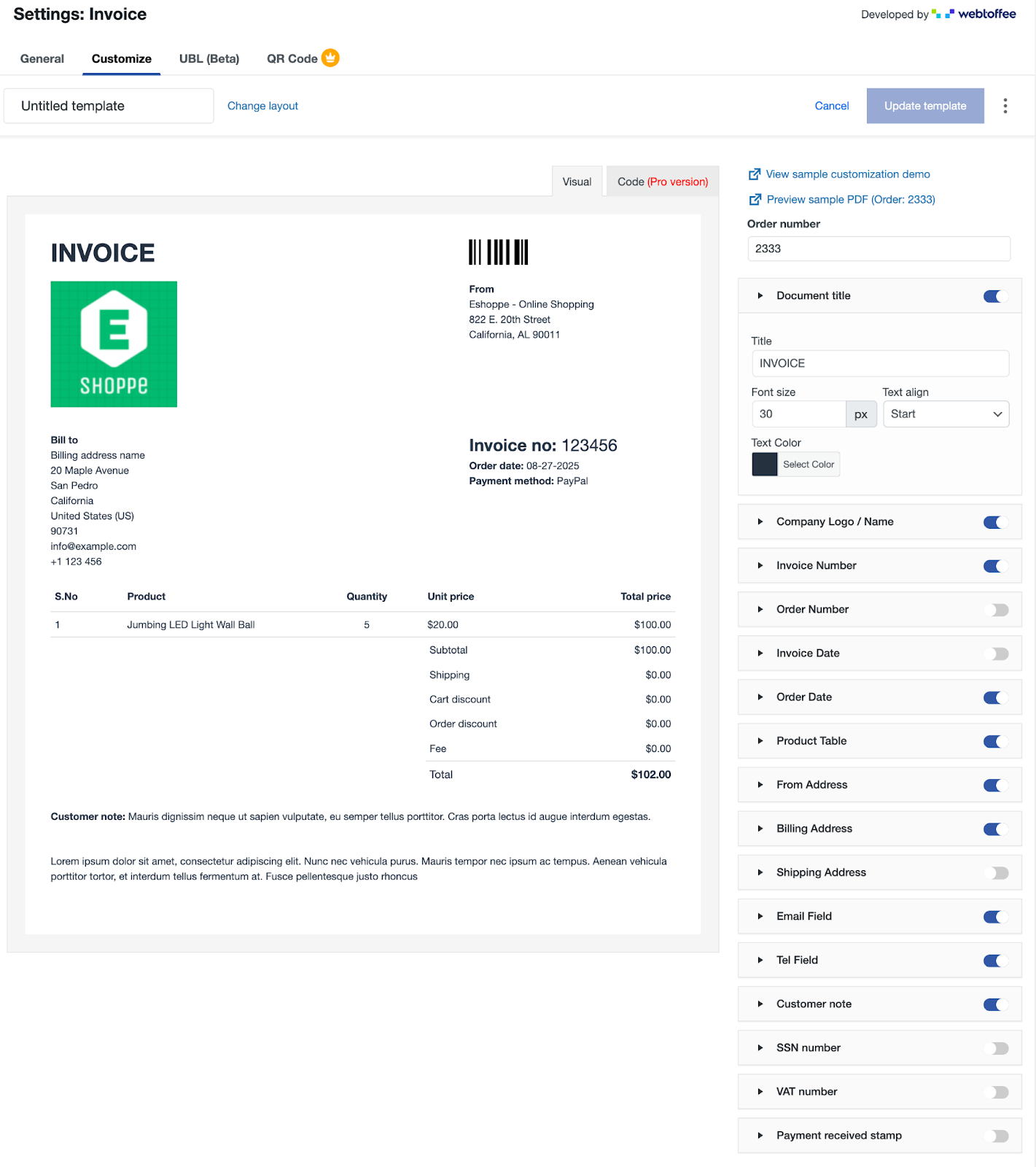
- Click on Update template to save the template.
- You’re all set — PDF invoices are now configured for your store. From here on, the plugin will automatically generate invoice PDFs and attach them to the respective order emails.
WebToffee WooCommerce PDF Invoices – An Overview
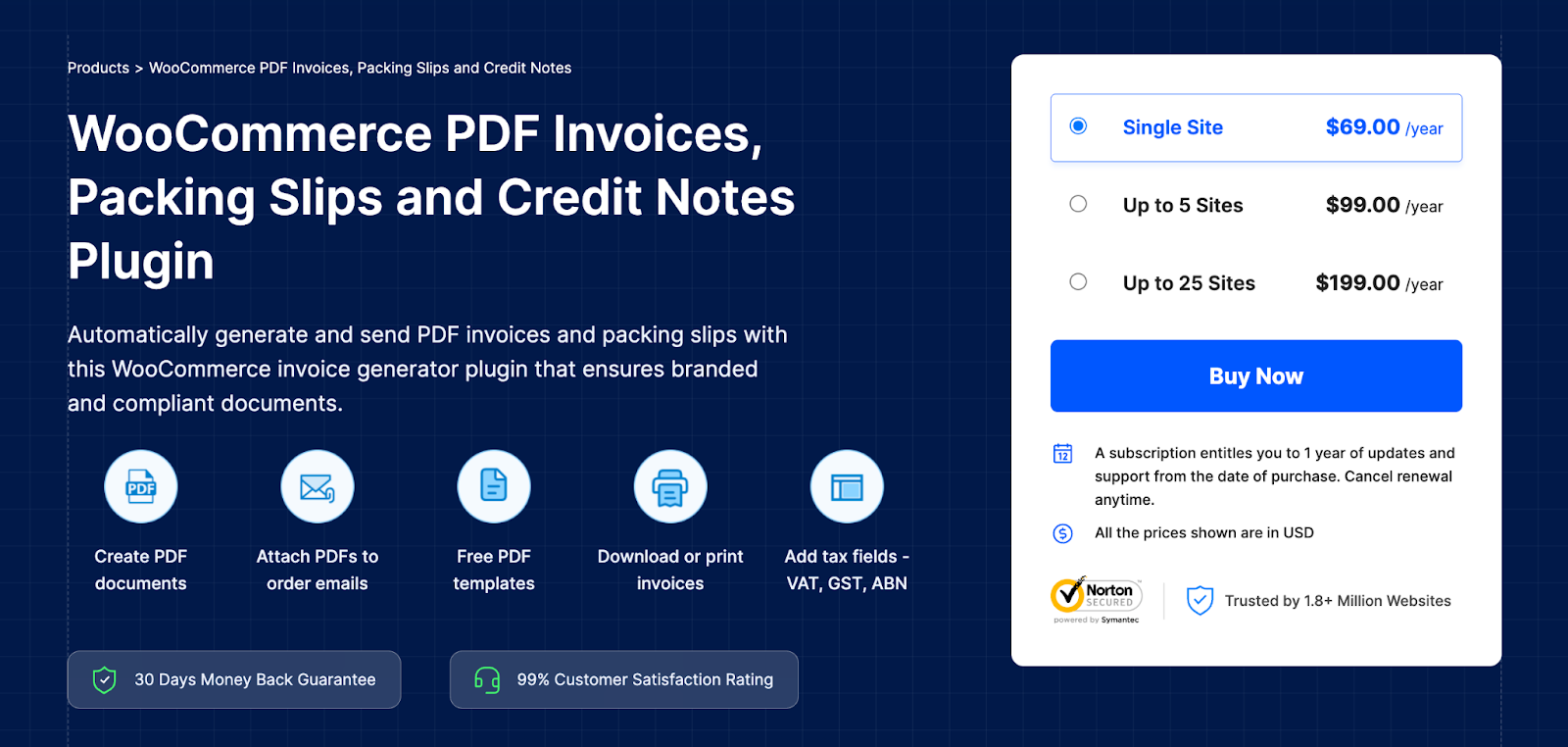
Now let’s talk about the premium features of the WooCommerce invoice plugin. The premium Ware gives you greater flexibility and control over how your invoices, packing slips, and other order documents are created and managed. Here, you can generate and print professional WooCommerce PDF invoices and packing slips, along with a host of advanced features designed to help smooth your workflow.
You can let customers complete payments later by adding a handy “Pay Now” link directly to their invoice, which is especially useful for pending orders. The plugin also allows full customization of invoice numbers, including the option to auto-reset them every year for better organization. When refunds are given, you may print credit notes to accompany the refund letter, saving time and bypassing manual effort.
For store owners wishing to obtain more insights, custom report generation for invoices, packing slips, and credit notes is available. You may also choose how you want bundled products to be displayed so that your invoices and slips are exactly how you want them to present your goods. The plugin also supports tax integration that allows VAT, GST, ABN, or any other region-specific tax information to be displayed on invoices and related documents.
For the needier businesses, the plugin supports custom fields being added to WooCommerce documents so that you are not confined to the default setup. All of this makes the premium version the best invoicing package that goes a long way from being just a PDF generator.
Other Shipping Documents Generator from WebToffee
- WooCommerce Address Labels Plugin: Generating and printing address labels in bulk for all WooCommerce orders is simple. Customize layouts and optionally print out different label types to meet shipping preference requirements.
- WooCommerce Picklists Plugin: Automatically create and customize picklists any time the order status is changed. Now, you can print or download picklists right from the admin order page for fast fulfillment.
- WooCommerce Proforma Invoices: Generate and send proforma invoices automatically with each new order. Customize the layout and content to fit your store’s invoicing style.
- WooCommerce Shipping Labels, Dispatch Labels, and Delivery Notes: Create professional shipping labels, dispatch labels, and delivery notes tailored to your WooCommerce store. The plugin auto-generates documents when order statuses update, saving time and effort.
Conclusion
It doesn’t always have to be such a complicated process to set up PDF invoices in WooCommerce. You could take care of this along with compliance, customer expectations, and professional branding if you let the right plugin handle this for you, preferably without adding to your workload. The WebToffee WooCommerce PDF Invoices plugin makes the process straightforward, whether you’re running a small shop or managing a growing store with thousands of orders.
The free version gives you everything you need to get started — automatic PDF invoice generation, email attachments, bulk printing, and simple customization. If flexibility is what you are after, the pro account unlocks the full array of features, including invoice templates, in-depth reports, tax integrations, even the option to add a “Pay Now” link for easier payments, and more.
It takes a little while to set things up, but this saves you loads of time in manual toil until you have a truly legally binding invoice on every order sold from your store. It’s a small step that creates a big impact on customer trust and operational efficiency — and that’s exactly what makes WebToffee’s plugin a must-have for WooCommerce stores.




