

















































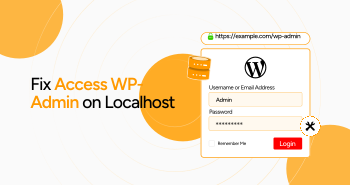
If you’ve set up WordPress locally (for example, at localhost/wordpress), but when you try to visit localhost/wordpress/wp-admin, you get redirected to your live site (or simply can’t access the dashboard), you’re not alone. As one user on the WordPress forums put it:
“I’m duplicating a site on localhost for development purposes. Whenever I try to access wp-admin, it takes me to the live site.”
In this blog, you’ll learn why this happens and how to fix it — with examples and tips so you can get back into your local admin quickly.
Common Reasons Why You Can’t Access WP-Admin on Localhost
1. URL settings still point to the live domain
When you clone or move a WordPress site to localhost/wordpress, the database often still has the original “Site Address (URL)” and “WordPress Address (URL)” values pointing to the live site. That means when you hit /wp-admin, WordPress says “oh, the site is over there” and redirects you.
In the forum thread above, the moderator suggests:
“Yes, if you want to use local resources, all the related URLs in the DB would need to be updated. …”
2. Hard-coded links or redirects
Plugins or the theme(s) may include absolute URLs pointing to the live domain. Or rules in .htaccess may force redirection. For example:
“Check htaccess for any redirect rules to the live site.”
3. Cookies, Browser Cache, or Localhost Routing Quirks
If you’re using “localhost” mode or a different port (in tools like Local by Flywheel), you may need to adjust your host/routing settings.
How to Fix Access WP-Admin on Localhost – Step-by-step
Here’s a practical checklist you can follow (and reuse for your clients or development projects).
Step 1: Backup
Before doing anything important, back up your local database and files; you don’t want to lose anything.
Step 2: Update the site URL settings in the database
- Open phpMyAdmin (or whatever you use) and navigate to the wp_options table (or whatever your prefix is).
- Find two entries: siteurl and home. Change their values to your local URL, e.g.:
- http://localhost/wordpress
If they still point to the live site domain, change them.
- Example: If siteurl = https://www.example.com, change to http://localhost/wordpress.
Step 3: Define URL settings in wp-config.php (optional but safe)
To force WordPress to use the correct URL in local, you can add this to your wp-config.php:
define( ‘WP_HOME’, ‘http://localhost/wordpress’ );
define( ‘WP_SITEURL’, ‘http://localhost/wordpress’ );
This method ensures the dashboard uses the right URL and avoids redirection to the live site.
Step 4: Search & replace any remaining live-site URLs
Even after updating the two main options, there may still be live-site references in serialized metadata, widget settings, plugin settings, etc. Use a tool such as the Better Search Replace plugin or a database export + regex to replace ‘https://www.example.com’ with ‘http://localhost/wordpress’.
Step 5: Check .htaccess and permalinks
- Rename or temporarily remove your .htaccess file in the WordPress root (just back it up).
- Log in to the dashboard (once URL issues are fixed), go to Settings → Permalinks, and click “Save Changes” (this regenerates .htaccess).
- If you’re still being redirected, inspect .htaccess for redirect rules pointing at the live domain.
Step 6: Clear browser cache and cookies
Because browsers sometimes cache the redirect, it helps to clear your browser cache or try a different browser.
Step 7: Check the hosts file or server configuration (for advanced users)
If you want to access the site using the original domain locally, you could add an entry to your hosts file (e.g., 127.0.0.1 example.com) so that when you visit example.com, you hit your local environment instead of the live site.
Example Scenario
Here’s a full example:
- You clone a live site https://www.myshop.com to C:\xampp\htdocs\wordpress, and the local URL is http://localhost/wordpress.
- You try visiting http://localhost/wordpress/wp-admin, and it keeps redirecting to https://www.myshop.com/wp-admin.
- Open phpMyAdmin → wp_options, and change siteurl and home to http://localhost/wordpress.
- You add to wp-config.php:
- define( ‘WP_HOME’, ‘http://localhost/wordpress’ );
- define( ‘WP_SITEURL’, ‘http://localhost/wordpress’ );
- You install Better Search Replace, search for https://www.myshop.com, and replace it with http://localhost/wordpress. (This is only needed when you add static URLs in the content of your site)
- You rename .htaccess and regenerate permalinks.
- You clear the browser cache, and now http://localhost/wordpress/wp-admin logs you in properly.
Pro Tips & Things to Watch Out For
- HTTPS vs HTTP: If your live site uses HTTPS and your local site doesn’t, you may still get redirect loops or login issues. Consider setting up a local SSL certificate or ensuring plugin settings don’t force HTTPS.
- Plugins caching redirects: Some caching/security plugins store the live site URL and may continue redirecting even after the site URL changes. Disable or clear them when moving to local.
- Port numbers: If you run your local site on a non-standard port (e.g., http://localhost:3000/wordpress), ensure your URL settings include the port.
- Browser cookies: If login fails but URL looks correct, check if cookies are blocked or if you’re using an incognito mode without proper cookies.
- Multi-site (Network) installs: If your site was a WordPress Multisite, you’ll also need to update wp-blogs, wp-site, and other tables with old domain references.
- Back to live: When you’re done with local dev and push changes back to live, remember to switch the URLs back to the live domain, or you risk your live site having URLs pointing to localhost.
Go For the Best WordPress Developers
Still can’t access wp-admin on your localhost? Don’t worry, our team of expert WordPress developers is here to help. At WPExperts, we can quickly diagnose and fix the issue so you can get back to managing your site without interruptions. Plus, our ongoing WordPress maintenance services ensure your website runs smoothly, securely, and without performance hiccups.
Wrap Up
Getting locked out of your local WordPress admin because the site keeps redirecting to the live domain is frustrating—but entirely fixable. By correcting the site URL settings, doing a search/replace of old URLs, checking redirect rules, and clearing caches, you’ll regain access to localhost/wordpress/wp-admin in no time.
Whenever you see that behavior—“goes to live site instead of local”—use this checklist to diagnose and fix. You’ll spend less time guessing and more time building.




