




















































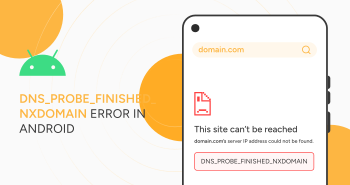
Do you struggle to fix DNS_PROBE_FINISHED_NXDOMAIN error in Android? You are not alone. The DNS_PROBE_FINISHED_NXDOMAIN is a typical error that occurs due to DNS-related issues. As a result, you cannot browse sites while using your Android mobile phone. If you don’t want to hamper your browsing experience, resolving the DNS_PROBE_FINISHED_NXDOMAIN error is necessary.
This blog post will let you know how to fix DNS_PROBE_FINISHED_NXDOMAIN error in Android.
How to Fix DNS_PROBE_FINISHED_NXDOMAIN Error in Android?
To fix DNS_PROBE_FINISHED_NXDOMAIN error in Android, follow these below-mentioned troubleshooting methods, including:
- Restart Your Android Device.
- Check for System Updates.
- Remove Chrome’s Browser and App Data.
- Check for Chrome App Updates.
- Change Your Mobile Device’s Network Settings.
Restart Your Android Device
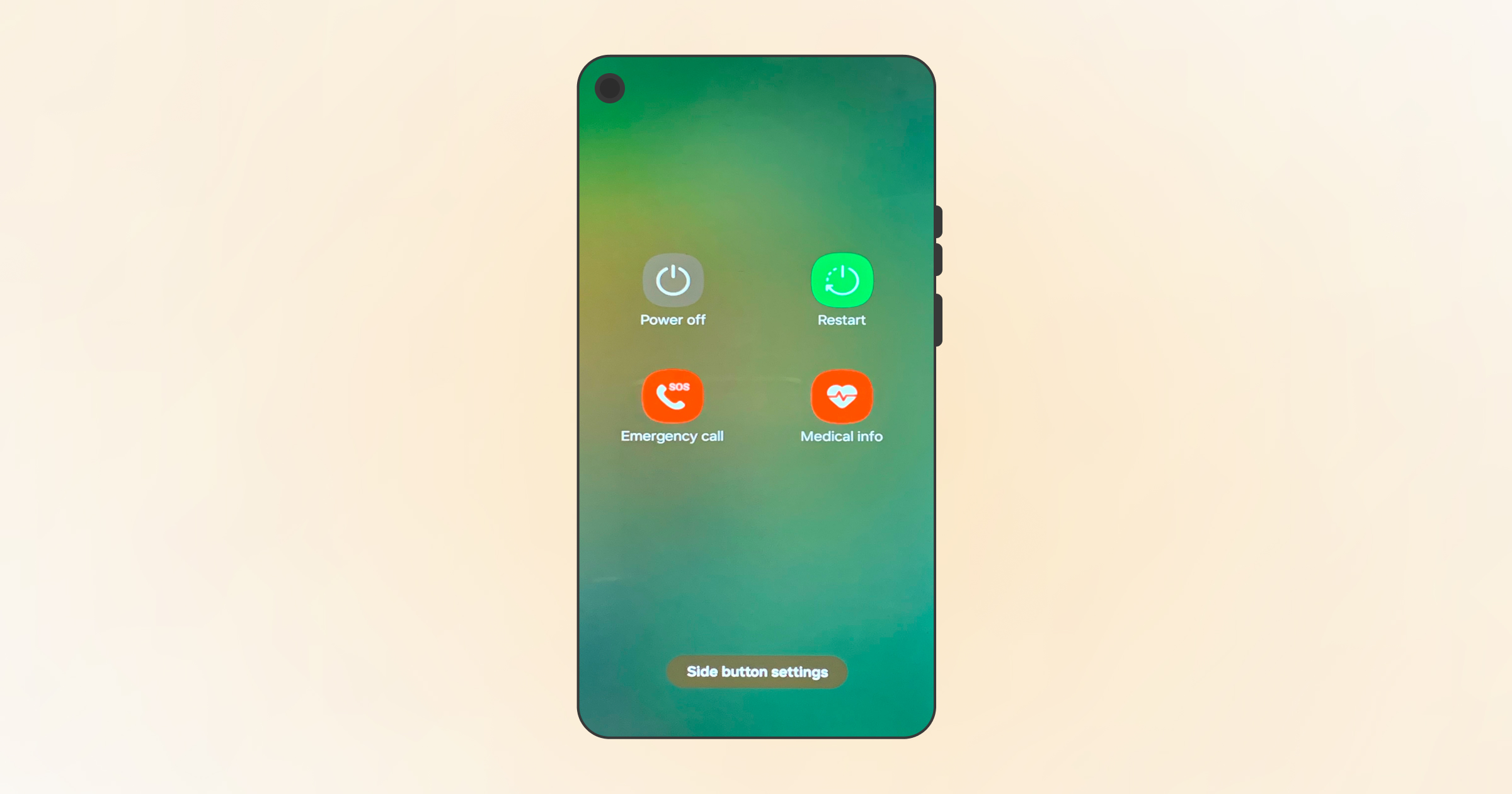
You should restart your Android device before you begin fixing the DNS_PROBE_FINISHED_NXDOMAIN error. Rebooting your device will likely prevent you from facing this client-side DNS error. You must have heard the popular technical support question, “Did you try turning your device off and back on again?”
There is a reason behind this famous phrase: a reboot sometimes does wonders and helps users bypass the issue in the first place. An effortless device restart can potentially help you fix DNS_PROBE_FINISHED_NXDOMAIN error in Android. To restart the Android mobile phone, follow the below steps:
- Press and hold your device’s power button till you see the Options menu.
- Hit the ‘Restart’ option.
- Wait for a few seconds, as your device will take some time to restart.
When your Android device restarts, open your Chrome browser and visit the website you want to access to confirm if the Android DNS_PROBE_FINISHED_NXDOMAIN error has been resolved.
Check for System Updates
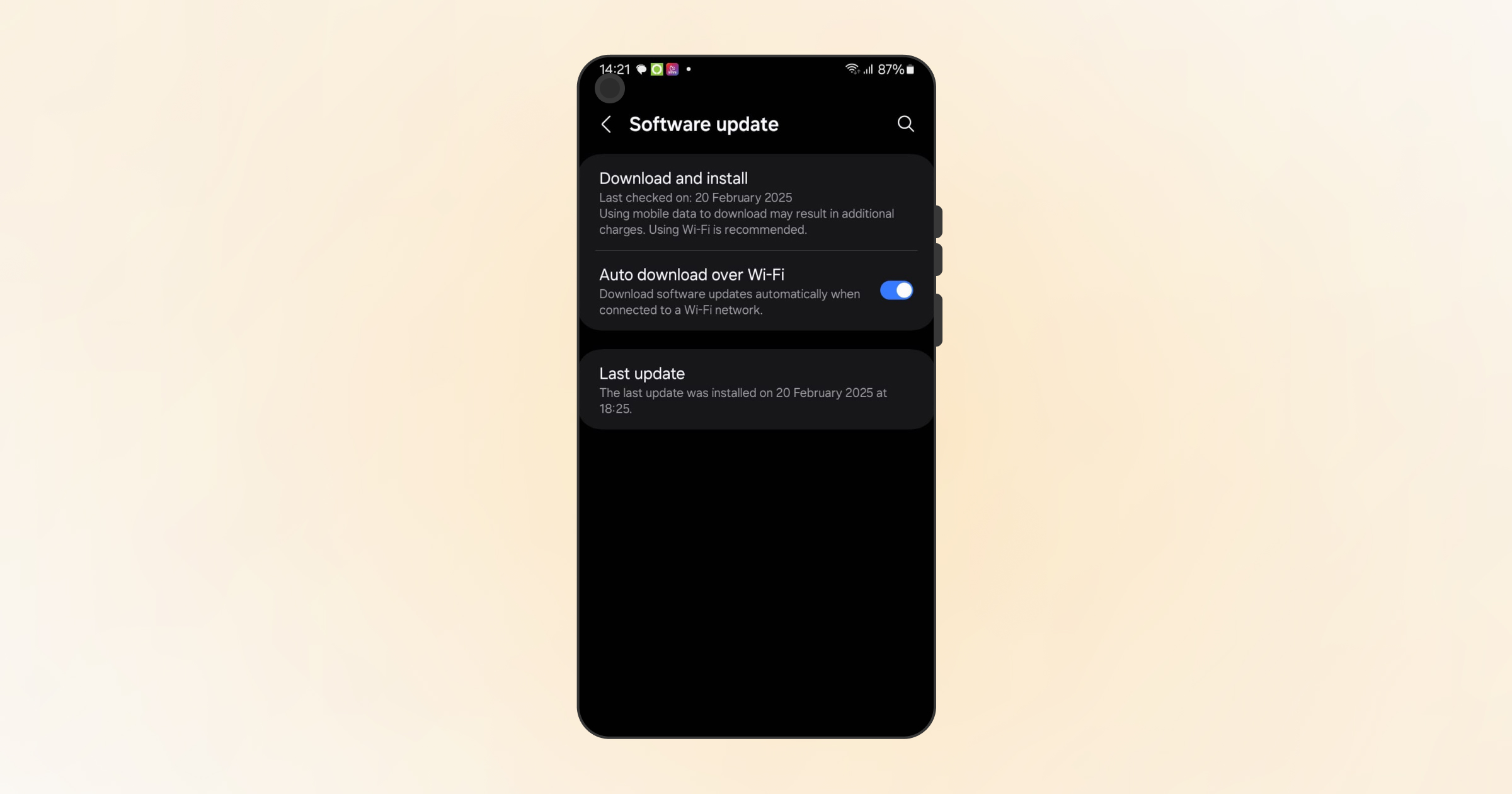
Checking for system updates can help bypass the Android DNS_PROBE_FINISHED_NXDOMAIN error. Simply put, your Android device should run the newest version of the Android operating system. To check and install the pending system updates, follow the below steps:
- Go to Settings > System or Software Update.
- Click System Update or Software Update to install the update if available.
You should check the site to see if this DNS-related error has gone. Hopefully, you will likely bypass the DNS_PROBE_FINISHED_NXDOMAIN issue by checking system updates.
Remove Chrome’s Browser and App Data
There is no denying that caches help improve users’ browsing experience. That said, they can sometimes lead to Android DNS_PROBE_FINISHED_NXDOMAIN error. Therefore, clearing Chrome’s browser and app data might help you eliminate this client-side error. To do this, follow the below steps:
- Open the Chrome app and press the three-dot menu button at the top right corner.
- Click History > Clear browsing data. Check Browsing History and Cached images and files. You should see that other options are unchecked.
- If a “Also clear data from these sites?” message pops up, tap Clear to confirm.
- You should wait a few seconds, as Chrome will complete the data-clearing process.
You must revisit the webpage to confirm if the DNS_PROBE_FINISHED_NXDOMAIN Android error has disappeared. If not, try another troubleshooting method.
Also Read: Fix DNS_PROBE_FINISHED_NXDOMAIN Error in Chrome
Check for Chrome App Updates
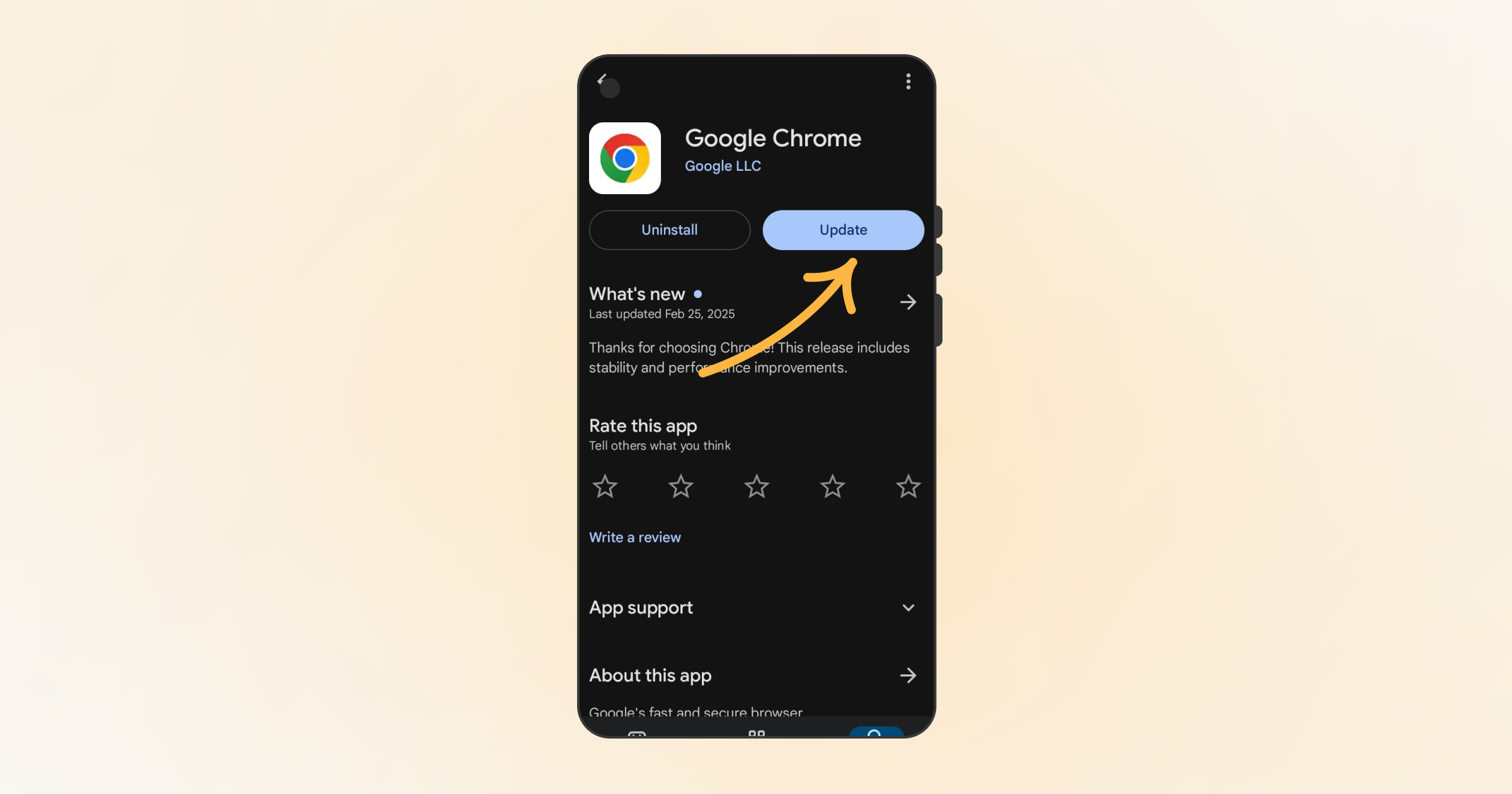
When fixing DNS_PROBE_FINISHED_NXDOMAIN error in Android, you must ensure the latest Chrome app is up and running on your device. Fortunately, you can install the latest Chrome updates using the below steps:
- Open the Google Play Store (the App Store app is called Google Play Store for Android devices).
- Press your profile icon.
- Press the Manage Apps and Device menu option.
- Press the Updates available option.
- Search for Google Chrome in the list. Press the Update button next to the Google Chrome option when you find it.
Once you have installed the updates, restart the Chrome app and confirm if Android DNS_PROBE_FINISHED_NXDOMAIN has gone.
Change Your Mobile Device’s Network Settings
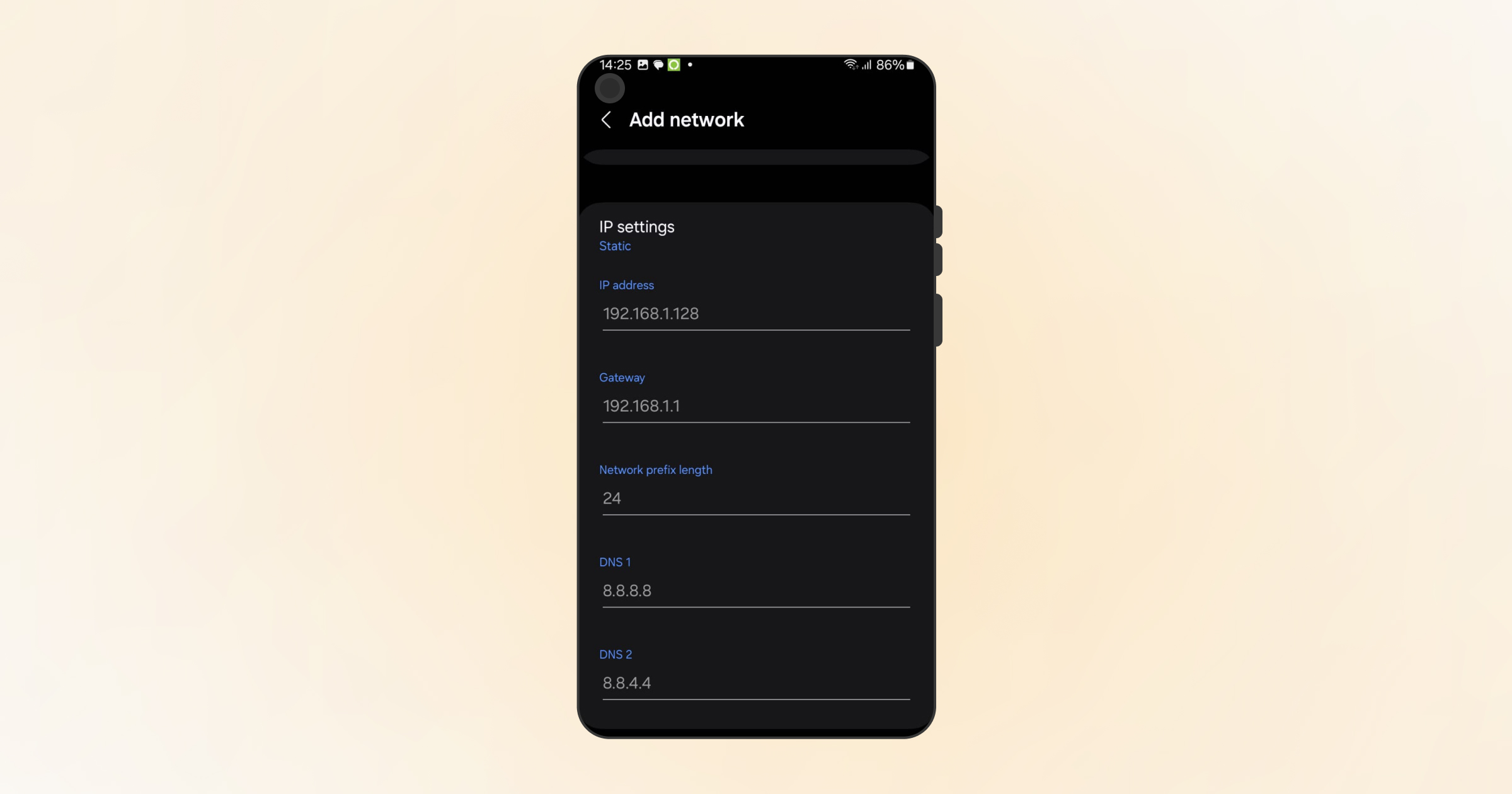
Fortunately, you can change your mobile device’s DNS settings to resolve the DNS_PROBE_FINISHED_NXDOMAIN in Android. To do this, here is what you should do:
- Go to Settings > Network & Internet > Internet.
- Press and hold the Wi-Fi connection and click Modify.
- Through the Advanced options, find fields, including DNS 1 and DNS 2, and mention the below information:
DNS 1: 8.8.8.8

DNS 2: 8.8.4.4
- Now click Save.
Once you have saved the above settings, you should access the Chrome app to confirm this error has disappeared.
Various Causes Behind the DNS_PROBE_FINISHED_NXDOMAIN Error in Android
Before you fix the DNS_PROBE_FINISHED_NXDOMAIN error in Android, identify the potential reasons that can cause this DNS-related issue. These potential reasons include:
- There are issues with your internet connection.
- A firewall blocks access or does not let you open the site.
- The DNS configuration is incorrect.
- The server does not respond timely.
Also Read: Fix DNS_PROBE_FINISHED_NXDOMAIN Error in WordPress
Wrapping Up
We hope you can smartly fix DNS_PROBE_FINISHED_NXDOMAIN error in Android by following the above possible solutions. The good thing is that this DNS-related issue is fixable, provided you know how to use these potential workarounds. Likewise, you should know the different causes of this error in advance.
This will enable you to resolve this frustrating issue in the right direction. Happy browsing!





