



















































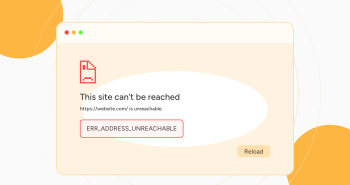
Haven’t you ever tried to open any website in Google Chrome but are stuck with the ERR_ADDRESS_UNREACHABLE error? It really annoys us. And it happens mostly just when we really need to get it done. This error locks Chrome from connecting with the site, blocking its access.
The ERR_ADDRESS_UNREACHABLE error is usually seen because of network issues in many countries like India, Malaysia, Philippines, Poland, Taiwan and Bangladesh. Some problems with the settings in the browser, or sometimes because of problems with a specific website. Chrome really cannot load the page as the error is shown.
It is vital to fix the problem sooner. It would be a nuisance if users had to stop their work or browsing session. For website owners, such an error could mean less accessible websites, which hurts user experience and traffic. It keeps things rolling with a smoother browsing process.
Reasons for the ERR_ADDRESS_UNREACHABLE
Sometimes, understanding the root cause of an error will help you troubleshoot. Here are some common reasons why the ERR ADDRESS UNREACHABLE error will pop up:
– Corrupted DNS Cache
Another leading cause of this problem is your DNS (Domain Name System) cache. Each time you visit a website, your browser saves the website’s IP address in local caches, thereby quickening future access. However, once these cached entries become outdated or get corrupted, Chrome might start reporting that the address does not exist.
– Outdated Browser Cache
Just like DNS cache, your browser stores elements of websites visited to make them load faster on the next visit. If you let this cache hang around for too long, it gets outdated. So, whenever you try accessing a web page that has updated its contents or settings, Chrome will flag an error.
– Extensions or Add-ons in Chrome
Sometimes, the ERR_ADDRESS_UNREACHABLE problem may result from one of your Chrome extensions. Some extensions may interfere with how the browser connects to the website, blocking certain content or preventing access completely.
– Router Issues
The issue might be with your router. Problems in your router’s settings or malfunctions within your router can sometimes prohibit access to certain websites. Intermissions in your network, weak signals, and poor configuration settings can all cause ERR_ADDRESS_UNREACHABLE.
– Interference by a Proxy Server
In some cases, it may also be due to a misconfiguration of the proxy server blocking your site’s access. Proxies can sometimes interrupt your connections, too, especially if security settings flag the site as suspicious.
– Firewall or Security Settings
Strict firewall rules or antivirus software can sometimes cause such issues. These security measures have been implemented to protect your device from threats, but they might sometimes block legitimate websites.
– Temporary Server or Website Problems
There are some days where the problem lies beyond your area. Therefore, it could be that the website you’re trying to visit is down for routine maintenance or having server problems.
Thus, understanding these causes would enable the right solutions to be sought to resolve the ERR_ADDRESS_UNREACHABLE error immediately.
Fixing ERR_ADDRESS_UNREACHABLE Error in 8 Simple Steps
Method 1: Restart Your Router
Sometimes, the problem is merely a transient hiccup in your router’s connection. The easiest way to correct this issue is to reboot the router and reconnect to the internet.
Steps to Follow:
- Unplug the router.
- Wait for a duration of around 30 seconds.
- Turn the router back on; it will self-restart.
- Once it has restarted, open Chrome and try to load the website.
Method 2: Clear Your Browser Cache in Google Chrome
Chrome stores temporary files to speed up browsing. Eventually, these cache files will become outdated or corrupted, preventing websites from running properly and causing the “ERR_ADDRESS_UNREACHABLE” error.
How To Do It:
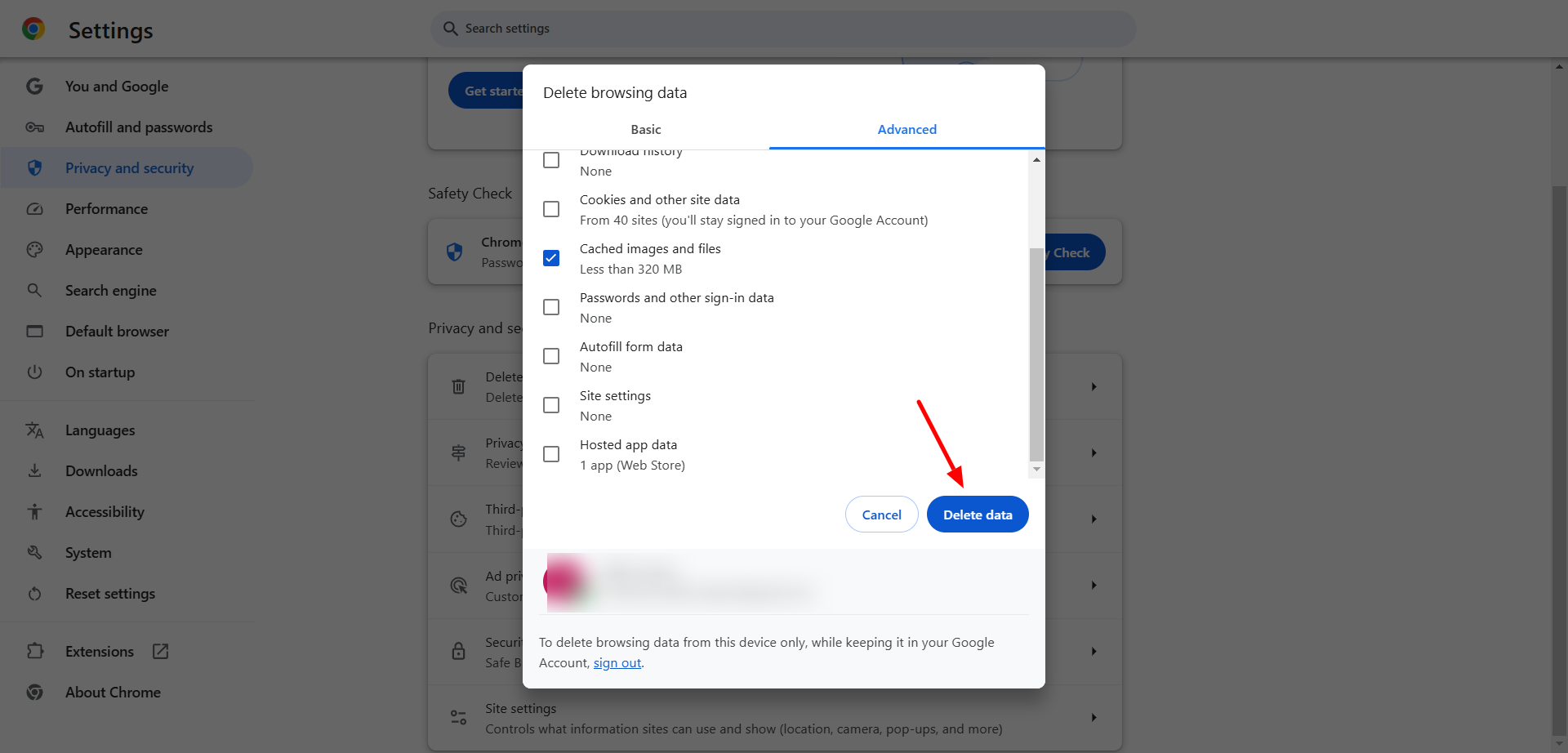
- Open Chrome and click the three dots at the top right.
- Go to Settings > Privacy & settings > choose Delete browsing data.

- Choose Cached images and files in the menu that appears.

- Click Clear Data.
- Try opening the website again.
Method 3: Disable Chrome Extensions
Chrome extensions may be the reason your site is showing the ERR_ADDRESS_UNREACHABLE error. Malfunctioned extensions could be the culprits preventing access to specific sites.
Here’s How to Resolve this Issue:
- Open Chrome & click on the three dots.
- Find Extension; then go to Manage Extensions.

- Turn off all extensions by clicking the switch next to each.
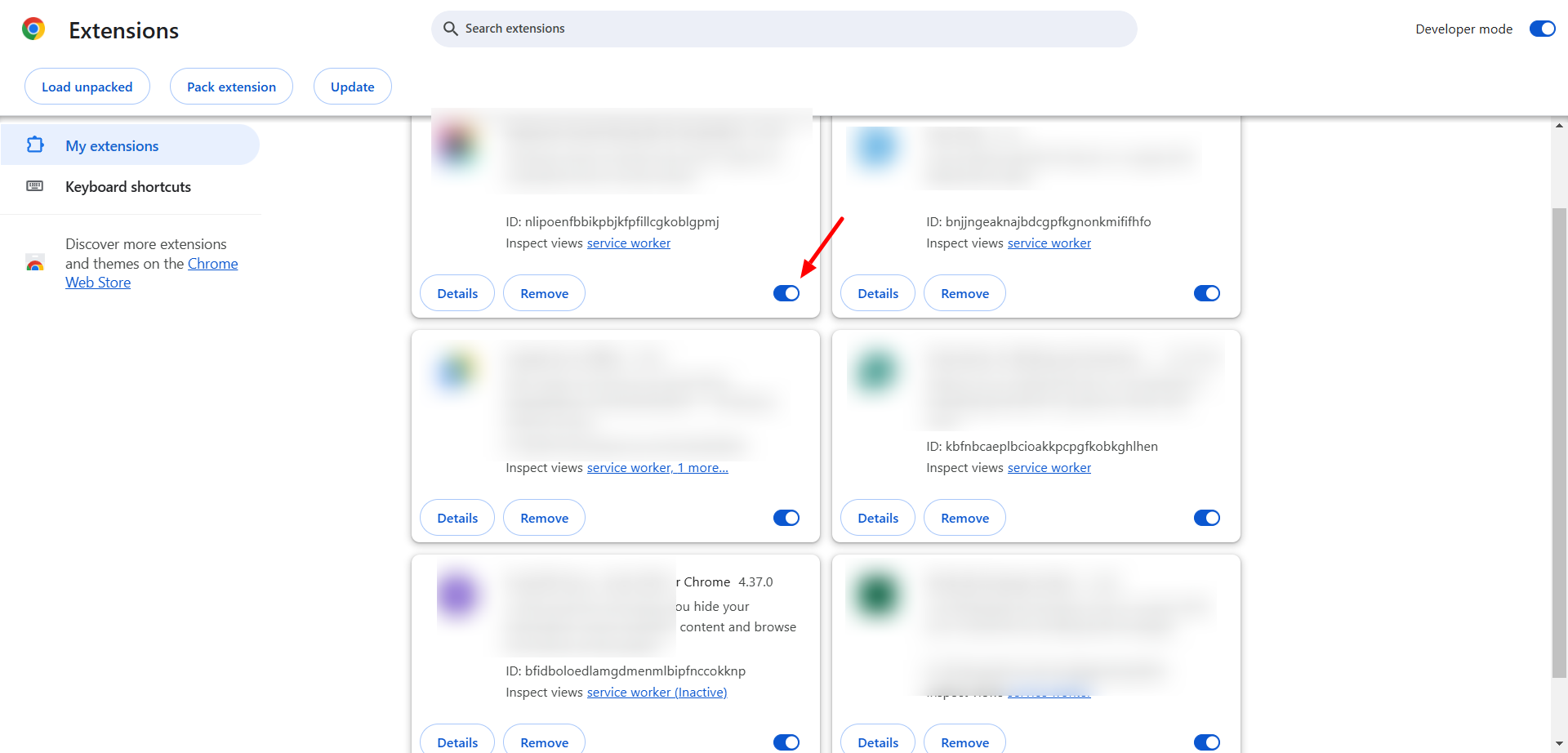
- Now, reload your site to see if the ERR_ADDRESS_UNREACHABLE has been resolved.
- No error on the site now? Enable extensions individually to determine which extension is causing the problem.
Method 4: Flush DNS Cache in Chrome
The DNS cache holds website addresses and other domain name resolutions but becomes outdated. Clearing the cache allows Chrome to reload new DNS information, which could solve the problem.
How-to Guide
- Type chrome://net-internals/#dns in the Chrome address bar.
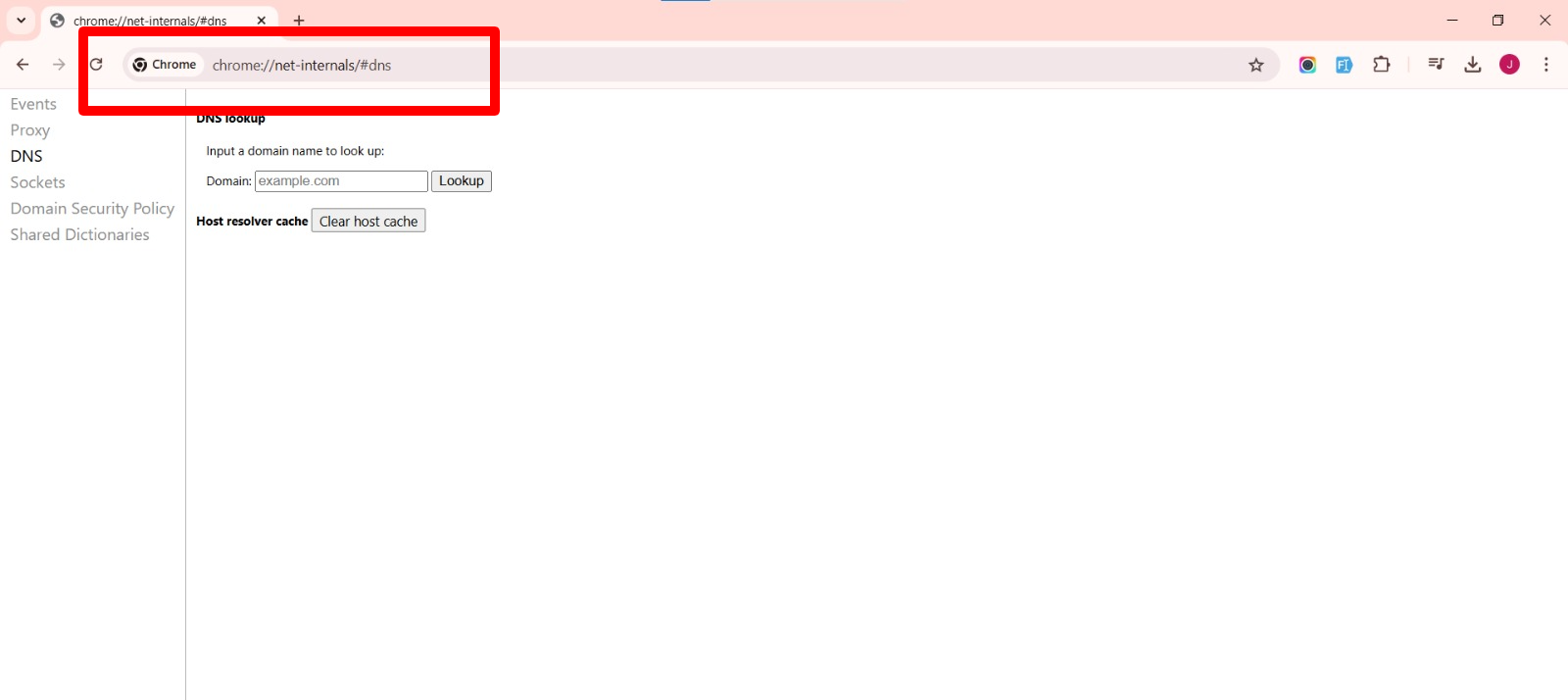
- Click on Clear host cache.

- Try to load the website again to determine if the problem is resolved.
Also Read: How to Clear Chrome Net Internals DNS Error
Method 5: Convert Your DNS to Google DNS
Be wise and try Google’s public DNS servers instead of the default DNS. These Google servers are faster and more reliable. Switch to them for troubleshooting connectivity.
Step-by-Step:
- Open Network Status from the setting in your windows.

- Now click Change adapter settings.

- Now, right-click on Ethernet or Wi-Fi to change their DNS. After right click, choose Properties.
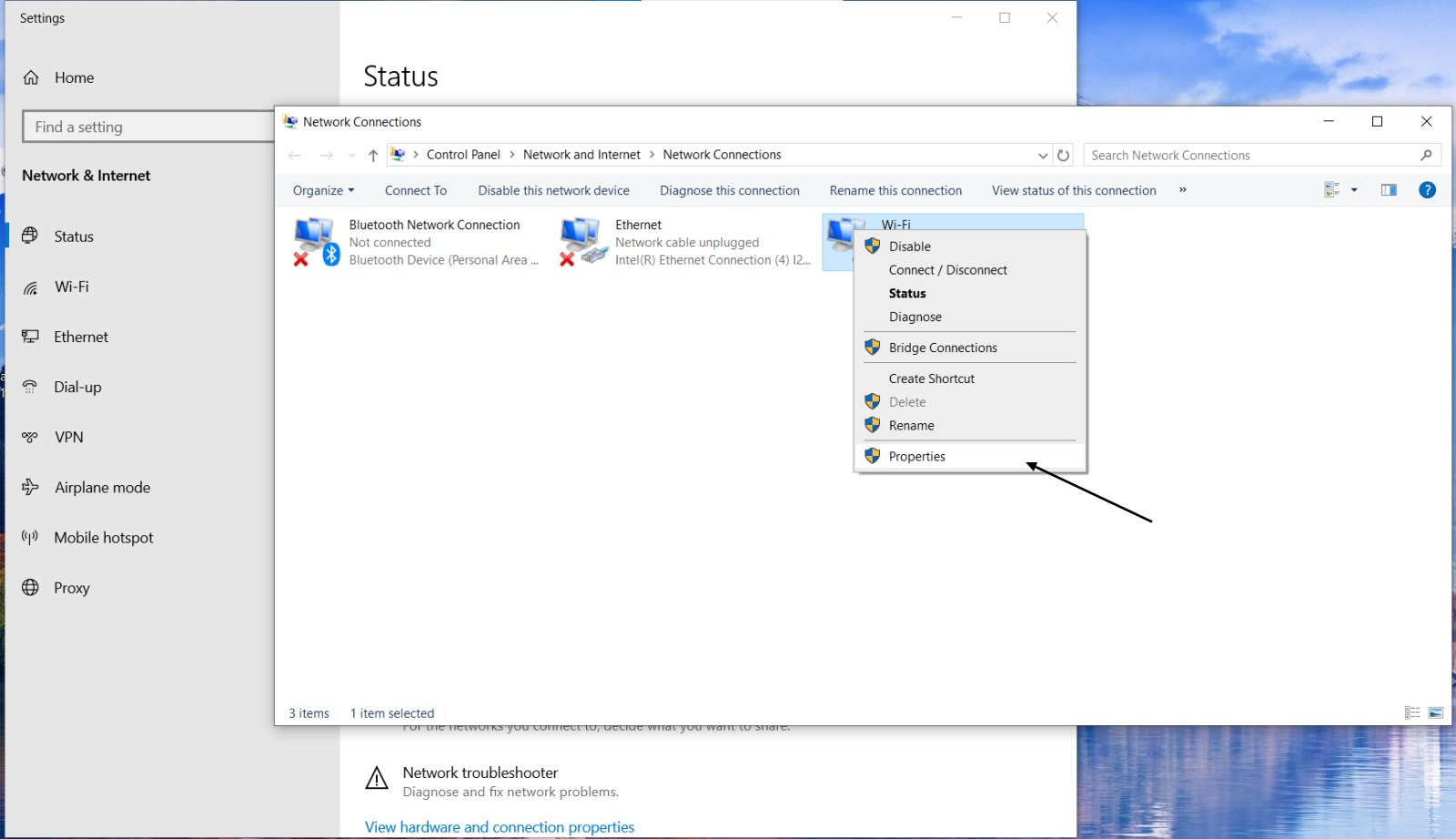
- In the Networking tab, select Internet Protocol Version 4 (TCP/IPv4), then click Properties.

- Now, click the option Use the following DNS server addresses & put these addresses in each column: (In Preferred DNS server: 8.8.8.8 & In Alternate DNS server: 8.8.4.4). Click OK to save the changes.

Method 6: Try Another Browser
Sometimes, changing the browser resolves this ERR_ADDRESS_UNREACHABLE error. So, switch to another browser fast. Trying another browser may help determine whether it is specific to Chrome or if there is a problem with connectivity.
Here’s How to Resolve
We don’t think you need any guidance on how to access another browser. But still, here’s how to switch the browser.
- Open a different browser like Mozilla Firefox or Microsoft Edge.
- Try accessing the website.
- If it works, the problem may be with Chrome.
Method 7: Disable Proxy Settings
A misconfigured proxy server can prevent Chrome from accessing websites by rerouting your internet traffic. Disabling the proxy will allow for a direct connection.
Easy Solution:
- Open Chrome, then follow the rest: Settings > System > Open your computer’s proxy settings.
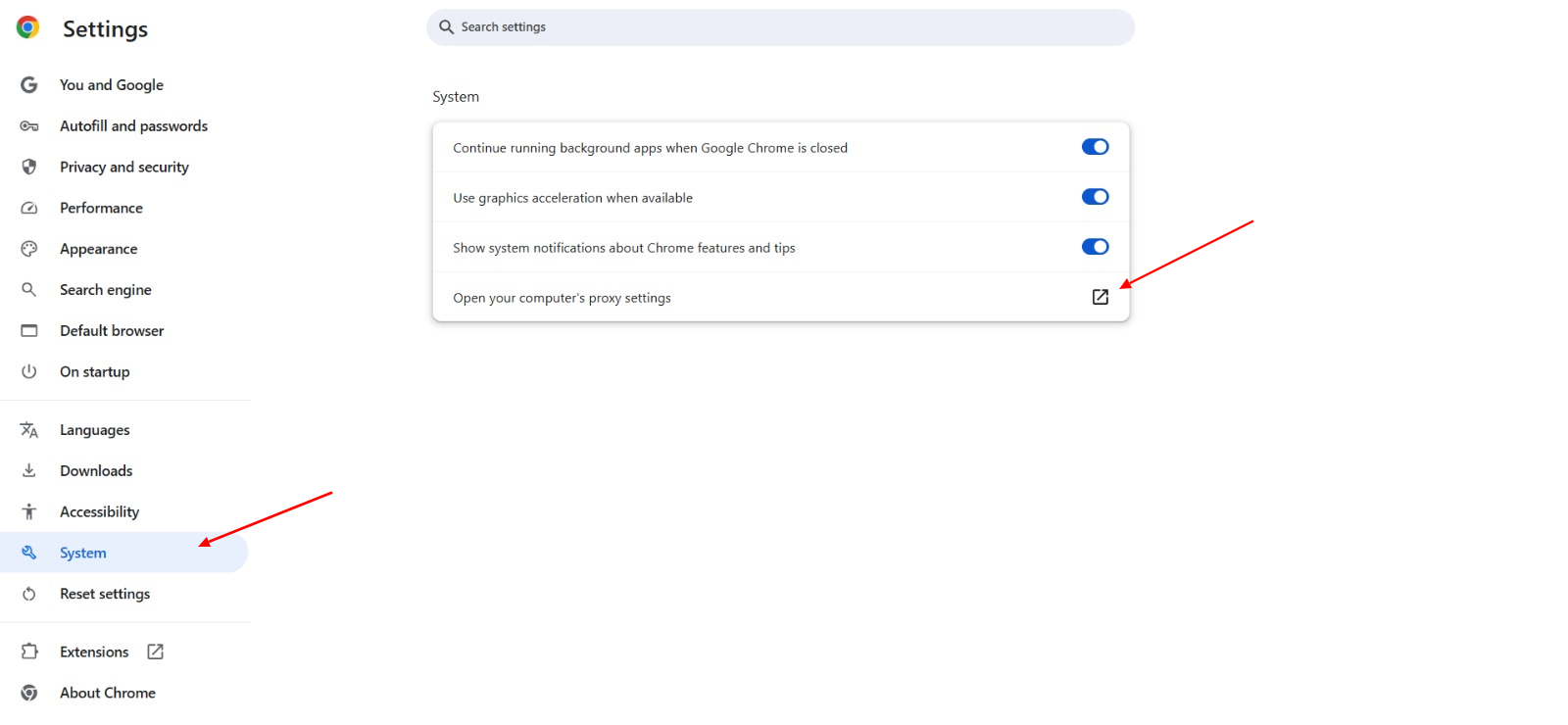
- Ensure that a proxy server is turned off in the proxy settings window.
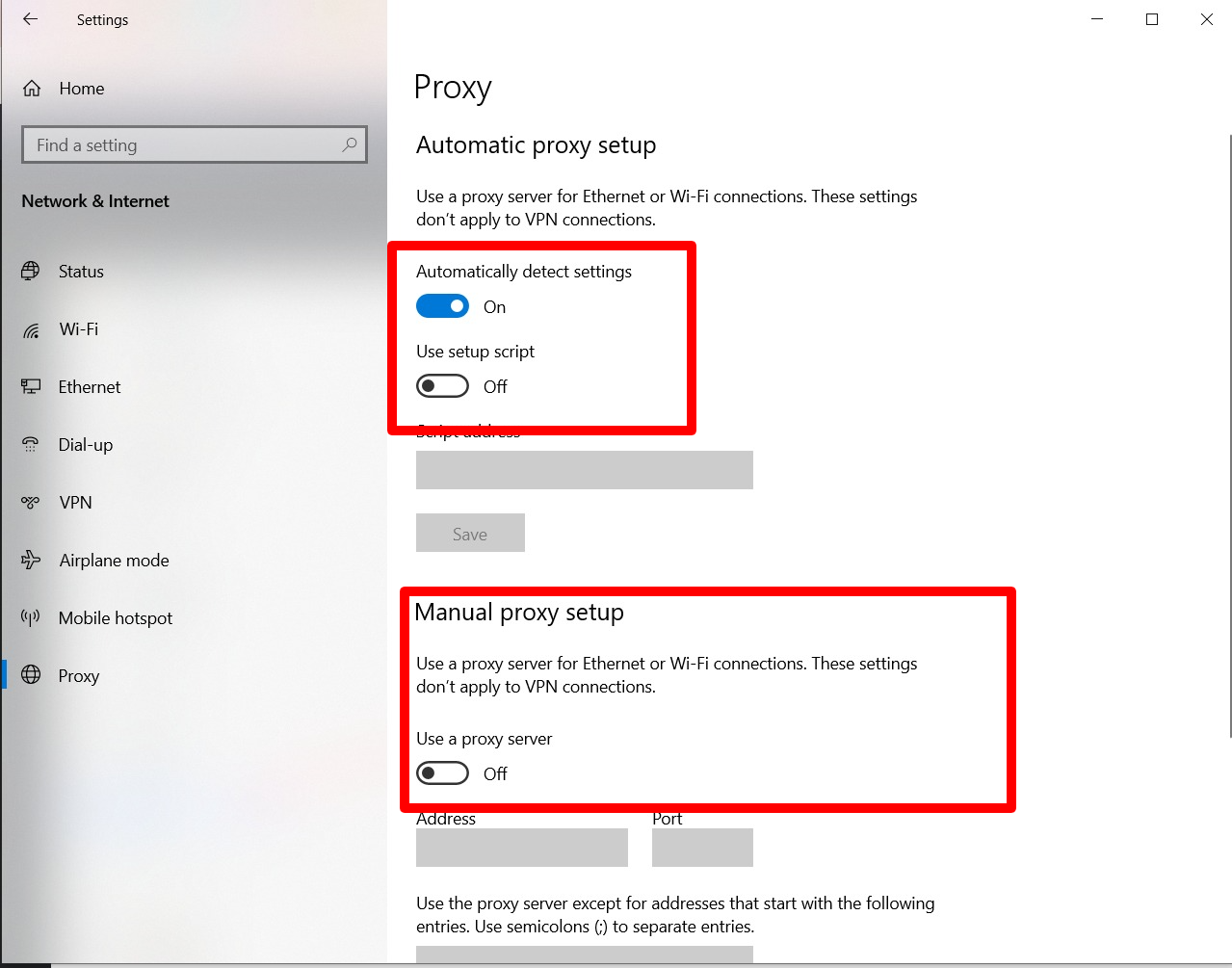
- Restart your browser & try visiting the website again.
Method 8: Contact Your Hosting Provider (For Website Owners)
Owning your site? This ERR_ADDRESS_UNREACHABLE error might arise due to your hosting service provider. Server-side issues like downtime, misconfigurations, or network problems could prevent site access.
Simple 2-Steps Solution:
- Contact your hosting provider’s support team.
- Provide them with details of the error and ask them to check for any issues with the server or domain.
- Solve server-side issues according to their guidance for troubleshooting.
Advanced Correction Method for ERR_ADDRESS_UNREACHABLE
– Check your Firewall or Security Software Settings
Sometimes, security software (firewalls or antivirus programs) prevents Chrome from opening sites on the web. Firewalls or antivirus programs presume the sites to be threats, resulting in an ERR_ADDRESS_UNREACHABLE error. The solution is to switch your firewall or antivirus off and try again to use the site. Check your security software settings to whitelist the website or change the rules of the firewall.
– Investigate Possible IP Address Conflicts
Multiple devices connected to a network with the same IP addresses? It may be a connectivity problem with the ERR_ADDRESS_UNREACHABLE error. Restart your router and get your device to automatically request a new IP address. And bang, we saved you for now!
But for the future, there is a way of avoiding such errors – assign static IPs to your devices.
– Reset Chrome Settings
With time, the settings in Chrome get misconfigured, leading to errors such as ERR_ADDRESS_UNREACHABLE. Resetting Chrome to default settings usually solves the problem. Resetting is done like this: Settings > Reset Settings > Restore settings to their original defaults. All the newly customized settings, extensions, and temporary files will be deleted.

Diagnose the Issue Using Online Tools
– Netpeak Checker
Netpeak Software is an extremely useful diagnostic application that will help determine the cause of the ERR_ADDRESS_UNREACHABLE error. It basically tries to find various problems, such as invalid links or DNS problems, server misconfiguration, and others that cause your site to be unreachable.
– Ping Test & Traceroute
If you want to know if it is on your side or the server side, use Ping and Traceroute tools. Ping will check whether your computer can establish communication with the server corresponding to that particular website.
At the same time, Traceroute provides an overview of the route your request takes toward that specific server. These two can be combined to help you discover at which point the connection fails.
To Perform a Ping Test, You Can:
- Open the command window
- Type PING
- Type a space
- Type the IP or website address you want to ping
- Press Enter
To Perform a Traceroute Test, You Can:
- Open the command window
- Type tracert
- Type a space
- Type the web address of the destination website
- Press Enter
These tools will provide enough information that can help you conclude why the ERR_ADDRESS_UNREACHABLE error is showing.
How to Avoid Future ERR_ADDRESS_UNREACHABLE Errors
Prevent ERR_ADDRESS_UNREACHABLE errors by regularly clearing your browser cache, updating Chrome frequently, optimizing website DNS and security settings, and monitoring network health. These methods ensure smooth browsing, improved performance, and minimal connectivity issues.
Key:
- Clear browser cache regularly.
- Keep Chrome updated.
- Best website settings.
- Monitor network health.
Closure: Goodbye to the ERR_ADDRESS_UNREACHABLE Error
Indeed, we explained that the error ERR_ADDRESS_UNREACHABLE is troublesome, but the truth is that there are several ways to fix it effectively. Whether you restart your router or erase the cache in your browser, turn off any extensions, or switch and revise DNS settings, these have proven to be very efficient for the problem of going places without interruptions.
If you find no success with the above suggestions, contact your Internet service provider or the website maintenance support team for additional help.
Last Tip: Website owners should conduct regular performance checks and DNS records tests to avoid errors such as these. This proactive stance ensures that your visitors will experience the fewest interruptions possible.
Is there anything you need clarified or any additional help with? Please comment below or feel free to contact our website support team so we can guide you properly!




