




















































Nothing is more irritating than visiting a website and experiencing an error. ERR_NAME_NOT_RESOLVED is one of the common error messages that prevents you from accessing the site and hinders your browsing experience.
This error occurs because of DNS resolution issues; however, you can fix it using different troubleshooting methods.
This blog post will describe the ERR_NAME_NOT_RESOLVED error, potential variations, and possible solutions.
What Do You Know About the ERR_NAME_NOT_RESOLVED Error?
Before describing the ERR_NAME_NOT_RESOLVED error, you should comprehend the concept of DNS (Domain Name System). Likewise, you should examine how this concept works practically. A DNS (Domain Name System) is an address book comprising information related to each registered domain name over the web.
When a user writes a domain using a search engine, their web browser will run or execute a DNS request to obtain the site’s IP address. If the DNS does not detect a site’s IP address and cannot fulfill the request, the browser will display the ERR_NAME_NOT_RESOLVED error.
Possible Variations of the ERR_NAME_NOT_RESOLVED Error
A few possible variations of the ERR_NAME_NOT_RESOLVED error can appear on your screen when the DNS does not detect the site’s IP address and cannot complete the request. In this scenario, the browser will likely display this DNS-related error through the below messages:
- “This site can’t be reached.”
- “This webpage is not available.”
Different Causes of the ERR_NAME_NOT_RESOLVED Error
As you know, this error indicates a problem with your computer or internet connection. For instance, the site you try to access has a different IP address, so your web browser obtains the outdated address from the cached data.
Likewise, your internet connection is unstable, so you have received the ERR_NAME_NOT_RESOLVED error message on your screen. Besides, your firewall does not allow you to open the site. That said, an issue related to the site’s DNS records prevents you from accessing the website.
Your web hosting service provider may be one reason you experience the ERR_NAME_NOT_RESOLVED error. In this situation, consider changing to a reliable or much-improved provider.
In addition, other issues can result in the ERR_NAME_NOT_RESOLVED error, including:
- Improper Network Settings.
- Outdated Browser Cache.
- Device Configuration Problems.
How to Fix the ERR_NAME_NOT_RESOLVED Error?
When resolving the ERR_NAME_NOT_RESOLVED error, you can use multiple possible solutions to eradicate it appropriately. These potential workarounds include:
- Check Your Internet Connection.
- Check the URL.
- Clear the DNS Cache on Your Device.
- Clear Host Cache on Chrome.
- Reset Your Firewall Settings.
- Restart Your Modem/Router.
- Update Your Browser.
Check Your Internet Connection
Before evaluating the ERR_NAME_NOT_RESOLVED error, test your internet connection to see if it causes this DNS-related error. Access the website from another Wi-Fi network or mobile data to test your internet connection and see if it works smoothly. If you can access the site, check your internet connection to detect the fault.
Check the URL
Sometimes, the wrong URL does not help users access the website. Thus, you must ensure you have written the correct URL into the browser’s address bar. You should check special characters, extra periods, and spelling mistakes.
Moreover, you should ensure that the correct prefixes are used, such as http:// or https://. If you do not know the correct URL, search the site through a search engine and open it using the search engine.
Clear the DNS Cache on Your Device
The ERR_NAME_NOT_RESOLVED issue may arise due to an outdated cache on your computer. To resolve this problem, you must flush the DNS cache. Flushing the DNS cache will likely eliminate the HTTP 304 not modified error status code.
You should open the Command Prompt app on your Windows device. In addition, you can utilize Windows + r, a keyboard shortcut to open the Run window. Now, you should enter cmd to open the command prompt:
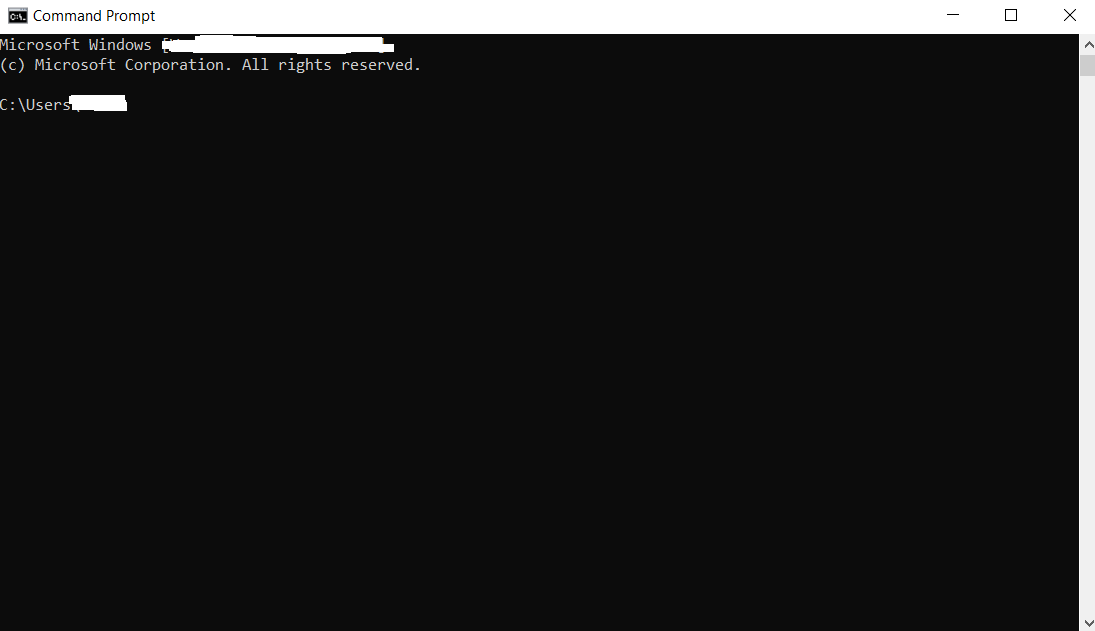
Write the below command and press Enter:
ipconfig/flushdns
Windows will clear your DNS cache files and reset them simultaneously. When this process is completed, a message will appear on your screen stating:
“Successfully flushed the DNS resolver cache.”
You should reassess the site to see if the error has gone.
Clear Host Cache on Chrome
The issue might exist in your web browser if you have not resolved the ERR_NAME_NOT_RESOLVED error. As you know, Google Chrome has its DNS cache. You must clear the DNS cache to see if the error has gone. You should open the Google Chrome browser and write the line using the address bar below:
chrome://net-internals/#dns
Consequently, you will see the below screen:

Click the ‘clear host cache’ option to overcome the ERR_NAME_NOT_RESOLVED error.
Reset Your Firewall Settings
You may still receive the ERR_NAME_NOT_RESOLVED error message despite removing the DNS cache. It is highly recommended that you reset your firewall settings. If you have activated a security program, it can identify a false threat on the website and potentially deny access to it.
- Through your Windows device, open the Settings app and choose Update & Security. Now, press Windows Security:

- You should choose Firewall & network protection:

- Click the Restore Firewalls to Default option:
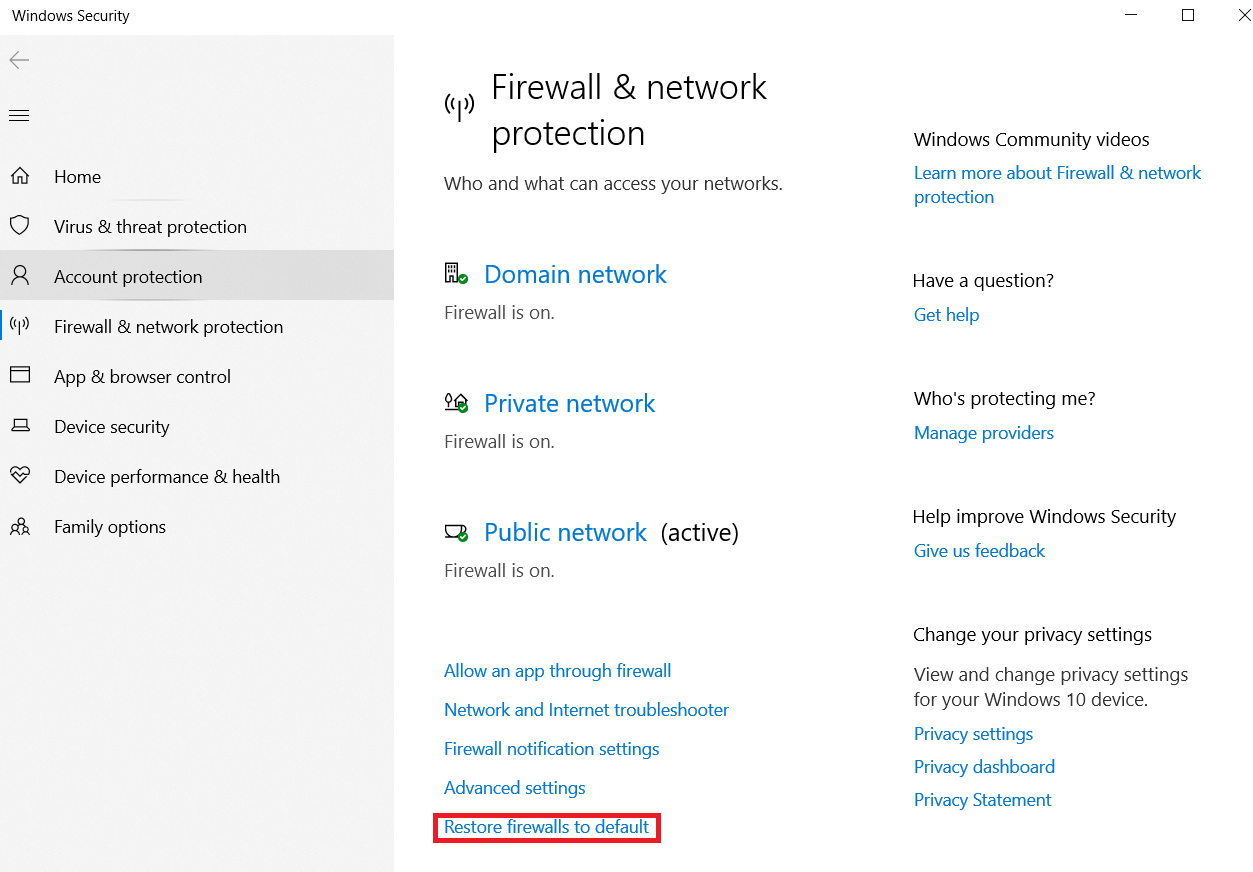
- You should click the Restore defaults button:

You should reassess the site to confirm if the ERR_NAME_NOT_RESOLVED error has disappeared.
Restart Your Modem/Router
Resetting the network hardware is not harmful. It allows the network hardware to function appropriately. For that reason, turn off your router and modem. Wait a few minutes, then turn them on. When the network hardware starts working again, access the website to see if the error has disappeared.
Update Your Browser
Using outdated or old browsers can cause the ERR_NAME_NOT_RESOLVED error as they do not support the latest network configurations and standards. If you use the Google Chrome browser, you should write the following address in your address bar to update it to the latest version:
Chrome://settings/help
Doing so will allow Chrome to apply updates automatically if they are available.

The above screenshot suggests that the Chrome browser is up to date. In case your web browser needs to be updated, it will show the ‘Relaunch’ button. Press the ‘Relaunch’ button to update the browser. Once you have updated the browser, restart it and re-access the website.
Wrapping Up
We expect you to like our blog post detailing the ERR_NAME_NOT_RESOLVED error. All the above methods help users eliminate this DNS-related error properly, provided they follow these workarounds correctly. The ERR_NAME_NOT_RESOLVED issue occurs when the DNS cannot detect a website’s IP address.
This could occur due to a configuration issue with your device’s DNS server, outdated data in the cache, or other causes. Therefore, to bypass the ERR_NAME_NOT_RESOLVED error, you must use the above potential solutions.
Lastly, we hope this blog post allows you to comprehend this DNS-related issue correctly. Happy Browsing!





