














































The 503 Service Unavailable error suggests the server cannot handle or fulfill a request for the time being. Unfortunately, this error can trigger issues like maintenance, server overload, and more. According to the 503 error, the problem is short-term, and the server should be reachable again.
Although HTTP error 503 is a server-side issue, a few possible solutions can help you bypass it.
This blog post describes troubleshooting and avoiding the HTTP 503 Service Unavailable error.
What Do You Mean by the HTTP 503 Service Unavailable Error?
According to the HTTP 503 Service Unavailable error, a website can’t be reached because the server is not ready to handle or process the request. This is possible for various reasons, such as being too busy, under maintenance, or requiring a deeper analysis.
What is a 503 Error or HTTP 503 Service Unavailable Error?
The Internet Engineering Task Force (IETF) discusses the 503 Service Unavailable error or issue as:
“The 503 (Service Unavailable) status code indicates that the server is currently unable to handle the request due to a temporary overload or scheduled maintenance, which will likely be alleviated after some delay. The server MAY send a Retry-After header field to suggest an appropriate amount of time for the client to wait before retrying the request.”
503 Service Unavailable is a server-side error related to the 5xx HTTP status code category. Unlike permanent issues like 404 Not Found, the 503 error suggests that the server is working; however, it cannot process the request further.
If you want to know what 503 is and its actual definition, the above explanation reveals what 503 is as an HTTP server-side error.
What Are the Numerous HTTP Error 503 Variations
The 503 error can appear in many ways. Almost every variation is associated with the 503 code or denotes a 503 error. This makes it easy to identify, or in other words, users can easily detect this common HTTP error.
Here are some of the variations users may experience based on their browsers and server configurations:
- 503 Service Unavailable.
- 503 Service Temporarily Unavailable.
- HTTP Error 503.
- Error 503 Service Unavailable.
- HTTP Server Error 503.
- The server is temporarily unable to service your request due to maintenance downtime or capacity problems. Please try again later.
The above possible 503 error variations suggest that you must resolve them as quickly as possible; otherwise, you will soon lose a significant chunk of organic traffic.
What are the Possible Reasons Behind an HTTP Error 503?
Here are the most well-known reasons why a server cannot handle a request temporarily:
- Various requests are being sent to the server, exhausting all the available resources.
- The server is facing technical issues, or maintenance work is ongoing.
- A Denial of Service (DDoS) attack has disrupted the server.
Other technical issues, such as plugins or themes, can trigger an HTTP 503 error. The Sitechecker tool can help detect such pages and other WordPress errors on your site.
Up to 900 pages can be checked for free, with auto-crawling every 3 days. If you start using a paid package, you can set up monitoring daily or every 12 hours.
How Can We Fix the HTTP 503 Service Unavailable Error?
You’ll need to troubleshoot it systematically, as you can’t be sure what caused the 503 error in any instance or situation. Different potential solutions allow you to eliminate the HTTP 503 Service Temporarily Unavailable error.
After performing each solution, you must check your site to see if the error exists or has been removed. If this is the case, you have resolved this server-side issue in the right direction. If you are unsuccessful, take advantage of other solutions and use them to confirm if they fix this HTTP 503 error.
These potential workarounds are:
Restart the Server
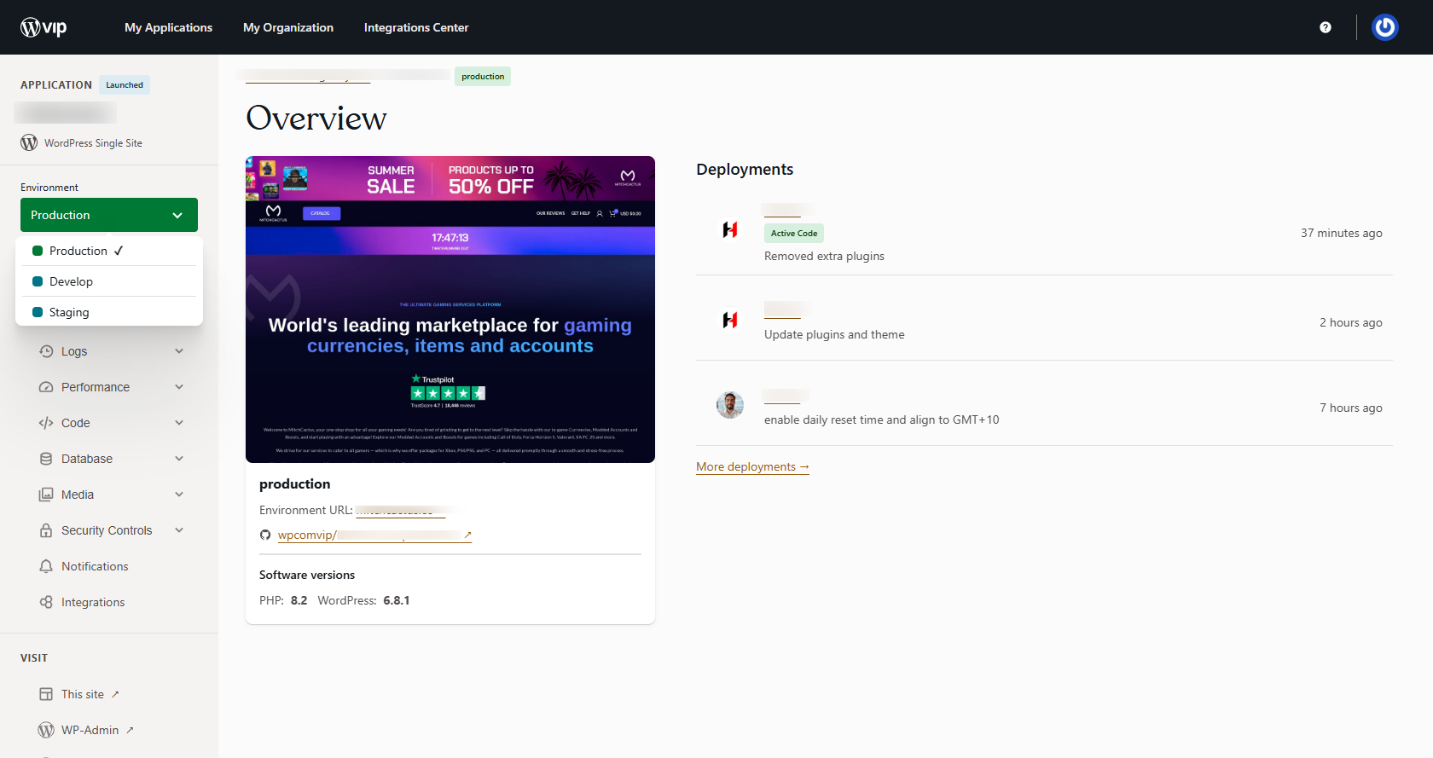
Restarting the server is one of the easiest and speediest ways to refresh the traffic overload. By doing so, the website server chain disrupts and frees your site from congestion.
If the site runs on various servers, restart each to see if the HTTP error 503 still exists or has disappeared.
Check Site Plugins
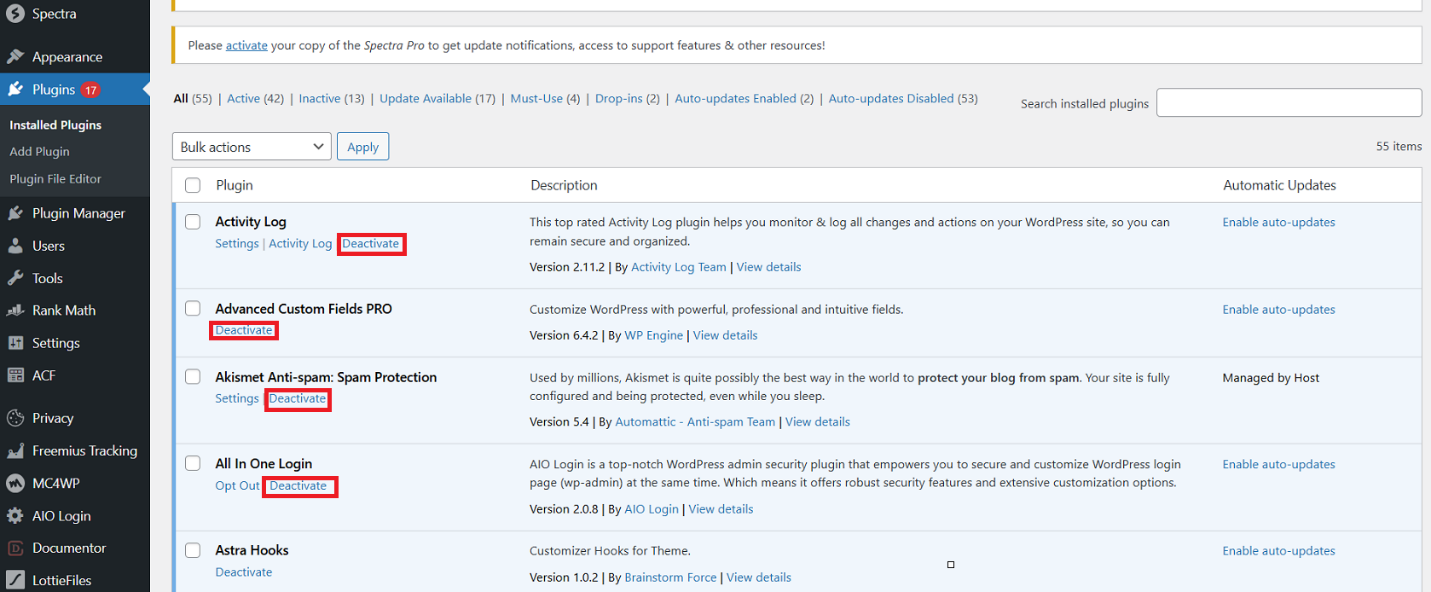
Plugin compatibility issues are among the most common causes of the HTTP error 503. Hence, you must temporarily deactivate them to confirm if they have caused this error. The error helps deactivate access to the admin area in WordPress. To deactivate the plugins, access the files via the FTP client, such as FileZilla, and rename the plugins folder.
If you successfully resolve the 503 Service Temporarily Unavailable error by disabling the plugin, the root cause relates to one of the plugins. Now, you should rename the plugin folder again and use the original name. Moreover, deactivate plugins one by one. After deactivating the plugin, you should confirm if the HTTP 500 error has vanished to identify the main problem.
Temporarily Deactivate CDN (Content Delivery Network)
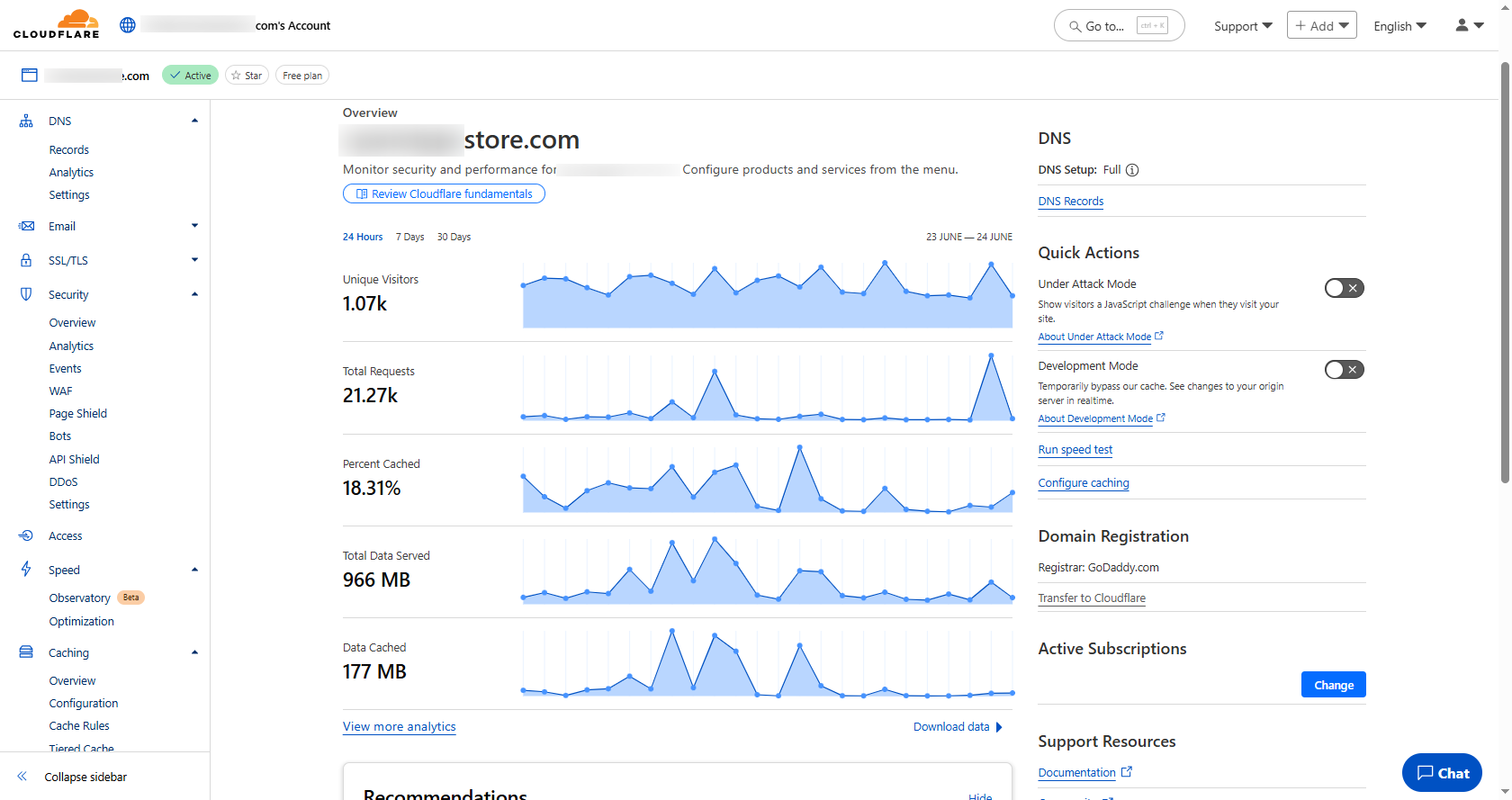
The 503 error may not appear due to an issue on your website. However, this error can arise due to your Content Delivery Network (CDN). If you use a CDN, a quick way to determine if that’s the case is to deactivate it temporarily.
Every CDN should include a feature that lets you temporarily stop its services. The process you must follow can vary based on the CDN you use. Cloudflare has sometimes resulted in 503 errors.
If you can’t find the option to stop your CDN, check your service’s knowledge base, which usually comprises detailed instructions.
Try other methods if you cannot deactivate your CDN because the feature that can help pause it is unavailable.
Check If the Server Undergoes Maintenance
All web servers shut down when they undergo maintenance. Therefore, you must examine your server’s configuration to confirm if the automatic maintenance sessions are planned. This way, you can smartly eliminate the probability of 503 errors because of maintenance.
If you are supposed to apply any updates to your website, you must schedule them when your website has the lowest organic traffic. As a result, your website visitors will not likely experience the HTTP 503 Service Unavailable error.
What Should Website Visitors Do to Bypass the 503 Service Unavailable Error?
Even though the 503 Service Unavailable is a server-side error, website visitors can consider using a few possible workarounds:
- They can refresh the web page to see if the issue has disappeared.
- They can utilize tools like DownDetector to check whether the site works.
- They can remove the browser’s cache, history, and cookies.
Does the 503 Error Code Affect SEO?
A 503 Service Unavailable status usually appears when a website undergoes scheduled maintenance. When a Google bot encounters a 503 error code, it returns later to check the page. However, if search engine bots regularly experience the 503 error code over time, they will assume that the issue is not short-term and remove or delete the page from their index.
Because they directly affect the user experience, 503 error codes can harm your SEO. Any long-term 503 errors will have a direct impact on your website rankings. So, if you’re experiencing 503s over a long duration, you’ll want to sort out the issue to prevent problems.
In this situation, you must consider availing WordPress SEO services from a reliable yet result-oriented digital marketing agency like WPExperts. This will enable you to prevent 503 and other server-side errors from hampering your website rankings in search engines.
Wrapping Up
We hope you can now fix the HTTP 503 Service Unavailable error. If luck is on your side, this HTTP error will only appear when your website undergoes maintenance. That said, it can show up without any reason, and you will need to troubleshoot the 503 error yourself.
Fortunately, you can bypass this HTTP error by following various methods, including restarting the server, deactivating plugins, and deactivating CDN (Content Delivery Network).