




















































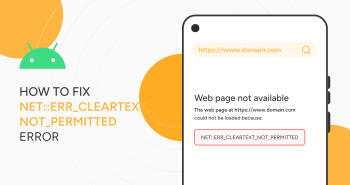
As an Android user, you might have experienced the NET::ERR_CLEARTEXT_NOT_PERMITTED error when accessing a site or web application. This error is associated with the Android operating system and prevents you from accessing the website.
When a site uses unencrypted information or cleartext, you will likely encounter the NET::ERR_CLEARTEXT_NOT_PERMITTED error. Fortunately, there are different troubleshooting methods available to overcome this error.
This blog post explains how to fix NET::ERR_CLEARTEXT_NOT_PERMITTED error, describes Android Webview, and explains the reasons behind the error.
What Do You Mean by Android Webview?

The Android operating system has a feature called Webview that helps apps showcase web pages without a browser. This feature allows users to install websites on phones as apps.
Unfortunately, Webview has a downside. Compared to a browser, it does not offer all the necessary features. However, you will enjoy the browsing experience when using a Chrome browser. The NET::ERR_CLEARTEXT_NOT_PERMITTED error relates to apps that utilize Webview in the Android operating system.
Luckily, you will not experience the NET::ERR_CLEARTEXT_NOT_PERMITTED error when using the Chrome browser. If you access a PHP-build site using a regular browser over HTTP rather than a secure channel, you can likely experience other errors, including “Not Secure” warnings.
What Do You Mean by the NET::ERR_CLEARTEXT_NOT_PERMITTED Error?
If you use Webview to load a page containing HTTP or other unencrypted information, you will experience the NET::ERR_CLEARTEXT_NOT_PERMITTED error.
According to this error, the website does not suffer technical problems or is unavailable. For instance, you can open the same site on other browsers because this error occurs only within Android apps. Luckily, you can overcome this error by following a few troubleshooting methods.
Primary Causes Behind the NET::ERR_CLEARTEXT_NOT_PERMITTED Error
Before you fix the NET::ERR_CLEARTEXT_NOT_PERMITTED error, you should know its possible causes first. This way, you can understand the NET::ERR_CLEARTEXT_NOT_PERMITTED error and resolve it appropriately.
As you might know, Android does not allow apps to send “cleartext” or unencrypted data accidentally. After the arrival of Android 9.0, it has been the default configuration for apps. In addition, apps that use Android Webview have this configuration. Therefore, the NET::ERR_CLEARTEXT_NOT_PERMITTED error happens within apps. It does not occur in browsers within the Android operating system. The main culprit behind this Android error is unencrypted information. As a developer, you can change configuration files, enabling support for cleartext.
Similarly, as a website owner, you can ensure that all pages within the website load over HTTPS. As a result, users will not have to navigate through unencrypted channels, and Android apps that redirect to your site will not show the NET::ERR_CLEARTEXT_NOT_PERMITTED error.
What Should We Do to Fix NET::ERR_CLEARTEXT_NOT_PERMITTED Error?
When fixing NET::ERR_CLEARTEXT_NOT_PERMITTED error, you can follow different workarounds, including:
- Change AndroidManifest.xml.
- Allowlist the Domain Using network_security_config.xml.
- Force Your Website to Use HTTPS.
Change AndroidManifest.xml
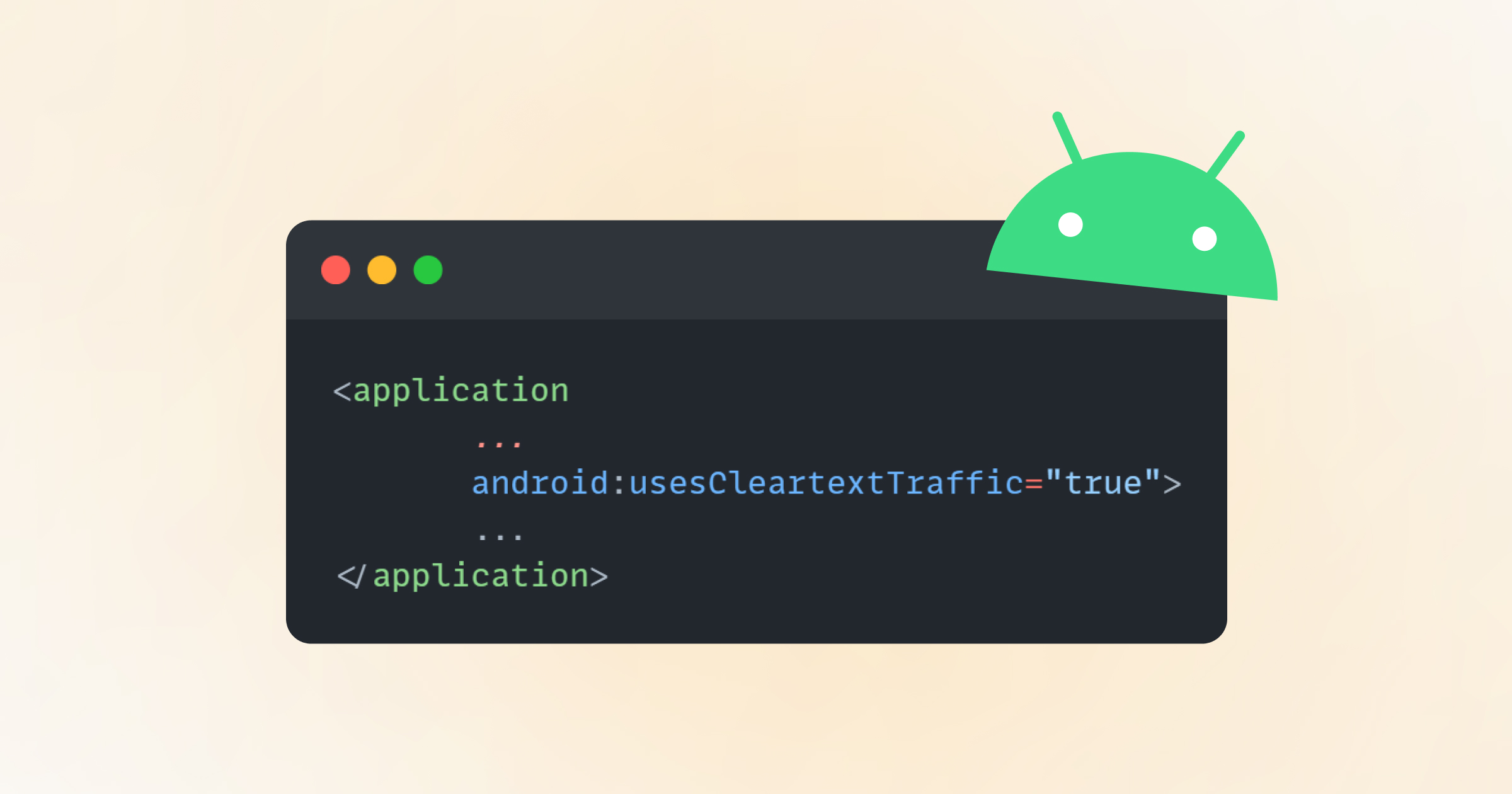
The Android app contains an AndroidManifest.xml file. This file comprises the app’s related information needed by the Google Play Store, developer tools, and OS (Operating System). It also contains crucial information related to key permissions and the app’s ability to load cleartext over Webview.
Furthermore, Google is against allowing cleartext because of security problems. Hence, this troubleshooting method is temporary until the site you load shifts to encrypted traffic. You can detect and edit the AndroidManifest.xml file by accessing the app’s project source or .apk file. You can access the app’s project source files using Android Studio, an official Integrated Development Environment (IDE) for Android developers.
After opening a project in Android Studio, you can explore all the related files across different directories. Likewise, you can find the AndroidManifest.xml file in the manifests directory. You should open the file and look for the application sub-element.
The variables in the application sub-element may differ. Thus, you should check the opening and closing application tags to recognize them. After identifying the tags, write the following code:
android:usesCleartextTraffic=”true”
If a usesCleartexTraffic variable is set to false, you should change it to true. Once you have performed this step, save the changes to AndroidManifest.xml, close the file, and save all the changes to the project.
Allowlist the Domain Using network_security_config.xml
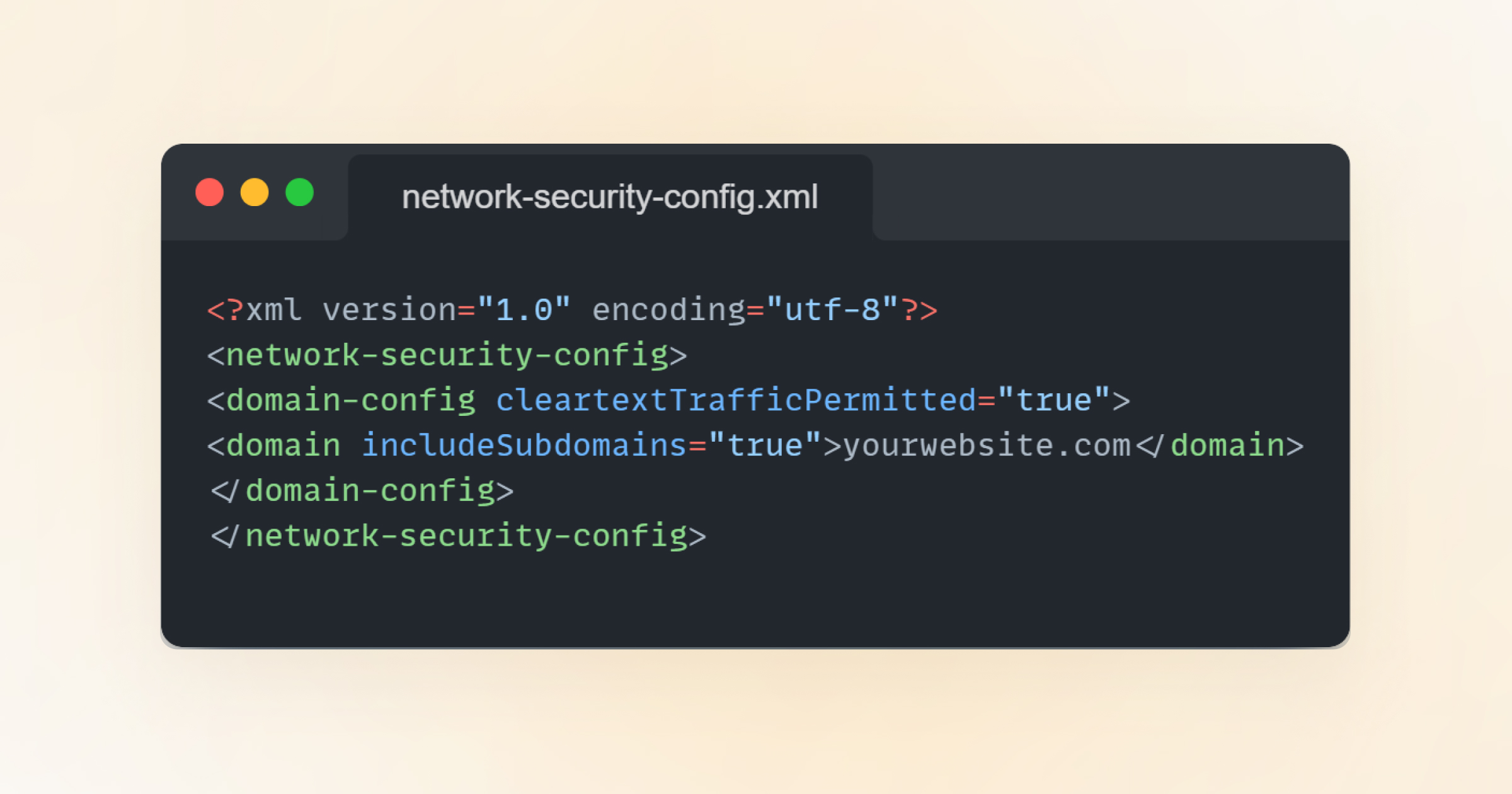
Applications use a network security configuration file for particular domains. This feature is available in Android 7.0 and above. In short, users can benefit from network_security_config.xml to eliminate the cleartext restrictions for multiple domains.
To create a network_security_config.xml file for your application, open the app project in Android Studio. After opening the app, go to the res directory. This directory comprises all non-code files, including bitmap images, XML files (apart from AndroidManifest.xml), and other files.
You must create a file within the res directory known as network_security_config.xml file. Once you create the file, open it and write the below code:
<?xml version="1.0" encoding="utf-8"?>

<network-security-config>

<domain-config cleartextTrafficPermitted="true">

<domain includeSubdomains="true">yourwebsite.com</domain>

</domain-config>

</network-security-config>
According to this code, one domain can utilize cleartext. Therefore, you should include “domainincludeSubdomains” elements to allowlist more URLs. That said, you should apply this configuration only to specific domains that need it.
You should save the changes to network_securiy_config.xml and visit the manifest directory. Then, you must edit AndroidManifest.xml to enable the network security configuration.
Now, open the file and search for the application sub-element. Moreover, you should add the below code within its tags:
android:networkSecurityConfig="@xml/network_security_config"
Once you save the changes to the file and close AndroidManifest.xml, your app can activate cleartext for your desired domain. This way, you can likely fix NET::ERR_CLEARTEXT_NOT_PERMITTED error.
Force Your Website to Use HTTPS

You can fix the NET::ERR_CLEARTEXT_NOT_PERMITTED error by forcing your site to use HTTPS. Once you have configured the site to use HTTPS, all data delivered from and to the site is encrypted. The importance of HTTPS in this digital age has grown even further.
Fortunately, you can set up a Secure Sockets Layer (SSL) certificate on your site without any cost. The installation process is simple and is completed within minutes. Furthermore, different web hosting service providers can perform this entire process on your behalf.
Wrapping Up
We expect you to be able to fix NET::ERR_CLEARTEXT_NOT_PERMITTED error by following our blog post. If you experience this error in Android, your app is trying to access a web page that wants to deliver unsecured information or cleartext.
Android prevents apps from performing this activity to safeguard user data. As a developer, you can use the above workarounds to eliminate this error in the right direction.





