

















































Moving a WordPress website can be daunting for users, whether they are beginners or experienced. If you want to create a backup of your site, switch to a new web hosting service provider, or create a staging website for development, importing and exporting the website is one of the most crucial steps.
Fortunately, importing and exporting your WordPress site is simple but detailed. You can smartly import/export a WordPress website with simple steps.
This blog post will describe how to import/export your WordPress website like a pro.
What Do You Mean By WordPress Website Migration?
WordPress website migration is when a site moves to another server or host from one host or server. This is a usual process because WordPress users regularly perform it to enhance their sites’ productivity by selecting better servers.
Migrating a WordPress site means moving it from one server or host to another. This is often done when you want to upgrade your website’s server for more features or better performance. You must also transfer a WordPress site when switching web hosting services.
A WordPress site migration comprises copying all databases, including files and resources related to the site. It also involves updating the WordPress site’s settings, ensuring it can work on the new server without fuss. Remember, this process usually starts with exporting a WordPress site.
How to Export Your WordPress Website
Exporting a WordPress site is not a complex process; however, you should be careful when performing the said process. To export a WordPress website, follow the steps described below:
- You should log into your site’s admin page.
- Choose Tools> Export using the left sidebar.
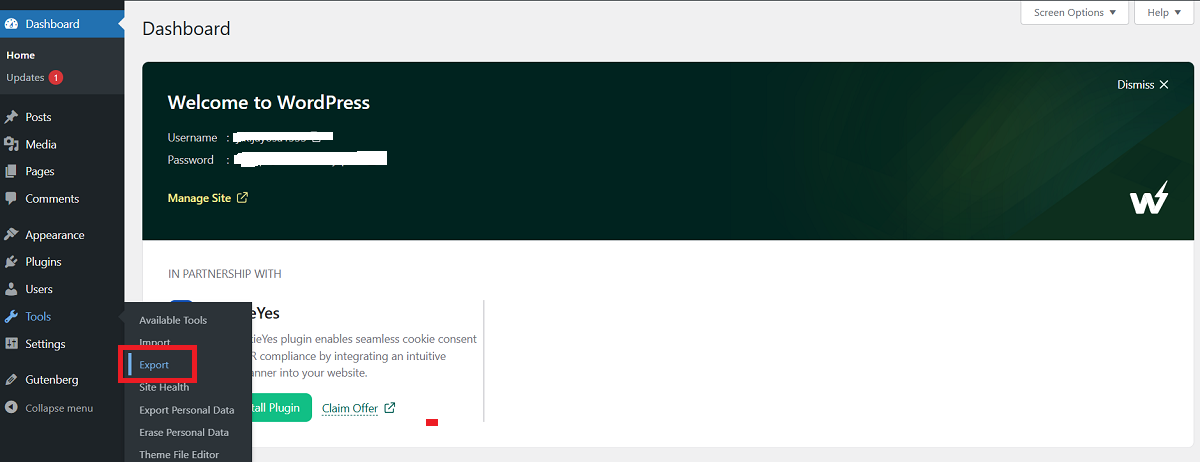
- Through the Export page, select the content you want to export.
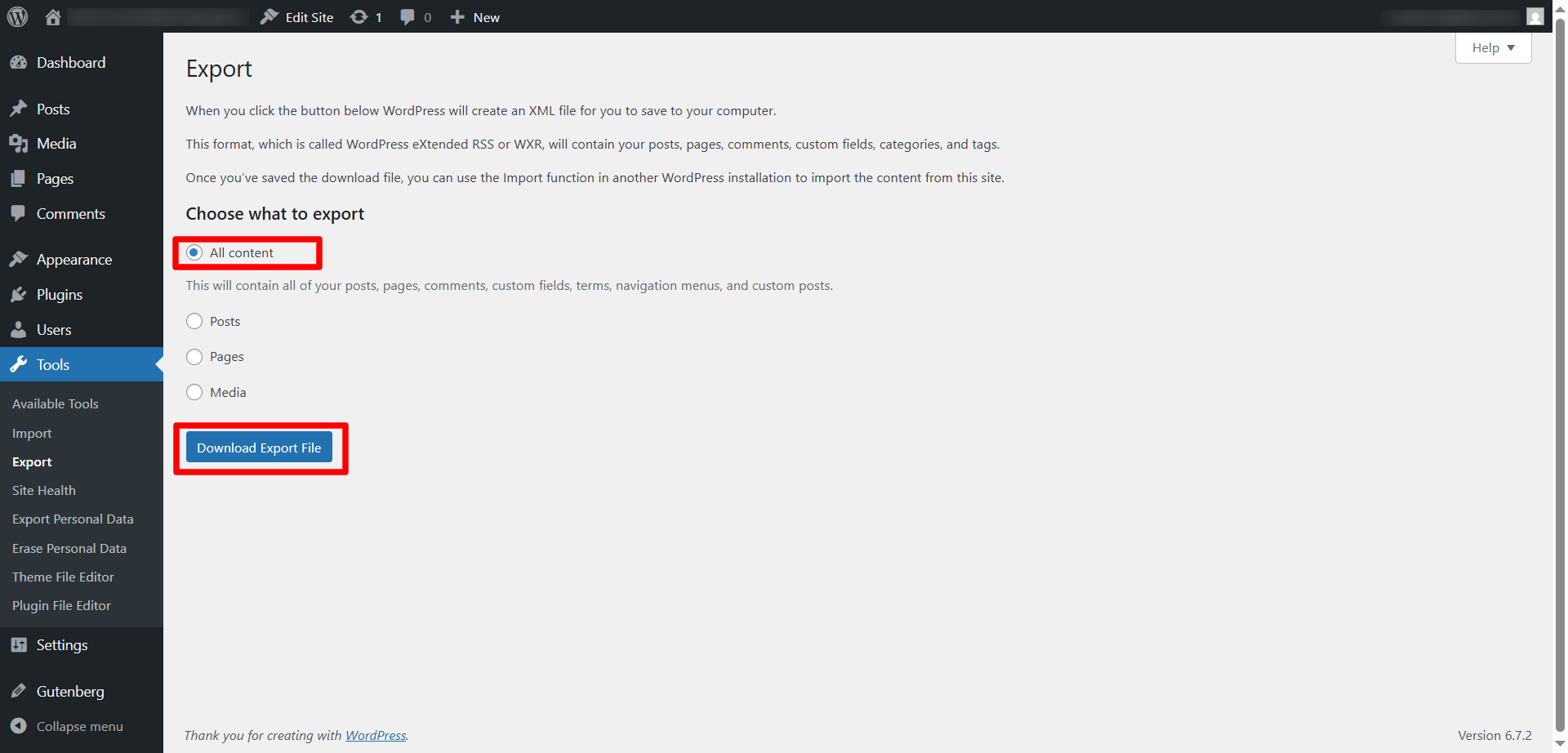
- Once you have selected the content, press the Download Export File tab.
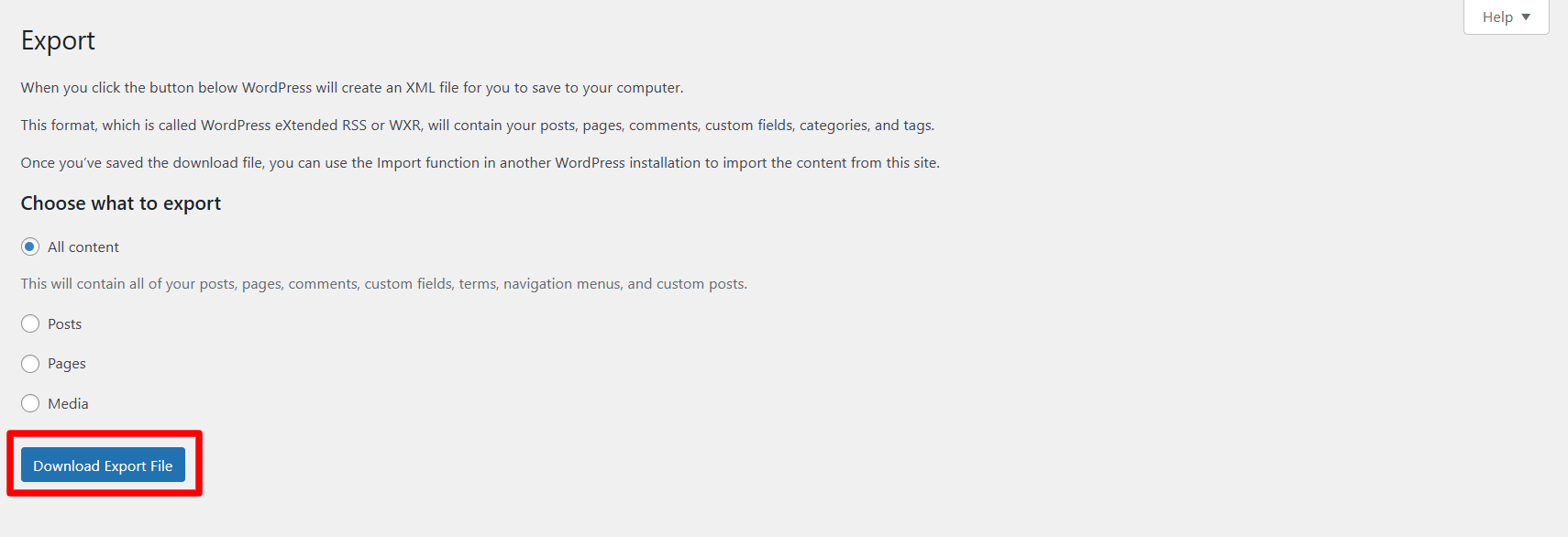
- WordPress will gather all the data and create a downloadable XML file.
- The browser will automatically download this file to your downloads folder on your computer.
You can smartly export a WordPress website by following the above steps. Luckily, the whole process is simple and easily doable.
How to Import Your WordPress Website?
Like exporting, importing a WordPress website is a simple yet impactful process. It is an essential element of a WordPress website migration and helps users import their WordPress websites on new hosting servers. To import a WordPress website, follow the steps mentioned below:
- You should log into your site’s admin page.
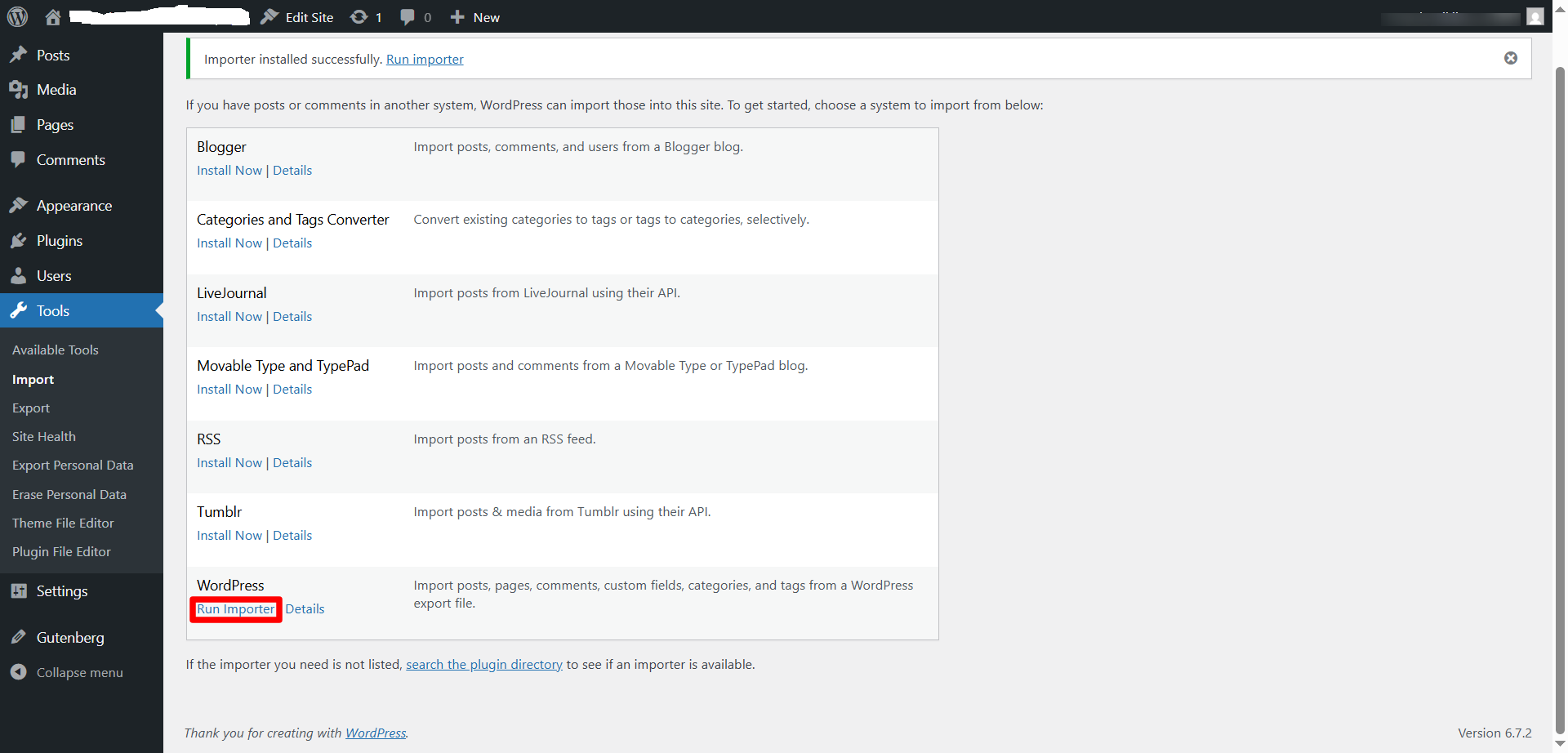
- Through the left sidebar, choose Tools > Import.
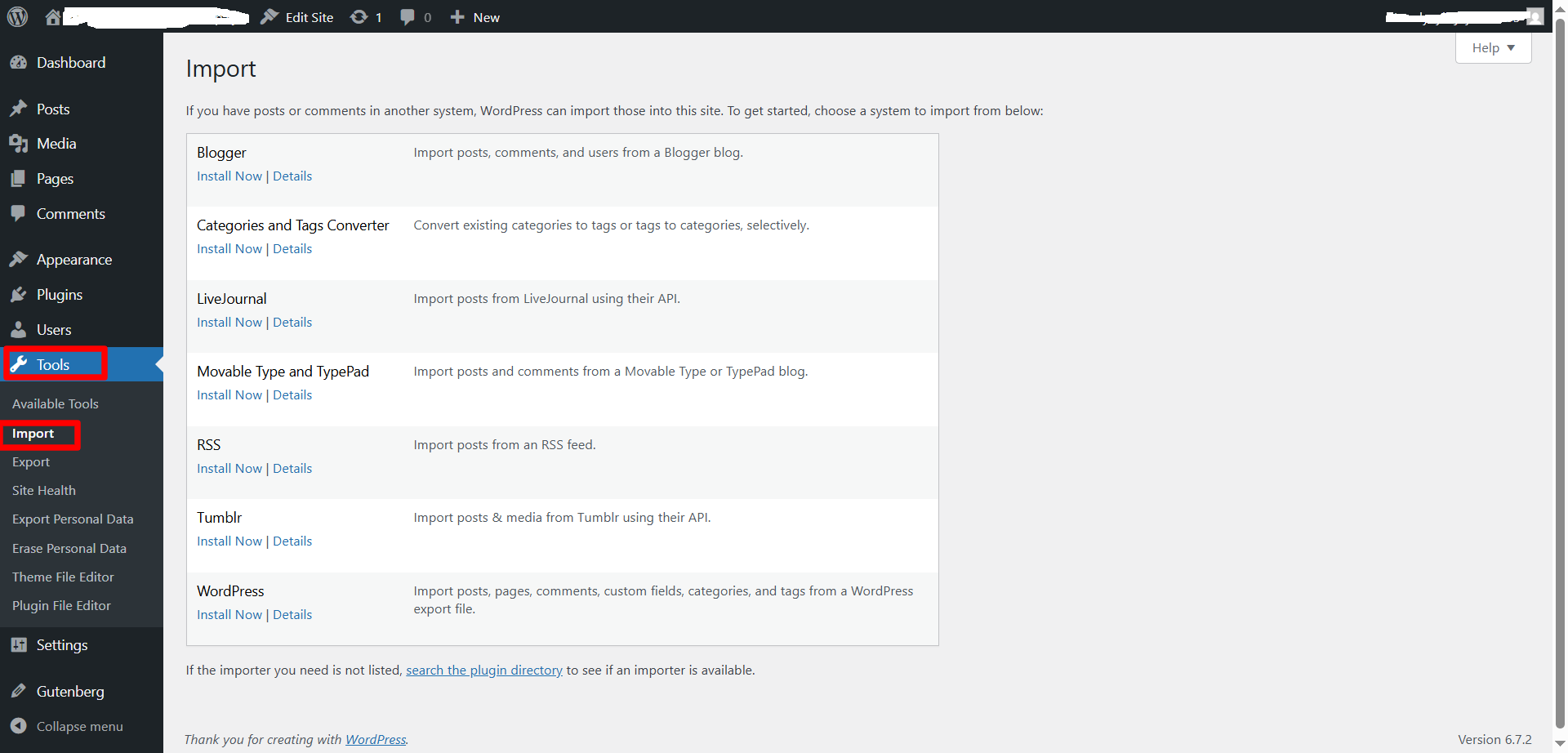
- You must install the WordPress Import plugin. So, click the Install Now link.
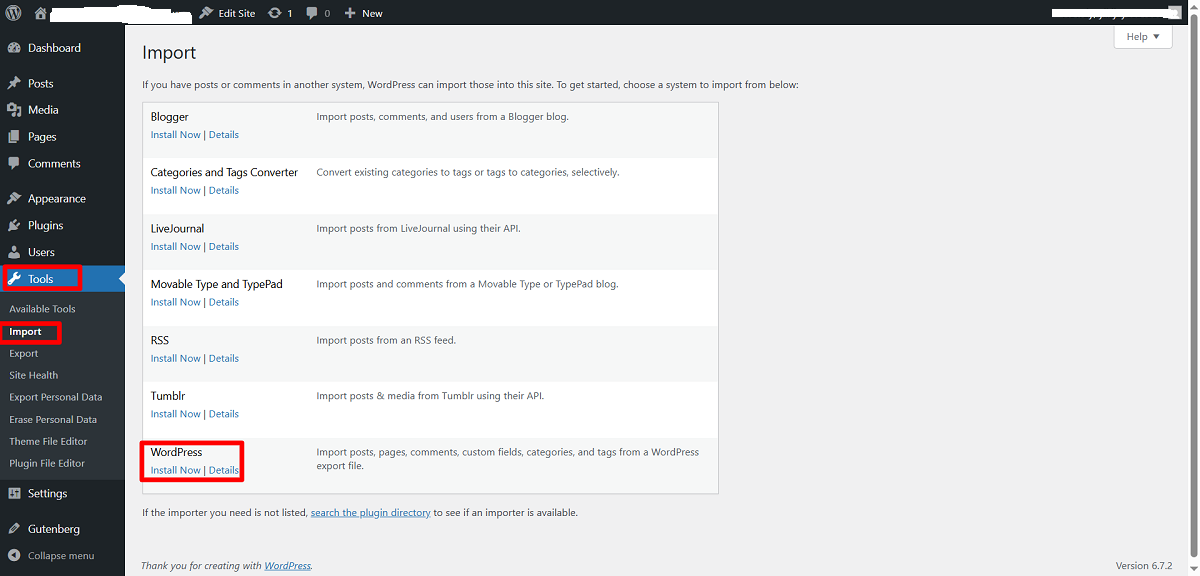
- Once the installation is complete, click the Run Importer option.
- Select the XML file you exported earlier to your computer.
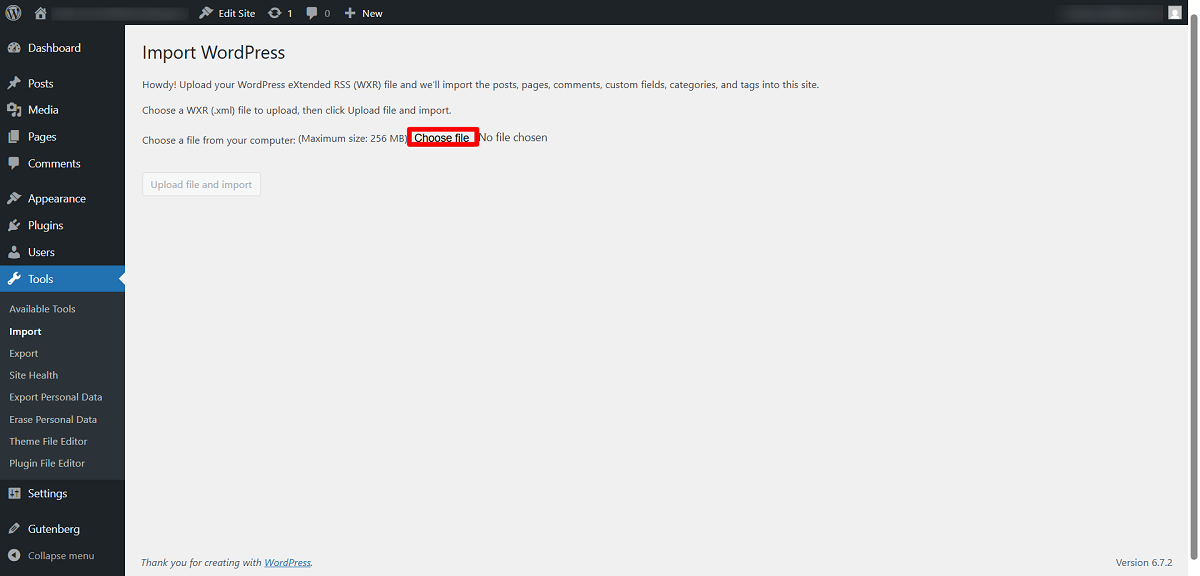
- Click the Upload file and import button.

- You should reassign the Author roles.
- Select Download and import file attachments and press the Submit button.
- The importing process will begin now, and notify you when it is complete.
- Once the process is complete, your WordPress site will be ready.
The steps mentioned above let you quickly import a WordPress site.
What is WP-Content, And Why is it Crucial?
The WordPress wp-content folder is a crucial aspect of a WordPress website. This folder contains the most influential components, making the site attractive and results-driven. For instance, the folder comprises media files, themes, and plugins.
Users can easily detect the wp-content folder in their WordPress installation’s directory. When WordPress updates happen, the system updates core files but does not influence your customizations. The wp-content folder’s role is handy when optimizing your WordPress site’s appearance.
Besides, it helps you incorporate new functionality to your site using suitable plugins. In addition, you can efficiently manage your media library. When you want to perform an essential task like website maintenance, the role of wp-content becomes substantial.
When users migrate the wp-content folder, their sites likely work the same on new servers. Therefore, you should not overlook its importance when migrating WordPress websites.
How Can We Move Files to a New Server?
You must shift your WordPress uploads, plugins, and themes to a new website hosting server. You can benefit from your server using cPanel or FTP when downloading the wp-content folder. Likewise, you can upload the wp-content folder to the new server.
cPanel
Alt Text: cPanel of a WordPress Website
To access the server via the cPanel, follow the below steps:
- Sign in to your cPanel account.
- Choose the File Manager option.
- Open public_html and right-click the wp-content folder. Select the Compress option.
- Select Tar or Zip Archive.
- Right-click the file and select the Download option.
FTP
Alt Text: FTP (File Transfer Protocol)
- Use the FTP client to connect with your server.
- Now, open public_html, choose the wp-content folder, and begin downloading.
- Once you have downloaded all the files and folders, compress them into a zip folder.
- Compressing them into one file makes uploading them to your new hosting server easier.
Wrapping Up
We hope you can easily import/export a WordPress website by following our blog post. Simply put, a WordPress website migration is a straightforward process, provided you know how to perform the above steps in the desired manner.
That said, importing or exporting the WordPress website is a crucial process, and every user, whether an experienced or a newbie, must understand and know how to do it. Successful WordPress site migration depends on flawlessly executing the above steps. This ensures your WordPress site data is always secure and easily transferable.




