



















































Ever installed CAPTCHA on your WordPress website only to discover it’s suddenly ceased to function? It’s really frustrating when your forms stop working, users can’t log in, and spam floods in. You’re certainly not alone in this battle!
We’ve been there, too—looking at a shattered CAPTCHA and asking where things went wrong. Here’s the better news: Many CAPTCHA troubles have simple solutions that you need not be a coding genius to solve. In this tutorial, we’ll guide you through all the information you need to restore and run your site’s protection smoothly again.
Let’s walk you through why your CAPTCHA might not be working and how to get it fixed—no programming skills required.
Why Is Your CAPTCHA Not Working?
Before we go into fixes, let’s check out what may be the reason behind:
CAPTCHA Killers
- Typos in keys: You may have typos on your site or in your secret keys (it happens to the best of us!).
- Connectivity problems: Your site could be having issues communicating with Google’s servers.
- Cache issues: Rotten CAPTCHA scripts may be cached in your cache.
- Plugin battles: Maybe several plugins are attempting to use CAPTCHA concurrently.
- Too-strict settings: If you are using reCAPTCHA v3, your value may be too high.
- JS errors: Oftentimes, other scripts within your site interfere with CAPTCHA loading.
- Stale WordPress core: Using an outdated version of WordPress can trigger compatibility problems.
- DNS issues: If your DNS configuration is incorrect, your site may not be able to talk to Google correctly.
The technology behind CAPTCHA can feel overwhelming, but here’s the thing: CAPTCHA is essentially your site communicating with Google (or another provider). If something gets in the way of that conversation—be it incorrect information, a faulty line, or outdated software—the entire system fails.
Let’s know how to fix CAPTCHA Not Working now!
How to Make Your CAPTCHA Work Again: 12 Easy Solutions to Fix CAPTCHA Not Working in WordPress
1. Double-Check Those Keys
The most likely offender? Inaccurate keys. It’s a simple mistake to make—we’ve all done it, more than we care to admit.
Here’s what you should do to fix reCAPTCHA Not Working easily:
- Log in to your Google reCAPTCHA account here: https://www.google.com/recaptcha/admin.
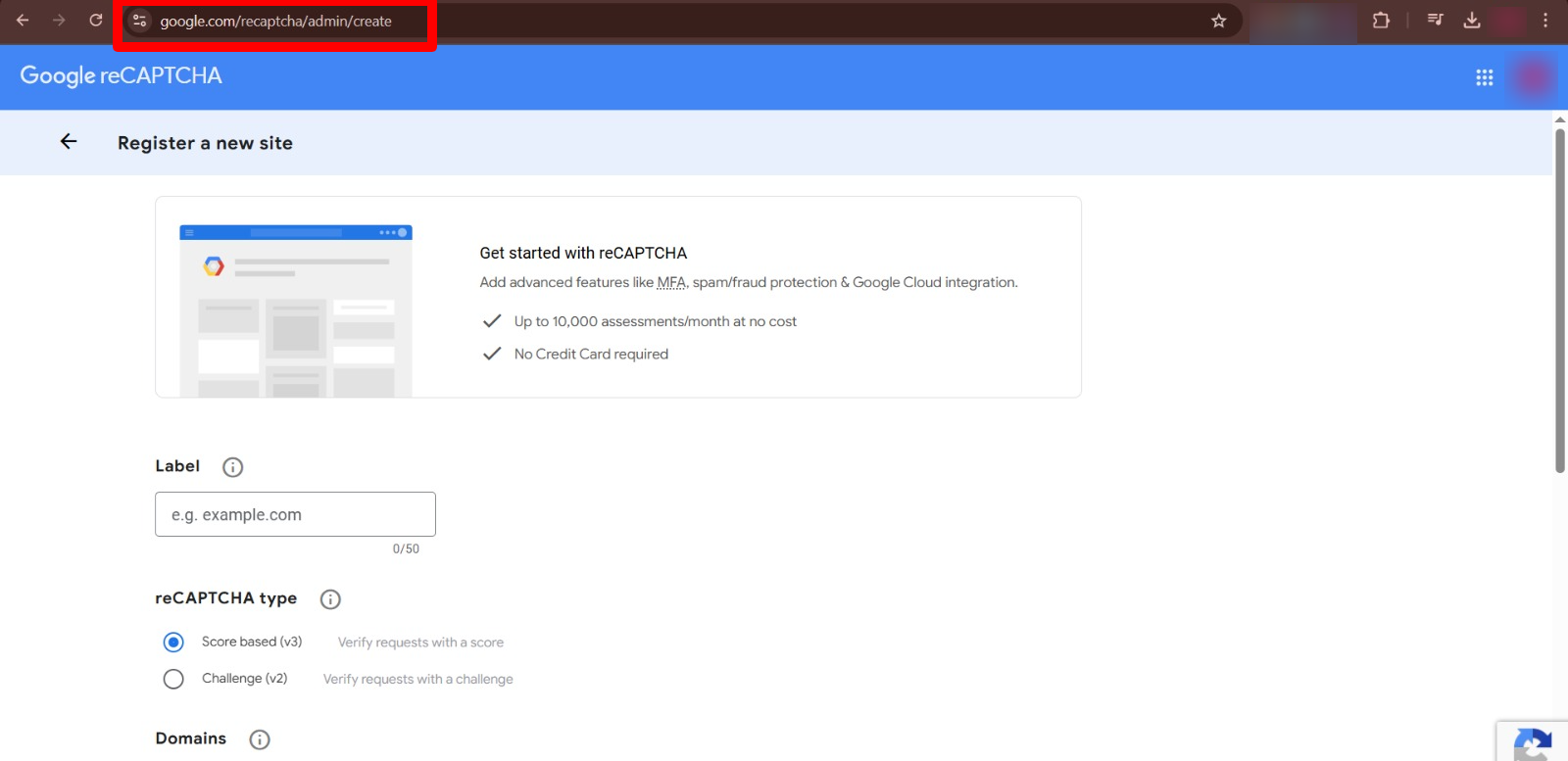
- Locate your site in the list.
- Double-check the Site Key and Secret Key.
- Double-check them character by character with what you have entered in your WordPress plugin.
Even a single character error will make it all go to pieces! It feels like unlocking your house door using a key that’s a tiny bit twisted—it just won’t work.
Also, be certain you have the correct domains registered with Google. If you’re testing on a development site but only have your production domain registered, CAPTCHA will fail to function correctly.
2. Ensure Your Site Is Accessible to Google
Your CAPTCHA must communicate with Google (or the service you’re using). If something’s in the way of that connection, you’re out of luck.
Try these tests:
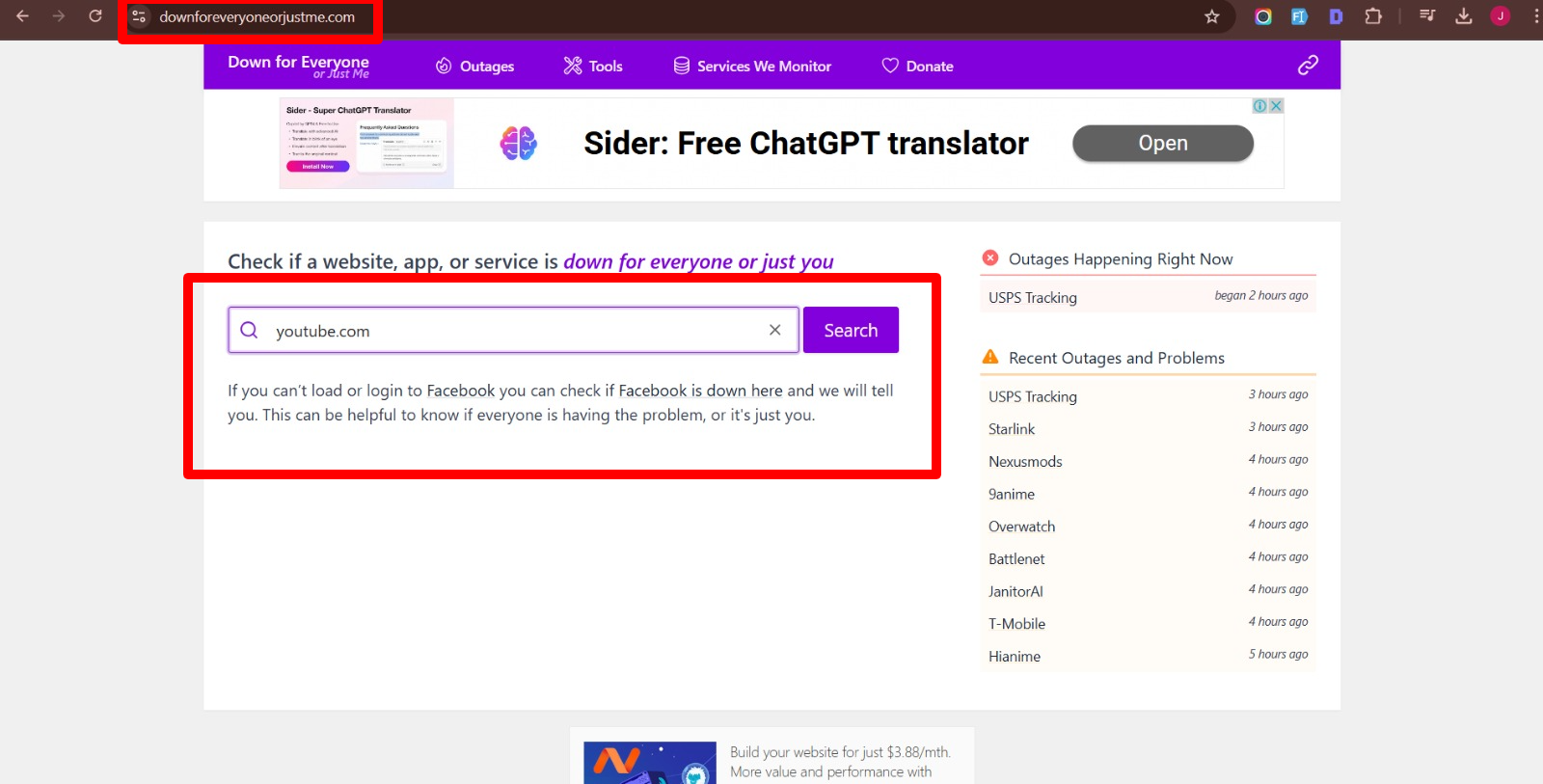
- Is your hosting server running? Use tools like DownForEveryoneOrJustMe to test.
- Did your firewall inadvertently block Google? Check your security plugin settings.
- Does your host limit outgoing connections? Some cheap hosts do this to conserve resources.
- Is your SSL certificate updated? An outdated SSL can generate connection problems.
- Are you sitting behind a proxy? This can occasionally hinder CAPTCHA validation.
Simple test: Try to access www.google.com from your server (if you have access to it). If you cannot reach Google at all, your CAPTCHA won’t either.
If you’re using a security plugin, verify whether it has settings that might block connections to external sites and services. Some of these plugins can be overly cautious with their security.
3. Reduce Your Security Threshold (reCAPTCHA v3)
If you’re implementing reCAPTCHA v3, it scores users from 0 to 1. Set the bar too high, and you’ll block real people. We’ve had sites where legitimate users were being blocked because the threshold was set at 0.9!
Go to your Google reCAPTCHA dashboard, locate your site settings, and try to reduce the threshold slightly. This may allow more legitimate users to pass through.
A good starting point is approximately between .3 to .5—this provides sufficient protection without annoying real users. You can constantly adjust it according to your spam levels and user complaints.
Note: reCAPTCHA v3 operates differently from previous versions. Rather than challenging users directly, it operates in the background and scores their behavior. This implies that users won’t see puzzles to solve unless their score is below your threshold.
4. Clear Your Cache
Occasionally, outdated CAPTCHA scripts hang around in your cache. Drain it!
The following caches you should clear to fix CAPTCHA Not Working:
- Browser cache: First, try to test in an incognito tab.
- WordPress cache plugins: Clear them if you have WP Rocket, W3 Total Cache, or others like them.
- Server-level cache: Look for this in your hosting control panel.
- CDN cache: If you have Cloudflare or the likes, clear their cache as well.
Pro tip: Consider entirely disabling the caching of CAPTCHA scripts. Most cache plugins include options to whitelist URLs or script patterns that are never to be cached. Add your CAPTCHA scripts to this list to avoid future problems.
Clear your cache, then load your site in a new browser window and test CAPTCHA.
5. Update Everything
Having old software is begging for trouble. Ensure:
- Your CAPTCHA plugin is up to date.
- Use the latest WordPress versions.
- All other themes and plugins are current.
Kryptonite for CAPTCHA functionality is old software. WordPress and its environment rush. Older plugins may employ deprecated methods that are no longer compatible with newer CAPTCHA implementations.
While checking out plugins and WordPress/WooCommerce versions, also verify your PHP version. If you’re using an older PHP version, like 7.4 or earlier, upgrade it now. New CAPTCHA versions may depend on features that only appear in modern PHP versions.
6. Turn off Conflicting Plugins
Sometimes the issue isn’t with your CAPTCHA plugin itself, but with how it interacts with other plugins. The easiest way to check? Temporarily disable all other plugins and see if CAPTCHA starts operating.
If it does, reactivate your plugins one by one until CAPTCHA breaks again. That’s your culprit!
Common conflict culprits include:
- Form plugins with their own CAPTCHA implementations.
- Performance optimization plugins.
- Security plugins.
- Page builders.
- Custom code snippets plugins.
Once you’ve identified the offending plugin, you have a couple of choices:
- Reach out to both plugin authors and ask if they can fix the compatibility problem.
- Search for a different plugin that gets along with your CAPTCHA.
- Select the functionality that is most critical to your site.
7. Try a Different Form Plugin
Sometimes your form plugin just refuses to cooperate with CAPTCHA. We’ve wasted hours on one occasion troubleshooting a CAPTCHA problem only to discover that the form plugin was submitting the form before the CAPTCHA validation finished!
Try switching to a temporary alternative form plugin to test whether that sorts out the problem. Good form plugins to try are:
- Contact Form 7
- WPForms
- Gravity Forms
- Formidable Forms
- Ninja Forms
Many of these support CAPTCHA internally or provide add-ons intended explicitly for it.
If CAPTCHA suddenly works with a new form plugin, you’ve caught your bad guy!
8. Inspect Your Theme
As bizarre as it sounds, your WordPress theme might actually conflict with CAPTCHA functionality. This usually happens when:
- Your theme employs an older JavaScript library that clashes with CAPTCHA.
- Your theme alters forms in a manner that disrupts CAPTCHA verification.
- Custom theme code can accidentally block or alter CAPTCHA components.
Try temporarily switching to an original WordPress theme, such as Twenty Twenty-Five. If reCAPTCHA suddenly starts working, then you know the theme is where the issue lies.
Reach out to your theme developer for help, or consider having the developer review the theme code for potential interference with CAPTCHA implementation.
9. Check Your Domain Configuration
Google’s reCAPTCHA also has strict domain validation. Make sure:
- The domain in your reCAPTCHA settings precisely equals your website URL.
- You’ve got all the possible variations of your domain (www/without www, http/https).
- If you’re testing on a staging site, that one gets added,
So if your site is https://www.example.com, then make sure that all these are added to your reCAPTCHA domain list:
- example.com
- www.example.com
- staging.example.com (if you’ve got one set up)
Now and then, the answer just lies in getting the right variation of your domain onto your authorized list!
10. Think of a Dedicated CAPTCHA Plugin
If nothing else works, attempt using a specialized CAPTCHA plugin such as CAPTCHA 4WP, reCaptcha by BestWebSoft, or Advanced noCaptcha & Invisible Captcha. They are designed to handle CAPTCHA tasks specifically and frequently perform more successfully than standard applications or basic installations.
Dedicated plugins normally provide:
- Increased compatibility with many forms and login pages.
- More settings to work with.
- Better error management and debugging.
- Multiform CAPTCHA support (v2 checkbox, v2 invisible, v3).
They may also assist with alternatives to Google reCAPTCHA, such as hCaptcha on Cloudflare Turnstile, which can be more reliable at times, depending on your server’s geolocation and user demographics.
11. Look at Browser Console for JavaScript Errors
If you’re willing to experiment with basic developer tools, inspect your browser’s console for JavaScript errors. It is a valuable learning experience. Press F12 in most browsers to bring up developer tools, then navigate to the “Console” tab.
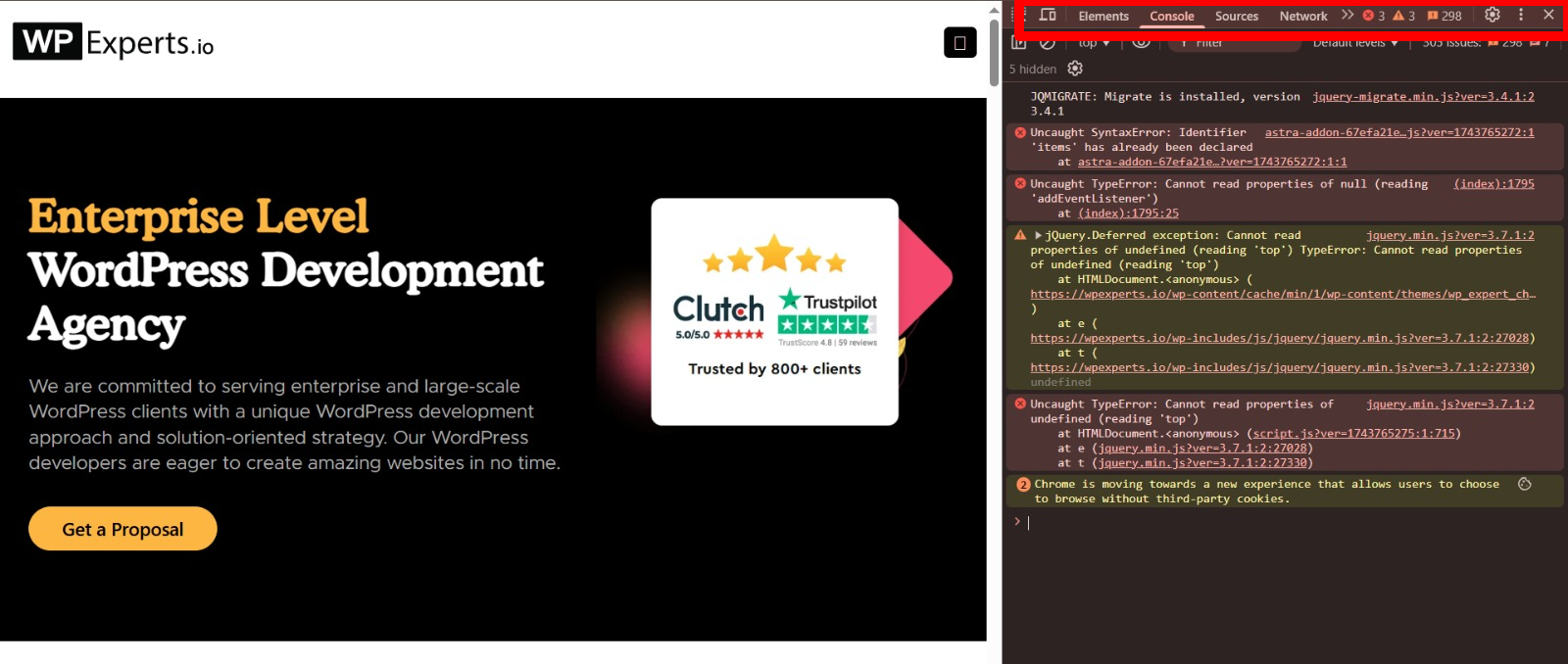
Search for red error messages that are CAPTCHA-related, particularly those that say:
- “recaptcha”
- “grecaptcha”
- “captcha”
- Network or connection errors
- Cross-origin resource sharing (CORS) errors
These types of errors can give you important hints about what is not working with your CAPTCHA setup.
12. Explore Alternative CAPTCHA Services
If Google’s reCAPTCHA is still causing you issues, keep in mind there are alternatives:
- hCaptcha provides similar functionality with possibly fewer connection problems.
- Cloudflare Turnstile is a newer alternative that promises to be more user-friendly.
- Custom question CAPTCHAs that pose straightforward questions relevant to your website.
In some cases, changing providers altogether solves ongoing problems, particularly if you’re experiencing issues with Google services in general.
Are CAPTCHA & reCAPTCHA the Same?
Many of us mistakenly confuse CAPTCHA with reCAPTCHA, but they aren’t the same. This comparison chart will help clear up the confusion by showing how reCAPTCHA is a more advanced, Google-developed version of the broader CAPTCHA concept, with smarter features and seamless user interaction.
| Feature | CAPTCHA | reCAPTCHA |
| Who made it? | Generic (anyone) | |
| Type? | Concept/method | Specific implementation |
| Examples | Math puzzles, distorted text | Checkbox “I’m not a robot”, invisible v3 |
| Smart scoring | ❌ Not usually | ✅ Yes (v3 uses behavioral scoring) |
Preventive Steps from CAPTCHA/reCAPTCHA Not Working for the Future
After you’ve resolved your CAPTCHA problems, follow these steps to avoid future issues:
- Write down your settings: Save your keys and configuration.
- Set a calendar alert: Check your CAPTCHA functionality each month.
- Test after updates: Check CAPTCHA continues to work after significant WordPress, theme, or plugin upgrades.
- Monitor form submissions: Be on the lookout for unexpected spikes in spam, as this may indicate that CAPTCHA is failing.
- Have a backup plan: Be prepared to implement an alternative anti-spam solution as a contingency.
Conclusion: You’ve Got This!
CAPTCHA problems can be a pain, but the majority are solvable with a bit of troubleshooting. Begin with the simplest solutions (quick keys and cache clearing) before venturing into more complicated ones.
With these fixes, you’ll have your forms protected again in no time, and your users won’t be left frustrated by broken CAPTCHA challenges. Good luck!
Don’t forget to update your site regularly and keep your settings up to date. If you’ve tried everything and are still stumped, contact WPExperts (your premier WordPress solution provider), your plugin author, or your web host—that’s what they’re for!




