



















































Running an online store is not always a question of selling items for set prices. Some stores—most notably B2B, wholesale, and custom product stores—need a way in which customers can request a quote instead of simply proceeding to checkout. That’s why they are looking for a way to replace the standard “Add to Cart” button with a more suitable “Request a Quote” option.
This guide will walk you step-by-step through why you might also want to do this and how to quite simply make it a reality in WooCommerce.
Why Use a Quote System in WooCommerce
The “Add to Cart” button assumes that all items have a set price and customers pay immediately when they can. But it’s not that way with most companies.
Here’s why you should implement a quote system instead:
- Wholesale and B2B stores deal with bulk discounts. A customer ordering 10 units pays differently from one who orders 1,000. Set pricing won’t work here.
- Custom products are not standardly priced. Selling made-to-order goods, custom items, or services means you will first have to negotiate.
- Negotiable prices work better for expensive goods or long-term contracts. Your clients simply assume they will bargain, and an open-quote system starts that conversation.
A quote-based system also improves the interaction with customers. Instead of losing potential customers who see a price and drop off. You can speak with customers who have landed just to browse if you use the Quote Now button instead of the Add to Cart button. Then, you can offer discounts, answer questions, and close sales that would not be made with a standard cart.
Introducing B2B Request a Quote for WooCommerce
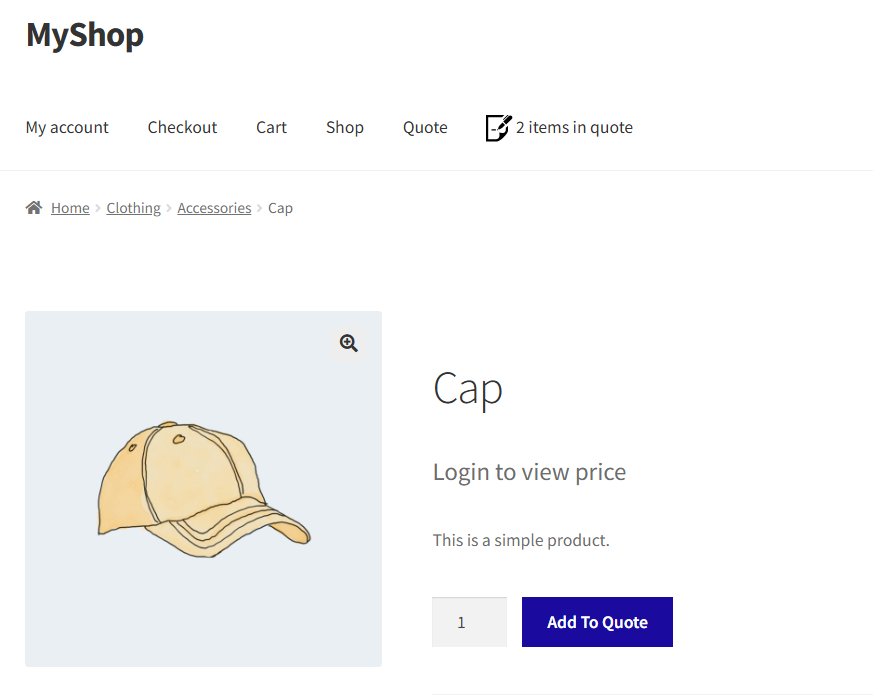
The B2B Request a Quote plugin is the solution. It replaces your “Add to Cart” buttons with “Request a Quote” alternatives across your store. Customers can add products to a quote request, submit their request, and wait for your response. No sneaky setup. No coding required.
This plugin is helpful if you would like to control your pricing conversations totally. You can choose whether or not to show cart buttons and quote buttons when you want to. You even get to show both on different products.
How to Replace the “Add to Cart” Button with a “Request a Quote” or “Quote Now” Option
At the earliest, you need to install the B2B Request a Quote add-on for WooCommerce by WPExperts.io. Then follow our instructions below.
Step 1: Buy the B2B Request a Quote for WooCommerce
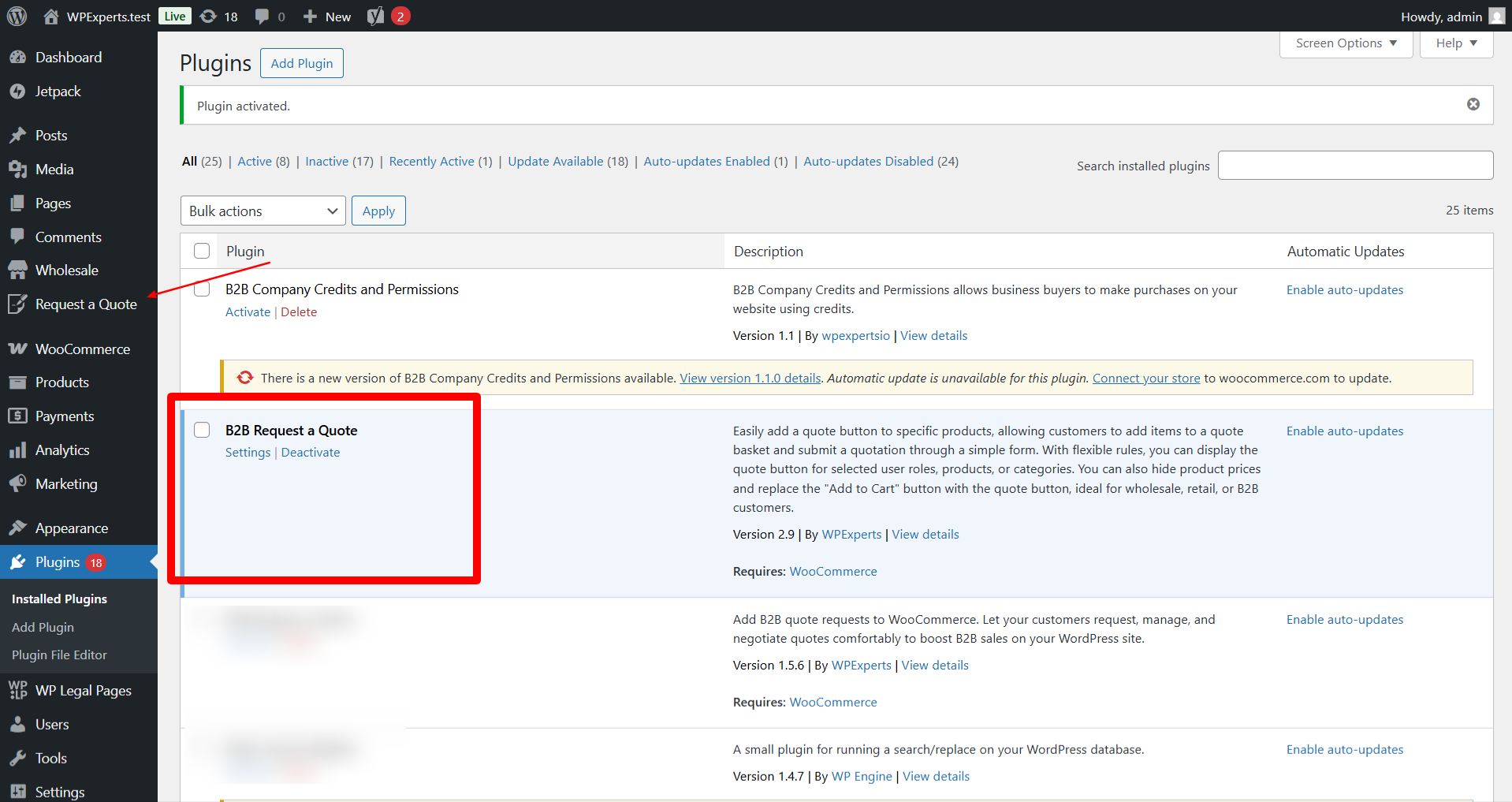
First, you need to acquire the plugin. You can locate it within WPExperts’ store for WooCommerce extensions, or find it within your WordPress admin in Plugins. Search for “B2B Request a Quote” by Saad Iqbal. This is a lite (free) version with restrictions.
Secondly, install and activate. It’s always compatible with the latest version of WooCommerce, so there will be no compatibility issues.
When you turn it on, there will be some new options in your WordPress menu. That’s where you’ll customize how the quote system works.
Step 2: Enable the “Add to Quote” Button
You now need to select where the quote button should appear. The plugin gives you two major options: shop pages and single product pages.
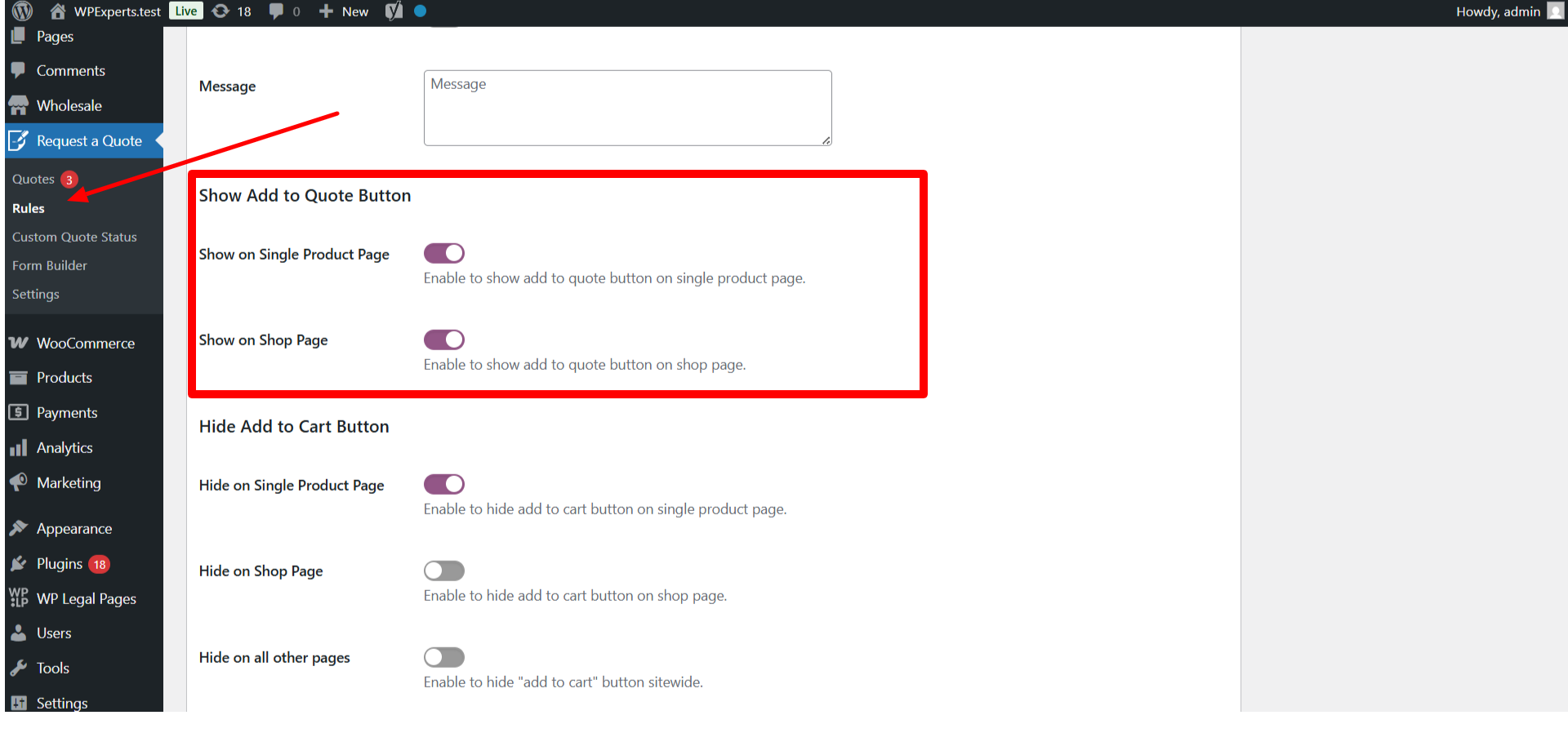
- Single Product Pages: When the customer clicks a product to see its details, you would prefer that they see the “Add to Quote” button. Enable this from the plugin settings. This ensures that when the customer is seriously considering a product, they can request a quote immediately.
- Shop Pages: Your main shop page displays multiple products at once. You can also show the “Add to Quote” button on this page. It enables customers to browse and add products to their quote request without having to click into the product pages. It makes it faster for those who have a clear idea of what they want.
Having both options enabled gives customers maximum convenience. They can ask you for quotes from anywhere in your store.
Step 3: Hide the “Add to Cart” Button
This is the most crucial step in this guide on how to replace the “Add to Cart” button with a “Quote Now” option. If you prefer quotes over instant buys, you will have to hide the former “Add to Cart” button. The plugin makes this easy.
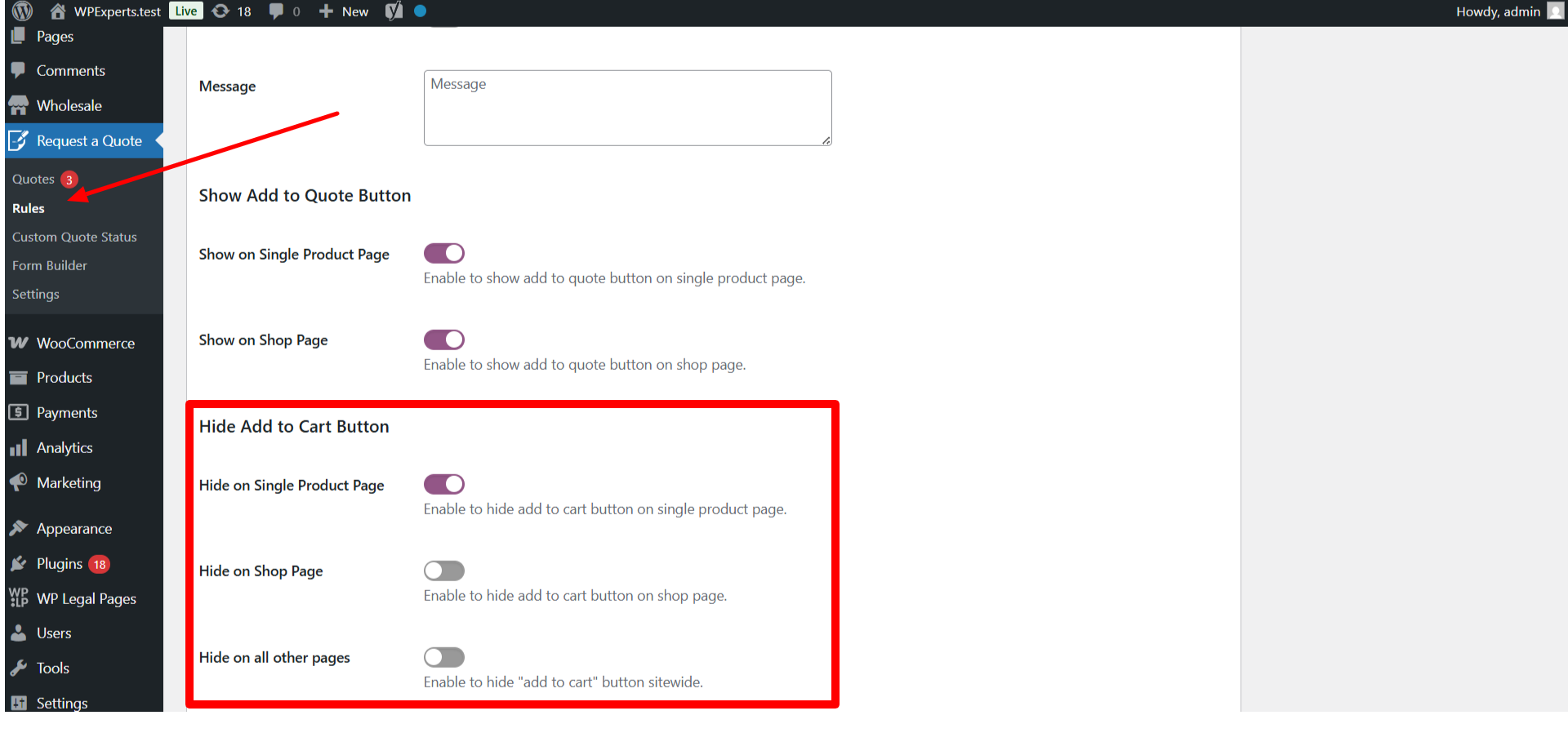
- Hide “Add to Cart” option on Single Product Pages
Go to the rules options in the plugin and enable the option to hide the “Add to Cart” button on each product page. When you turn this on, customers will not be able to use/even see the cart button on individual products. They’ll only be able to access the “Add to Quote” or “Quote Now” button you enabled in the earlier step.
- Hide “Add to Cart” on Shop Pages
If you also prefer to hide the cart button on your top-level shop page, you can do this with this add-on. It will maintain consistency when we look at the broader picture of the customer experience. Customers will not be confused when looking at both buttons in different places.
- Hide “Add to Cart” on All Other Pages
You can display your products in other locations, like category pages, related product blocks, and widgets, if you use WooCommerce. This add-on also enables you to hide the “Add to Cart” button in all of these e-commerce pages. Just turn this feature on to make quotes the only option sitewide.
Once you’ve hidden cart buttons everywhere, your shop is quote-based entirely. Customers cannot accidentally check out. They have to go through your quote flow.
Personalizing the Quote Experience
With this Quote add-on for WooCommerce, you don’t have to worry about the customization of these Quote buttons. You can personalize every button to match your brand and communication style.
You can:
- Instead of just using “Add to Quote,” consider options like “Request Pricing” or “Get a Custom Quote.” The add-on enables you to customize the button text to match your audience’s preferences better.
- Make the quote button either stand out or seamlessly blend with your theme. Alter colors, fonts, and position. A light contrasting button often works because it stands out.
These customization options make the quote system a natural extension of your store, not a rusty afterthought.
Benefits of Using Quote System in Your WooCommerce Store
Making the switch to quotes improves how you do business.
You can offer pricing flexibility. Instead of having to post prices that might scare away potential buyers or cheat your customers, you negotiate based on each situation. Bulk buyers get discounts. Complex projects get special bids.
You also build stronger customer relationships. Every quote inquiry opens up a conversation. You learn what customers need, fix their issues, and demonstrate your knowledge. This in-person interaction is more trusting, with improved conversion rates.
B2B stores especially need quotes. Business shoppers expect to negotiate. They are used to invoices, terms, and custom service. A quote system provides them with all that, with everything nicely organized in WooCommerce.
Wrapping Up
Swapping “Add to Cart” for “Request a Quote” transforms your store from a self-service store to a consultative sales website. You make this transformation in minutes with the B2B Request a Quote plugin.
Install, enable quote buttons, and hide cart buttons, and you’re good to go. Customers can now request quotes on any page. You control the pricing conversation. Everyone wins.
This tactic is perfect for wholesale businesses, custom product sellers, and anyone who deals with variable prices. If your business model is not compatible with fixed prices and immediate checkouts, quotes are the answer.
Try enabling the quote system today by replacing the “Add to Cart” option with a “Request a Quote” button. You will increase conversions, increase customer relationships, and gain the flexibility your business requires to succeed.




