














































A good seasonal fundraising campaign should not be like trying to solve a puzzle. Whether you are preparing for a holiday giving campaign, a back-to-school fundraising campaign, or a year-end giving campaign, the right tools will make all the difference. Here, Donation for WooCommerce gives you everything you need to create professional fundraising campaigns without all the hassle.
Using campaign timers, having clear goals, creating donation form builders, and having a simple dashboard means you will know exactly what is working. Nothing unnecessary, nothing complicated—just simple tools to help you raise more money when it matters most.
Why Your Seasonal Campaigns Need Better Tools
Standard donation plugins just aren’t cutting it during peak giving times. You need to create precise timing, attractive progress bars, and ways to build real urgency when donors make decisions. Donation for WooCommerce takes care of all that without the hefty price tag.
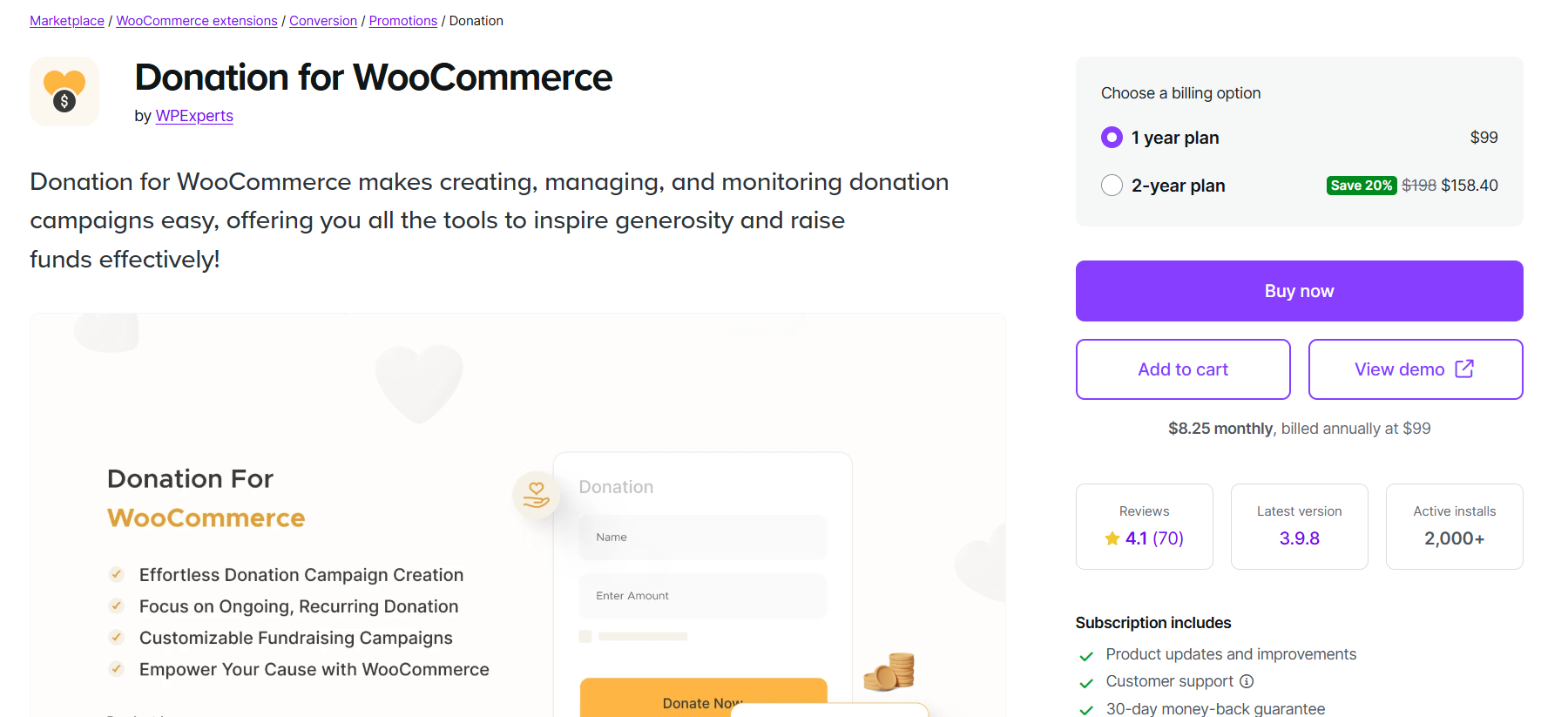
Design Campaigns to Run Automatically
The Time Configuration feature lets you set the exact start times for your campaigns. You can schedule them for certain hours of the day or certain days of the week. When your campaign ends, you can hide it or display a custom message. For instance, your Thanksgiving campaign ends on Black Friday, and your New Year’s campaign begins at midnight, easy.
Display Progress to Motivate Donors
Donors feel more inspired when they can see progress toward the goal. The plugin comes with dynamic progress bars that show the amount raised, percentage complete, number of donations, and days remaining. You can customize colors to match your holiday theme and display the progress bars on shop pages, widgets, and campaign pages. Campaigns with progress bars receive many more donations than campaigns without progress bars.
Provide Donation Choices to Fit the Holiday Season
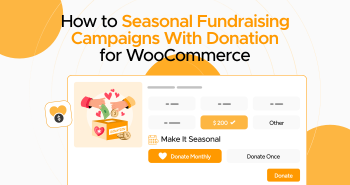
Donors during the holiday season tend to prefer monthly donations, while year-end donors tend to make single gifts. The plugin makes both easy. Provide fixed donation amounts, allow donors to enter their own amounts, or provide both options. The monthly option comes with complete donor control using WooCommerce Subscriptions or the free version from WP Swings.
Add Countdown Timers That Drive Action
Countdown timers are more than just a pretty face; they are a powerful motivator that encourages people to give now rather than later. Turn on the Timer Display to display a flip clock or Pomodoro timer on campaign pages. When a person sees “3 days, 5 hours remaining,” they are much more likely to finish their donation right now.
Manage Multiple Campaigns from One Dashboard
Most organizations run multiple seasonal campaigns simultaneously. The Dashboard gives you a complete view of all your campaigns at once, including total donations, number of donors, recurring donations, and performance of each individual campaign through graphs and charts. Filter by date range to compare this year’s holiday campaign results to last year’s results and make informed decisions based on real data.
Proper Setup for Running a Seasonal Campaign That Feels Real Using Donation for WooCommerce
Step 1: Name Your Campaign with a Human Touch
Start by creating a new campaign from WC Donation > Add New Campaign.
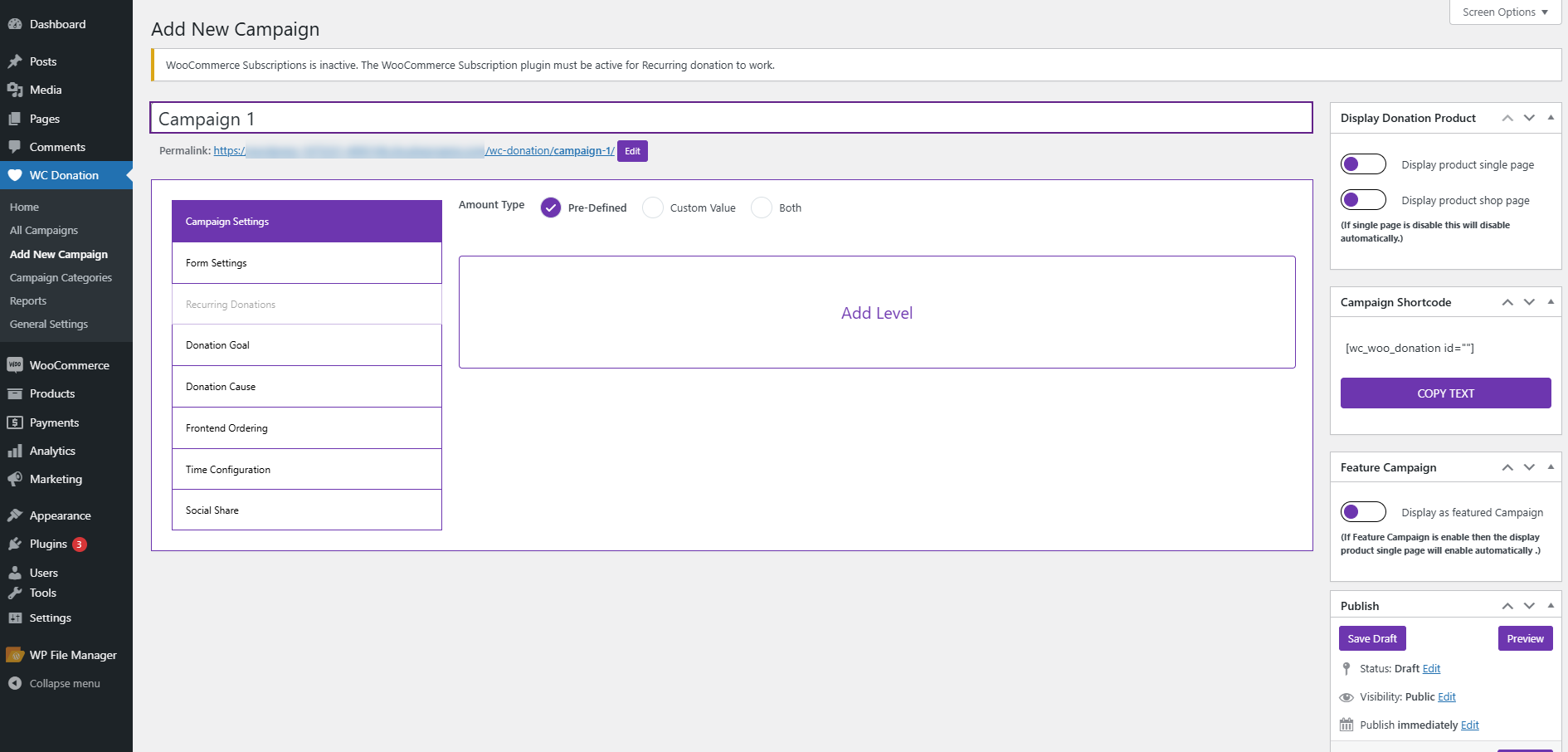
Instead of using generic, product-sounding names, give your campaign something that sounds like a story, “Winter Care Drive” or “School Supplies for Local Kids.” Use the description to tell the story and show what the donations will actually accomplish.
Step 2: Set Donation Levels That Tell a Story
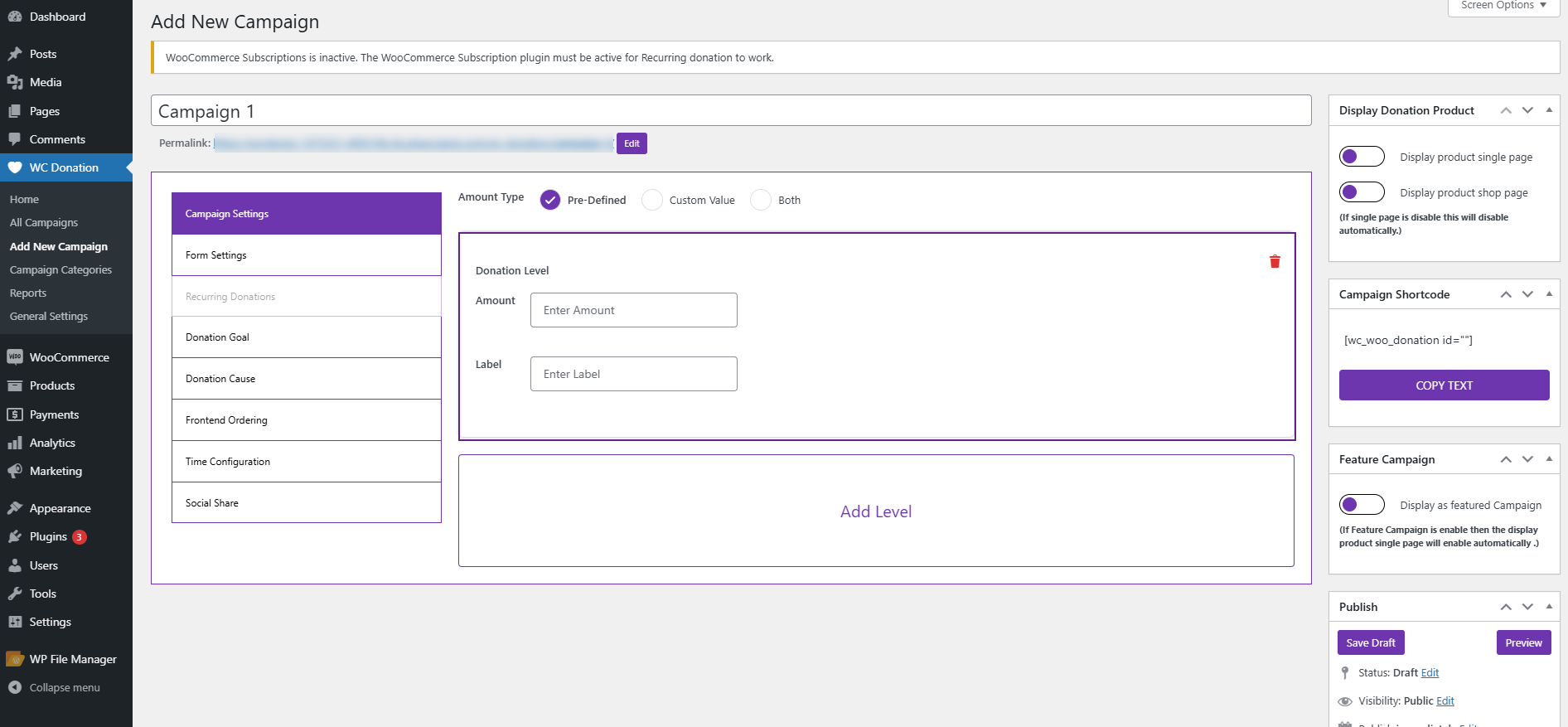
Think about a tiered system: $10 may get a meal, $25 could get a kit, and $50 could get a full support package. The point is that people can see what their money will fund, and this is often more important than the actual amount.
Step 3: Define a Clear Goal with a Deadline
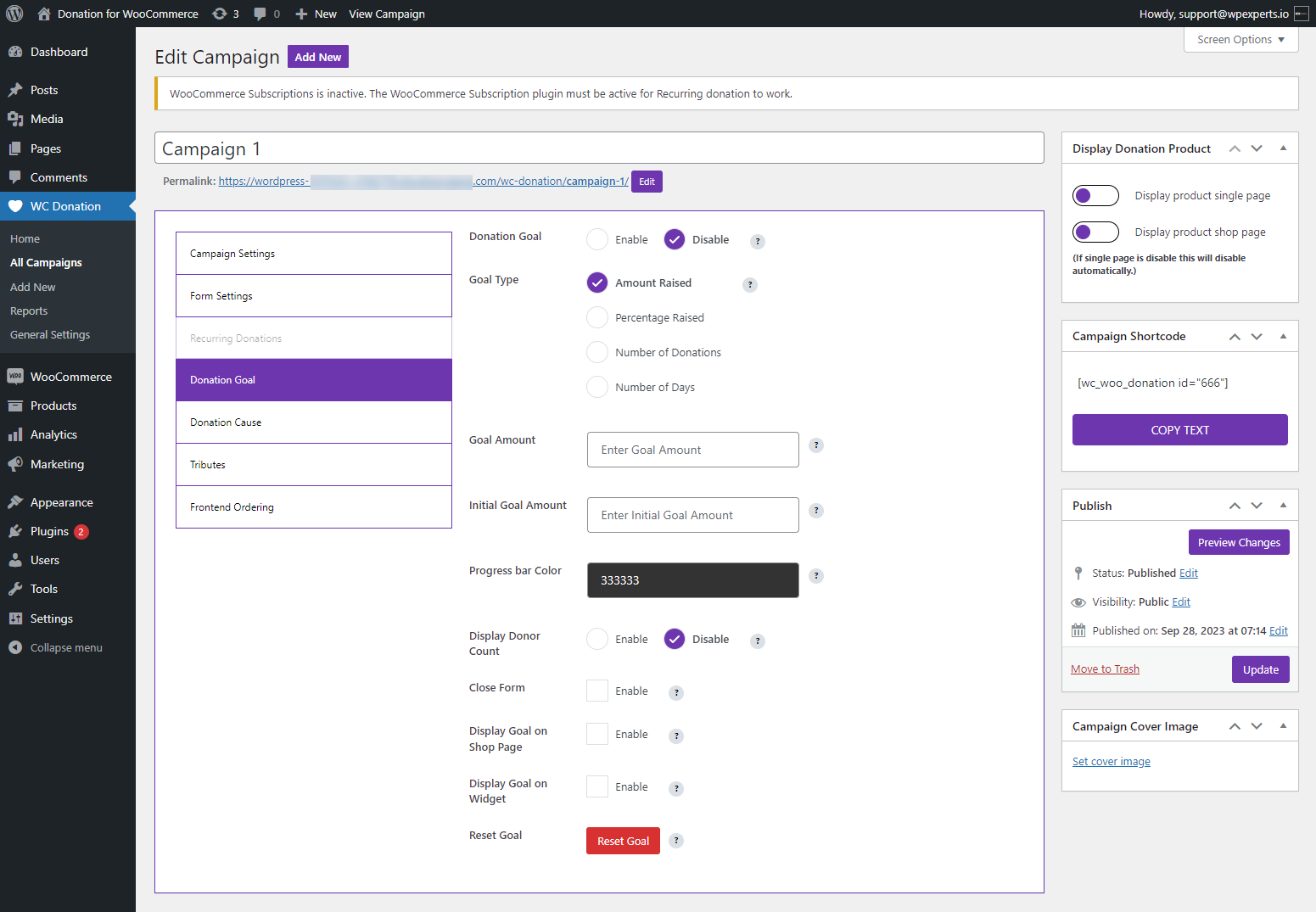
Make a goal and give a target that feels doable. People are more likely to respond to something they can reach than something they can’t. If your campaign is tied to a holiday or event, include a countdown so participants know exactly how long they have to participate.
Step 4: Place the Campaign Where It Counts
Using the shortcode, you can place the campaign on your shop front page, product pages, or at checkout.
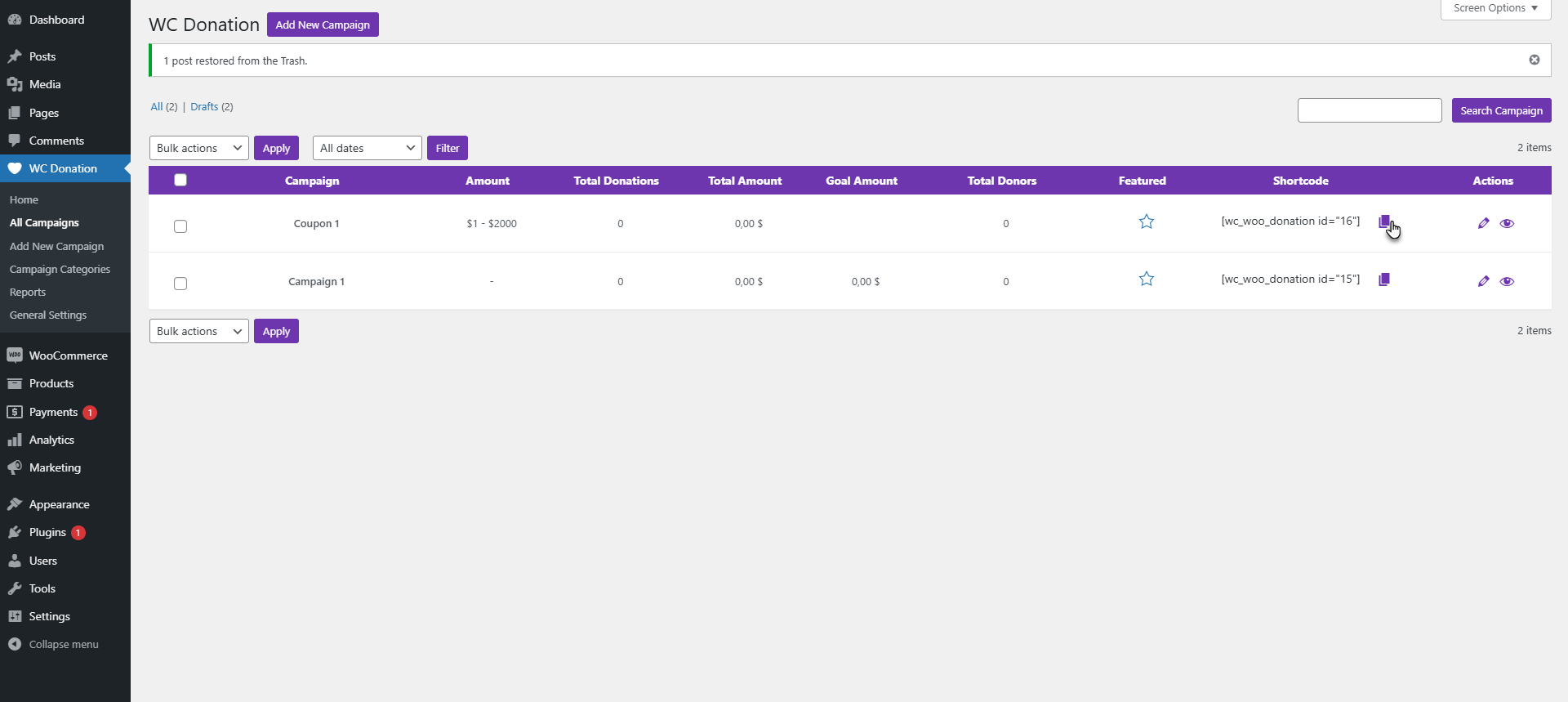
Many shop owners find placing it at checkout to be effective, as customers are already in action mode.
Step 5: Enable Sharing and Send Thank-You Emails
Encourage your supporters to share your campaign with others on social media.
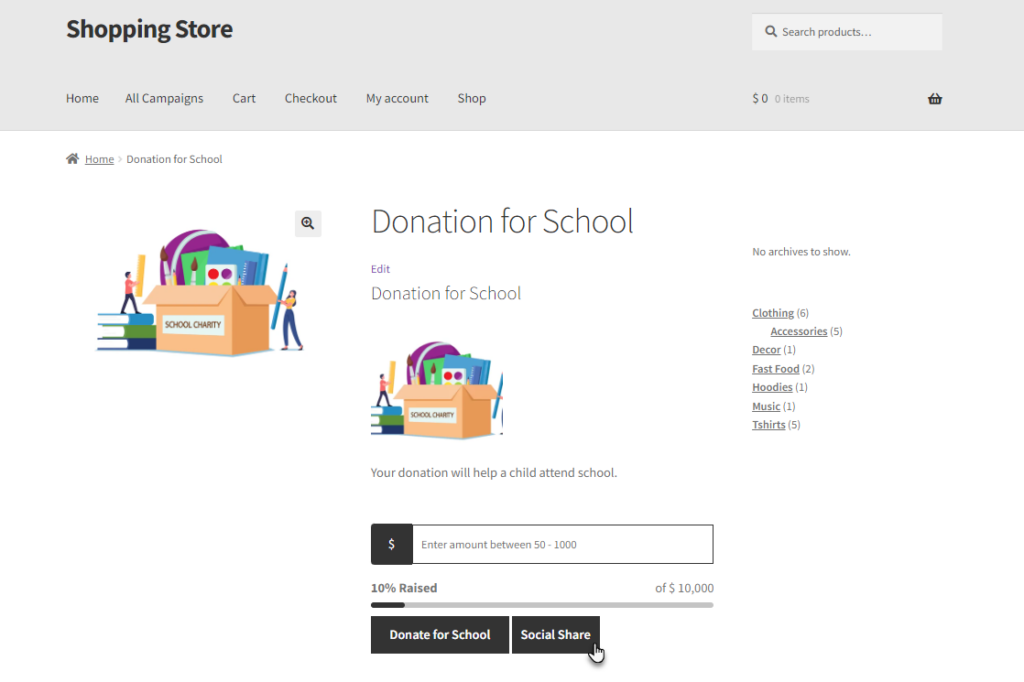
Write a thank-you message that includes the donor’s name and tells them exactly what their money will go towards.
Getting Better Results from Your Campaigns
A couple of clever tactics can make a big difference in how much money you raise.
Round-Off Donations Catch Extra Contributions
The Round Off feature enables customers to round off their purchase amount and make a donation based on the difference. For example, a customer who buys $47.35 worth of products can round off to $50 and make a donation of $4.65 with a single click.
Social Sharing Extends Your Reach
Turn on Social Share buttons for Facebook, WhatsApp, Email, Messenger, and X. The QR code feature is perfect for posters that you can print out for use at community events. One organization found that donations were doubled by posting QR code posters in local coffee shops during their winter campaign.
Show Campaigns During Checkout
Legacy Cart & Checkout allows you to show donation opportunities during checkout. Show campaigns before the cart, after payment options, or both. The pop-up style ensures visitors notice your campaign without overwhelming them.
Automated Emails Keep Donors Connected
Create personalized email templates to automatically send out after each donation. Send thank-you emails right away, weekly campaign updates, and annual reports of the results. Use dynamic fields to add a personal message with each donor’s name and donation amount to each email.
Dashboard Analytics: Identify What’s Working
Use the filter option to view “Last 7 Days” or “Last Month” to compare with previous campaigns. The bar chart shows which seasonal campaigns are at the top of the list, and you can adjust your marketing strategy in real-time.
Begin Raising More This Season
Seasonal fundraising campaigns are the best time to increase fundraising efforts, but only if you have the tools that will really help you during these important times. Donation for WooCommerce eliminates the technical issues that have always prevented organizations from reaching their full potential. Timers, progress bars, recurring payments, and analytics all combine to help you raise more during the times when giving is at its peak.
This plugin is just as effective for small local organizations running one holiday campaign as it is for larger organizations running multiple seasonal campaigns. It is time to stop using simple forms that are not equipped to handle seasonal giving patterns.




