


















































WordPress.org has thousands of free plugins that help small business owners and entrepreneurs attract potential customers. If you have created a new plugin and want to submit it on the WordPress.org repository, this blog post is for you. Submitting a plugin to the WordPress.org repository can help you reach millions of customers and make money without risks.
This blog post will explain how to submit plugins to the WordPress.org repository.
Make Necessary Preparations Before Submitting A Plugin on WordPress.org Repository
The review team will evaluate your prospective plugin before mentioning it on the WordPress.org repository. If you have not created an official account on WordPress.org, create it as soon as possible.
Creating the Plugin’s Readme.txt File
You have to create a markdown-formatted readme.txt file. The review team will use this file to mention your plugin in the plugin’s listing page on WordPress.org. This read.txt file comprises the below information:
- Plugin Name.
- Contributor’s WordPress.org ID.
- Plugin Tags.
- Minimum WordPress Version.
- WordPress Tested Version (Tested Up to).
- Plugin Version (Stable tag).
- Minimum PHP Version.
- License (GPLv2 or later).
- License URL.
- Plugin Description.
- Changelog.
- FAQs.
Remember to format your plugin’s readme.txt file correctly. To ensure this, you should use the WordPress Readme Validator to correctly format and organize the file.

Choose Your Plugin Name

You should carefully select your potential plugin’s name. The plugin’s name plays a crucial role in the success of any new WordPress plugin. Therefore, you should select the plugin name after considering many factors like SEO, target audiences’ preferences, and more.
Unsurprisingly, the name can potentially affect the WordPress.org listing’s SEO and plugin’s growth in the future. For your convenience, here is the section from the plugin submission page that highlights the importance of the plugin’s name and its impact:
“Your plugin’s URL will be populated based on the value of the Plugin Name in your main plugin file (the one with the plugin headers). If you set yours as Plugin Name: Boaty McBoatface, then your URL will be https://wordpress.org/plugins/boaty-mcboatface, and your slug will be boaty-mcboatface, for example. If there is an existing plugin with your name, then you will be boaty-mcboatface-2, and so on. It behaves exactly like WordPress post names.”
Thus, consider the importance of SEO optimization when selecting the plugin name. In addition, you must know about the relevant keywords you want to target. You should consult with experienced WordPress plugin developers and owners for the correct information.
Fortunately, you can change the name of your plugin once you initially submit it for approval. If you want to change the name of your plugin, you can do so later. That said, you cannot change the plugin’s slug. So, you must choose the initial name carefully.
Plugin Submission
Once you have finalized an ideal name for your new plugin and the plugin alongside the readme.txt file are ready, navigate to the Add Your Plugin page and submit the plugin for review.

As you know, the review team takes around two weeks to provide feedback about the plugin. It depends on factors like review queue and plugin complexity. You will receive an email explaining the problems and potential solutions if they find any issues.
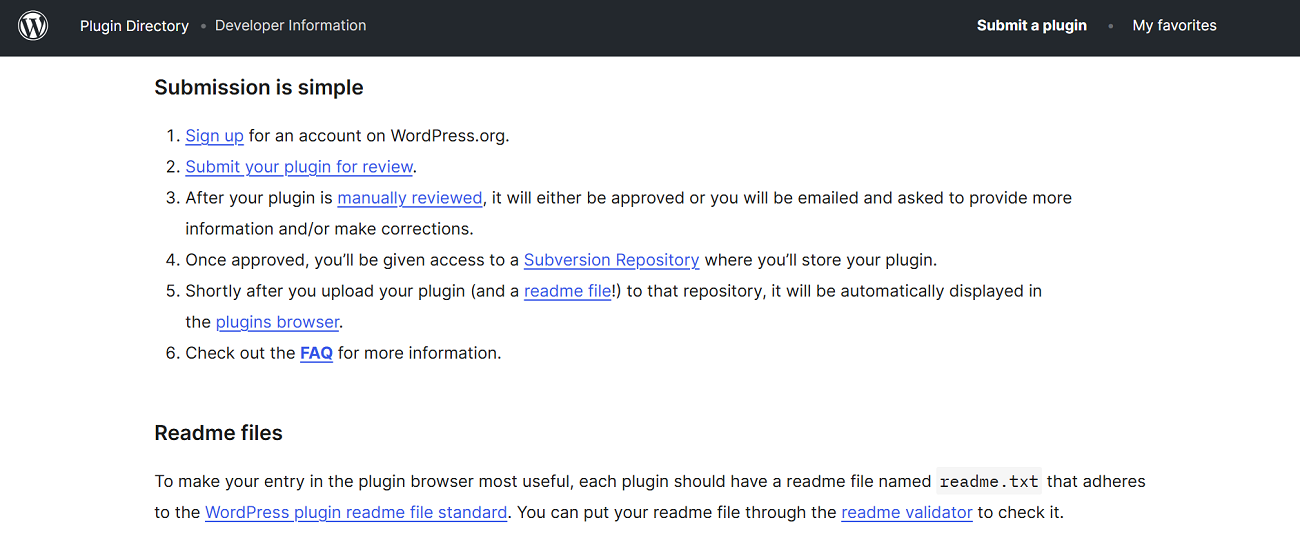
Once you have solved such issues, the review team will email you an approval. At this point, your plugin is private, meaning it is not public. However, you can still upload and edit your potential plugin and delete files using the SVN client or the command line interface.
Upload the Plugin
In this step, you must upload your potential plugin to the WordPress.org repository. You have been permitted to upload the plugin through the SVN repository. Before uploading the plugin, it is recommended that you understand the basics of using Subversion with WordPress. Furthermore, this section will follow the command-line interface to upload the plugin.
Before you try uploading the plugin files to the SVN repository, create a folder comprising files and assets. To create a local directory, follow the below command:
$ mkdir my-awesome-plugin
Depending on the slug, you should name the folder and plugin’s main PHP file. In this scenario, we assume that your plugin’s name is My Awesome plugin. This means that your approved slug will be my-awesome-plugin.
You should write the following command to witness and download the prebuilt repository:
$ svn checkout https://plugins.svn.wordpress.org/my-awesome-plugin local/path/to/my-awesome-plugin
You will receive the following result:
A my-awesome-plugin/branches

A my-awesome-plugin/tags

A my-awesome-plugin/trunk

Checked out revision #####
In the above scenario, A denotes the directories added to the local folder from the central repository. Likewise, you should copy your plugin’s folders and files into the trunk folder:
$ rsync -r local/path/to/wordpress/wp-includes/plugins/my-awesome-plugin/* local/path/to/my-awesome-plugin/trunk
You should add them to the repository.
$ svn add trunk/*
In this step, you need to authenticate yourself. Once you are signed in, you will obtain the following response:
A trunk/my-awesome-plugin.php

A trunk/readme.txt
NOTE: WordPress.org assumes the trunk folder as the plugin’s most important folder. Thus, you should not copy the whole plugin folder. The folder should only contain the plugin’s contents.
Avoid this: trunk/my-awesome-plugin/my-awesome-plugin.php
Once you add all files, make changes to the central repository again:
$ svn commit -m 'My first plugin version'
You will receive the following response:
Adding trunk/my-awesome-plugin.php

Adding trunk/readme.txt

Transmitting file data.

Committed revision 9999999.
You will have to create a new assets folder within the SVN local repository to upload a plugin banner, icon, and screenshots:
$ mkdir local/path/to/my-awesome-plugin/assets
Once your assets are ready, include the plugin assets in the SVN repository:
$ svn add assets/*
Make the changes again:
$ svn commit -m 'Assets upload'
Congrats! Your plugin is available for download. You can then begin promoting it according to your needs.
Publish A New Release

Before publishing a new release, you must update the Stable Tag field using the trunk/readme.txt file. You must use the plugin header comment to update the version number. Moreover, copy your plugin files to a subfolder of /tags and determine the subfolder’s name to a new version like 1.0.1.
$ svn copy trunk tags/1.0.1

A tags/1.0.1

Make the changes.

$ svn commit -m 'Version 1.0.1 release'

Adding tags/1.0.1

Adding tags/1.0.1/my-awesome-plugin.php

Adding tags/1.0.1/readme.txt

Committed revision 999999.
Congrats! The new version of your plugin is ready.
Is WordPress.org Plugin Submission Process Difficult?
The WordPress.org plugin submission process is simple and does not require rocket science. You do not need specific coding knowledge to perform this activity successfully.
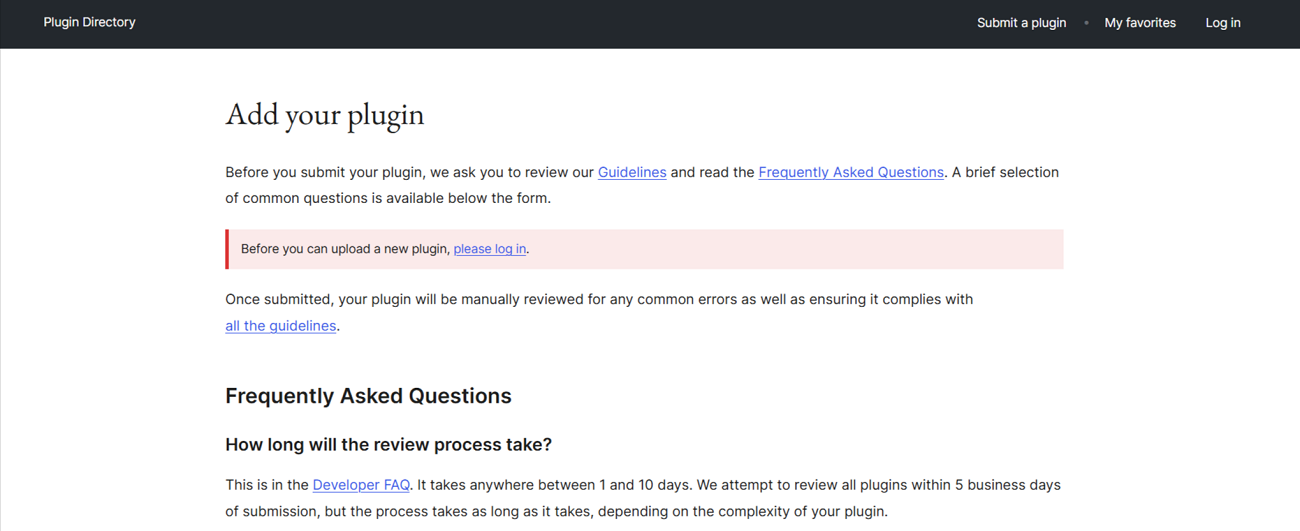
You must fill out a form that helps you submit your potential plugin on the WordPress.org repository for approval. In addition, you must go through the guidelines and FAQ section about submitting the plugin to the WordPress.org repository without fuss.
Benefits of Submitting Plugin to WordPress Repository
The WordPress plugin directory is an excellent platform for WordPress users and aspirants. With over 60 thousand free plugins, it is the most trusted to detect and download a WordPress plugin for millions of users worldwide. Millions of users visit the WordPress repository monthly, and this activity continues throughout the year.
When you upload a new plugin to the WordPress plugin repository, you can get valuable traffic from current and new WordPress users, developers, etc. More importantly, you do not have to pay to host the plugin on the WordPress repository.
Apart from this, you do not need to worry about how many users utilize your plugin. The directory provides accurate information regarding plugin downloads and informs new and existing users on time if you update the version or release any news.
Users can rate your plugin on the WordPress directory and offer realistic feedback through reviews, helping other potential users make informed decisions. They can also inform you if the plugin has a bug. This way, you can update your plugin quickly and cater to your target audience’s diverse needs.
Promoting your plugin’s premium version does not require a dedicated marketing campaign. Users can visit the site by mentioning the plugin’s official site in the directory and discover premium features, pricing, and other attributes.
Wrapping Up
We hope you appreciate our blog post explaining the term “How to submit plugins to the WordPress.org repository” in detail. Submitting a new plugin to the WordPress.org repository is not as cumbersome as you think. You must follow the steps above to submit your potential plugin to the repository.
You can easily promote your plugin to new and untapped customer bases. Furthermore, you can efficiently contribute to the WordPress community by submitting your plugin.




