




















































For example, if you have a donations campaign on WooCommerce, timing can be just as important as your message. Also, people are more inclined to respond to a message that has a sense of urgency or that appears at a certain time. This is where the Time Configuration Feature in Donation for WooCommerce comes in.
This feature puts the power entirely in your hands. You can set the time your donation campaign is displayed or hidden. Or you can display your campaign with a different message instead of a donate button. This tutorial will take you through the process of how this feature works and its importance.

Here’s How You Can Make the Most of Time-Based Donation Campaigns
Using time-sensitive visibility for your donation campaigns helps with some necessary options, such as:
1. Assists in Maintaining Your Store Clean and Up-to-Date
There is no pleasure in seeing old, ineffective campaigns still on a store webpage. With time configuration, your campaigns automatically hide once the time is over. This keeps your store looking and feeling new and only includes active causes, which is essential for building visitors’ confidence.
2. Creating a Sense of Urgency
Seeing a countdown clock ticking or realising that the deal is only good for a short time pushes the donor. They make a decision faster rather than putting off the act. This is all psychological in nature and is very effective at getting users to convert without ever once coming off as aggressive.
3. Gives You Full Scheduling Control
You can choose whether to run your campaign daily or on specific days, down to the exact time. It will be useful for weekends, special events, or charity programs that last only a short time on your platform. They will not need to be manually turned on and off again.
4. Enhancing User Experience Across All Pages
Whether it is your shop page, an individual product page, or a shortcode used to view a campaign page, this ensures you are viewing what you are supposed to at any given time. Instead of broken buttons or confusion, they either see the donation option or a clear message explaining what’s happening.
How To Configure Time Options for a Donations Campaign Using WooCommerce
Now that you know why timing matters, let’s set it up in a practical way. The Time Configuration feature in Donation for WooCommerce lets you decide when a campaign shows up, when it disappears, and what visitors see after the time runs out. You don’t need code. You just need a few clean settings.
Step 1 — Open the campaign you want to control
Start by logging in to your WordPress Admin Dashboard. From here, you can either create a fresh campaign or edit an existing one.
- For a new campaign: WC Donation > Add New.

- For an existing campaign: WC Donations > All Campaigns > Edit Campaign.
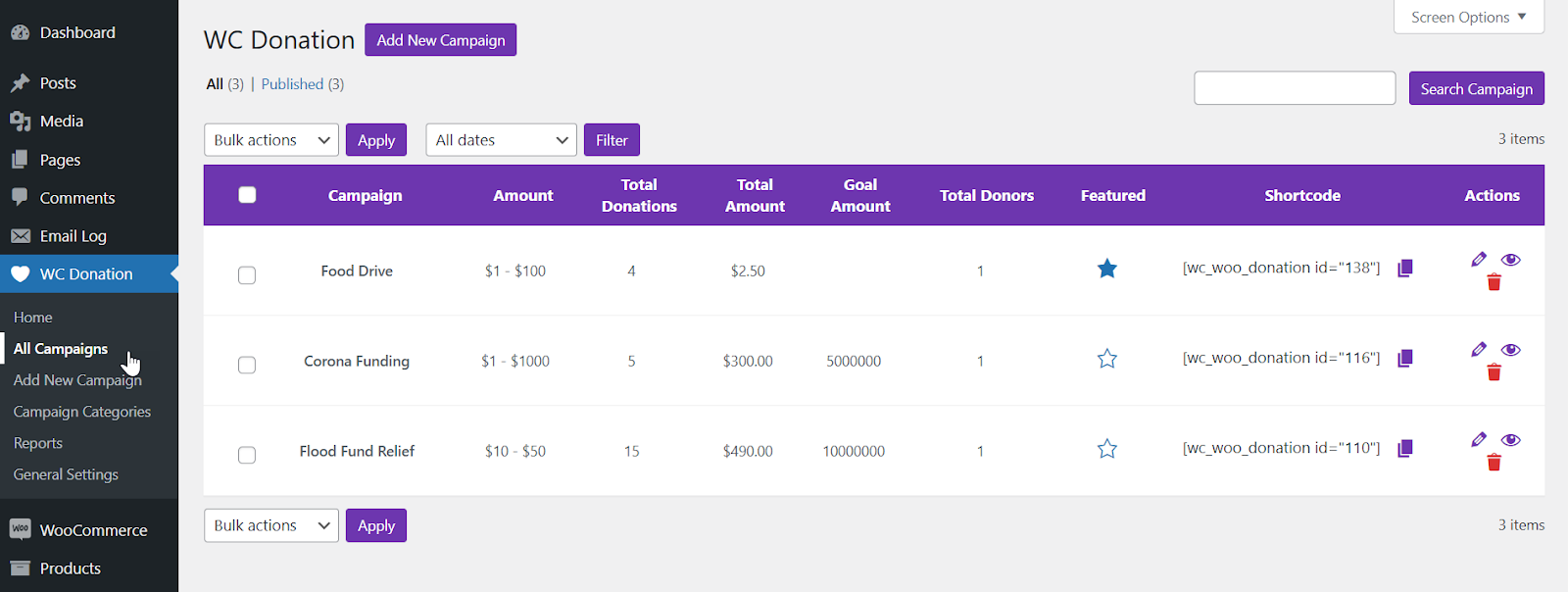
- Once the campaign editor opens, look for the Time Configuration tab and click it.
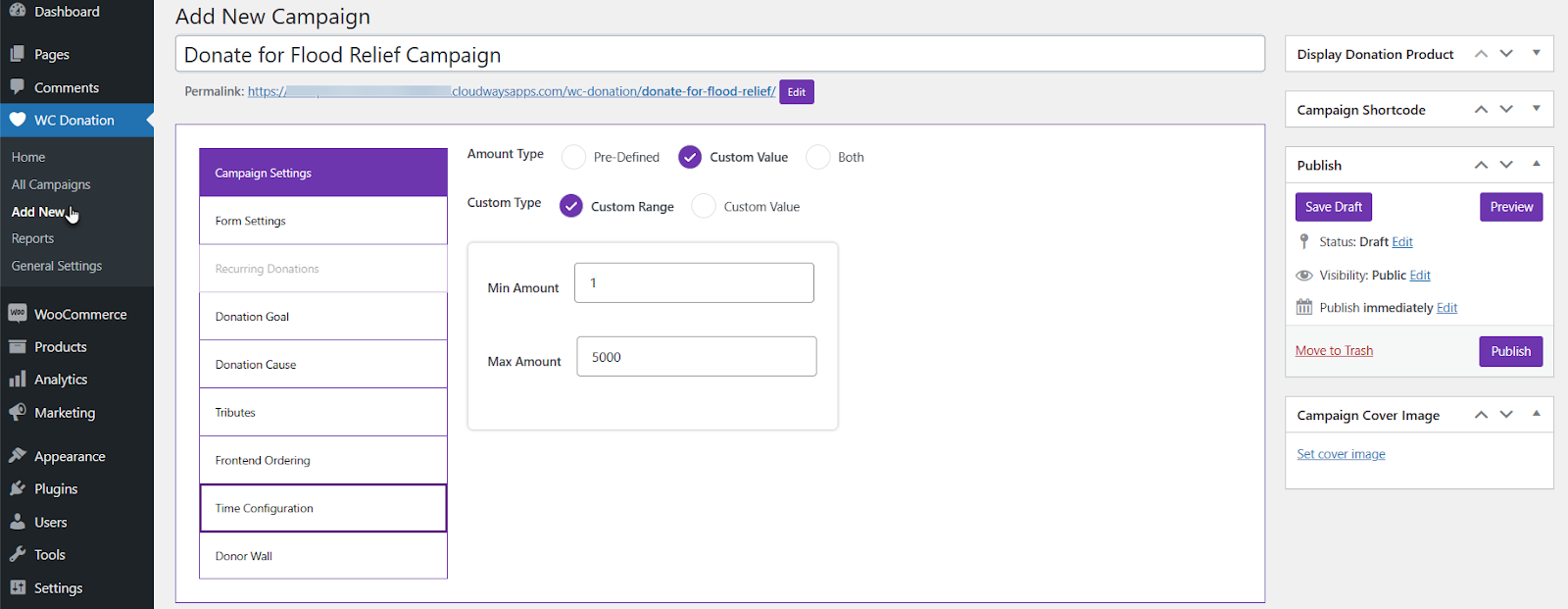
Step 2 — Turn on the timer for the campaign
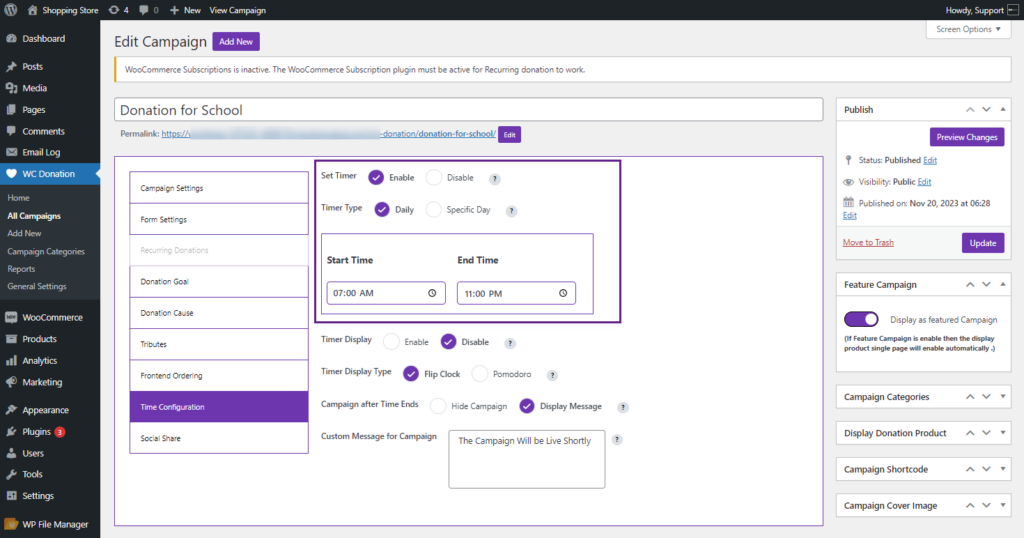
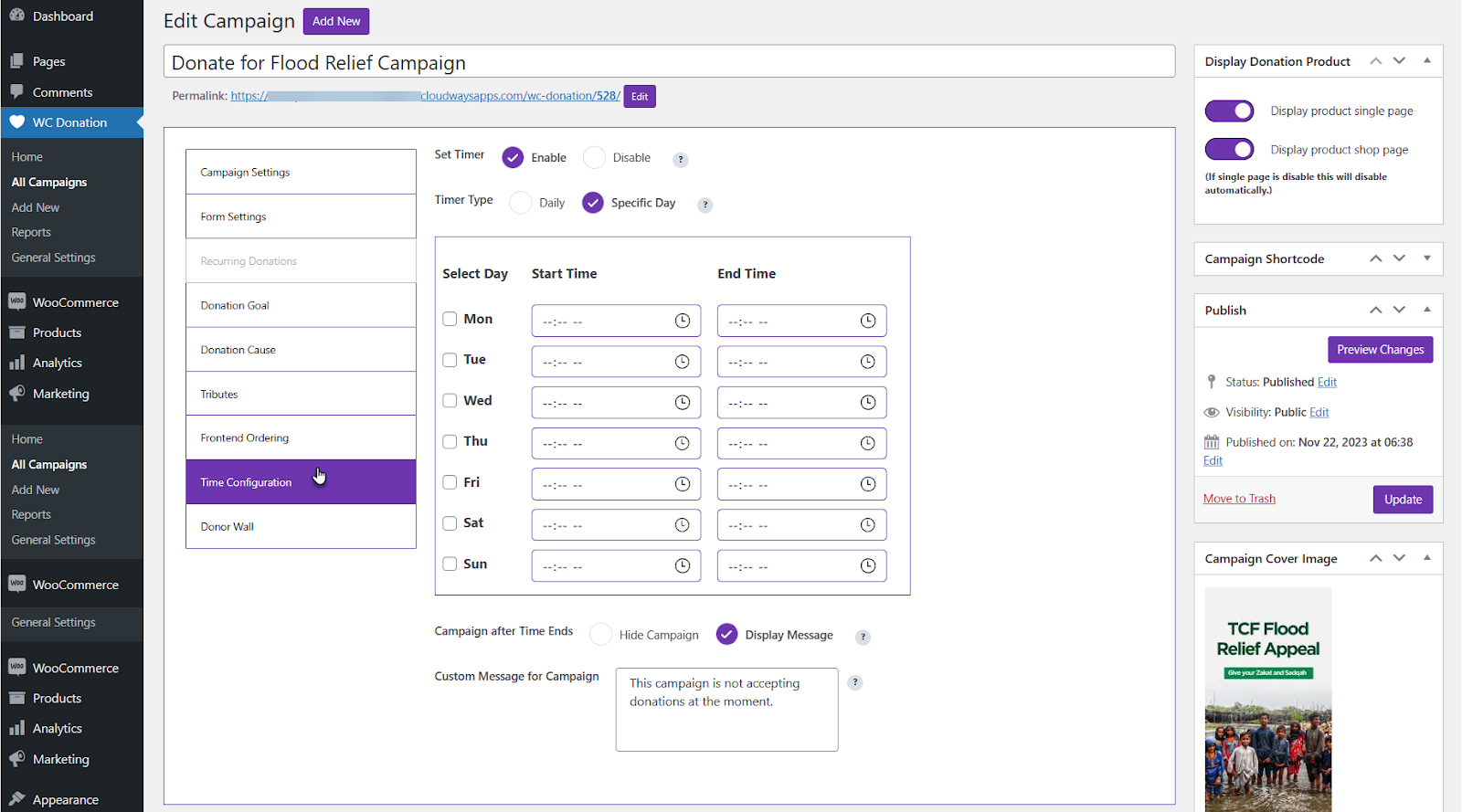
Inside the Time Configuration tab, you’ll see an option called Set Timer. Enable it. This is the main switch that tells the campaign to follow a schedule instead of staying visible all the time. Without this turned on, the rest of the time settings won’t matter.
Step 3 — Pick the timer type that matches your plan
Next, you’ll choose the Timer Type. This part is where you decide how strict or flexible the schedule should be. You get two options.
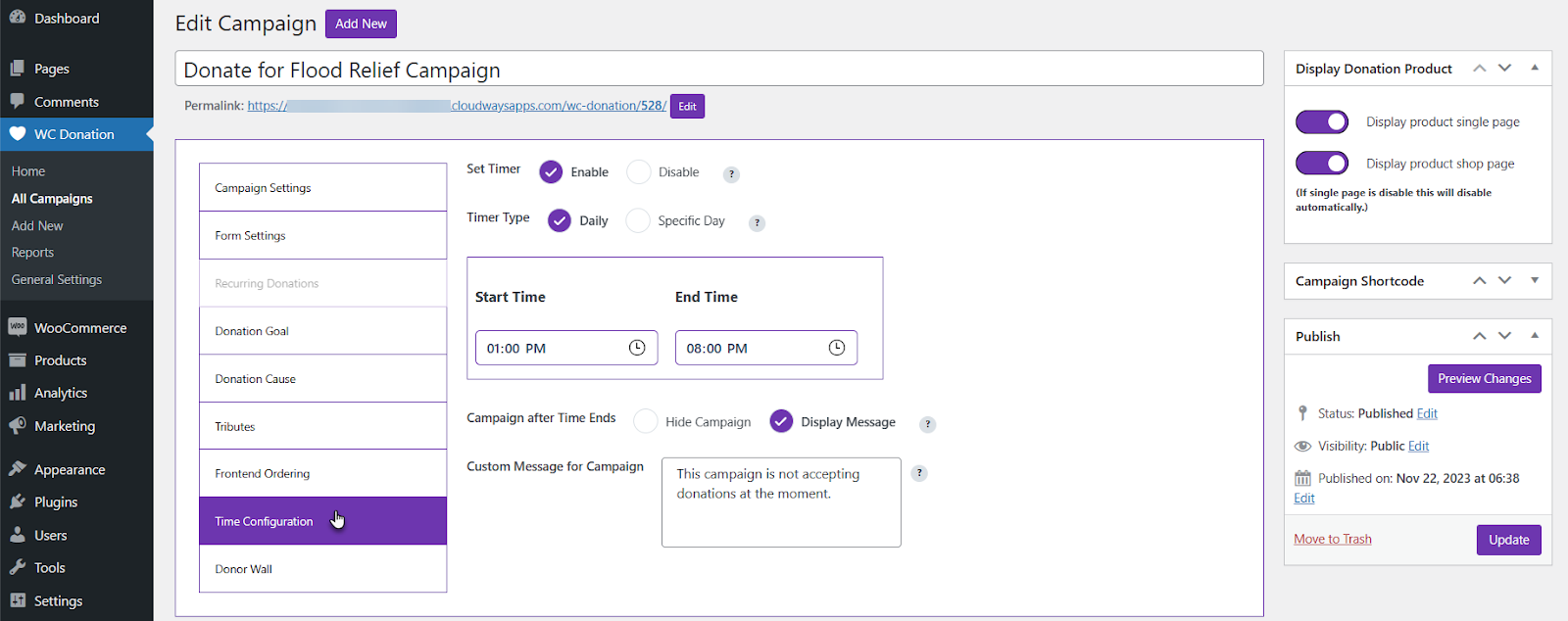
- Daily: Choose a single Start Time and End Time that repeats every day. This works well if your campaign should only run during certain hours.
- Specific Day: A full weekly chart appears, letting you set different start and end times for each day. This is great for weekend drives, Friday-only campaigns, or different schedules across the week.
Step 4 — Decide what happens when time ends
Now go to Campaign After Time Ends. This controls what visitors see once the campaign reaches its end time. You can handle it in two simple ways:
- Hide Campaign: The campaign disappears from the Shop page and from anywhere it’s shown on the Single Product or Campaign page (including shortcode areas).
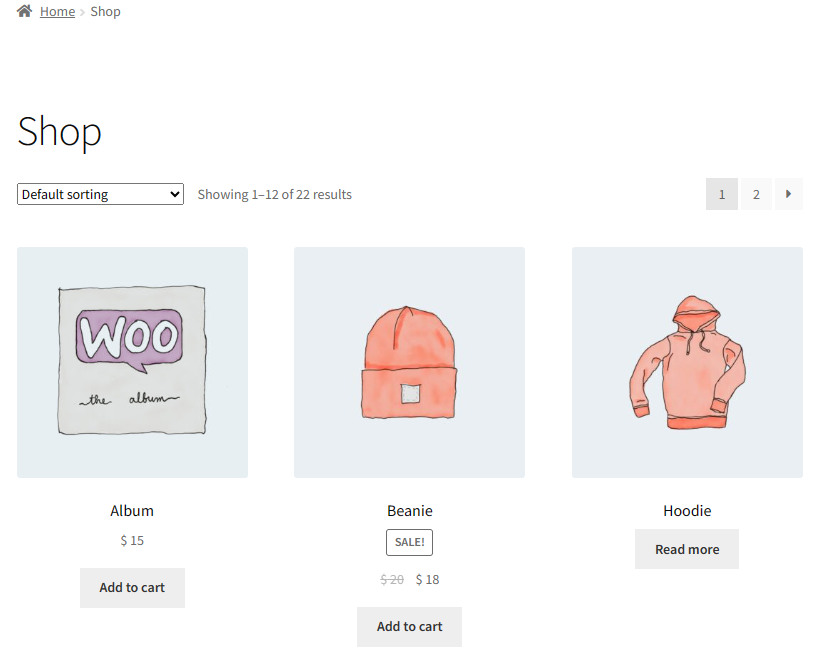
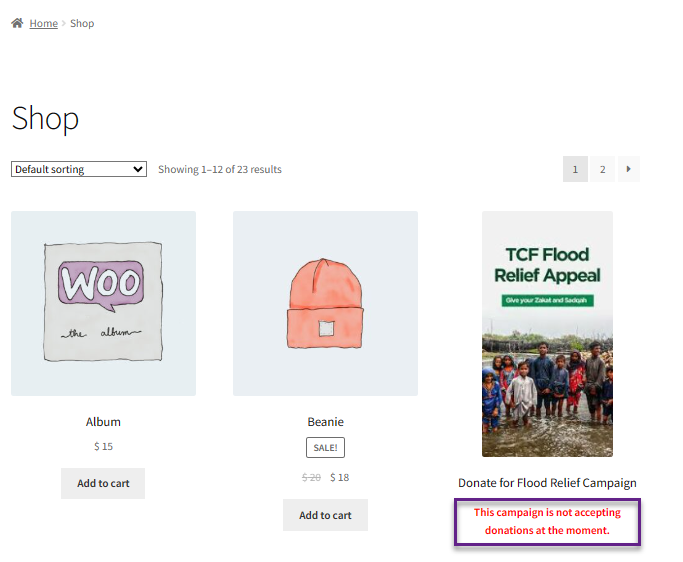
- Display Message: Instead of the Donate Now button, visitors see your custom message on the Shop page, Single Product page, and shortcode campaign page. It’s a clean way to explain what happened without leaving people confused.
Step 5 — Set your timezone so the timer runs correctly
Before you trust the timer, make sure your site’s timezone is correct. This matters more than people think, because even a one-hour mismatch can make your campaign appear too early or end too late. Go to: Admin Dashboard > Settings and adjust your Timezone to match your location. This setting applies across your donation setup, so it’s worth doing once and doing it right.
Step 6 — Turn on timer display (if you want visitors to see it)
If you want donors to actually see the countdown on the front end, enable Timer Display from the campaign editor.
Then choose your display style:
- Flip Clock: A classic digital countdown look that grabs attention fast.
- Pomodoro: A cleaner, modern timer style that feels simple and focused.
After choosing your style, use these final steps to finish up:
- Click Preview to check how it looks
- Click Update to save everything
Once that’s done, log in as a customer (or open the page normally) and visit your Single Donation page to see the front-end effect in action.
Why Time-Based Campaigns Work So Well for Online Donations
Time-based donation campaigns don’t just look good; they change how people feel when they visit your store on WooCommerce. Seeing a definite time slot can focus attention and prompt action. In fact, it’s not just browsing anymore, because they’re encouraged to take part in something that sounds very dynamic.
It also provides an opportunity to tell a good story. You are not obligated to give a dead-end link when a marketing campaign is finished. You will be able to post a message, such as “Thank you for your support; this campaign is over” or “Come back tomorrow for our next cause.” These are important because they mean you give your store a human touch rather than a mechanical feel.
Here are a few creative ways store owners use this feature:
- Running lunch-hour donation drives during weekdays.
- Highlighting special causes only on holidays or awareness days.
- Rotating multiple campaigns throughout the week without overlap.
By controlling time, you’re not just managing visibility; you’re shaping the future. You’re shaping the entire donation experience from start to finish.
Final Words
The Time Configuration Feature in the Donation for WooCommerce extension gives you what every store owner needs: control without complexity. You decide when your campaigns show, what happens when they end, and how donors experience the countdown. This ensures your store stays clean, which is an aspect of trust creation and an added component of urgency.





