



















































WooCommerce is arguably the most sought-after platform, helping millions of e-commerce store owners cater to the diverse needs of their customer bases worldwide. However, like other platforms, WooCommerce is no different in irritating store owners and customers with common issues, such as the WooCommerce checkout not showing the correct shipping cost.
This problem can annoy both current and new customers, significantly disrupting their shopping experiences. This blog post will discuss the reasons why the WooCommerce checkout doesn’t show the correct shipping cost.
Additionally, it will offer potential solutions related to this issue, empowering WooCommerce store owners to provide seamless customer experiences during the checkout process.
Understanding the WooCommerce Checkout Doesn’t Show Correct Shipping Cost Issue
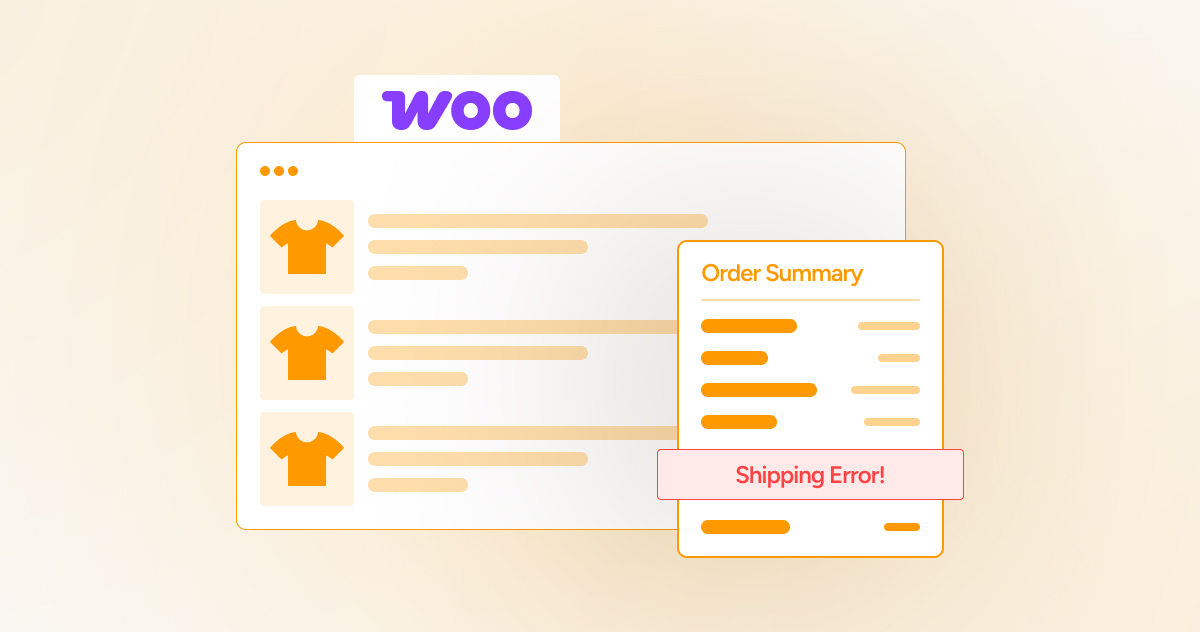
After updating WooCommerce, you should be able to see the shipping radio buttons on the checkout page. However, the shipping cost is not incorporated in the order calculations. Moreover, you cannot view the shipping details in the order from the backend.
Despite checking the shipping settings, which appear to be correct, the issue of the incorrect shipping cost persists.
Reasons Behind Woo Checkout Doesn’t Show Shipping Cost Issue
Unfortunately, various reasons can hinder the performance of your WooCommerce store after an update. Therefore, you must understand these issues to overcome the incorrect shipping cost problem effectively.
– Server Configuration
Ensure your server adequately meets the WooCommerce server requirements. If this is not the case, it can lead to incorrect shipping costs and other issues.
– Shipping Zones and Methods Configuration
An update can likely conflict with shipping zones and methods. At times, the new version can cause issues that prevent shipping methods from functioning correctly.
– Outdated Theme or Plugin Conflict
Sometimes, themes or plugins don’t support WooCommerce updates. As a result, users may encounter issues such as incorrect shipping costs. In this situation, they must update their installed themes or plugins to support the newest version of WooCommerce.
– Shipping Calculation Configuration in the WooCommerce Settings
There is a strong possibility that shipping calculations are not enabled correctly in the WooCommerce settings. So, users will experience the incorrect shipping cost issue.
How to Fix WooCommerce Checkout Doesn’t Show Correct Shipping Cost Issue?
If you want to resolve the WooCommerce shipping cost issue, follow the possible solutions below:
– Authenticate Server Compatibility

When authenticating server compatibility, ensure your server runs PHP 7.4 or greater. Similarly, your memory limit must be at least 128 MB. However, the recommended memory limit is 256 MB. Besides, your WooCommerce store should function over HTTPS. HTTPS is required for a smooth and secure checkout experience.
If your server is outdated or does not meet the requirements mentioned by WooCommerce, contact your hosting service provider to update or enhance the settings.
– Recheck WooCommerce General Settings
Once you update WooCommerce, you must recheck WooCommerce general settings to see if they are correct. Checking the following settings is highly recommended:
- Store Address
You must ensure that your store address is correct. Additionally, the country and postcode information need to be updated.
- Currency Settings
As a WooCommerce store manager or owner, it is your primary responsibility to ensure that the currency settings are correctly configured. If any settings are incorrect, correct them promptly and save the changes.
– Check Shipping Settings
You should go to WooCommerce > Settings > Shipping to check shipping zones and methods. In this scenario, you must verify that the shipping zones are correctly enabled for the region where you want to ship.
- Shipping Methods
Shipping zones aside, you must confirm if they have valid shipping methods enabled. If a shipping method is improperly configured or does not exist, you will not be able to calculate the correct shipping cost.
- Shipping Calculation Settings
You should also check if the shipping calculations are configured under Shipping Options. Furthermore, you must confirm that you have checked the “Enable the shipping calculator on the cart page option. This will enable your customers to view the shipping cost.
– Use Incognito Mode to Test Shipping Methods

There is a strong likelihood that stored cookies or sessions can conflict with shipping calculations. Hence, you should confirm that shipping calculations are correct by using incognito mode. To do this, browse in an incognito/private window and test the checkout process.
– Clear Cache and Disable Caching Plugins
If you have installed cache plugins on your website, such as W3 Total Cache or WP Super Cache, you may see outdated shipping data as a result. Therefore, you must clear the cache and deactivate any caching for cart pages and checkout.
Moreover, you should purge the CDN’s (Content Delivery Network) cache if you use it on your site.
– Monitor Themes or Plugins for Any Conflict

You should regularly monitor installed themes and plugins to identify any potential conflicts. For this purpose, you should disable all non-WooCommerce plugins and revert to a default WordPress theme (such as Twenty Twenty-Five).
Verify the checkout process to ensure it functions correctly. This will serve as a testament that shipping costs are being calculated accurately. Enable plugins again to detect the problematic plugin. Once you identify the affected one, update or replace it accordingly.
– Get Official Support

If the “WooCommerce checkout doesn’t show the correct shipping cost” issue still exists, you should contact WooCommerce support. Likewise, you can seek help from the plugin or theme documentation to obtain assistance with updates or patches promptly.
– Get Professional Help
There is no harm in getting professional help from a reliable WooCommerce services provider, such as WPExperts. The company helps e-commerce businesses create customized yet value-driven WooCommerce stores that deliver seamless user experiences, exceptional performance, and growth.
Wrapping Up
Once you upgrade WooCommerce, you may encounter an issue where WooCommerce fails to display the correct shipping cost. Thus, you must take all necessary actions to overcome the WooCommerce checkout not showing the correct shipping cost issue.
Fortunately, you can follow the above possible solutions to overcome the incorrect shipping cost issue effectively. This will enable you to rectify the prevailing shipping cost issue. Subsequently, you can offer your customers a seamless checkout experience.




