




















































Email communication is a crucial aspect of any WordPress site. Whether you send order confirmations, newsletters, launch marketing campaigns, or other messages, email communication is handy for all these tasks.
Without an effective WordPress email setup, emails might reach the spam folder or not be delivered. Therefore, you must know how to set up SMTP, DKIM, SPF, and DMARC on your WordPress site, ensuring the target audience can easily and securely receive your WordPress emails in their inboxes.
What Do You Mean By Email Authentication?

Email authentication is a method that helps authenticate the legitimacy of emails sent from the WordPress site. In other words, it is a set of protocols that help verify the legitimacy of emails you send from your WordPress site.
The emails will not be delivered if you don’t configure email authentication appropriately. Likewise, they might be delivered to spam folders instead of reaching users’ inboxes.
There can be different reasons behind this issue, including:
- SMTP settings are not correctly set up.
- Authentication protocols are misconfigured.
- Server restrictions hamper email delivery.
Website owners should not overlook email delivery issues. Otherwise, they can negatively influence the site’s productivity.
Why is Email Authentication Crucial?

Email authentication is crucial for businesses of all sizes that want to develop long-term yet fruitful customer relationships. Unfortunately, unauthenticated emails mostly don’t reach site visitors and frustrate them as they do not get the content they request.
It also spoils a marketing team’s efforts, which involve spending hours creating and delivering content to the right target audience. Furthermore, poor email authentication can likely hamper the business’s reputation. That’s because the email providers, such as Gmail, Hotmail, etc., can mark legitimate emails as spam if they cannot authenticate them.
Proper email authentication can help businesses portray reliability and professionalism. It shows that you value customer relationships and prioritize their inbox space. Email authentication has become the need of the hour in this digital era. It is no longer an option. With email services like Gmail starting to apply stricter requirements, the correct setup of SMTP, SPF, DKIM, and DMARC is not just an excellent activity; it is necessary for reaching your customer base.
What Do You Mean by SMTP?
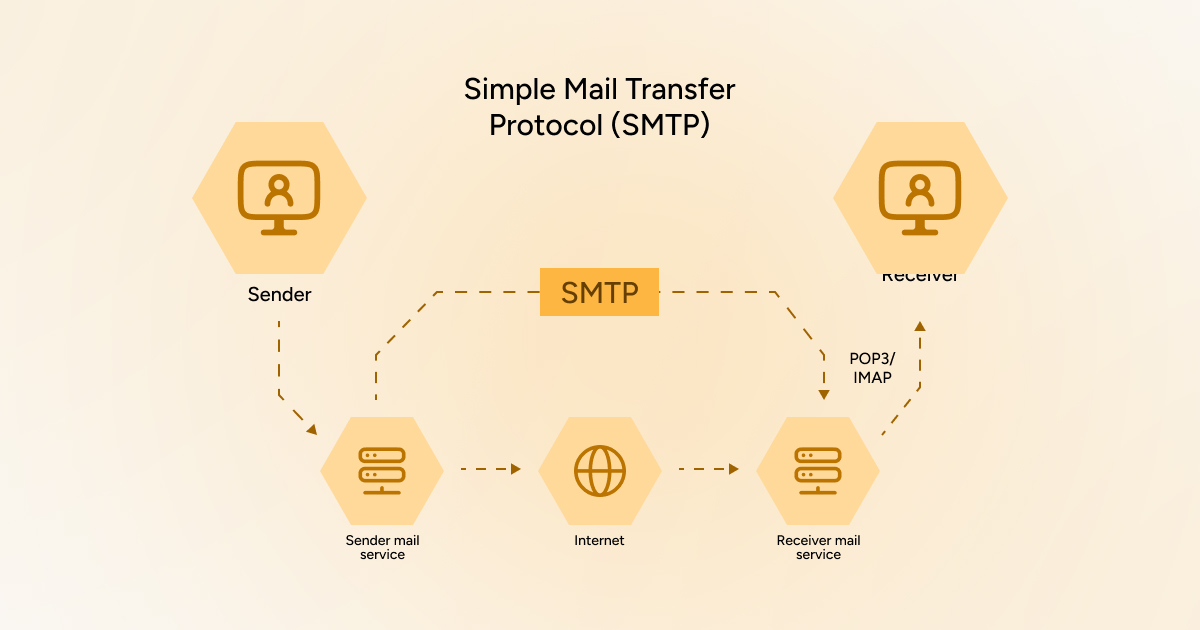
SMTP, Simple Mail Transfer Protocol, helps send and receive email messages over the web. Message transfer agents (MTAs) and mail servers use this communication protocol to send, receive, and relay mail messages.
WordPress delivers emails through the PHP mail () function, which suits small websites. However, email services like Gmail, Outlook, etc., flag emails WordPress sends as spam. Moreover, it sends emails through Google Workspace or Google’s SMTP servers, which helps enhance email deliverability and overcome spam issues.
How Can We Set Up SMTP in WordPress?
You can set up SMTP on your WordPress website using the WP Mail SMTP or Easy WP SMTP plugin. We will use the former WP Mail SMTP plugin in this scenario. To do this, follow the steps below:
- Through the WordPress dashboard, go to Plugins > Add New.
- Write WP Mail SMTP, press Install Now, and activate the plugin.
- Using the WordPress dashboard, go to WP Mail SMTP.
- Choose your Mailer (Mailgun, SendGrid, Gmail, etc.) through the Settings option.
- Write the SMTP host and port information that your email service offers.
- Mention the SMTP username and password, and save all the settings.
- Once the settings are in place, you must send a test email, ensuring that WordPress sends emails via SMTP.
What Do You Mean by DKIM?

DKIM, DomainKeys Identified Mail, is a leading email authentication protocol that affirms email messages’ authenticity and integrity through cryptography. Like SMTP, it also helps improve email deliverability and ensures emails are not tampered with during delivery.
How Can We Set Up DKIM in WordPress?
You can set up DKIM on your WordPress site by following the steps below:
- Contact your email service providers, as they provide users with DKIM setup instructions. You must include a DKIM TXT record in the DNS settings.
- The email service provider will offer you a public key. Follow the instructions when adding a DKIM record in the DNS settings.
- In this step, you must confirm the DKIM record once you have added it. Online tools like MXToolbox can help you confirm whether the DKIM record has been configured.
Through MXToolbox, you can verify whether the SPF and DMARC settings have been configured properly.
What Do You Mean by SPF?

SPF, formally called the Sender Policy Framework, is a notable email authentication mechanism that helps identify and block email spoofing. It lets website owners specify which email servers can represent them when delivering email.
The good thing about SPF is that it enhances trustworthiness and decreases spam. Email service providers can verify emails sent from your site by matching the SPF record, which helps improve deliverability. To easily test your email deliverability across major providers, use tools like GlockApps, which help you monitor your performance, authentication, domain, and IP blacklisting and HTML rendering.
How Can We Set Up SPF in WordPress?
Setting up SPF (Sender Policy Framework) on your WordPress website is straightforward. To set up SPF in WordPress, follow the steps below:
- In this step, you should create an SPF record. You must sign in to your DNS hosting service and create a new TXT record.
- Now, provide the SPF information. For example, the record should look like this:
v=spf1 include:_spf.google.com ~all
The above example suggests that Google’s mail servers can deliver emails on behalf of site owners. You must change the SPF value to the SPF value your email service offers.
- Now, save your DNS settings once you add the record.
- Check the SPF record to see if it has been configured correctly. Tools like MXToolbox can help you do this.
What Do You Mean by DMARC?
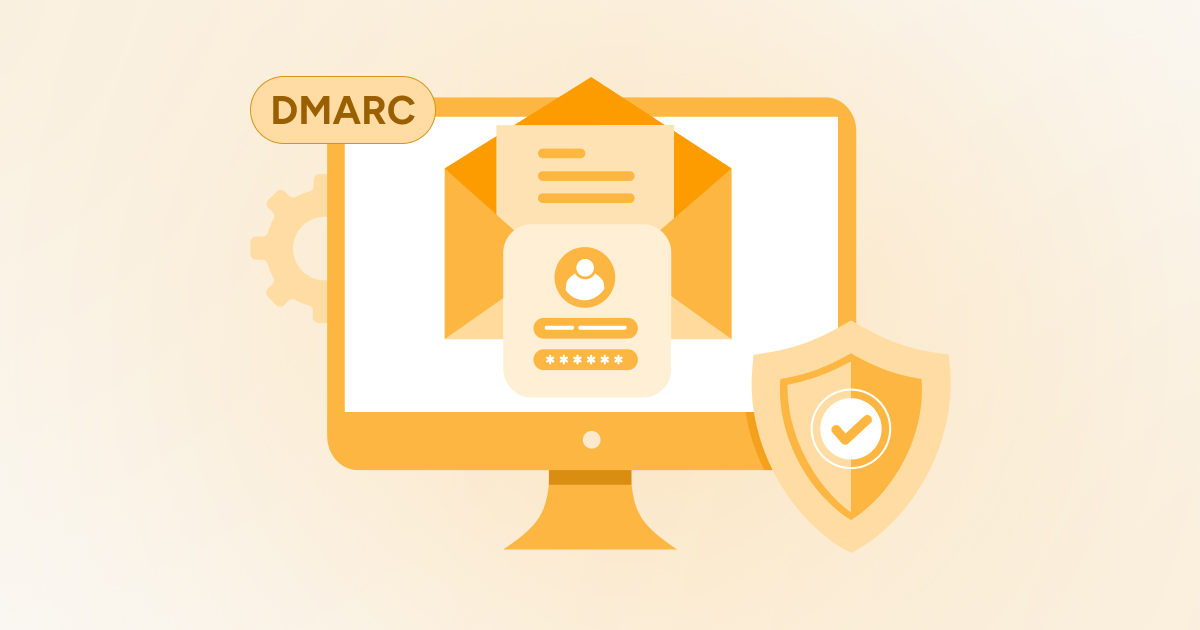
DMARC is an email authentication protocol that helps improve email security. DMARC (Domain-based Message Authentication, Reporting & Conference) primarily relies on DKIM and SPF, which safeguard websites from phishing, unauthorized use, email spoofing, etc.
It helps website owners implement policies allowing email servers to manage emails that do not pass SPF and DKIM checks.
How Can We Set Up DMARC in WordPress?
To set up DMARC on your WordPress website, follow the steps below:
- You must create a DMARC record in this step. For this purpose, you should include a DMARC TXT record in your DNS.
- The DMARC record should look like this:
v=DMARC1; p=none; rua=mailto:dmarc-reports(@)yourdomain.com; ruf=mailto:dmarc-failures(@)yourdomain.com
According to this record:
- p=none: No action is needed if an email does not pass the DMARC check (monitoring mode).
- rua: Deliver aggregate reports to this email address.
- ruf: Deliver failure reports to this email address.
- In this step, you must incorporate the record in the DNS settings. Your hosting service provider usually manages the DNS settings.
- Check DMARC reports to see if they have problems. Depending on the issues found, update your email policies.
Wrapping Up
We expect you liked our blog post explaining the WordPress email setup process. Setting up SMTP, DKIM, and DMARC on the WordPress website is necessary and beneficial.
That’s because they help improve WordPress email security and deliverability to the next level. Therefore, you must configure them on your WordPress site to enhance the authenticity and reliability of your emails.
As a result, recipients will trust your emails and not flag them as spam. This will also help you communicate with new and current customers’ inboxes.





