



















































Undoubtedly, In-depth analytics let you comprehend and realize the importance of users’ behavior and optimize your content strategy accordingly. That said, making sense of or benefiting from metrics and numbers can be demanding. In this situation, the role of WordPress heatmap becomes decisive.
Heatmaps provide users an easy way to track and analyze 🕵️ what’s happening on their websites. They offer a visual overview of the content that gets the most traction and engagement, enabling them to detect and resolve problem areas or issues quickly.
This blog post will examine WordPress heatmap and their value. Then, we will show you how to set them up, using different methods.
Let’s start! 🤩
How Can We Set Up WordPress Heatmap?
This section will discuss setting up WordPress heatmap using Microsoft Clarity, Aurora Heatmap, and Heatmap Script.
Method #1: Set Up WordPress Heatmap with Microsoft Clarity🛠️
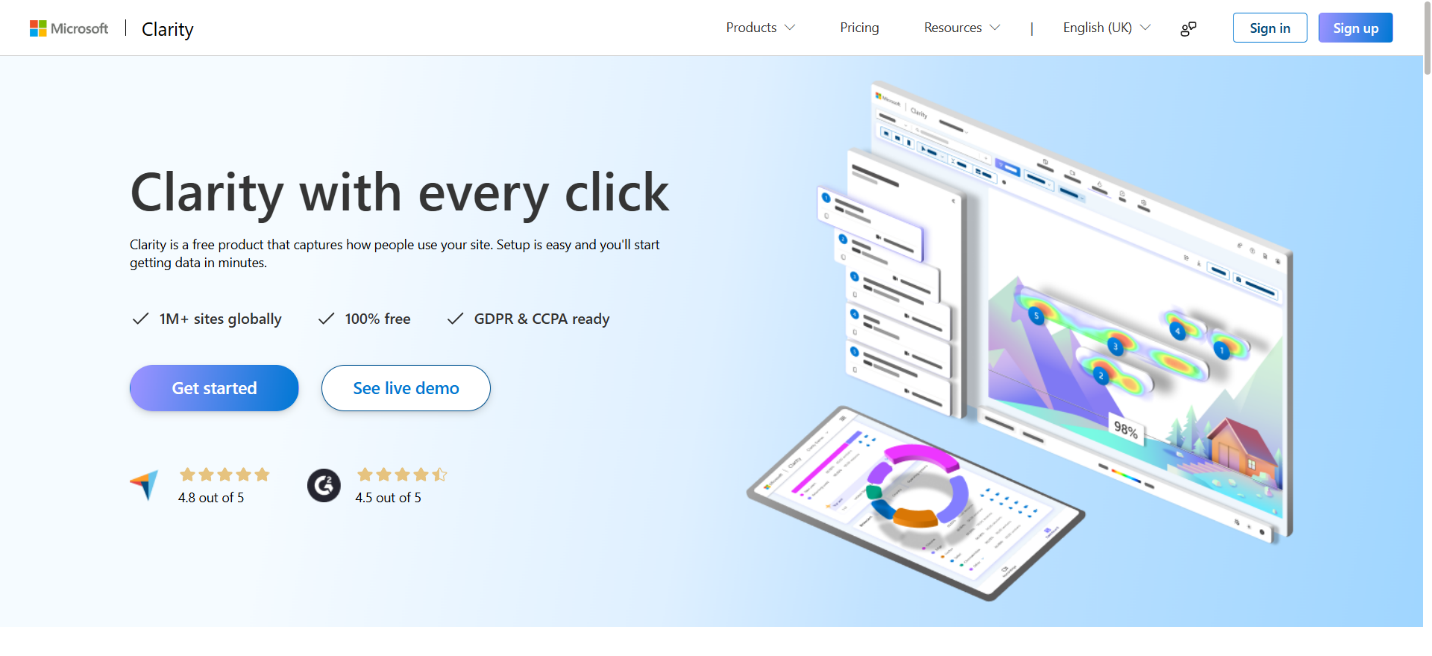
Microsoft Clarity is free yet one of the most impactful heatmap and session recording tools. The good thing about this service is its compatibility; you can easily integrate it with WordPress. Due to its exceptional ease of use and impressive site analysis feature, Microsoft Clarity has become a reasonable choice for all users when analyzing visitors’ behavior, including beginners, small business owners, bloggers, and more.
📌 Note: Clarity stores anonymized usage data to improve its services and help users comply with the GDPR and other privacy laws.
To set up WordPress heatmap using Microsoft Clarity, follow the steps below:
- First, create an account on Microsoft Clarity. To do this, visit Microsoft’s official website and press ‘Get Started.’ A pop-up will appear on your screen asking you to sign up with a Google, Facebook, or Microsoft account. You should click your preferred option. We will go with the ‘Sign in to Google’ option.
- Follow the signup process by selecting the desired account. On the confirmation page, press ‘Continue’. Confirm your email address when you sign up. Additionally, check the Clarity Terms of Use and click the checkbox before you proceed.
- You will be asked to mention your site URL and select your industry using the dropdown menu. Remember, you must name your project.
- Once done, click ‘Add new project’ to complete the setup process.
You can easily install the Microsoft Clarity WordPress plugin to create WordPress heatmap on your site.
- In this step, you need to install the Microsoft Clarity plugin. Moreover, you should connect it to the account you created earlier.
- Through your WordPress dashboard, go to Plugins > Add New Plugin.
- The search lets you find the Microsoft Clarity plugin. Hit the ‘Install Now’ option when the relevant result appears on your screen. Click the ‘Activate’ button to enable the plugin.
Read our exclusive blog post on manually installing a WordPress plugin to learn the plugin installation process in detail.
- Once you have enabled the plugin, select the Clarity project to connect both options.
- You can access Clarity from your WordPress admin dashboard and choose the project you created from the dropdown menu.
- You will see a ‘Project integrated successfully’ notification shortly.
💡 Warning: If you use a WordPress caching plugin, you must clear your WordPress cache after connecting Microsoft Clarity to your website. This is important because, otherwise, Microsoft cannot verify your site for a few hours.
- In this step, you must set up heatmaps in Microsoft Clarity. After connecting to Microsoft Clarity, it will begin monitoring visitors automatically.
- The Clarity dashboard enables you to explore helpful reports that provide an overview of the user interaction with your site. It comprises a few crucial aspects, such as sessions, scroll depth, pages per sessions, and active time.
- You can also explore pre-built widgets such as the user overview, signifying visitor types and devices. In addition, you will find rage clicks, a helpful behavioral insight, when users scroll excessively (When users scroll abnormally to search for something) and click multiple times (when they are annoyed or frustrated).
- You must switch to the ‘Heatmaps’ tab to view your heatmaps. You will view a list that comprises all the page heatmaps, which Clarity has documented automatically.
- At this point, click the page you wish to analyze or examine. After opening a heatmap, you can see the three key views: Clicks, Scroll, and Attention. Press the ‘Click’ view to find where the visitors click most.
- You can switch to the ‘Scroll’ tab to examine or detect your scroll depth. Clarity will let you know how far users have scrolled down your page. This will enable you to recognize if they overlook the key content.
- Click the ‘Attention’ view to find visitors’ average time on various page parts. The Red zones denote higher attention, and the blue zones indicate less attention.
Congrats! You have set up WordPress heatmap with Microsoft Clarity’s assistance.
Method #2: Set Up WordPress Heatmaps with Aurora Heatmap Plugin⚙️
The Aurora Heatmap plugin allows you to set up WordPress heatmap without fuss. It does not need an account, meaning users don’t need to create an account on a third-party heatmap service or tool. Aurora Heatmap is free and easily installable on a WordPress site.
💡 Note: Users can easily use Aurora Heatmap with WP Super Cache, WP Rocket, and W3 Total Cache. If you face compatibility issues with your caching plugin, you should deactivate JavaScript-related optimization. In addition, you should remove jQuery and the Aurora Heatmap measurement script (reporter.js) from optimization.
To set up WordPress heatmap via the Aurora heatmap plugin, follow the steps below:
- Install and activate the plugin. Once enabled, go to Settings > Aurora Heatmap in your WordPress admin dashboard.
- The heatmap List tab does not have data. Hence, wait a few minutes as the plugin will take time to store data to showcase a map.
- You should use the waiting time to configure a few settings for your heatmap. You should go to the Settings tab and in the data settings option, select whether you want to include non-singular pages in the report.
- Use the Ajax delay time field to set the time in milliseconds. You must perform this before the plugin begins logging activity on your site.
- You should go to the Display settings to choose the number of drawing points. It is the amount of data that is incorporated in the map.
- You can deactivate the count bar and select if you want to count anchor links as separate pages. After choosing your preferences, click the ‘Save’ button.
- You will likely see the first heatmap if your site has high traffic. If not, wait a few hours till you see the first heatmap.
- You can go to the Heatmap List tab again to access the available heatmaps. The free version enables you to obtain two views for every single heatmap. These views are mobile and desktop clicks.
- To check your desired page, hover over the number of clicks next to it. Then, choose the arrow icon to start the heatmap.
- You can view the heatmap of your page via a new window. Through the colored blobs, you can discover where users click. You can view the number of clicks in the sidebar.
- It is highly likely that you might view blue spots on the page. That said, as soon as your website receives more traffic and the plugin accumulates more data, you will see different colors like red, green, and yellow. You will see a warmer color when any element receives more than 75 clicks.
Method #3: Set Up WordPress Heatmaps Manually🔧
If you are a WordPress developer who works for a WordPress marketing firm or agency and wants to set up WordPress heatmap without depending on any plugin, we have you covered. Interestingly, you can add heatmap scripts to your WordPress theme without hassle.
To follow the WordPress heatmap setup process manually and add heatmap scripts to your theme, follow the steps below:
- Subscribe to any heatmap service of your choice. For instance, subscribe to CrazyEgg, Mouseflow, or other heatmap services.
- Obtain the tracking script and navigate to your WordPress folder > Appearance > Theme File Editor > header.php
- Now, you must paste the script before the </head> tag.
- It is time to save all the changes and check if WordPress heatmap have been added to your site.
⚠️ Note: Editing theme files can seriously damage your site. Therefore, you must create a WordPress child theme for testing purposes. Alternatively, you can use a WP staging website.
What is a Hotjar Heatmap?

A Hotjar heatmap visually represents user behavior on a website. It displays where users click, move their mouse, and scroll. Furthermore, the Hotjar heatmap aggregates data from several user sessions to create a color-coded map, with “hot” areas (reds and yellows) signifying high engagement and “cold” areas (blues and greens) suggesting low engagement.
Through the Hotjar heatmap, website owners can smartly examine user behavior and explore areas for improvement.
Does Hotjar Work with WordPress?
Hotjar works well with WordPress. This is because Hotjar has a dedicated plugin that allows users to install our tracking code on WordPress websites. Users don’t need to use this plugin on a paid plan with Hotjar.
Is Hotjar Better than Google Analytics?

Hotjar and Google Analytics are two of the leading website analytics tools. They concentrate on many aspects of user behavior. Google Analytics offers site owners quantitative data regarding website traffic, conversion tracking, and user demographics. Luckily, adding Google Analytics to WordPress sites is not cumbersome at all.
At the same time, Hotjar emphasizes qualitative insights, providing users with features such as session recordings, heatmaps, and feedback widgets to diagnose user behavior and improve the user experience. If you want to create WordPress heatmap, Hotjar is a handy option.
Website owners, developers, and other stakeholders can use Hotjar and Google Analytics to obtain a more comprehensive understanding and visualization of website performance.
WordPress Heatmap Setup Reddit✍️
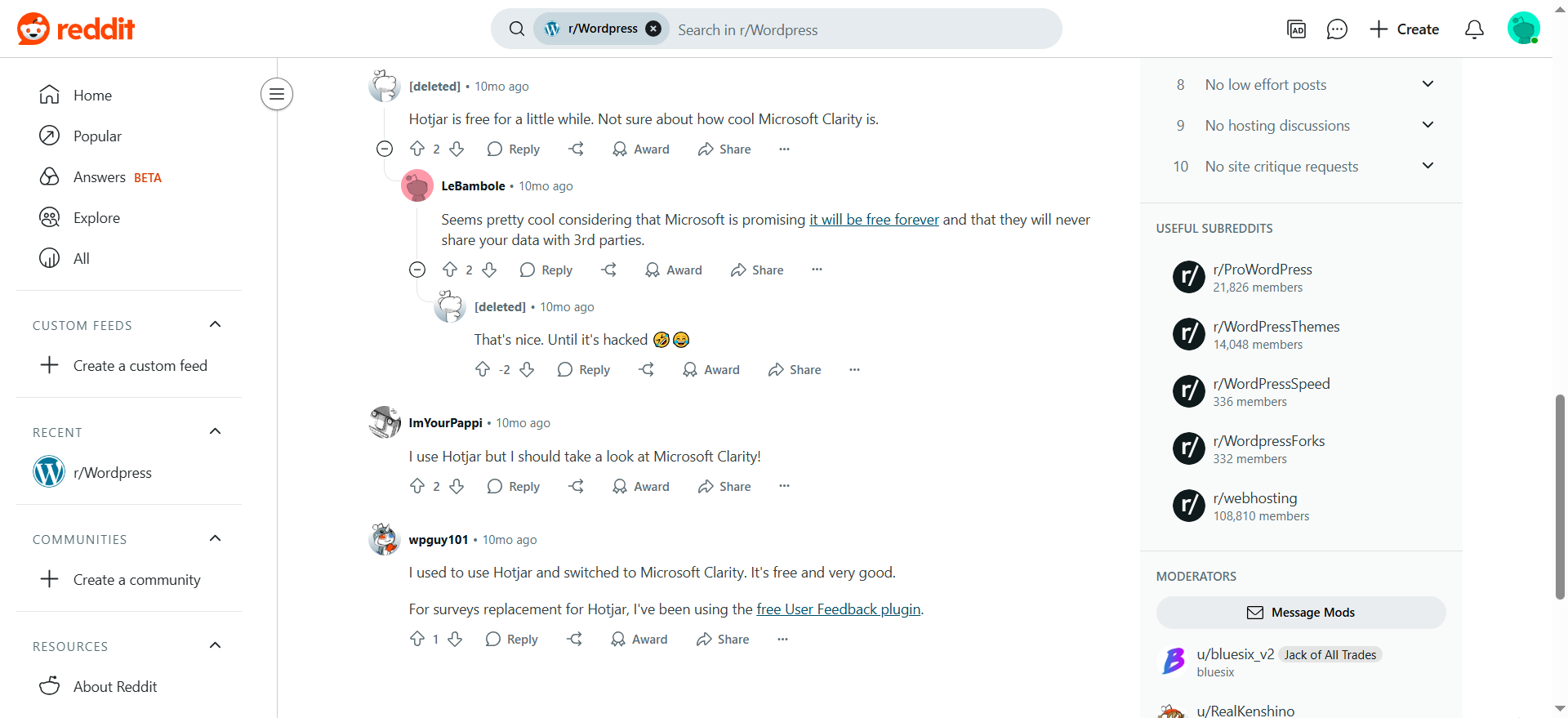
Many Redditors have asked others about the free and reliable heatmap tracking and click tracking plugins. Unsurprisingly, users have liked Microsoft Clarity as the famous heatmap service has numerous features.
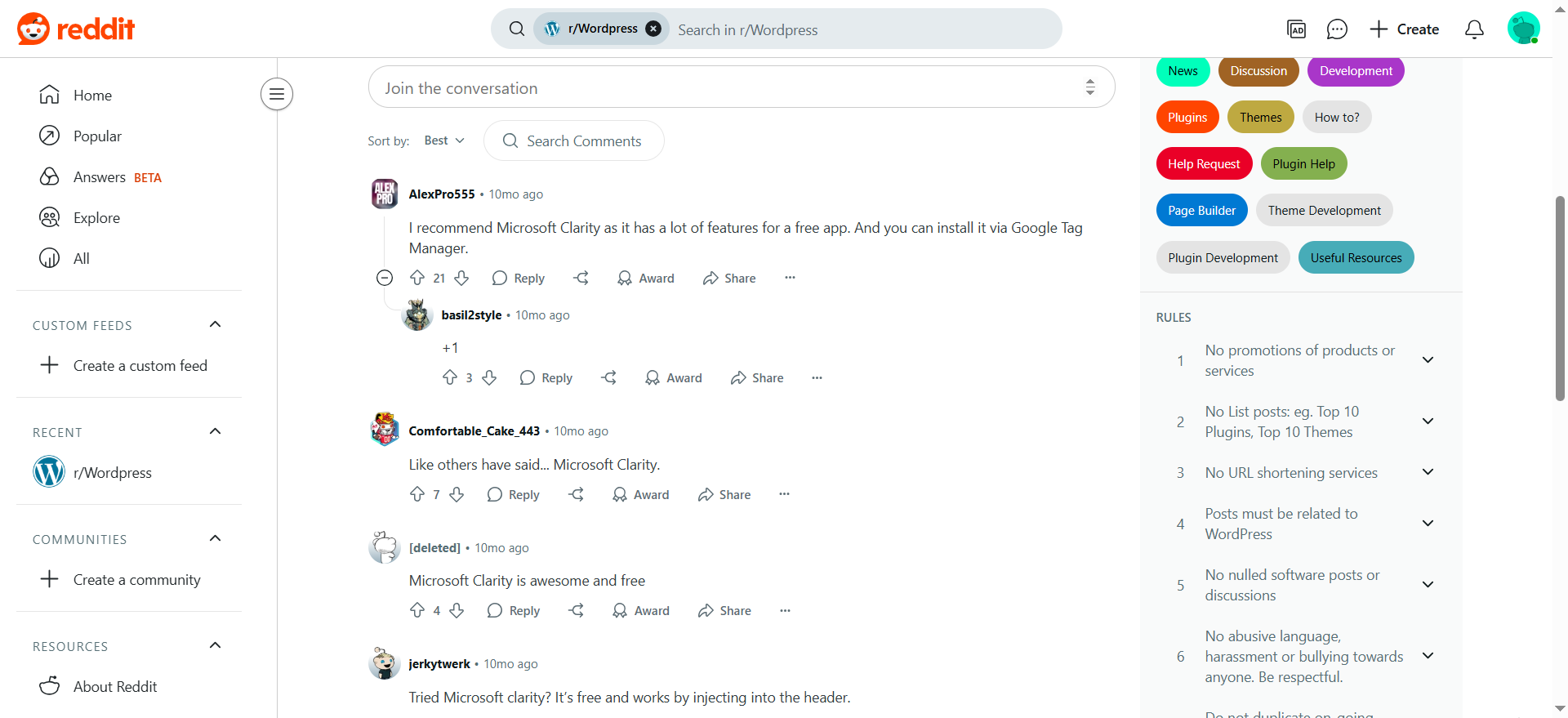
It does not charge users a dime. Moreover, users can install it with the help of Google Tag Manager. A few users have appreciated the performance of Hotjar, another website analytics tool.
Wrapping Up🧐
If we say that the WordPress heatmap setup process is simple and doesn’t require rocket science, we are right. We expect you to appreciate our blog post, which thoroughly describes WordPress heatmap.
When site owners want to understand their visitors’ behavior, nothing comes close to or beats the importance of heatmaps. Heatmaps can identify the most and least clickable links and elements on a web page.
Website owners and developers can use this information to enhance their design and user experience to the next level.




