

















































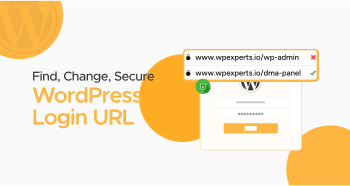
You’ve just launched your WordPress website, and the excitement is real. But, as the admin, your next step should be securing the entryway to your site. Without a secure login, hackers or malicious bots can easily access your site. That’s why understanding the WordPress login URL is essential—it’s the door to your website’s control room.
Then, how do you lock it? Can you change the URL? And what happens if you get locked out? If you have been wondering about these, you are on the right track. In this guide, we will explore at length how to find, edit, and hide your WordPress Login URL for maximum security.
What is the URL for WordPress login?
Now, before we move forward with locking it down, let’s begin from zero. There is a default login URL for every WordPress site. This is the one you utilize to visit and log into your website’s admin area, where you can change your posts, settings, themes, and plugins.
Your WordPress login page will be accessed by default via:
bash

CopyEdit

yourwebsite.com/wp-login.php
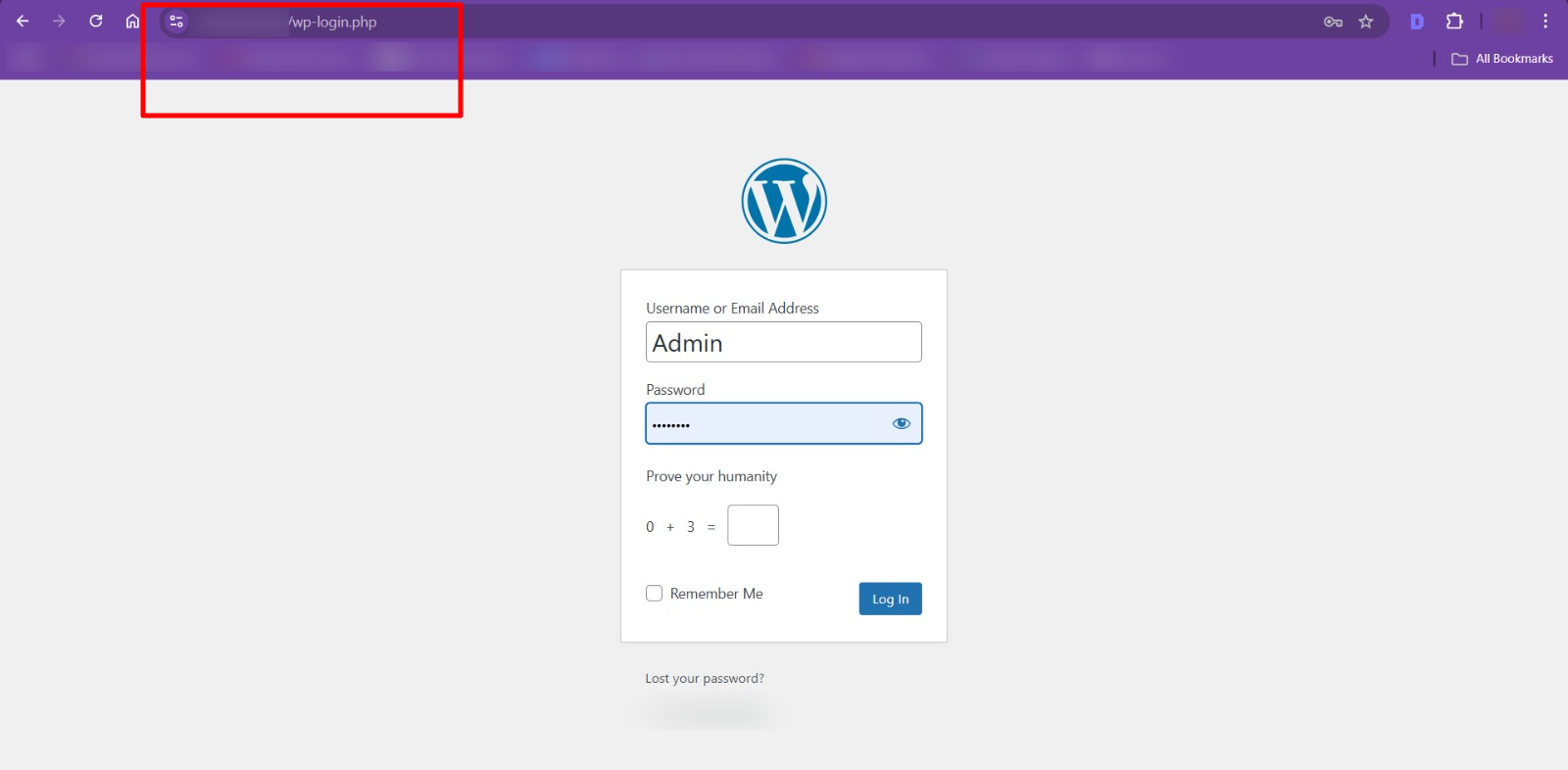
Or, if you’d instead access your admin dashboard directly (i.e., without first logging in), you can do the following:
bash

CopyEdit

yourwebsite.com/wp-admin
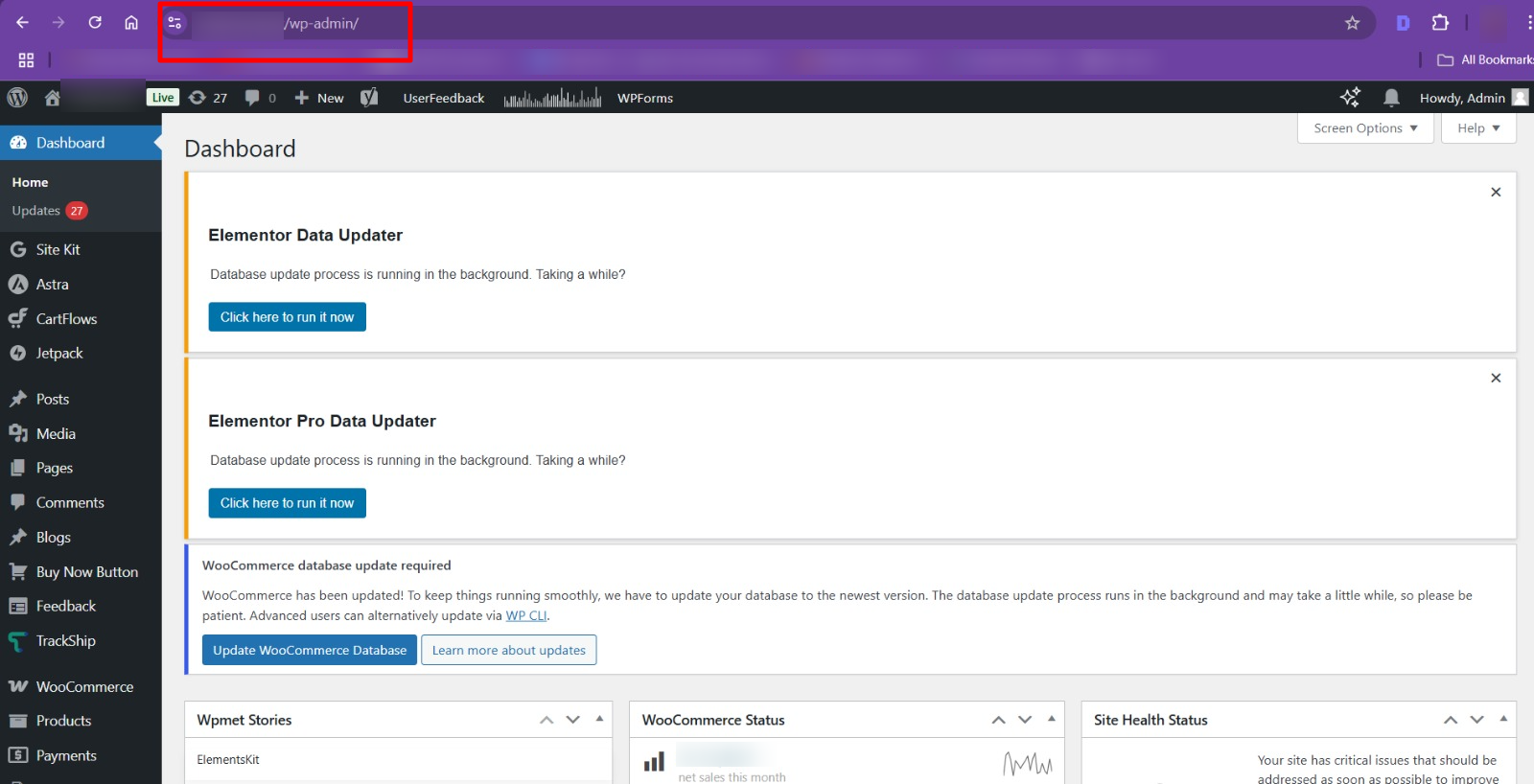
While these are the default URLs, however, be aware that they will be a weak spot for hackers. Anyone who knows the URL can attempt to guess your password and gain unauthorized entry into your site. That’s where the concept of securing your WordPress Admin URL comes into play.
How to Obtain Your WordPress Login URL
Obtaining your WordPress login URL is generally very easy. You might be wondering whether you need to look in the site files or find them online. But no, it is an easy thing to do in most cases.
If you have just installed WordPress, simply access the login page by adding the following to your domain name:
bash

CopyEdit

yourwebsite.com/wp-login.php

Or you can simply go to your admin dashboard (if you are logged in) at:

bash

CopyEdit

yourwebsite.com/wp-admin
However, if your host has changed the URL for added security (a common practice among many hosts nowadays), you may not be able to use these default links. In this case, there are two ways of finding the WordPress Login URL:
- Check Your Host’s Documentation: Most hosts will send you an introduction email with all login information included.
- Use FTP: If your host has made a custom login URL and you have no idea what it is, you can access your site’s root directory via FTP. There, search for the wp-login.php file, which may have the custom login URL.
Why Change the WordPress Login URL?
If you have your WordPress login page open at the default URL, you’re asking for hackers to try to guess your credentials. This is particularly egregious because bots will often use brute force attempts against wp-login.php. They’re employing automated programs to cycle through numerous possible combinations of usernames and passwords. They hope to stumble upon the correct combination and inadvertently destroy your business.
Changing the URL for security reasons? It’s all about giving your site an extra layer of protection and keeping unwanted visitors out. Let’s take a peek at how to change your WordPress Login URL.
How to Change Your WordPress Login URL
Changing your WordPress Admin URL appearance looks like a complex task, but it’s easier than you think. You can either do it manually or use a plugin. Let’s divide both processes into steps.
Method 1: Use a Plugin
Changing your WordPress Login URL is about as easy as anything, and you can accomplish it with a plugin. WPS Hide Login is one such add-on that allows you to change the URL in just a few clicks.
- Navigate to WordPress dashboard > Plugins > Add New.
- Search for WPS Hide Login.
- Install and activate the plugin.
- Once you’ve activated it, go to Settings > WPS Hide Login.
- Put in a new login URL, such as yourwebsite.com/mynewlogin.
- Save changes.
Done! Now, try to access your old login page; you’ll be redirected to your new one. As easy as you like!
This plugin also allows you to install a custom redirection page, so users who try using the actual login page will be redirected to a different page instead.
Method 2: Manual Method (For Advanced Users)
For advanced users (WordPress experts) who prefer to take the manual route, you can manually change the WordPress Admin URL. But this approach requires care. So be careful & don’t break the functionality of your site.
- Access Your Site via FTP: Connect to your site via an FTP client (like FileZilla).
- Rename wp-login.php: Locate the wp-login.php file in your site’s root directory. Rename it to something like mynewlogin.php or securelogin.php.
- Update WordPress Files: You will need to replace all occurrences of wp-login.php in your WordPress files. You will require some coding knowledge for this. Open the wp-login.php file and replace all occurrences of wp-login.php with your new login file name.
- Update Your Theme’s functions.php File: Within your active theme’s functions.php file, add a filter to inform WordPress that it should use the new login page.
php

CopyEdit

add_filter( 'login_url', 'custom_login_url', PHP_INT_MAX );

function custom_login_url( $login_url )

$login_url = site_url( 'mynewlogin.php', 'login' );

return $login_url;
- Test Your Changes: Confirm the new login URL is functional. If it is not, review your changes.
While the manual method gives you full control over the login URL, we recommend that most people use a plugin. It’s safer, easier, and less likely to break, especially with updates.
How to Hide Your WordPress Login URL
It is one thing to change your login URL, but hiding it completely is another security step for your site. Hiding your WordPress Admin URL makes it harder for attackers to find, providing an added layer of security for your website.
Use a Plugin to Hide the Login URL
Several security plugins, such as Solid Security, offer options to hide the login page entirely. These plugins don’t just change the URL—through .htaccess, they can also prevent traffic to the login page unless a user has the exact address.
Use the .htaccess File for Extra Security
If you’d like to go one step further, you can limit access to the WordPress Login URL via the .htaccess file. You can do this to block all logins except from specific IP addresses.
- Open your .htaccess file.
- Add the following code to allow only specific IP addresses:
apache

CopyEdit

<Files wp-login.php>

order deny,allow

deny from all

allow from xx.xx.xx.xx

</Files>
- Replace xx.xx.xx.xx with the IP addresses you wish to access the login page.
This is a more technical method and should only be used if you are comfortable with server files.
Securing Your WordPress Login Page
While changing or hiding your WordPress Login URL adds a layer of protection, it is not enough by itself. You need to implement further measures to ensure your site is entirely secure from intruders.
The following are some other essential security steps:
- Strong Passwords: Always use strong, complex passwords for your WordPress admin user. Bypass weak passwords that are easy to guess.
- Two-Factor Authentication (2FA): An additional barrier to entry from 2FA will make it considerably harder for attackers to log in even when they know your password.
- Limit Login Attempts: Use a plugin like Limit Login Attempts Reloaded to set limits on login attempts from one particular IP address.
- Backup Your Site Regularly: Use a backup plugin to maintain a recent backup of your site in case of any problems.
What to Do if Your Custom Login URL Isn’t Working
If you’ve changed your WordPress Login URL and it’s not working anymore, try the following:
- Deactivated Plugin: If you had altered your URL using a plugin, check if your plugin is still functioning. Deactivate it, and you should return to the original URL.
- Theme Changes: If you manually changed something, updating your theme may have overwritten it. Be sure you have a child theme so that changes won’t cause this.
- FTP Access: If your own URL does not work, you can always access the login page through FTP and roll back the changes.
Conclusion
Securing your WordPress Login URL is one of the easiest methods to keep your site safe from unauthorized access. Whether you decide to change the login URL, mask or hide it completely, or take further steps into options like enabling 2FA or limiting login attempts, every single action brings you a step closer to securing your site.
Website safety is not a one-time task; it means you must do it regularly. Check on your security settings and update your WordPress plugins and WordPress versions from time to time.
Following this tutorial, your Secure WordPress Admin URL will become an impregnable fortress. Your website deserves the greatest security, and now you know just how to provide it!




