















































You’re probably reading this with a racing heart.
Your WordPress site was flagged due to a Website Phishing Attack. Users are receiving horrible warnings. Your site is losing trust & you’re losing money and probably patience.
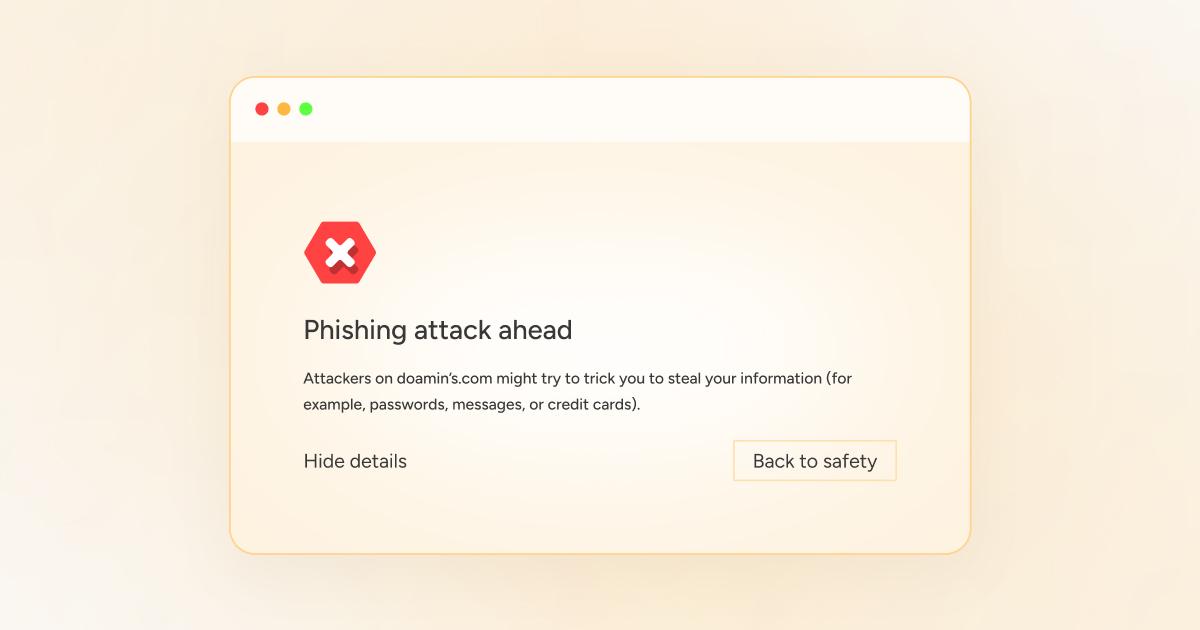
We know it’s frustrating and stressful. But it’s not your fault because you didn’t personally create these phishing pages. Your site is innocent, but it’s the crossfire that caught it.
But worry not; you’re not alone and in good hands now.
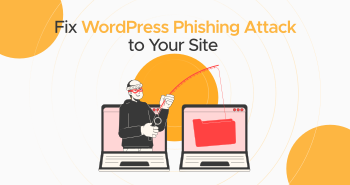
Today, we will guide you on how to fix WordPress phishing attacks. We are also going to provide you with easy-to-follow instructions to protect your site from being attacked again in the future.
Ready to repair your site to its complete integrity and security? Let us begin.
What’s a Phishing Attack on a WordPress Site?
Let’s start from scratch —just what is a WordPress phishing attack?
WordPress phishing attacks occur when attackers take over your site. They use phishing pages or send phishing emails casually. These phishing pages copy well-known brands like Facebook, YouTube, X, or Temu.
Users who visit these pages provide sensitive information like usernames, passwords, bank details, or credit card numbers.
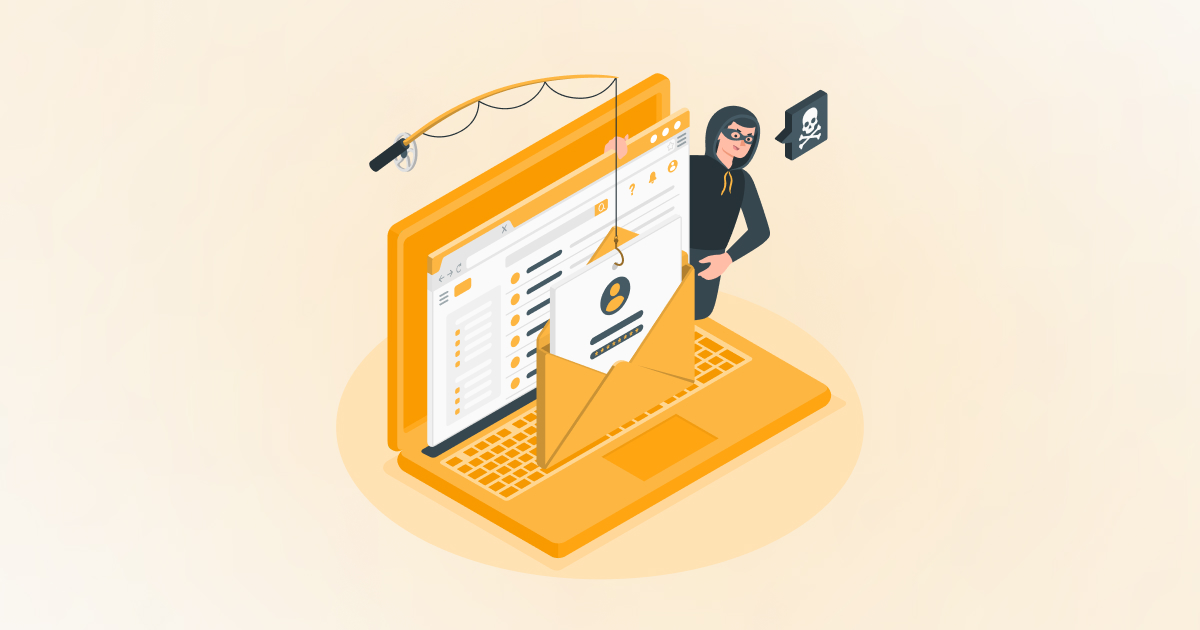
That is why search engines (Google/Bing or others) immediately flag such sites as unsafe. Your site then can get marked out with scary notices like “This site has been reported as a phishing site.”
This warning kills your site’s reputation. The users immediately lose their trust. Your SEO rankings get affected, and so does traffic.
So, let’s get it sorted together and ensure it never happens again.
How to Check If Your WordPress Site Has a Phishing Attack?
Before fixing a phishing attack, let us first verify if your WordPress site is actually infected.
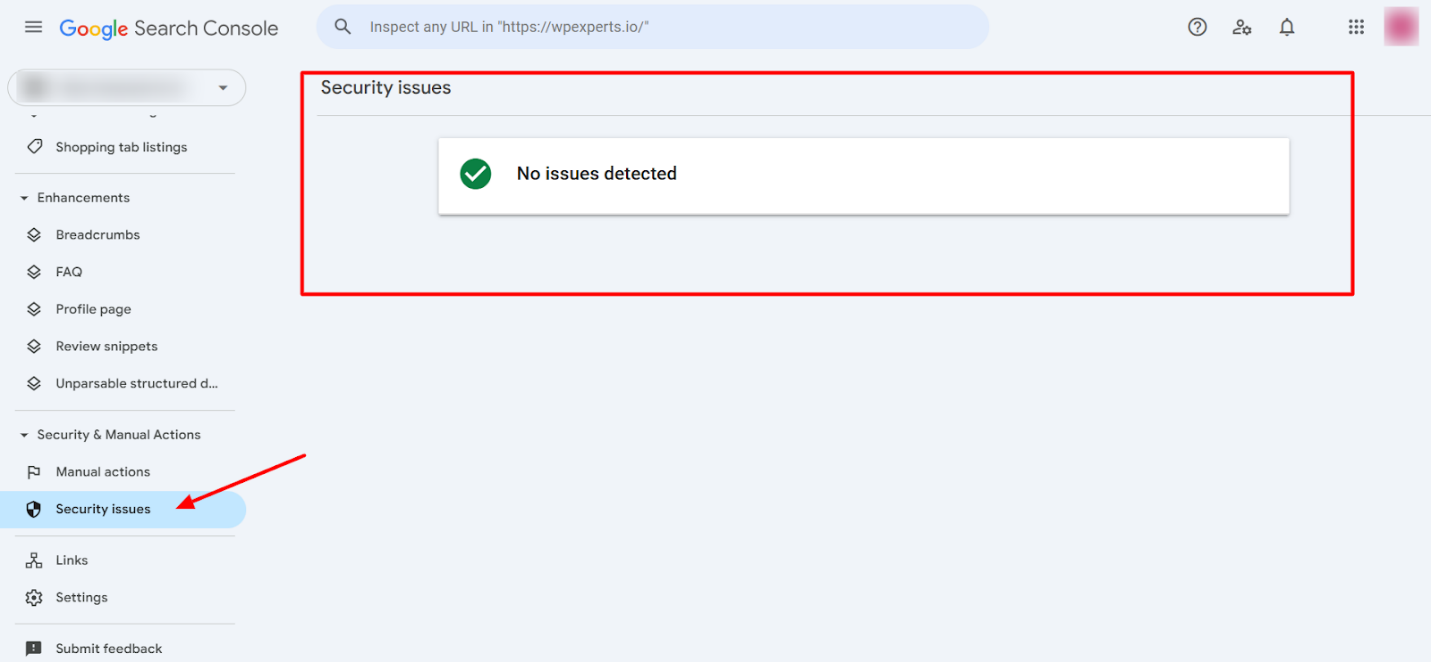
Start by signing in to GSC (Google Search Console). Check in the “Security Issues” area. If your site is compromised, Google usually flags it there initially.
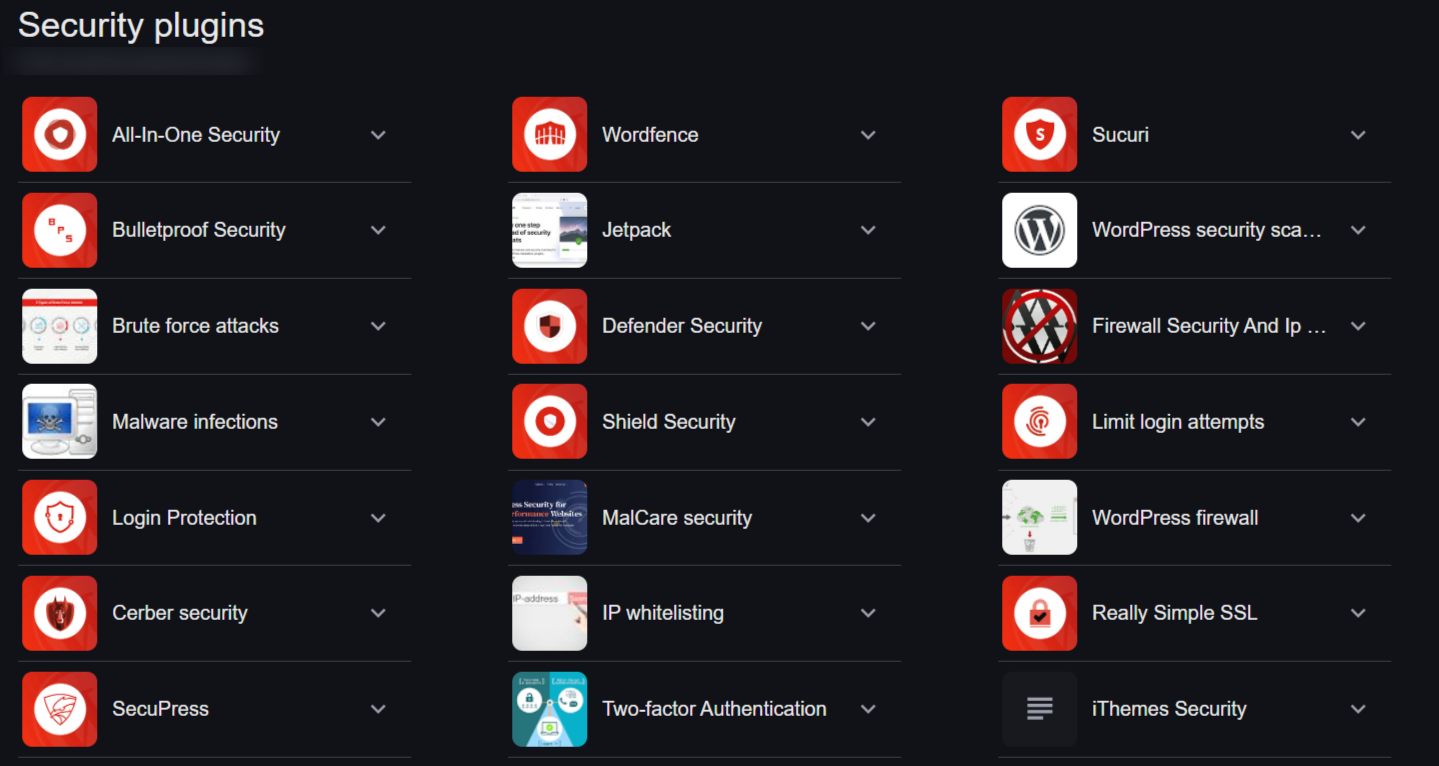
Next, examine your website using a security plugin. All-In-One Security, Wordfence, and Sucuri are some of the top names in WordPress security. These plugins scan your whole site to find hidden malware or phishing pages and help you fix WordPress phishing errors.
Also, look for strange pages or posts you did not make. Look at your site from a private browser or another machine. Hackers sometimes conceal phishing pages from administrators so the infection remains concealed longer.
Search for strange content in your site directories. For example, search for favicon files with known brand logos. Hackers prefer to use authentic logos because they make the phishing pages appear legitimate.
If Google has marked your website or you discover these weird pages, it indicates that your WordPress website has a phishing hack.
Don’t worry! We’re going to resolve this immediately.
How to Repair/Fix WordPress Phishing Error/Attack?
You have two methods to repair a WordPress phishing hack:
Option 1: Use a Security Plugin (Extremely Recommended)
This is the simplest, fastest, and most secure method to repair your site.
Plugins such as MalCare or Sucuri eliminate phishing malware in seconds. No technical expertise is required—just execute easy steps:
- Install the security plugin (e.g., MalCare).
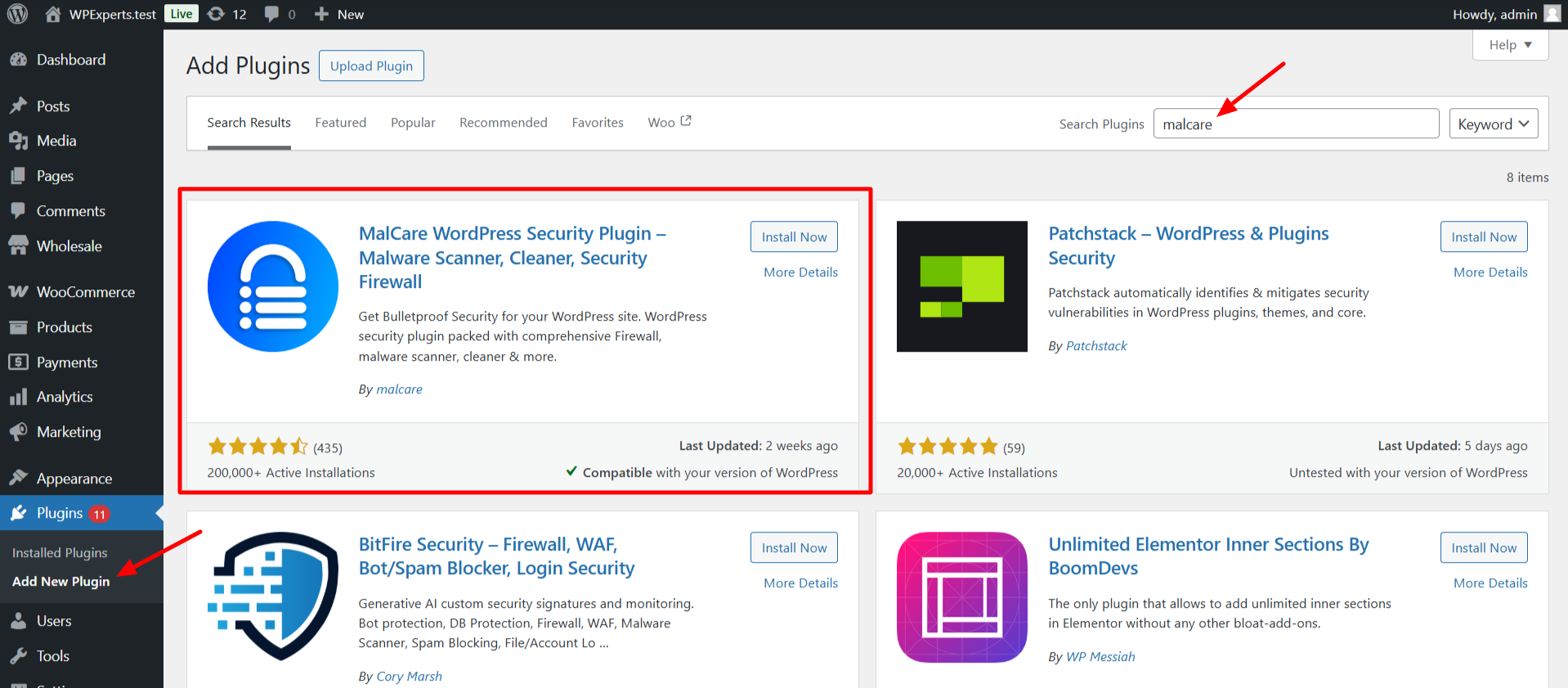
- Perform a scan and detect phishing malware.
- Click “Remove malware.” It cleans your site automatically within minutes.
That’s it. You’re back online without worry, panic, or danger of harming your site.
This is the recommended solution because manual removal is complicated and dangerous.
Option 2: Remove Phishing Malware Manually
You can remove WordPress phishing attacks manually, but it’s not safe. You might accidentally delete important files with a tiny error.
Manual removal is only recommended if you are code-friendly or have a team of WordPress experts. Here’s what to search for:
– Look for Bogus Login or Payment Pages
Look for bogus login or payment pages. These hackers typically copy well-known websites. For instance, PayPal login pages or Amazon checkout pages.
– Check for Odd Files or Folders
Check within your folders for odd files or folders with strange names. Some examples are folders like “login-paypal” or files like “favicon_gh234.ico.”
– Backup Your Site
Remember to back up your site before removing anything. If you end up messing, you can always restore from your backup.
But again, manual cleaning is not for beginners. If unsure, use a security plugin or seek a professional WordPress service.
How to Prevent Future WordPress Phishing Attacks?
Cleaning your site is excellent—but preventing future hacks is even more critical.
Here are some easy, actionable ways to secure your WordPress site:
– Install a Security Plugin:
Always use a security plugin like Wordfence or MalCare. It scans your site daily. It catches malware early and blocks phishing attempts.
Security plugins also come with firewalls. A firewall stops hackers from injecting harmful scripts into your website.
– Remove Unauthorized Users:
Regularly check your WordPress admin panel. Delete any unknown or suspicious admin accounts. Hackers may create stealth users to keep access even after you’ve deleted malware.
– Regularly Update Your WordPress Site:
Keep WordPress core files updated at all times. WordPress plugins and themes must be updated as well. Updates usually include patches for vulnerabilities. This prevents cyberpunks from taking advantage of weaknesses.
– Use Strong Passwords and Two-Factor Authentication:
Never employ weak or simple-to-hack passwords. Secure passwords keep your admin accounts safe from brute-force attacks.
Secure your WordPress with two-factor authentication, providing extra security. Even if the attackers acquire your password, they cannot log in without your phone or email confirmation.
– Install an SSL Certificate:
SSL certificates encrypt the data of users. They display a secure padlock on your website. Google also favors websites with SSL, improving your website’s ranking and user confidence.
– Regularly Backup Your Website:
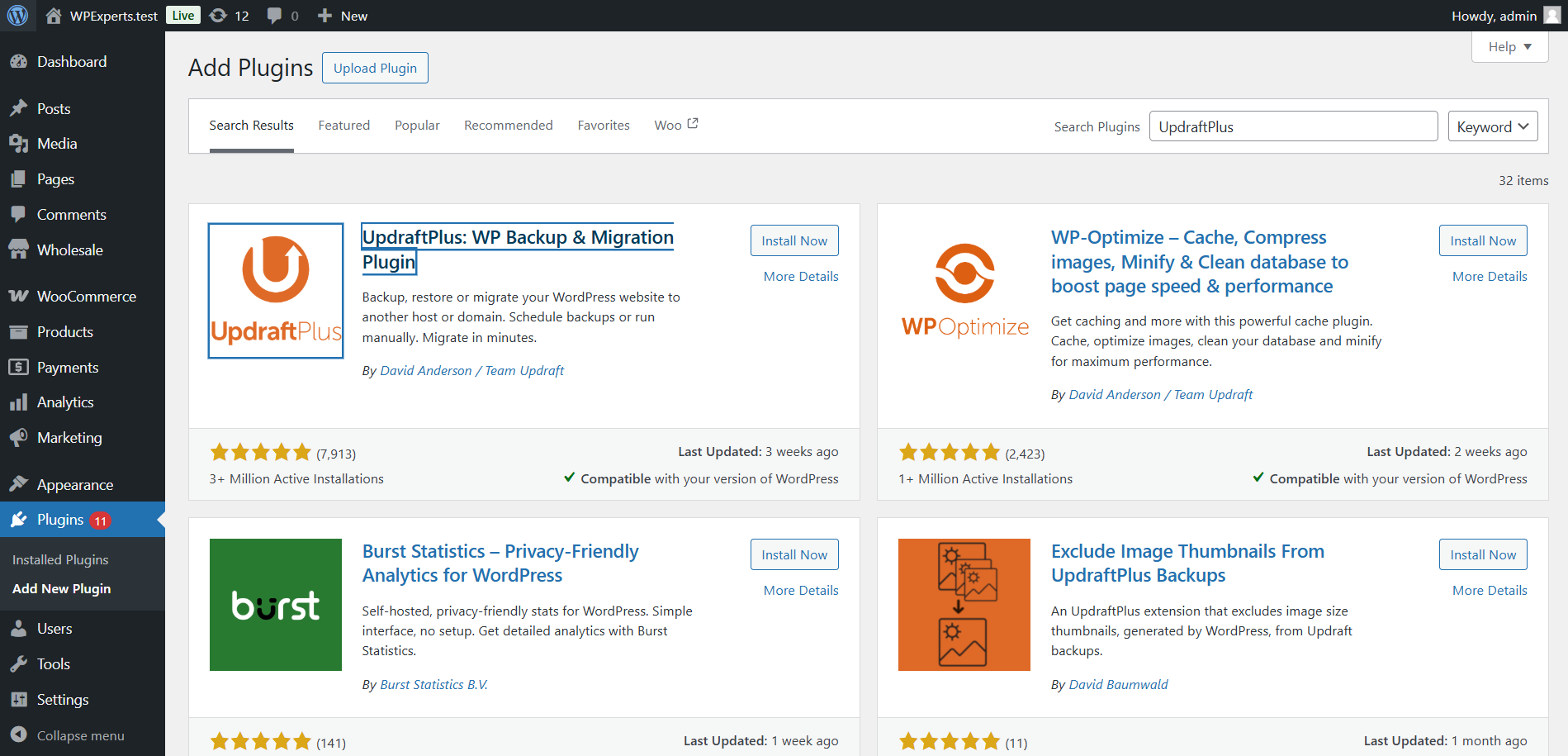
Always take regular backups. If something goes amiss, you can retrieve your site in no time. You can take backups with plugins such as UpdraftPlus or BackupBuddy.
These precautions make your site much safer from another or the first-ever phishing hack.
How to Remove the “Marked as Phishing” Warning from Google?
Remove phishing content, then ask Google to remove the warning.
Return to Google Search Console > Security Issues. Select “I have fixed these issues” and ask for a review.
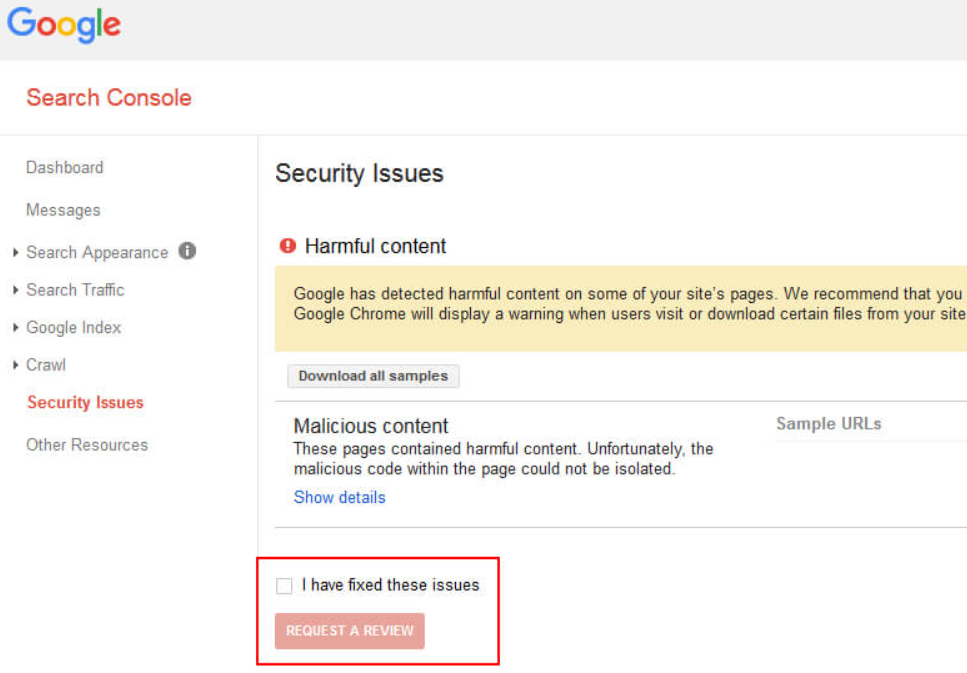
Google will manually check your site. This can take 72 hours or more. Fully detail the action you’ve taken in your request.
Wait it out. The quicker you clean your site, the faster the warning comes off.
Kinds of Website Phishing Attacks That You Should Familiarize Yourself With
Familiarity with website phishing attacks safeguards your WordPress site and visitors more.
There are two primary kinds:
1. General Website Phishing Attack:
Attackers send emails to a large number of your website users. Those emails are naturally generic and instruct individuals to click on links and provide confidential information. This way, hackers get critical information about user credentials.
2. Spear Website Phishing Attack:
It is directed to a particular group of people or organizations. The attacker impersonates someone the victim knows. Such emails look very authentic and personal. This makes it simpler to mislead individuals to provide confidential information.
Both website and email phishing go together. Phishing emails point directly to phishing pages on your hacked WordPress site.
Why Do WordPress Phishing Attacks Occur?
Hackers seek personal data to steal identities and money or gain access to sensitive information.
The following are things they typically seek:
- Credit card numbers
- Bank account information
- Social Security numbers
- Login details for different sites or services
They also attack websites that have lots of email address data. This allows them to send spam emails using your domain, which hurts your brand reputation.
How WordPress Phishing Attacks Are Found
Google often discovers phishing attacks by using automatic AI systems. Yet, sometimes, individual users discover phishing attacks themselves. This is yet another good reason to closely keep an eye on your website and employ security plugins.
Your users may find out about phishing material first. It can be detrimental, breaking your credibility.
Removing the WordPress Phishing Error on Google
Google marks phishing sites rapidly to safeguard users. If Google detects any phishing activity, it will place a warning, such as: “This site has been marked as a phishing site.”
After cleaning your site:
- Go to Google Search Console.
- Look at the “Security Issues” tab.
- Ask for Google’s check on your site again.
- Describe your cleaning process patiently and adequately wait for Google’s response.
Keep in mind that Google’s review takes a 72-hour maximum time. Patience is essential here.
Wrap Up & Takeaways
To Fix WordPress phishing attacks can seem daunting, but they don’t have to be. Just follow this easy step-by-step guide, and your WordPress website will be unassailable in no time.
Always clean and scan malware promptly. Then, secure your WordPress website from further attacks. Security plugins are your best friends—they keep your site safe and provide peace of mind.
With proper measures, your site remains secure. Your users trust you more, and your business flourishes without any disruption.
You can now safely control and safeguard your site against WordPress phishing attacks.
Best of luck—and remain safe!




