




















































Running a business becomes challenging when you don’t have detailed information about your customers. Who are they? Where do they come from? What are they looking for? Keeping track of a website proves to be difficult without traffic analysis tools in place. That’s why it has become a necessity to add Google Analytics to WordPress. This tool has all the resources to help you in the long run.
Adding Google Analytics (GA4) to WordPress sites transforms analysis from helpful to essential because it produces game-changing results. Your website management becomes more efficient through Google Analytics data. It enables you to make decisions based on hard facts for your blog, online shop, or corporate portal.
This tutorial takes you through the complete process of connecting Google Analytics to your site with step-by-step procedures. We’ll learn everything from installing Google Analytics on the website to adding Google tracking code to WordPress & more.
Why Add Google Analytics to WordPress?
Managing a successful WordPress site entails more than just developing content and design tweaking. Data is needed to make wise judgments and monitor your performance. This knowledge is offered by Google Analytics, which serves as your main instrument for checking the traffic of your website.
Key Benefits of Adding Google Analytics on WordPress
1. Audience Insights
Be informed who’s visiting your website, including his/her location, language, device, or even interests. This information would help you optimize your content for your audience. For instance, if 60% of those visiting your website are from mobile devices, prioritize mobile-friendly designs.
2. Behavior Tracking
Know how users interact with your site. Which pages do they visit the most? How long do they stay? Where do they exit? Behavior tracking helps you know which content performs best and which needs improvement.
3. Source of Traffic
Know the source of your traffic, which means from where your visitors land on your site—organic search, social media, email campaigns, or direct visits. This way, you can focus your marketing efforts on high-performing traffic channels.
4. Conversion Optimization
Monitor user paths and identify the areas of your sales funnel where customers abandon the sales funnel. This information can be used for your conversion rate optimization techniques.
5. Custom Reports
The advanced user can make a custom report to track specific metrics like the user engagement performance of e-commerce or the success of campaigns.
Follow These 3 Steps to Add Google Analytics to WordPress
Step 1: Make a Google Analytics Profile
- Setting up an account is your first step with Google Analytics. You will need to set up a new GA4 asset if you have an account but are unfamiliar with GA4.

- Visit Google Analytics and log into your Google account. Create one if you don’t have a Google account.
- Click the “Start Measuring” button to start setting up.

- Enter your username.

- Set the account settings (data sharing choices, etc).

- Fill in your website name, time zone, and currency to generate a new property.

- Provide your business details.

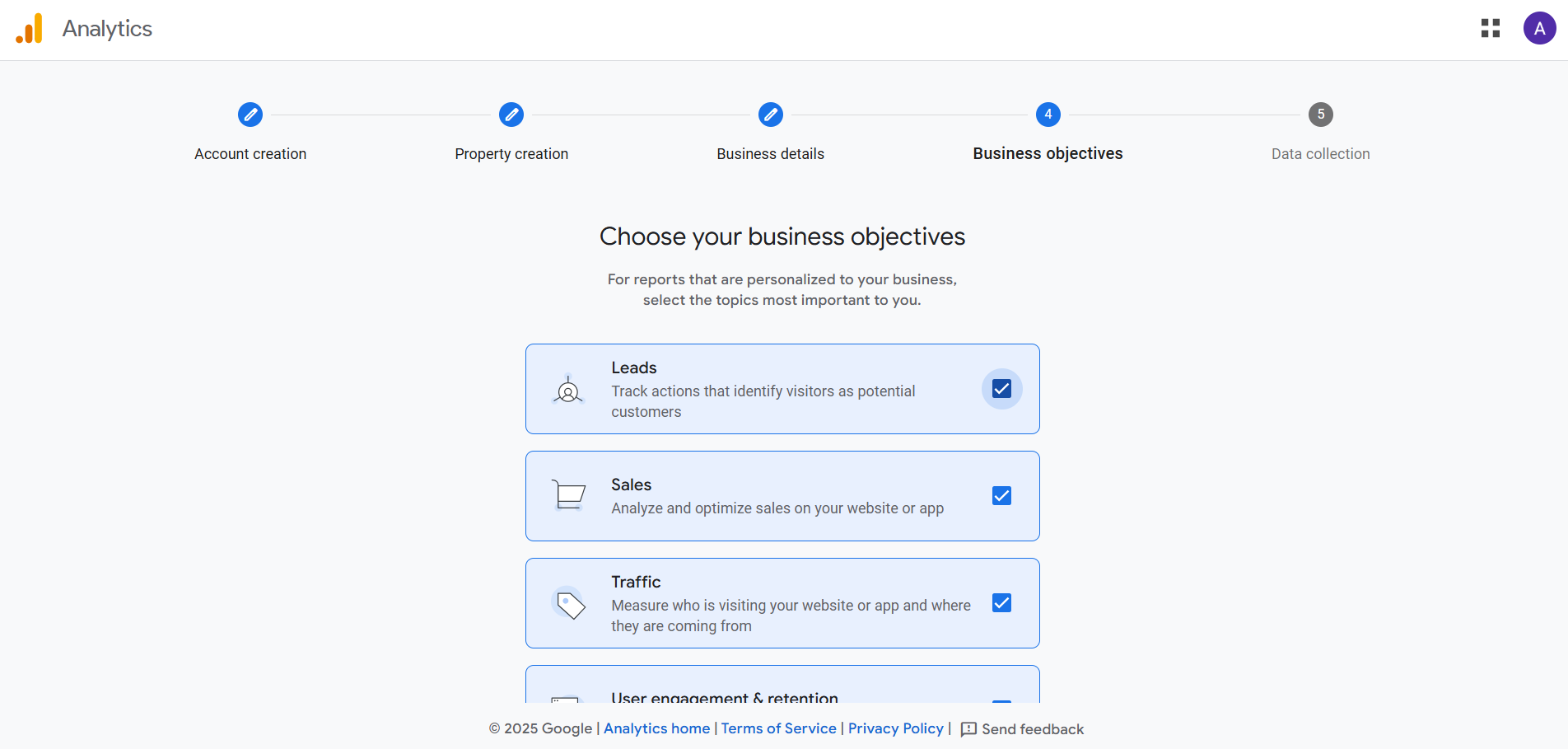
- Choose all the business objectives or your preferred ones only.
- Under Data Collection, choose Web and provide your site URL.

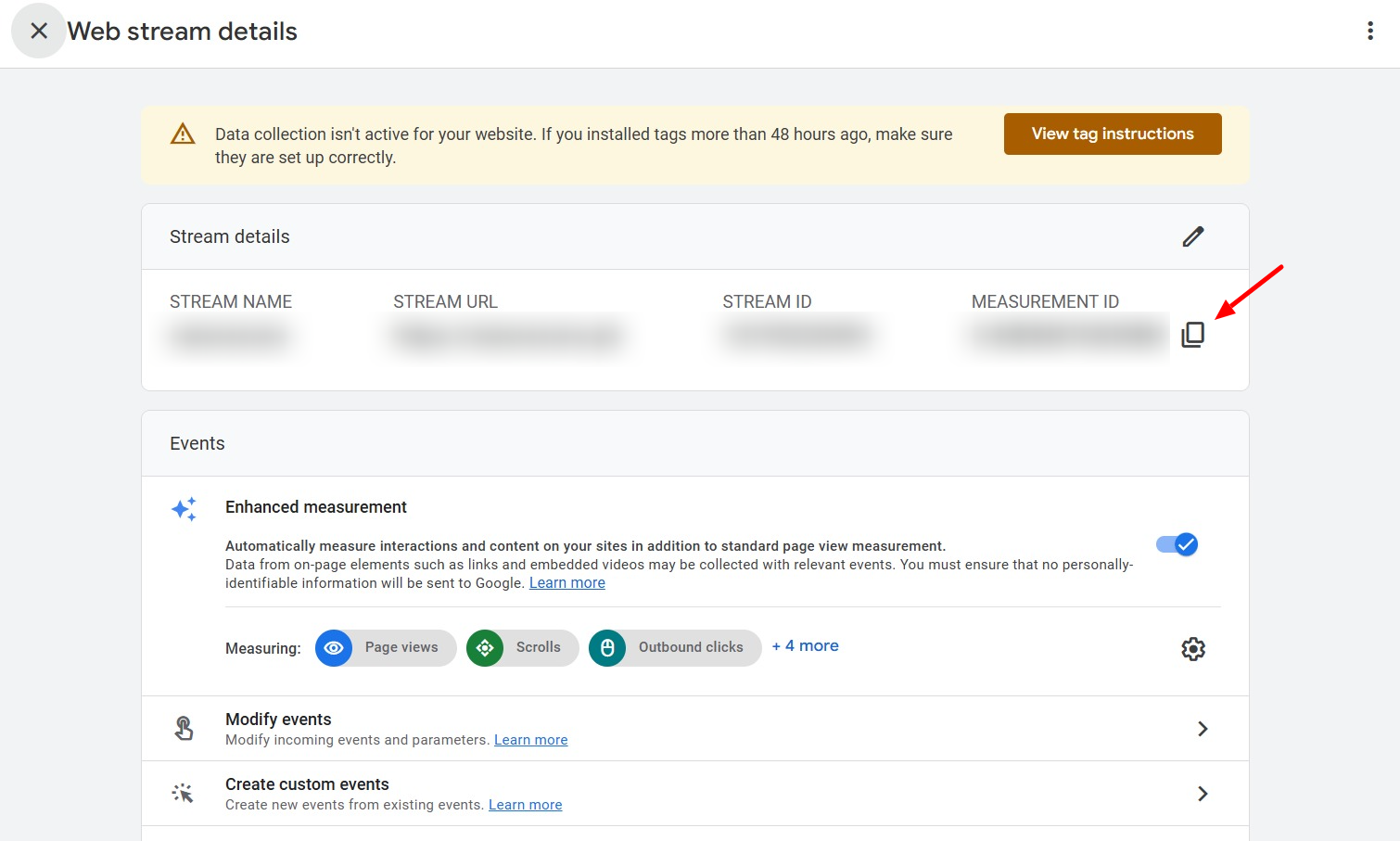
- Copy the given Measurement ID, which will be used to link your website to GA4.
Step 2: Four Methods of Integrating Google Analytics with WordPress.
It’s time to register your WordPress site with Google Analytics. Pick one of the following based on your technical level of interest.
Method 1: Add Google Tracking Code to WordPress Manually
The first method to add Google Analytics to WordPress is manually adding the tracking code. Here are the steps:
- Within your GA4 account, copy the Global Site Tag from your Web Stream Details. Follow the instructions to get the code.


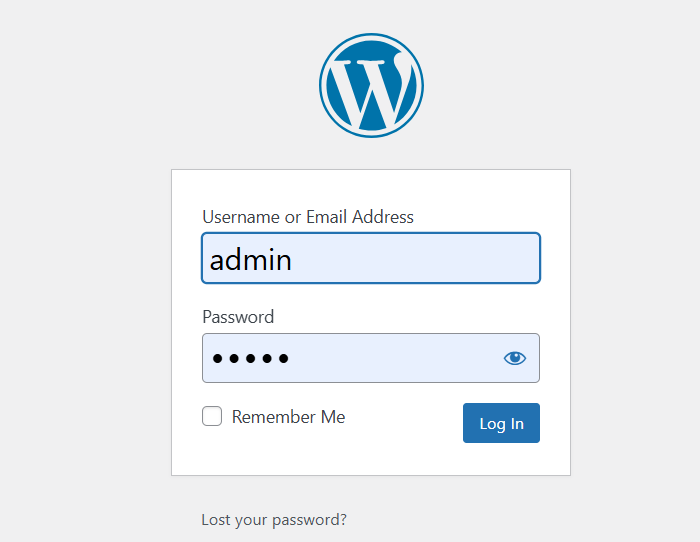
- Now, log in to your WordPress dashboard.
- Go to Appearance > Theme File Editor.
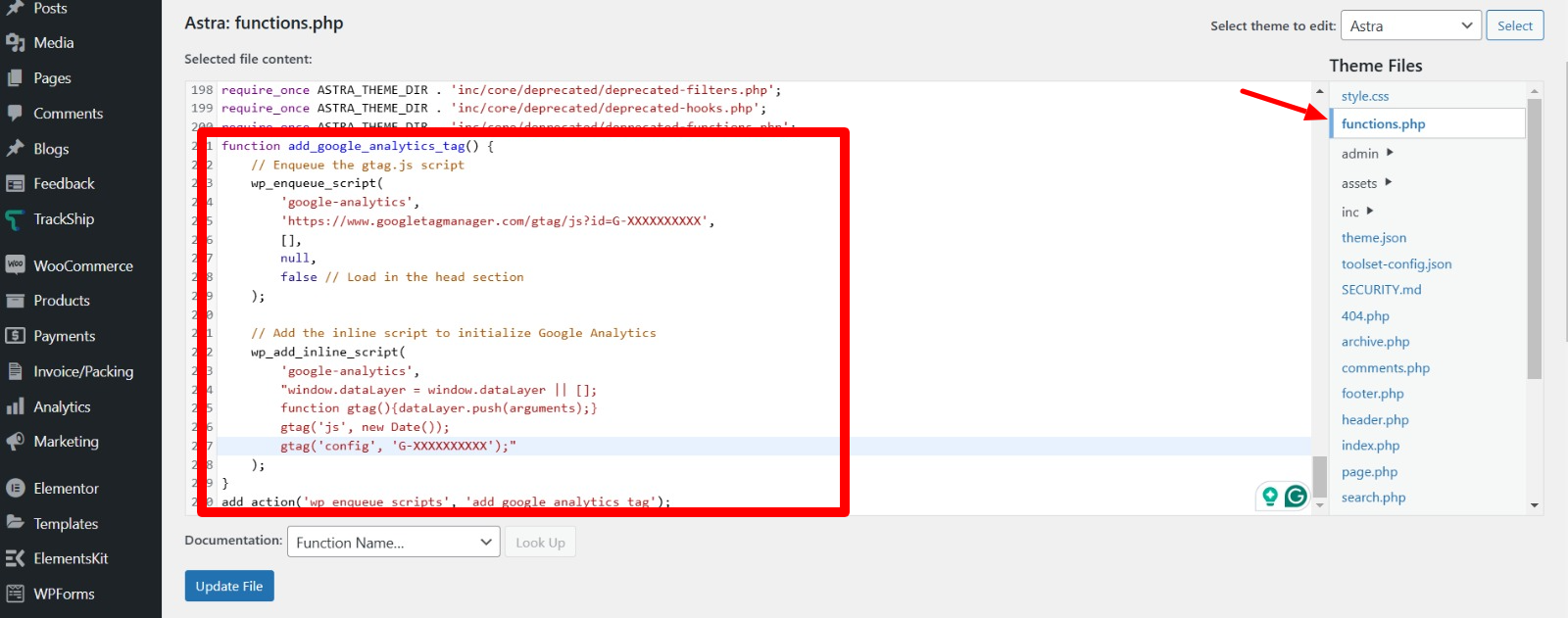
- Click on the functions.php file from the right-hand menu.
- Now enqueue the tracking code from any AI chatbots (ChatGPT or Gemini), or just edit the code mentioned below.
function add_google_analytics_tag() {
// Enqueue the gtag.js script
wp_enqueue_script(
'google-analytics',
'https://www.googletagmanager.com/gtag/js?id=G-XXXXXXXXXX',
[],
null,
false // Load in the head section
);
// Add the inline script to initialize Google Analytics
wp_add_inline_script(
'google-analytics',
"window.dataLayer = window.dataLayer || [];
function gtag(){dataLayer.push(arguments);}
gtag('js', new Date());
gtag('config', 'G-XXXXXXXXXX');"
);
}
add_action('wp_enqueue_scripts', 'add_google_analytics_tag');
- Paste the enqueued tracking code anywhere or in the last as mentioned below.
- Save the changes and clear your site’s cache if necessary.
This method is simple but should be done with care since mistakes in editing theme files can break your site. Always backup your theme files before making any changes.
Method 2: Use a Plugin to add Google Analytics to WordPress
For beginners or those who prefer simplicity, WordPress plugins are the easiest way to add/install Google Analytics to your WordPress site. Here are two popular options:
1. Site Kit by Google
- Install the Site Kit from the WordPress plugin repository.
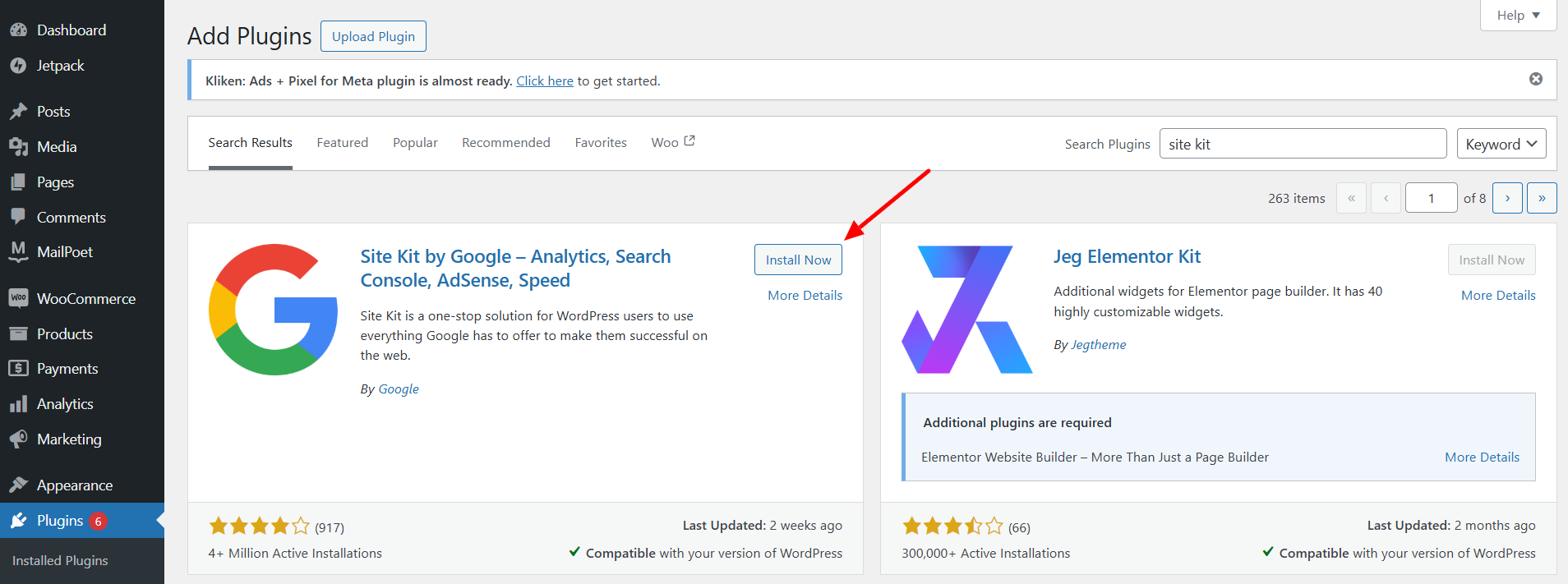
- Activate the plugin and follow the on-screen instructions to connect it to your Google account.

- Follow the easy sign-in-like steps to install Google Analytics to your WordPress site.
- Site Kit integrates multiple Google tools, including Analytics, Search Console, and AdSense, providing insights directly into your WordPress dashboard.
2. MonsterInsights
- Install and activate MonsterInsights from the repository of the plugins.

- Connect to Google Analytics via the setup wizard.

- Launch the wizard, and just follow its simple steps to have your WordPress site connected with Google Analytics.
- Reports traffic, engagement, and conversion reports accessible within the WordPress Admin.
The above two tools do not just facilitate but offer many more functionalities. They provide added value features, such as E-commerce enhancement as well as dashboard customization.
Method 3: Utilize Google Tag Manager
Google Tag Manager is better suited for complex configurations because it allows you to control multiple tracking codes from a single interface.
- Go to tagmanager.google.com and create your account, then follow the instructions to make a container for your site.
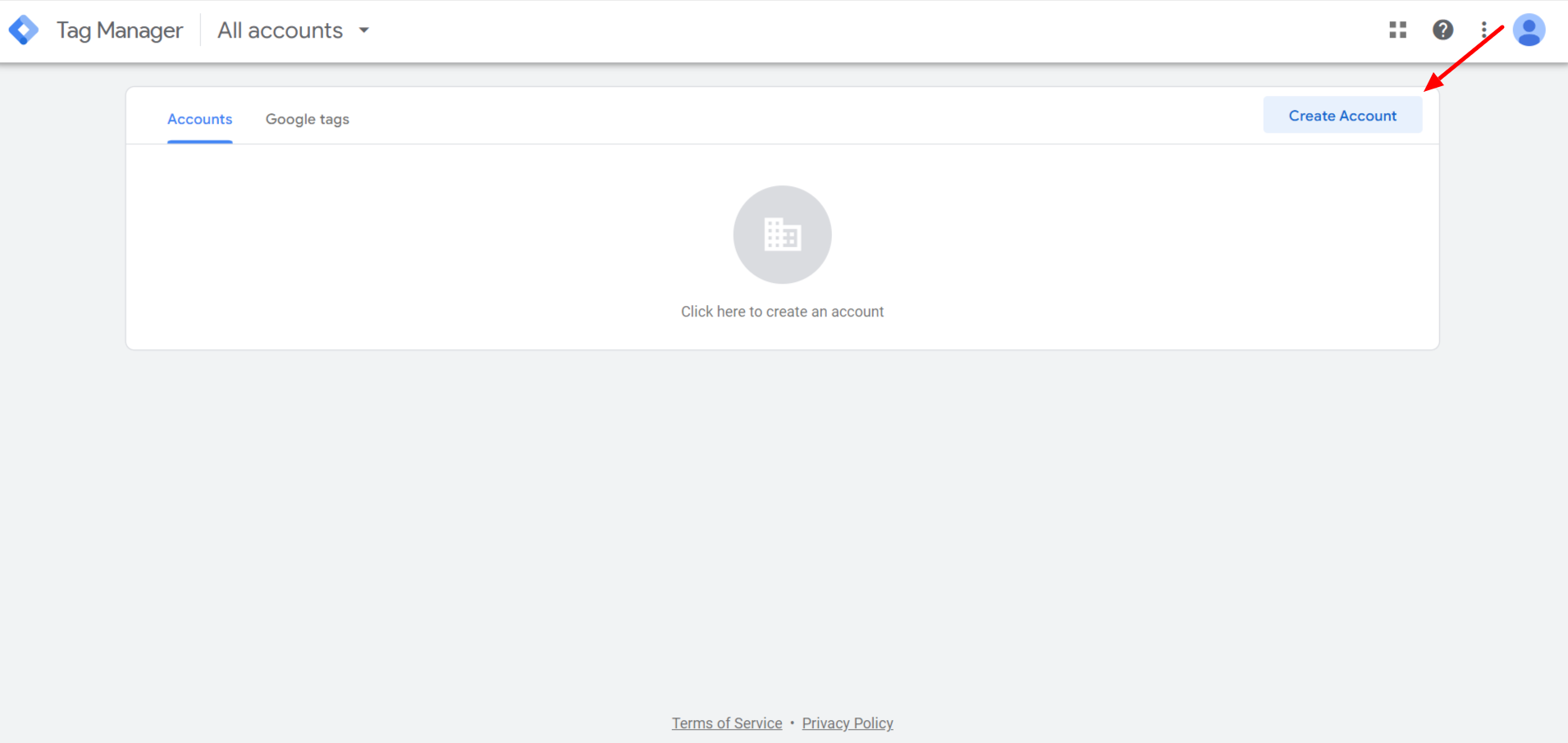
- Incorporate the GTM container code into the header and body sections of your site. But for WordPress, put the below-enqueued code in the functions.php file (just like above).

Enqueued GTM Header Code
Add the following to your functions.php file:
php
Copy
Edit
function add_gtm_header_code() {
echo "<!-- Google Tag Manager -->
<script>
(function(w,d,s,l,i){w[l]=w[l]||[];w[l].push({'gtm.start': new Date().getTime(),event:'gtm.js'});
var f=d.getElementsByTagName(s)[0], j=d.createElement(s),dl=l!='dataLayer'?'&l='+l:'';j.async=true;
j.src='https://www.googletagmanager.com/gtm.js?id=GTM-XXXXXXX'+dl;f.parentNode.insertBefore(j,f);
})(window,document,'script','dataLayer','GTM-XXXXXXX');
</script>
<!-- End Google Tag Manager -->";
}
add_action('wp_head', 'add_gtm_header_code');
Enqueued GTM Body Code
Add the following to your functions.php file to insert the Body Code immediately after the <body> tag:
php
Copy
Edit
function add_gtm_body_code() {
echo "<!-- Google Tag Manager (noscript) -->
<noscript>
<iframe src='https://www.googletagmanager.com/ns.html?id=GTM-XXXXXXX' height='0' width='0' style='display:none;visibility:hidden'></iframe>
</noscript>
<!-- End Google Tag Manager -->";
}
add_action('wp_body_open', 'add_gtm_body_code');
NOTE: Replace GTM-XXXXXXX with your actual GTM container ID.
- In GTM, create a new tag for GA4.
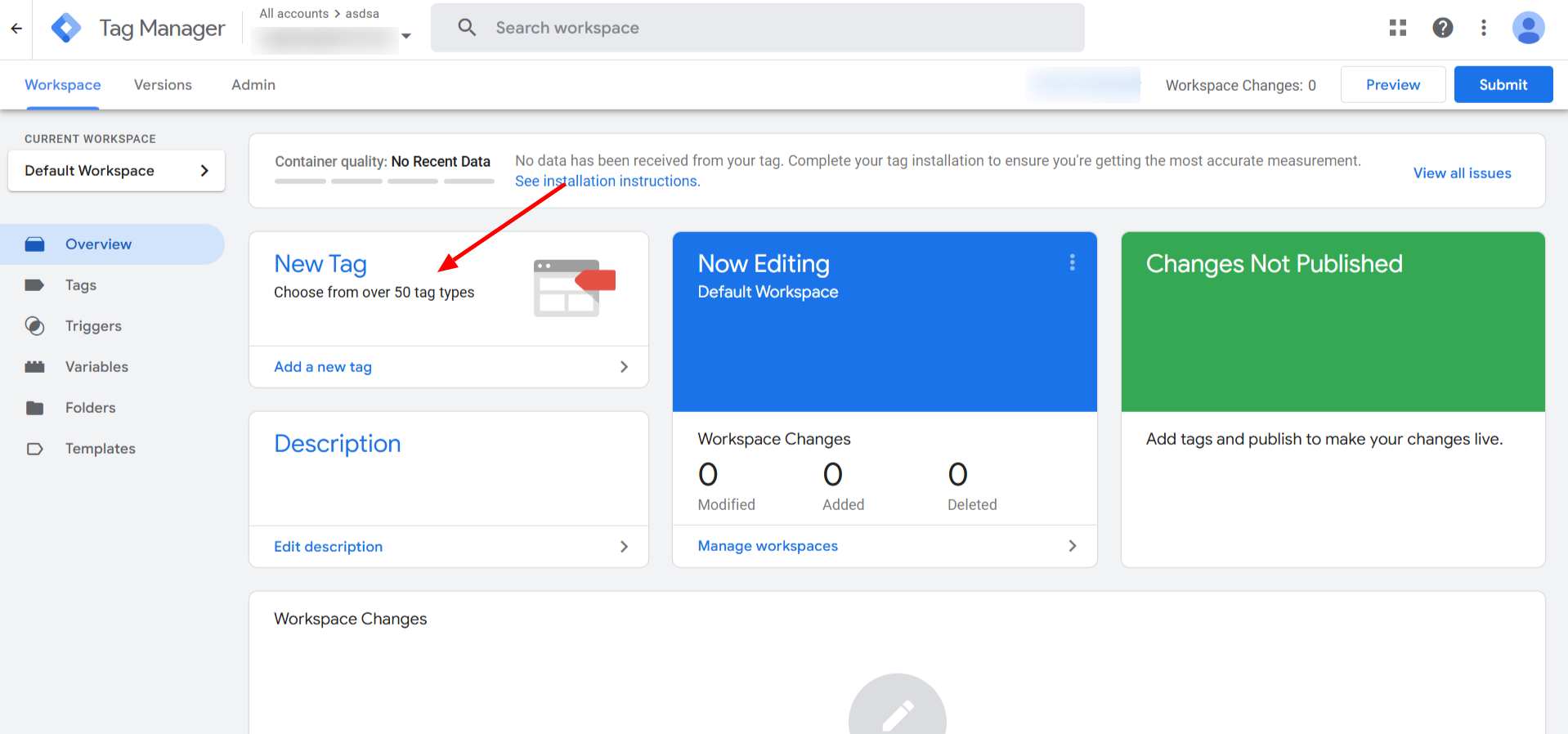
- Choose Google Analytics: GA4 Configuration.

- Now select Google Analytics: GA4 Event.

- Enter your Measurement ID, then click “Choose a trigger to make this tag fire…”

- Configure the trigger as “All Pages” and click “Add” to publish the container.

This way is flexible, particularly if you have additional tags or events to track in Google Tag Manager.
Method 4: Hosting Google Analytics Locally
Hosting the analytics script locally decreases external requests and thereby optimizes your site’s speed. Use a plugin, CAOS | Host Google Analytics Locally, for this cause.

- Install the CAOS plugin from the WordPress repository and activate it.

- Paste your Measurement ID in the plugin settings.

- The plugin will automatically fetch and update the tracking script to your server.
It’s perfect for installing Google Analytics on websites focusing on performance.
Step 3: Testing and Confirming Your Configuration
Once Google Analytics is added to your WordPress website, test it.
How to Test if Google Analytics is Connected to Your WordPress Site or Not:
- Log into your GA4 account and access the Real-Time Reports. You can see 19 users on my site in the last 30 minutes. This means that GA4 is connected perfectly as it’s fetching data. However, if your site is new, you may have to try the points mentioned below.

- Open a new tab of your WordPress website and access some pages (you may test this by going through a couple of pages and clicking on those pages).
- Verify whether your activity is reflected in the live data, like the above screenshot. If that’s the case, your installation was correct.
You can also verify the right installation of the tracking code through the Google Tag Assistant browser extension.

Privacy and Compliance While Adding GA4 to Your Site
With increasing emphasis on user privacy, make sure that your Google Analytics installation is compliant with GDPR as well as CCPA.
- Update Your Privacy Policy: Inform users about the data you’re collecting and why.
- Use a Consent Banner: Implement cookie consent tools to let users opt in or out of tracking.
- Anonymize IP Addresses: Enable IP anonymization in GA4 to protect user data.
Quick Recap: Adding Google Analytics to WordPress
To set up Google Analytics on WordPress, you must create your GA4 account. Copy the tracking code and paste it into the HEAD section of your site. Or you can make the integration easy with a plugin like Site Kit or MonsterInsights.
Use real-time reports to test the setup. Check for GDPR/CCPA compliance with cookie consent tools and privacy-centered settings for a smooth experience.
Conclusion: Why Google Analytics Is a Must-Have for WordPress
Installing Google Analytics in WordPress is really more than a technical task; it is a move toward greater strategic growth in an intelligent manner. Whether using a plugin for adding the tracking code manually or even using Google Tag Manager, the information will be very helpful in shaping your decisions.
With the knowledge of Google Analytics, you can better optimize your content, increase user engagement, and, therefore, expect the desired outcome from your website. Guesswork shouldn’t stop you now—let data do the work today.
Need Help?
If you’re unsure about adding Google Analytics to WordPress or require further customization, getting Google Analytics GA4 expert services to work with you is a good idea. Professional help will ensure your Google Analytics setup is smooth and completely optimized.
Your website deserves the best.
Act now, add Google Analytics to your WordPress site and start making decisions based on data with GA4.





