



















































Are WooCommerce Errors Killing Your Sales? Here’s How to Fix Them.
It’s great to have a WooCommerce store. You do everything yourself—selecting the best products, integrating payment gateways, SEO-optimizing your store, and even running advertisements. Then, something breaks.
- Your checkout page fails to function.
- Customers are unable to view product pages.
- Customers abandon their carts due to payment errors.
- Order confirmation emails fail to send.
That’s frustrating, isn’t it?
Each second of downtime or hiccup on your WooCommerce website is a lost sale. Consumers are impatient—if it doesn’t work, they go elsewhere. And most won’t return.
But the good news is that most WooCommerce errors are so simple to fix if you know where to look. In this tutorial, we will walk you through how to diagnose the most common WooCommerce errors and fix them step-by-step. The steps mentioned will ensure you keep your store in top working condition and drive higher sales.
Understanding Why WooCommerce Errors Occur
Before diving into specific errors and their fixes, you should know why they arise. WooCommerce is a WordPress plugin that relies on multiple things (themes, plugins, server configurations, and databases). When one or more of these are misconfigured or incompatible, errors creep in.
Some of the reasons WooCommerce errors arise:
- Incompatible Plugins or Themes – Some WooCommerce plugins & themes do not go well with one another. If the plugins are incompatible with WooCommerce functionality, they can cause problems such as checkout failure or product page destruction.
- Older WordPress or WooCommerce Versions – Older WooCommerce versions or WordPress versions can cause problems due to incompatible themes and plugins needing to function under new versions.
- Low Server Resources – WooCommerce is a huge plugin- and memory-greedy application. If your hosting account is low on memory or processing, your store will slowly load, crash, or cause database failure.
- Incorrect File Permissions — Some WooCommerce functionality (uploading product images) will fail if file permissions are incorrect.
- Corrupted .htaccess File – The .htaccess file controls vital settings, and because it is buggy, you may experience problems such as 404 errors or the infamous “500 Internal Server Error.”
- Database Connection Problems – All you save in WooCommerce is kept in a database. If the connection is disconnected, your website will fail.
Top Most Common WooCommerce Errors with Their Fixes
1. 500 Internal Server Error
The most feared WooCommerce error is the 500 Internal Server Error. This means that something has gone wrong on the server, but one can’t possibly know what. It might be a conflict between WooCommerce plugins, a PHP memory problem, or even a corrupted .htaccess file.
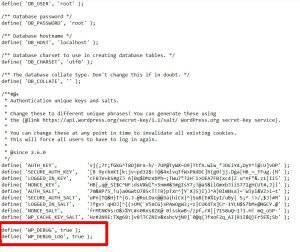
The initial step to correct this mistake is to look at the error logs. WordPress has a debugging mode in which you can monitor errors. You can activate it by inserting the following lines into your wp-config.php file:
php

Copy

Edit

define( 'WP_DEBUG', true );

define( 'WP_DEBUG_LOG', true );
This will create a debug.log file in the wp-content directory, which can be used to find the precise cause of the problem.
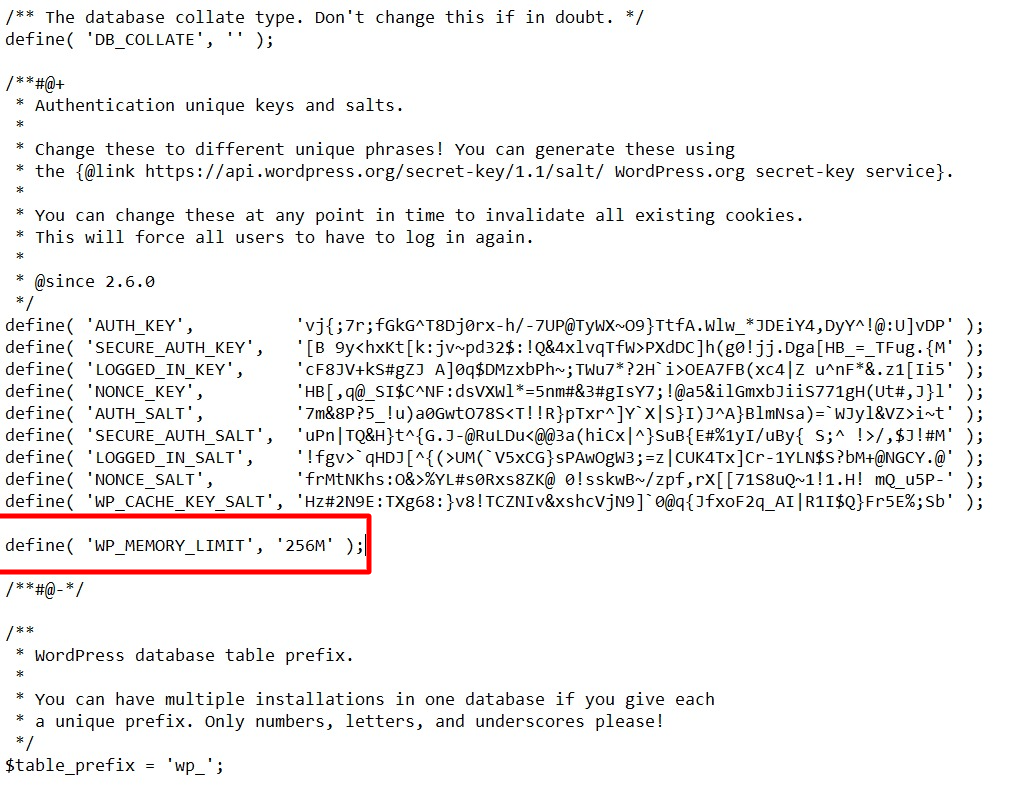
If you are experiencing memory limitations, you can fix it with a boost of the PHP memory limit. Insert the following code in wp-config.php:
php

Copy

Edit

define( 'WP_MEMORY_LIMIT', '256M' );
Or a .htaccess file may be at fault. To fix this, log in to your site via FTP, rename the .htaccess file to .htaccess_old, and save your permalink options in WordPress to create a new .htaccess file.
If none of these have any effect, disabling all the plugins and then turning them back on one at a time may help to locate a faulty plugin.
2. 404 Errors on Product Pages
A 404 error shows up when a page request does not exist. It can particularly damage an online store if product pages, category pages, or checkout pages give this error.
Most often, this occurs because of improper permalink settings. WooCommerce operates under a correct URL format, and broken permalinks may deter customers from accessing your products.
Correcting the issue is an easy process.
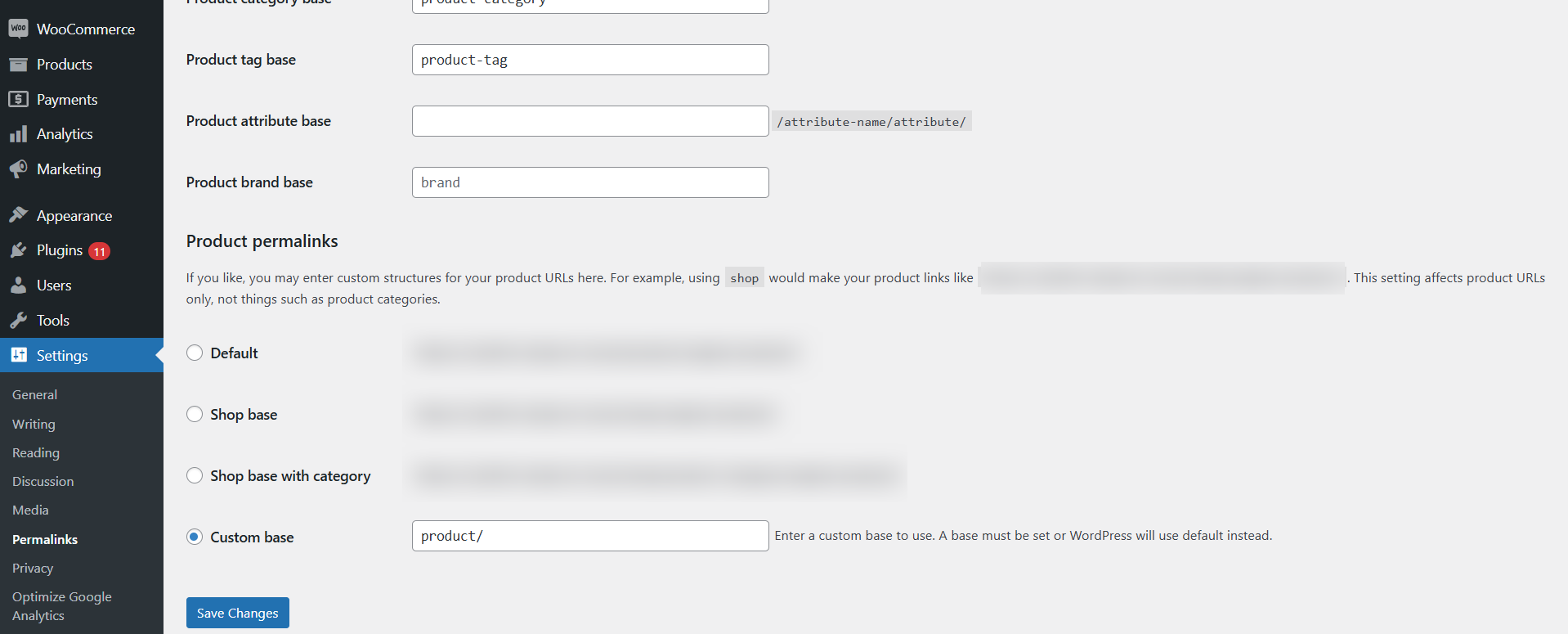
- Log in to Settings > Permalinks under your WordPress admin dashboard
- Without touching the settings, click Save Changes. The permalink structure is refreshed just by this easy action and will most probably resolve this 404 Error.
If the problem persists, then it may be due to a corrupted .htaccess file, similar to the 500 error. Renaming and re-creating it, as mentioned earlier, should settle the problem.
3. Error Establishing a Database Connection
This one (WordPress error establishing a database connection) is especially alarming as it brings down your WooCommerce shop. This error arises when WordPress fails to talk to the database.
The most prevalent cause of this error is when there are misplaced database credentials within the wp-config.php file. The connection will be lost if your host has updated your database password, but the old password remains in WooCommerce.
To check this and fix it, open your wp-config.php file and look at the following lines:
php

Copy

Edit

define('DB_NAME', 'your_database_name');

define('DB_USER', 'your_database_user');

define('DB_PASSWORD', 'your_database_password');

define('DB_HOST', 'your_database_host');
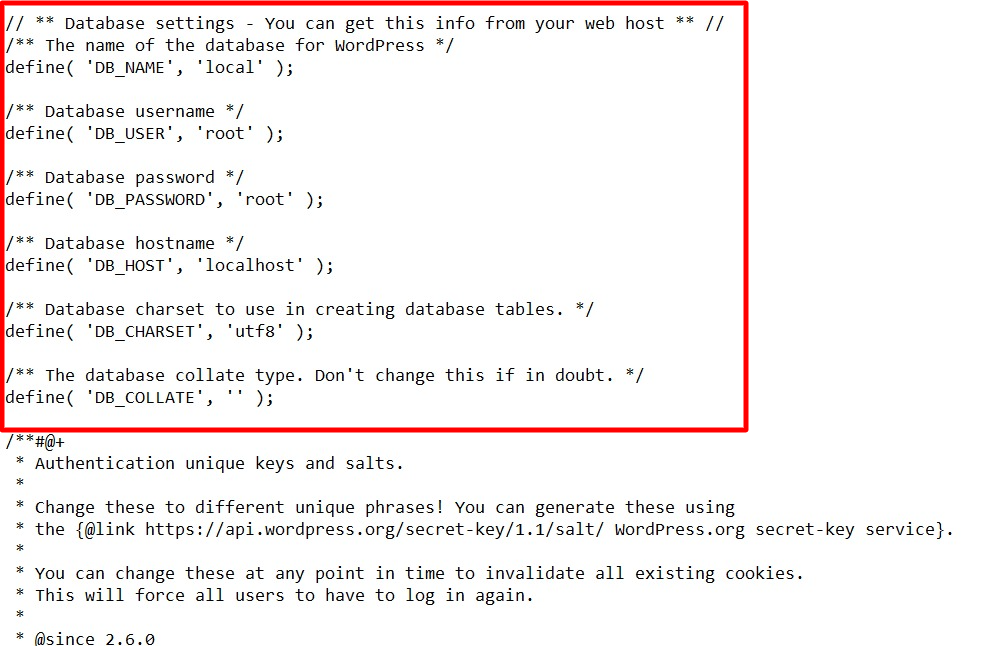
Make sure these parameters are identical to those provided by your host provider.
If it still does not correct the issue, test running a database repair. You can activate WordPress repair functionality by adding this line to wp-config.php:
php

Copy

Edit

define( 'WP_ALLOW_REPAIR', true );

After adding it, proceed to yoursite.com/wp-admin/maint/repair.php and complete the steps through the repair process.

4. WooCommerce Emails Not Sent
Another common WooCommerce issue is emails not being sent to customers or admins. These are order confirmation, payment received, and shipping notifications.
The problem is most often due to email server settings or WooCommerce default PHP mail function being disabled by the hosting provider.
SMTP plugins, such as Post SMTP, can be installed to circumvent this. SMTP (Simple Mail Transfer Protocol) allows more secure email sending than PHP mail.
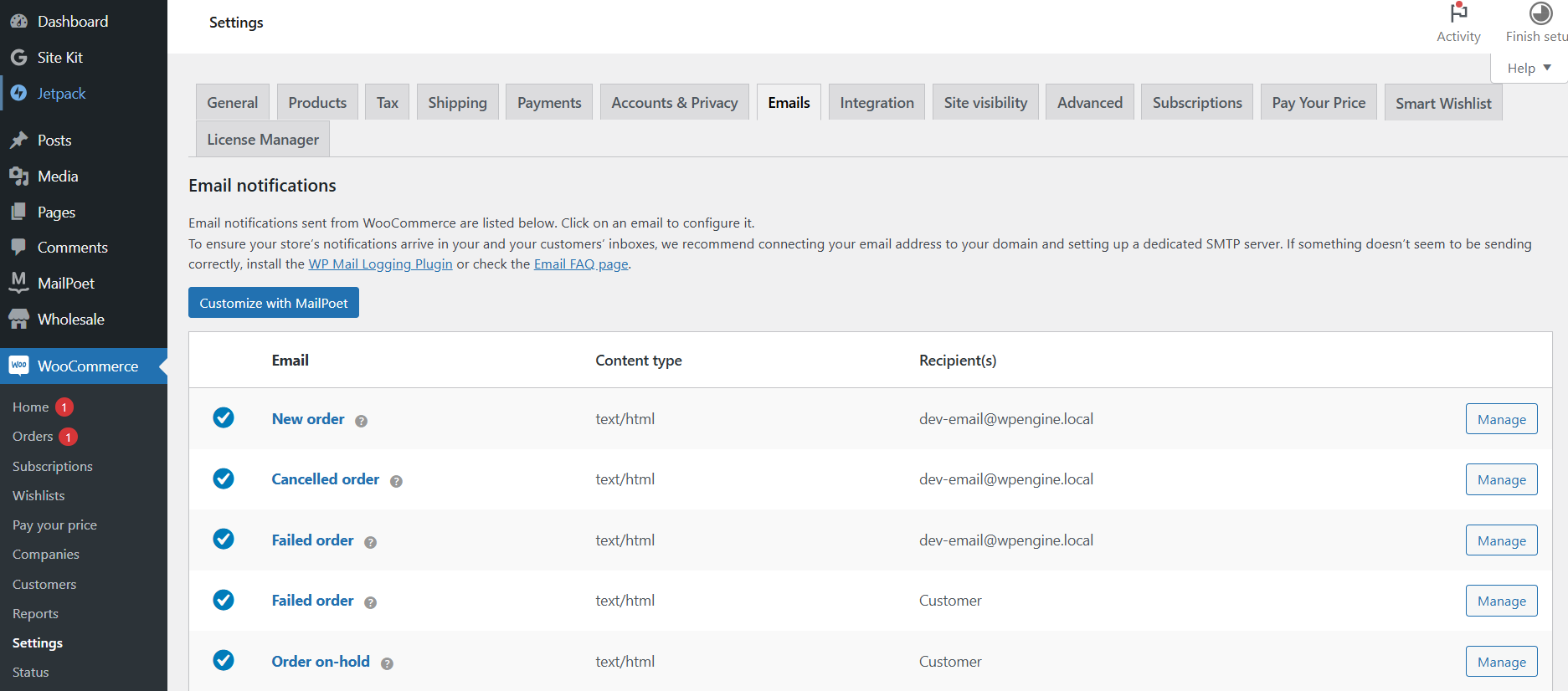
Also, visit WooCommerce > Settings > Emails to ensure email notifications are on.
5. WooCommerce Checkout Not Working
A busted checkout page is one of the worst things to happen to your online store. If your customers cannot buy, your revenue loses its instant value.
The problem usually lies with plugin conflicts, payment gateway problems, or JavaScript errors.
The first step to solving the problem is deactivating all your plugins except WooCommerce. If the checkout works again, restore plugins individually to determine the plugin causing the problem.
Another possible reason is a payment gateway that has been misconfigured. Navigate to WooCommerce > Settings > Payments and re-check the credentials for every payment method that is turned on.

Last Words: Repair WooCommerce Errors Before They Make You Lose Sales
Every WooCommerce store owner will sooner or later have errors, but the trick is to know how to troubleshoot and repair WooCommerce errors effectively.
You can avoid most problems from besetting your store by keeping up-to-date plugins and themes. You should also raise PHP memory limits and check for any compatibility issues. Regular backup of your site will also ensure you can recover your store in a short time when an error is discovered.
If none of these troubleshooting steps work, it might be time to hire professional WooCommerce services of a WooCommerce professional. You can also switch to a managed WooCommerce hosting for better performance and support.
Troubles do not need to slow your sales. Act now and have your WooCommerce shop up and running smoothly.




