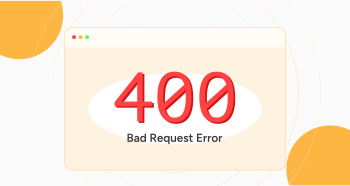
You must have experienced the 400 Bad Request error when browsing the internet. This common client-related error occurs when a site is not loaded. Simply put, the server does not fulfill a user’s request. That’s because the server assumes that the request is not valid.
This blog post will describe what it takes to fix 400 Bad Request errors. Additionally, it will help you understand the numerous reasons that can cause this client-side error.
What Do You Mean by a 400 Bad Request Error?

A 400 Bad Request error is a typical client error that occurs when the server fails to fulfill the request. The 400 Bad Request issue is associated with the client’s request rather than the server.
The HTTP status code 400 Bad Request reveals that the server cannot process the request due to invalid request message framing, malformed request syntax, or other issues.
Different Variations of a 400 Bad Request Error
You can witness numerous variations of a 400 Bad Request error, including:
- HTTP Error 400. The request hostname is invalid.
- 400 Bad Request.
- 400 Bad Request. Request Header Or Cookie Too Large.
- Bad Request – Error 400.
- HTTP Error 400.
- 400 – Bad Request. The server was unable to comprehend the request because of improper syntax. The client must not make the same request twice without changing it.
- Bad Request – Invalid URL.
- Bad Request. This server could not comprehend the request provided by your browser.
- HTTP Error 400 – Bad Request.
- HTTP Status 400 – Bad Request.
Users can experience the HTTP 400 error in various forms depending on their browsers and servers.
Primary Reasons Behind the 400 Bad Request Error
Unfortunately, various causes can result in the HTTP error 400. Therefore, you must understand them to fix this client-side error in the right direction. Here are these potential causes that can lead to this client-side issue, such as:
- URL String Syntax Error.
- File Size is Large.
- DNS Lookup Cache.
- Corrupted Browser Cache and Cookies.
- Typical Server Error.
What Should We Do to Fix 400 Bad Request Error?
When fixing the 400 Bad Request error, multiple troubleshooting methods can help you bypass this client-side issue. These various methods are:
- Check the Submitted URL.
- Clear DNS Cache.
- Deactivate Browser Extensions.
- Remove Browser Cache and Cookies.
- Check if the File Upload Surpasses the Server Limit
Check the Submitted URL
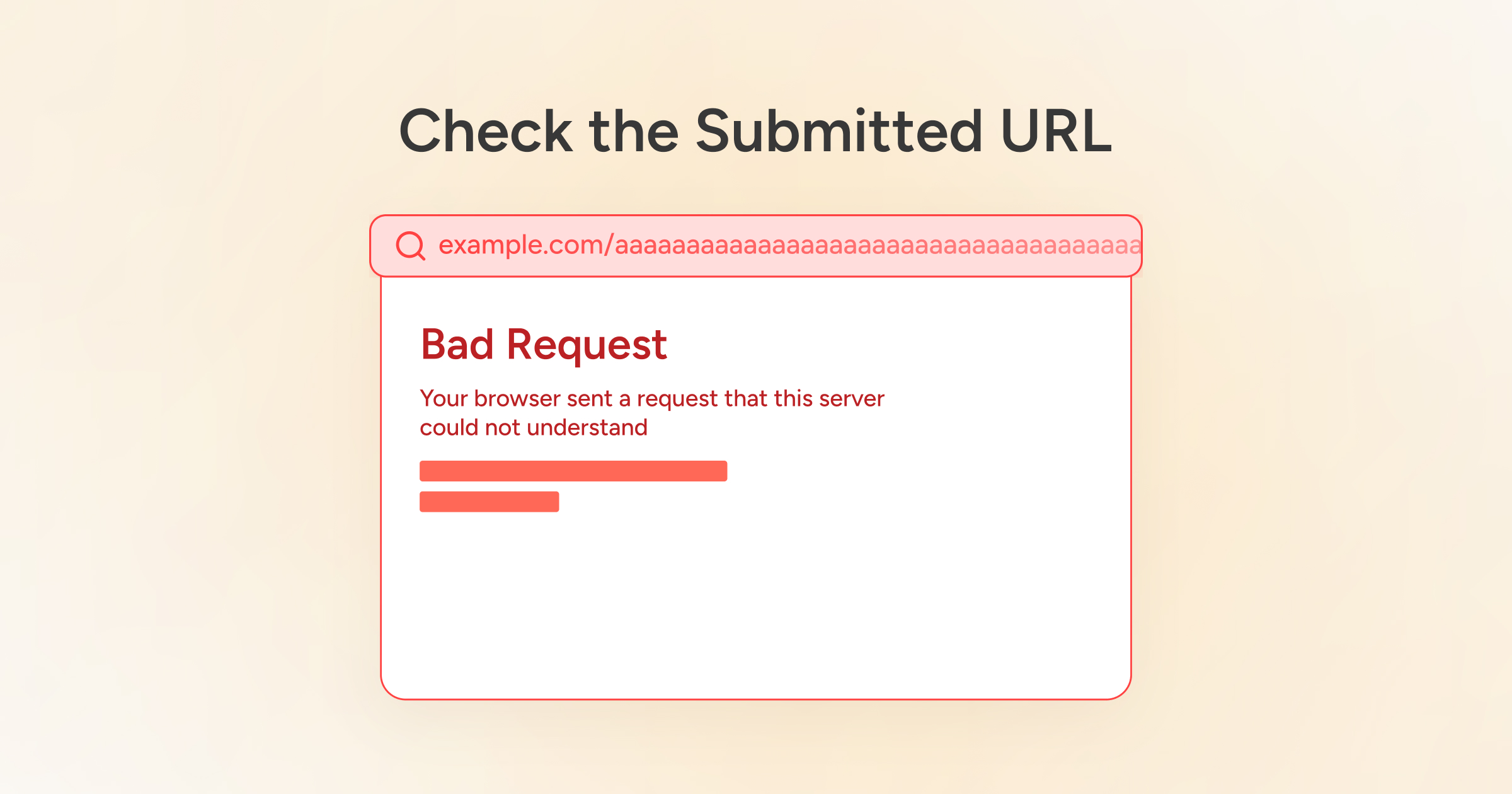
Users can experience a 400 Bad Request error because of the submitted URL. Thus, they should examine the URL string as they likely have added unneeded characters while manually writing it in the browser.
Users must also check the domain name and page they want to access. Likewise, they must ensure that they have typed the domain name correctly. Remember, the domain name and specific page should be separated with forward slashes.
If the URL comprises special characters, they must be legal and have been coded correctly. Once you have corrected the URL, reaccess it in the browser. Hopefully, you will not encounter the HTTP error 400.
Clear DNS Cache
Clearing the DNS cache can help avoid the Bad Request 400 error. You can erase the DNS cache using the command prompt on the Windows device. To do this, follow the below steps:
- Press the ‘Start’ key and write CMD in the search bar.
- You should see the ‘Command Prompt’ option on your screen.
- Hit the Command Prompt and type the following command:
ipconfig/flushdns
This will help your Windows device erase and reset the DNS cache files. You will see the below message once the process is completed:
“Successfully flushed the DNS resolver cache.”
You should access the site to check if the HTTP status 400 Bad Request error has gone. Moreover, you can clear the DNS cache on iPhone and Android by following a few simple steps.
Deactivate Browser Extensions
Sometimes, deactivating browser extensions helps users eliminate the 400 Bad Request error. They can impact site cookies, resulting in this client-side issue. Therefore, deactivate browser extensions by following the below steps:
- Click the three dots at the top right corner of the Chrome browser.
- Click Settings, go to Extensions, and select Manage Extensions.
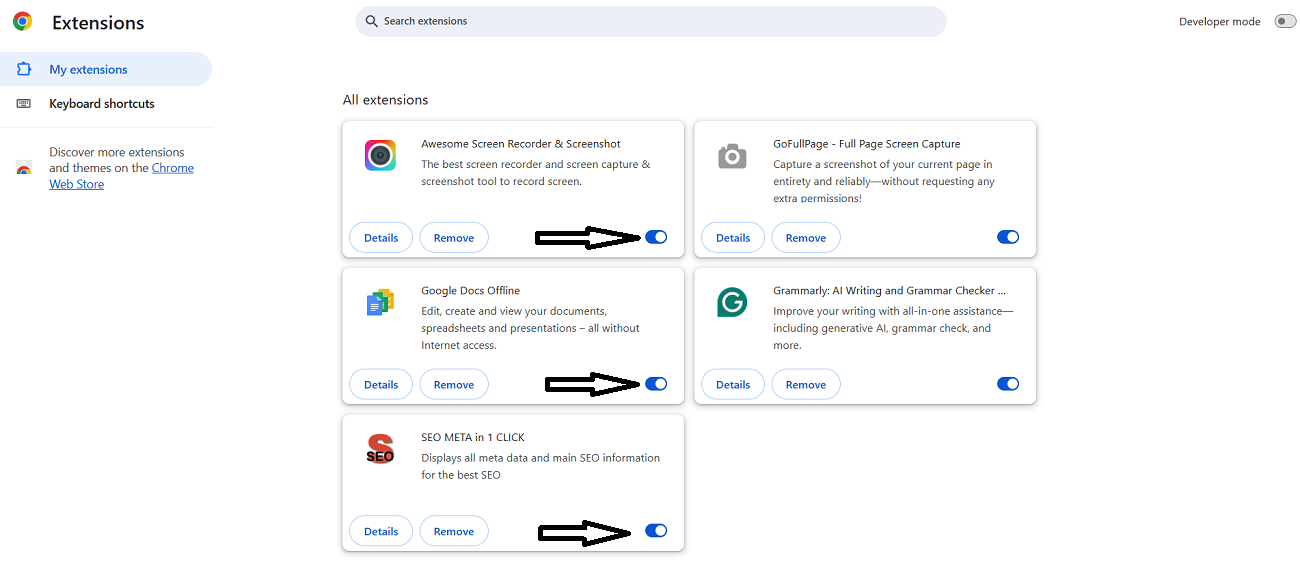
You can deactivate any browser extension by toggling off them. Fortunately, the same troubleshooting method allows you to bypass the ERR_CONNECTION_RESET error. Besides, deactivating browser extensions ERR_SSL_PROTOCOL_ERROR. If you want to fix the ERR_ADDRESS_UNREACHABLE error, repeat the same process.
Remove Browser Cache and Cookies
You can remove the browser cache and cookies to fix 400 Bad Request error. To do this, here is what you should do:
- Press the three dots at the top-right corner of your browser to access the settings panel. Now, hit the Delete browsing data option.
- You should select options like Cookies, Browsing history, Cookies, and other site data, files, and Cached images. Then, click the Delete data option to fix 400 Bad Request error.
- Likewise, you can remove advanced data by hitting the ‘Advanced’ data tab.
- You can select options such as Cookies and other site data, Download history, cached images and files, and browsing history.
Once you press the Delete Data option, you can likely eliminate the 400 Bad Request issue. The same troubleshooting method allows you to remove the Err_Cache_Miss error in Google Chrome. In addition, overcoming the WSoD (white screen of death) error is possible with this method.
Similarly, you should clear the browser cache and cookies when resolving the HTTP 304 not modified status code error.
Check if the File Upload Surpasses the Server File Size Limit
When uploading a file to a site that surpasses the server file size limit, you will likely face the 400 Bad Request issue. In this scenario, uploading a small file is a suitable option. Therefore, you must upload a small file to see if the issue persists.
If you successfully uploaded a small file to a website, the previous file is too heavy to load. Hence, you should reduce the file size before uploading to a site. You can benefit from various online options that help you minimize large or heavy files. When compressing large files, you can use a notable online tool, TinyPNG.
How Does a 400 Bad Request Error Look Like on Different Browsers?
If you use a Chrome browser, you will see the following error message on your screen:
“This page isn’t working.”
If the problem continues, contact the site owner.
HTTP ERROR 400
Users of other browsers like Firefox, Safari, and Microsoft Edge can likely see the different variations. For instance, you will see a blank white page on your screen in Firefox. The same goes for Safari, as a blank white page returns in response to a 400 Bad Request error on a website.
However, this is not the case with Microsoft Edge. You will likely see the following error message:
“This page isn’t working at the moment.”
If the problem continues, contact the site owner.
HTTP ERROR 400
Wrapping Up
We expect you to appreciate our blog post about 400 Bad Request errors. To tackle this client-related issue, use the above workarounds. As a result, you can eliminate this annoying error without fuss.
Sometimes, a 400 Bad Request code can pinpoint a common server problem. If you experience such a situation, check the website on various devices. To cut a long story short, you must understand the causes for a 400 Bad Request issue when resolving it. This way, you will likely fix the 400 Bad Request error.