



















































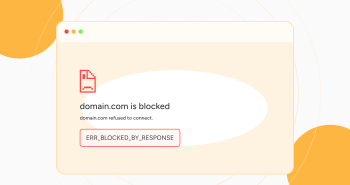
When visiting your preferred website, you must have experienced the irritating error, ERR_BLOCKED_BY_RESPONSE. If you want to fix the ERR_BLOCKED_BY_RESPONSE error, continue reading this blog post, which will help you understand the different causes related to this browser-centric issue. It will also offer potential solutions to circumvent this error in the right direction.
What Do You Mean by ERR_BLOCKED_BY_RESPONSE Error?
Before you fix ERR_BLOCKED_BY_RESPONSE error, you should know what this browser-related issue is about. This error happens when specific rules or conditions block the web page’s response. This error occurs due to server restrictions and misconfigurations that don’t allow resources such as images, stylesheets, or scripts, to load correctly.
Different Reasons Behind the ERR_BLOCKED_BY_RESPONSE Error?
Various issues can result in the ERR_BLOCKED_BY_RESPONSE error, including:
- Network issues.
- A Browser Extension can Block the Request.
- Server Admin Blocks Your IP Address.
- Server Blocks Cross-origin Request.
Network Issues
Sometimes, network issues like slow internet connection, proxy server settings, network congestion, firewall restrictions, etc., can cause the ERR_BLOCKED_BY_RESPONSE error.
A Browser Extension can Block the Request
A third-party browser extension can block requests, leading to an ERR_BLOCKED_BY_RESPONSE error. Browser extensions sometimes deny requests to specific content. They help identify the request and response headers. These browser extensions can allow requests or not pass them.
If the request does not abide by the rules the extension mentions, it will likely be blocked and lead to the ERR_BLOCKED_BY_RESPONSE error.
Server Admin Blocks Your IP Address
A server admin can blacklist or block your IP address because of any security reason. In this situation, the server does not respond to client requests, which leads to the ERR_BLOCKED_BY_RESPONSE error.
Server Blocks Cross-origin Request
When a server blocks cross-origin requests, you will likely experience the ERR_BLOCKED_BY_RESPONSE error. A cross-origin request occurs when a domain from another server tries to load content like images, videos, graphics, etc..
For instance, Google has utilized an “x-frame-options” header to block cross-origin requests, preventing embedding content on another site using iframe. If a user embeds Google sites on another site using an HTML iframe, a website will not be loaded, resulting in the ERR_BLOCKED_BY_RESPONSE iframe error.
How to Fix ERR_BLOCKED_BY_RESPONSE Error?
When fixing the ERR_BLOCKED_BY_RESPONSE error, you can take advantage of various troubleshooting methods, such as:
- Clear Your Browser Cache and Cookies.
- Deactivate Browser Extensions.
- Reset Chrome Flags.
- Contact Your Web Hosting Provider.
Clear Your Browser Cache and Cookies
Once you clear your browser cache and cookies, you will likely avoid facing the ERR_BLOCKED_BY_RESPONSE error. Fortunately, this troubleshooting method helps users eliminate the 429 too many requests error.
To clear the browser cache and cookies, follow the below steps:
- Press the three dots at the browser’s top-right corner to access the settings panel. Click the “Delete browsing data” option.
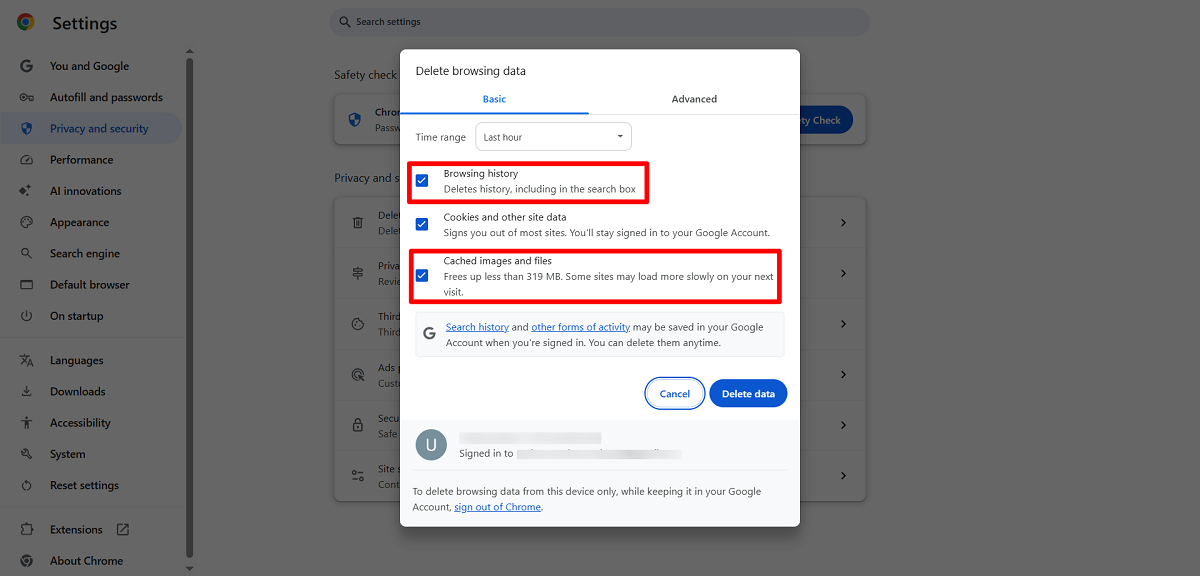
- Select other options such as Cookies and other site data, Browsing history, Cookies and Cached Images. Press the “Delete data” option to overcome the ERR_BLOCKED_BY_RESPONSE error.
- You can clear advanced data by pressing the “Advanced” data tab.
- You can choose options such as Download history, Cookies and other site data, browsing history, and cached images and files.
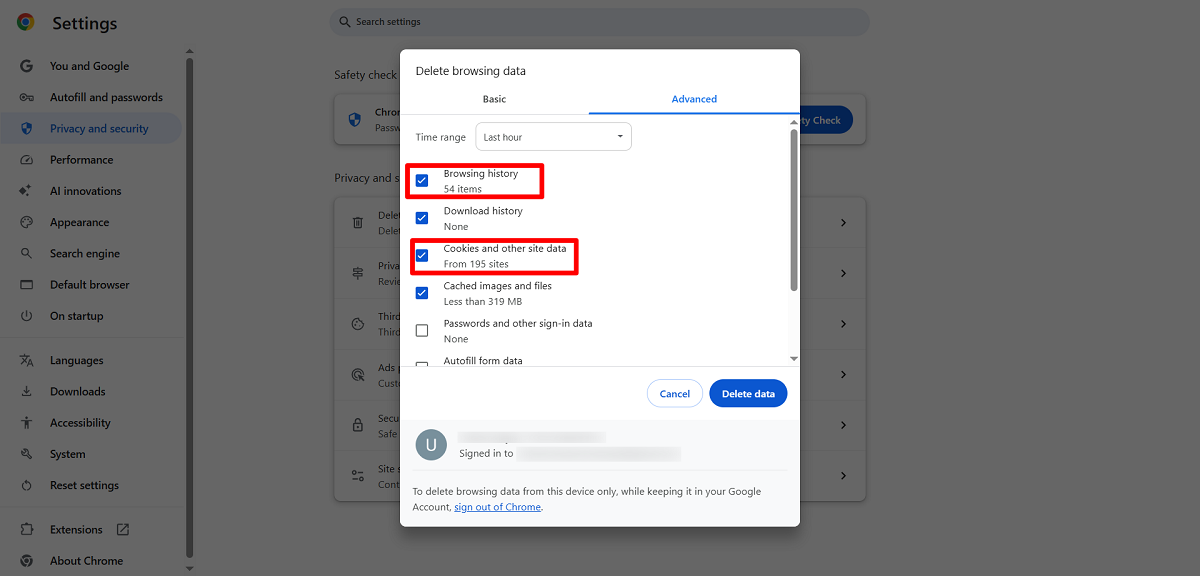
After hitting the Delete Data button, you can bypass the ERR_BLOCKED_BY_RESPONSE error. Furthermore, clearing the browser cache and cookies eliminates the Err_Cache_Miss error in Google Chrome. Moreover, the same solution helps users bypass the WSoD (white screen of death) error. Likewise, this method enables users to remove the 405 Not Allowed error.
Deactivate Browser Extensions
Do you know that deactivating browser extensions can help bypass the ERR_BLOCKED_BY_RESPONSE error? Yes, it is true. Follow the below steps to deactivate browser extensions:
- Press the three dots at the top right corner of the Chrome browser.
- Click Extensions and choose Manage Extensions.

You can easily deactivate any browser extension by toggling them off. In addition, this possible workaround allows you to eliminate the ERR_CONNECTION_RESET error. Furthermore, you can bypass the ERR_SSL_PROTOCOL_ERROR by following this method again. This method also helps users fix the ERR_ADDRESS_UNREACHABLE error.
Reset Chrome Flags
When fixing the ERR-BLOCKED_BY_RESPONSE error, you can benefit from another possible solution, i.e., reset Chrome flags. This will help you overcome this browser-related error. To reset Chrome flags, follow the below steps:
- Write chrome://flags in your browser. Then, press the “Reset all” option. Thus, you can eliminate the ERR_BLOCKED_BY_RESPONSE error.
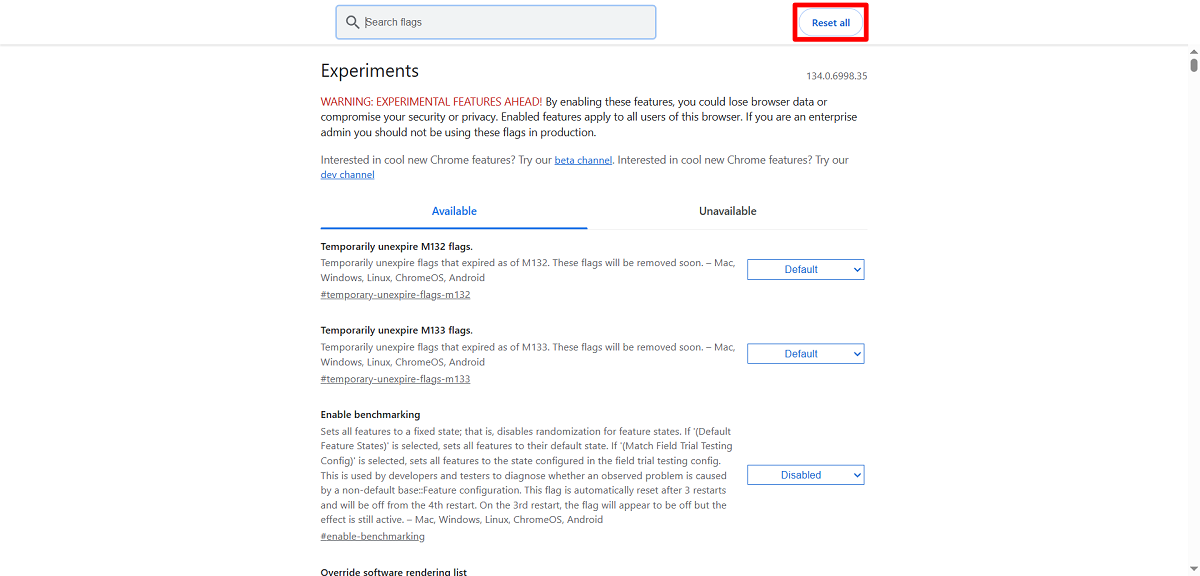
Remember, you must restart your web browser after resetting Chrome flags. This is one of the easiest methods to bypass another error, DNS_PROBE_FINISHED_NXDOMAIN. Additionally, the same method lets users eradicate Chrome Net Internals DNS error.
Contact Your Web Hosting Provider
Contact your web hosting service provider if none of the above methods help you fix ERR_BLOCKED_BY_RESPONSE error. They have the required expertise to overcome this browser-related error. Therefore, contacting the web hosting provider is a great option when resolving the ERR_BLOCKED_BY_RESPONSE error.
Other Troubleshooting Methods to Fix ERR_BLOCKED_BY_RESPONSE Error
You can use other simple solutions to fix ERR_BLOCKED_BY_RESPONSE error. For instance, you can access the website in incognito mode. You can also open the site on different web browsers to see if it bypasses the ERR_BLOCKED_BY_RESPONSE error.
Wrapping Up
You can now easily bypass the ERR_BLOCKED_BY_RESPONSE error by following this blog post. There is no denying that this browser-centric error can be irritating, but it is fixable provided you know how to benefit from different possible solutions.
For instance, you can remove your browser cache to eliminate this issue. Besides, you can check the browser extensions to see if they cause the ERR_BLOCKED_BY_RESPONSE error. However, you can fix ERR_BLOCKED_BY_RESPONSE error by utilizing the above potential workarounds.
Moreover, you can contact your web hosting service provider to get their help if you cannot resolve this error.




