



















































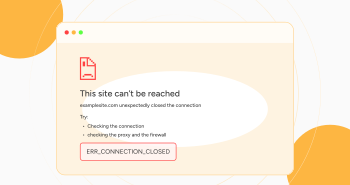
Have you tried to access a site in Chrome but encountered an error message stating, “This site can’t be reached” and displaying an ERR_CONNECTION_CLOSED message?
The ERR_CONNECTION_CLOSED error highlights an issue related to the connection from your device to the site. If you are lucky enough, this error can be a glitch you can bypass by reloading the page. That said, you will go through various methods to resolve this error if you are unlucky in most cases.
This blog post describes the ERR_CONNECTION_CLOSED error and various simple yet impactful solutions for bypassing it.
What Do You Mean By ERR_CONNECTION_CLOSED?
Before we explain the meaning of the ERR_CONNECTION_CLOSED message, describing what happens with Google Chrome when you visit a website is crucial.
When a user writes a domain name in the address bar, the Chrome browser connects to a particular server. Once the Chrome browser successfully creates a connection, it requests the specific files it requires to render the page, including images, codes, and more.
According to the ERR_CONNECTION_ CLOSED error message, the Chrome browser could not establish a connection because something unexpected happened with the internet connection or your computer.
The Chrome browser cannot connect to the site’s server, so it will not render the site, compelling your browser to display this error message.
Potential Causes Behind the ERR_CONNECTION_CLOSED Error in Chrome
Many reasons can cause the ERR_CONNECTION_CLOSED error. However, the most common ones are described below:
- Limited Internet Connectivity.
- Improper Network Settings.
- Malfunctioned Chrome Extensions.
- Antivirus or Firewall Blocking.
- Old Chrome Browser.
To eradicate the ERR_CONNECTION_CLOSED issue in Chrome, you should resolve the above possible causes smartly. Otherwise, you may continue to face this client-side error regularly.
How to Fix ERR_CONNECTION_CLOSED in Chrome?
When resolving the ERR_CONNECTION_CLOSED in Chrome browser, you can benefit from multiple simple yet impactful solutions. These solutions include:
- Check Your Internet Connection.
- Clear the Browser Cache.
- Deactivate Chrome Extensions.
- Deactivate Antivirus and Firewall.
- Update Google Chrome Browser.
- Check Your Devices for Malicious Software.
- Reach Out to the Website’s Owner.
Check Your Internet Connection
Before fixing the ERR_CONNECTION_CLOSED error, check your internet connection. If it does not work properly when you try to access a site, the Chrome browser will display this client-side error.
Different issues might hamper your internet connection, including a problem with the router, your cable being unplugged from the socket, and more. Try accessing other desktop or mobile apps to confirm if your internet connection works smoothly in this scenario. If you can easily access your preferred apps without fuss, something is wrong with your Google Chrome browser.
Clear the Browser Cache
Clearing the browser cache can help you avoid the ERR_CONNECTION_CLOSED issue in Chrome. To clear the browser cache, follow the below steps:
- Click the three dots at the top-right corner of your web browser to access the settings panel. At this point, hit the Delete browsing data option.

- You should select options, including Cookies, Browsing history, other site data, files, and Cached images. Then, click the Delete data option to remove the 304 HTTP status code.
- In addition, you can remove advanced data by hitting the ‘Advanced’ data tab.
- You can select options such as Cookies and other site data, Download history, cached images and files, and browsing history.
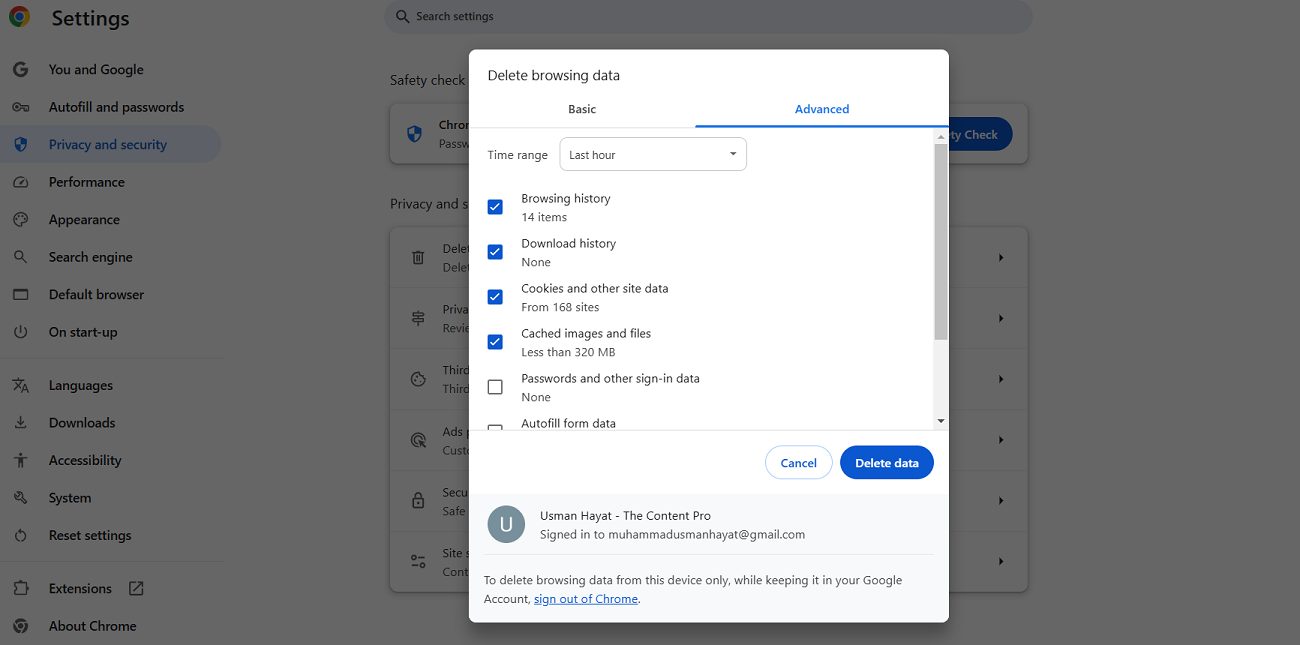
Hopefully, you can eliminate the ERR_CONNECTION_CLOSED error in Chrome by clicking the ‘Delete Data’ option. In addition, the same troubleshooting method helps users overcome the Err_Cache_Miss error in Google Chrome. Moreover, this method can potentially remove the WSoD (white screen of death) error. Fortunately, clearing the browser cache lets users bypass the ERR_ADDRESS_UNREACHABLE error in Chrome.
Deactivate Chrome Extensions
Sadly, browser extensions can be one of the key causes of the ERR_CONNECTION_CLOSED issue in Chrome. They can cause issues with the connection to specific sites, preventing users from accessing their preferred websites.

To deactivate Chrome extensions, click the three dots at the top right corner of the Chrome browser. Furthermore, click Settings, go to Extensions, and choose Manage Extensions. This way, you can disable any browser extension or all extensions by toggling off them without hassle.
After deactivating the browser extension, you must confirm whether the ERR_CONNECTION_CLOSED error has gone. By following the same method, you can eliminate the ERR_SSL_PROTOCOL_ERROR.
Deactivating Chrome extensions also enables you to remove the ERR_QUIC_PROTOCOL_ERROR issue in Chrome. Yes, you heard it right.
Apart from this, you can bypass HTTP 304’s not-modified status code by deactivating the browser extensions. This means that you should not overlook its importance at any cost.
Deactivate Antivirus and Firewall
Unfortunately, antivirus software can result in the ERR_CONNECTION_CLOSED issue in Chrome. They follow their security protocols, which can sometimes conflict with Chrome’s connection to sites. Consequently, you can see the ERR_CONNECTION_CLOSED error on your screen.
Hence, you should deactivate your antivirus software to confirm if this method helps bypass this client-side error.
As for the computer’s firewall, it can deny the connection between the browser and a site. As a result, the Google Chrome browser may showcase the “ERR_CONNECTION_CLOSED” error message on your screen. You should deactivate your firewall and access the site again.
If the site is loaded, the firewall settings likely block the connection. So, you must update the firewall settings to allow access to the site.
Do you know that turning off antivirus or firewall allows users to bypass the Chrome Net Internals DNS error? Yes, it is true.
Update Google Chrome Browser to Fix ERR_CONNECTION_CLOSED
If you use an outdated Chrome version, you may see the ERR_CONNECTION_CLOSED message on your screen. In this situation, you should update your Chrome to the latest version.
To update the Chrome version, write the below address using your address bar:
chrome://settings/help
This way, Chrome will automatically apply updates if they are available. You should press the ‘Relaunch’ button to complete the Chrome updating process:

Check Your Devices for Malicious Software
Malicious viruses or software can be one of the potential reasons behind the ERR_CONNECTION_CLOSED error. Therefore, you must benefit from a comprehensive malware scan on your device that lets you identify and remove any potential malicious virus or software. For this purpose, you can heavily rely on Malwarebytes, a renowned malware scanner.
Reach Out to the Website’s Owner
You should contact the website’s owner if you still cannot eliminate the ERR_CONNECTION_CLOSED error in the Chrome browser. The website you want to access may experience issues or glitches. As a result, you may not be able to access it on your device. Thus, you must contact the site’s owner to see if the problem lies at their end.
Wrapping Up
We expect you to appreciate our blog post describing the ERR_CONNECTION_CLOSED error in the Chrome browser. All the above potential workarounds allow you to eliminate this client-side error as best as possible. Following these methods will help avoid getting the ERR_CONNECTION_CLOSED error message on your screen.




