



















































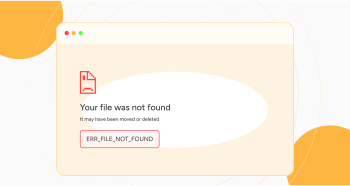
If you use Google Chrome, you must have experienced the ERR_FILE_NOT_FOUND error. This error indicates that the Chrome browser cannot detect a required file. You can encounter this issue when accessing dynamic and static sites.
Unfortunately, using specific extensions can hinder your browsing experience. Moreover, this error suggests that you have tried to use a resource the browser cannot access.
Once users understand how to fix the “file not found” error, they can ensure their Chrome browsers work without glitches.
This guide will explain the ERR_FILE_NOT_FOUND error and why it appears on Chrome. It will also describe the different causes behind this HTTP error and various solutions, offering precautionary measures to prevent it from occurring.
What Do You Mean By the ERR_FILE_NOT_FOUND Error?
When browsing the web, you can encounter the ERR_FILE_NOT_FOUND issue as an HTTP error message. According to this error, the browser cannot locate a specific resource or file. In this situation, Chrome indicates that it cannot find a file that has been moved elsewhere or has been removed.
Primary Causes Behind the ERR_FILE_NOT_FOUND Error
Due to Chrome extensions, you will likely experience the ERR_FILE_NOT_FOUND error in Google Chrome. These extensions can result in multiple errors when visiting different sites. That’s because extensions will likely communicate with sites unexpectedly. This can lead the Chrome browser to display errors.
If you use various browser extensions simultaneously, be ready to face compatibility issues later. Similarly, errors like ERR_FILE_NOT_FOUND will likely occur when you do not update extensions. Other issues can prevent users from opening the site, such as incorrect URLs, network issues, webpage restrictions, etc.
How to Fix the ERR_FILE_NOT_FOUND Error in Google Chrome?
You can follow multiple methods when troubleshooting the ERR_FILE_NOT_FOUND error. These various solutions include:
- Deactivate Your Chrome Extensions.
- Clear Persisting Extensions from the User Data Folder.
- Reset Your Chrome Browser.
Deactivate Your Chrome Extensions
Deactivating Chrome extensions will likely help you avoid anticipating the ERR_FILE_NOT_FOUND error. If one of your installed Chrome extensions gets corrupted, this can lead to the ERR_FILE_NOT_FOUND issue. Therefore, you should deactivate Chrome extensions to achieve your objective.
To deactivate Chrome extensions, follow the below steps:
- Press the three dots available at the top-right corner of your web browser.
- Go to the “Extensions” option and click the “Manage Extensions” option.
- You can easily access all your configured extensions in one place. To start deactivating extensions one by one, toggle the disable option.

Once you have conducted the above process, you must refresh your web browser to confirm if the ERR_FILE_NOT_FOUND error has disappeared.
Fortunately, the same method helps users bypass the ERR_CONNECTION_REFUSED error in Chrome. In addition, disabling Chrome extensions enables you to overcome the ERR_CACHE_MISS error in Chrome.
Remove Persisting Extensions from the User Data Folder
Clearing persistent extensions from the user data folder can help bypass the ERR_FILE_NOT_FOUND error. For this purpose, you must confirm if the disabled extensions have left a few files behind. It is evident if software stores files on your devices, such as a desktop, after deactivating it.
Chrome usually saves files in Windows through the Chrome > User Data > Default > Extensions directory, which is beneath the local user’s AppData folder.
Navigating through the directory can be cumbersome since it is hidden at times. Therefore, the easy way to perform this task is to open the Windows Run Window. To do this, press the Windows + R keys. Once you have opened the window, write the address below into it:
%LOCALAPPDATA%\Google\Chrome\User Data\Default\Extensions
Press the OK button to see the Chrome extensions folder on your screen. However, you cannot recognize Chrome extensions by name. Every folder relates to an extension, allowing you to easily detect one by opening every folder. You can also search for the manifest.json or extension icon files to identify the extension.
You can open the manifest.json file in each folder and check the extension name it relates to at the top of the file. You should recognize the folder corresponding to the extensions you removed earlier. You should access the extensions directory once you have uninstalled the software and sorted folders by modification date.
The last folder that needs to be modified must correspond to the extension you recently deleted. If it does not and you cannot detect the corresponding folders, the extension has not left any files behind.
If this is the case and the ERR_FILE_NOT_FOUND still exists, you should reset your Chrome browser.
Reset Your Chrome Browser
If you cannot eliminate the ERR_FILE_NOT_FOUND error even after deactivating extensions, reset your Chrome browser to its default or original settings. This will deactivate all extensions and temporary data, including cached files and cookies.
For this purpose, write the following address using the address bar:
chrome://settings/

Now, you should click the Reset Settings tab using the Settings menu on the top left side.

You will see a “restore settings to their original defaults” option once you press the Reset Settings tab. At this point, click this option.

You will see a Reset Settings popup message on your screen. Click the ‘Reset settings’ to start the Chrome browser resetting process.

Remember that history, bookmarks, and saved passwords will not be affected once you confirm this resetting process. After performing the comprehensive Chrome resetting process, we hope you will not experience the ERR_FILE_NOT_FOUND error.
How to Secure Your Chrome Browser From the ERR_FILE_NOT_FOUND Error?
When safeguarding Chrome from the ERR_FILE_NOT_FOUND error, consider following several preventive measures, including:
- Update Extensions Regularly.
- Ensure that Extensions are Compatible.
- Manage File Paths and Resources.
Update Extensions Regularly
You must update your extensions regularly to avoid facing the ERR_FILE_NOT_FOUND error in the future. Doing so allows you to proactively bypass numerous errors related to out-of-date or missing files.
Ensure that Extensions are Compatible
All extensions must support the latest version of Chrome. If an extension is outdated, it can result in the “file not found error.” In short, your extensions must be updated and compatible with newer browser versions.
Manage File Paths and Resources
When developing and maintaining websites, always remember that file paths are correct. Similarly, necessary resources are always accessible. Sadly, missing resources and improper file paths can result in the ERR_FILE_NOT_FOUND error. Ensure from your end that all links, paths, scripts, and resources work accurately.
What Do You Mean By ERR_FILE_NOT_FOUND in JavaScript?
This HTTP error can happen in JavaScript when a script tries to access a file that no longer exists or has been moved somewhere. Likewise, this error can appear in JavaScript when a script tries to examine an HTML webpage.
The ERR_FILE_NOT_FOUND error message can result from various causes, such as problems with file permissions, missing files on the server, improper file paths, and more. Therefore, you must monitor such issues while resolving this error.
Wrapping Up
We expect you to like our guide explaining the ERR_FILE_NOT_FOUND error thoroughly. There is no denying that tackling this HTTP error message can be irritating. However, you can smartly tackle the issue with these various methods in the right direction.
If you want to enjoy uninterrupted web browsing, don’t forget to make your Chrome browser efficient and seamless. These workarounds provide you with a pathway to eliminate this error. That said, you must follow them in the desired way.




