
















































Once, a wise man said that with great power comes great responsibility. This quote fits quite well in the case of Google Chrome. As the most used and featured-packed browser, it may collide due to errors like ERR_QUIC_PROTOCOL_ERROR.
We know it’s frustrating because it can ruin not just casual browsing but also important online endeavors. But why are you worrying? Luckily, there are easy ways available to resolve this ERR_QUIC_PROTOCOL_ERROR error, So you don’t need to be a computer guru.
This article discusses why the ERR_QUIC_PROTOCOL_ERROR has occurred and how to practically get solutions to travel on that of browsing. It will work for casual users and even for a web publisher who wants to prevent trouble for their visitors.
In-depth Analysis of the ERR_QUIC_PROTOCOL_ERROR Error
The ERR_QUIC_PROTOCOL_ERROR error is a network error that usually appears in Google Chrome. This event happens when the browser cannot connect to any sites using the QUIC protocol applied for that webpage.
QUIC, the full form of Quick UDP Internet Connections, is Google’s experimental protocol for the reduction of latencies in web browsing while providing better security.
However, since QUIC remains an experiment, it is somehow susceptible to compatibility issues. This issue is the reason Chrome returned ERR_QUIC_PROTOCOL_ERROR.
Common Symptoms for ERR_QUIC_PROTOCOL_ERROR
ERR_QUIC_PROTOCOL_ERROR takes several forms in different manifestations:
- Websites load but fail and return this error on the front screen.
- The first problem would be the inability to use Gmail, Google Drive, and Google Docs, among other Google services.
- One possible effect is the gradual emergence of connectivity issues, especially when trying to load specific pages.
The first diagnosis is knowing the signs, and the next comes troubleshooting.
The 5 Possible Reasons Behind ERR_QUIC_PROTOCOL_ERROR
The various causes leading to ERR_QUIC_PROTOCOL_ERROR include the following:
1. QUIC Protocol Difficulties
Essentially, it is an immature experimental protocol, likely to have compatibility misfits in a few sites or servers.
2. Some Extensions Not Found
If it interferes with network protocols, it can also cause this problem.
3. Proxy or VPNs Misconfigured
Improper network settings can even block Chrome from making a QUIC connection.
4. In Firewall
QUIC uses UDP port 443. This port can be blocked by firewalls or an antivirus.
5. Bad Cache or Cookies in Old Browsers
Disabled or Unreal Caches stop browsers from being properly connected.
How to End the Error ERR_QUIC_PROTOCOL_ERROR in Chrome
We have had the causes, and now we are heading to the solution. Below are the detailed steps that one can perform effectively to combat the error ERR_QUIC_PROTOCOL_ERROR.
Turning off the QUIC Protocol on Google Chrome
Since the cause mostly originates from the QUIC protocol, the most reliable solution is turning off the QUIC protocol.
Steps to Disabling the QUIC Protocol:
1. Launch your Google Chrome. Now place chrome://flags/ in the address bar and press Enter.

2. In the search bar, type “QUIC” and find the Experimental QUIC Protocol setting.

3. Click the dropdown menu beside it & select Disabled.
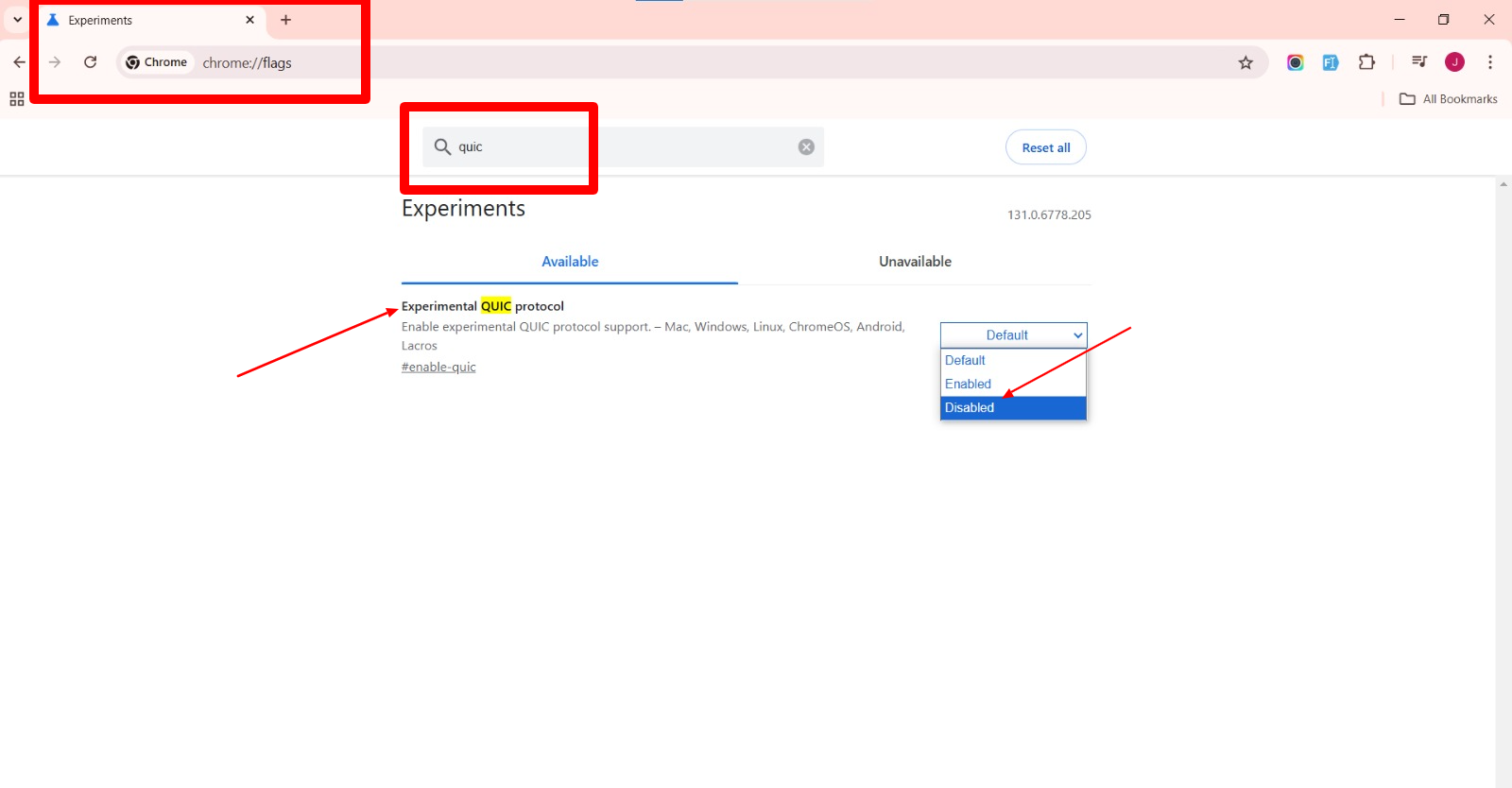
4. Restart Chrome to apply the changes.
Disabling the QUIC protocol forces Chrome to use standard protocols such as HTTP/1.1 or HTTP/2, bypassing any problems related to QUIC.
Manage Chrome Extensions
Browser extensions are designed to enhance functionality but may conflict with Chrome’s operations. Disabling or removing problematic extensions may resolve the error.
How to Control Extensions:
1. Open Chrome and copy and paste this chrome://extensions/ in the address bar.

2. Now, disable each extension by turning off the toggle next to each extension.

3. Relaunch Chrome and check if the problem has gone away.
4. Enable extensions one at a time to find which is causing the problem.
Now that you have recognized the cause, you can delete only the offending extension and enjoy browsing.
Check Proxy and VPN Configuration
If you are using a proxy server or VPN, misconfigurations may prevent Chrome from using the QUIC protocol.
Check Proxy Settings:
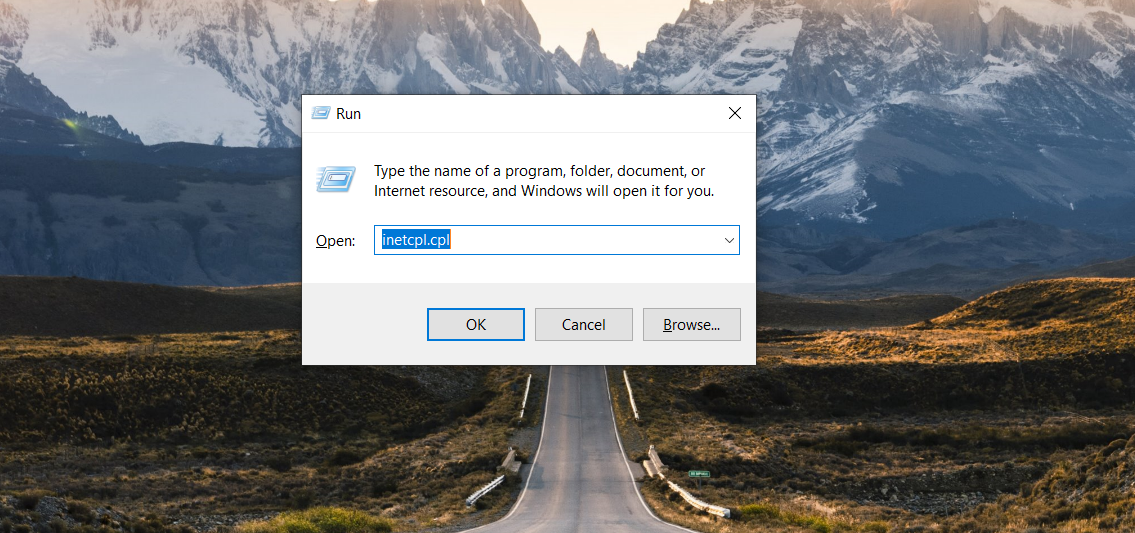
1. Open the Internet Properties window using Windows + R, type inetcpl.cpl, and hit Enter.
2. Click the Connections tab & then the LAN Settings.

3. Select this option now: Use a proxy server for your LAN.

4. Save changes and restart Chrome.
Check Your VPN:
This issue may also pop up due to a misconfigured VPN. So, we recommend disabling your VPN once to confirm if it’s a VPN conflict or not.
Clear Browser Cache and Cookies
Corrupted or outdated browser data can also trigger the ERR_QUIC_PROTOCOL_ERROR. So often, clearing your cache and cookies resolves most problems on Chrome.
How to Erase Cache & Cookies:
1. After opening Chrome, click the 3-dots in the right-hand corner.
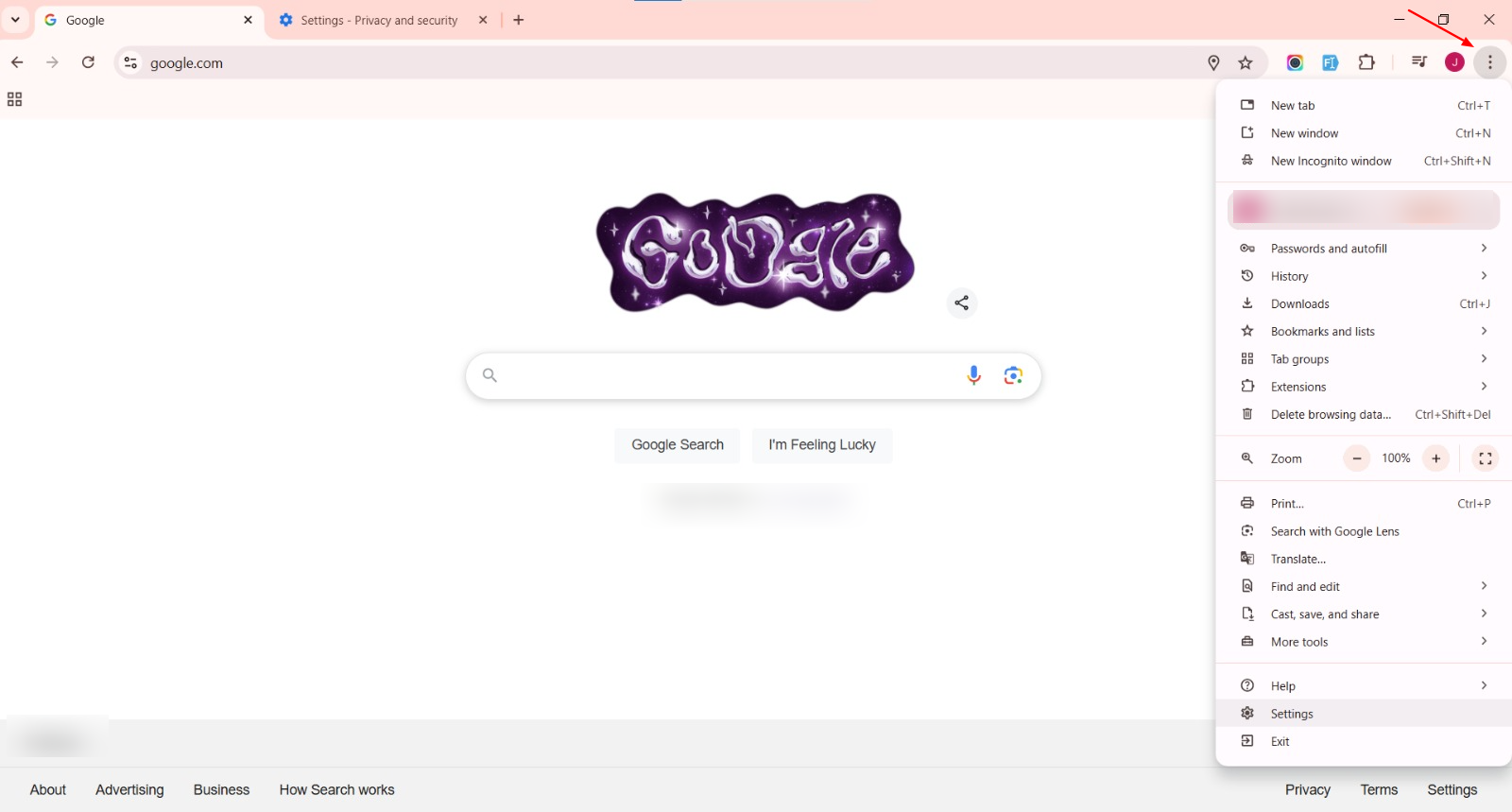
2. Access Settings → Privacy and Security → Delete Browsing Data.

3. Mark Cookies and other website data and Cached images and files.
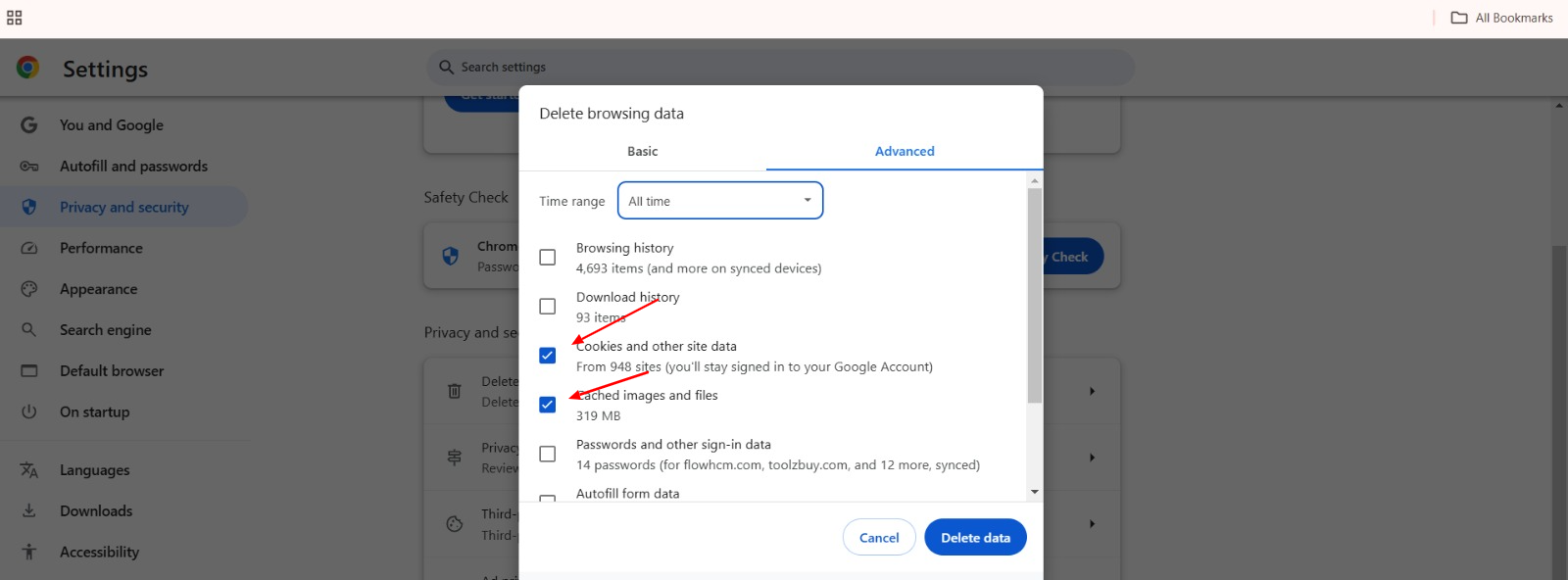
4. Click Clear Data and restart Chrome.
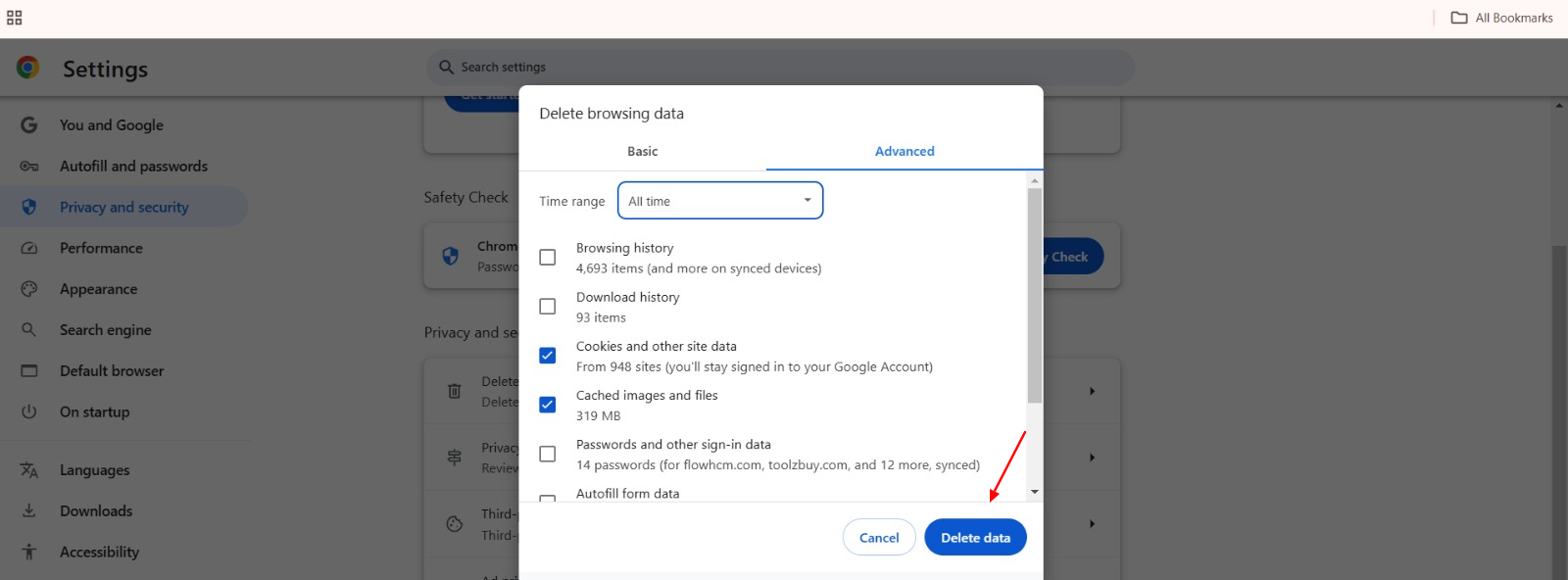
This would then allow Chrome to use new data when initiating connections.
Update Firewall and Security Configurations
Firewalls and anti-virus software occasionally interrupt the UDP port 443, which QUIC requires for communication. Make sure that UDP port 443 is enabled and not blocked.
Updating the firewall and security configurations can be all it takes to reconnect to your browser.
If you’re unsure, consult the documentation for your security software or seek professional assistance.
Preventing ERR_QUIC_PROTOCOL_ERROR in the Future
Here are some tips to minimize the chances of encountering this error again:
- Update Google Chrome Regularly: Ensure you’re using the latest version to benefit from fixes & improvements.
- Use Only Reputable Extensions: Always use extensions that are being updated by their developers regularly.
- Check Firewall Configuration: Keep looking at your firewall & antivirus configurations to ensure they don’t become too restrictive.
- Test Website Compatibility: Find out if the websites you browse support HTTP/3 and QUIC.
How WPExperts Can Help You
If you have a WordPress website and get the ERR_QUIC_PROTOCOL_ERROR error, WPExperts can sort it out for you. WPExperts are expert WordPress solution providers capable of developing WordPress plugins or maintaining site performance to ensure sites are compatible with modern protocols such as QUIC and HTTP/3, free from errors, and rich in user experience.
Therefore, you can focus more on business growth while WPExperts takes care of technical issues and problems.
The End
The ERR_QUIC_PROTOCOL_ERROR can cause some disruption to your browser, but it is definitely not a permanent problem. Understanding why this happens and working through all the detailed fixes in this guide will give you ways to effectively rectify this issue. It might require disabling the QUIC protocol, managing your extensions, or adjusting some network settings.
Preventive measures can also be taken, such as keeping Chrome updated and paying attention to your installed extensions so there is no chance of encountering this error. Compatibility with QUIC and HTTP/3 is important for web owners, and WPExperts can provide customized solutions to this.
Start taking control today, and don’t let this ERR_QUIC_PROTOCOL_ERROR slow you down!




