Are you a WordPress user worried about your beloved website’s security? Or if you’re aiming to enhance your website’s security, speed, and user engagement, learning how to install Jetpack plugin on your WordPress site is an essential step.
Jetpack is an all-in-one plugin designed to bring powerful features to your site. The three most basic and vital Jetpack support:
- Your site’s security
- Your site’s performance
- Provides some powerful marketing tools
But setting it up properly is key to unlocking its full potential.
In this guide, we’ll walk you through the process of installing the Jetpack plugin and provide tips and insider information. Whether you’re a beginner or need to tweak your Jetpack installation, this post has everything for you. And if you feel nervous about the installation process, professional WordPress help is just a phone call away.
Let’s start learning how to install Jetpack WordPress efficiently!
How to Install Jetpack Plugin in WordPress: Everything at a Glance
| Topic | Description | Key Actions/Features | Notes |
| What is Jetpack? | All-in-one WordPress plugin for security, performance, and marketing. | Security, Performance (CDN, lazy loading), Marketing tools | Developed by Automattic, requires a WordPress.com connection |
| Preparation | Backup site, update WordPress/plugins, and optional staging environment. | Full site backup, updates, and staging setup | Prevents issues during installation |
| Installation Steps | Install from WordPress repository and activate. | Plugins > Add New > Search “Jetpack” > Install > Activate | Quick and simple |
| Connection | Connect Jetpack to a WordPress.com account for full functionality. | Connect Jetpack after activation | Required for backups, analytics, and security |
| Jetpack Plans | Free and paid plans with varying features. | Free, Security, Growth, Complete | Start free; upgrade as needed |
| Key Settings | Security, performance, writing, sharing, traffic, and monetization configurations. | Enable brute force protection, CDN, lazy loading, and social sharing | Tailor features to your site’s needs |
| Best Practices | Use only needed features, test on staging, and keep updated. | Monitor speed, avoid feature overload | Ensures optimal site performance |
| Troubleshooting | Connection issues, plugin conflicts, site slowdowns. | Check the firewall, clear the cache, and disable conflicting modules | Professional help is recommended if needed |
| Professional Help | Custom setup, plugin conflict resolution, and team training. | WPExperts offers expert assistance | Contact for smooth Jetpack integration |
What is Jetpack and Why Should You Know How to Install Jetpack WordPress?
Before we explain how to install Jetpack WordPress, it’s fascinating to learn why it’s a hit among millions of site owners.
Jetpack is developed by Automattic — the same team behind WordPress.com — and it packages multiple required features into one plugin. Here’s what Jetpack does:
- Security: Jetpack guards your site against brute-force hacking, monitors downtime, and takes automatic backups (paid plans).
- Performance: Jetpack resizes images, hosts your content using a content delivery network (CDN), and employs lazy loading to accelerate page loads.
- Marketing & Engagement: Options such as social sharing, visitor numbers, similar posts, and advertising administration are all intended to increase your audience.
- Content Tools: Jetpack also provides amazing galleries, Markdown, and custom post types to make your content shine.
Learning how to properly set up WordPress Jetpack involves using this incredible toolkit to secure, speed up, and engage visitors to your site—all from one plugin.
Preparing Your WordPress Site to Install Jetpack
First, have your site ready prior to the WordPress Jetpack installation to prevent problems.
Your site should be ready before commencing WordPress Jetpack installation to prevent issues.
Backup Your Website
Jetpack impacts important site elements, such as security and performance. So, a complete backup keeps you safe if the plugin is set up incorrectly.
Update WordPress and Current Plugins
Ensure your WordPress versions, theme, current plugins, and WooCommerce extensions are all updated. Using the latest versions prevents compatibility issues when you install Jetpack WordPress.
Set Up a Test Environment (Optional)
Consider setting up a staging environment for commercial or eCommerce websites using WooCommerce. This allows you to securely test the Jetpack plugin installation without affecting your live traffic.
At WPExperts, we are experts in staging, setup, and backup. Contact us now for expert Jetpack security services or help installing the WordPress Jetpack plugin.
How to Install Jetpack WordPress: Complete Step-by-Step Jetpack Setup Guide
Now, let us tell you the step-by-step instructions on installing Jetpack WordPress and finalizing your Jetpack installation.
Step 1: Install Jetpack Plugin from WordPress Repository
- Log in to your WordPress admin page.
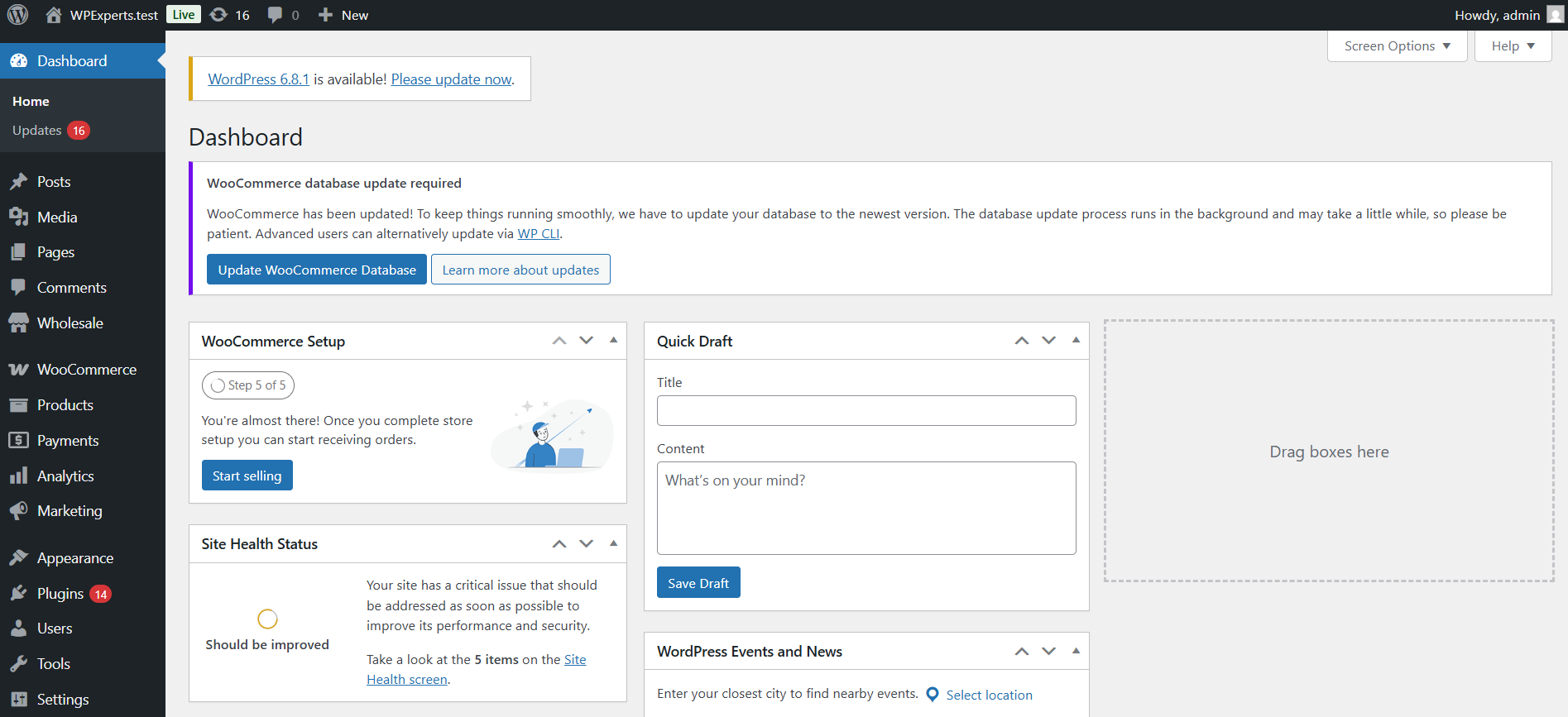
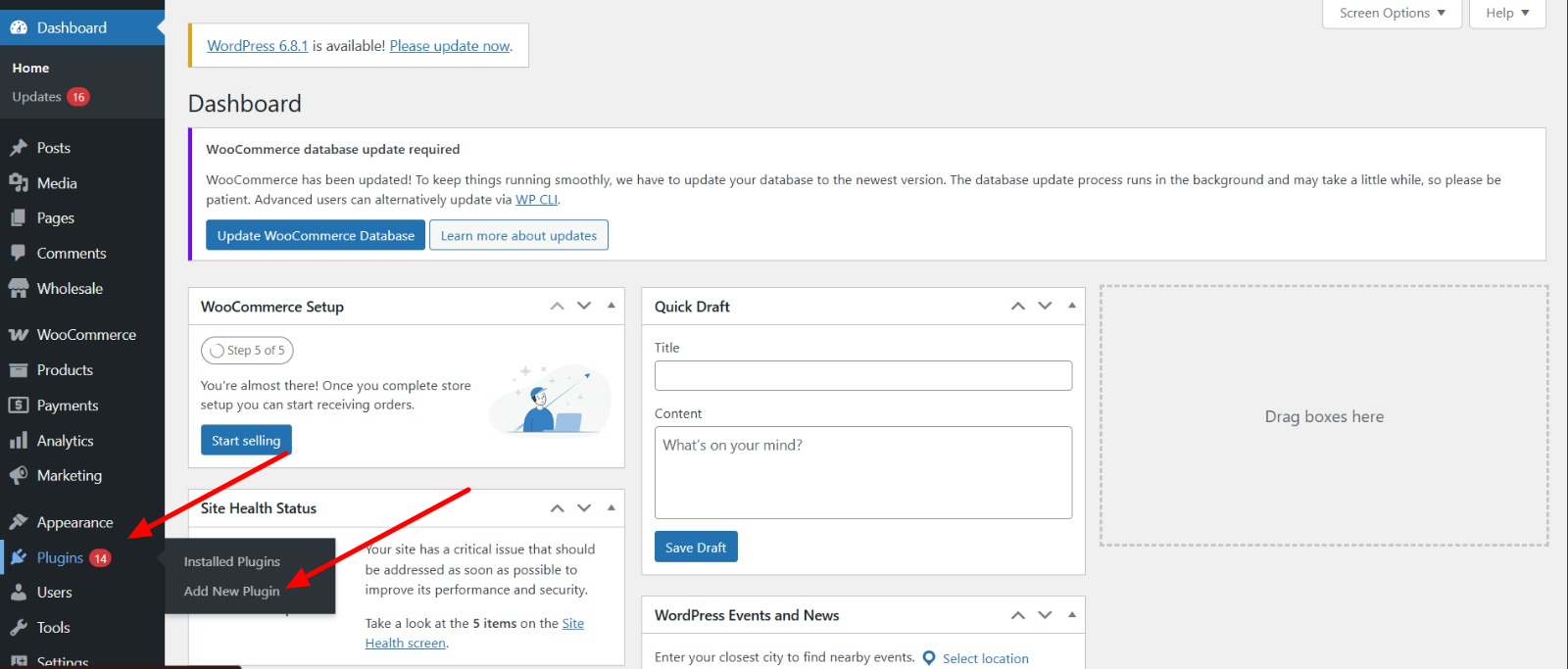
- Go to Plugins > Add New.
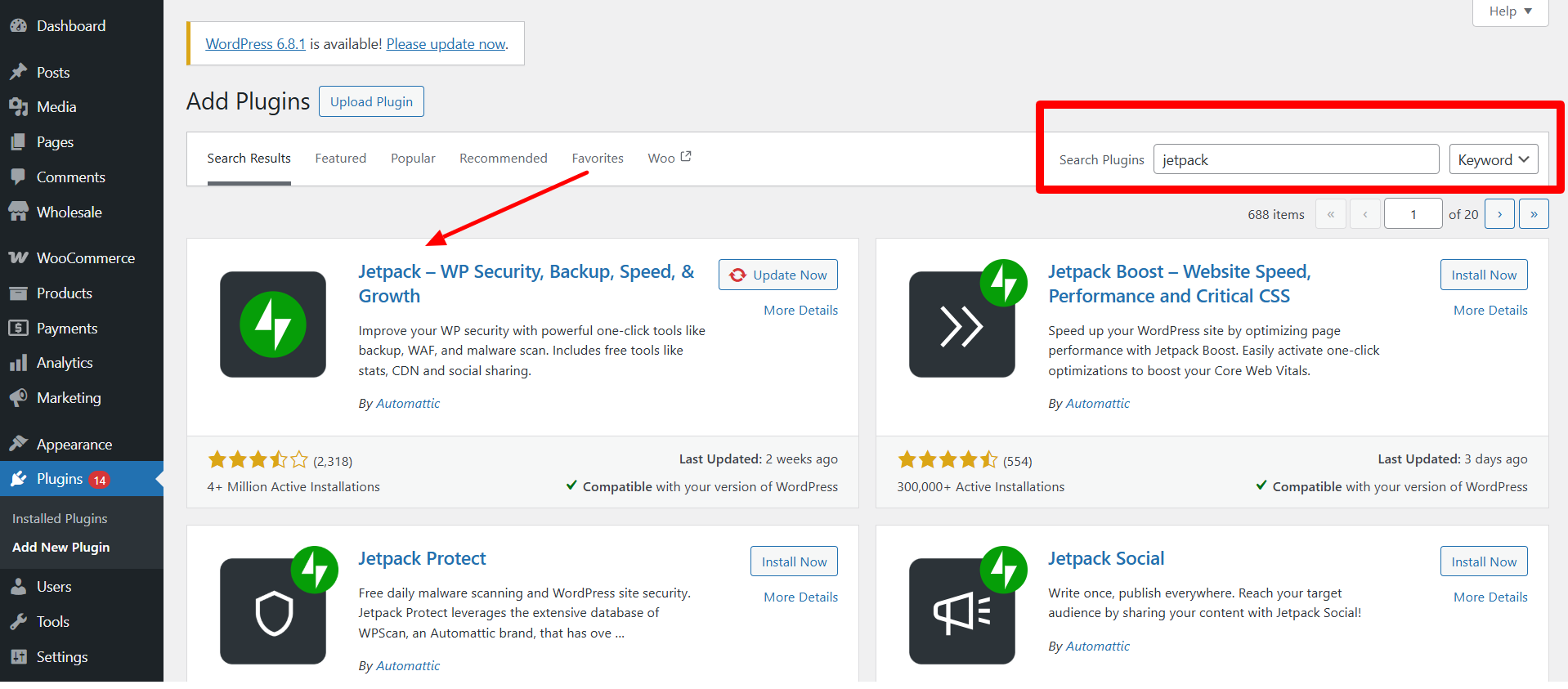
- In the search field, enter “Jetpack”. Find Jetpack by Automattic and click Install Now. (We have already installed it, that’s why it’s showing the update now button.)
- After following the installation, click Activate.
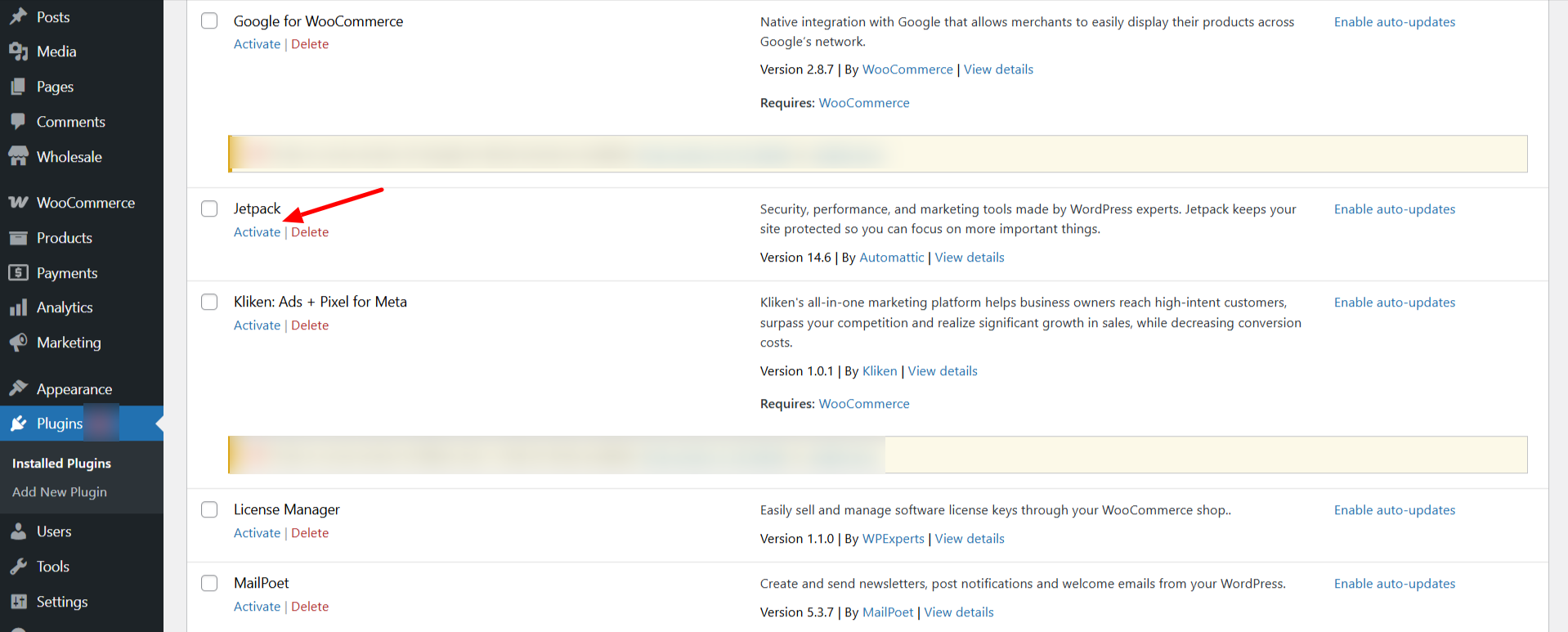
You have now installed the first component of your Jetpack plugin setup.
Step 2: Connect Jetpack Plugin to Your WordPress.com Account
Jetpack must be connected to a WordPress.com account to activate functionalities such as backups, analytics, and security scans.
- Activate Jetpack, then click Connect Jetpack from the Jetpack plugin dashboard.
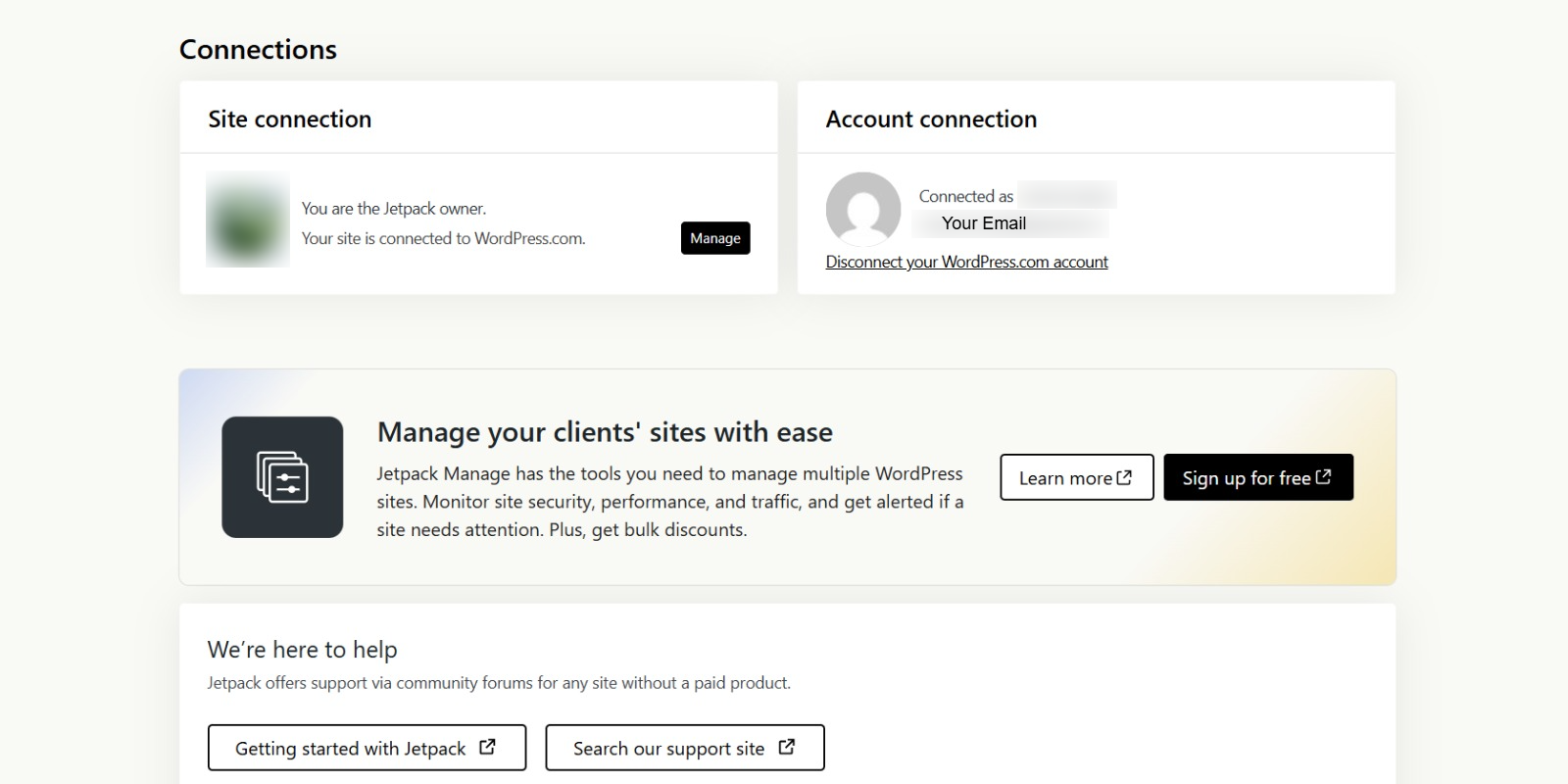
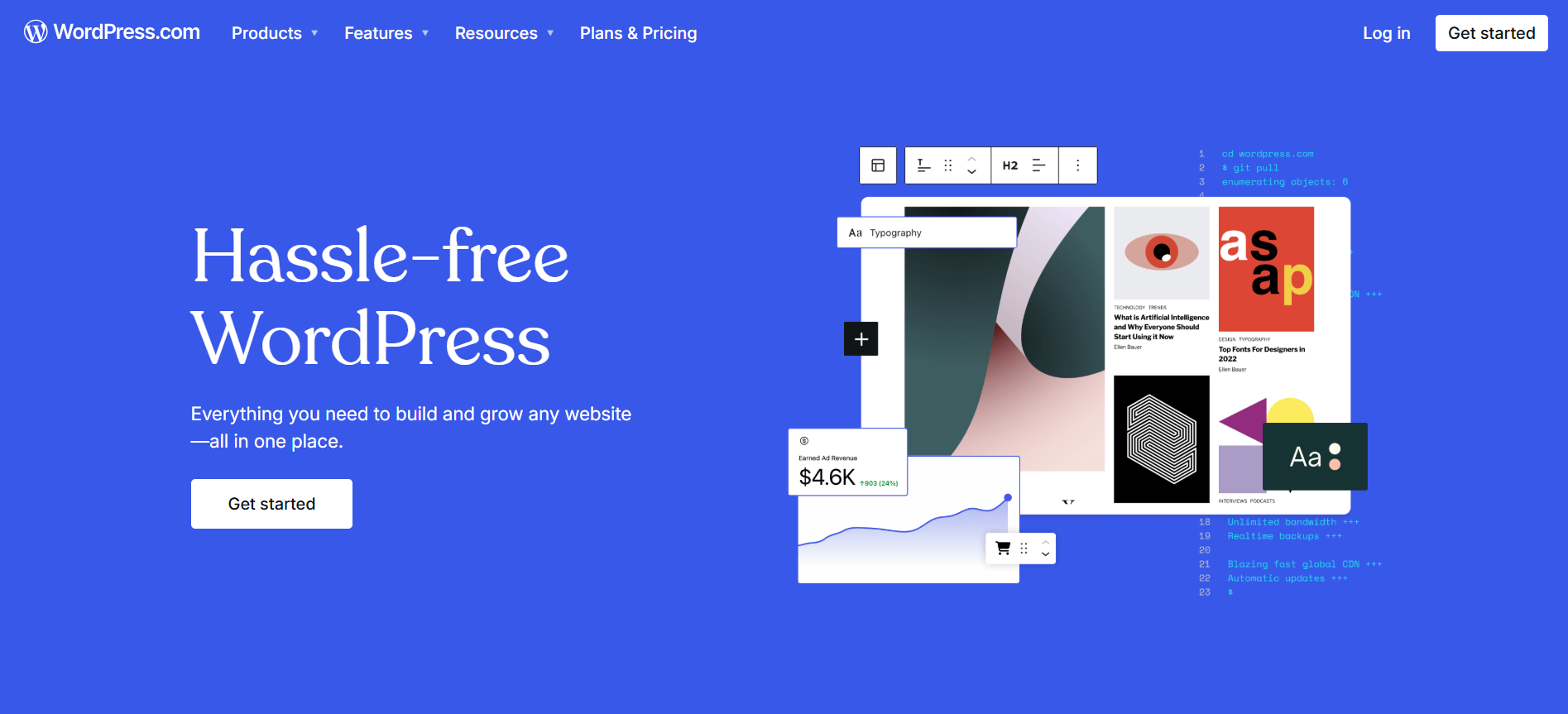
- If you are not registered, sign up for a WordPress.com account — it’s free and quick.
- Allow Jetpack to connect with your WordPress site.
This finishes the important login part of your WordPress Jetpack configuration.
Step 3: Select the Proper Jetpack Plan for Your Needs
Jetpack has several plans to accommodate various needs:
- Free: Offers basic security and performance features.
- Security, Growth, Complete: Upgrade plans include backups, malware scanning, SEO features, and enhanced marketing options.
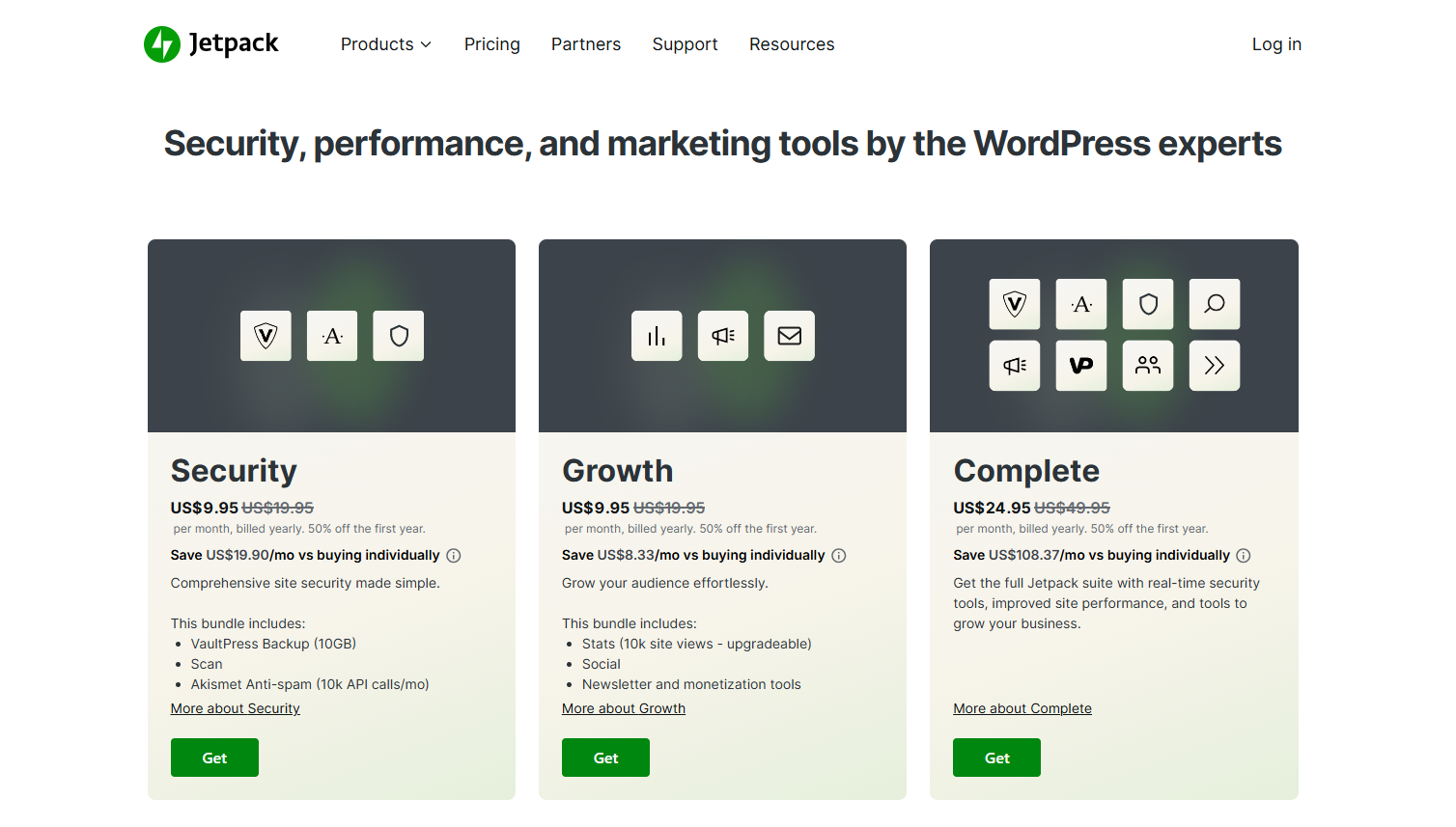
For most site owners, it’s best to begin with the free plan. You can always upgrade later as your needs expand.
How to Set Up Jetpack Settings After Installation
Installing Jetpack is just the start. To unlock its full potential, you must set its settings intentionally.
Accessing Jetpack Settings
From your WordPress site dashboard, go to Jetpack > Settings. You will find tabs like:
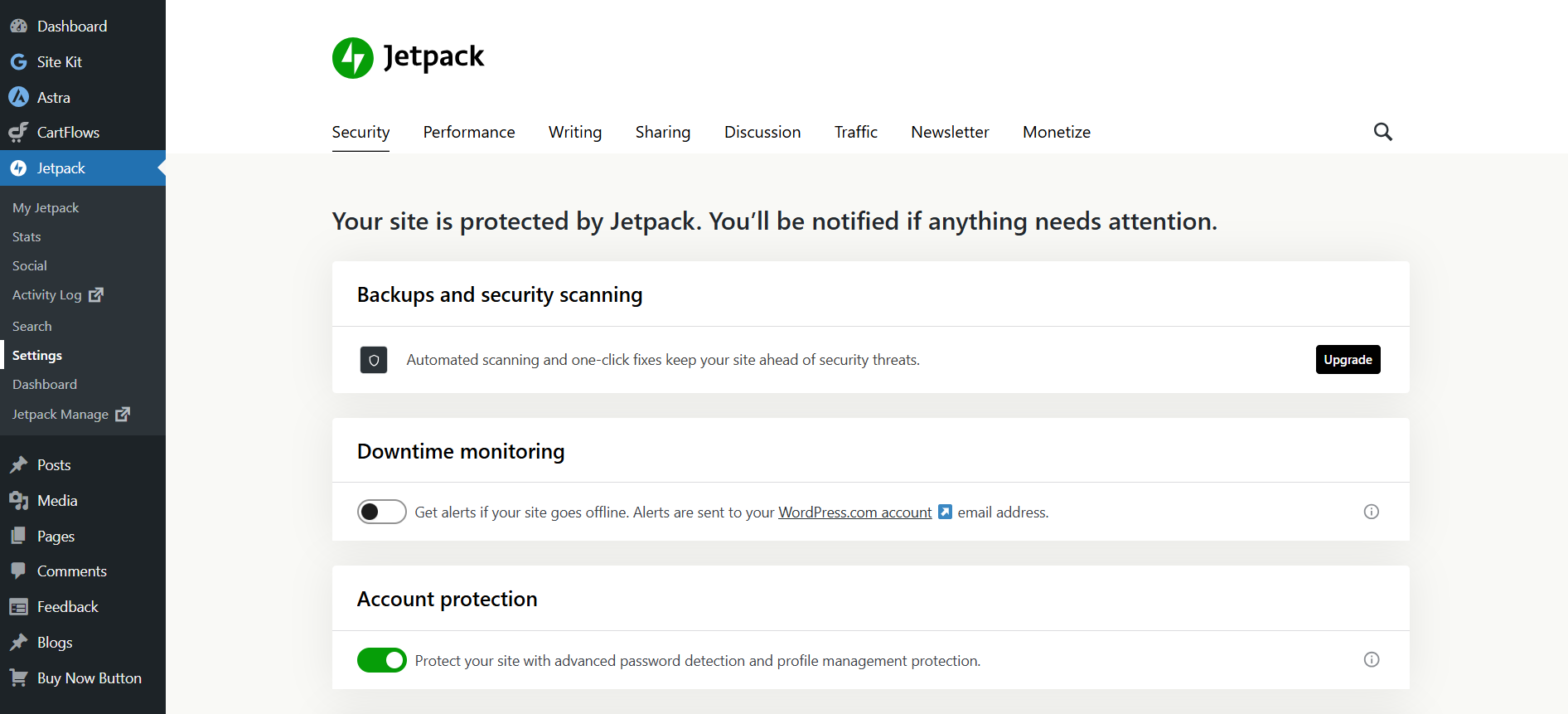
- Security
- Performance
- Writing
- Sharing
- Discussion
- Traffic
- Newsletter
- Monetize
Important Configuration Areas in Your Jetpack Setup
Security Settings
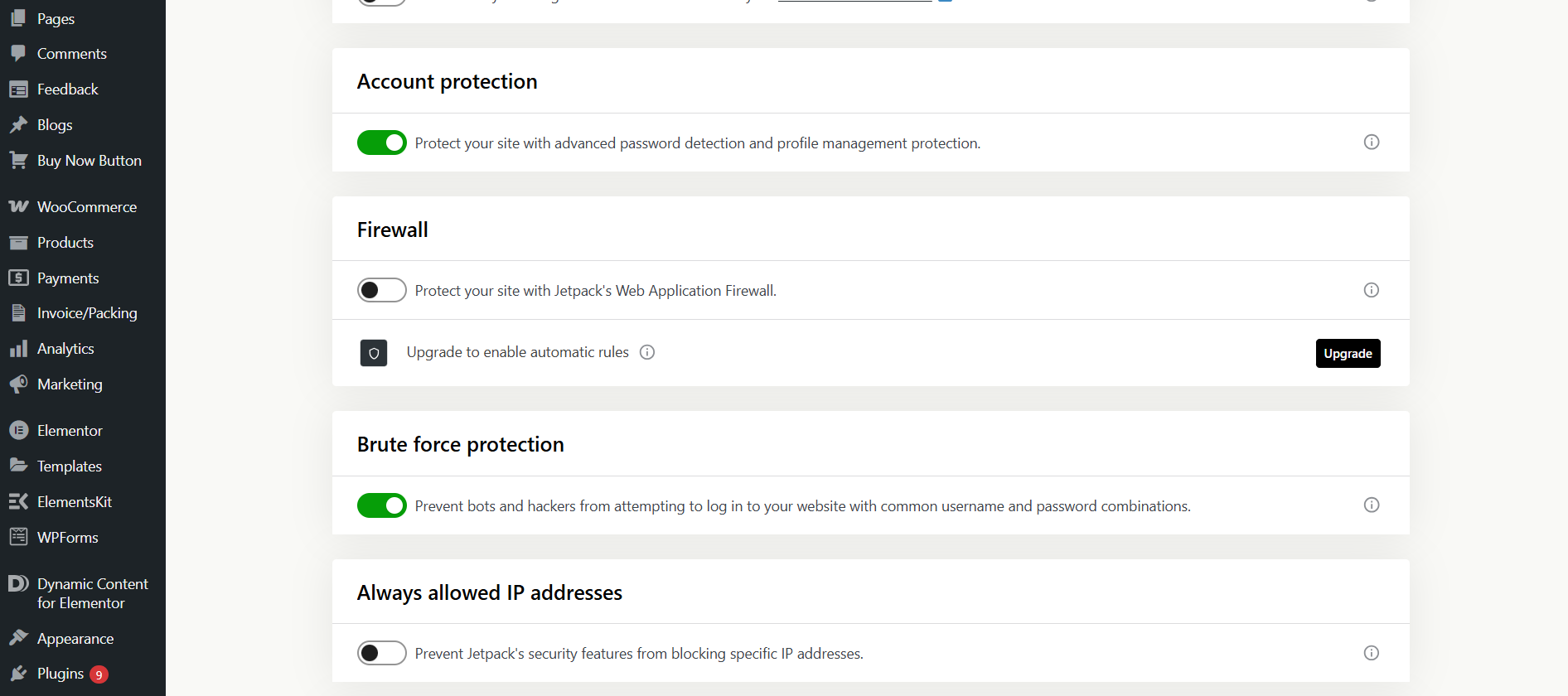
- Enable Brute Force Attack Protection to protect your login page.
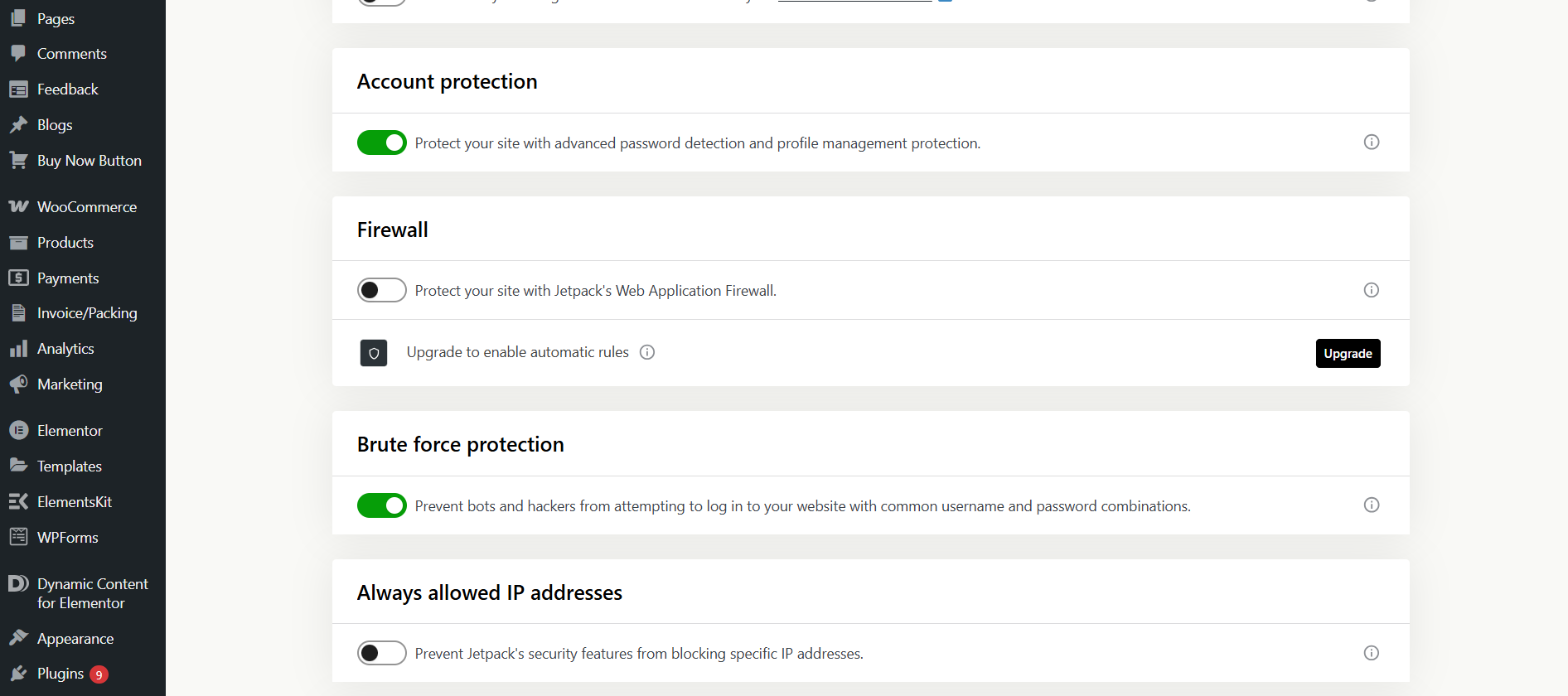
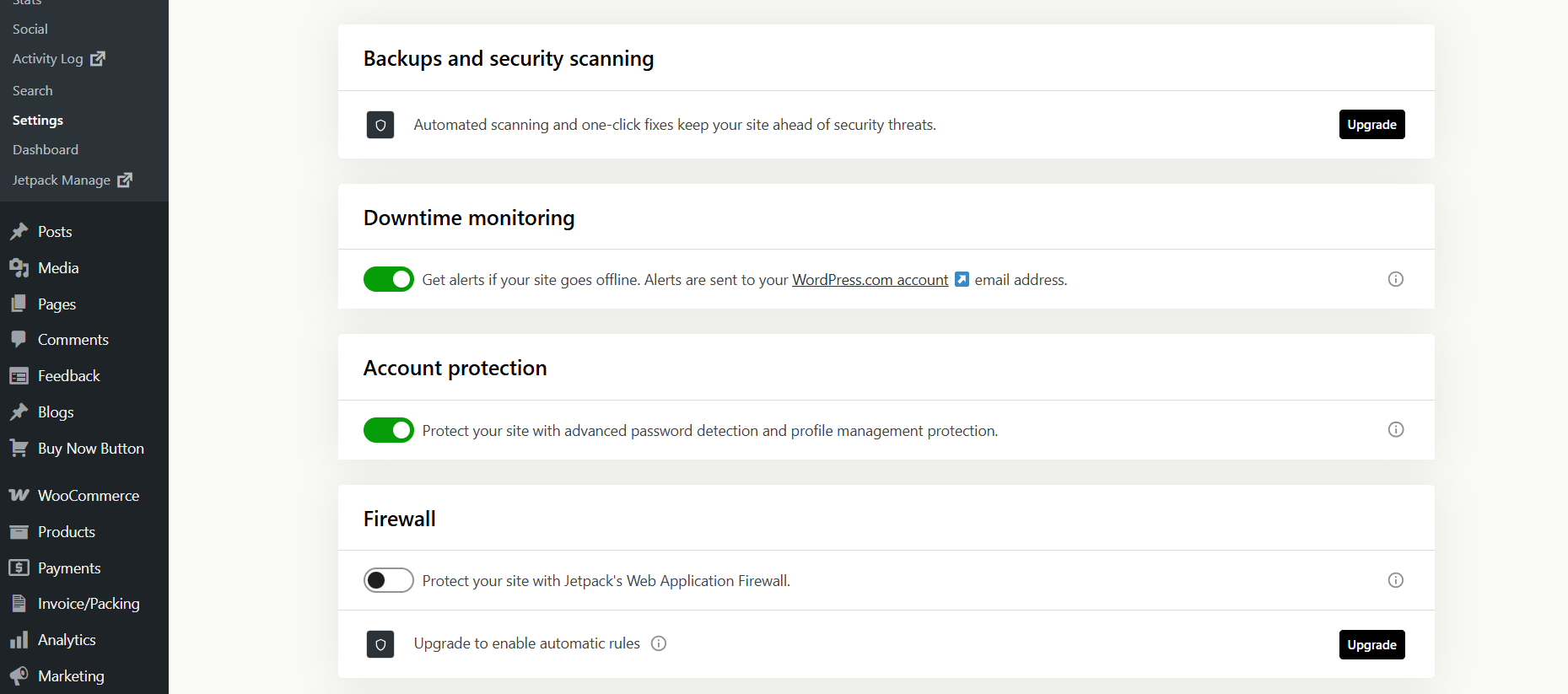
- Enable Downtime Monitoring to receive an alert if your site goes down.
- If on a paid plan, enable Automated Backups and Malware Scanning for added peace of mind.
Performance Settings
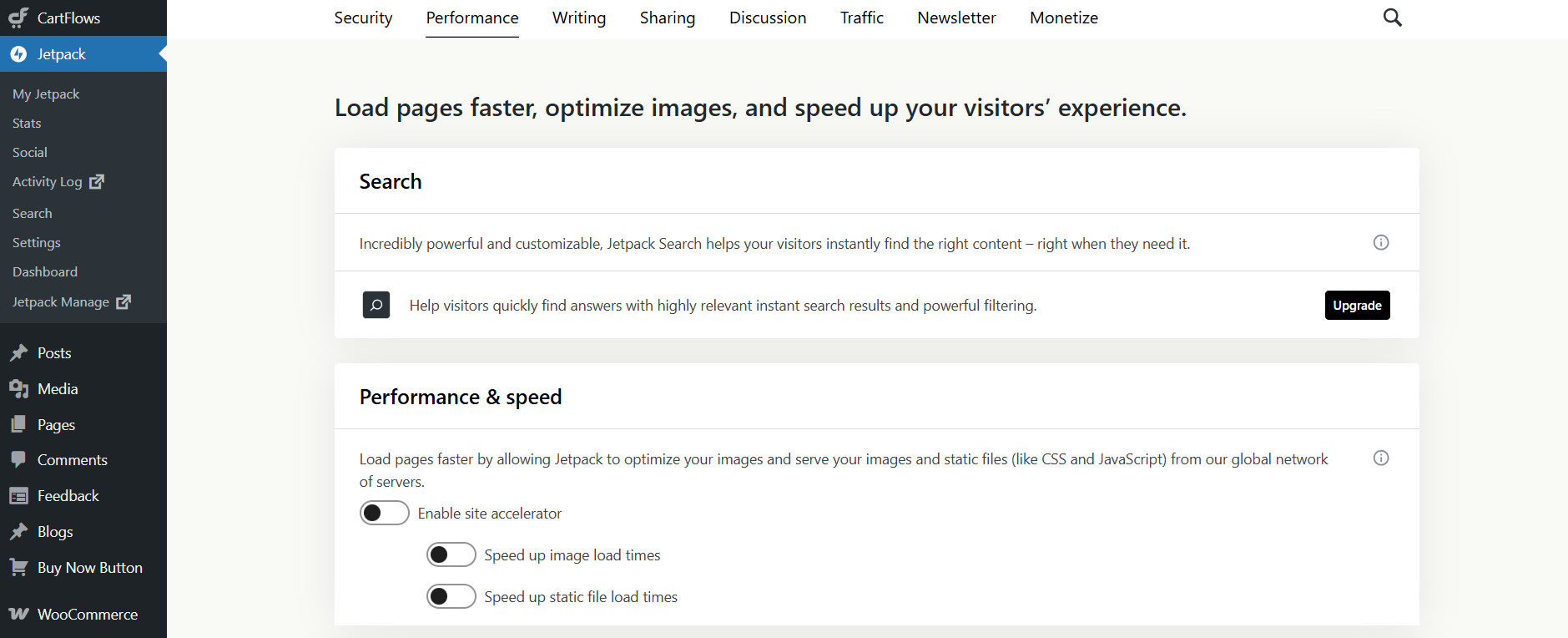
- You can enable Site Accelerator to optimize images and deliver them via Jetpack’s CDN. (Pro tip: Follow the recommendation from your WordPress maintenance service provider before activating it.)
- Enable Lazy Loading for images, which accelerates page load times.
- If you are subscribed to Jetpack Search, enable those settings for enhanced search experiences.
Writing Features
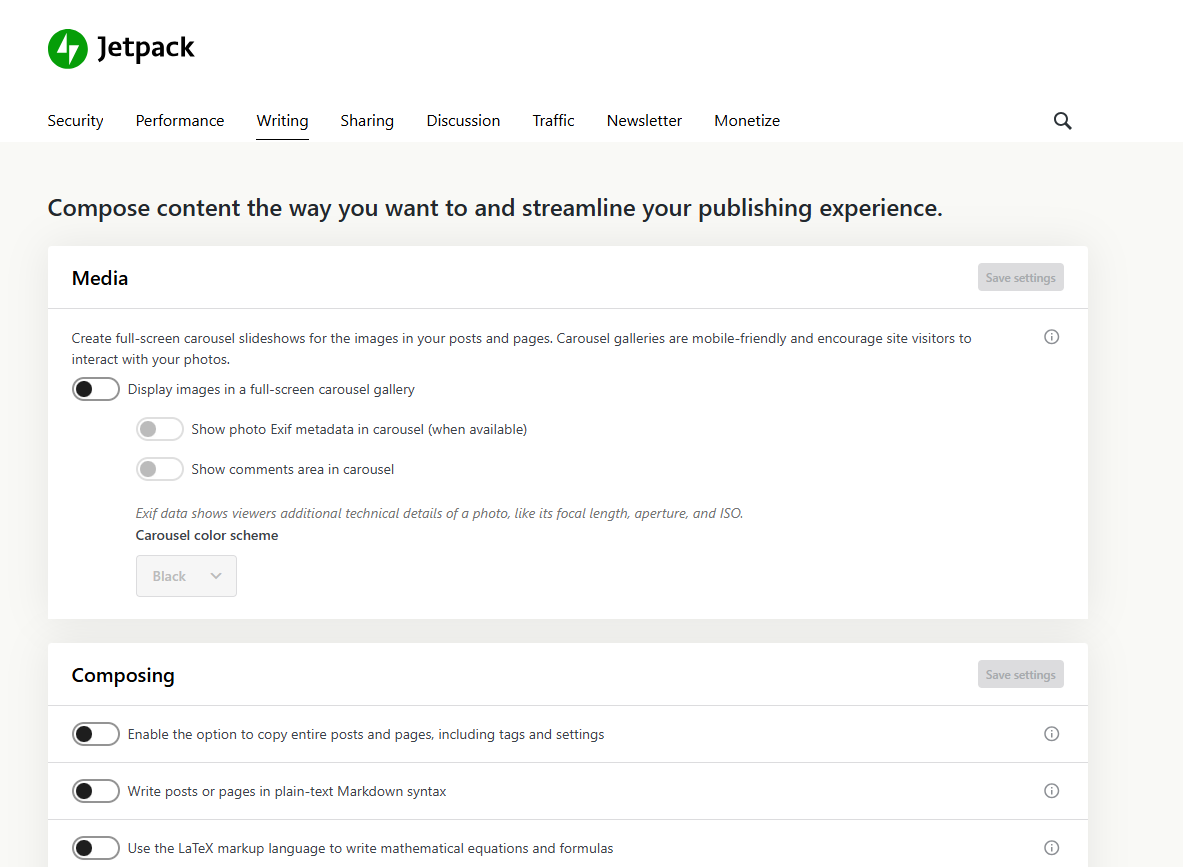
- Enable the Full-Screen Carousel to make galleries more powerful.
- Enable Markdown Support if you write in Markdown syntax.
- Use Custom Content Types, such as testimonials or portfolios, if applicable to your site.
Sharing and Engagement
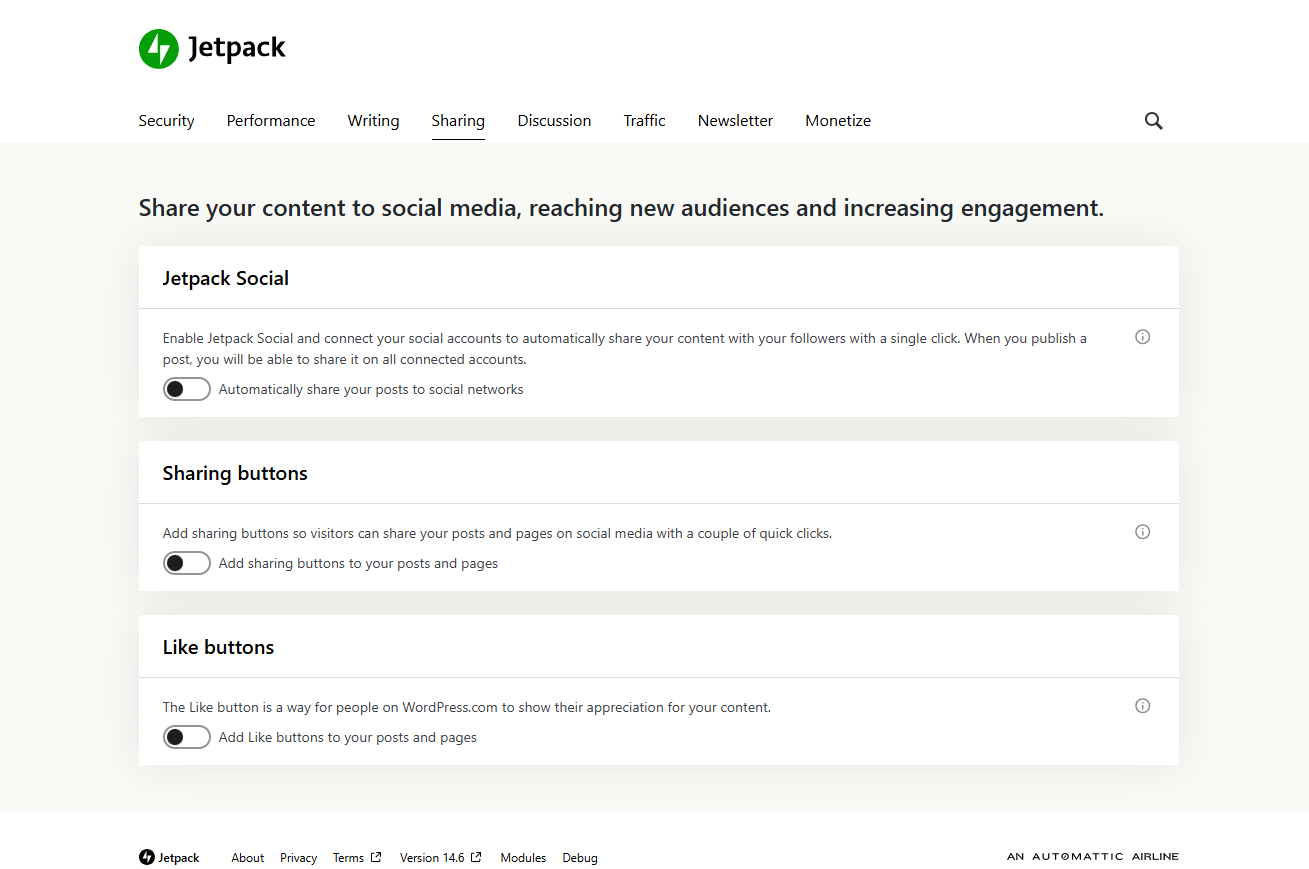
- Establish Publicize Connections to automatically cross-post new posts on Facebook, LinkedIn, and other social networks.
- Include Sharing Buttons on posts and pages.
- Allow Likes and enhanced commenting features to enhance visitor engagement.
Traffic & SEO
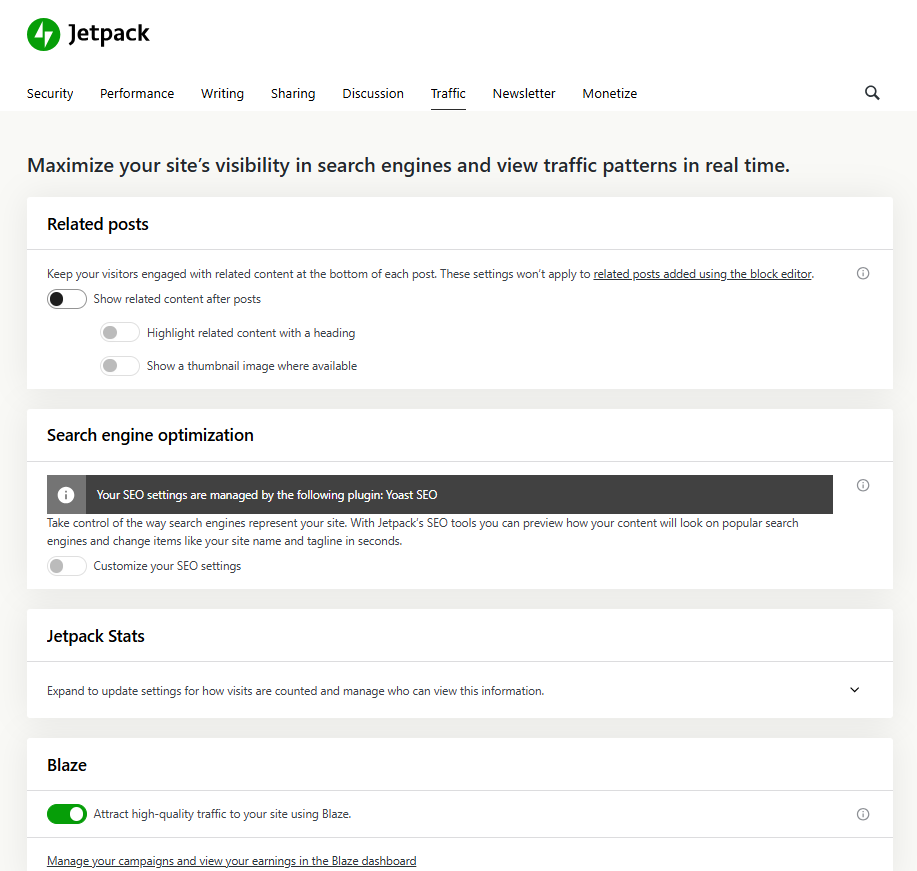
- On paid plans, activate Ads to monetize your site.
- Use Related Posts to keep visitors browsing your content.
- Set up SEO tools or connect Jetpack with third-party SEO plugins for the best search visibility.
WordPress Jetpack Setup Tips and Best Practices
As you conduct your WordPress Jetpack setup, remember these best practices:
- Enable only the modules your site requires. Jetpack has numerous features, but unused ones can make your site slower.
- Check your website’s performance and speed prior to and after enabling Jetpack features to track any effect.
- Experiment on a staging site with new Jetpack options prior to making changes live.
- Ensure Jetpack and WordPress core are kept current for security and compatibility.
When & Why You May Require Professional Jetpack Plugin Setup Assistance
Jetpack is a robust tool, but setting it up properly to meet your website’s requirements can be challenging. That’s where WPExperts comes in.
We provide:
- Custom Jetpack configurations specific to your brand and workflow.
- Smooth integration of Jetpack with other plugins or custom WordPress development.
- Solving plugin conflicts and WordPress.com connectivity issues.
- Proper setup of backups, security, and performance tweaks.
- Team training to handle Jetpack features efficiently.
Our professional WordPress Jetpack setup services will make your site run smoothly and securely, allowing you to concentrate on your business.
Issues in WordPress Jetpack Setup and How to Resolve Them
– Jetpack Not Connecting to WordPress.com?
Check if your server firewall or security plugins are blocking external connections. WPExperts can diagnose and resolve these connection issues quickly.
– Jetpack Features Not Working After Setup?
Try clearing your site cache, checking for plugin conflicts, or selectively deactivating and reactivating Jetpack modules.
– Site Slows Down After Installing Jetpack?
Deactivate heavy features like Site Accelerator if they conflict with existing CDN or optimization plugins.
Final Thoughts: Mastering How to Install Jetpack WordPress for Your Site’s Success
Learning how to install Jetpack WordPress is only the beginning. The real value lies in careful configuration and maintenance. Personal blog, small business, agency — no matter your size, Jetpack can take your site to the next level — but only if configured correctly.
WPExperts is your go-to helper for expert WordPress Jetpack installation, plugin modification, and continued support. From installation to advanced modifications, we’ve got you covered.
Ready for Expert Jetpack Setup?
Avoid being held back by plugin installation and management. Get a complimentary consultation with WPExperts today on fine-tuning your WordPress Jetpack installation and maintaining your site running at optimal levels.
FAQ’s on Installing Jetpack WordPress
Q1: Is it possible to install Jetpack without a WordPress.com account?
No, most features are enabled by connecting to WordPress.com.
Q2: Is Jetpack compatible with every WordPress theme?
Yes, although some themes might require some tweaking for some features, such as galleries or infinite scroll.
Q3: Will Jetpack slow down my website?
Not if set up correctly. Opt out of unnecessary modules and pair Jetpack with good hosting and caching.
Q4: Can I install Jetpack on multiple sites?
Yes, but each site needs to tie into its own WordPress.com account or be managed through the WordPress.com dashboard.