
















































You might have noticed a few unusual activities on your WordPress site, like decreased traffic, high bounce rate, etc., using the site’s analytics. Upon further digging, you realize that hackers have infected your site with spammy links.
Unfortunately, spam link injection attacks have become common these days. However, the good thing is that you can detect and remove spam link injections in WordPress through various steps.
This blog post will describe spam link injections and offer different steps to help detect and remove them in WordPress.
What Does a Spam Link Injection Attack in WordPress Mean?
A spam link injection is a dangerous cyberattack in which hackers target websites by inserting malicious scripts or codes. Spam link injection attacks can result in various cybersecurity risks, like malicious redirects, email spamming, SEO hijacking, etc.
In this age, link injection attacks on WordPress sites are challenging to recognize. That’s because hackers and other cyberterrorists explore new methods and approaches to inject malicious codes into sites.
How Do You Find and Remove Spam Link Injection in WordPress?
If you want to find and remove spam link injection on your WordPress site, the below steps will help you achieve your objective:
- Find Spam Links.
- Clear Spam Links from WordPress Sites.
- Clean Your Database.
- Clean Up Spam Links in WordPress Theme and Plugin Files.
- Clean Up Crucial Files.
Find Spam Links
You can use different options, such as Google Search Console, manual website check, and WordPress security plugins, to detect spam links on your WordPress site. Let’s discuss these options below:
Find Spam Links through Google Search Console
Google offers a free tool called Google Search Console. It helps you check how your site performs in search results. Once you have configured Google Search Console, log in and choose your website.
Now, you should click the “Security & Manual Actions” tab on the left sidebar. Thus, you can check any warnings regarding “spam content” or “unnatural links”. If you observe a message that says “no issues detected”, it does not guarantee your site is free from spam links and malware.
You should also examine the “Links” report to detect unusual activities. This report lets you check any suspicious link text and domain.
Find Spam Links from WordPress Sites
Identifying spam links from WordPress websites is not as challenging as you think. For this purpose, you can benefit from a feature called View Page Source. You can find this feature on your browser.
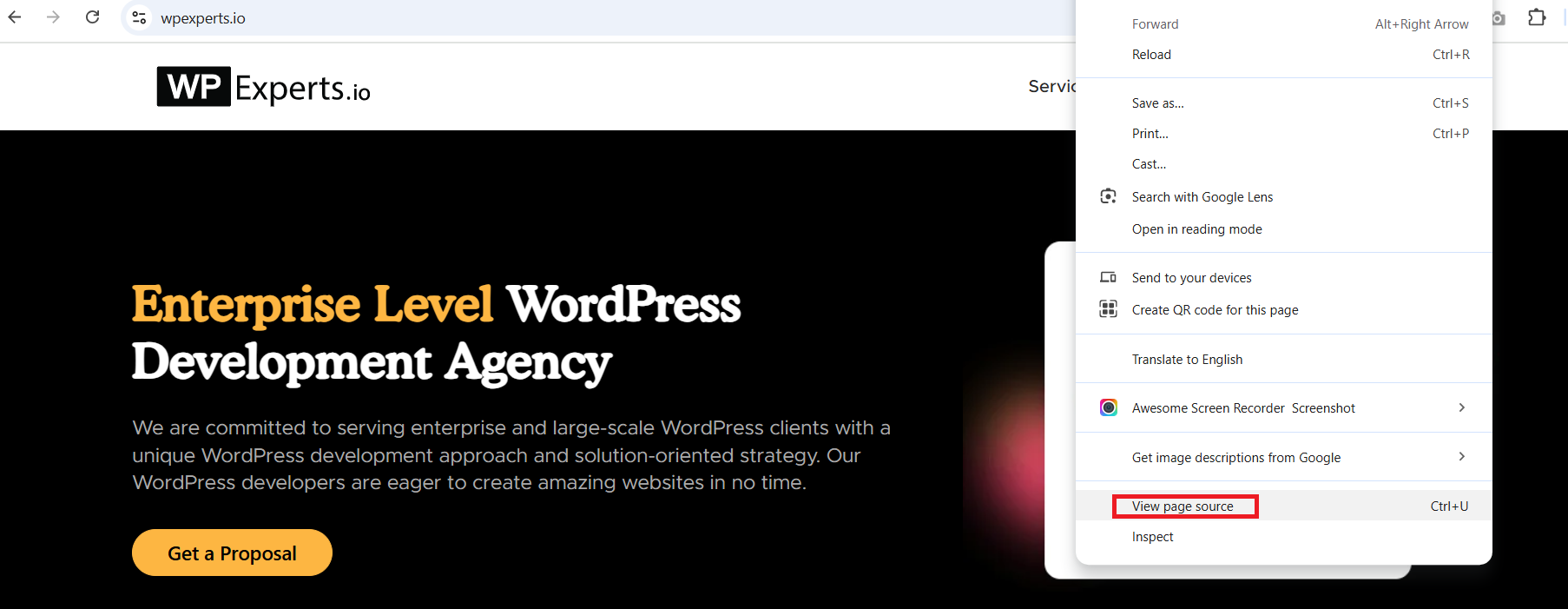
To be safe, you should check codes that look jumbled. These codes can turn out to be spammy links. Moreover, you can explore spammy links by browsing your site’s ranking in Google’s search results.
If your website has spammy links, you should check its meta description. When browsing the search results, the meta description will likely contain bizarre keywords and characters from foreign languages.
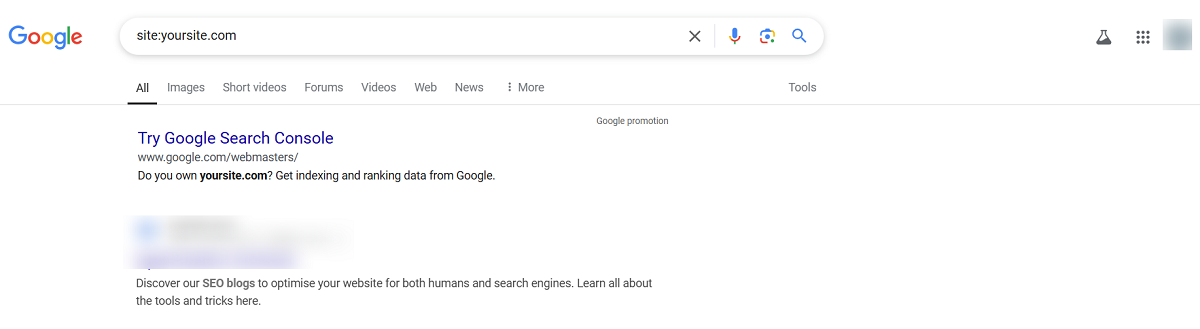
Unfortunately, detecting and clearing spam links from websites does not solve the problem. Additionally, this cumbersome task requires dedicated expertise, which not everybody possesses.
Detect Malicious Codes With Security Plugins
Google Search Console and manual site checking aside, you can utilize security plugins, including Sucuri or Wordfence. These plugins are handy when scanning websites and identifying issues on time.
You can scan your site using your desired security plugin to see if it has malicious code. In this scenario, we will use Wordfence. To use its scanning feature, navigate to Wordfence > Scan. Now, you should press the “Start New Scan” button.
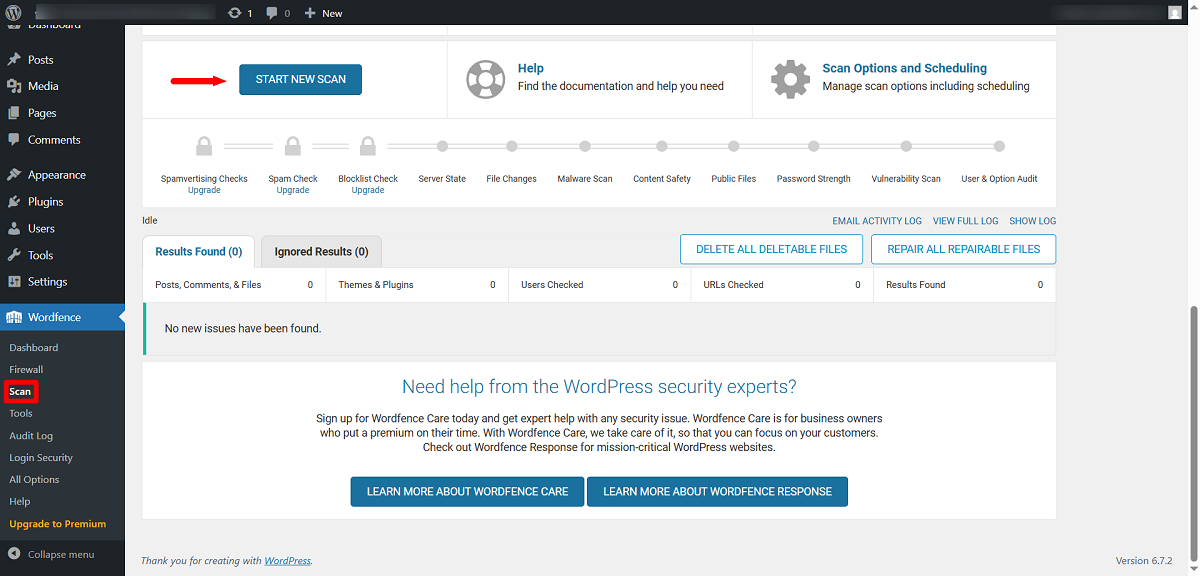
Through this plugin, you can identify suspicious file changes and harmful code without fuss. Once Wordfence highlights the issue, you should take the recommended action to resolve the problem.
Clear Spam Links from WordPress
After identifying the spammy links on your WordPress website, you should immediately take action to remove them. In this situation, the plugin you already configured will do your job. You must remove spammy links immediately if they are found.
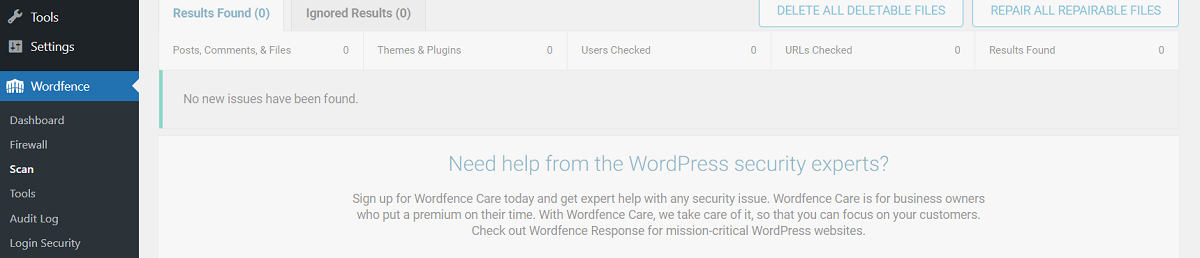
That said, deleting or clearing such links does not solve the issue. Sadly, your website may have spam links that need to be removed. Therefore, you should use different tools to remove spam links from your website.
Clean Your Database
You can delete spammy links from your site by cleaning your database. You can use an impactful database search plugin, Search & Replace Everything, to clean your database.
As the name suggests, this plugin helps users smartly check websites if they have spam links.
Once you have installed and activated Search & Replace Everything, navigate to Tools > WP Search & Replace tab.
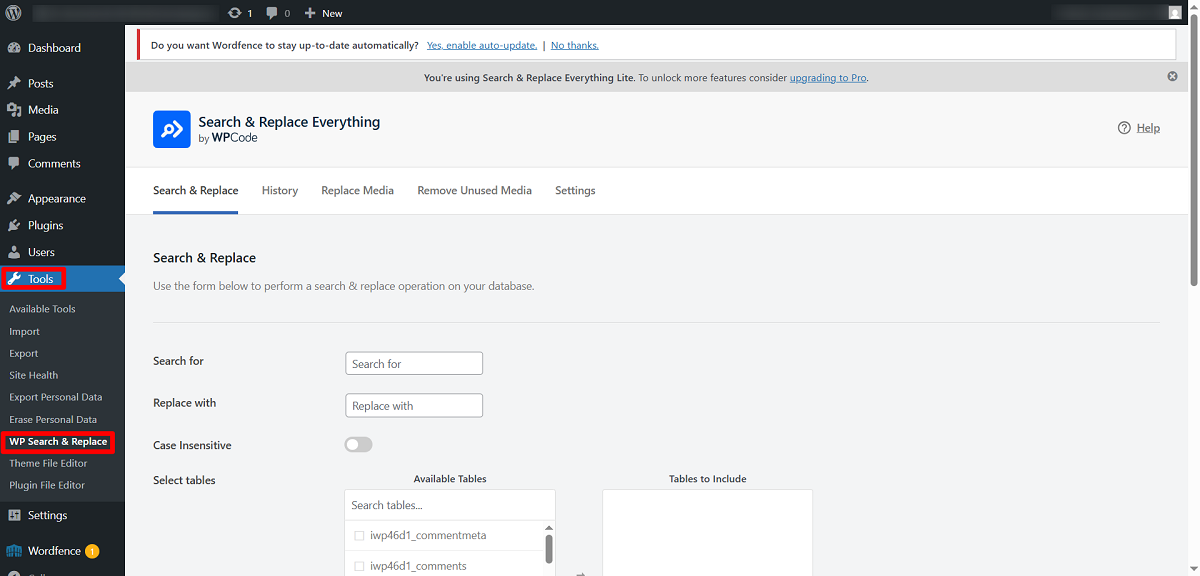
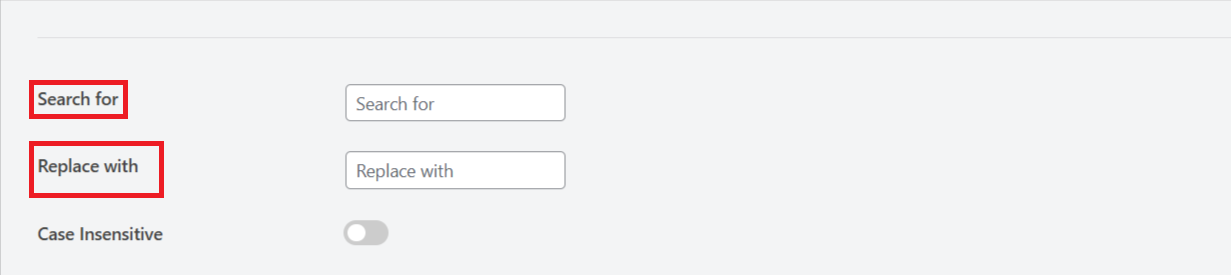
Use the “Search for” field to mention the suspicious link. Furthermore, you must choose the database tables that need to be checked. Press the “Preview Search & Replace ” button to find the results.
The plugin will highlight any suspicious links if they exist within pages, posts, and other site areas. In addition, the Search & Replace Everything plugin allows you to remove dubious links easily.
For this purpose, you need to write the link in the “Search for” field and leave the “Replace with” field blank. This will enable you to delete dubious links straight away.
Clean Up Spam Links in WordPress Theme and Plugin Files
Sometimes, WordPress themes or plugin files have spam links. These links are hard to identify with the naked eye. Moreover, it is challenging to manually go through all the plugins separately to detect suspicious or dubious links.
If you have configured a few plugins on your website, deleting them at once is a good option. You can perform this activity by navigating to Plugin > Installed Plugins. You should choose the “Delete” option using the “Bulk actions” menu. After selecting the “Delete” option, press the “Apply” tab to complete this process.
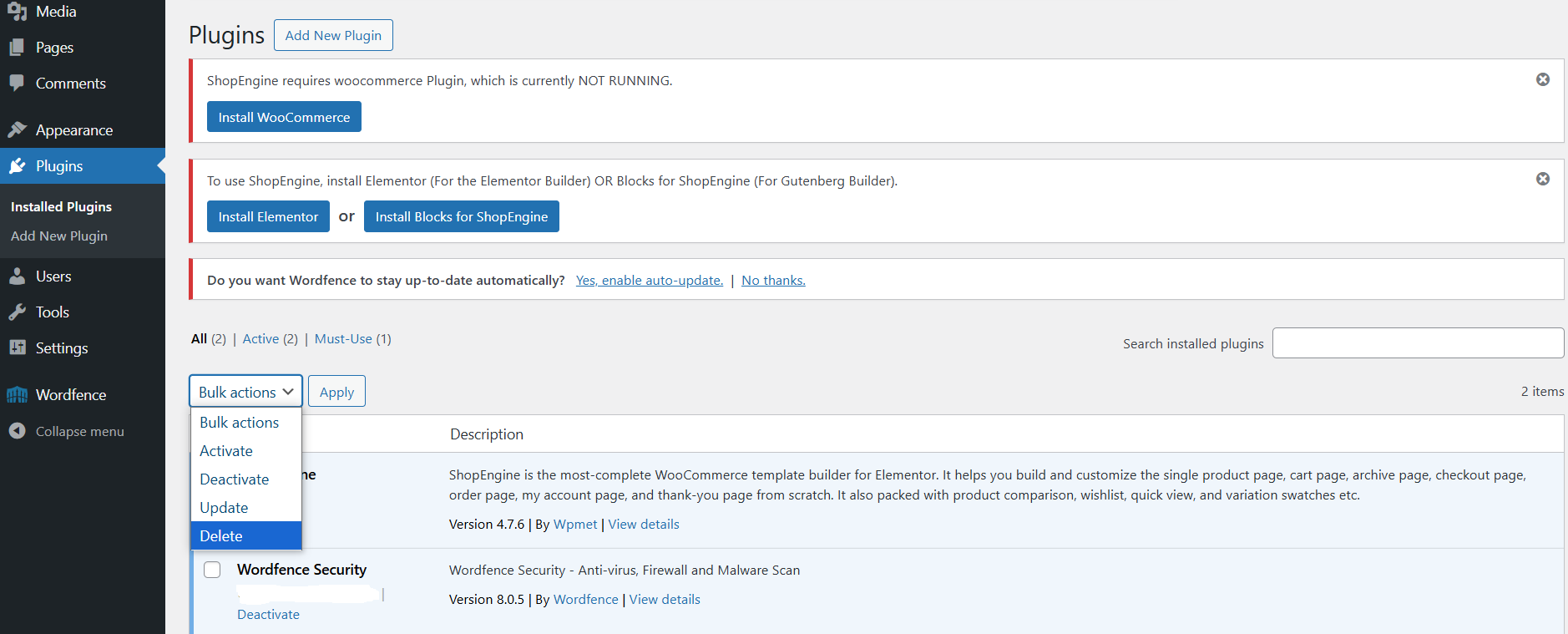
Remember, you must download all deleted plugins again. In addition, you should install these plugins on your WordPress website accordingly. The same goes for the WordPress theme, as you will have to remove the existing theme and install the new theme.
You should note that a default WordPress theme needs to be installed. You can assume default themes are official themes that WordPress offers—for example, Twenty Twenty-Five, Twenty Twenty-Four, and more.
Once you have enabled the default theme, you can remove the old theme by clicking it. This way, you can delete the theme, but you should download a new theme from the official website or source and configure it on your site.
Following the above process, you will likely remove spammy links in WordPress plugin and theme files.
Clean Up Crucial Files
You should delete the crucial configuration files to remove any suspicious links. For instance, the .htaccess file may have dubious links. So, delete this file to remove such links. To do this, you should use an FTP client that helps you connect to your site. Once you have connected to your website, remove the .htaccess file in the site’s root folder.
Fortunately, WordPress does regenerate the .htaccess file. Hence, you should check if the .htaccess file has been regenerated. To do this, through your WordPress dashboard, go to Settings > Permalinks and Press “Save Changes.” This way, WordPress recreates the .htaccess file.
You should also check the wp-config.php file because it may contain suspicious links. Before cleaning up this file, you should use FTP to download a copy of your current wp-config file on your device. You should visit WordPress.org and download the latest version of WordPress.
You should unzip this file to detect the wp-config-sample.php file. After uploading it, you should replace the name with wp-config.php. You cannot use this file because it misses crucial information that helps connect to your WordPress database, such as database username and password, database host, database table prefix, etc.
To get the above information, use the downloaded wp-config.php file. After adding the information, save the changes and upload them.
How to Check Your Website for Spam Link Injection (Additional Ways)?
When checking your site for spam link injection attacks, you can perform several simple steps to see if it has been infected with spam links. These steps include:
- Clear Cache and Change Passwords.
- Check External Scripts and Ads.
- Use an External Service to Conduct a Malware Scan.
- Check the Site’s Backlinks.
- Check Your Site’s Traffic.
- Remove Malware from Your WordPress Website.
Wrapping Up
Spam link injections can hamper your WordPress site’s security and overall performance. Luckily, you can follow various steps to identify and remove them appropriately by following the above blog post. This will enable you to clean and safeguard your WordPress website.
However, you must monitor your website regularly and update all your plugins and configuration files.




