

















































Do you want to build a hybrid store using the WooCommerce platform? WooCommerce is the world’s most popular eCommerce platform. It is a flexible, efficient, cost-effective, and easy-to-manage platform for beginners and tech starters.
However, most beginners feel intimidated by the idea of leveraging WooCommerce themselves. Certain users struggle to find out how to get started with WooCommerce and what seems to be the proper way to set it up.
In this quick guide, we’ll provide step-by-step instructions for creating a hybrid shop on WooCommerce and share WooCommerce resources such as the best WooCommerce themes, WooCommerce SEO tips, and other helpful resources to boost your online store to the next level.
Today, the most commonly asked question is, “How long does it take to build an eCommerce store for WooCommerce?” What about if I want to sell to both B2B and B2C customers?
However, it depends on the sole aspect of your operational procedures. If your business’s overall result is to increase revenue without building two separate WooCommerce stores for your niches, i.e., B2B and B2C, then the ideal solution would be to transform your current eCommerce into a hybrid store. It seems to be efficient and simplistic, maybe more than you would think, and we are here to tell you.
The following steps will be discussed as described below:
- Domain Purchasing
- Hosting Provider
- WordPress Installation
- Plugins Installation
- Theme Customization
- UX/UI Development
- Contact Forms
- Gamification Systems
- Payment Methods
- Social Media Widgets or Forums
Setting up a Hybrid Store for WooCommerce
The initial setup is to create a compelling and profitable hybrid eCommerce store. Once you have installed a WooCommerce platform for your online store with a specific dimensional approach to selling products or services, either B2B or B2C, installing Wholesale for WooCommerce and the WooCommerce subscription extension enables you to deal with wholesale and retail customers at the same time.
We will discuss the above steps in detail when setting up a hybrid store:
1. Choosing a Suitable Hosting Domain
Online stores often require large bulk orders to establish wholesale pricing for bulk purchasers and retail prices for individual customers. You must identify your WooCommerce or WordPress site metrics to ensure consistency, durability, and reliability. You must choose proper domain hosting to set up your hybrid store on the WooCommerce platform.
Generally, a web host stores your website files and makes your site visible online when someone types in your site’s address, also known as a URL (i.e., wpexperts.io is our URL). Suppose a host is similar to the physical location where you’ll be leasing space to create a hybrid store.
Choosing the right host requires sufficient research and understanding of the hosting providers. The critical factor is to make a shortlist of hosting companies based on the criteria below and compare several options to find the best possible accuracy for building a hybrid store on the WooCommerce Platform.
2. Effective Website Hosting
As per our considerations, the effective procedure of maintaining and managing website hosting for WooCommerce requires sufficient scalability, updates, improved security, and performance metrics to effectively utilize the hosting services for the WooCommerce platform.
WooCommerce can be used to build an online storefront of any type or multiple sizes. For several eCommerce ventures, general shared hosting provides all the support and resources required for the site’s performance. With this hosting, your WooCommerce-enabled WordPress site shares a specific space on a particular server with hundreds or thousands of sites built with various website builders and platforms.
Considering the general shared hosting environment, broad-based support is also available for issues related to multiple platforms that the hosting consumers use. However, support staff might not have the in-depth understanding and knowledge to resolve the complicated problems associated with a WooCommerce site.
In such circumstances, users can install and manage the overall aspects of WooCommerce on their sites based on their personalization and association.
If you want to help, users can benefit from WooCommerce assets and features. However, certain leading web hosting services offer specialized WooCommerce hosting in addition to other hosting packages, including general shared hosting.
Furthermore, WooCommerce hosting is specifically designed to provide support. Users need additional functionality to build a scalable e-commerce-based site without requiring website design and development, such as general website hosting services.
The available packages of WooCommerce hosting are offered in multiple formats, encompassing basic hosting that provides multiple site setups and on-demand maintenance, as well as virtual private service options that provide an extensive range of service, privacy, and security parameters.
3. WooCommerce Installation on WordPress
The installation of WooCommerce on a standard WordPress site involves merging several plugins, themes, and extensions to build an intuitive look and functionality for a WooCommerce website. Although WooCommerce hosting packages usually come integrated with the essentials that are already built-in and ready to use.
Several hosting providers, such as HostGator, BlueHost, WPEngine, and CloudWays, offer WordPress installation on your websites.
They are official WordPress hosting service providers that offer affordable solutions suitable for building a WooCommerce-enabled site that leverages all the WordPress platform’s essential features.
Users log into their BlueHost hosting service provider account, and a WordPress option is available in the My Sites section of the BlueHost dashboard.
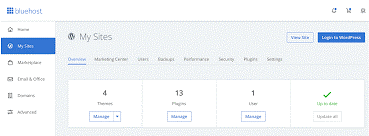
The significant advantage of the aforementioned domain hosting provider is that it allows you to start building your websites. Once you have purchased domain hosting, you can instantly install WordPress under your domain name when needed.
Elsewhere, you can manually download WordPress on your local computer using the WAMP service and make your site visible.
Here is the guide you can follow to install WordPress:
Installing WordPress Plugins
Installing any WordPress plugin on your WordPress website is effortless. Initially, you need to sign in to your WordPress admin account dashboard. After successfully logging in, navigate to the ‘Plugin’ option and click the ‘Add New’ option.
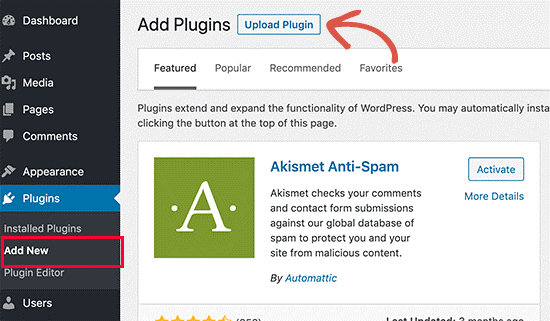
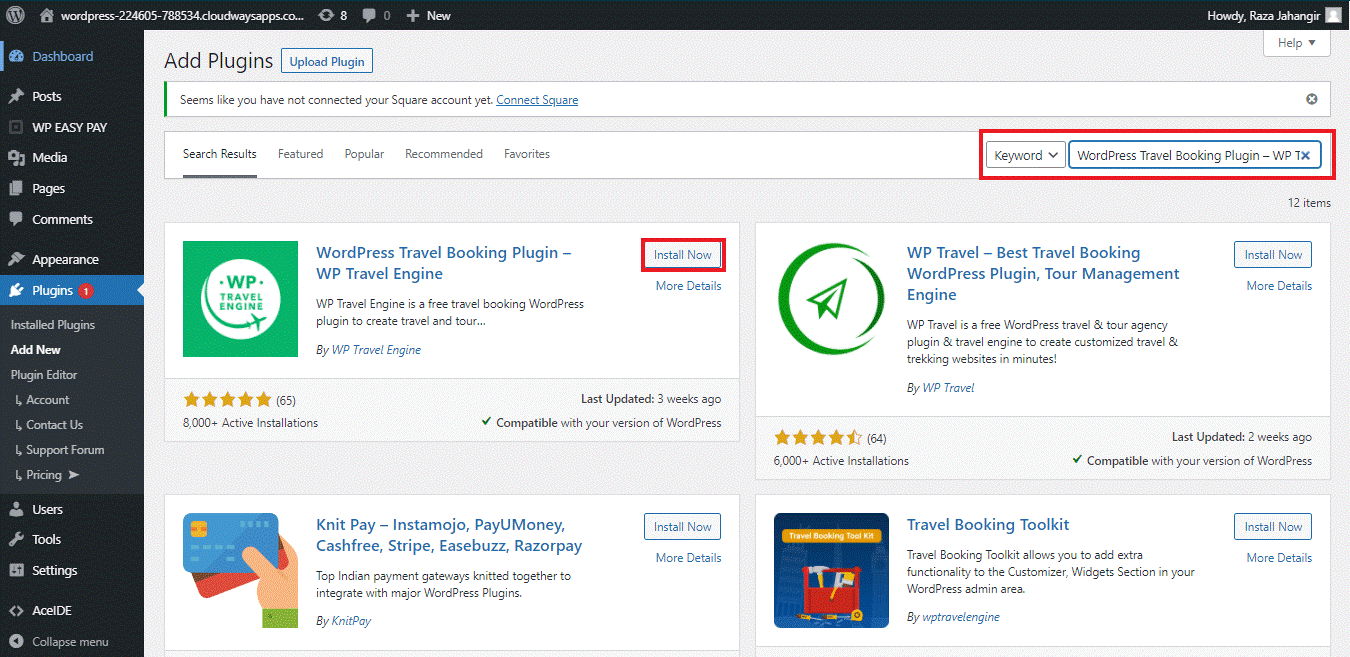
The next step is to navigate to the plugin library, where you can search for your chosen plugin. Then, click on the “Install Now” button and activate it later.
4. Choose a Theme for Your Hybrid Store
If you’re opening a hybrid store, the foremost step is to choose a WordPress theme to identify and define your site’s design layout and templates.
Various options are available from multiple sources, differing in terms of quality and effectiveness. How do you want to make the right choice for your hybrid store? Get started with a core understanding of predictive and logical reasoning, as well as how your theme will be essential for your hybrid store. Learn about the key characteristics of a good theme and how to begin searching for your design aesthetics, user experience, and interface parameters.
It takes multiple seconds for someone to build an impression about your website that affects whether they’ll leave, stay, or eventually buy a product. Your theme automatically impacts the website design and the starter’s impression. Hence, a great theme leverages you to browse and purchase multiple products.
However, a theme isn’t only about a design. It also has a vital impact on market conventions and conversion optimization, and vice versa. Hence, a slow, inadequate, difficult-to-use, complex website performs poorly in search results and doesn’t generate sufficient sales and revenue – your theme beholds all around!
WordPress offers users a wide variety of default themes. The initial step is to navigate to the bottom left option, ‘Appearances,’ and click ‘Themes’.
Furthermore, you can easily activate any pre-installed theme available in your theme’s library. Likewise, you can find any theme by typing it in the search bar. If you have a pre-existing theme installed on your laptop or PC, you can click on the ‘Add New’ button and upload your desired theme.
If you want to customize your theme according to your preferences, you can instantly navigate to the ‘Appearance’ field and select the ‘Customize’ option via drag-and-drop.
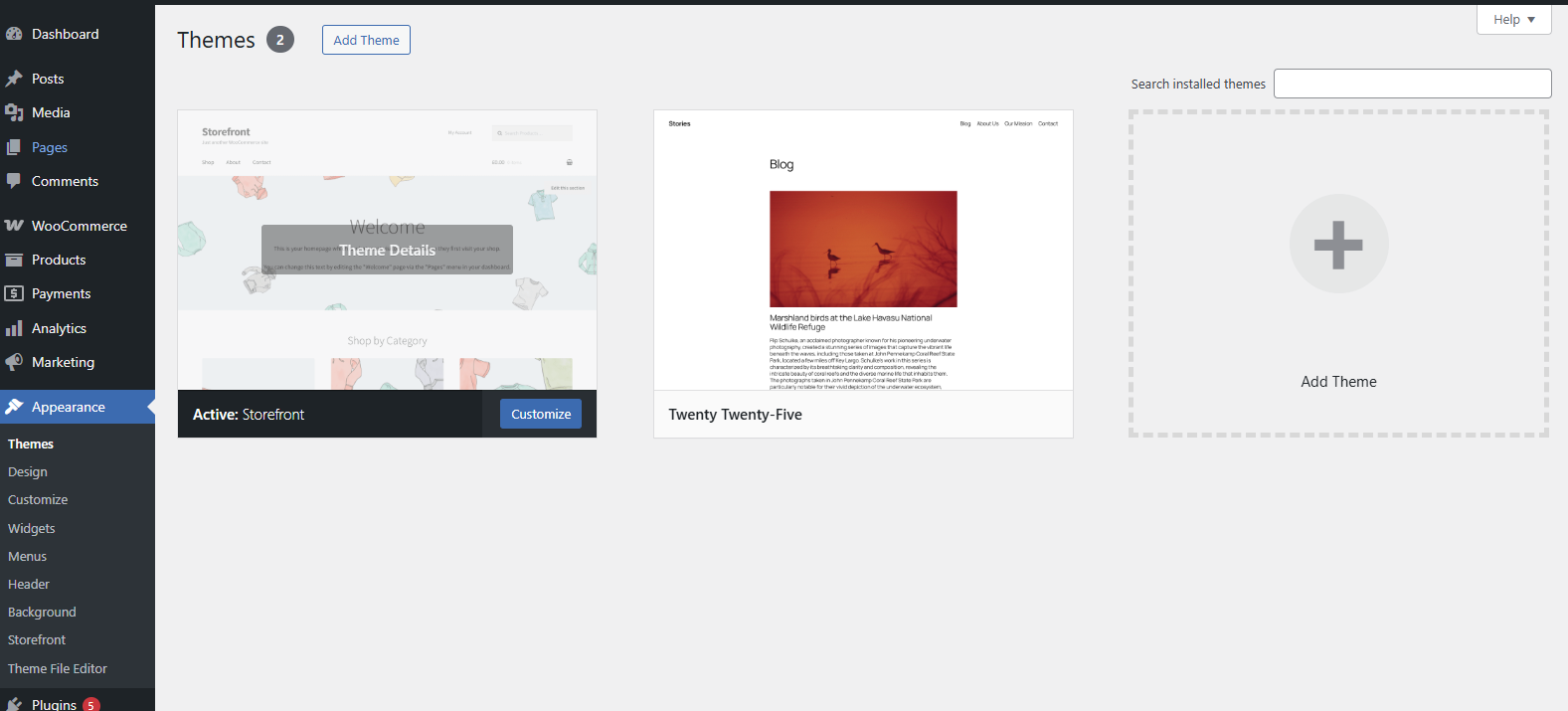
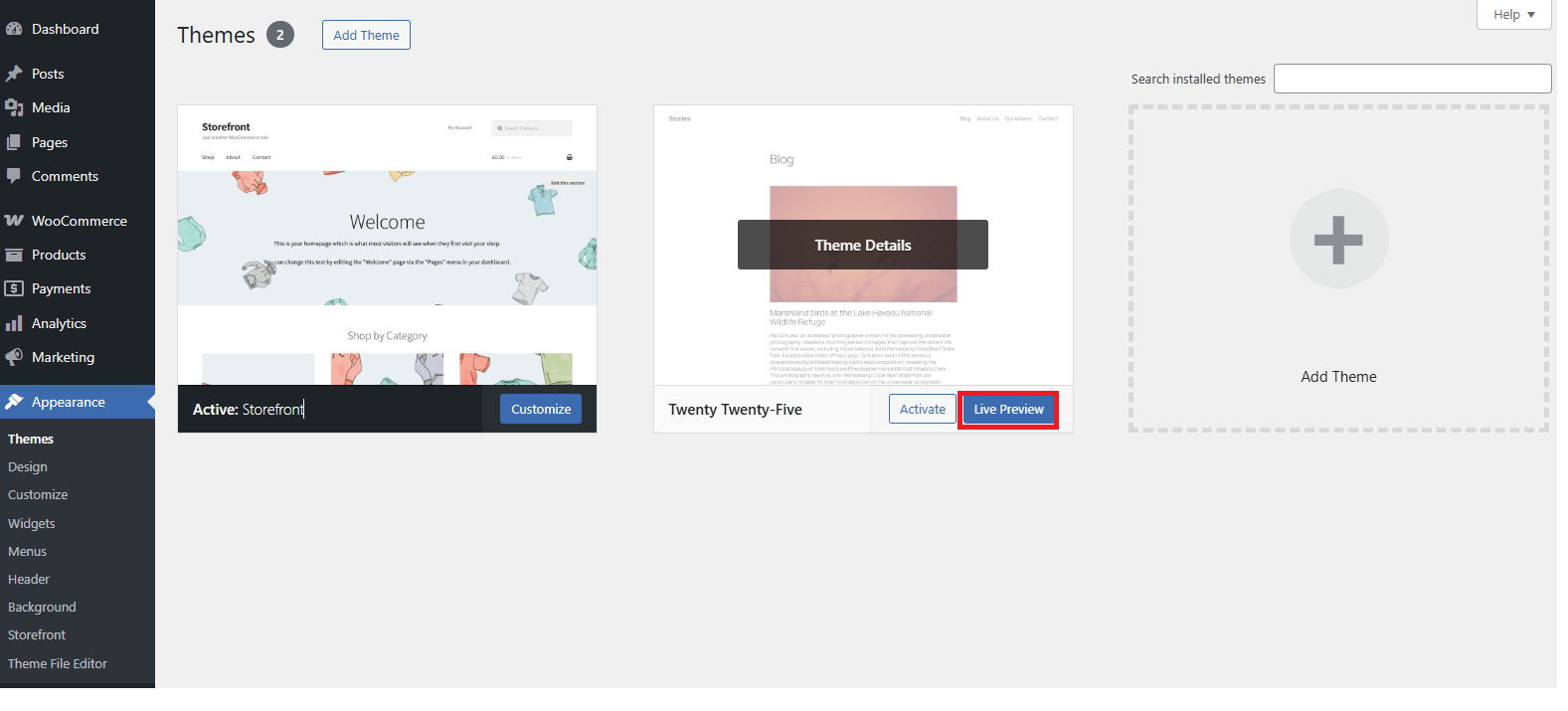
You can customize any pre-installed WordPress theme on your website, even when it is not activated. This allows you to see a live preview of the specific theme and make adjustments before activating.
All you need to do is navigate to “Appearance” and click on the “Theme” page. Next, navigate your cursor over any pre-installed themes and click the “Live Preview” button to open the WordPress theme.
You can also find the “Widgets” option in the “Appearance” section, which allows you to effectively manage widgets such as the footer, posts, and pages.
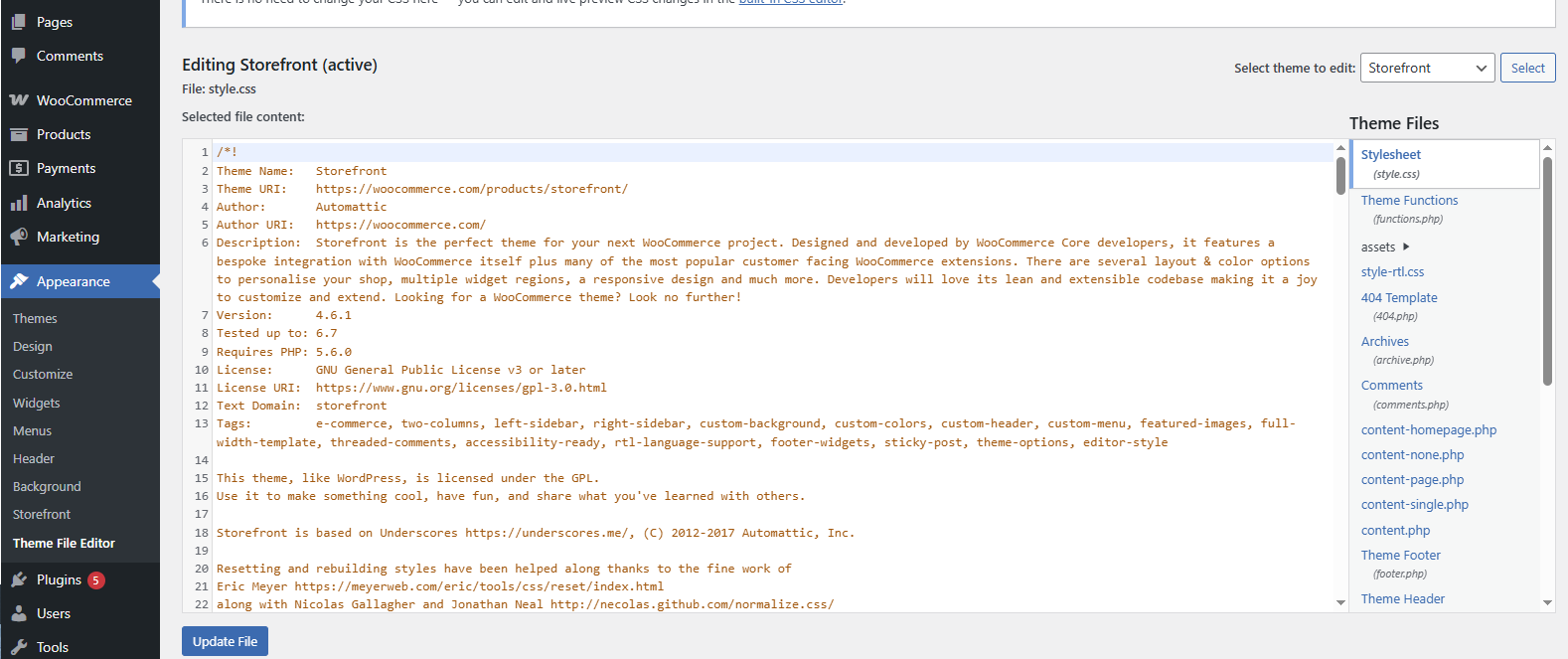
Users can also write custom code and incorporate styling by amending the theme files. To do so, hover over the “theme editor” option.
5. Custom UI/UX Personalization
To ensure a satisfying customer journey, always ensure that your online or hybrid store follows best UI/UX design practices, which include customer-centric features, voice search, facial recognition, horizontal filtering, infinite scrolling, pagination, and loading more buttons.
In this digital world, website users are always accustomed to seeing and interacting with modern, intuitive user interfaces. Several feature-rich plugins are available to help you build a visually appealing and fully functional website. The following are the key aspects that explain the pros of creating custom UI/UX design.
- Create nested menus
- Implement customizable popups
- Create eye-catching timelines
- Showcase your media platforms via sliders and carousels.
- Prioritizes customization options, i.e., themes and media uploads
6. Contact Forms
A contact form is a vital asset of an online or hybrid store that enables users or visitors to provide multiple responses or request assistance from your professionals.
Let’s look at Gravity Forms; it’s an intuitive and reliable tool for building advanced forms on your WordPress or WooCommerce-enabled site.
If you want to integrate a contact form into a hybrid store, you must follow the steps mentioned below:
- Install the Gravity Forms (Premium Plugin) on your WooCommerce-enabled site to create an easy-to-use contact form.
- After installation, navigate to the separate section of forms in your enabled WordPress dashboard.
- The next step is to head to Forms and click ‘Create One’.
- Add the form title, write a description, and then click ‘Create Form’.
- After creating the form, you can see a list of options on the screen’s right-most side, including standard, advanced, post, and pricing fields. You must drag and drop the files you want to add to your contact form.
- After implementing the fields, click “Update Form.”
- Now, head over to All Pages and create the contact page of your online store.
- Add the page title and description box, add a description, and click the Add form button to place the form.
- Finally, click the update button and navigate your store’s contact page to view the form.
7. Implementing Gamification Tactics
Gamification is one of the most effective ways to promote user engagement tactics on your online store or website, helping you convert site visitors into loyal customers.
Several Gamification tools and plugins, such as Loyalty for WooCommerce, Spin Wheel for WooCommerce, and Gamification for WooCommerce, among others, are being used to make your website aesthetically appealing and user-engaging.
These provide users with a fast-paced, fun-oriented environment that improves the engagement metrics of their site or hybrid store.
8. Adding Payment Methods
Payment Methods are integral to any online store or website, as the payment gateway handles all transactions. Users can accept simple payments by integrating a payment gateway into their website or online store.
You can easily integrate various payment gateways into your hybrid store or WooCommerce-enabled website. A few payment gateways are WooSquare Plus, WP EasyPay, Square, and more.
9. Incorporating Social Media Widgets
Social media widgets play a vital role in making your website visually attractive and provide seamless ways to draw traffic to your online store or your WooCommerce-driven website via social media platforms and vice versa.
To incorporate the social media widgets, you need to follow the steps as explained below:
- Go to Plugins, click Add New, and search for any social media widget.
- Click on the Install Now Button and activate the plugin
- Now, you can visualize the menu image option on the left sidebar.
- Now, click on Appearance and head to a new menu named “New Social Media Widget.”
- Click on custom links and create custom URLs for social media.
- Now, expand the drop-down menu for each item and adjust the image size accordingly.
- Then, click on “Save Menu.”
- Reload your website and see your desired changes.
Can I use WooCommerce without WordPress?
Without WordPress, you cannot take advantage of or reap the rewards of WooCommerce. Before using WooCommerce, it is essential to understand what WordPress is first. WooCommerce is an e-commerce plugin that works well with WordPress sites. You will need to install WordPress before you use WooCommerce.
What Are the Requirements of WooCommerce?
When using WooCommerce, you must have a full-fledged WordPress website. Your website should also comprise a MySQL or MariaDB database, HTTPS support, a compatible PHP version (7.4 and above), and a minimum WordPress memory limit.
WordPress and Woo Vocabulary
- WordPress
- Web Hosting
- WooCommerce
- Themes
- Plugins
- Extensions
- Stock Keeping Unit (SKU)
Wrapping Up
The guide above provides an in-depth overview of creating a WooCommerce-enabled hybrid store, covering all the concepts and topics from the initial phase to the concluding points. Hence, this quick guide is a valuable asset for WordPress users taking the next step forward in website management and building loyal online marketing strategies.





