











































Do you know that hidden malware can significantly harm your WordPress site’s traffic and reputation? Yes, it is, unfortunately, true. It can redirect your website’s users to unwanted or spam sites, and you can face the consequences, such as low website traffic and a lost reputation.
The worst thing is that most website owners do not detect this issue initially. Fortunately, you can still safeguard your WordPress website as an owner, provided you know how to do it.
This blog post will explain how to stop WordPress redirecting to spam sites.
Why Does Your WordPress Website Redirect to Spam Sites?
Your WordPress site can redirect to spam sites when hackers have injected harmful code into the website. Unfortunately, website visitors go to unwanted sites due to this code.
Moreover, these unscrupulous sites contain malware, phishing scams, and advertisements, among other malicious content. As a result, site visitors can jeopardize their security and become victims of hackers and other cybercriminals.
Simple or Weak Passwords
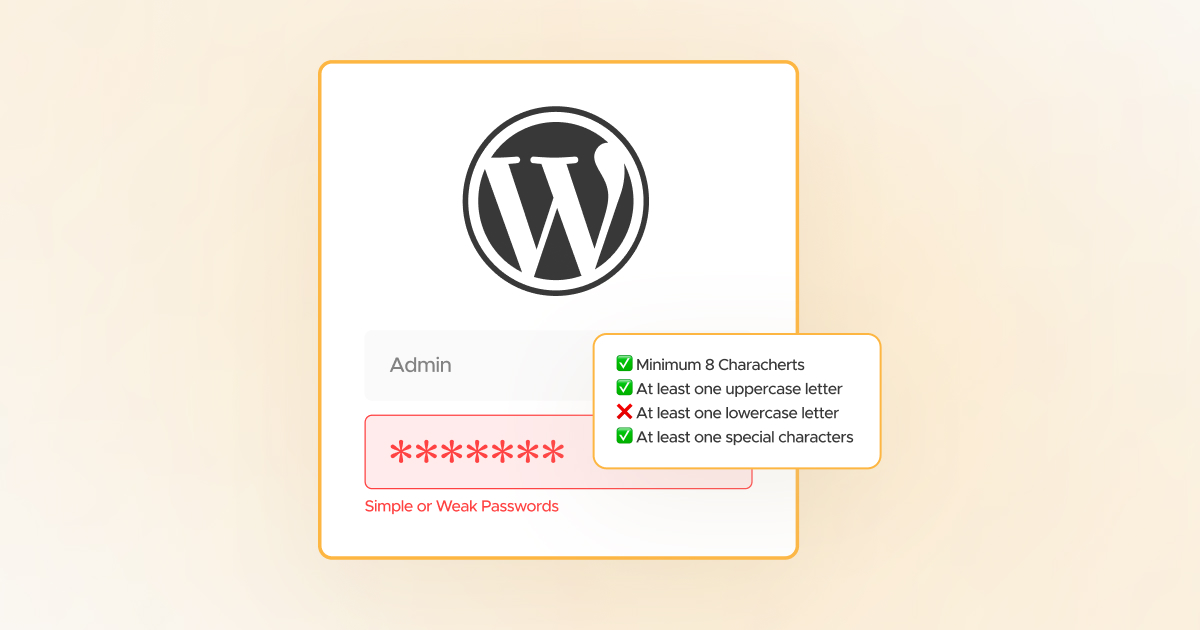
Simple or weak passwords work in favor of hackers. They can smartly access your website by stealing admin passwords. Consequently, they can manage your WordPress site from the back end and redirect users to spammy sites by injecting malicious codes.
Infected Themes and Plugins

Infected themes and plugins can help hackers hamper your WordPress site. Therefore, it is best not to download nulled WordPress themes and plugins from unreliable or unknown sources. They are one of the leading causes of spam redirects or link redirection issues.
Unpatched or Unfixed Security Holes
Unpatched or unfixed security holes can be a leading source for hackers, as they can exploit them to insert malicious code. As you are aware, WordPress themes and plugins often contain unpatched security holes, which hackers can exploit by injecting malware and malicious code into websites.
Secret Backdoors
Despite eliminating malware, hackers can still access your website as they intentionally leave secret access points. Using these secret access points, they can harm your site’s productivity and target it later. In short, they can reinfect WordPress sites even if you have removed the malware.
Therefore, as a responsible website owner or developer, act proactively to control the damage if your website has been hacked.
How to Stop WordPress Redirecting to Spam Sites?
You can manually take various steps to stop WordPress redirecting to spam websites. You must create a WordPress website backup before applying any possible fix.
In case anything happens unexpectedly, you can restore your site without fuss. To create a site backup, you can use multiple WordPress plugins depending on your needs. For instance, you can benefit from Duplicator, a renowned WordPress site backup plugin. You can also use other plugins like WP Time Capsule, UpdraftPlus, etc.
Once you have successfully created a site backup, you can begin resolving the spam redirect issue.
Step 1: Scan Your Site for Malware
Through malware scanning, you can identify spam redirects appropriately. They allow you to detect hidden threats residing in the site’s files. Fortunately, you can use various security plugins to identify spam redirects.
In this process, you should install a WordPress security plugin like Sucuri or Wordfence. If you do not know how to manually install plugins for a WordPress site, read this blog post. After installing and activating the plugin, you should go to the Scan section and start a detailed website scan. Now, wait a few minutes to complete the website scan process.
Once complete, website scan results will appear on your screen. You should not forget to examine the outcomes and try to discover severe and critical issues. Click the issue to check it in detail. Moreover, you must follow the instructions mentioned by the plugin when removing malware from your site.
Utilizing multiple scanning tools to recognize different malware or viruses is better. This will allow you to identify and remove various malware in the best possible way.
Step 2: Check for Dubious Admin Users
Sadly, hackers mislead website owners by creating hidden administrator accounts. This way, they can continue accessing their sites. Hackers take advantage of malware as it helps them create multiple admin accounts.
Therefore, your prime responsibility is to detect and delete suspicious users from your site. Navigate to Users > All Users using your WordPress admin dashboard to do this.
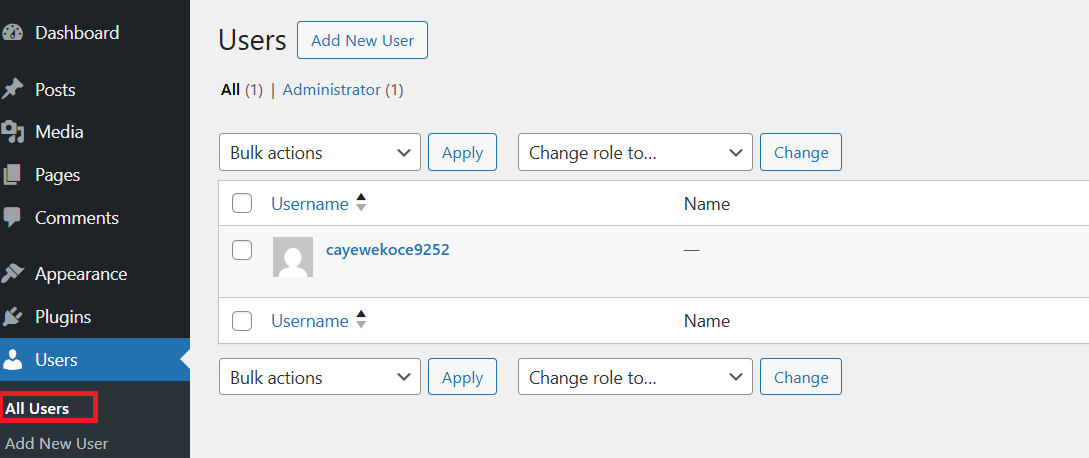
In this situation, you must search for unrecognizable accounts. For instance, these accounts may comprise weird usernames or random numbers. You must remove any dubious accounts by pressing the “Delete” button beneath that account.
You should proceed to the next step after reviewing and removing dubious user accounts.
Step 3: Replace Hacked WordPress Files
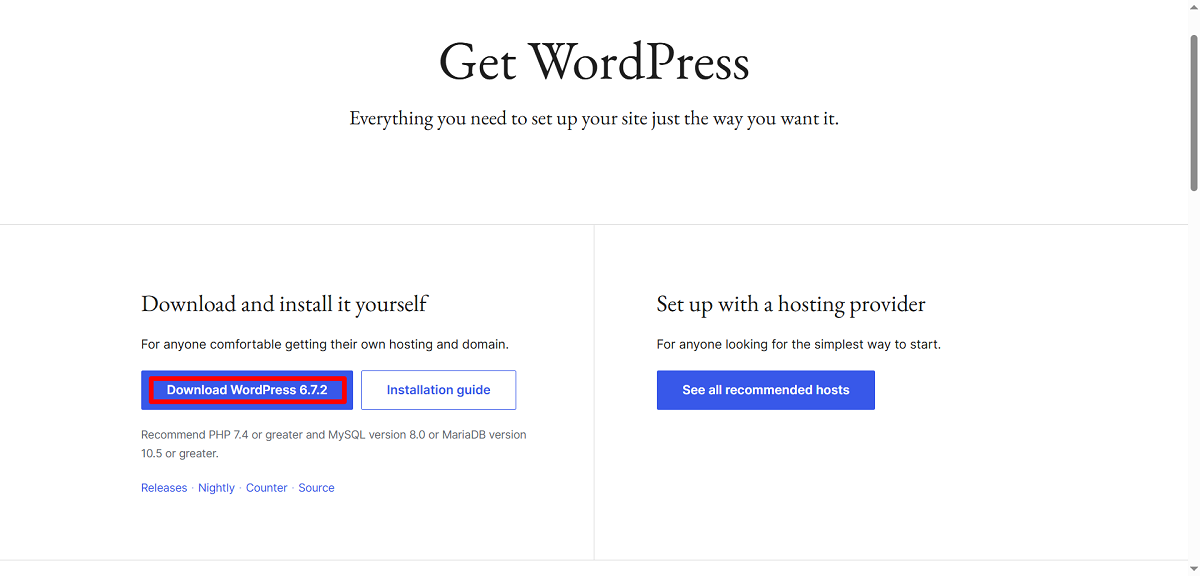
In this step, you must download the latest version of WordPress from WordPress.org. Once you have downloaded it, unzip the file on your device.
Use the File Manager app or an FTP client in cPanel to connect to your website. Now, go to the WordPress root folder that contains the wp-content, wp-admin, and wp-includes folders.
You should remove the current wp-includes and wp-admin folders. Once you delete such folders, you must upload their clean versions using your device. Furthermore, you should replace all core files in the root directory, such as wp-config-sample.php, wp-comments-post.php, and wp-blog-header.php.
Following a prompt, choose “Overwrite” to replace old files with the new version. In addition, download the wp-config.php file as a backup to your device and remove the .htaccess file from the root folder. WordPress will recreate the .htaccess file.
Besides, you should rename the wp-config-sample.php file to wp-config.php. You can right-click to edit the file. This will open the file in Notepad or another text editor. At this point, fill in the values correctly to create a database connection.
For this purpose, search for the old wp-config.php file you downloaded in the previous step. This way, you can identify your hostname, username, password, WordPress database, and table prefix.
Once you replace the old core files with the latest ones, revisit your website and admin dashboard for a safe side, ensuring everything goes as planned.
Step 4: Remove Malicious Code from Theme and Plugin Files
In this step, you should remove malicious code from the theme and plugin files. For this purpose, you should download the latest versions of your plugins and themes from trusted sources. If you want to download free plugins and themes, your go-to option should be WordPress.org. To download paid plugins and themes, use their official sites.
Connect to your website using an FTP client after downloading all the theme and plugin files. Now, go to the wp-content folder and remove the themes and plugins folders from the site. When you are done, you should create new directories. Moreover, you must name these directories “themes” and “plugins”. Your website now contains empty themes and plugin folders.
You should begin uploading the theme and plugin files you downloaded previously. Remember to unzip them one by one before uploading them to the website. After uploading all the files, activate your previously used themes and plugins. To do this, navigate to the WordPress admin area.
You can replace the old theme and plugin files with the latest ones. This will help you eliminate the malicious code residing in the old files. As a result, your site is now free from spam redirects.
Step 5: Secure WordPress Site After Removing Spam Redirects
You must beef up your website security. However, you should not assume WordPress website security is a short-term activity. It is a long-term activity because of its importance.
For example, changing all site passwords is a suitable option since it helps you harden your site from a security point of view. If you think hackers hacked your WordPress site, change all the site passwords and ensure they are complex and notorious people like hackers cannot guess them.
This means you must change all user account passwords. Additionally, consider changing passwords for FTP accounts across your site. Similarly, you must change the password for the WordPress database username. Lastly, consider changing the password for the database username in the wp-config.php file.
What Do You Mean by WordPress Redirection?
WordPress redirection helps send users and search engines from one URL on your website to another URL on your website. This approach is handy when optimizing SEO since it allows you to sustain your rankings and links.
SEO aside, WordPress redirection helps sites offer a better user experience to visitors as they can easily view the desired content.
What Do You Mean by Spam Links Redirection?
A spam link redirection, or an open redirect attack, occurs when a website redirects visitors to an unknown, potentially malicious website without their consent. Spam link redirection exploits the site’s weakness in managing URL parameters.
What Do You Mean by Spam Links Error/Issue?
The spam link error or issue is a scenario in which a link included in a spam email is perceived as suspicious. Users should not take spam links error/issue lightly at any cost. That’s because they encourage them to visit the deceptive sites by clicking the malicious links.
Therefore, users should avoid clicking such links to safeguard their devices. Moreover, they can protect themselves against various security risks.
Wrapping Up
There is no denying that tackling spam redirects can be an uphill task. However, using the correct methods, you can effectively prevent WordPress from redirecting to spam sites. Doing that will allow you to protect your website from the consequences of spam redirect issues.
All the above steps ensure you have taken all necessary steps to safeguard your WordPress website.




