

















































Running a B2B store with basic quote forms? You’re probably losing customers before they even submit a request. The B2B Request a Quote for WooCommerce plugin fixes this problem fast. You can build professional, customized quote forms with the fields you want to put in that actually get filled out.
Most B2B buyers give up when forms ask too little or too much. They need to upload specs, mention quantities, or add custom notes. If your form can’t handle that, they’ll find a competitor who can.
Why Your Quote Forms Need Custom Fields
Think about the last time you requested a business quote. Did a basic contact form give you enough space to explain what you needed? Probably not.
Stop the Email Back-and-Forth
Here’s what usually happens. A customer fills out your basic form. You email back asking for more details. They reply. You ask another question. They respond two days later. Meanwhile, they’ve already gotten quotes from three other suppliers who asked better questions upfront.
Reduce Mistakes and Wrong Quotes
When customers can’t specify exactly what they need, your sales team has to guess. Those guesses turn into wrong quotes, unhappy customers, and wasted time. Let them upload drawings or pick from dropdown options instead.
Identify Serious Buyers Faster
Some people are just browsing. Others are ready to buy next week. Custom fields help you spot the difference. Someone who fills out detailed specifications and uploads CAD files? They’re serious. That two-word submission? Maybe not.
Keep All Files Organized
Ever had a customer say they’ll “email those specs later”? They forget. You forgot to follow up. The whole thing falls apart. File upload fields mean everything arrives together, right when they’re thinking about it.
Build Trust with Professionalism
Professional buyers work with professional suppliers. A thoughtful quote form plugin tells them you’ve done this before. You know what information matters. That builds confidence before any sales conversation starts.
How to Set Up Custom Fields in Quote Form: Easiest Step-by-Step Solution
You’ve already installed the best Request a Quote for WooCommerce plugin by WPExperts. Now let’s build a form that actually works.
Getting to the Form Builder
Open your WordPress dashboard. Look for Request a Quote in the sidebar menu. Click it, then select Form Builder.
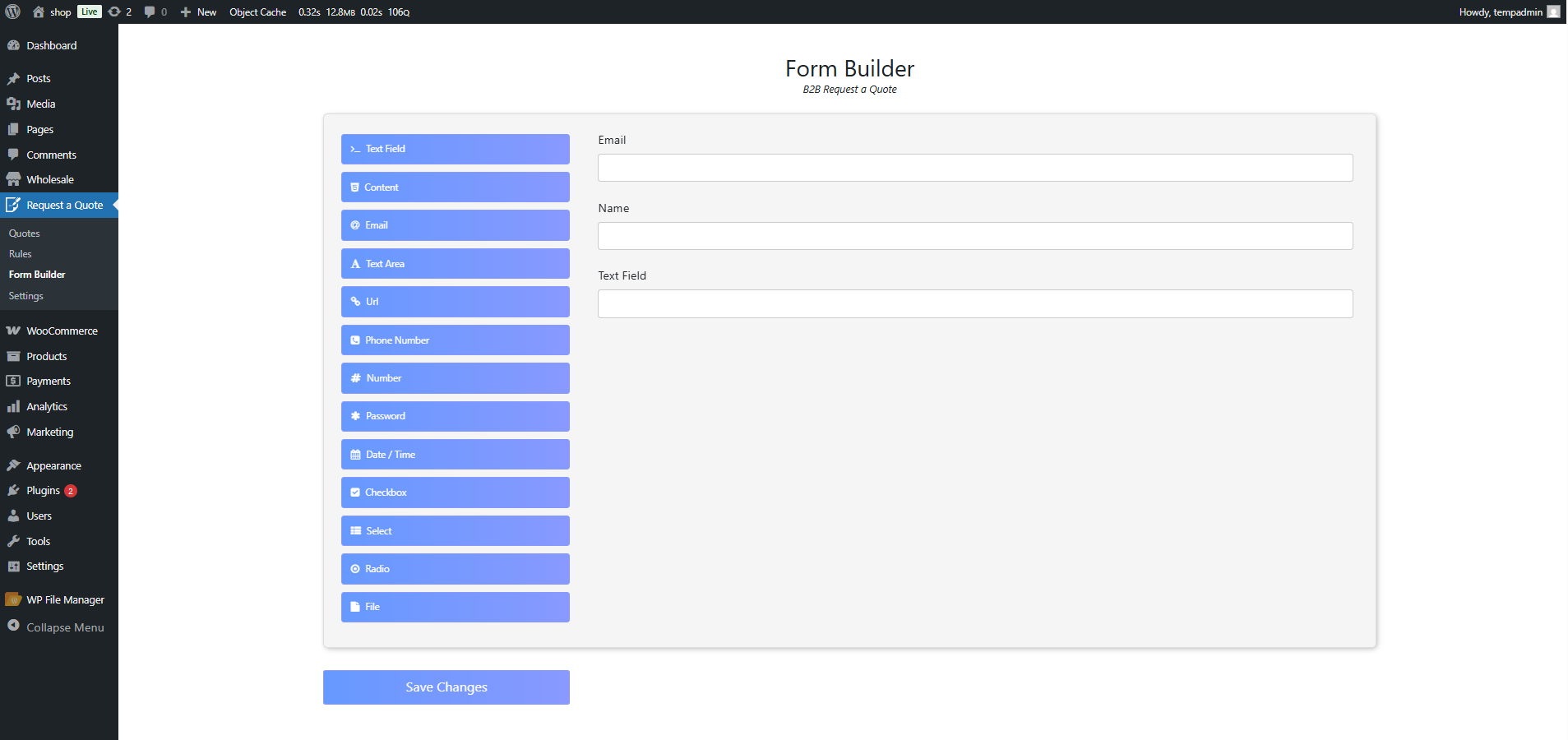
You’ll see a workspace with fields listed on the left side. That’s where you’ll build everything.
Building Your First Custom Form
This part’s easier than it looks. See those fields on the left? Just drag them onto the blank area in the middle. Want a dropdown menu? Drag it over. Need a text box? Same thing. You’re basically arranging form fields the way you’d arrange furniture in a room.
Here’s the basic process:
- Grab whatever field type you need from the left panel
- Drop it where you want it on your form
- Click the field to change its settings and labels
- Move things around until it feels right
- Hit Save Changes when you’re done
Adding File Upload Options
File uploads are where things get interesting for B2B. Here’s how to set them up properly.
Drag the File Upload field onto your form. A settings window pops up right away.
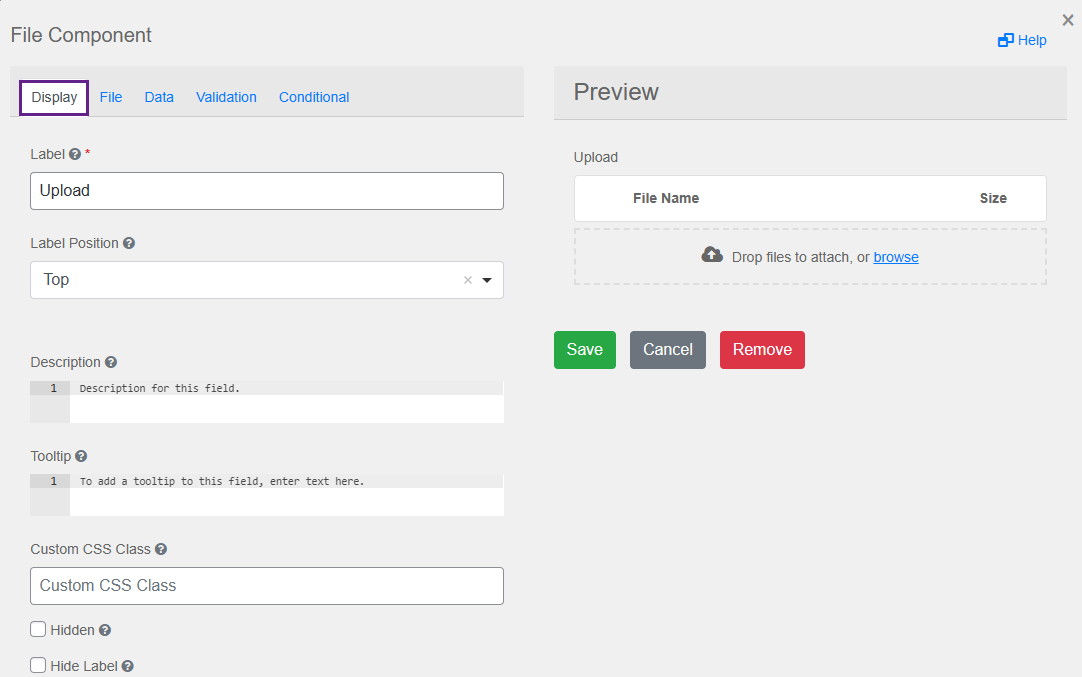
This is where you decide how the upload field behaves and what files customers can attach.
– Making It Look Right
First is the Display tab that controls what customers actually see.
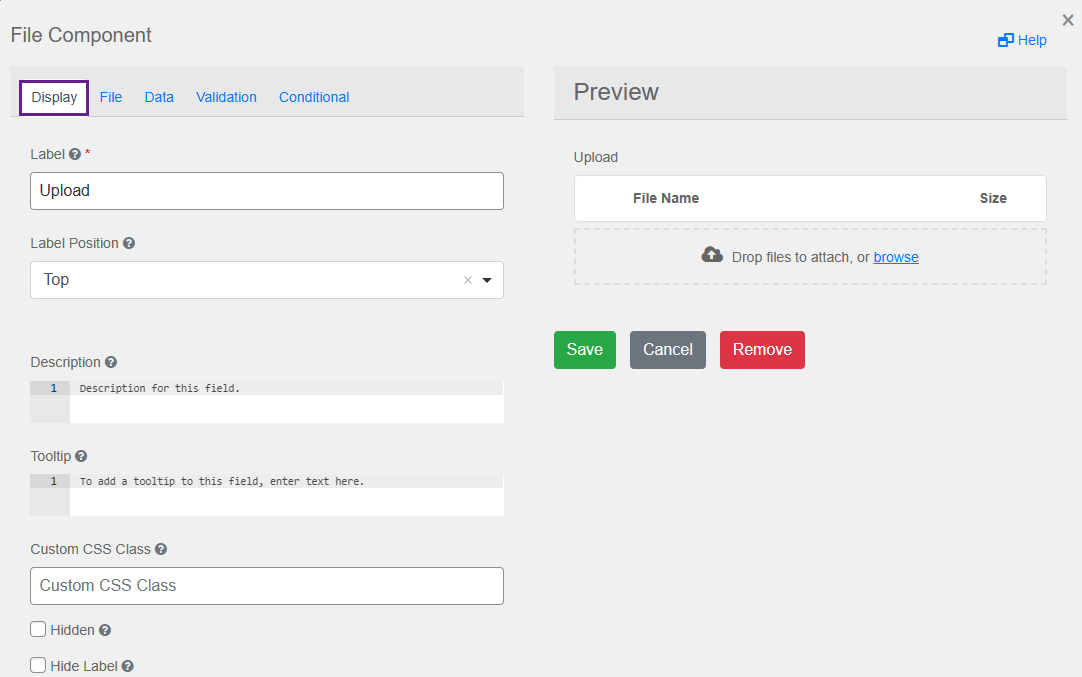
You can rename the field to something clear, like “Upload Your Technical Drawings” or “Product Spec Sheets.” Add some help text if people might be confused about what to upload.
– Controlling What Gets Uploaded
Click over to the File tab.
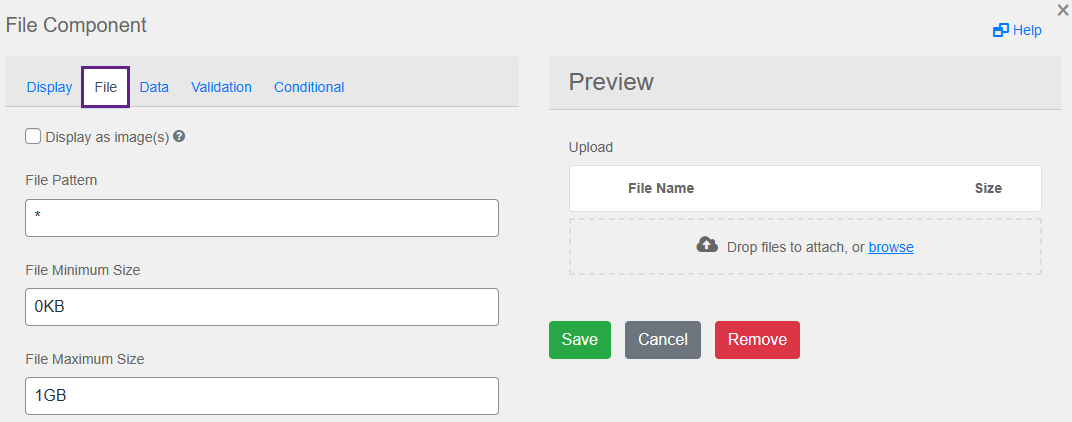
This is important. You need to tell the system what file types are okay. Set the File Pattern to accept PDFs, images, or whatever makes sense for your business.
File size matters too. Set a maximum of around 10MB to keep things reasonable. A minimum size helps avoid those annoying empty file uploads that waste everyone’s time.
What to set for file uploads:
- File Pattern controls which file types work (PDFs, JPGs, etc.)
- Minimum Size stops people from uploading anything
- Maximum Size keeps your server from choking
– Showing Image Previews
If customers are uploading photos or visual stuff, check the “Display as image(s)” box in the same file tab.
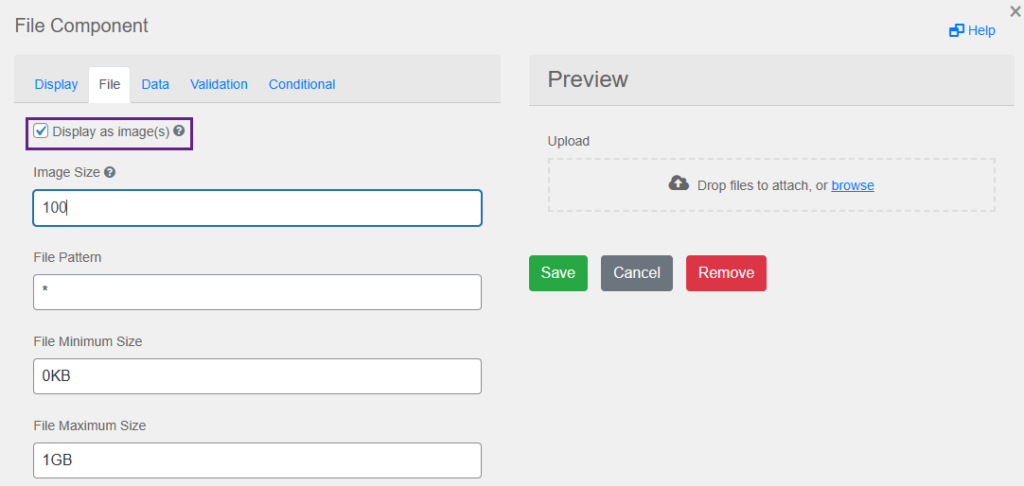
Instead of boring file links, they’ll see actual thumbnail previews. Looks cleaner and helps them confirm they uploaded the right thing.
– Letting People Upload Multiple Files
Click the Data tab and turn on Multiple Values.
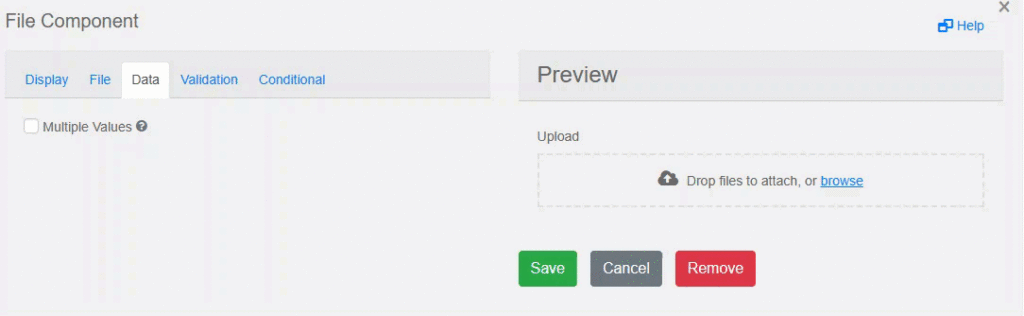
Now customers can upload five photos or three different spec sheets in one go. Way better than making them fill out the form five times.
– Making Certain Fields Mandatory
Go to the Validation tab. Check the required box for anything you absolutely need.
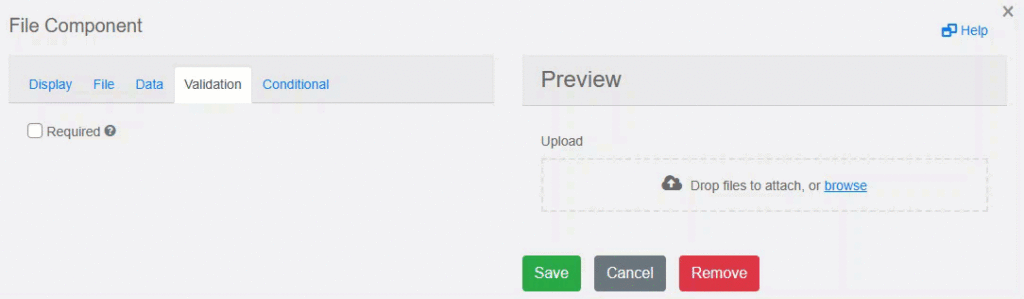
A little red asterisk shows up next to those fields on the actual form. Customers know they can’t skip it.
– Setting Up Smart Logic
The Conditional tab is for getting fancy.
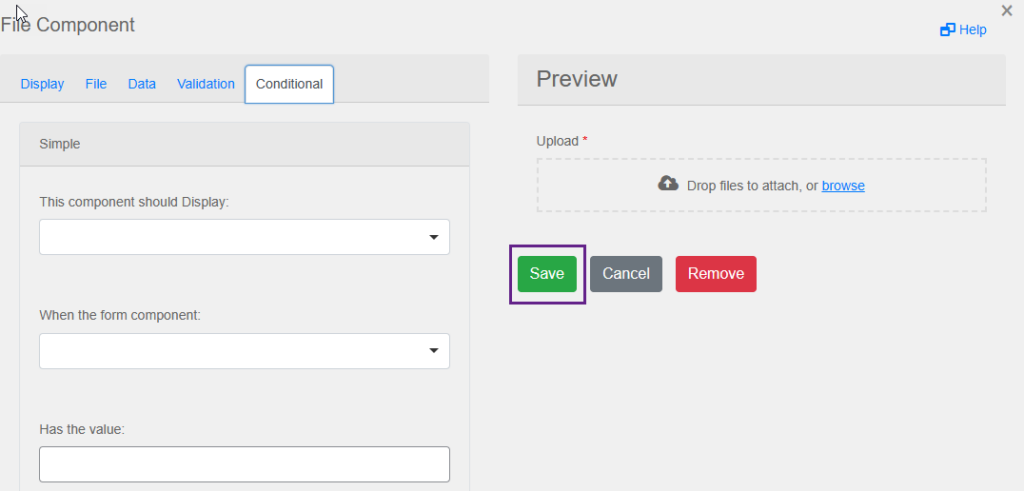
Here you can set the conditions according to your requirements. And save the changes instantly. After saving your new quote form, it will immediately go live on your Quote List Page.
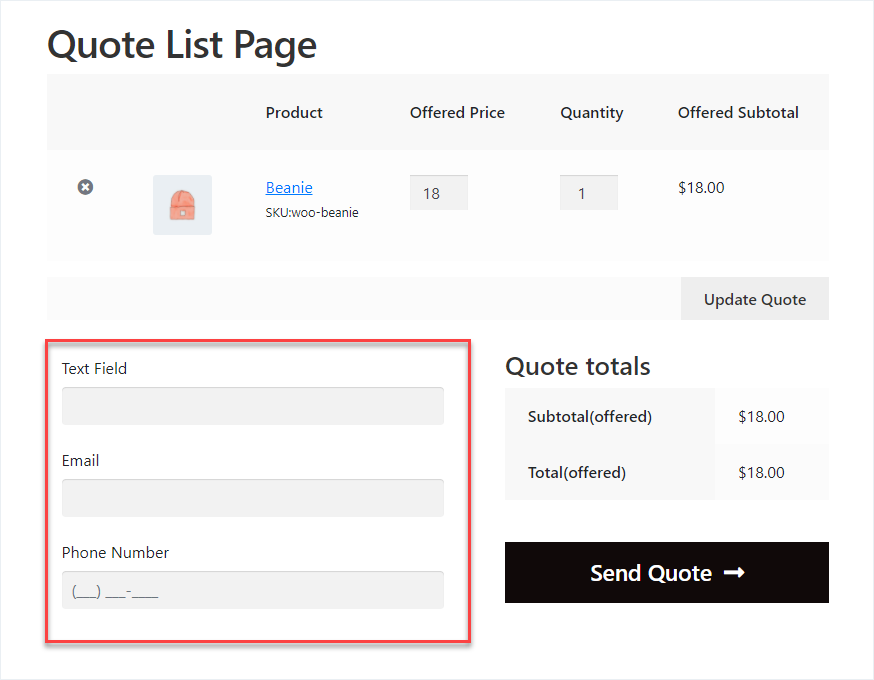
Wasn’t that the easiest way you’ve ever built a quote form? Thanks to the best quote WooCommerce plugin, everyone can get this functionality and start converting more B2B leads.
What Happens After Customers Submit
Forms are pointless if you can’t find the submissions easily. The plugin keeps everything organized in one spot.
Go to your WordPress dashboard, find Request a Quote, then click Quotes.
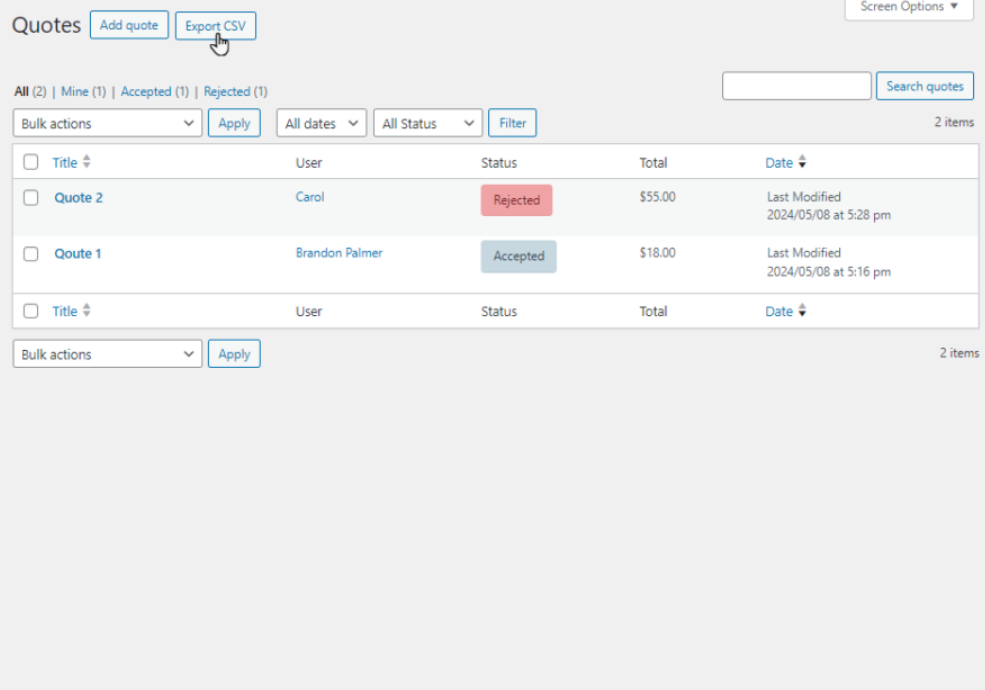
Every submission shows up here as a list. Click any quote to see the full details and everything the customer filled out.
Why this setup works better:
- No hunting through emails for customer files
- Everything stays with the quote forever
- Easy to share details with your production team
- Nothing gets lost when employees leave
The whole system keeps your quotes organized without extra work. You can even export the data if you need it for reports or your CRM system. It all just sits there, ready when you need it.
Get Your Forms Fixed Today
Your quote form should work for you, not against you. Custom fields give customers an easy way to tell you exactly what they need. You stop guessing and start quoting accurately from the first conversation. The B2B Request a Quote for WooCommerce plugin handles all the technical stuff. You just drag, drop, and customize. No coding. No complicated setup. Just better forms that get filled out and actually convert.
Open your Form Builder right now and add those custom fields. Your next customer will notice the difference.




