













































Accessing a website and experiencing an error is always troublesome, regardless of whether you own the site or someone else is the owner. The 401 unauthorized is an irritating error in which the browser does not allow the user to visit the page due to the unavailability of valid authentication credentials. This HTTP error can occur with any browser, so there is a strong likelihood that many users will face this issue.
This blog post will help you fix 401 unauthorized error by following a few easy yet impactful solutions.
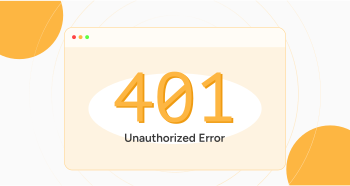
What Do You Mean by 401 Unauthorized Error Code?
The Internet Engineering Task Force (IETF) has explained the 401 unauthorized error in the following words:
“The 401 (Unauthorized) status code indicates that the request has not been applied because it lacks valid authentication credentials for the target resource. The server generating a 401 response MUST send a WWW-Authenticate header field containing at least one challenge applicable to the target resource.”
A simple definition of a 401 unauthorized error is when the browser prevents a user from accessing the page they want to visit; a 401 error appears on their screen. This error can occur with any web browser, so remember that you will likely see variations of 401 errors depending on the browser.
NOTE: Always back up your WordPress website before applying any troubleshooting method. Using any troubleshooting method, you can quickly recover your WordPress website if anything occurs unexpectedly.
Various Variations of the Error 401 Unauthorized
If you use a Chrome browser, you will see an error message that says:
“This page isn’t working.”
If the problem continues, contact the site owner.
HTTP Error 401
If you use Microsoft Edge, you will experience the same error message. In other browsers, you will likely see another form of the 401 error mentioned below:
“401 Authorization Required.”
You will see the above error message alongside a blank white page.
Besides, you can witness other variations of the 401 unauthorized error, such as:
- “Access Denied.”
- “401 Unauthorized.”
- “HTTP 401 Error – Unauthorized.”
Leading Causes Behind the 401 Unauthorized Error
When dealing with 400 error codes, you will likely encounter browser-side or client-side issues. Therefore, you must know different HTTP status codes in advance. By doing so, you can smartly resolve various WordPress errors without hassle.
Regarding the 401 error, numerous issues can result in this annoying client-side error, such as:
- Incorrect URL.
- Plugin Incompatibility Issues.
- Incorrect authentication credentials.
- Session Timeout.
- Outdated Browser Cache and Cookies.
How to Fix 401 Unauthorized Error?
You can fix the 401 unauthorized error by following a few easy and results-driven methods, including:
- Check the URL.
- Deactivate WordPress Plugins.
- Clear the Browser Cache and Cookies.
- Flush Your DNS Cache.
Check the URL
You should check the URL to detect the 401 error because an incorrect URL can sometimes lead to this unauthorized error. Ensure you have typed the correct URL. Besides, the link you utilized when visiting the page might be outdated. As a result, you can face the 401 error.
Likewise, the URL can lead to an unavailable page. Furthermore, website owners and developers may not have applied redirects properly. So, if the URL works fine, you must recheck it.
Deactivate WordPress Plugins
Deactivating WordPress plugins helps avoid the 401 unauthorized error. Moreover, the same method is sufficient to resolve the 403 forbidden error. Therefore, you should deactivate plugins to confirm if the 401 error has been resolved.
If you have successfully eliminated this client-side error after deleting plugins, one of the plugins is the main culprit. To deactivate plugins, follow the below steps:
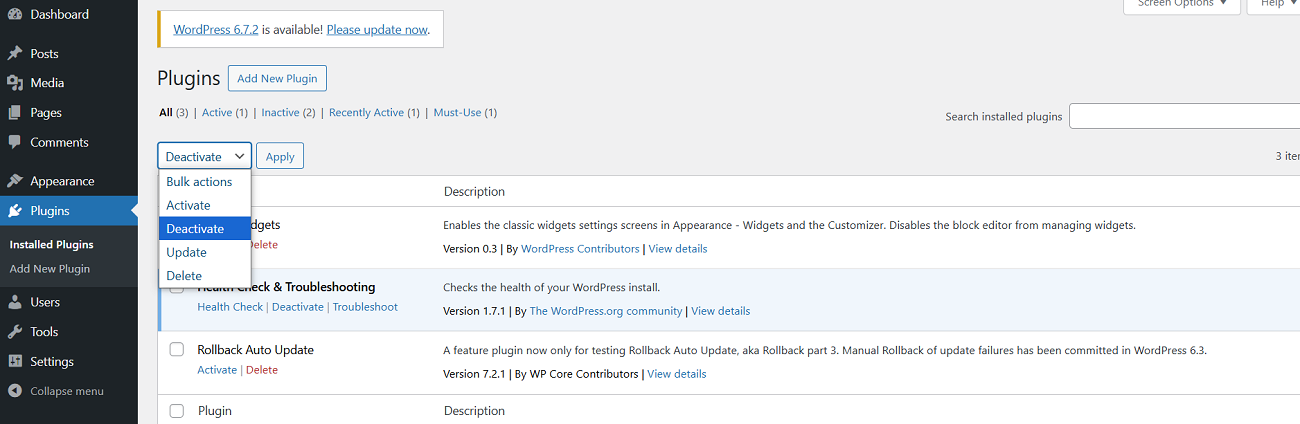
- Through your WordPress admin dashboard, click the Plugins tab > Installed Plugins.
- Select the WordPress plugin you want to deactivate. Once you have chosen your desired plugins, it is time to select the Deactivate option following the Bulk actions tab and click Apply.
Do you know that disabling WordPress plugins helps users avoid facing the HTTP 429 Too Many Requests error in the future? Yes, it is true.
Clear the Browser Cache and Cookies
Clearing or removing the browser cache and cookies can help eliminate the 401 unauthorized error. To remove the browser cache and cookies, follow the below steps:
You can remove the browser cache and cookies to fix 401 unauthorized error. To do this, here is what you should do:
- Hit the three dots at the top-right corner of your browser to access the settings panel. Now, hit the Delete browsing data option.
- You should select options like Cookies, Browsing history, Cookies, and other site data, files, and Cached images. Then, click the Delete data option to fix the 401 unauthorized error.
- Likewise, you can remove advanced data by hitting the ‘Advanced’ data tab.
- You can select options such as Cookies and other site data, Download history, cached images and files, and browsing history.
Once you click the Delete Data option, you can likely overcome the unauthorized 401 issue. The same troubleshooting method lets you bypass the Err_Cache_Miss error in Google Chrome. In addition, fixing the WSoD (white screen of death) error is achievable with this simple yet impactful solution.
More importantly, you should clear the browser cache and cookies when overcoming the HTTP 304 not modified status code error. In addition, removing the browser cache and cookies can help users bypass the HTTP 408 request timeout error.
Flush Your DNS Cache
Flushing the DNS cache can help you avoid facing the 401 unauthorized error. You should follow a few simple steps to flush the DNS cache on your Windows device. Similarly, using easy methods, you can clear the DNS cache on iPhone and Android.
To flush the DNS cache, follow the below steps:
- Click the ‘Start’ key and write CMD in the search bar.
- You should see the ‘Command Prompt’ option on your screen.
- Click the Command Prompt and write the following command:
ipconfig/flushdns
This way, you can flush the DNS cache. The below message will appear on your screen as soon as the process is finished:
“Successfully flushed the DNS resolver cache.”
Recheck the site to confirm if the 401 unauthorized error has disappeared. The good thing about this solution is that it bypasses the HTTP status 400 Bad Request error. In addition, you can get rid of the DNS_PROBE_FINISHED_NXDOMAIN error by flushing the DNS cache.
Wrapping Up
When your server and browser experience issues while processing requests, you will likely face errors like 401. This blog post lets you fix 401 unauthorized errors in the right direction, provided you know how to follow these above possible solutions. The 401 unauthorized error is fixable as you can eliminate it using various simple methods.
However, you should understand the possible reasons behind this HTTP error, such as outdated browser cache, poorly coded WordPress plugins, invalid authentication credentials, incorrect URL, and more.