

















































The role of the HTTP/2 network protocol is handy when accessing websites instantly. However, you may experience the ERR_HTTP2_PROTOCOL_ERROR while visiting specific sites. Luckily, you can benefit from several troubleshooting methods to fix ERR_HTTP2_PROTOCOL_ERROR.
This blog post will let you identify various causes related to this HTTP/2 protocol error. In addition, it will help you fix ERR_HTTP2_PROTOCOL_ERROR by offering multiple possible solutions.
What Do You Mean by ERR_HTTP2_PROTOCOL_ERROR?

The ERR_HTTP2_PROTOCOL_ERROR occurs due to an issue with the HTTP/2 protocol, the newest version of the HTTP protocol. The HTTP protocol helps transfer data between web browsers and servers.
When visiting a site, you can see the ERR_HTTP2_PROTOCOL_ERROR message. The error will not allow you to access the website, describing that the site is currently down or has been moved to another address permanently.
What are the Possible Causes of the ERR_HTTP2_PROTOCOL_ERROR?
Many issues can result in the ERR_HTTP2_PROTOCOL_ERROR, such as third-party antivirus or firewall software, conflicting browser extensions, outdated software, corrupted browser cache, etc. All these issues are described below:
Third-party Antivirus or Firewall Software
Your antivirus or firewall software can trigger the ERR_HTTP2_PROTOCOL_ERROR by preventing you from opening specific websites. Therefore, you should check your firewall or antivirus to see if they are causing this problem.
Conflicting Browser Extensions
Third-party browser extensions can be one of the reasons why you see the ERR_HTTP2_PROTOCOL_ERROR on your screen. Sometimes, these extensions hamper communication with the site’s server, resulting in this client-side error.
Outdated Software
Your web browser may be old or needs to be updated. Hence, you must update it; otherwise, it can cause incompatibility issues and the ERR_HTTP2_PROTCOL_ERROR.
Corrupted Browser Cache
A corrupted browser cache, cookies, and history can trigger the HTTP/2 protocol error. The browser might use outdated data when communicating with the site. Consequently, the request may fail, which causes this client-side issue.
What Should We Do to Fix the ERR_HTTP2_PROTOCOL_ERROR in a Browser?
When resolving the ERR_HTTP2_PROTOCOL_ERROR, you must find the primary reason behind this issue. Before applying different possible solutions, you can benefit from various easy fixes. For instance, you can refresh the web page to see if the site you are trying to access is available.
You can also try accessing the site in another web browser. Moreover, consider closing a few tabs if various tabs are already open. In case you are unable to solve the ERR_HTTP2_PROTOCOL_ERROR using these tricks, follow the below troubleshooting methods:
- Update Your Web Browser.
- Clear Your Browser Cache.
- Deactivate Browser Extensions.
- Deactivate the Browser’s QUIC Protocol.
- Reset Browser’s Settings to Default.
- Open an Incognito Browser Window.
Update Your Web Browser
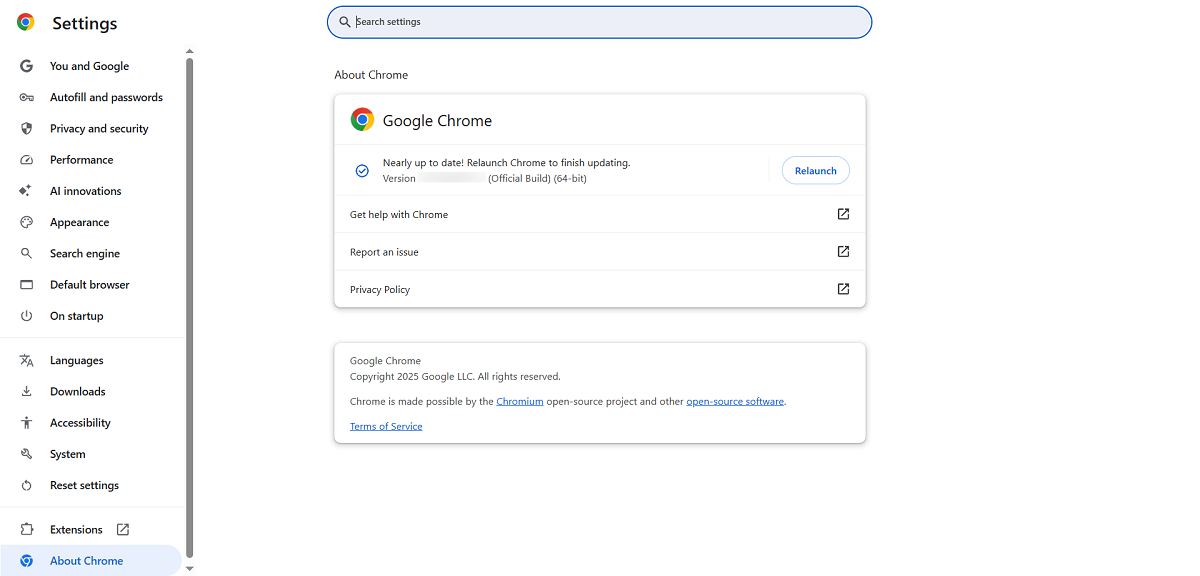
You should update your web browser to eliminate the ERR_HTTP2_PROTOCOL_ERROR. Unfortunately, an outdated browser can lead to this client-side error. To resolve this error, press the three dots at the browser’s top-right corner and choose Help > About Google Chrome.
This way, Google Chrome will check for a new update and will install it automatically if there is any. You must relaunch the browser to complete the browser update process.
Clear Your Browser Cache
Clearing the browser cache can help avoid the ERR_HTTP2_PROTOCOL_ERROR. To clear the browser cache, follow the below steps:
- To access the settings panel, click the three dots at the top-right corner of your web browser. Then, click the “Delete browsing data” option.

- You can choose options like Browsing history, Cookies, and other site data, files, Cookies, and Cached images. Hit the Delete Data option to finish the basic browsing data removal process.
- Similarly, you can remove advanced data by pressing the ‘Advanced’ data tab.
- You can choose options such as Cookies and other site data, Download history, cached images and files, and browsing history.
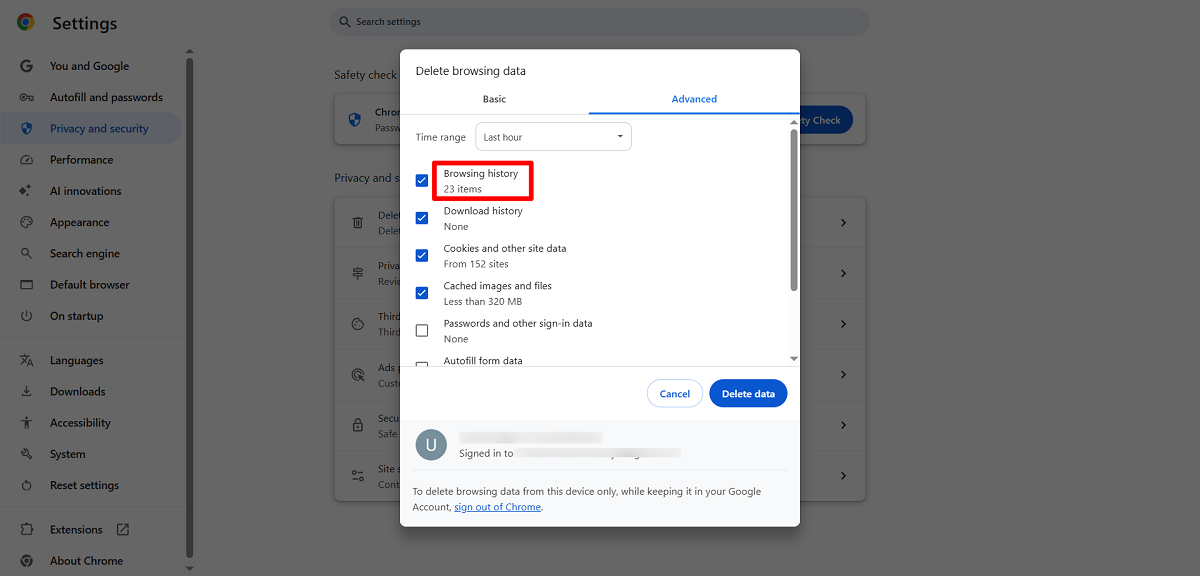
Once you click the Delete Data button, you will eliminate the ERR_HTTP2_PROTOCOL_ERROR. In addition, clearing the browser cache is handy when resolving your connection is not private error in Chrome.
Deactivate Browser Extensions
Deactivating browser extensions allows users to bypass the ERR_HTTP2_PROTOCOL_ERROR. To disable browser extensions, here is what you should do:
- Click the three dots at the top right corner of the browser.
- Click Extensions and select Manage Extensions.
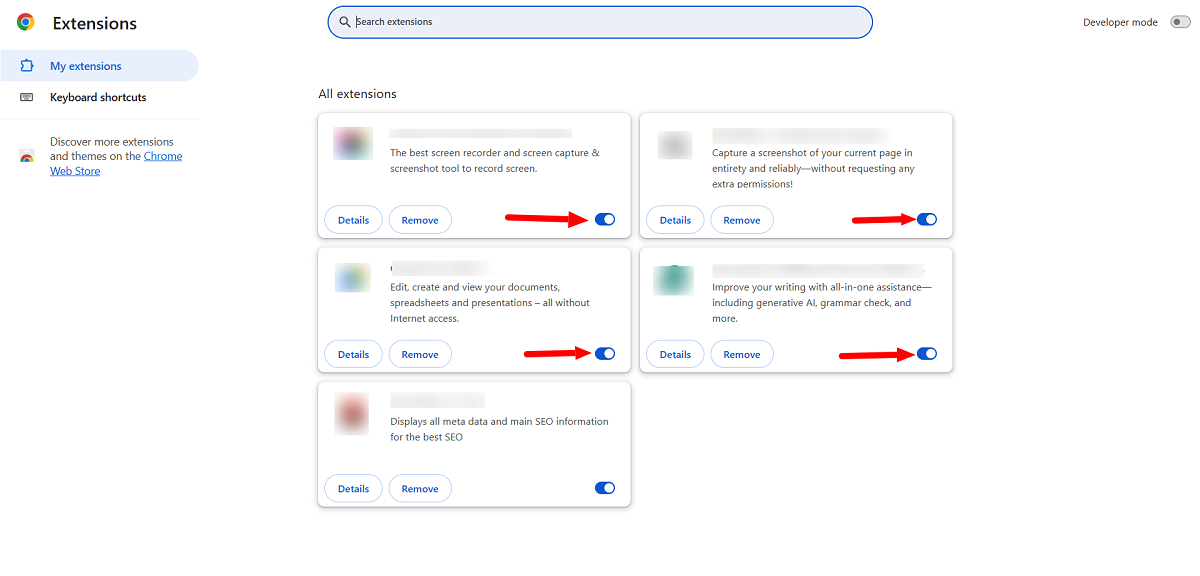
Doing so lets you bypass the ERR_HTTP2_PROTOCOL_ERROR. Does disabling browser extensions help remove the ERR_UNKNOWN_URL_SCHEME error? Yes, it could resolve this issue.
Deactivate the Browser’s QUIC Protocol
Deactivating the browser’s QUIC protocol can eliminate the HTTP/2 protocol issue. To deactivate the QUIC protocol in Chrome, follow the below steps:
- Open the Chrome browser, write chrome://flags/ in the address bar, and hit enter.
- Using the search bar, write “QUIC” and discover the Experimental QUIC Protocol setting.
- Now, press the drop-down menu and choose Disabled.
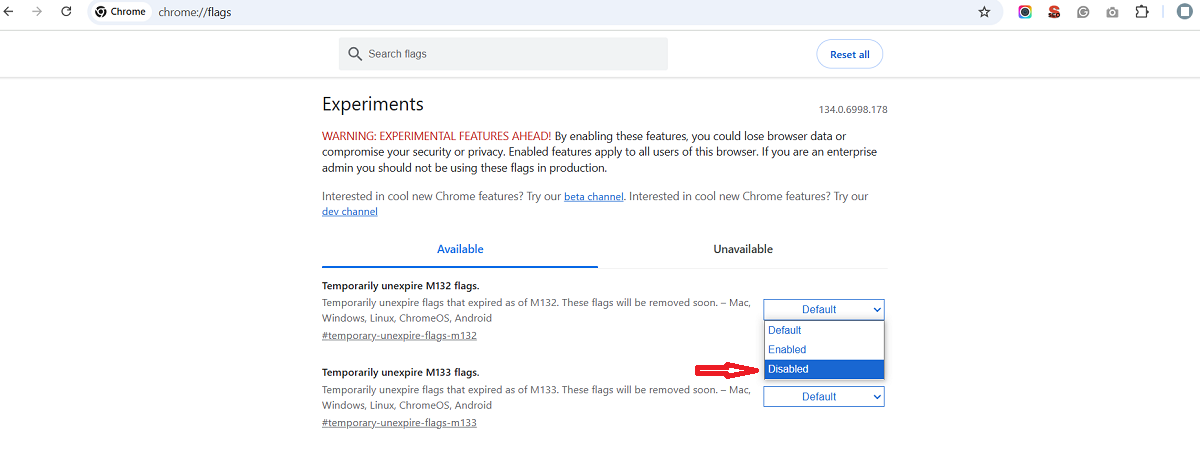
Once you have made the changes, relaunch your web browser. This will help you visit the inaccessible website. Deactivating the browser’s QUIC protocol can resolve the ERR_QUIC_PROTOCOL_ERROR.
Reset Browser’s Settings to Default
You should reset the browser’s settings to default to confirm if you can fix ERR_HTTP2_PROTOCOL_ERROR. To do this, here is what you need to do:
- Go to Settings > Reset Settings.
- Press the option, ‘Restore settings to their original defaults.’
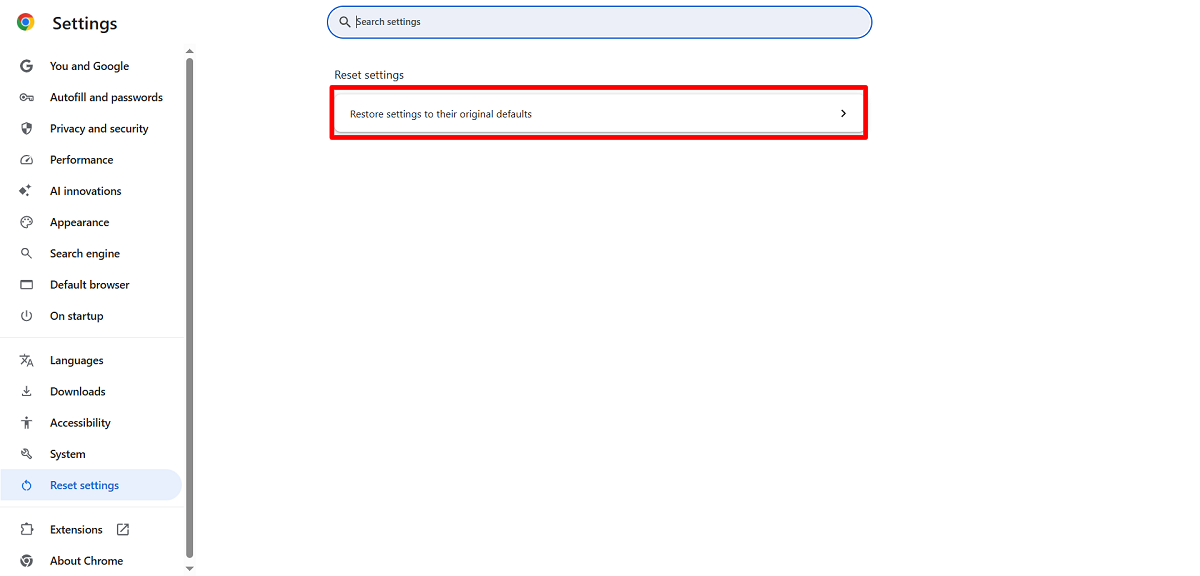
- Click the reset settings prompt that appears on your screen.
Hence, you can remove this client-side error appropriately. You must restart your browser and revisit the site. Doing so will likely bypass the HTTP/2 protocol error. Fortunately, the same troubleshooting helps users bypass the ERR_CACHE_MISS error in Google Chrome.
Open an Incognito Browser Window
Opening an incognito browser window can help bypass the ERR_HTTP2_PROTOCOL_ERROR. As you know, the browser stores a site’s information in a cache when the user visits the site. When the user reaccesses the site, the browser will fetch the cached data instead of requesting the server. This helps the site load faster than usual.
To avoid facing the HTTP/2 protocol error, one should open the browser in incognito or private mode. Thus, you should launch the Chrome browser in private mode and click the three-dots menu at the top-right side of the browser.
You should click the New Incognito Window tab to open the private browser:
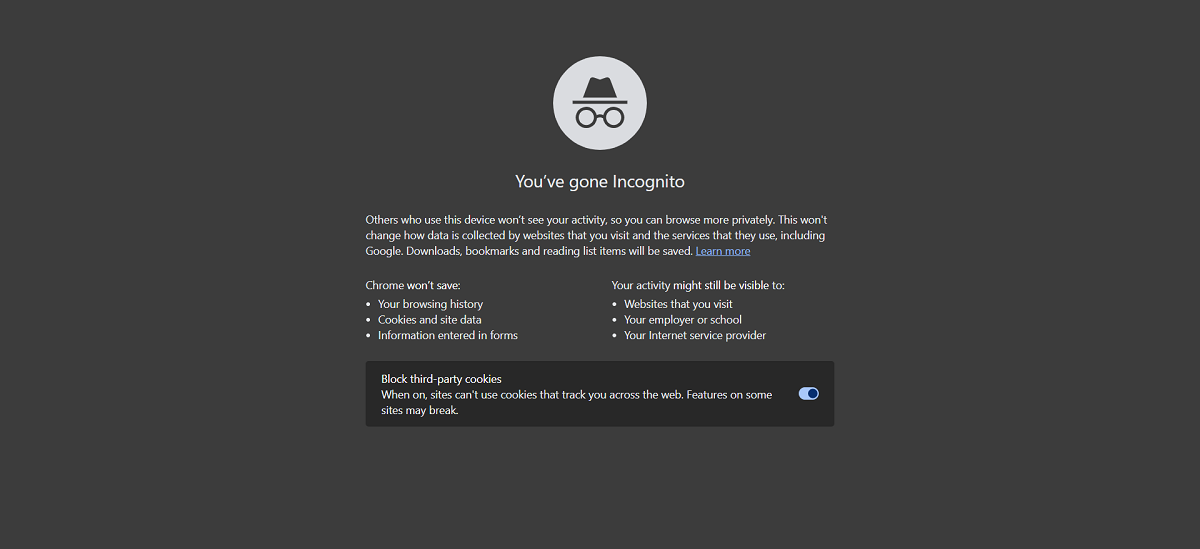
Now, you should revisit the website in incognito or private mode to see if it is accessible. Remember, it is not a long-term solution, as it is workable only for the short term.
Wrapping Up
This blog post will help you fix ERR_HTTP2_PROTOCOL_ERROR correctly. However, it is better to understand the primary causes of this client-side issue. This way, you can appropriately apply the above possible solutions when removing the HTTP/2 protocol error. All these troubleshooting methods help users access the blocked content in Chrome.
Whether you are an experienced user or a novice, following these potential workarounds is not as difficult as you think. Once you have understood the primary reasons, resolving this problem is not a big deal.




