
















































Google Chrome is one of the notable web browsers worldwide. Unfortunately, this popular browser is not free from errors, including the ERR_SOCKET_NOT_CONNECTED error. Various issues can cause this network-related error, such as unstable internet connections, outdated Chrome versions, problematic Chrome extensions, etc.
This blog post defines the ERR_SOCKET_NOT_CONNECTED error message, describes various possible causes of this network-related issue, and explains multiple potential solutions, allowing you to bypass this annoying error successfully.
What Do You Mean by the ERR_SOCKET_NOT_CONNECTED Error in Chrome?
According to this network-related error, an issue does not help establish a socket connection between the server and the browser for a specific webpage. For your convenience, we explain sockets. Sockets are communication endpoints that enable data to be received and sent over a network.
The ERR_SOCKET_NOT_CONNECTED error in Chrome suggests that the browser could not establish a socket connection to a server as the connection was not established successfully.
Various Causes Behind the ERR_SOCKET_NOT_CONNECTED Error in Chrome
The primary reason for this network-related error is the sockets on your device. Apart from this, other reasons can potentially trigger the ERR_SOCKET_NOT_CONNECTED error, such as:
- Network Issues.
- Corrupted Socket Pools in Your Browser.
- Conflicting Chrome Extensions.
- Outdated Chrome Version.
- Server Issues.
- DNS Issues.
- Browser Issues.
If your internet connection is unstable, your web browser may not establish a socket connection. Moreover, if socket pools do not work correctly, they can instigate the ERR_SOCKET_NOT_CONNECTED error. Likewise, incompatible browser extensions can also cause this network-related error.
What Should We Do to Fix the ERR_SOCKET_NOT_CONNECTED Error in Chrome?
When eradicating the ERR_SOCKET_NOT_CONNECTED error, users have multiple troubleshooting methods. These methods help them bypass this frustrating error appropriately. Here are such possible solutions, including:
- Check Your Internet Connection.
- Reboot the Modem and Computer.
- Flush the Socket Pools in Chrome.
- Deactivate Firewall or Antivirus Software.
- Open the Site in Incognito Mode.
- Clear Your Browser’s Cache and Cookies.
Check Your Internet Connection
Before fixing the ERR_SOCKET_NOT_CONNECTED error, you must check your internet connection. In addition, you should ensure that network-related problems have not caused this error. Furthermore, an instability or a glitch in your internet connection can cause the ERR_SOCKET_NOT_CONNECTED error.
You must also access other sites to see if this error is associated with particular ones or relates to all websites. That said, you should remember that you have connected all your devices to the internet, whether wired or wireless. Likewise, you must examine your Wi-Fi router to confirm if your internet connection works seamlessly.
Reboot Your Modem and Computer
Rebooting the modem and computer can help bypass network-related errors, including the ERR_SOCKET_NOT_CONNECTED error. For that reason, you should reboot your modem and computer device. This means that you should turn off your modem and computer and turn them on after a few minutes. After following this method, we hope you can bypass the ERR_SOCKET_NOT_CONNECTED error in Chrome.
Flush the Socket Pools in Chrome
It does not matter which operating system users utilize. They can use various operating systems like Linux, Windows, or Mac, but in case Google Chrome is your default browser, you can benefit from the address:
chrome://net-internals/#sockets
This will help you smartly flush socket pools without fuss.
To do this, open your Chrome browser and write the above address into your address bar.

Click the “Flush socket pools” button to complete the flushing socket pools process.
Hopefully, you can bypass the ERR_SOCKET_NOT_CONNECTED error in Chrome by following the above possible solution.
Deactivate Antivirus Software or Firewall
Deactivating the antivirus software or firewall can help users bypass the ERR_SOCKET_NOT_CONNECTED error in Chrome. More importantly, the same possible solution lets you remove the DNS_PROBE_FINISHED_NXDOMAIN error in Chrome.
Back to the point, to deactivate the Antivirus software and firewall, follow the below steps:
- Open Settings > Update & Security.
- Click Windows Security > Virus & Threat Protection.
- Select Manage Settings > Turn Off Real-time Protection.

NOTE: The above steps may vary based on the Windows version.
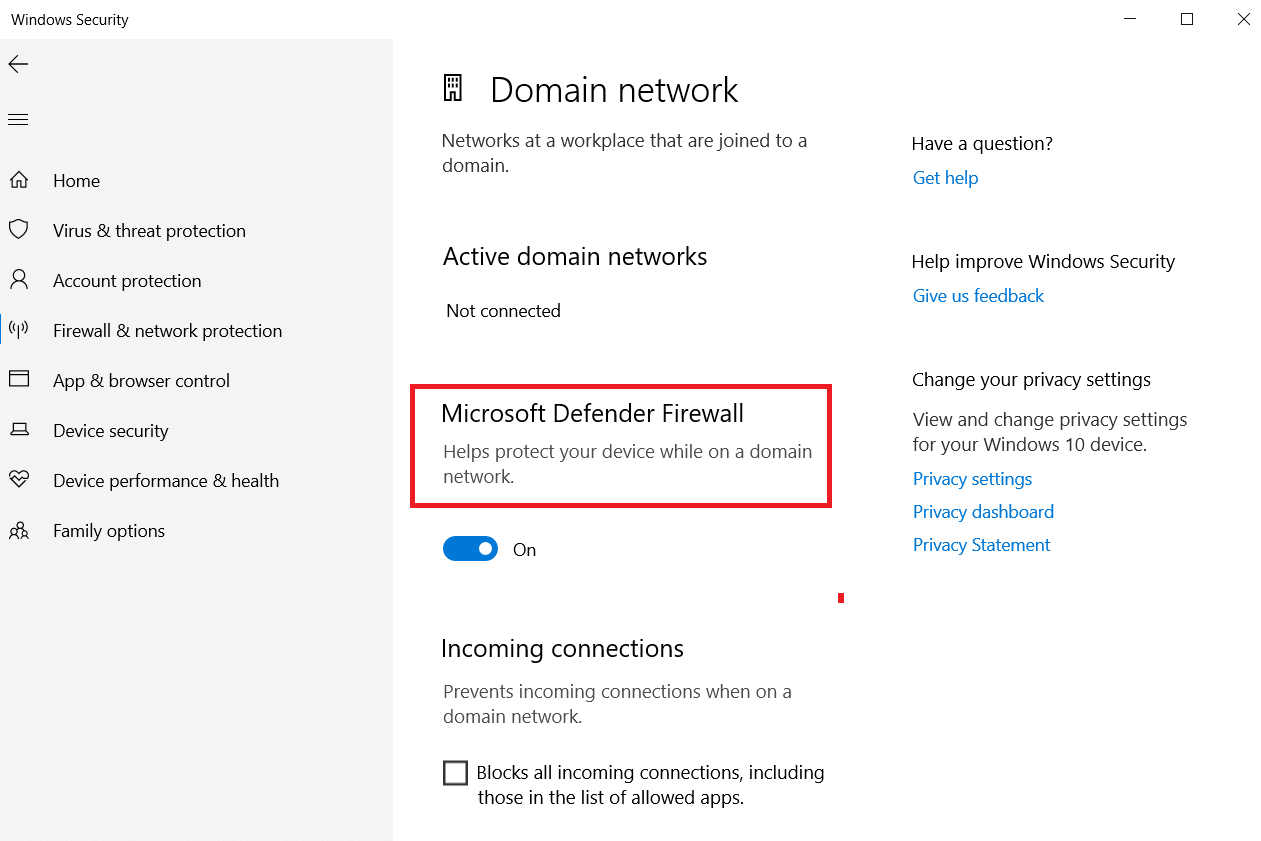
- Now click the Firewall & network protection option > domain, private, and public networks.
- Turn off Microsoft Defender Firewall.
NOTE: You must reactivate firewalls and antiviruses to safeguard your devices against viruses and malware.
You can also deactivate the antivirus or firewall on Windows to fix the ERR_CONNECTION_RESET error. Besides, deactivating the firewall or antivirus enables users to eliminate the Chrome Net Internals DNS error. In addition, the same troubleshooting method lets them overcome the ERR_CONNECTION_REFUSED error in Chrome.
Open the Site in Incognito Mode
Sometimes, opening the website in incognito mode can help users overcome the ERR_SOCKET_NOT_CONNECTED error. Interestingly, you do not need to clear your browser cache before implementing this possible solution.

Clear Your Browser’s Cache and Cookies
Removing the browser cache and cookies is handy when users want to eradicate this network-related error smartly. Moreover, the same workaround can help resolve other errors, including 429 too many requests, etc. To remove your browser’s cache and cookies, follow the below steps:
- To access the settings panel, click the three dots at the top-right corner of your web browser and select the “Delete browsing data” option.

- You can select options, including Browsing history, Cookies, and other site data, files, Cookies, and Cached images. Click the Delete data button to bypass the ERR_SOCKET_NOT_CONNECTED error.
- In addition, you can remove advanced data by pressing the ‘Advanced’ data tab.
- You can select options such as Cookies and other site data, Download history, cached images and files, and browsing history.

Once you press the Delete Data button, you will likely bypass the ERR_SOCKET_NOT_CONNECTED error. Additionally, clearing the browser cache lets users bypass the Err_Cache_Miss error in Google Chrome. This potential solution can resolve the WSoD (white screen of death) error.
Furthermore, this workaround helps users solve another error, 501 not implemented, in WordPress.
Wrapping Up
We expect you to appreciate our blog post describing the ERR_SOCKET_NOT_CONNECTED error in Chrome. You can solve this network-related error by proactively addressing outdated Chrome versions, poor internet connection, DNS issues, conflict with Chrome extensions, and more.
Moreover, you should appropriately follow the above possible solutions when resolving the ERR_SOCKET_NOT_CONNECTED error in Chrome. We hope you can fix this network-related error using one of the above possible workarounds.




