



















































When users check their latest Android apps, they must evaluate their WebView because it can lead to the ERR_UNKNOWN_URL_SCHEME error. This Chrome error does not let the browser page render within the app, negatively affecting the app’s UX (User Experience).
You can fix ERR_UNKNOWN_URL_SCHEME error by following simple yet results-driven workarounds. This blog post will describe the ERR_UNKNOWN_URL_SCHEME error, its leading cause, and possible solutions.
What Do You Mean by Android System WebView?

Android System WebView is a built-in component in the Android operating system (OS), which allows Android apps to showcase web content within the apps. You can use two methods when accessing the web content on an Android device: an Android app that comprises a WebView in the layout. The other method is utilizing a conventional web browser.
What Do You Mean by ERR_UNKNOWN_URL_SCHEME Error?
The ERR_UNKNOWN_URL_SCHEME error occurs when WebView processes a URL with a scheme the mobile device does not recognize. These URL schemes include ‘mailto://’, ‘whatsapp://’, or ‘file://’.
These irregular URL schemes could hamper the primary function of WebView, resulting in the ERR_UNKNOWN_URL_SCHEME error rather than displaying the desired content.
What is the Primary Reason Behind the ERR_UNKNOWN_URL_SCHEME Error?
Before you fix the ERR_UNKNOWN_URL_SCHEME error, it is better to understand the major cause behind this issue. As you know, different URL schemes can lead to the ERR_UNKNOWN_URL_SCHEME error, such as:
- intent://
- mailto://
- market://
- app://
- mail://
- file://
- telnet://
- buy://
- mail://
As an app developer, you must use specific URL coding to prevent such URL schemes from producing the ERR_UNKNOWN_URL_SCHEME error. Moreover, this error can happen when users open a redirected URL.
What Should We Do to Fix ERR_UNKNOWN_URL_SCHEME Error?
When tackling the ERR_UNKNOWN_URL_SCHEME error, you can use multiple possible workarounds, including:
- Deactivate Chrome Extensions.
- Clear the Chrome Browser Cache and Cookies.
- Deactivate Your Firewall.
- Create a New Chrome User Profile.
- Open URL in a New Window.
- Deactivate Hardware Acceleration.
Deactivate Chrome Extensions
Sometimes, deactivating Chrome browser extensions can help bypass the ERR_UNKNOWN_URL_SCHEME error. To deactivate the Chrome extensions, here is what you should do:
- Click the three dots at the top right corner of the browser.
- Click Extensions and select Manage Extensions.

This way, you can deactivate any extension by toggling them off. Moreover, this simple solution allows you to remove the ERR_CONNECTION_RESET error. Likewise, this method comes in handy when resolving the ERR_SSL_PROTOCOL_ERROR. Furthermore, you can eliminate the ERR_ADDRESS_UNREACHABLE error using the same troubleshooting method.
Clear the Chrome Browser Cache and Cookies
Does clearing the Chrome browser cache and cookies help remove the ERR_UNKNOWN_URL_SCHEME error? Yes, it is highly likely. Therefore, you should follow this effective method to achieve your objective. To do this, follow the steps described below:
- Access the settings panel by clicking the three dots at the browser’s top-right corner.
- Now, click the Delete browsing data option.
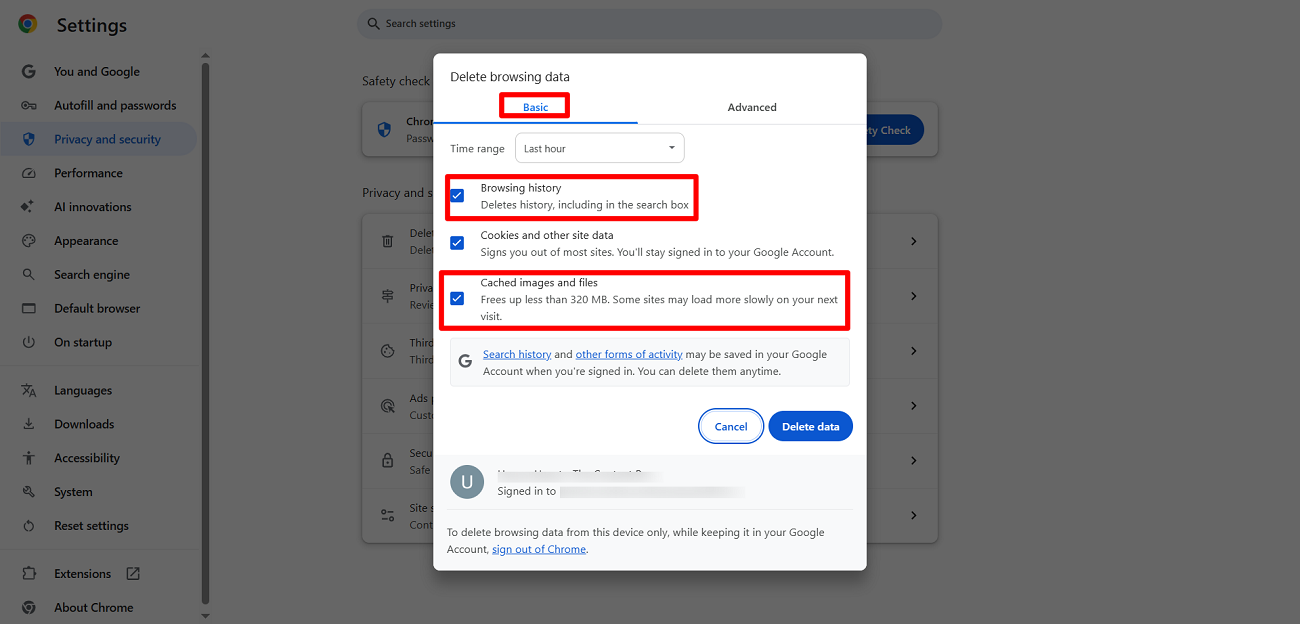
- You can choose various options like Cookies and other site data, files, Cookies, Browsing history, and Cached Images. Press the Delete Data option to eliminate this Chrome error.
- Likewise, you can click the ‘Advanced’ data tab to clear advanced data.
- You can choose options such as Download history, cached images and files, Cookies and other site data, browsing history, etc.
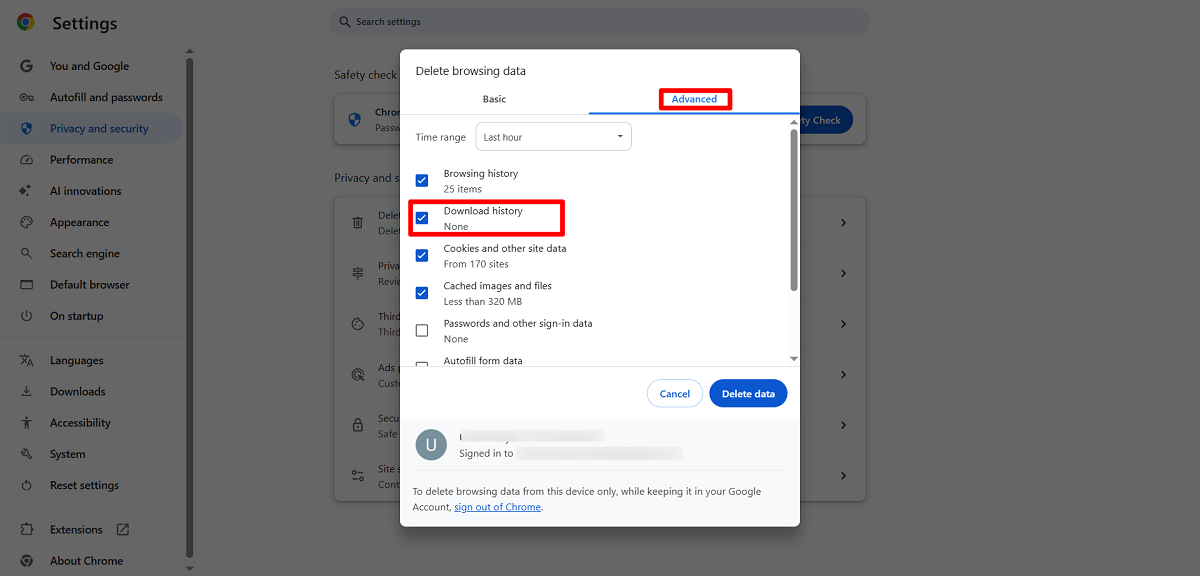
Once you hit the Delete Data option, you can bypass the ERR_UNKNOWN_URL_SCHEME error. In addition, clearing the browser cache and cookies helps bypass the ERR_CACHE_MISS error in Chrome. Moreover, the same solution lets users eliminate Chrome’s “This Site Can’t Be Reached” error.
If you want to bypass the HTTP 304 not modified status code error, follow this troubleshooting method. Likewise, the same method helps you overcome the WSoD (White Screen of Death) error.
Deactivate Your Firewall
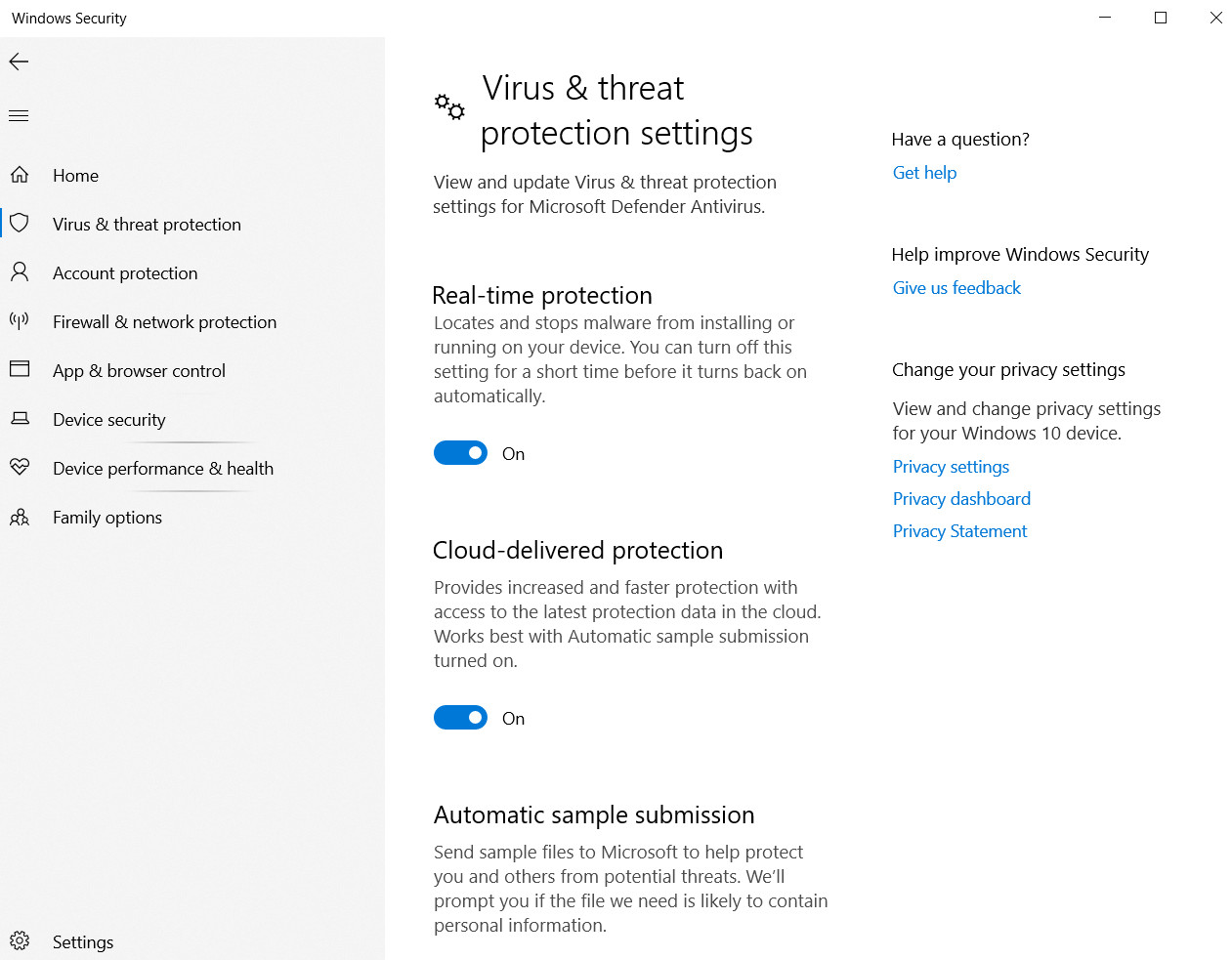
Do you know an incorrectly configured firewall can lead to the ERR_UNKNOWN_URL_SCHEME error? Yes, it is true. Therefore, temporarily deactivate your device’s firewall to see if this issue persists. On your Windows device, go to Settings > Update & Security. Now press Windows Security > Virus & Threat Protection. Additionally, choose Manage Settings > Turn Off Real-time Protection.
Click the Firewall & network protection option > domain, private, and public networks. Now, deactivate Microsoft Defender Firewall.
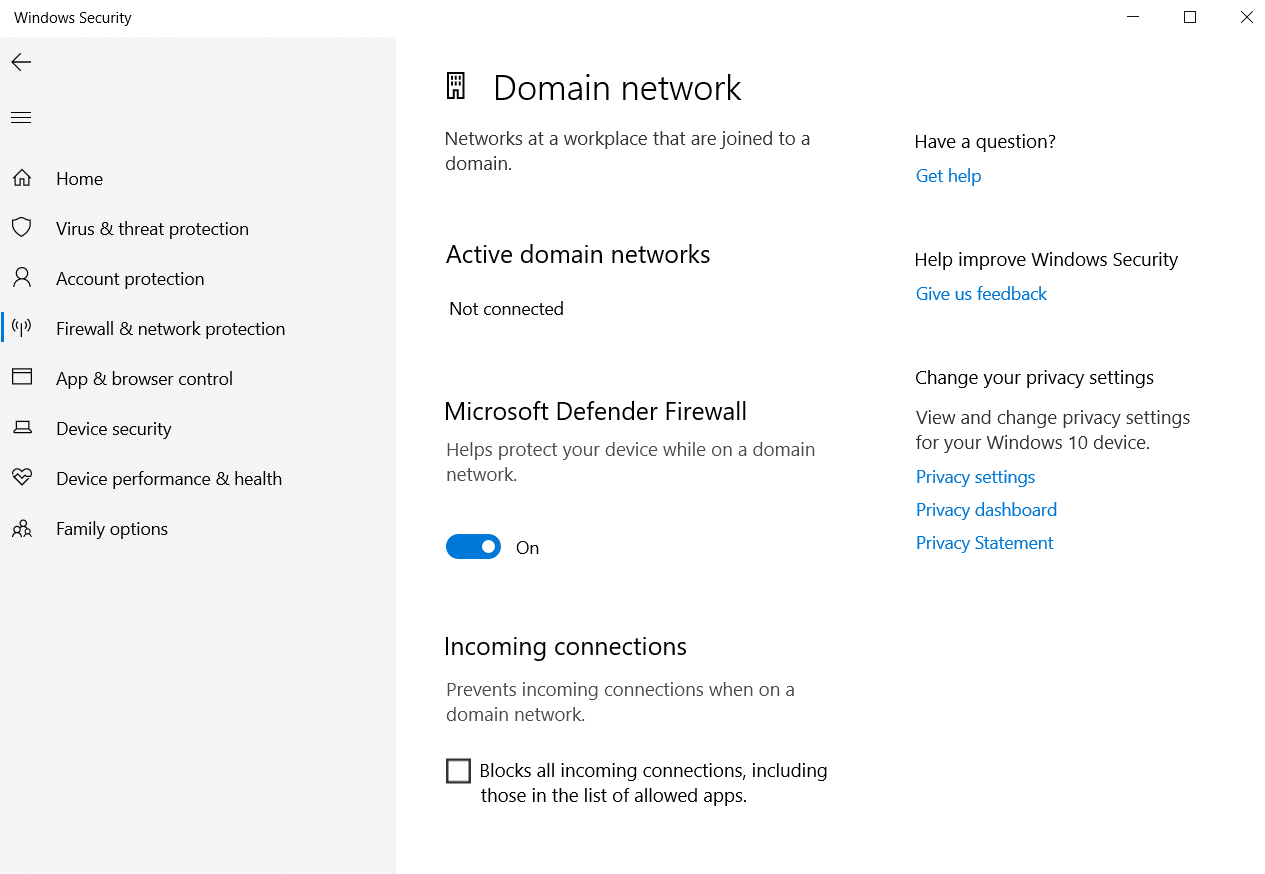
Hopefully, you can eliminate the ERR_UNKNOWN_URL_SCHEME error by deactivating the firewall. Remember to activate the firewall again to safeguard your device from multiple risks. This method helps you bypass another error, ERR_CONNECTION_TIMED_OUT.
In addition, you can remove the ERR_CONNECTION_REFUSED error in Google Chrome by disabling the firewall. Moreover, the same method is handy when resolving the ERR_SSL_VERSION_OR_CIPHER_MISMATCH error.
Create a New Chrome User Profile
If you can still not resolve this Chrome error, creating a new Chrome user profile can help open the page without fuss. Luckily, you can smartly customize your Chrome profile. Click your profile picture in the upper right corner. At this point, press Add at the bottom of the pop-up:
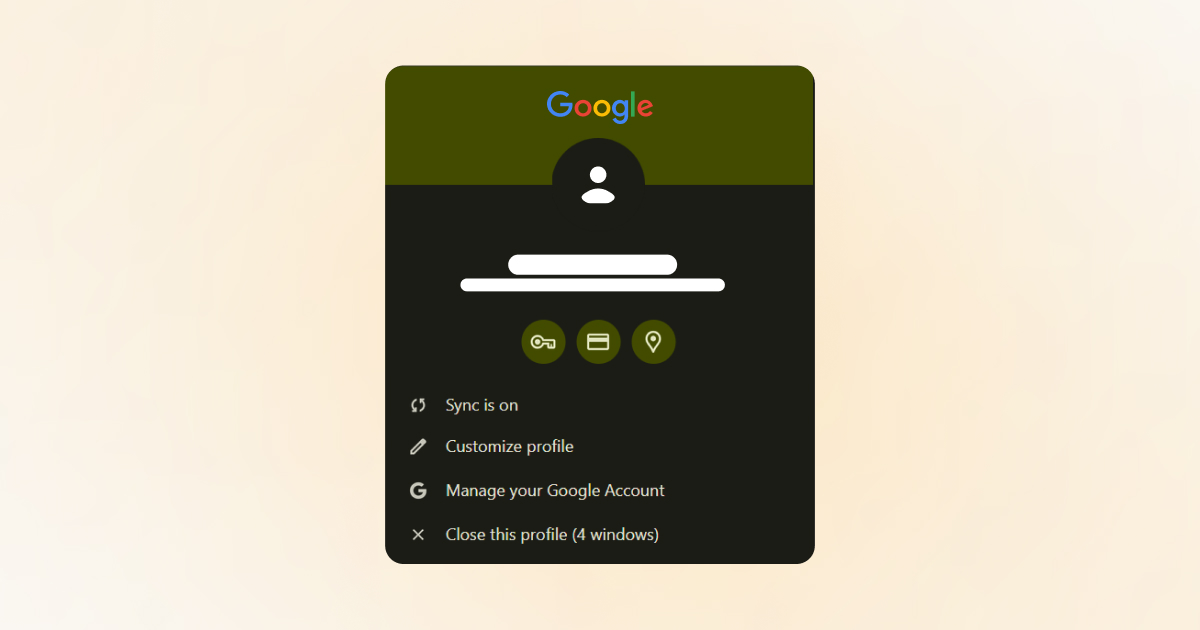
This way, you can create a new profile. You can sign in to your current Chrome account, or you can press Continue if you do not want to use an account:
Now, name your profile before browsing. In addition, you can personalize the color scheme. Thus, you can enjoy using your new Chrome profile. Do not forget to open the web page when you use this profile. We hope you can now get rid of this error. If this solution does not resolve the issue, contact the app developer to fix the ERR_UNKNOWN_URL_SCHEME error.
Open URL in a New Window
The above potential solutions allow you to overcome the ERR_UNKNOWN_URL_SCHEME error in a browser. However, you must know how to debug this error as a developer. This way, you can appropriately utilize your app using a glitch-free WebView.
You should edit your URL href code by adding a target attribute in the app’s HTML. This will help you describe how the web browser should be opened.
For instance, you can include the HTML code target=”_blank” to open the WebView in a new window. Follow the below example:
<a href=”https://www.example.com” target=”_blank”>Visit Example</a>
Remember, this is not a permanent solution and can potentially affect the app’s User Experience (UX).
Deactivate Hardware or Graphics Acceleration
Hardware or Graphics acceleration occurs when a web browser uses the device’s hardware to improve efficiency. When you use Chrome, your device’s GPU (Graphical Processing Unit) processes tasks that comprise heavy graphics such as videos, gaming, etc.
Regarding hardware acceleration, it helps Chrome smartly execute complex tasks. That said, it can cause issues like freezing, lagging, and sometimes crashes. Thus, you must deactivate hardware acceleration.
Go to Chrome’s Settings page and press the System option to do this. Now, you must use the toggle switch to deactivate hardware or graphics acceleration. Do not forget to relaunch the Chrome browser.
Wrapping Up
We expect you to fix ERR_UNKNOWN_URL_SCHEME error by following this blog post. Fixing the ERR_UNKNOWN_URL_SCHEME error is not as difficult as you think. You can benefit from various possible solutions when solving this Chrome error.
For instance, you can deactivate browser extensions, clear the browser cache, open the URL in a new window, and follow other methods. As a result, you can quickly bypass the ERR_UNKNOWN_URL_SCHEME error. Simply put, you can use multiple options to avoid facing this error in the future.




