












































Every netizen experiences errors when browsing the web. A few errors are easily understandable, but numerous are cumbersome. “This site can’t be reached” is a client-side error that occurs when a browser fails to connect to a site due to DNS misconfiguration, server downtime, or other issues.
This blog post will help you fix the “this site can’t be reached” error in detail.
Possible Causes Behind the “This Site Can’t Be Reached” Error
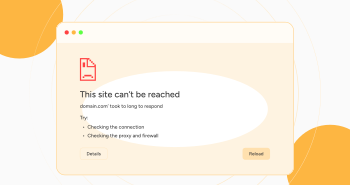
Different issues can result in the “this site can’t be reached” error. For instance, you will see the below error message on Chrome:
This site can’t be reached

ample.com’s IP address could not be found.

DNS_PROBE_FINISHED_NXDOMAIN
You will likely see the exact error message if your connection is timed out. Moreover, you will see the same error message when facing the ERR_CONNECTION_RESET code:
This site can’t be reached

ample.com took too long to respond.

Try:
 • Checking the connection
 • Checking the proxy and the firewall

ERR_CONNECTION_TIMED_OUT
The Chrome browser utilizes the “this site can’t be reached” error message to describe various errors. However, different issues can cause this error, including:
- Connections that time out.
- DNS (Domain Name System) resolution errors.
- Incorrect network, or firewall, or internet settings.
How to Fix “This Site Can’t Be Reached” Error in Chrome?
When fixing the “this site can’t be reached” error, you can benefit from various potential workarounds, including:
- Restart Your Internet Connection.
- Clear Your Browser Cache.
- Recheck the URL.
- Open the Site from Another Device.
- Deactivate Antivirus and Firewall.
- Deactivate Browser Extensions.
- Contact Your Web Hosting Provider.
Restart Your Internet Connection
Restarting your modem or router can help you bypass the “this site can’t be reached” error. We recommend disconnecting your router’s power cable and waiting a few minutes. After a few minutes, plug in the router’s power cable and wait for the internet connection to work again.
Re-access the site to confirm if this client-side error has disappeared.
Clear Your Browser Cache
Clearing the browser cache is a viable option if you want to bypass the “this site can’t be reached” error in Chrome. To do this, you should follow the below steps:
- Press the three dots at the top-right corner of your browser to access the settings panel. Now, click the Delete browsing data option.
- You must choose options such as Cookies, Browsing history, Cookies, and other site data, files, and Cached images. Then, press the Delete data option to fix the “this site can’t be reached” error.
- In addition, you can clear advanced data by pressing the ‘Advanced’ data tab.
- You should choose options, including Cookies and other site data, Download history, cached images and files, and browsing history.
After hitting the Delete Data option, you can remove the “this site can’t be reached” error. The exact process helps you overcome the Err_Cache_Miss error in Google Chrome. Furthermore, following this method, you can eliminate the WSoD (white screen of death) error.
Likewise, clearing the browser cache bypasses the HTTP 304 not modified status code error.
Recheck the URL
When visiting a site, you can experience the “this site can’t be reached” error if you have typed the wrong address. For instance, you have typed “mysite.co” instead of “myste.co”. In this scenario, you will likely see the “this site can’t be reached” error message on your screen.
Therefore, you should recheck the URL address to confirm the address does not miss any letter. For example, the website’s address is mylife.com, but you have written mylfe.co in the address bar. You will reach a non-existent or unregistered domain that compels Chrome to show a “this site can’t be reached” error.
Open the Site from Another Device
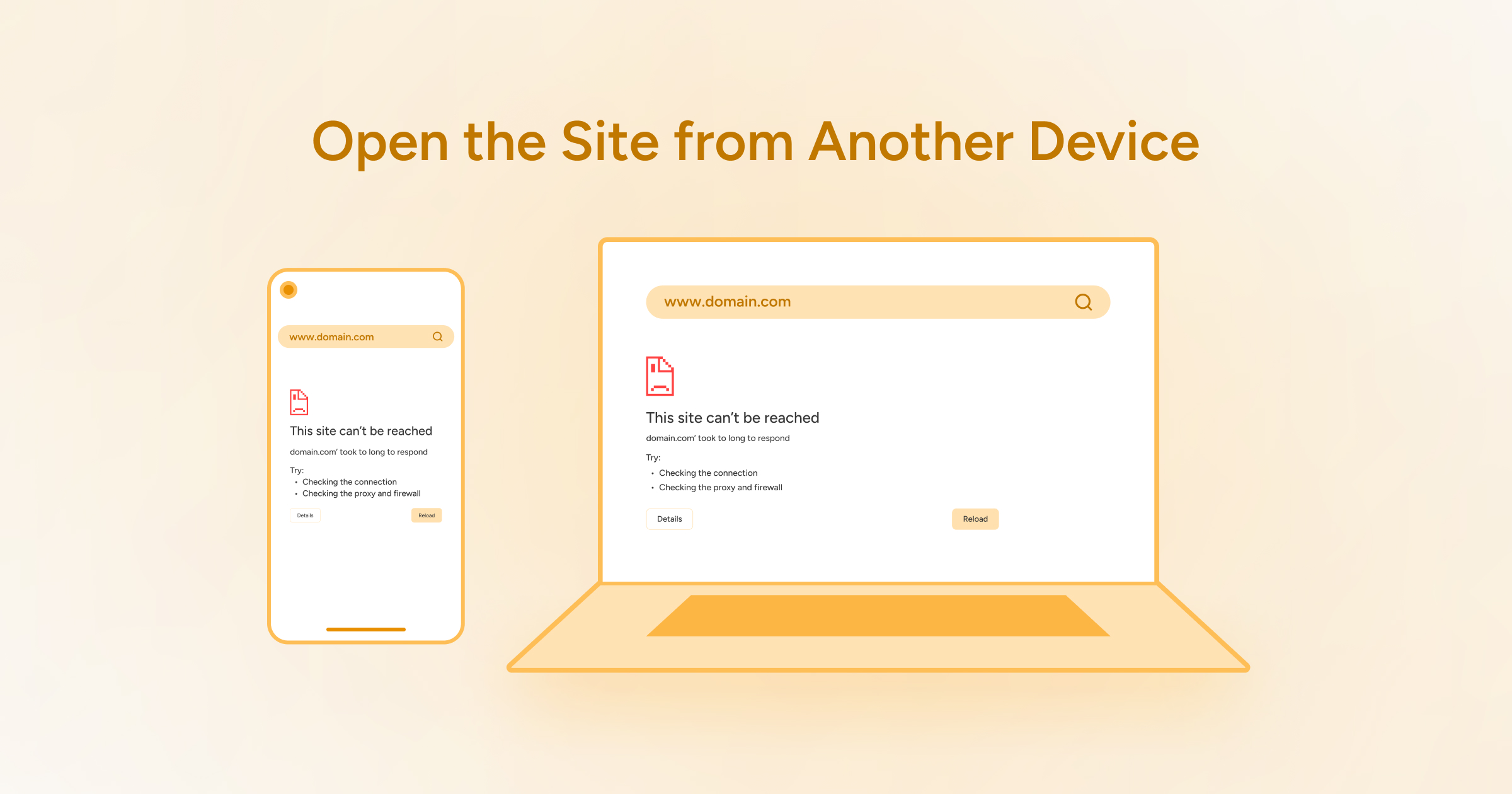
You should open the site from another device to confirm whether “this site can’t be reached” exists. Sometimes, an issue with the computer or router may result in this client-side error. If you successfully open the site from another device, there is a problem with your computer or router.
Deactivate Antivirus and Firewall
Deactivating antivirus software and firewall can help eliminate the “this site can’t be reached” error. To do this in the Windows device, follow the below steps:
- Navigate to Settings > Update & Security.
- Click Windows Security > Virus & Threat Protection.
- Select Manage Settings > Turn Off Real-time Protection.
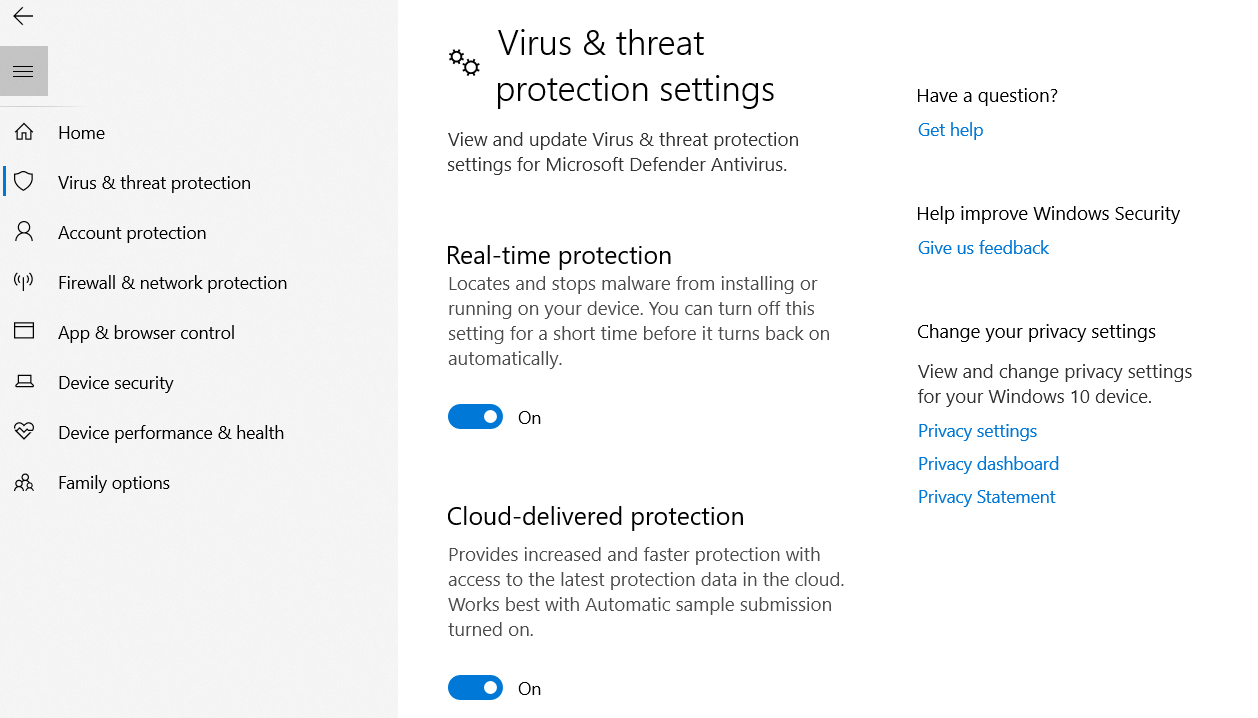
- Press the Firewall & network protection option > domain, private, and public networks.
- Deactivate Microsoft Defender Firewall.
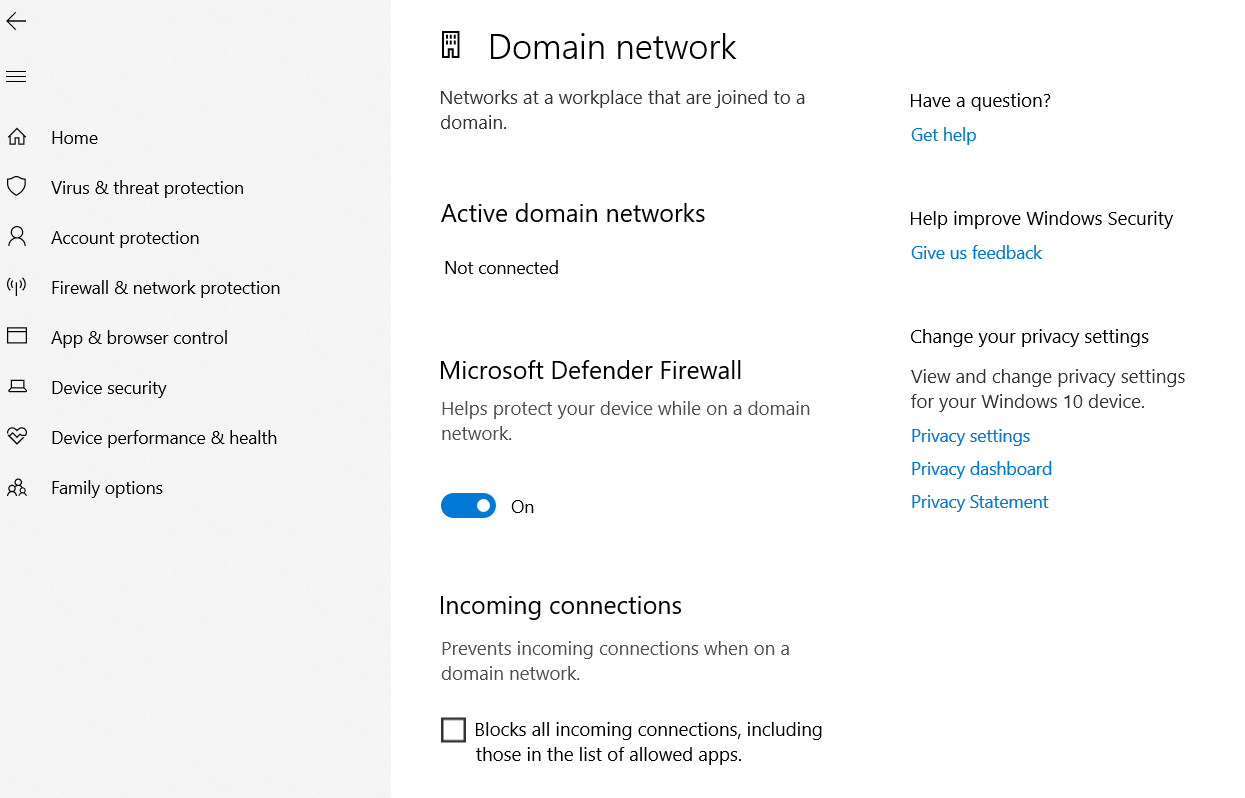
After eliminating the issue, do not forget to activate firewalls and antiviruses again to secure your device from various risks like malware. Luckily, this method helps you overcome another error, ERR_CONNECTION_TIMED_OUT.
Moreover, deactivating antivirus or firewall allows you to bypass the ERR_CONNECTION_REFUSED error in Google Chrome. Lastly, the same troubleshooting method lets users bypass the ERR_SSL_VERSION_OR_CIPHER_MISMATCH error.
Deactivate WordPress Plugins
Disabling WordPress plugins is another potential way of bypassing the “this site can’t be reached” error. If you want to deactivate the WordPress plugins, follow the below steps:
- Through your WordPress admin dashboard, press the Plugins tab > Installed Plugins.
- Now, select the plugin you want to deactivate or disable. After selecting your desired plugins, click the Deactivate option in the Bulk Actions tab and press Apply.
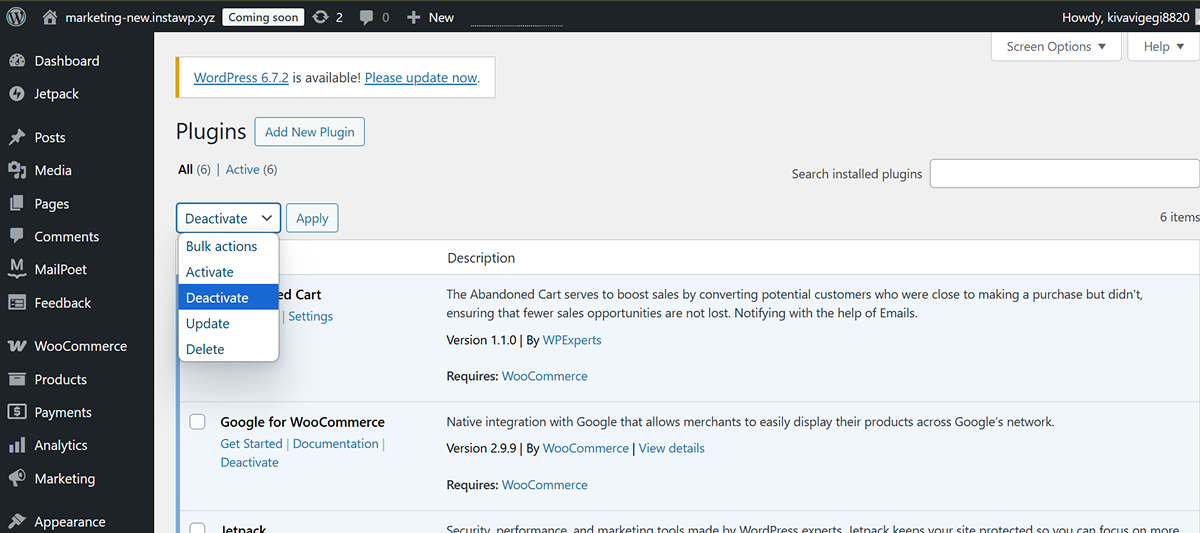
This way, you can deactivate WordPress plugins without fuss. Likewise, you should revisit the site to see if the “this site can’t be reached” error has gone. In addition, deactivating WordPress plugins can allow users to eliminate the HTTP 429 Too Many Requests error.
The same workaround enables you to eradicate the 409 Conflict” error. Moreover, disabling WordPress plugins lets you overcome the HTTP 404 Not Found error.
Deactivate Browser Extensions
You can deactivate browser extensions to remove the “this site can’t be reached” error. To do this, follow the below steps:
- Press the three dots at the top right corner of the Chrome browser.
- Press Settings, go to Extensions, and choose Manage Extensions.
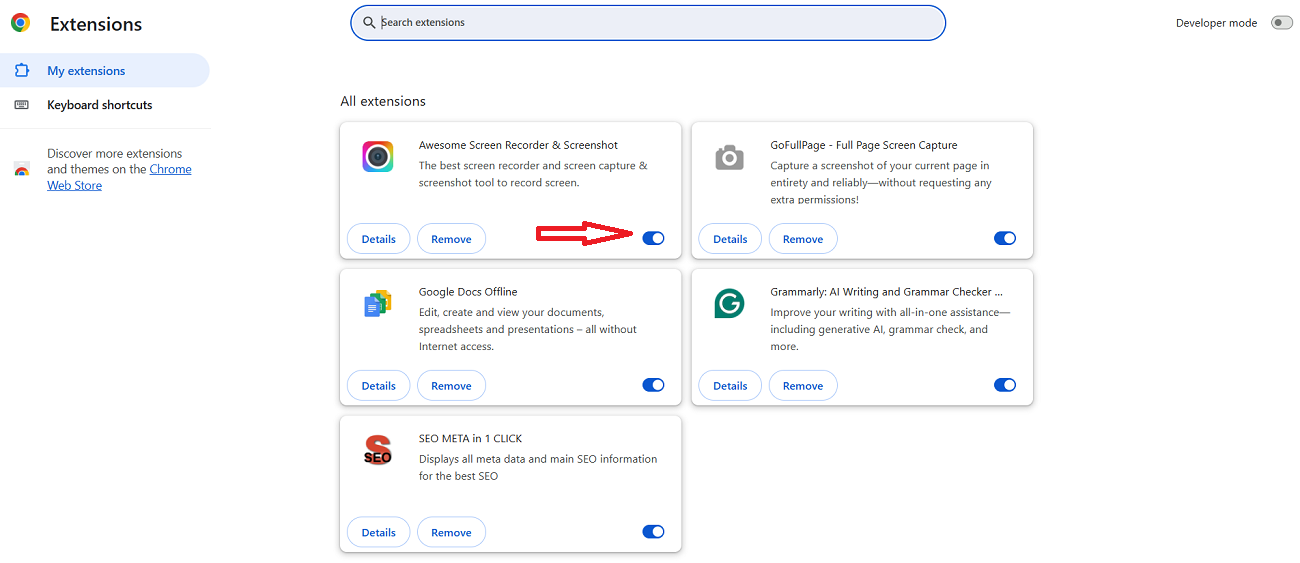
As a result, you can easily disable any browser extension by toggling them off. In addition, this possible workaround helps you eliminate the ERR_CONNECTION_RESET error. Apart from this, disabling browser extensions helps eradicate the ERR_SSL_PROTOCOL_ERROR. Moreover, the same process helps resolve the ERR_ADDRESS_UNREACHABLE error.
Contact Your Web Hosting Provider
After trying the above workarounds, contact your web hosting provider if you cannot resolve the “This site can’t be reached” error. Sometimes, contacting web hosting services is a good option because they help you avoid the “This site can’t be reached” Chrome error in the first place.
They have experience in resolving various WordPress errors and offer different impactful solutions related to these issues. So, hopefully, you can get rid of the “This site can’t be reached” error once you consult with your web hosting provider.
Wrapping Up
We hope you can fix the “this site can’t be reached” error by following the above solutions. Although this client-side issue is irritating, you can bypass it. However, you must follow these troubleshooting methods in the right direction to achieve your objective.
This blog post describes possible causes of the “this site can’t be reached” error and offers various solutions that can help you resolve this annoying issue.




